
A calm menu bar, done the native way. Hides the icons you don't need until you do.
See the codeREADME







Pelmet hides the icons you don't need until you do. Hover, click or press a shortcut and they slide back in. Small on purpose (three sections, an editor, ⌘-drag in the bar) and native all the way down. macOS does the hiding. Built for the menu bar Apple rebuilt in macOS 27. Free, open source, no account, no analytics.
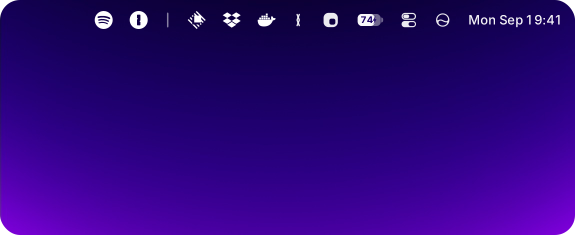
Collapsed, and a hover later.
Choose what stays
Three sections, one rule: Visible is always there, Hidden comes back on a hover or a click, and Always Hidden only appears when you ask for it (double-click or ⌥-click the chevron). Arrange them in the layout editor (real app-icon previews, drag-and-drop ordering), or skip the window entirely and ⌘-drag icons across the chevron right in the menu bar. Pelmet adopts the move either way.
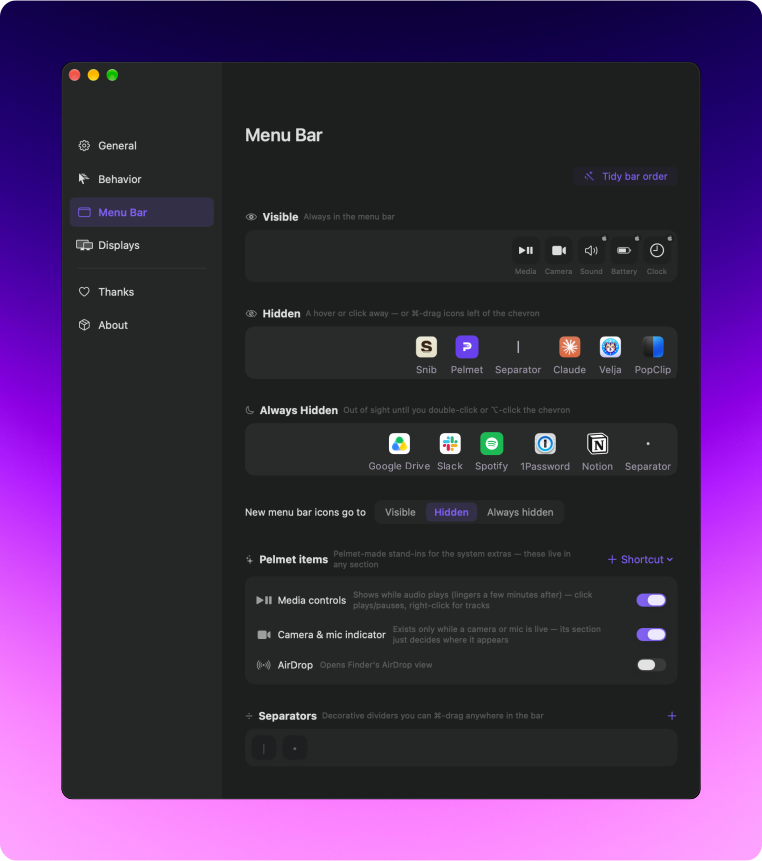
The layout editor. Drag icons between Visible, Hidden and Always Hidden.
System icons hide too. Sound, Battery and friends behave like any other icon. The few macOS protects (Clock, Control Center) are shown locked in the editor rather than pretended away, and anything macOS groups together gets an honest badge instead of a fake handle. Siri and Time Machine, which macOS only hides as a pair, come as Pelmet's own items so each can go wherever you like.
Reveal on your terms
Every way back in is a setting: hover (with a delay from 0.1 to 0.5 seconds), a click on empty menu bar space, a double-click for the always-hidden section, or the chevron itself. Pick how it looks (Instant, Smooth or Fade) and how it ends, either auto-rehide after a delay you set (instant to 5 seconds) or the moment you click somewhere else.
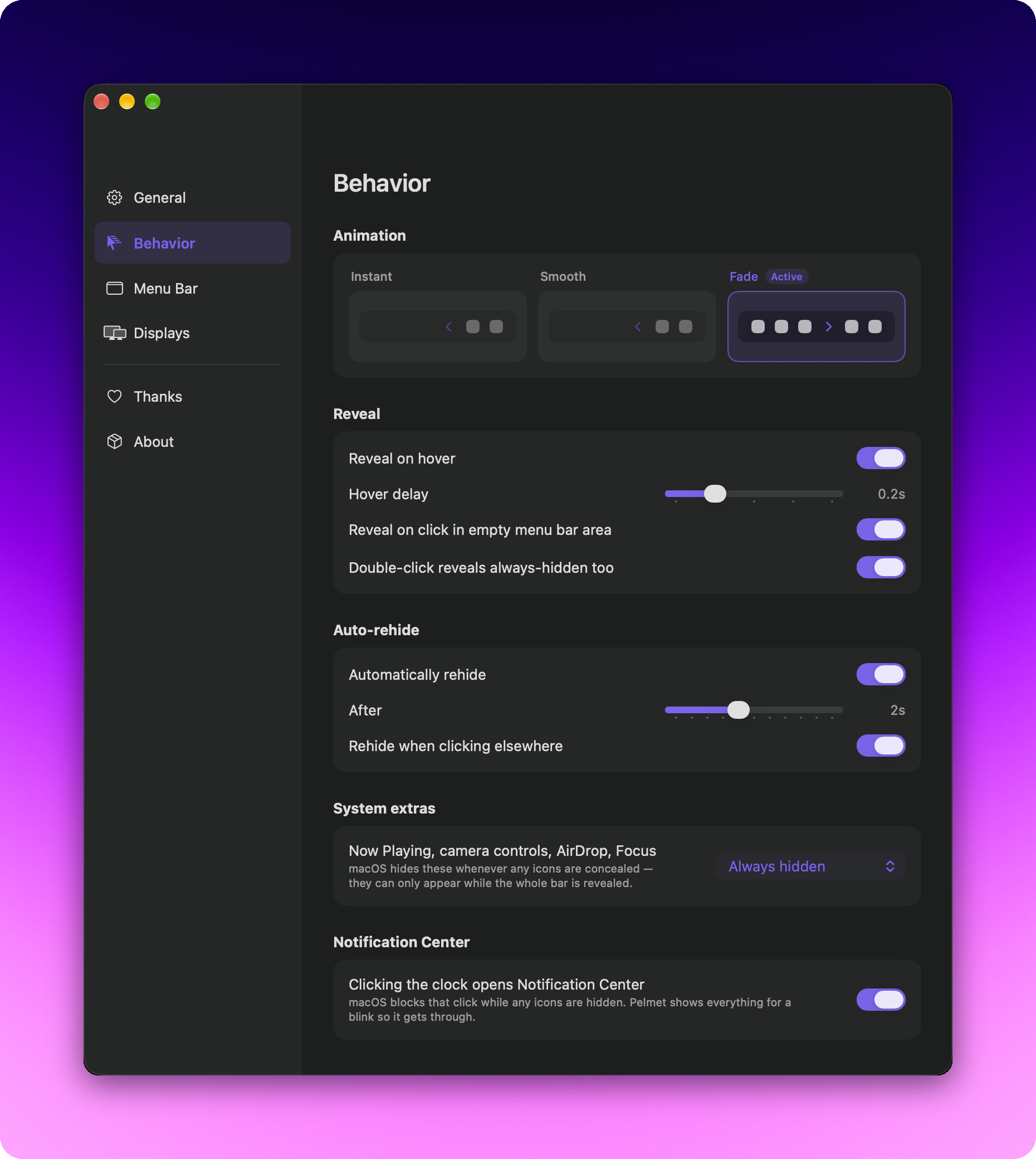
Your rules for revealing, and for putting everything back.
And the rest
- Per-display behavior. Set a display to always show everything or to collapse. Whichever display your pointer is on wins.
- Built-in replacements. Media controls, AirDrop, camera/mic indicator, a timer, Focus, fast user switching and Shortcuts items that survive hiding, since macOS temporarily removes its own extras while hiding is active. Media controls, Time Machine and Focus show when active or always, and a ⌘-drag off the bar turns any of them off.
- App launchers. A Pelmet icon for any app: click opens it, and it hides like everything else. The fix for apps whose own icon can't be hidden (see the FAQ), and a handy launcher for the rest.
- Separators. Visual dividers that behave like icons, with adjustable opacity. ⌘-drag them anywhere in the bar.
- Nothing to phone home about. No account, no analytics, no server. The only connection Pelmet ever makes is checking for its own updates.
- Signed updates. Sparkle with EdDSA signatures, checked against a signed appcast.
- Your icon, or none. Six menu bar icon styles (chevron, arrow, eye, dots, grid, panel), or turn the icon off entirely and reach Settings by shortcut or right-click.
- Speaks your language. English, German, French, Spanish, Italian,
Portuguese (Brazil), Japanese, Simplified Chinese, Korean and Russian.
Pelmet follows your system language, or pick one in Settings › General ›
Language. Translations are machine-drafted for now, corrections are welcome
in
scripts/gen-xcstrings.py.
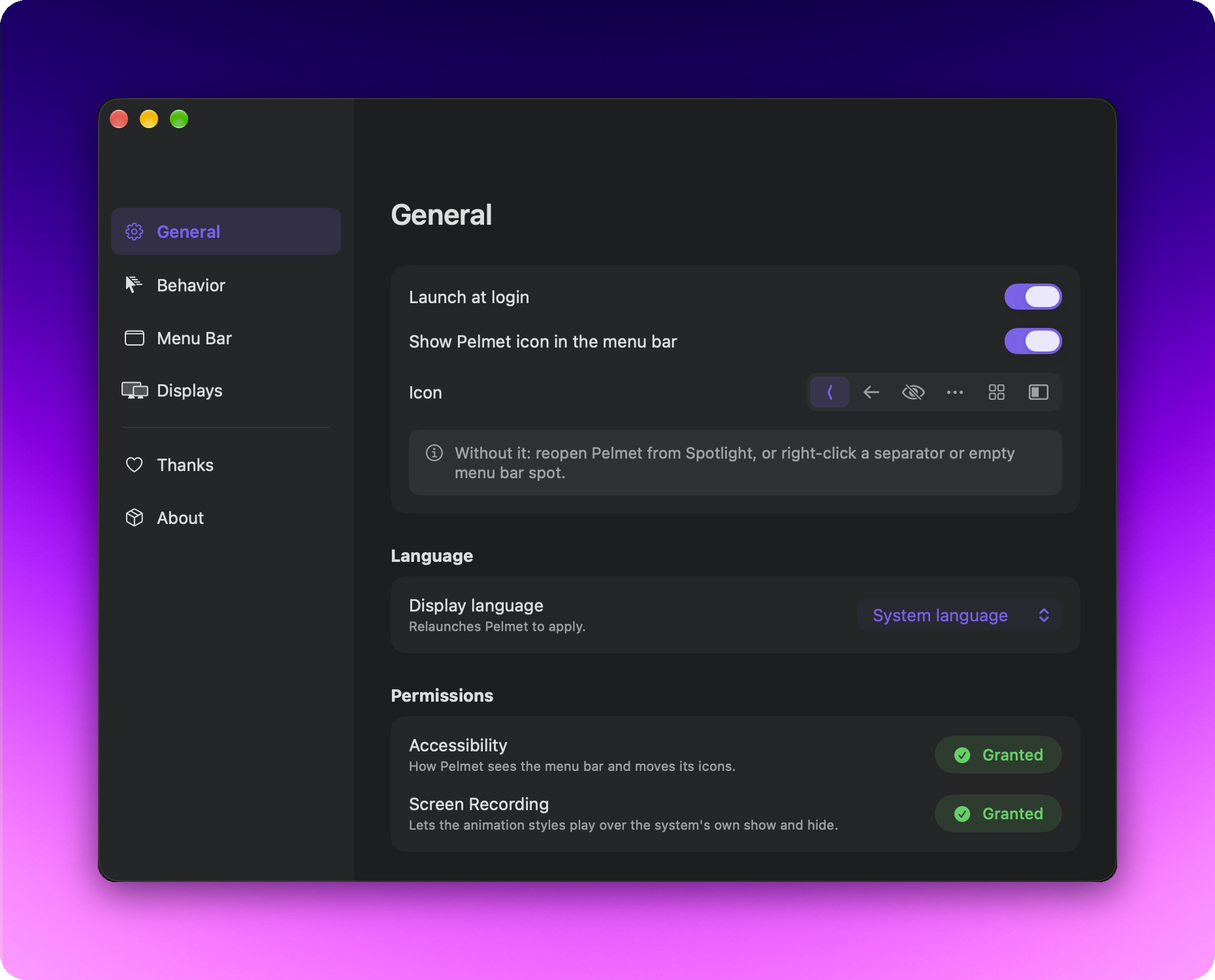
General. Pick the icon Pelmet wears, or your language.
How it works
macOS 27's menu bar can hide items natively. It's the mechanism behind the system's assessment (exam lockdown) mode. Pelmet drives that mechanism directly. It asserts a configuration listing what should stay visible, and macOS itself hides the rest and reflows the bar. That's why hiding feels like part of the system. It is the system.
The catch: this API lives in a private Apple framework
(MenuBarClientCore). It isn't documented or guaranteed, so a macOS update
could change or remove it. Pelmet resolves it at runtime and fails soft. If the
API ever disappears, Pelmet simply reports hiding as unavailable rather than
breaking your menu bar. Everything else (item positions, clicks, previews)
uses public APIs: Accessibility and ScreenCaptureKit.
Install
Download the latest DMG from Releases, drag Pelmet to Applications, and launch it. Or with Homebrew:
brew install fif7y/tap/pelmet
Requires macOS 27 (Golden Gate). Earlier versions of macOS use a different menu bar architecture that Pelmet doesn't target.
On first launch Pelmet asks for one permission:
- Accessibility (required). How Pelmet sees the menu bar's items and positions, and how clicking a hidden item works without revealing everything.
Screen Recording is optional, offered next to Accessibility in onboarding and skippable. The animation styles use it: macOS shows and hides icons with an animation of its own, and Pelmet's Instant, Smooth and Fade play over it using two stills of the menu bar. Nothing is recorded or kept. Without it, icons show and hide the way macOS does it.
Pelmet is notarized by Apple and ships with the hardened runtime. It isn't sandboxed, managing the menu bar requires APIs the App Store sandbox forbids.
More in the FAQ.
Build from source
Requires Xcode with the macOS 27 SDK and xcodegen.
git clone https://github.com/fif7y/pelmet.git
cd pelmet
xcodegen
xcodebuild -project Pelmet.xcodeproj -scheme Pelmet -configuration Release build
The engine logic lives in two local Swift packages, Packages/PelmetCore
(section model, rehide state machine) and Packages/PelmetEngine (menu bar
convergence), each with its own test suite:
swift test --package-path Packages/PelmetCore
swift test --package-path Packages/PelmetEngine
UI strings live in Pelmet/Resources/Localizable.xcstrings, generated from
the translation table in scripts/gen-xcstrings.py. Edit the script, re-run
it, commit both. English keys must match the code literals exactly.
Why "Pelmet"
pelmet (n.), a narrow border of cloth or wood, fitted across the top of a window to conceal the curtain fittings. Now also the same thing, for your menu bar.
Licenses & acknowledgements
Pelmet was inspired by Ice, the open-source menu bar manager for earlier versions of macOS. Apple's macOS 27 rebuild of the menu bar doesn't carry the old architecture forward, so Pelmet was rebuilt from scratch for the new one (no code is shared between the projects).
Pelmet's only third-party dependency is Sparkle (in-app updates), used under the MIT-style Sparkle license. Everything else is custom code on top of Apple's system frameworks.
License
© 2026 Gabriel Faucon. Licensed under the GNU General Public License v3.0. Use it, fork it. Distributed derivatives must remain open under the same license.
Pelmet is an independent project, not affiliated with or endorsed by Apple Inc. Apple, macOS, and the Mac are trademarks of Apple Inc.
Contributors


See what people are saying
Similar repos


Languages
Swift
87.5%
Python
11.5%
A calm menu bar, done the native way. Hides the icons you don't need until you do.
See the codeREADME
Pelmet hides the icons you don't need until you do. Hover, click or press a shortcut and they slide back in. Small on purpose (three sections, an editor, ⌘-drag in the bar) and native all the way down. macOS does the hiding. Built for the menu bar Apple rebuilt in macOS 27. Free, open source, no account, no analytics.
Collapsed, and a hover later.
Choose what stays
Three sections, one rule: Visible is always there, Hidden comes back on a hover or a click, and Always Hidden only appears when you ask for it (double-click or ⌥-click the chevron). Arrange them in the layout editor (real app-icon previews, drag-and-drop ordering), or skip the window entirely and ⌘-drag icons across the chevron right in the menu bar. Pelmet adopts the move either way.
The layout editor. Drag icons between Visible, Hidden and Always Hidden.
System icons hide too. Sound, Battery and friends behave like any other icon. The few macOS protects (Clock, Control Center) are shown locked in the editor rather than pretended away, and anything macOS groups together gets an honest badge instead of a fake handle. Siri and Time Machine, which macOS only hides as a pair, come as Pelmet's own items so each can go wherever you like.
Reveal on your terms
Every way back in is a setting: hover (with a delay from 0.1 to 0.5 seconds), a click on empty menu bar space, a double-click for the always-hidden section, or the chevron itself. Pick how it looks (Instant, Smooth or Fade) and how it ends, either auto-rehide after a delay you set (instant to 5 seconds) or the moment you click somewhere else.
Your rules for revealing, and for putting everything back.
And the rest
- Per-display behavior. Set a display to always show everything or to collapse. Whichever display your pointer is on wins.
- Built-in replacements. Media controls, AirDrop, camera/mic indicator, a timer, Focus, fast user switching and Shortcuts items that survive hiding, since macOS temporarily removes its own extras while hiding is active. Media controls, Time Machine and Focus show when active or always, and a ⌘-drag off the bar turns any of them off.
- App launchers. A Pelmet icon for any app: click opens it, and it hides like everything else. The fix for apps whose own icon can't be hidden (see the FAQ), and a handy launcher for the rest.
- Separators. Visual dividers that behave like icons, with adjustable opacity. ⌘-drag them anywhere in the bar.
- Nothing to phone home about. No account, no analytics, no server. The only connection Pelmet ever makes is checking for its own updates.
- Signed updates. Sparkle with EdDSA signatures, checked against a signed appcast.
- Your icon, or none. Six menu bar icon styles (chevron, arrow, eye, dots, grid, panel), or turn the icon off entirely and reach Settings by shortcut or right-click.
- Speaks your language. English, German, French, Spanish, Italian,
Portuguese (Brazil), Japanese, Simplified Chinese, Korean and Russian.
Pelmet follows your system language, or pick one in Settings › General ›
Language. Translations are machine-drafted for now, corrections are welcome
in
scripts/gen-xcstrings.py.
General. Pick the icon Pelmet wears, or your language.
How it works
macOS 27's menu bar can hide items natively. It's the mechanism behind the system's assessment (exam lockdown) mode. Pelmet drives that mechanism directly. It asserts a configuration listing what should stay visible, and macOS itself hides the rest and reflows the bar. That's why hiding feels like part of the system. It is the system.
The catch: this API lives in a private Apple framework
(MenuBarClientCore). It isn't documented or guaranteed, so a macOS update
could change or remove it. Pelmet resolves it at runtime and fails soft. If the
API ever disappears, Pelmet simply reports hiding as unavailable rather than
breaking your menu bar. Everything else (item positions, clicks, previews)
uses public APIs: Accessibility and ScreenCaptureKit.
Install
Download the latest DMG from Releases, drag Pelmet to Applications, and launch it. Or with Homebrew:
brew install fif7y/tap/pelmet
Requires macOS 27 (Golden Gate). Earlier versions of macOS use a different menu bar architecture that Pelmet doesn't target.
On first launch Pelmet asks for one permission:
- Accessibility (required). How Pelmet sees the menu bar's items and positions, and how clicking a hidden item works without revealing everything.
Screen Recording is optional, offered next to Accessibility in onboarding and skippable. The animation styles use it: macOS shows and hides icons with an animation of its own, and Pelmet's Instant, Smooth and Fade play over it using two stills of the menu bar. Nothing is recorded or kept. Without it, icons show and hide the way macOS does it.
Pelmet is notarized by Apple and ships with the hardened runtime. It isn't sandboxed, managing the menu bar requires APIs the App Store sandbox forbids.
More in the FAQ.
Build from source
Requires Xcode with the macOS 27 SDK and xcodegen.
git clone https://github.com/fif7y/pelmet.git
cd pelmet
xcodegen
xcodebuild -project Pelmet.xcodeproj -scheme Pelmet -configuration Release build
The engine logic lives in two local Swift packages, Packages/PelmetCore
(section model, rehide state machine) and Packages/PelmetEngine (menu bar
convergence), each with its own test suite:
swift test --package-path Packages/PelmetCore
swift test --package-path Packages/PelmetEngine
UI strings live in Pelmet/Resources/Localizable.xcstrings, generated from
the translation table in scripts/gen-xcstrings.py. Edit the script, re-run
it, commit both. English keys must match the code literals exactly.
Why "Pelmet"
pelmet (n.), a narrow border of cloth or wood, fitted across the top of a window to conceal the curtain fittings. Now also the same thing, for your menu bar.
Licenses & acknowledgements
Pelmet was inspired by Ice, the open-source menu bar manager for earlier versions of macOS. Apple's macOS 27 rebuild of the menu bar doesn't carry the old architecture forward, so Pelmet was rebuilt from scratch for the new one (no code is shared between the projects).
Pelmet's only third-party dependency is Sparkle (in-app updates), used under the MIT-style Sparkle license. Everything else is custom code on top of Apple's system frameworks.
License
© 2026 Gabriel Faucon. Licensed under the GNU General Public License v3.0. Use it, fork it. Distributed derivatives must remain open under the same license.
Pelmet is an independent project, not affiliated with or endorsed by Apple Inc. Apple, macOS, and the Mac are trademarks of Apple Inc.
See what people are saying
Similar repos
Contributors
Languages
Swift
87.5%
Python
11.5%