LLM frontend for creative writing and roleplay
See the code


Otaku is free and open source, runs on your own computer, needs no infrastructure, installs in one command, and requires minimal configuration. LLMs can be local (via llama.cpp, KoboldCpp, Ollama, and others) or accessed via an API service (OpenRouter, NanoGPT).
The three pillars of otaku:
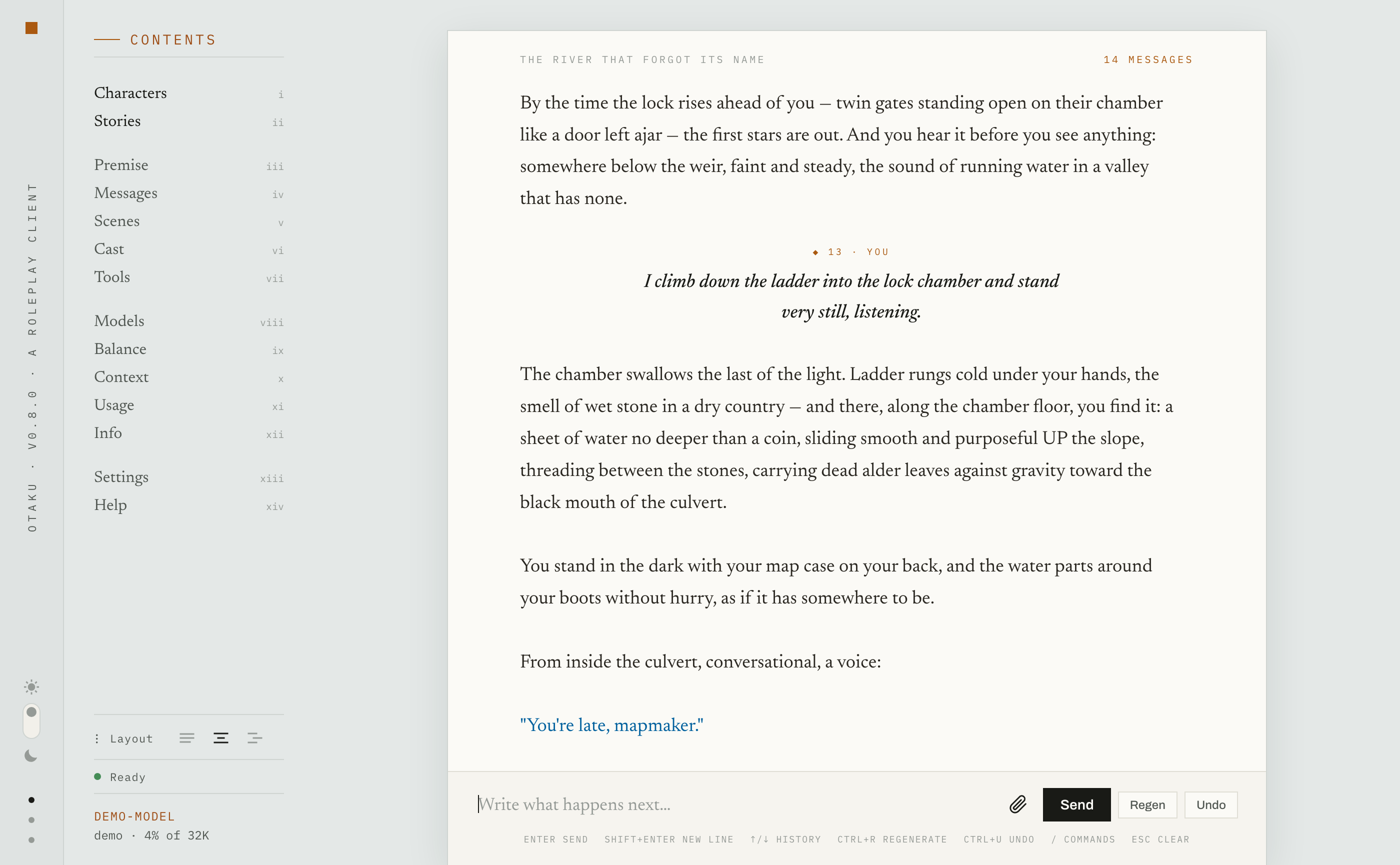
Demos are available on the website:
Both demos include two sample stories and a scripted "model", so you can actually send prompts and see how the UI works.
Writing:
/context command;/ooc and /cue to steer the plot, /me and /you to say who is
speaking.Characters and lore:
Injections:
Tools the model can use (switched on per story, in the story dossier's Tools tab):
Import your existing content:
Planned (a release every one to two weeks):
Providers supported: llama.cpp, KoboldCpp, Ollama, oMLX, LM Studio; OpenRouter and NanoGPT; and any other OpenAI-compatible server through the Generic OpenAI provider, by URL and key.
The script first installs the uv package manager — if you don't have it yet — and then
installs otaku with it.
macOS and Linux:
curl -LsSf https://otaku.sh/install.sh | sh
Windows:
irm https://otaku.sh/install.ps1 | iex
Other ways to install:
# directly with uv
uv tool install otaku

# alternatively, via Homebrew
brew trust enclavum/tap
brew install enclavum/tap/otaku
How to update:
otaku update
In the terminal, type one of the two commands:
otaku — opens the terminal UI;otaku web — makes the web interface available at http://localhost:9600 (can be
configured).On first start, you choose a provider and a model. Otaku automatically detects local LLM backends, while for cloud providers (OpenRouter, NanoGPT) you have to enter their API keys. You can also use any OpenAI-compatible provider by specifying its URL in the Generic OpenAI provider. After you've chosen a model, you land at the prompt. The model picker is also available later.
To give you an idea of the features and what play looks like, two sample stories are imported on first start.
Both the web interface and the terminal share the same functions; the difference is that in the
terminal you execute them with slash commands (the reference is available with /help), while
in the web interface the operations are available from the menu. In the description below, all
commands are given as they are called from the terminal.
You can start a new story with the /new command. You can also import a
SillyTavern chat with /import. Note that importing takes time, because it not only imports
the messages but also extracts characters and scenes from them (more on that below), though you
can cancel the extraction. You can also import a plain text file the same way; it will be split
into messages.
You send messages as usual, as your persona; the model infers which character to play from the
dialogue. There are helper commands — /you, /me, and /ooc — which only frame your prompt
with minimal injections like "you play as …" (you can see and configure these templates in
~/.otaku/configs/prompts.toml).
Mid-prompt, there are also two helper commands: /ooc and /cue. Both wrap the text after
them in an OOC block; the difference is that the /ooc block persists — right for a standing
note to the model — while the /cue block is sent only once — right for one-time story steering.
A few example prompts:
I follow the keeper deeper into the vault. — plain play/ooc Keep replies under three paragraphs. — out of character, a standing note"Who goes there?" I whisper. /ooc the keeper does not know me yet — play with an aside"Come away with me," I tell the keeper. /cue she refuses — play with a one-time steer/me Keeper: You are late again. — hint to the model that you are playing Keeper now/you Keeper — tell the model to play as Keeper/you Keeper: she is furious — the same but with a directionFor D&D roleplay, there is the /roll command: /roll 1d20+5 I search the alcove rolls the
dice, shows you what fell, and sends the result together with your action; /regen re-tells the
same roll rather than re-rolling it. Dice examples: 2d6+3, d20, 2d20kh1/2d20kl1.
During play, you can /undo (Ctrl+U) the last exchange and /regen (Ctrl+R) the last reply.
You can switch between chat and story modes with /set mode chat or /set mode story; in the web
interface, use the layout buttons in the contents.
In story mode, you write text directly in the transcript. After you press Enter, the model
continues the story. If you want to add a new paragraph, press Ctrl+Enter (or Ctrl+J if that
doesn't work). You can just hit Enter without adding your text, and the model will continue. As in
chat mode, you can use the helper commands /ooc and /cue to steer the story.
You can import character cards into the story you are playing with the /card command, where you
specify a card file to load (either PNG or JSON). The command automatically creates a character in
the lore (see below), and the character greets you. The card is also saved to the characters
library, linked to that character. The card is treated as a normal prompt — it's just that you are
sending the card content as your message. The imported card can later be edited in the /cast tab
of the story dossier, and the context will change accordingly.
You can browse the stories you've played with the /stories (Ctrl+T) command. From the story
browser, you can choose a story to continue from any message, or fork from there to another
story. You can also fork a new version of the story you are playing with the /fork command.
Forking copies all scenes, characters, journals, etc. to the new branch. Note that you can edit
messages in the story browser with the e key.
After you've sent around 50 messages, a summary pass starts automatically in the background once
you've been idle for 5 minutes, so it doesn't disturb your roleplay. You can also run it on
demand with /extract. You'll see a notification and its progress in the status bar, and you
can keep playing meanwhile — replies will just be slower while it runs.
Once the extraction completes, you can browse and edit the extracted summaries and characters
with the /lore and /cast commands. Summaries are editable, so you can correct them however
you like.
The summaries only kick in once you have more than around 200 messages in the chat. The first 20 and the last 150 messages (both configurable) are always sent as is, to preserve maximum detail of recent story development and your prose style; everything in between is replaced with scene summaries. Even though summaries may exist up to the latest message, only the older ones are actually used. Nothing is included in the context by a condition or a trigger word.
The exact context composition, case by case, is described in
context_design.md.
You can use the /context command to see what exactly will be sent to the model.
Everything lives in the state dir, ~/.otaku by default:
configs/config.toml — context shape, extraction thresholds, encryption, backups, and web
settings.configs/providers.toml — one section per provider (URL, API key). The model picker edits it
for you, and API keys are stored sealed.configs/integrations.toml — the web search key, stored sealed; the Tools tab edits it for you.configs/prompts.toml — every template otaku ever sends, editable.configs/state.toml, configs/models.toml — the app's own memory of your session and
per-model settings.web/custom.css and web/fonts/ — web interface customization, if needed.The config files are written on first run and after that edited only surgically — line by line,
never rewritten as a whole: version migrations at launch and the picker's provider edits, each
keeping the pre-edit file in configs/backups/. prompts.toml migrates the same way: a
template you left unedited follows a new release's built-in, and one you've edited is never
touched.
Set OTAKU_CONFIG_DIR to run a completely separate environment:
OTAKU_CONFIG_DIR=~/.otaku-alt otaku.
By default, the web interface is available on the local machine only. You can make it available
over the network by changing the host parameter in the [web] section of
~/.otaku/configs/config.toml from localhost to 0.0.0.0.
If you go public, you should also consider turning on the next two parameters, https and
password, for privacy.
The web interface can serve over HTTPS. Turn on https in the config file and otaku generates a
self-signed certificate, which you can also replace with your own if you need to. Browsers will
show warnings about an untrusted certificate — that is unavoidable with a self-signed certificate,
but the encryption is real.
When the web interface is available over the network, protect it with a password — set it in the same config file.
To restyle the web interface, create ~/.otaku/web/custom.css; it overrides styles in the bundled
design. The custom properties it can set are listed in
docs/web_tokens.md.
Stories live in a local SQLite database; the database is snapshotted daily into the state dir, the last seven kept (configurable).
Pictures attached to a turn and cards' pictures are kept beside the database, downsized and stripped of their metadata; they are not part of the daily snapshot.
Encryption at rest is disabled by default but is one config switch away (AES-256-GCM, sealed client-side): the key can live in your OS keychain, come from a command of your choice (a password manager, a hardware token), derive from a passphrase, or sit on disk. The request log and the pictures are sealed with the same cipher.
Provider API keys are always stored sealed, their key in the OS keychain.
Details in SECURITY.md.
See CONTRIBUTING.md — a small, focused project; contributions that keep it sharp are very welcome.
LLM frontend for creative writing and roleplay
See the code
Otaku is free and open source, runs on your own computer, needs no infrastructure, installs in one command, and requires minimal configuration. LLMs can be local (via llama.cpp, KoboldCpp, Ollama, and others) or accessed via an API service (OpenRouter, NanoGPT).
The three pillars of otaku:
Demos are available on the website:
Both demos include two sample stories and a scripted "model", so you can actually send prompts and see how the UI works.
Writing:
/context command;/ooc and /cue to steer the plot, /me and /you to say who is
speaking.Characters and lore:
Injections:
Tools the model can use (switched on per story, in the story dossier's Tools tab):
Import your existing content:
Planned (a release every one to two weeks):
Providers supported: llama.cpp, KoboldCpp, Ollama, oMLX, LM Studio; OpenRouter and NanoGPT; and any other OpenAI-compatible server through the Generic OpenAI provider, by URL and key.
The script first installs the uv package manager — if you don't have it yet — and then
installs otaku with it.
macOS and Linux:
curl -LsSf https://otaku.sh/install.sh | sh
Windows:
irm https://otaku.sh/install.ps1 | iex
Other ways to install:
# directly with uv
uv tool install otaku

# alternatively, via Homebrew
brew trust enclavum/tap
brew install enclavum/tap/otaku
How to update:
otaku update
In the terminal, type one of the two commands:
otaku — opens the terminal UI;otaku web — makes the web interface available at http://localhost:9600 (can be
configured).On first start, you choose a provider and a model. Otaku automatically detects local LLM backends, while for cloud providers (OpenRouter, NanoGPT) you have to enter their API keys. You can also use any OpenAI-compatible provider by specifying its URL in the Generic OpenAI provider. After you've chosen a model, you land at the prompt. The model picker is also available later.
To give you an idea of the features and what play looks like, two sample stories are imported on first start.
Both the web interface and the terminal share the same functions; the difference is that in the
terminal you execute them with slash commands (the reference is available with /help), while
in the web interface the operations are available from the menu. In the description below, all
commands are given as they are called from the terminal.
You can start a new story with the /new command. You can also import a
SillyTavern chat with /import. Note that importing takes time, because it not only imports
the messages but also extracts characters and scenes from them (more on that below), though you
can cancel the extraction. You can also import a plain text file the same way; it will be split
into messages.
You send messages as usual, as your persona; the model infers which character to play from the
dialogue. There are helper commands — /you, /me, and /ooc — which only frame your prompt
with minimal injections like "you play as …" (you can see and configure these templates in
~/.otaku/configs/prompts.toml).
Mid-prompt, there are also two helper commands: /ooc and /cue. Both wrap the text after
them in an OOC block; the difference is that the /ooc block persists — right for a standing
note to the model — while the /cue block is sent only once — right for one-time story steering.
A few example prompts:
I follow the keeper deeper into the vault. — plain play/ooc Keep replies under three paragraphs. — out of character, a standing note"Who goes there?" I whisper. /ooc the keeper does not know me yet — play with an aside"Come away with me," I tell the keeper. /cue she refuses — play with a one-time steer/me Keeper: You are late again. — hint to the model that you are playing Keeper now/you Keeper — tell the model to play as Keeper/you Keeper: she is furious — the same but with a directionFor D&D roleplay, there is the /roll command: /roll 1d20+5 I search the alcove rolls the
dice, shows you what fell, and sends the result together with your action; /regen re-tells the
same roll rather than re-rolling it. Dice examples: 2d6+3, d20, 2d20kh1/2d20kl1.
During play, you can /undo (Ctrl+U) the last exchange and /regen (Ctrl+R) the last reply.
You can switch between chat and story modes with /set mode chat or /set mode story; in the web
interface, use the layout buttons in the contents.
In story mode, you write text directly in the transcript. After you press Enter, the model
continues the story. If you want to add a new paragraph, press Ctrl+Enter (or Ctrl+J if that
doesn't work). You can just hit Enter without adding your text, and the model will continue. As in
chat mode, you can use the helper commands /ooc and /cue to steer the story.
You can import character cards into the story you are playing with the /card command, where you
specify a card file to load (either PNG or JSON). The command automatically creates a character in
the lore (see below), and the character greets you. The card is also saved to the characters
library, linked to that character. The card is treated as a normal prompt — it's just that you are
sending the card content as your message. The imported card can later be edited in the /cast tab
of the story dossier, and the context will change accordingly.
You can browse the stories you've played with the /stories (Ctrl+T) command. From the story
browser, you can choose a story to continue from any message, or fork from there to another
story. You can also fork a new version of the story you are playing with the /fork command.
Forking copies all scenes, characters, journals, etc. to the new branch. Note that you can edit
messages in the story browser with the e key.
After you've sent around 50 messages, a summary pass starts automatically in the background once
you've been idle for 5 minutes, so it doesn't disturb your roleplay. You can also run it on
demand with /extract. You'll see a notification and its progress in the status bar, and you
can keep playing meanwhile — replies will just be slower while it runs.
Once the extraction completes, you can browse and edit the extracted summaries and characters
with the /lore and /cast commands. Summaries are editable, so you can correct them however
you like.
The summaries only kick in once you have more than around 200 messages in the chat. The first 20 and the last 150 messages (both configurable) are always sent as is, to preserve maximum detail of recent story development and your prose style; everything in between is replaced with scene summaries. Even though summaries may exist up to the latest message, only the older ones are actually used. Nothing is included in the context by a condition or a trigger word.
The exact context composition, case by case, is described in
context_design.md.
You can use the /context command to see what exactly will be sent to the model.
Everything lives in the state dir, ~/.otaku by default:
configs/config.toml — context shape, extraction thresholds, encryption, backups, and web
settings.configs/providers.toml — one section per provider (URL, API key). The model picker edits it
for you, and API keys are stored sealed.configs/integrations.toml — the web search key, stored sealed; the Tools tab edits it for you.configs/prompts.toml — every template otaku ever sends, editable.configs/state.toml, configs/models.toml — the app's own memory of your session and
per-model settings.web/custom.css and web/fonts/ — web interface customization, if needed.The config files are written on first run and after that edited only surgically — line by line,
never rewritten as a whole: version migrations at launch and the picker's provider edits, each
keeping the pre-edit file in configs/backups/. prompts.toml migrates the same way: a
template you left unedited follows a new release's built-in, and one you've edited is never
touched.
Set OTAKU_CONFIG_DIR to run a completely separate environment:
OTAKU_CONFIG_DIR=~/.otaku-alt otaku.
By default, the web interface is available on the local machine only. You can make it available
over the network by changing the host parameter in the [web] section of
~/.otaku/configs/config.toml from localhost to 0.0.0.0.
If you go public, you should also consider turning on the next two parameters, https and
password, for privacy.
The web interface can serve over HTTPS. Turn on https in the config file and otaku generates a
self-signed certificate, which you can also replace with your own if you need to. Browsers will
show warnings about an untrusted certificate — that is unavoidable with a self-signed certificate,
but the encryption is real.
When the web interface is available over the network, protect it with a password — set it in the same config file.
To restyle the web interface, create ~/.otaku/web/custom.css; it overrides styles in the bundled
design. The custom properties it can set are listed in
docs/web_tokens.md.
Stories live in a local SQLite database; the database is snapshotted daily into the state dir, the last seven kept (configurable).
Pictures attached to a turn and cards' pictures are kept beside the database, downsized and stripped of their metadata; they are not part of the daily snapshot.
Encryption at rest is disabled by default but is one config switch away (AES-256-GCM, sealed client-side): the key can live in your OS keychain, come from a command of your choice (a password manager, a hardware token), derive from a passphrase, or sit on disk. The request log and the pictures are sealed with the same cipher.
Provider API keys are always stored sealed, their key in the OS keychain.
Details in SECURITY.md.
See CONTRIBUTING.md — a small, focused project; contributions that keep it sharp are very welcome.
234 followers · starred Aug 2026





