
Linux control suite, PipeWire submixer, and OpenDeck plugin for Elgato XLR interfaces (Wave XLR Pro, XLR Dock, Wave XLR, MK.2)
C#
22
598 commits
updated Sep 21, 2026
See what people are saying (1)
README









Native Linux control suite for Elgato XLR interfaces: hardware control over reverse-engineered USB protocols, a Wave Link style PipeWire submixer with per-application channels, virtual microphones, LV2, CLAP and VST3 plugin inserts, multi-output monitoring, a dedicated mix for a second computer on the USB Aux port, and an OpenDeck plugin for Stream Deck control.
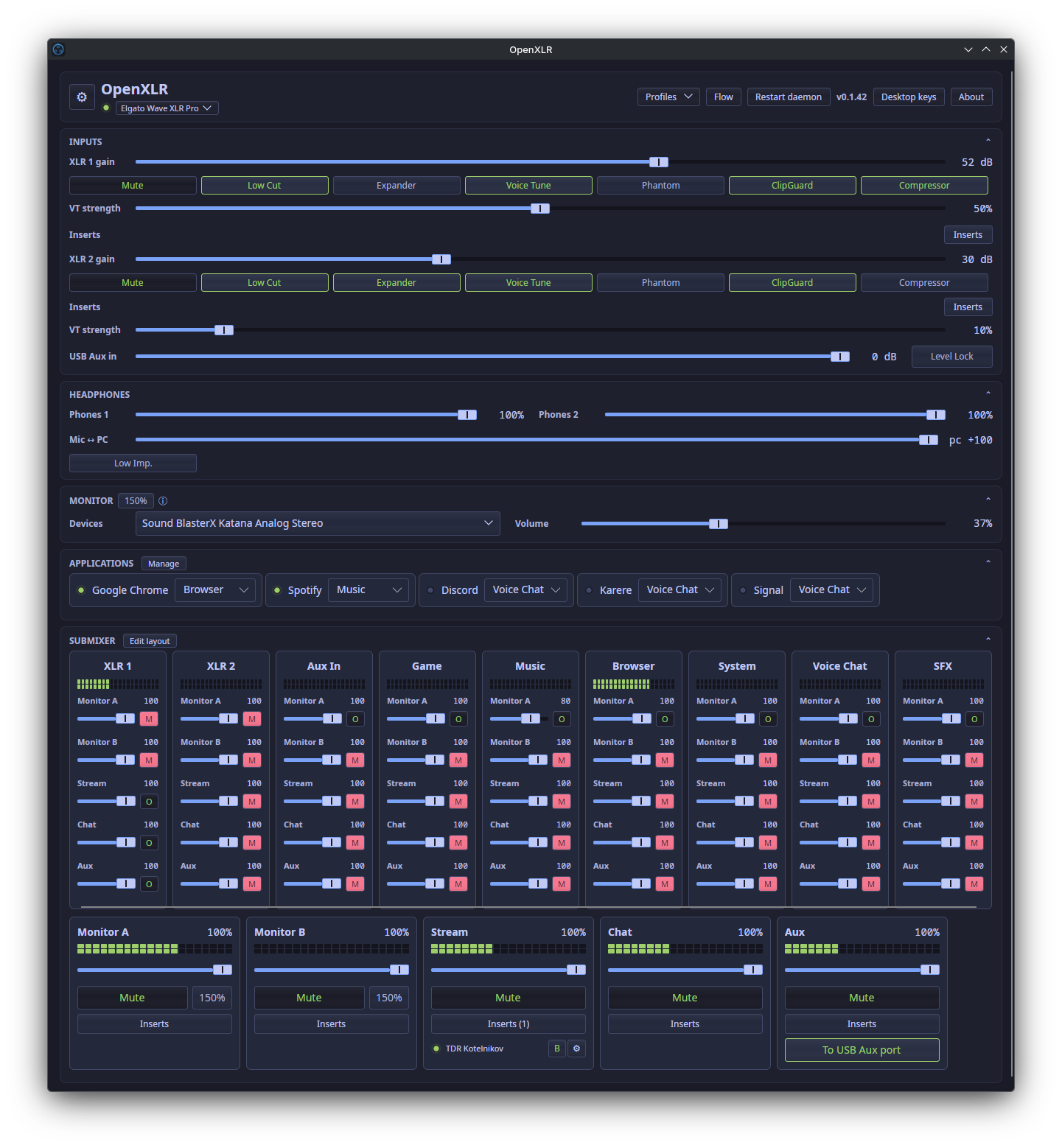
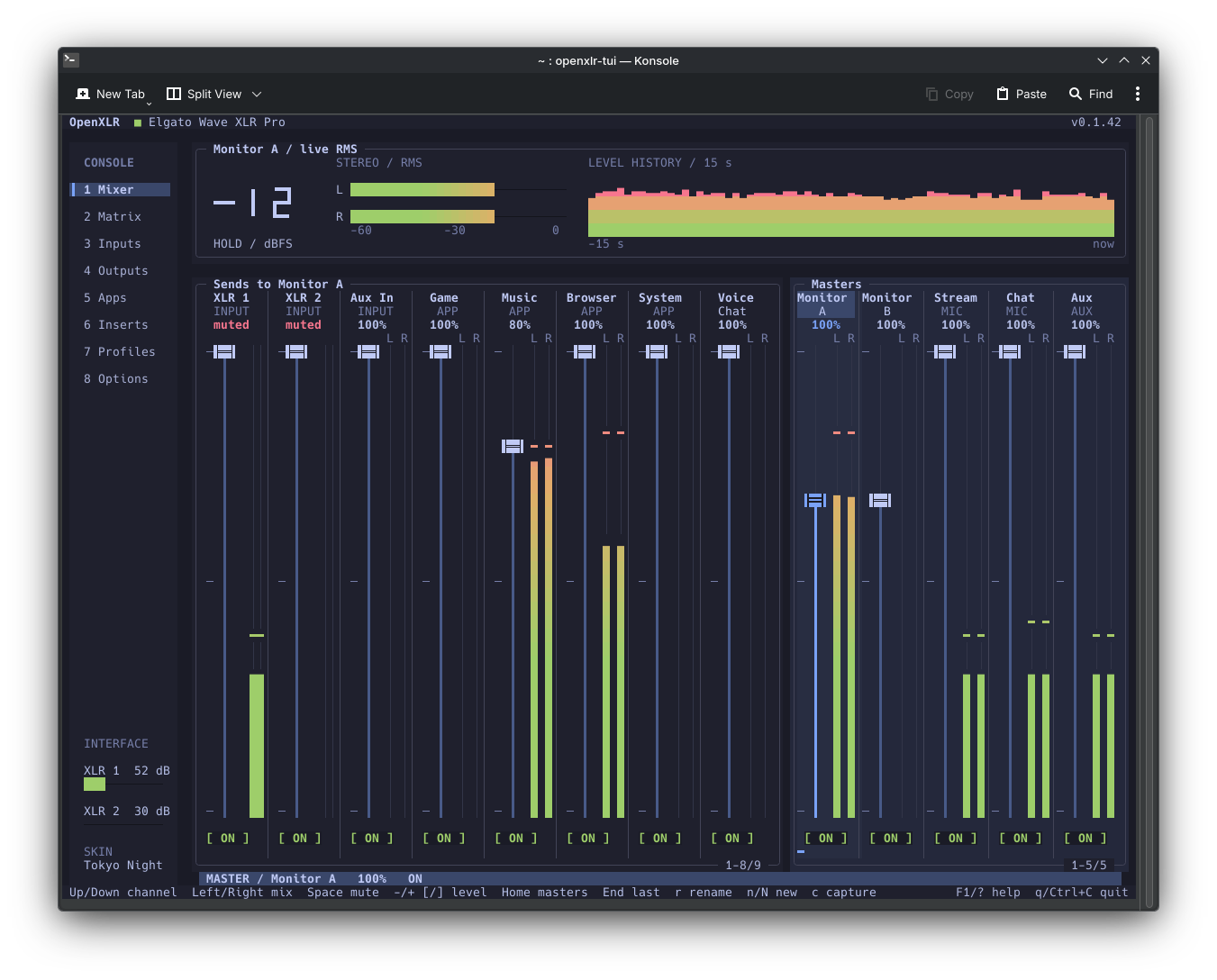
The window and the terminal mixer, both from 0.1.42, the terminal mixer
in the Tokyo Night skin. This README and the linked guides describe
current main; for a released build, read the docs at its release tag.
Changes merged after a release are available from source until the next release.
Elgato ships no Linux software. These devices expose class-compliant USB audio; OpenXLR also supplies device-specific configuration, including WirePlumber rules that keep XLR Dock and original Wave XLR capture alive. Controls beyond standard USB audio use device-specific protocols, decoded from Wave Link USB captures and prior open-source protocol work. OpenXLR uses those mappings alongside ALSA controls where available.
Not affiliated with or endorsed by Elgato. Built by protocol analysis on the author's own hardware.
Supported devices
| Device | USB id | Status |
|---|---|---|
| Wave XLR Pro | 0fd9:00b4 | mapped controls verified on hardware; hardware EQ and the full mix matrix remain unmapped |
| XLR Dock (Stream Deck+ module) | 0fd9:00a6 | gain, mute, headphone volume, 48V phantom power, low impedance; verified on hardware |
| Wave XLR | 0fd9:007d | gain, mute, headphone volume and low impedance verified by community testers; phantom power implemented, awaiting an OpenXLR hardware check |
| Wave XLR MK.2 | 0fd9:00b6 | gain, mute, phantom power, DSP, ClipGuard, compressor, headphone volume, crossfade; verified on hardware by a community tester |
| XLR Dock MK.2 (Stream Deck+ module) | 0fd9:00c7 | same exposed controls as the Wave XLR MK.2, verified on hardware |
The UI shows the controls OpenXLR exposes for the connected device, and a picker in the header switches between several attached interfaces. The per-control state of every device is in docs/hardware-support.md. If you own an untested device, open an issue with a diagnostics archive (Options, SUPPORT, Collect diagnostics).
Features
- Hardware control through device-specific USB protocols and standard ALSA controls. On the Pro: gain, mute, low cut, expander, voice tune and phantom power per input, ClipGuard, compressor, aux input level and lock, two headphone volumes with low-impedance mode, the mic/PC crossfade, and the physical output routing (HP1, HP2, Line Out, USB Aux). The other devices expose the subset their protocol has; see the table above. An XLR Dock whose kernel driver lacks a gain, mute or headphone control gets that control through the dock's config block instead. Where a hardware low cut or ClipGuard control is unavailable, OpenXLR offers software processing in PipeWire. Gain lock is a daemon policy for devices without physical gain controls. Hardware EQ, ducking, mix maximizer and channel booster are not exposed; plugin effects run on the computer, separate from the device's onboard processing.
- Submixer built from PipeWire nodes (null sinks, remap sources, filter chains), no kernel modules. Channels for the hardware inputs, for application groups and for other PipeWire capture sources (a second microphone, a headset, a capture card); mixes for what you hear (Monitor A and Monitor B), for virtual microphones other apps record from, and for the USB Aux port. Any mix, or a sum of mixes, feeds any selected output. The default layout is Game, Music, Browser, System, Voice Chat and SFX with Stream and Chat microphones; channels and microphones can be added, renamed, reordered and removed while audio plays, from the window or the API. Per-send levels and mutes, level meters, the monitor mixes on several outputs at once, and an optional boost that takes the monitor volume to 150%.
- Inserts: LV2, CLAP and VST3 plugin chains on each XLR input and each mix, with a
plugin picker, generated controls, bypass and native plugin editors.
Input chains use mono effects; mix chains use stereo effects. VST3 discovery
checks supported layouts, so effects that default to stereo but accept mono
are also available on XLR inputs. Editable native editor compatibility rules
select OpenXLR controls for troublesome editors without changing audio processing.
Windows VST3 and CLAP plugins use Wine and yabridge; the
openxlr-yabridgepackage supplies a tested bridge with the Wine editor input fix and private wrappers. - Plugin installation and management from Options: import extracted files or bundles, rescan, and manage Windows plugin folders and individual plugins. Single Windows-plugin imports do not register neighbouring plugins. Disable or re-enable plugins, remove their uses from current chains, delete standalone plugins, or open Wine's uninstaller for installed packages. Removing a folder from the list keeps its source files and refreshes discovery. See the Windows plugin guide.
- Application routing: audio clients are detected from their PipeWire registration and routed to a channel by name rules, with the assignment remembered per app; an app can also be left to the desktop's own routing. Electron apps are identified by their process binary rather than the "Chromium" name they report. Missing stream metadata falls back to the owning client, and Windows executable names share an identity with their Wine/Proton client so saved routing persists. A desktop shortcut or a Stream Deck key routes the application that has the focus to a channel.
- Profiles: named scenes holding the hardware settings and the whole submix (levels, mutes, outputs, insert chains), saved per device and recalled from the UI, the API or a Stream Deck key. One profile per device can be recalled on connect, so an interface comes up in a known scene at login or after a power cycle. OpenXLR also restores the last settings on the original Wave XLR and first XLR Dock without a profile, with a reset to the defaults recorded after a power cycle.
- OpenDeck plugin: key and dial actions for every switch, mute, level, insert and output, rendered with level meters and status LEDs, plus output volume and mute keys, the system output switch and focused-application routing. It is a client of the daemon's API, so it reflects changes made in the UI or on the hardware; a dial turn leads locally, so the daemon's echo never pulls the dial back mid-turn.
- Daemon and UI: the daemon owns the device and the graph, keeps
running with the window closed, follows the PipeWire registry through
one subscription, re-asserts the chosen default sink and source once a
second, and serves a WebSocket API and a versioned HTTP API (
/api/v1) on 127.0.0.1:37890. The UI has a Flow window with selectable signal paths through inputs, channels, mixes and outputs, a tray icon and a diagnostics archive exporter. It also owns the desktop keys: global shortcuts registered through the desktop portal that route the focused application, step an output's volume, toggle its mute or switch the system output, active while the window sits in the tray. Options separates background audio and app startup at login, with independent choices for launch visibility and whether closing the window keeps the app in the tray or quits. - Terminal mixer:
openxlr-tuiis the whole mixer in a terminal, for a machine with no desktop session, an ssh connection or a tiling setup. It speaks the same socket as the window, so both can be open at once, and it wears the same skins. Tabs in the manner of btop: the submix grid with live meters, the hardware inputs, the outputs, the applications, the insert chains, the profiles and the appearance. See the manual. - Omarchy bar:
openxlr.mixershows XLR meters, mute and monitor feeds in Omarchy 4, with channel sends and mix masters in a popout. The Arch package integration and user enable command are in docs/omarchy.md. The bar and the popout have been checked on Omarchy 4.0.4; the live theme switch and the hardware controls still need desktop acceptance. - Skins: the window's appearance is a set of named values a skin file can replace. Thirteen ship, all built into the application: Material, its own look, Deck, which dresses the window in the visual language of the OpenDeck plugin's keys and dials, and one for each of the eleven Omarchy palettes. A skin is data, not code: colours, sizes, local images from its own folder and a choice between the control appearances OpenXLR draws, picked in Options and applied to open windows without touching audio. The terminal mixer reads the same files and follows the same choice. See docs/skins.md.
- Optional update notice: the UI can check the upstream GitHub release feed for a newer stable release. Startup checks are off by default and, when enabled, run at most once per day. Nothing is installed automatically.
The full feature list, area by area: docs/features.md.
OpenDeck plugin
Dials get a touch panel with a knob, a level meter, the value and a mute overlay; one dial can hold several targets, cycled by tap or press.
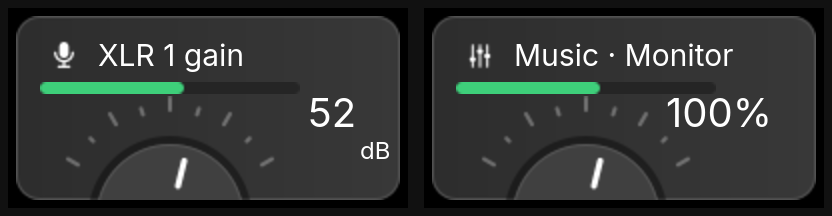
Keys show an icon and a status LED (red for a mute, green for an engaged feature or the active monitor output). Every hardware switch, mute, level and insert is a target.

Install
Packages exist for Arch Linux, CachyOS and Omarchy (AUR), Ubuntu (PPA),
Fedora (COPR) and NixOS (flake); every release also carries a .deb and
an .rpm for a manual install, with SHA-256 checksums and a GitHub build
provenance attestation (gh attestation verify <file> --owner emaspa).
Pick your distribution:
Arch Linux, CachyOS and Omarchy, from the AUR; the two derivatives install the same package:
yay -S openxlr        # or: paru -S openxlr
systemctl --user enable --now openxlr-daemon
openxlr               # the mixer UI, also in your application menu
A package built on Omarchy also carries the bar plugin. Run
openxlr-omarchy-enable once to link and enable it, as
docs/omarchy.md describes.
Ubuntu 24.04 and 26.04, from the PPA:
sudo add-apt-repository ppa:sparvoli/openxlr
sudo apt install openxlr
systemctl --user enable --now openxlr-daemon
openxlr
Without the PPA, download the .deb from the
latest release and
run sudo apt install ./openxlr_*_amd64.deb.
Fedora 44 or newer, from the COPR repository:
sudo dnf copr enable emaspa/openxlr
sudo dnf install openxlr
systemctl --user enable --now openxlr-daemon
openxlr
Without COPR, download the .rpm from the
latest release and
run sudo dnf install ./openxlr-*.x86_64.rpm.
NixOS: the repo is a flake with a package and a module. The module
enables the daemon itself; after a rebuild, openxlr is in the
application menu.
Add inputs.openxlr.url = "github:emaspa/openxlr"; to your system flake,
then include these entries in its nixosSystem.modules list:
openxlr.nixosModules.default
{ services.openxlr.enable = true; }
Here openxlr is the input passed to the flake's outputs function. The
module options configure LV2 plugins, software
ClipGuard and the optional Windows bridge.
On every distribution, replug the interface once after installing so
the udev rule applies. For the Stream Deck, install
com.emaspa.openxlr.sdPlugin.zip from the release with OpenDeck's
install-from-file, or copy the folder the package puts in
/usr/share/openxlr/ into ~/.config/opendeck/plugins/. Inserts show
compatible LV2, CLAP and VST3 plugins (lsp-plugins-lv2 is the set used
during development); the software ClipGuard for the XLR Dock needs
swh-plugins. The NixOS module wires both up itself. Focused-application
routing asks the window over D-Bus with gdbus from the GLib command-line
tools (glib2 on Arch and Fedora, libglib2.0-bin on Ubuntu), which the
packages depend on. The packages also
raise pipewire-pulse's open-file limit with a systemd drop-in, which
applies at the next login or after systemctl --user restart pipewire-pulse; a source install needs the same file before growing the
layout (manual: open-file limit).
Upgrading
A package upgrade replaces the files on disk and leaves the running programs on the code they started with, so a new version appears only after they restart. Rebooting does that, and so does this:
systemctl --user restart openxlr-daemon
Then close the mixer window and open it again, and quit openxlr-tui if
it is running. On Omarchy, reload the bar plugin with:
omarchy-shell shell rescanPlugins
Replug the interface only when the release says the udev rule changed.
Build from source
Needs the .NET 10 SDK, PipeWire tools, libusb, lilv, the GLib command-line tools, a C/C++ compiler and the native host's development headers. Install the prerequisites in the source guide first. From the repository root:
git clone https://github.com/emaspa/openxlr.git
cd openxlr
dotnet restore src/OpenXLR.slnx --locked-mode
dotnet build src/OpenXLR.slnx -c Release --no-restore -warnaserror -p:EnableNativeLv2Host=true
OPENXLR_BUILD_MIXER=1 ./src/OpenXLR.Daemon/bin/Release/net10.0/OpenXLR.Daemon
In a second terminal, from the same repository root:
./src/OpenXLR.UI/bin/Release/net10.0/OpenXLR.UI
Device access needs the tracked udev rule and a replug. The source guide also covers WirePlumber rules, the open-file limit, the user service, updating and uninstalling. Keep the native build flag on subsequent builds to retain CLAP, VST3 and plugin editors.
For Windows plugins, install openxlr-yabridge from the same place you
installed OpenXLR: the AUR, the PPA, the COPR repository, or the packages
on the release page. It carries a tested bridge with the Wine editor input
fix, without which a plugin editor ignores the mouse on Wine 9.22 and
newer. The manual walks through it and
the package guide covers building it
yourself.
Documentation
Documentation index: user guides, developer references and historical protocol research.
- Manual: first run, the concepts behind the mixer, step-by-step tasks, the Stream Deck plugin, troubleshooting
- Features: every control, the submixer, inserts, routing, profiles and the OpenDeck plugin in detail
- Roadmap: what comes next, in order, and the rules a change has to meet to land
- Installing from source: prerequisites by distribution, device access, the user service, updating, uninstall, environment variables
- WebSocket API: the daemon's command set and the files
under
~/.config/openxlr; HTTP API for the same commands over plain HTTP - Saved mixer layout: the layout file and the live layout commands
- Skins: the appearance values a skin sets, where skins are found, and what a skin is not allowed to do
- Omarchy bar plugin: the shell plugin, its enable command, the Arch package recipe and what the popout does not do
- Architecture: daemon, UI and plugin, the PipeWire graph, the device protocols, repository layout
- Hardware support: per-control status of every device
- Wave XLR Pro protocol: the vendor protocol as reverse engineered, with offsets
- USB capture guide: how to capture Wave Link traffic for an untested device
- CONTRIBUTING.md: how to build, test and send a change; AGENTS.md for AI-assisted contributions, which are allowed as long as the author owns and can explain the code
Community
Support, hardware reports, feature requests and release news also live on the OpenXLR Discord server, discord.gg/4bswtnGPW4, and on Reddit at r/OpenXLR. The window links to both from About in the main header. Confirmed bugs still end up as GitHub issues, so any of the three works to start. To help with code or hardware reports, read CONTRIBUTING.md first.
Reporting problems
Open Options, then SUPPORT, then Collect diagnostics. It writes
~/openxlr-diagnostics-<timestamp>.tar.gz with the app and device
state, a raw vendor-block dump, the PipeWire graph, daemon logs and
configs. Nothing gets uploaded; attach the archive to an issue, or to a
post in the Discord support forum, yourself.
For a plugin that will not appear, the same section lists the bundles the last scan skipped and the folders it could not read. A Windows plugin that fails only under the bridge has a deep Wine trace checkbox there: turn it on, Rescan, collect the archive, then turn it off. Scans are much slower while it is on, and it clears itself on a daemon restart.
Credits
- Emanuele Sparvoli: author, maintainer and code.
- Carina Schoppe: maintainer and code.
- Michael Brooks: code and hardware testing.
- BenjyEX3: hardware testing.
- chromacurse: hardware testing.
- Astros52: hardware testing.
- marv4u: hardware testing and protocol research.
- rikkichy: prior protocol research.
- nekename: upstream software.
- FrostyCoolSlug: technical guidance.
- All the various community testers (thank you!): hardware and packaging testing.
Status
Developed and used daily by the author with a Wave XLR Pro, an XLR Dock, an XLR Dock MK.2 and a Stream Deck + XL. The Wave XLR and Wave XLR MK.2 backends were verified on hardware by community testers. See the device table and docs/hardware-support.md for what is still open.
The majority of the code was produced by the author, with AI tooling (Anthropic's Claude) assisting with protocol capture analysis, UI design and parts of the coding. Every hardware finding was verified live on a real device.
License
GPL-3.0. If you find OpenXLR useful, consider buying me a coffee.
Contributors


Similar repos


Languages
C#
66.4%
C++
16.5%
C
10.7%
JavaScript
2.9%
QML
1.5%
Python
1.2%
Linux control suite, PipeWire submixer, and OpenDeck plugin for Elgato XLR interfaces (Wave XLR Pro, XLR Dock, Wave XLR, MK.2)
C#
22
598 commits
updated Sep 21, 2026
See what people are saying (1)
README
Native Linux control suite for Elgato XLR interfaces: hardware control over reverse-engineered USB protocols, a Wave Link style PipeWire submixer with per-application channels, virtual microphones, LV2, CLAP and VST3 plugin inserts, multi-output monitoring, a dedicated mix for a second computer on the USB Aux port, and an OpenDeck plugin for Stream Deck control.
The window and the terminal mixer, both from 0.1.42, the terminal mixer
in the Tokyo Night skin. This README and the linked guides describe
current main; for a released build, read the docs at its release tag.
Changes merged after a release are available from source until the next release.
Elgato ships no Linux software. These devices expose class-compliant USB audio; OpenXLR also supplies device-specific configuration, including WirePlumber rules that keep XLR Dock and original Wave XLR capture alive. Controls beyond standard USB audio use device-specific protocols, decoded from Wave Link USB captures and prior open-source protocol work. OpenXLR uses those mappings alongside ALSA controls where available.
Not affiliated with or endorsed by Elgato. Built by protocol analysis on the author's own hardware.
Supported devices
| Device | USB id | Status |
|---|---|---|
| Wave XLR Pro | 0fd9:00b4 | mapped controls verified on hardware; hardware EQ and the full mix matrix remain unmapped |
| XLR Dock (Stream Deck+ module) | 0fd9:00a6 | gain, mute, headphone volume, 48V phantom power, low impedance; verified on hardware |
| Wave XLR | 0fd9:007d | gain, mute, headphone volume and low impedance verified by community testers; phantom power implemented, awaiting an OpenXLR hardware check |
| Wave XLR MK.2 | 0fd9:00b6 | gain, mute, phantom power, DSP, ClipGuard, compressor, headphone volume, crossfade; verified on hardware by a community tester |
| XLR Dock MK.2 (Stream Deck+ module) | 0fd9:00c7 | same exposed controls as the Wave XLR MK.2, verified on hardware |
The UI shows the controls OpenXLR exposes for the connected device, and a picker in the header switches between several attached interfaces. The per-control state of every device is in docs/hardware-support.md. If you own an untested device, open an issue with a diagnostics archive (Options, SUPPORT, Collect diagnostics).
Features
- Hardware control through device-specific USB protocols and standard ALSA controls. On the Pro: gain, mute, low cut, expander, voice tune and phantom power per input, ClipGuard, compressor, aux input level and lock, two headphone volumes with low-impedance mode, the mic/PC crossfade, and the physical output routing (HP1, HP2, Line Out, USB Aux). The other devices expose the subset their protocol has; see the table above. An XLR Dock whose kernel driver lacks a gain, mute or headphone control gets that control through the dock's config block instead. Where a hardware low cut or ClipGuard control is unavailable, OpenXLR offers software processing in PipeWire. Gain lock is a daemon policy for devices without physical gain controls. Hardware EQ, ducking, mix maximizer and channel booster are not exposed; plugin effects run on the computer, separate from the device's onboard processing.
- Submixer built from PipeWire nodes (null sinks, remap sources, filter chains), no kernel modules. Channels for the hardware inputs, for application groups and for other PipeWire capture sources (a second microphone, a headset, a capture card); mixes for what you hear (Monitor A and Monitor B), for virtual microphones other apps record from, and for the USB Aux port. Any mix, or a sum of mixes, feeds any selected output. The default layout is Game, Music, Browser, System, Voice Chat and SFX with Stream and Chat microphones; channels and microphones can be added, renamed, reordered and removed while audio plays, from the window or the API. Per-send levels and mutes, level meters, the monitor mixes on several outputs at once, and an optional boost that takes the monitor volume to 150%.
- Inserts: LV2, CLAP and VST3 plugin chains on each XLR input and each mix, with a
plugin picker, generated controls, bypass and native plugin editors.
Input chains use mono effects; mix chains use stereo effects. VST3 discovery
checks supported layouts, so effects that default to stereo but accept mono
are also available on XLR inputs. Editable native editor compatibility rules
select OpenXLR controls for troublesome editors without changing audio processing.
Windows VST3 and CLAP plugins use Wine and yabridge; the
openxlr-yabridgepackage supplies a tested bridge with the Wine editor input fix and private wrappers. - Plugin installation and management from Options: import extracted files or bundles, rescan, and manage Windows plugin folders and individual plugins. Single Windows-plugin imports do not register neighbouring plugins. Disable or re-enable plugins, remove their uses from current chains, delete standalone plugins, or open Wine's uninstaller for installed packages. Removing a folder from the list keeps its source files and refreshes discovery. See the Windows plugin guide.
- Application routing: audio clients are detected from their PipeWire registration and routed to a channel by name rules, with the assignment remembered per app; an app can also be left to the desktop's own routing. Electron apps are identified by their process binary rather than the "Chromium" name they report. Missing stream metadata falls back to the owning client, and Windows executable names share an identity with their Wine/Proton client so saved routing persists. A desktop shortcut or a Stream Deck key routes the application that has the focus to a channel.
- Profiles: named scenes holding the hardware settings and the whole submix (levels, mutes, outputs, insert chains), saved per device and recalled from the UI, the API or a Stream Deck key. One profile per device can be recalled on connect, so an interface comes up in a known scene at login or after a power cycle. OpenXLR also restores the last settings on the original Wave XLR and first XLR Dock without a profile, with a reset to the defaults recorded after a power cycle.
- OpenDeck plugin: key and dial actions for every switch, mute, level, insert and output, rendered with level meters and status LEDs, plus output volume and mute keys, the system output switch and focused-application routing. It is a client of the daemon's API, so it reflects changes made in the UI or on the hardware; a dial turn leads locally, so the daemon's echo never pulls the dial back mid-turn.
- Daemon and UI: the daemon owns the device and the graph, keeps
running with the window closed, follows the PipeWire registry through
one subscription, re-asserts the chosen default sink and source once a
second, and serves a WebSocket API and a versioned HTTP API (
/api/v1) on 127.0.0.1:37890. The UI has a Flow window with selectable signal paths through inputs, channels, mixes and outputs, a tray icon and a diagnostics archive exporter. It also owns the desktop keys: global shortcuts registered through the desktop portal that route the focused application, step an output's volume, toggle its mute or switch the system output, active while the window sits in the tray. Options separates background audio and app startup at login, with independent choices for launch visibility and whether closing the window keeps the app in the tray or quits. - Terminal mixer:
openxlr-tuiis the whole mixer in a terminal, for a machine with no desktop session, an ssh connection or a tiling setup. It speaks the same socket as the window, so both can be open at once, and it wears the same skins. Tabs in the manner of btop: the submix grid with live meters, the hardware inputs, the outputs, the applications, the insert chains, the profiles and the appearance. See the manual. - Omarchy bar:
openxlr.mixershows XLR meters, mute and monitor feeds in Omarchy 4, with channel sends and mix masters in a popout. The Arch package integration and user enable command are in docs/omarchy.md. The bar and the popout have been checked on Omarchy 4.0.4; the live theme switch and the hardware controls still need desktop acceptance. - Skins: the window's appearance is a set of named values a skin file can replace. Thirteen ship, all built into the application: Material, its own look, Deck, which dresses the window in the visual language of the OpenDeck plugin's keys and dials, and one for each of the eleven Omarchy palettes. A skin is data, not code: colours, sizes, local images from its own folder and a choice between the control appearances OpenXLR draws, picked in Options and applied to open windows without touching audio. The terminal mixer reads the same files and follows the same choice. See docs/skins.md.
- Optional update notice: the UI can check the upstream GitHub release feed for a newer stable release. Startup checks are off by default and, when enabled, run at most once per day. Nothing is installed automatically.
The full feature list, area by area: docs/features.md.
OpenDeck plugin
Dials get a touch panel with a knob, a level meter, the value and a mute overlay; one dial can hold several targets, cycled by tap or press.
Keys show an icon and a status LED (red for a mute, green for an engaged feature or the active monitor output). Every hardware switch, mute, level and insert is a target.
Install
Packages exist for Arch Linux, CachyOS and Omarchy (AUR), Ubuntu (PPA),
Fedora (COPR) and NixOS (flake); every release also carries a .deb and
an .rpm for a manual install, with SHA-256 checksums and a GitHub build
provenance attestation (gh attestation verify <file> --owner emaspa).
Pick your distribution:
Arch Linux, CachyOS and Omarchy, from the AUR; the two derivatives install the same package:
yay -S openxlr        # or: paru -S openxlr
systemctl --user enable --now openxlr-daemon
openxlr               # the mixer UI, also in your application menu
A package built on Omarchy also carries the bar plugin. Run
openxlr-omarchy-enable once to link and enable it, as
docs/omarchy.md describes.
Ubuntu 24.04 and 26.04, from the PPA:
sudo add-apt-repository ppa:sparvoli/openxlr
sudo apt install openxlr
systemctl --user enable --now openxlr-daemon
openxlr
Without the PPA, download the .deb from the
latest release and
run sudo apt install ./openxlr_*_amd64.deb.
Fedora 44 or newer, from the COPR repository:
sudo dnf copr enable emaspa/openxlr
sudo dnf install openxlr
systemctl --user enable --now openxlr-daemon
openxlr
Without COPR, download the .rpm from the
latest release and
run sudo dnf install ./openxlr-*.x86_64.rpm.
NixOS: the repo is a flake with a package and a module. The module
enables the daemon itself; after a rebuild, openxlr is in the
application menu.
Add inputs.openxlr.url = "github:emaspa/openxlr"; to your system flake,
then include these entries in its nixosSystem.modules list:
openxlr.nixosModules.default
{ services.openxlr.enable = true; }
Here openxlr is the input passed to the flake's outputs function. The
module options configure LV2 plugins, software
ClipGuard and the optional Windows bridge.
On every distribution, replug the interface once after installing so
the udev rule applies. For the Stream Deck, install
com.emaspa.openxlr.sdPlugin.zip from the release with OpenDeck's
install-from-file, or copy the folder the package puts in
/usr/share/openxlr/ into ~/.config/opendeck/plugins/. Inserts show
compatible LV2, CLAP and VST3 plugins (lsp-plugins-lv2 is the set used
during development); the software ClipGuard for the XLR Dock needs
swh-plugins. The NixOS module wires both up itself. Focused-application
routing asks the window over D-Bus with gdbus from the GLib command-line
tools (glib2 on Arch and Fedora, libglib2.0-bin on Ubuntu), which the
packages depend on. The packages also
raise pipewire-pulse's open-file limit with a systemd drop-in, which
applies at the next login or after systemctl --user restart pipewire-pulse; a source install needs the same file before growing the
layout (manual: open-file limit).
Upgrading
A package upgrade replaces the files on disk and leaves the running programs on the code they started with, so a new version appears only after they restart. Rebooting does that, and so does this:
systemctl --user restart openxlr-daemon
Then close the mixer window and open it again, and quit openxlr-tui if
it is running. On Omarchy, reload the bar plugin with:
omarchy-shell shell rescanPlugins
Replug the interface only when the release says the udev rule changed.
Build from source
Needs the .NET 10 SDK, PipeWire tools, libusb, lilv, the GLib command-line tools, a C/C++ compiler and the native host's development headers. Install the prerequisites in the source guide first. From the repository root:
git clone https://github.com/emaspa/openxlr.git
cd openxlr
dotnet restore src/OpenXLR.slnx --locked-mode
dotnet build src/OpenXLR.slnx -c Release --no-restore -warnaserror -p:EnableNativeLv2Host=true
OPENXLR_BUILD_MIXER=1 ./src/OpenXLR.Daemon/bin/Release/net10.0/OpenXLR.Daemon
In a second terminal, from the same repository root:
./src/OpenXLR.UI/bin/Release/net10.0/OpenXLR.UI
Device access needs the tracked udev rule and a replug. The source guide also covers WirePlumber rules, the open-file limit, the user service, updating and uninstalling. Keep the native build flag on subsequent builds to retain CLAP, VST3 and plugin editors.
For Windows plugins, install openxlr-yabridge from the same place you
installed OpenXLR: the AUR, the PPA, the COPR repository, or the packages
on the release page. It carries a tested bridge with the Wine editor input
fix, without which a plugin editor ignores the mouse on Wine 9.22 and
newer. The manual walks through it and
the package guide covers building it
yourself.
Documentation
Documentation index: user guides, developer references and historical protocol research.
- Manual: first run, the concepts behind the mixer, step-by-step tasks, the Stream Deck plugin, troubleshooting
- Features: every control, the submixer, inserts, routing, profiles and the OpenDeck plugin in detail
- Roadmap: what comes next, in order, and the rules a change has to meet to land
- Installing from source: prerequisites by distribution, device access, the user service, updating, uninstall, environment variables
- WebSocket API: the daemon's command set and the files
under
~/.config/openxlr; HTTP API for the same commands over plain HTTP - Saved mixer layout: the layout file and the live layout commands
- Skins: the appearance values a skin sets, where skins are found, and what a skin is not allowed to do
- Omarchy bar plugin: the shell plugin, its enable command, the Arch package recipe and what the popout does not do
- Architecture: daemon, UI and plugin, the PipeWire graph, the device protocols, repository layout
- Hardware support: per-control status of every device
- Wave XLR Pro protocol: the vendor protocol as reverse engineered, with offsets
- USB capture guide: how to capture Wave Link traffic for an untested device
- CONTRIBUTING.md: how to build, test and send a change; AGENTS.md for AI-assisted contributions, which are allowed as long as the author owns and can explain the code
Community
Support, hardware reports, feature requests and release news also live on the OpenXLR Discord server, discord.gg/4bswtnGPW4, and on Reddit at r/OpenXLR. The window links to both from About in the main header. Confirmed bugs still end up as GitHub issues, so any of the three works to start. To help with code or hardware reports, read CONTRIBUTING.md first.
Reporting problems
Open Options, then SUPPORT, then Collect diagnostics. It writes
~/openxlr-diagnostics-<timestamp>.tar.gz with the app and device
state, a raw vendor-block dump, the PipeWire graph, daemon logs and
configs. Nothing gets uploaded; attach the archive to an issue, or to a
post in the Discord support forum, yourself.
For a plugin that will not appear, the same section lists the bundles the last scan skipped and the folders it could not read. A Windows plugin that fails only under the bridge has a deep Wine trace checkbox there: turn it on, Rescan, collect the archive, then turn it off. Scans are much slower while it is on, and it clears itself on a daemon restart.
Credits
- Emanuele Sparvoli: author, maintainer and code.
- Carina Schoppe: maintainer and code.
- Michael Brooks: code and hardware testing.
- BenjyEX3: hardware testing.
- chromacurse: hardware testing.
- Astros52: hardware testing.
- marv4u: hardware testing and protocol research.
- rikkichy: prior protocol research.
- nekename: upstream software.
- FrostyCoolSlug: technical guidance.
- All the various community testers (thank you!): hardware and packaging testing.
Status
Developed and used daily by the author with a Wave XLR Pro, an XLR Dock, an XLR Dock MK.2 and a Stream Deck + XL. The Wave XLR and Wave XLR MK.2 backends were verified on hardware by community testers. See the device table and docs/hardware-support.md for what is still open.
The majority of the code was produced by the author, with AI tooling (Anthropic's Claude) assisting with protocol capture analysis, UI design and parts of the coding. Every hardware finding was verified live on a real device.
License
GPL-3.0. If you find OpenXLR useful, consider buying me a coffee.
Similar repos
Contributors
Languages
C#
66.4%
C++
16.5%
C
10.7%
JavaScript
2.9%
QML
1.5%
Python
1.2%