
NixOS setup for my homelab and personal computers
See the codeREADME

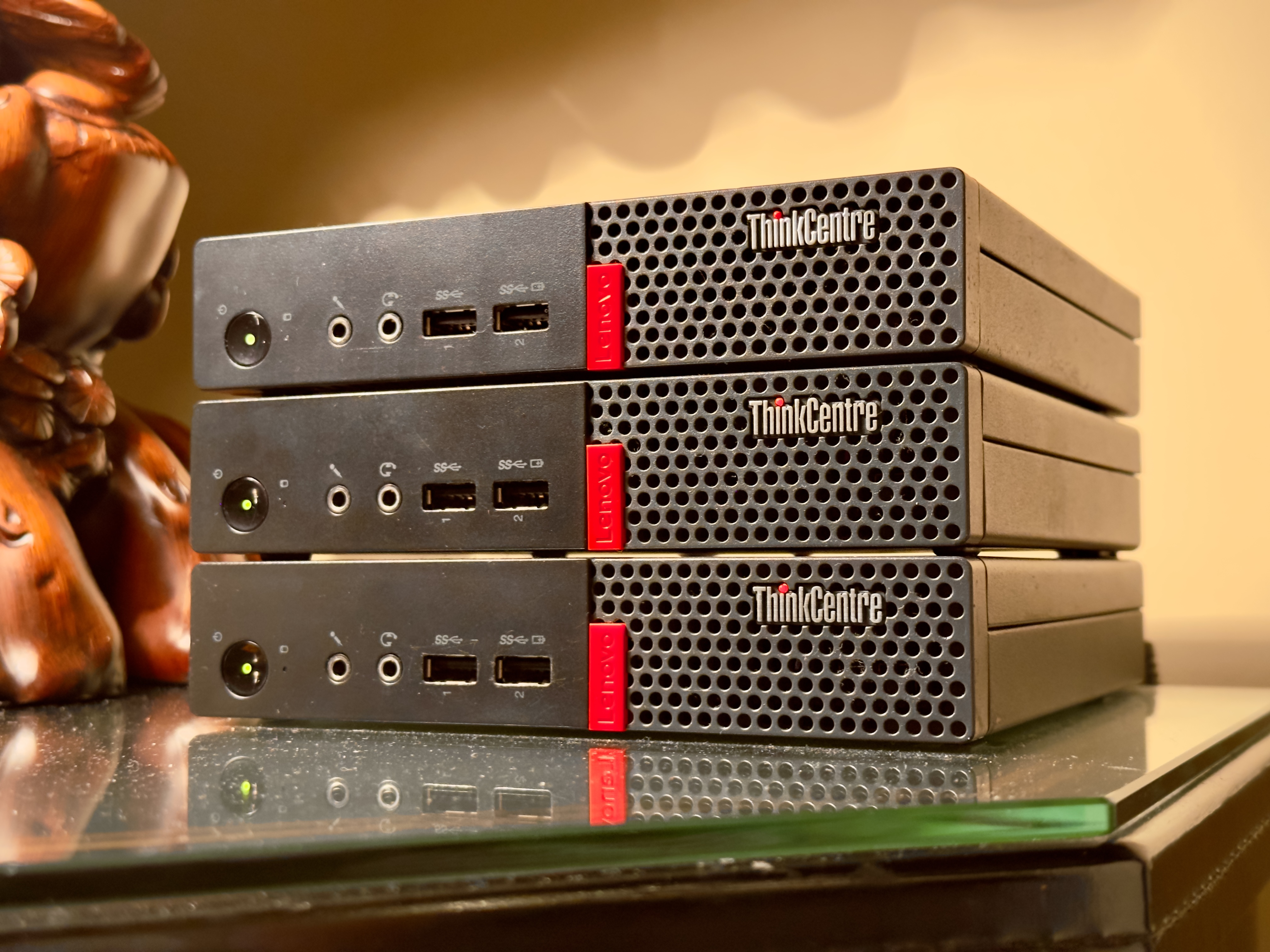
Homelab hardware: ThinkCenter M710q Tiny, Intel i5-7500T and 8GB RAM



Highlights
This repo contains the Nix configurations for my homelab, desktop, and work laptops (both macOS and WSL).
- ❄️ Nix flakes track the latest stable Nixpkgs release (currently 26.05)
- 🏠 home-manager manages dotfiles
- 🍎 nix-darwin manages macOS systems
- 🤫 sops-nix manages secrets, including credentials used for remote initrd disk unlocking
- 🌬️ Root on tmpfs aka impermanence
- 🔒 Automatic Let's Encrypt certificate registration and renewal
- 🧩 Tailscale, Nextcloud, Jellyfin, Homebridge, Scrypted, among other nice self-hosted applications
- ⚡️
justaliases for common deployment, validation, and maintenance commands - 📦 Ready-made WSL and ISO artifacts
Repository layout
machines/— host-specific configurationmodules/— shared NixOS, macOS, WSL, and Home Manager configurationservices/— self-hosted service modulessecrets/— sops-encrypted secrets
Getting started
macOS
On macOS, this script will install nix using the
Determinate Systems Nix installer and
prompt you to install my configuration.
[!IMPORTANT] You'll need to run this script as sudo or have sudo permissions.
sudo bash -c "$(curl -fsSL https://raw.githubusercontent.com/eh8/chenglab/main/install.sh)"
NixOS (Linux)
[!IMPORTANT] You'll need to run this script as sudo or have sudo permissions.
[!WARNING] This script is primarily meant for my own use. Using it to install NixOS on your own hardware will fail. At minimum, you'll need to do the following before attempting installation:
- Create a configuration for your own device in the
machines/folder- Retool your own sops-nix secrets or remove them entirely if you don't use sops-nix
- Add an entry to flake.nix referencing the configuration created in step 1
On Linux, running this script from the NixOS installation ISO will prepare your system for NixOS by partitioning drives and mounting them.
sudo bash -c "$(curl -fsSL https://raw.githubusercontent.com/eh8/chenglab/main/install.sh)"
[!TIP] When installing NixOS onto a headless local server, place your own custom NixOS ISO file onto a USB drive with Ventoy. Ventoy can automatically load the NixOS ISO file, and you can enable connectivity by building your own custom ISO with your own personal SSH key. The custom ISO released in this repo is baked with my own key.
Windows Subsystem for Linux (WSL)
- Enable WSL if you haven't done already:
wsl --install --no-distribution
-
Download
nixos.wslfrom the latest release. -
Either double-click the
nixos.wslfile once downloaded or import the tarball into WSL:
wsl --install --from-file nixos.wsl
- You can now run NixOS:
wsl -d NixOS
Useful commands 🛠️
Install just to use these aliases:
| Command | Purpose |
|---|---|
just deploy [MACHINE] [IP] | Deploy locally, to another configuration, or to a remote host |
just check | Evaluate every supported system |
just fmt / just lint | Format and lint Nix files |
just sops-edit | Edit secrets/secrets.yaml |
just sops-update | Update secret recipients from .sops.yaml |
just build-iso | Build the installer ISO |
Important caveats
Changing user passwords
To modify user password, first generate a hash
echo "password" | mkpasswd -m SHA-512 -s
Then run just sops-edit to replace the existing decrypted hash with the one
that you just generated. If you use a password manager, update it too.
Changing SSH keys
Make sure you update the public key as it appears across the repository.
Installation source
Make sure the Determinate Nix installer one-liner in install.sh is consistent
with how it appears on the official website.
Trialing boot-sensitive NixOS upgrades
Before testing a kernel, initrd, or bootloader change, keep the current generation as the fallback and boot the new generation only once:
sudo bootctl set-default @current
sudo nixos-rebuild boot --flake .#svr1chng
bootctl list
sudo bootctl set-oneshot nixos-generation-<NEW>.conf
bootctl status
sudo reboot
If trial boot gets stuck, then power-cycle server. The one-shot selection is consumed, so the previous generation boots again.
After verifying the upgrade was successful, promote the running generation:
sudo bootctl set-default @current
To-do
- Secure boot
- Binary caching
- Wireless remote unlocking
Helpful references
- Search NixOS options
- Home Manager Option Search
- Darwin Configuration Options
- An outstanding beginner friendly introduction to NixOS and flakes
- Conditional implementation
- Error when using lib.mkIf and lib.mkMerge to set configuration based on hostname
- Handling Secrets in NixOS: An Overview
- NixOS ❄: tmpfs as root
- NixOS on Hetzner Dedicated
- Setting up Nix on macOS
- Users.users..packages vs home-manager packages
- Declaratively manage dock via nix
- Dealing with post nix-flake god complex
Contributors




Similar repos


Languages
Nix
91.1%
Shell
7.1%
Just
1.8%
NixOS setup for my homelab and personal computers
See the codeREADME
Homelab hardware: ThinkCenter M710q Tiny, Intel i5-7500T and 8GB RAM
Highlights
This repo contains the Nix configurations for my homelab, desktop, and work laptops (both macOS and WSL).
- ❄️ Nix flakes track the latest stable Nixpkgs release (currently 26.05)
- 🏠 home-manager manages dotfiles
- 🍎 nix-darwin manages macOS systems
- 🤫 sops-nix manages secrets, including credentials used for remote initrd disk unlocking
- 🌬️ Root on tmpfs aka impermanence
- 🔒 Automatic Let's Encrypt certificate registration and renewal
- 🧩 Tailscale, Nextcloud, Jellyfin, Homebridge, Scrypted, among other nice self-hosted applications
- ⚡️
justaliases for common deployment, validation, and maintenance commands - 📦 Ready-made WSL and ISO artifacts
Repository layout
machines/— host-specific configurationmodules/— shared NixOS, macOS, WSL, and Home Manager configurationservices/— self-hosted service modulessecrets/— sops-encrypted secrets
Getting started
macOS
On macOS, this script will install nix using the
Determinate Systems Nix installer and
prompt you to install my configuration.
[!IMPORTANT] You'll need to run this script as sudo or have sudo permissions.
sudo bash -c "$(curl -fsSL https://raw.githubusercontent.com/eh8/chenglab/main/install.sh)"
NixOS (Linux)
[!IMPORTANT] You'll need to run this script as sudo or have sudo permissions.
[!WARNING] This script is primarily meant for my own use. Using it to install NixOS on your own hardware will fail. At minimum, you'll need to do the following before attempting installation:
- Create a configuration for your own device in the
machines/folder- Retool your own sops-nix secrets or remove them entirely if you don't use sops-nix
- Add an entry to flake.nix referencing the configuration created in step 1
On Linux, running this script from the NixOS installation ISO will prepare your system for NixOS by partitioning drives and mounting them.
sudo bash -c "$(curl -fsSL https://raw.githubusercontent.com/eh8/chenglab/main/install.sh)"
[!TIP] When installing NixOS onto a headless local server, place your own custom NixOS ISO file onto a USB drive with Ventoy. Ventoy can automatically load the NixOS ISO file, and you can enable connectivity by building your own custom ISO with your own personal SSH key. The custom ISO released in this repo is baked with my own key.
Windows Subsystem for Linux (WSL)
- Enable WSL if you haven't done already:
wsl --install --no-distribution
-
Download
nixos.wslfrom the latest release. -
Either double-click the
nixos.wslfile once downloaded or import the tarball into WSL:
wsl --install --from-file nixos.wsl
- You can now run NixOS:
wsl -d NixOS
Useful commands 🛠️
Install just to use these aliases:
| Command | Purpose |
|---|---|
just deploy [MACHINE] [IP] | Deploy locally, to another configuration, or to a remote host |
just check | Evaluate every supported system |
just fmt / just lint | Format and lint Nix files |
just sops-edit | Edit secrets/secrets.yaml |
just sops-update | Update secret recipients from .sops.yaml |
just build-iso | Build the installer ISO |
Important caveats
Changing user passwords
To modify user password, first generate a hash
echo "password" | mkpasswd -m SHA-512 -s
Then run just sops-edit to replace the existing decrypted hash with the one
that you just generated. If you use a password manager, update it too.
Changing SSH keys
Make sure you update the public key as it appears across the repository.
Installation source
Make sure the Determinate Nix installer one-liner in install.sh is consistent
with how it appears on the official website.
Trialing boot-sensitive NixOS upgrades
Before testing a kernel, initrd, or bootloader change, keep the current generation as the fallback and boot the new generation only once:
sudo bootctl set-default @current
sudo nixos-rebuild boot --flake .#svr1chng
bootctl list
sudo bootctl set-oneshot nixos-generation-<NEW>.conf
bootctl status
sudo reboot
If trial boot gets stuck, then power-cycle server. The one-shot selection is consumed, so the previous generation boots again.
After verifying the upgrade was successful, promote the running generation:
sudo bootctl set-default @current
To-do
- Secure boot
- Binary caching
- Wireless remote unlocking
Helpful references
- Search NixOS options
- Home Manager Option Search
- Darwin Configuration Options
- An outstanding beginner friendly introduction to NixOS and flakes
- Conditional implementation
- Error when using lib.mkIf and lib.mkMerge to set configuration based on hostname
- Handling Secrets in NixOS: An Overview
- NixOS ❄: tmpfs as root
- NixOS on Hetzner Dedicated
- Setting up Nix on macOS
- Users.users..packages vs home-manager packages
- Declaratively manage dock via nix
- Dealing with post nix-flake god complex
Similar repos
Contributors
Languages
Nix
91.1%
Shell
7.1%
Just
1.8%