Highly customizable drop-in solution for introduction views.
Objective-C
3,721
241 commits
updated Nov 10, 2020





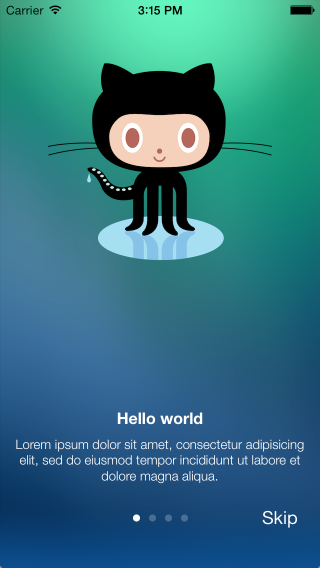

This is highly customizable drop-in solution for introduction views. Some features (remember, most features are optional and can be turned off):
You can setup EAIntroView using Carthage, CocoaPods or completely manually.
Add EAIntroView to your project's Cartfile:
github "ealeksandrov/EAIntroView"
Run carthage update in your project directory.
On your application targets’ “General” settings tab, in the “Linked Frameworks and Libraries” section, drag and drop EAIntroView.framework and EARestrictedScrollView.framework from the Carthage/Build/iOS/ folder on disk.
On your application targets’ “Build Phases” settings tab, click the “+” icon and choose “New Run Script Phase”. Create a Run Script with the following contents:
/usr/local/bin/carthage copy-frameworks
add the paths to the frameworks under “Input Files”:
$(SRCROOT)/Carthage/Build/iOS/EAIntroView.framework
$(SRCROOT)/Carthage/Build/iOS/EARestrictedScrollView.framework
and the paths to the copied frameworks to the “Output Files”:
$(BUILT_PRODUCTS_DIR)/$(FRAMEWORKS_FOLDER_PATH)/EAIntroView.framework
$(BUILT_PRODUCTS_DIR)/$(FRAMEWORKS_FOLDER_PATH)/EARestrictedScrollView.framework
Add EAIntroView to your project's Podfile:
pod 'EAIntroView'
Run pod update or pod install in your project directory.
Add EARestrictedScrollView header and implementation to your project (2 files total).
Add EAIntroPage and EAIntroView headers and implementations to your project (4 files total).
You can now use EAIntroView by adding the following import:
import EAIntroView
#import <EAIntroView/EAIntroView.h>
Sample project have many examples of customization. Here are only simple ones.
Each page created with [EAIntroPage page] class method. Then you can customize any property, all of them are optional. Another approach is to pass your own (can be nib), custom view in EAIntroPage, this way most other options are ignored.
// basic
EAIntroPage *page1 = [EAIntroPage page];
page1.title = @"Hello world";
page1.desc = sampleDescription1;
// custom
EAIntroPage *page2 = [EAIntroPage page];
page2.title = @"This is page 2";
page2.titleFont = [UIFont fontWithName:@"Georgia-BoldItalic" size:20];
page2.titlePositionY = 220;
page2.desc = sampleDescription2;
page2.descFont = [UIFont fontWithName:@"Georgia-Italic" size:18];
page2.descPositionY = 200;
page2.titleIconView = [[UIImageView alloc] initWithImage:[UIImage imageNamed:@"title2"]];
page2.titleIconPositionY = 100;
// custom view from nib
EAIntroPage *page3 = [EAIntroPage pageWithCustomViewFromNibNamed:@"IntroPage"];
page3.bgImage = [UIImage imageNamed:@"bg2"];
Once all pages have been created, you are ready to create the introduction view. Just pass them in right order in the introduction view. You can also pass array of pages after IntroView's initialization, it will rebuild its contents.
EAIntroView *intro = [[EAIntroView alloc] initWithFrame:self.view.bounds andPages:@[page1,page2,page3,page4]];
Don't forget to set the delegate if you want to use any callbacks.
[intro setDelegate:self];
[intro showInView:self.view animateDuration:0.0];
Since 1.3.0 EAIntroView supports init from IB. Since 2.0.0 EAIntroPage supports it too.
UIView to your IB document.EAIntroView.IBOutlet property in your view controller: @property(nonatomic,weak) IBOutlet EAIntroView *introView;.IBOutlet with EAIntroView in IB.pageWithCustomViewFromNibNamed: here with separate nibs for each page).EAIntroView property in setPages:.Created and maintained by Evgeny Aleksandrov (@ealeksandrov).
EAIntroView is available under the MIT license. See the LICENSE.md file for more info.
319 followers · starred Jun 2015
46 followers · starred Jan 2015
846 followers · starred Dec 2014
136 followers · starred Sep 2013
Highly customizable drop-in solution for introduction views.
Objective-C
3,721
241 commits
updated Nov 10, 2020
This is highly customizable drop-in solution for introduction views. Some features (remember, most features are optional and can be turned off):
You can setup EAIntroView using Carthage, CocoaPods or completely manually.
Add EAIntroView to your project's Cartfile:
github "ealeksandrov/EAIntroView"
Run carthage update in your project directory.
On your application targets’ “General” settings tab, in the “Linked Frameworks and Libraries” section, drag and drop EAIntroView.framework and EARestrictedScrollView.framework from the Carthage/Build/iOS/ folder on disk.
On your application targets’ “Build Phases” settings tab, click the “+” icon and choose “New Run Script Phase”. Create a Run Script with the following contents:
/usr/local/bin/carthage copy-frameworks
add the paths to the frameworks under “Input Files”:
$(SRCROOT)/Carthage/Build/iOS/EAIntroView.framework
$(SRCROOT)/Carthage/Build/iOS/EARestrictedScrollView.framework
and the paths to the copied frameworks to the “Output Files”:
$(BUILT_PRODUCTS_DIR)/$(FRAMEWORKS_FOLDER_PATH)/EAIntroView.framework
$(BUILT_PRODUCTS_DIR)/$(FRAMEWORKS_FOLDER_PATH)/EARestrictedScrollView.framework
Add EAIntroView to your project's Podfile:
pod 'EAIntroView'
Run pod update or pod install in your project directory.
Add EARestrictedScrollView header and implementation to your project (2 files total).
Add EAIntroPage and EAIntroView headers and implementations to your project (4 files total).
You can now use EAIntroView by adding the following import:
import EAIntroView
#import <EAIntroView/EAIntroView.h>
Sample project have many examples of customization. Here are only simple ones.
Each page created with [EAIntroPage page] class method. Then you can customize any property, all of them are optional. Another approach is to pass your own (can be nib), custom view in EAIntroPage, this way most other options are ignored.
// basic
EAIntroPage *page1 = [EAIntroPage page];
page1.title = @"Hello world";
page1.desc = sampleDescription1;
// custom
EAIntroPage *page2 = [EAIntroPage page];
page2.title = @"This is page 2";
page2.titleFont = [UIFont fontWithName:@"Georgia-BoldItalic" size:20];
page2.titlePositionY = 220;
page2.desc = sampleDescription2;
page2.descFont = [UIFont fontWithName:@"Georgia-Italic" size:18];
page2.descPositionY = 200;
page2.titleIconView = [[UIImageView alloc] initWithImage:[UIImage imageNamed:@"title2"]];
page2.titleIconPositionY = 100;
// custom view from nib
EAIntroPage *page3 = [EAIntroPage pageWithCustomViewFromNibNamed:@"IntroPage"];
page3.bgImage = [UIImage imageNamed:@"bg2"];
Once all pages have been created, you are ready to create the introduction view. Just pass them in right order in the introduction view. You can also pass array of pages after IntroView's initialization, it will rebuild its contents.
EAIntroView *intro = [[EAIntroView alloc] initWithFrame:self.view.bounds andPages:@[page1,page2,page3,page4]];
Don't forget to set the delegate if you want to use any callbacks.
[intro setDelegate:self];
[intro showInView:self.view animateDuration:0.0];
Since 1.3.0 EAIntroView supports init from IB. Since 2.0.0 EAIntroPage supports it too.
UIView to your IB document.EAIntroView.IBOutlet property in your view controller: @property(nonatomic,weak) IBOutlet EAIntroView *introView;.IBOutlet with EAIntroView in IB.pageWithCustomViewFromNibNamed: here with separate nibs for each page).EAIntroView property in setPages:.Created and maintained by Evgeny Aleksandrov (@ealeksandrov).
EAIntroView is available under the MIT license. See the LICENSE.md file for more info.
319 followers · starred Jun 2015
46 followers · starred Jan 2015
846 followers · starred Dec 2014
136 followers · starred Sep 2013



