
Moa — My Own Agent. A coding agent in Go.
See the codeSee what people are saying
README
Moa
A self-hosted coding agent for the machine where your code lives — usable from desktop or phone.
Quick start · Security · Documentation
“I did not build Moa to replace my computer. I built it because I could not always be at one.”
At some point my life stopped giving me long stretches at a desk. Some days I had two hours at the computer; some days, one. I tried the existing answers — remote-control apps for coding agents got me halfway, but sooner or later something always forced me back to the physical machine: a stuck process, an environment to bring up, a result I could not see from my phone.
So I built Moa. The agent lives on the machine where my code, repositories, and tools already are, and I steer it from wherever I am. In a normal day it works in a Git worktree, brings up the project's Docker environment, runs the builds and tests, drives the app with Playwright and sends me screenshots as evidence, or exposes a port so I can try the result myself. When a 500 shows up in production, it investigates and we fix it together — from my phone.
As I write this, I have not opened my laptop in three weeks, and I am putting in full days of real development work.
The point is not to turn a phone into a tiny laptop. It is to stay in the loop while real development work happens on the machine built for it.
Moa separates where the agent works from where you steer it. Run it on a workstation or development server that already has your repositories and toolchain, then open the same workspace in a browser. Start a task at your desk, check its progress from your phone, answer a permission request, or redirect the session without moving the project to another machine.
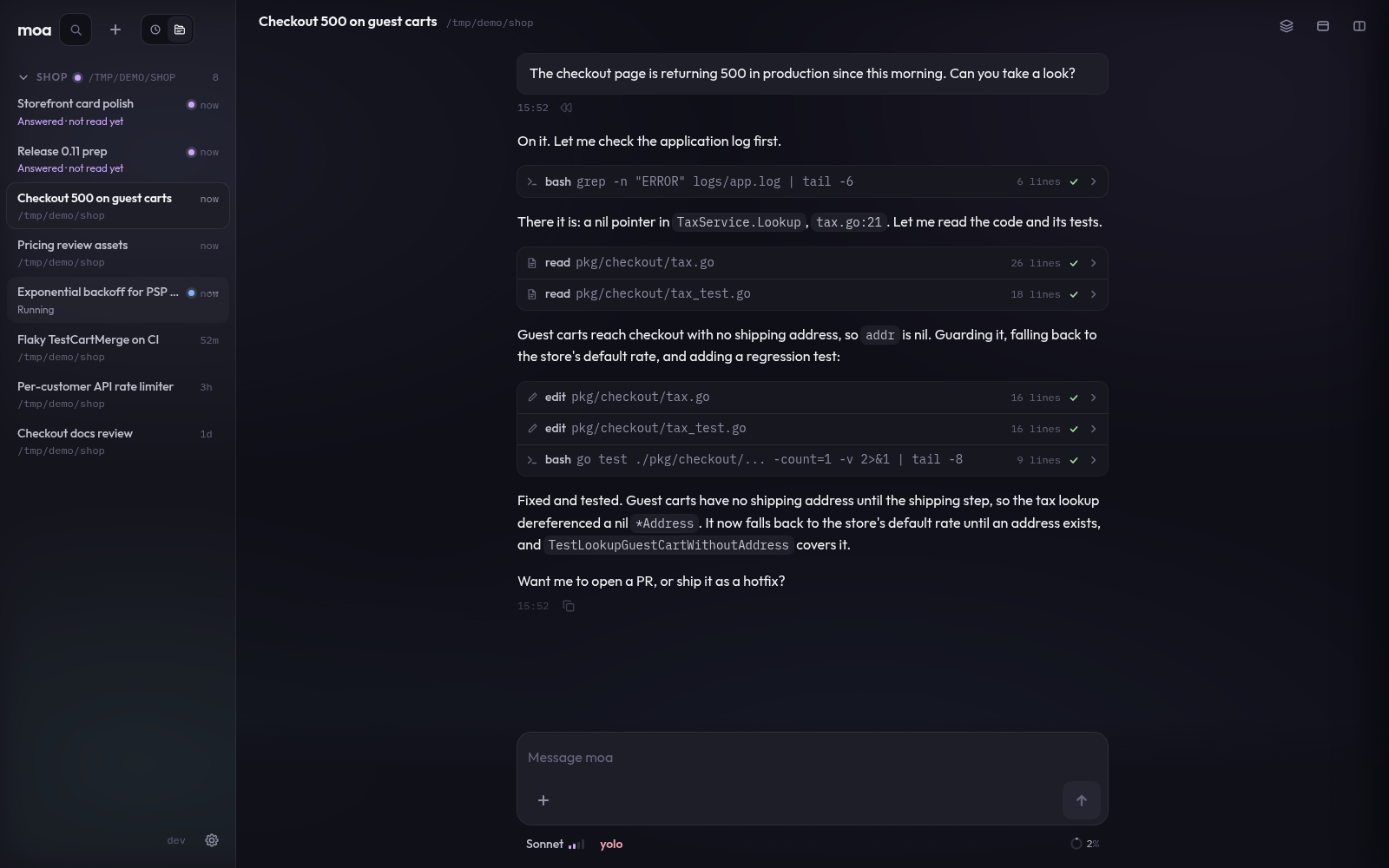
An active coding session on desktop: conversation, tool work, and results stay together.
The development machine stays put. You do not have to.
A phone is not the best place to edit a codebase line by line. It is a very good place to stay in the loop.
Moa's mobile interface lets you return to the same server-side sessions, see what the agent is doing, answer questions or permission prompts, send new direction, and stop or resume work. The repository, dependencies, credentials, and running processes remain on the development machine.
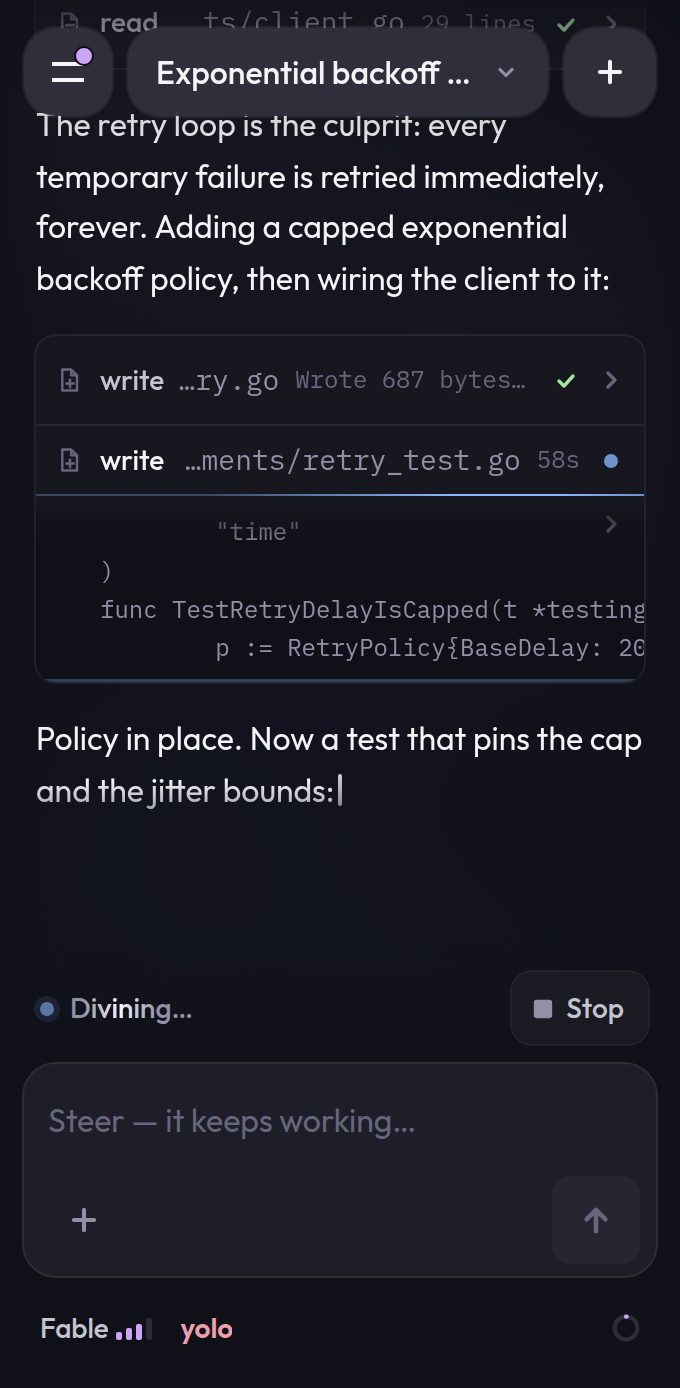
The same running session on an iPhone — progress and decisions without reopening the laptop.
See the work, not just a chat transcript
Agent work quickly becomes more than one stream of messages. Moa can keep several sessions open in a pane grid, use a different model for each one, and show tool activity, delegated agents, usage, and attention state alongside the conversation.
The goal is not to make you watch more logs. It is to make it obvious what is running, what finished, and what needs you.
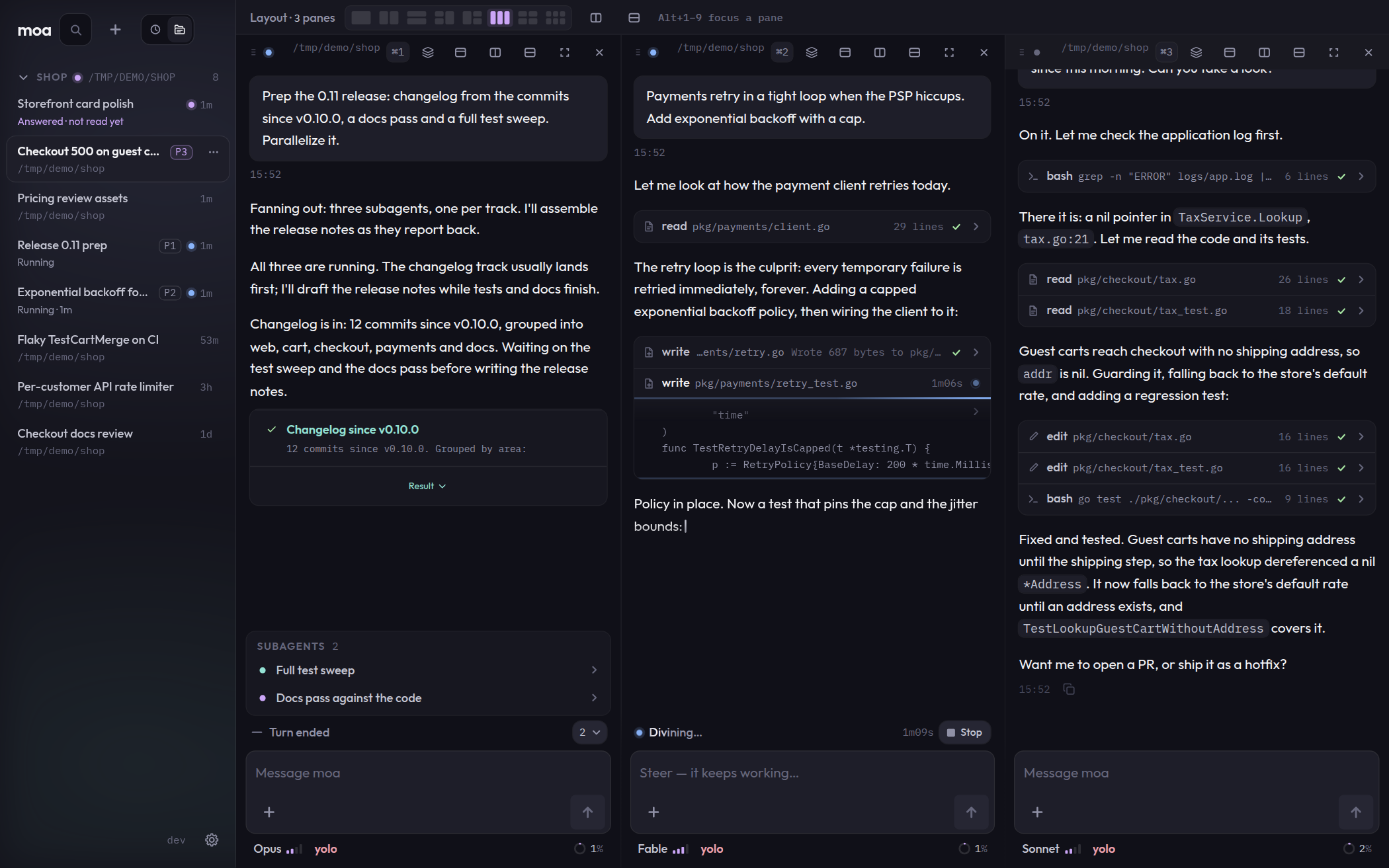
Parallel sessions with live telemetry and delegated work visible in the live bar.
Look at the app, not only at the diff
When the agent is building a web interface, the only honest way to judge its work is to look at the app. But the development server runs on the machine where the agent works — a port you cannot reach from a phone.
Live Preview puts that development server inside the conversation: pick a viewport width (390, 768, 1280 or fit), pinch to zoom, and watch the agent's activity float over the app instead of hiding it. Turn on Inspect and tap any element: you write — or dictate — what should change, and the agent receives your sentence together with an exact handle on the element you meant, page and selector included.
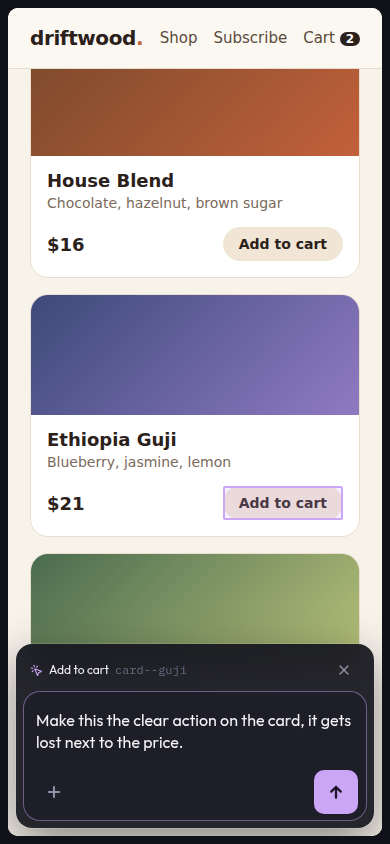
Point at the button, say what is wrong with it. The agent gets the element, not a description of it.
When you load a URL in the panel, Moa starts a proxy that injects the inspector, so your
project needs no changes and Moa needs no restart; moa serve --preview-port … only
presets its port. It is for your own development servers: the previewed app runs at
the proxy's origin, and only loopback, private and tailnet addresses are accepted. See the
Live Preview guide.
Why self-host the agent?
Moa runs on infrastructure you control rather than uploading your repository to a Moa-operated service.
- Use the environment you already have. The agent works with the repository, shell, compilers, containers, and project tools installed on the host.
- Choose your own access boundary. Keep it on localhost, reach it through a private network such as Tailscale, or place it behind your own authenticated reverse proxy.
- Keep operational state on your machine. Session history, configuration, credentials, and project memory are stored by your Moa installation.
- Use the provider you choose. Moa talks to Anthropic, OpenAI, xAI or Meta from your machine and does not add a separate hosted agent service in between.
Self-hosted does not mean offline: prompts, selected code or file content, and tool results needed by the model are sent to the provider you configure. Review that provider's data policies and use Moa's permission and path controls for the level of access you want.
Built for a real development loop
- Work with the whole project. Moa can inspect and edit files, run shell commands, execute tests, search the repository, and use the development tools available on the host.
- Stay in control. Choose
ask, AI-evaluatedauto, or permissiveyolopermissions, combine them with path scoping, and use checkpoints, budgets, and run limits. - Delegate and parallelize. Run multiple sessions or let an agent spawn synchronous or asynchronous subagents whose activity can be inspected live.
- Exchange real artifacts. Attach images, PDFs, source files, and other inputs; the agent can return downloadable files as Artifacts, rich Markdown, images, and sandboxed HTML previews.
- Bring your own workflow. Add MCP servers (remote ones can sign in with OAuth), custom
script tools, verification commands, reusable skills, and project instructions through
AGENTS.md.
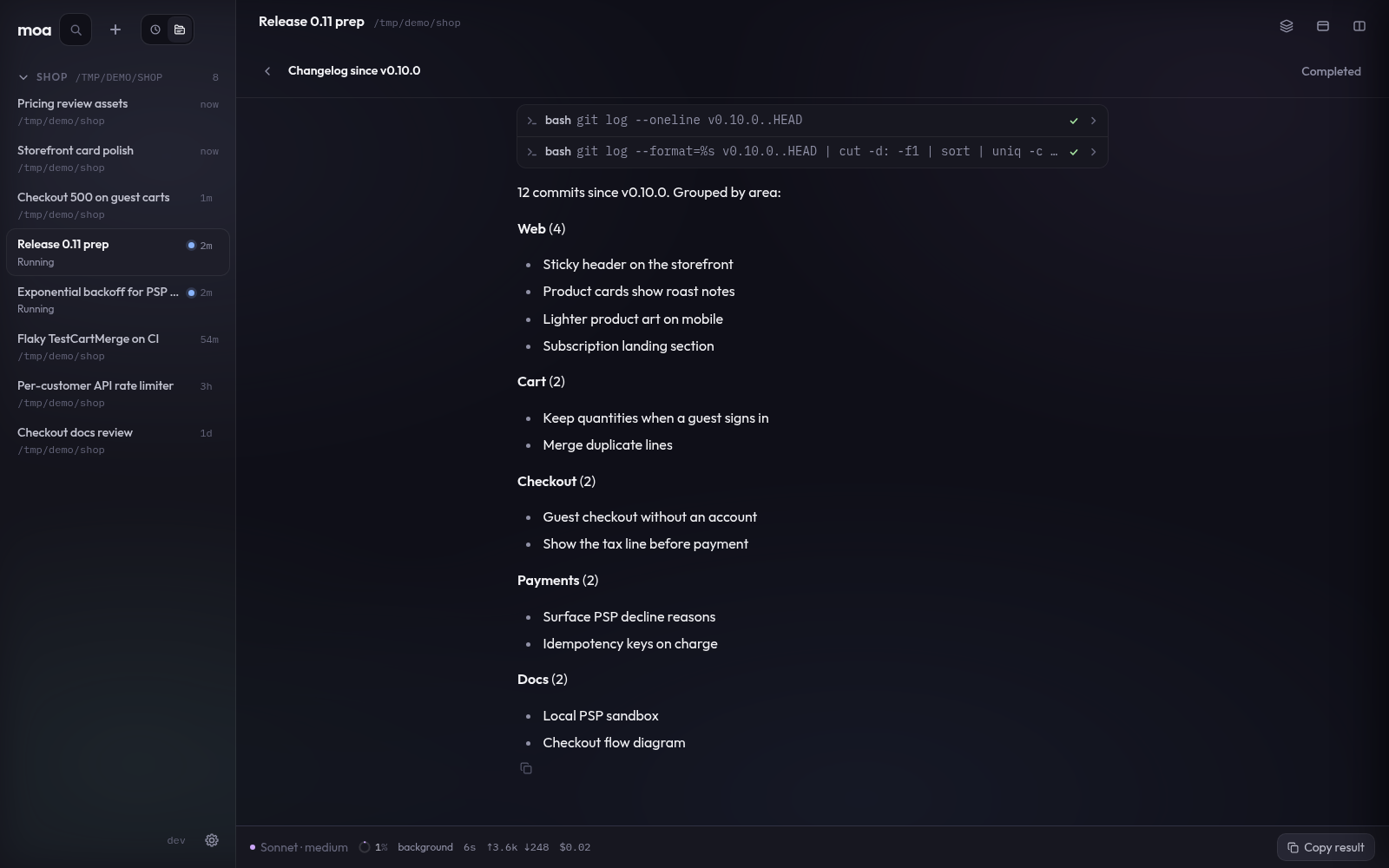
Delegated work stays inspectable: each subagent has its own conversation, tools, and result.
For the complete capability reference, see the Overview, Tools, and Configuration documentation.
Use the provider you already have
Moa supports Anthropic, OpenAI, xAI and Meta.
You can authenticate with a Claude Pro or Max, ChatGPT Plus/Pro, SuperGrok/X or Muse subscription through OAuth, without configuring a separate API key for the main agent. Anthropic, OpenAI, xAI and Meta API keys are supported as well. Model availability and usage limits remain those of the provider account you use.
Quick start
Install the latest release:
curl -fsSL https://letmoa.run/install.sh | sh
# or with Homebrew:
brew install e-aleixandre/tap/moa
Prebuilt binaries are also available from
GitHub Releases, and moa update
replaces an installed binary with the latest release. To build from source,
you need Go 1.25+ and Node.js/npm for the embedded web frontends:
git clone https://github.com/e-aleixandre/moa.git
cd moa

make fe-install
make build
# → ./bin/moa  (put it in your PATH, or use ./bin/moa in the commands below)
Authenticate with an existing subscription:
moa --login anthropic   # Claude Pro/Max OAuth
moa --login openai      # ChatGPT Plus/Pro OAuth, or choose an API key
moa --login xai         # SuperGrok/X OAuth device flow
moa --login meta        # Muse subscription OAuth device flow
Or provide an API key directly:
export ANTHROPIC_API_KEY="..."
# or:
export OPENAI_API_KEY="..."
# or:
export XAI_API_KEY="..."
# or:
export META_API_KEY="..."
Start the web UI:
moa serve
# → http://127.0.0.1:8080
To reach Moa from a phone, put the server and phone on the same private network. For example, with Tailscale:
export MOA_SERVE_TOKEN="<a-long-random-secret>"
moa serve --host 0.0.0.0
Open the server's Tailscale IP from the phone. See the
Web UI security guide for the token URL, MagicDNS
--allowed-hosts, TLS, and reverse-proxy guidance.
For complete installation, authentication, and first-run instructions, see the Quickstart.
Security
moa serve binds to 127.0.0.1 by default, but it does not enable authentication by
default. Anyone who can reach an unauthenticated Serve port can control its agents.
For remote access:
- Prefer localhost, Tailscale, or another private network boundary.
- Set
--tokenorMOA_SERVE_TOKENin addition to that boundary. - Configure
--allowed-hostswhen accessing Moa through a hostname. - Use TLS when the deployment or paired-device flow requires it.
- Do not expose an unauthenticated Moa port to a network.
The token is defense in depth, not a replacement for an appropriate network boundary. Read the full security documentation before exposing Serve beyond localhost.
Prefer the terminal?
The browser and the headless CLI share the same agent core and session model.
moa -p "fix the tests" # one-shot, headless
See the CLI Reference.
Documentation
The docs are published, searchable, at letmoa.run/docs. They are
the same markdown that lives in docs/ here, so either place works:
| Document | Reference |
|---|---|
| Overview | Capabilities, interfaces, runtime flow, and storage |
| Quickstart | Requirements, build, authentication, first run, and troubleshooting |
| Web UI | Serve, panes, mobile use, attachments, voice, and security |
| CLI Reference | Commands, flags, model aliases, thinking levels, and fast mode |
| Configuration | Config files, permissions, sandboxing, models, and MCP |
| Tools | Built-in tools, custom tools, subagents, and verification |
| Automation | Inbound HTTP API for webhooks, cron and CI, with callbacks |
| Project owners | A standing agent per codebase that keeps its book and directs its sessions |
| Pulse | The iOS voice companion and the Serve contract behind it |
| Recipe: Linear | Assign a Linear issue to Moa and get the result back as a comment |
| Architecture | Package map, event bus, and runtime design |
| Releases | Versioning, release process, and update checks |
License
Moa is available under the MIT License.
Similar repos


Languages
Go
58.9%
JavaScript
33.3%
CSS
6.7%
Swift
1.0%
Moa — My Own Agent. A coding agent in Go.
See the codeSee what people are saying
README
Moa
A self-hosted coding agent for the machine where your code lives — usable from desktop or phone.
Quick start · Security · Documentation
“I did not build Moa to replace my computer. I built it because I could not always be at one.”
At some point my life stopped giving me long stretches at a desk. Some days I had two hours at the computer; some days, one. I tried the existing answers — remote-control apps for coding agents got me halfway, but sooner or later something always forced me back to the physical machine: a stuck process, an environment to bring up, a result I could not see from my phone.
So I built Moa. The agent lives on the machine where my code, repositories, and tools already are, and I steer it from wherever I am. In a normal day it works in a Git worktree, brings up the project's Docker environment, runs the builds and tests, drives the app with Playwright and sends me screenshots as evidence, or exposes a port so I can try the result myself. When a 500 shows up in production, it investigates and we fix it together — from my phone.
As I write this, I have not opened my laptop in three weeks, and I am putting in full days of real development work.
The point is not to turn a phone into a tiny laptop. It is to stay in the loop while real development work happens on the machine built for it.
Moa separates where the agent works from where you steer it. Run it on a workstation or development server that already has your repositories and toolchain, then open the same workspace in a browser. Start a task at your desk, check its progress from your phone, answer a permission request, or redirect the session without moving the project to another machine.
An active coding session on desktop: conversation, tool work, and results stay together.
The development machine stays put. You do not have to.
A phone is not the best place to edit a codebase line by line. It is a very good place to stay in the loop.
Moa's mobile interface lets you return to the same server-side sessions, see what the agent is doing, answer questions or permission prompts, send new direction, and stop or resume work. The repository, dependencies, credentials, and running processes remain on the development machine.
The same running session on an iPhone — progress and decisions without reopening the laptop.
See the work, not just a chat transcript
Agent work quickly becomes more than one stream of messages. Moa can keep several sessions open in a pane grid, use a different model for each one, and show tool activity, delegated agents, usage, and attention state alongside the conversation.
The goal is not to make you watch more logs. It is to make it obvious what is running, what finished, and what needs you.
Parallel sessions with live telemetry and delegated work visible in the live bar.
Look at the app, not only at the diff
When the agent is building a web interface, the only honest way to judge its work is to look at the app. But the development server runs on the machine where the agent works — a port you cannot reach from a phone.
Live Preview puts that development server inside the conversation: pick a viewport width (390, 768, 1280 or fit), pinch to zoom, and watch the agent's activity float over the app instead of hiding it. Turn on Inspect and tap any element: you write — or dictate — what should change, and the agent receives your sentence together with an exact handle on the element you meant, page and selector included.
Point at the button, say what is wrong with it. The agent gets the element, not a description of it.
When you load a URL in the panel, Moa starts a proxy that injects the inspector, so your
project needs no changes and Moa needs no restart; moa serve --preview-port … only
presets its port. It is for your own development servers: the previewed app runs at
the proxy's origin, and only loopback, private and tailnet addresses are accepted. See the
Live Preview guide.
Why self-host the agent?
Moa runs on infrastructure you control rather than uploading your repository to a Moa-operated service.
- Use the environment you already have. The agent works with the repository, shell, compilers, containers, and project tools installed on the host.
- Choose your own access boundary. Keep it on localhost, reach it through a private network such as Tailscale, or place it behind your own authenticated reverse proxy.
- Keep operational state on your machine. Session history, configuration, credentials, and project memory are stored by your Moa installation.
- Use the provider you choose. Moa talks to Anthropic, OpenAI, xAI or Meta from your machine and does not add a separate hosted agent service in between.
Self-hosted does not mean offline: prompts, selected code or file content, and tool results needed by the model are sent to the provider you configure. Review that provider's data policies and use Moa's permission and path controls for the level of access you want.
Built for a real development loop
- Work with the whole project. Moa can inspect and edit files, run shell commands, execute tests, search the repository, and use the development tools available on the host.
- Stay in control. Choose
ask, AI-evaluatedauto, or permissiveyolopermissions, combine them with path scoping, and use checkpoints, budgets, and run limits. - Delegate and parallelize. Run multiple sessions or let an agent spawn synchronous or asynchronous subagents whose activity can be inspected live.
- Exchange real artifacts. Attach images, PDFs, source files, and other inputs; the agent can return downloadable files as Artifacts, rich Markdown, images, and sandboxed HTML previews.
- Bring your own workflow. Add MCP servers (remote ones can sign in with OAuth), custom
script tools, verification commands, reusable skills, and project instructions through
AGENTS.md.
Delegated work stays inspectable: each subagent has its own conversation, tools, and result.
For the complete capability reference, see the Overview, Tools, and Configuration documentation.
Use the provider you already have
Moa supports Anthropic, OpenAI, xAI and Meta.
You can authenticate with a Claude Pro or Max, ChatGPT Plus/Pro, SuperGrok/X or Muse subscription through OAuth, without configuring a separate API key for the main agent. Anthropic, OpenAI, xAI and Meta API keys are supported as well. Model availability and usage limits remain those of the provider account you use.
Quick start
Install the latest release:
curl -fsSL https://letmoa.run/install.sh | sh
# or with Homebrew:
brew install e-aleixandre/tap/moa
Prebuilt binaries are also available from
GitHub Releases, and moa update
replaces an installed binary with the latest release. To build from source,
you need Go 1.25+ and Node.js/npm for the embedded web frontends:
git clone https://github.com/e-aleixandre/moa.git
cd moa

make fe-install
make build
# → ./bin/moa  (put it in your PATH, or use ./bin/moa in the commands below)
Authenticate with an existing subscription:
moa --login anthropic   # Claude Pro/Max OAuth
moa --login openai      # ChatGPT Plus/Pro OAuth, or choose an API key
moa --login xai         # SuperGrok/X OAuth device flow
moa --login meta        # Muse subscription OAuth device flow
Or provide an API key directly:
export ANTHROPIC_API_KEY="..."
# or:
export OPENAI_API_KEY="..."
# or:
export XAI_API_KEY="..."
# or:
export META_API_KEY="..."
Start the web UI:
moa serve
# → http://127.0.0.1:8080
To reach Moa from a phone, put the server and phone on the same private network. For example, with Tailscale:
export MOA_SERVE_TOKEN="<a-long-random-secret>"
moa serve --host 0.0.0.0
Open the server's Tailscale IP from the phone. See the
Web UI security guide for the token URL, MagicDNS
--allowed-hosts, TLS, and reverse-proxy guidance.
For complete installation, authentication, and first-run instructions, see the Quickstart.
Security
moa serve binds to 127.0.0.1 by default, but it does not enable authentication by
default. Anyone who can reach an unauthenticated Serve port can control its agents.
For remote access:
- Prefer localhost, Tailscale, or another private network boundary.
- Set
--tokenorMOA_SERVE_TOKENin addition to that boundary. - Configure
--allowed-hostswhen accessing Moa through a hostname. - Use TLS when the deployment or paired-device flow requires it.
- Do not expose an unauthenticated Moa port to a network.
The token is defense in depth, not a replacement for an appropriate network boundary. Read the full security documentation before exposing Serve beyond localhost.
Prefer the terminal?
The browser and the headless CLI share the same agent core and session model.
moa -p "fix the tests" # one-shot, headless
See the CLI Reference.
Documentation
The docs are published, searchable, at letmoa.run/docs. They are
the same markdown that lives in docs/ here, so either place works:
| Document | Reference |
|---|---|
| Overview | Capabilities, interfaces, runtime flow, and storage |
| Quickstart | Requirements, build, authentication, first run, and troubleshooting |
| Web UI | Serve, panes, mobile use, attachments, voice, and security |
| CLI Reference | Commands, flags, model aliases, thinking levels, and fast mode |
| Configuration | Config files, permissions, sandboxing, models, and MCP |
| Tools | Built-in tools, custom tools, subagents, and verification |
| Automation | Inbound HTTP API for webhooks, cron and CI, with callbacks |
| Project owners | A standing agent per codebase that keeps its book and directs its sessions |
| Pulse | The iOS voice companion and the Serve contract behind it |
| Recipe: Linear | Assign a Linear issue to Moa and get the result back as a comment |
| Architecture | Package map, event bus, and runtime design |
| Releases | Versioning, release process, and update checks |
License
Moa is available under the MIT License.
Similar repos
Languages
Go
58.9%
JavaScript
33.3%
CSS
6.7%
Swift
1.0%