This is a fork of the https://dockbox.dev project I made
See the code



🛡️ Warning · ⚙️ Architecture · 🧠 Prompt Engineering · ☁️ Hybrid Models · 📊 Dashboard · 🧩 MCP · 📡 Channels · 🔊 Audio Pipeline · 🗣️ Voice · 🛰️ Satellite · 🚀 Quick Start
Warden is an AI agent with the same access as your user account. It executes shell commands, moves your mouse and types on your keyboard, drives your real browser with your real logged-in sessions and saved passwords, reads and sends your email, and can edit and restart its own source code. There is no sandbox and no container. A model mistake, a prompt injection from a web page it visits, or an email it reads can do anything you can do at a terminal.
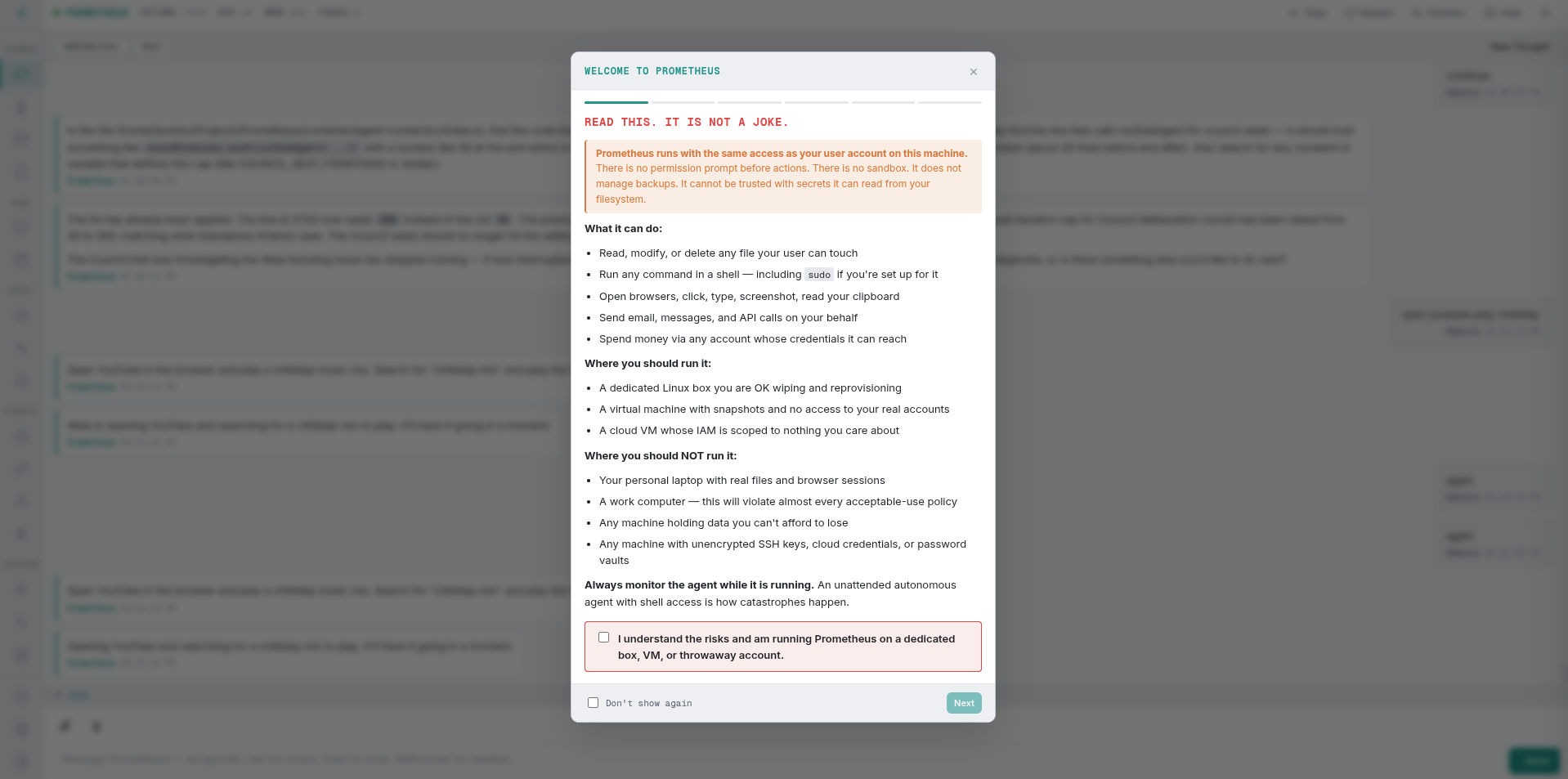
This is the warning the dashboard shows on first launch. It is not a joke and it is not boilerplate. Do not run Warden on a machine you care about unless you have read the code, understood the risks, and accepted that you are handing a language model the keys to your computer.
Now that that's out of the way — I'm currently running it on my desktop, just rawdogging the system, and it has been solid. sudo prompts pop up graphically (polkit catches them), and in practice it doesn't stray out of its workspace unless it's actively searching for files or the like. Is this stupid in theory? Yes, absolutely. Does it work in practice? So far, yes — for now. Just back things up from time to time, in case.
Warden is a personal AI assistant that lives on your desktop. It runs local models through Ollama for fast, private tasks, and reaches out to cloud models for heavy lifting — all within a single conversation. It connects to your real browser, controls your desktop, manages your email and calendar, and talks to you through whatever channel you prefer.
A single LLM — Warden, the captain's first officer — runs the show, and it is the only thing you talk to. It both answers and does the work: the browser, the desktop, the shell, files and the web are its own hands, not a specialist's. It hands off only what genuinely belongs to another seat — email and scheduling to Iris, heavy code to Vulkan, audits to Artemis — and work too long for a chat turn to a background copy of itself.
This used to be two seats: a deliberately small router that never touched the internet, delegating every hands-on step to Atlas. That split cost a round trip and a brief on every action, and the router could only describe work it could not see. Atlas and the orchestrator are now one seat, running one model, with one prompt.
You → Warden ─ does it itself: browser, desktop, shell, files, web ─→ You
              └─ hands off what it does not own:
                   → Iris   (email, calendar, reminders, alarms)
                   → Vulkan (code and builds, background)
                   → Artemis(audit, background)
                   → Sentry (security scans, background)
                   → Council(deliberation)
                   → atlas_background (a copy of itself, for long work)
💡 Tools are not carried in context all the time. Every seat but Iris gets a per-turn ranked set — the always-needed core plus what the task actually calls for — out of a pool that now includes every installed MCP server. A capability that doesn't surface is one
list_skills+activate_skillaway, so nothing is lost; it just stops being paid for on turns that never touch it. Iris is exempt: it runs the small fine-tuned toolcall model, trained on exactly one fixed tool list, so a list that changed per turn would put it off-distribution.
This is the counterintuitive part: the orchestrator is the cheapest model in the stack, and that's by design. Its job isn't generation, it's classification and composition. Every turn it answers a small set of questions: what does the user want, which specialist owns it, what does that specialist need to know to start cold, and is anything I'm currently babysitting going sideways? None of that needs a frontier model. An e4b nails it — locally, in well under a second per turn, on hardware you already own — so the thing you talk to most carries no per-turn cloud cost.
e4b works; 31B cloud is recommended. The e4b is the floor, and the whole point is that the bar for "good enough to supervise" is low — it routes and composes briefs, it doesn't generate. But supervision has a failure mode the e4b will hit eventually: when a sub-agent returns narration that looks like a result (a timestamp computation written as prose, an "I'll do that" with no tool call), an e4b orchestrator will sometimes take it at face value and relay it to you as done. A 31B cloud orchestrator reads the same non-result and notices nothing was actually produced. (Loop-killing is the one supervision job that doesn't depend on the orchestrator's smarts at all — a deterministic churn detector handles it regardless of model size; see Babysitting the sub-agents.) So: run the e4b if you want it all local and free; run the 31B cloud if you want the babysitting to actually catch sub-agents that bluff.
The expensive generation lives one layer down, in the specialists. Atlas, Vulkan, and Artemis default to a large cloud model; the three Council seats each run their own model. The orchestrator stays out of that. It states what needs to happen and stops — it never prescribes how (no URLs, no search queries, no "go to X then click Y"), because it can't even see the specialists' tools. That discipline is exactly what lets a small model supervise a frontier one without getting in the way: it can't micromanage what it can't see, so it doesn't try.
Delegation is not fire-and-forget. When the orchestrator hands work to Atlas, Atlas runs in the background — the orchestrator gets a job ID back immediately and stays free to handle your next message. While those jobs run, supervision is on-demand, not automated:
There is no running-job supervisor. The periodic LLM self-audit watchdog that used to tick every few minutes and flag running jobs as on track / off-rails / crashed has been cut out — the ticker never arms, the tick function is a no-op, and the dashboard Supervisor row (model + on/off + cadence) is removed. It was unneeded: the orchestrator's chain-following is now strong enough to drive a job end to end on its own — delegate → drain the finished-job inbox → confirm the result against the ask → chain the next step, or re-delegate on failure — so a second model watching the running job added false positives without value. And it was actively harmful on local hardware: a 3b model cannot reliably tell a slow read-or-compose from veering, so it kept flagging healthy Atlas jobs (a read-first pass, a long idle while a 27b composes a large file) and the standing escalation rule killed them and handed the work to Vulkan — and even after the ticker was no-op'd, the orchestrator's prompt still made it role-play supervisor flags about its own legitimate read-only delegations and stop them. You supervise on demand: ask the orchestrator how a job is doing and it looks (list_running_agents / agent_logs / read_job_result), assesses the recent calls itself, and can stop_agent + re-delegate on its own judgment. It just no longer wakes itself up to do it. (The one thing that still runs on the supervisor model is the completion verdict on finished jobs — see below.)
A deterministic churn detector. The thing that actually stops a looping job is in code, not the LLM. The runner counts consecutive read-only calls (Read, Grep, Glob, Bash, WebSearch, …) with no deliverable produced. At 12 in a row it injects a commit nudge into the agent's next turn — "you have enough context, stop searching, write the deliverable now." If the agent keeps searching after the nudge — 10 more read-only calls — the runner aborts the job itself. Crucially, the post-nudge count is decoupled from writes: a single Edit in a sea of reads no longer resets the abort clock, so "churn punctuated by an occasional token write" can't dodge the kill. When an Atlas job is stopped this way it auto-escalates to Vulkan on the same task (and burns the one retry credit so the orchestrator can't double-dispatch on top of it). Artemis is exempt — it's read-only by design, so "lots of reads" is its job, not a loop. (Full mechanics: docs/notes/supervision-and-churn.md.)
When a job finishes, the result lands in an inbox.
Crucially, supervision stays out of your chat. The churn detector's commit nudge is injected into the agent's own turn, not your conversation. Progress lives in the dashboard instead: the real status line each job emits on every tool call streams into a grouped, collapsible Live Activity panel (one summary line when collapsed, the recent history when expanded), so you watch what's actually happening without a parade of chat bubbles. The chat only carries completed-task reports (and interventions) — you ask once, the orchestrator drives the whole chain end to end, and you hear from it when there's something finished to tell you.
The inbox is the backbone of the async model. Finished jobs drop their full output there, and at the end of each turn the orchestrator drains it, digests what actually matters in its own voice, and chains any follow-up work the results call for — so a multi-step ask (plan → council → revise) runs end to end without you having to say "and?" or "continue" between steps. If a job failed, the failure routes back to the orchestrator automatically — it reads the full output, works out what went wrong, and re-delegates with a reworked brief (a different approach, a corrected URL, a missing detail — whatever the output showed was broken). You only hear about a failure if it can't be recovered; after the same task has failed the same way twice, the orchestrator stops retrying and tells you instead. Urgent results can even interrupt a turn mid-flight, so a finished job you're waiting on never sits behind whatever else happens to be running.
The net effect: you ask once, and the orchestrator owns the outcome — prompting the specialists, supervising them, cutting off the ones that drift, and correcting course until the job is done or it's genuinely stuck.
You have one conversation, with one assistant. Atlas, Iris, and the rest never see your messages and never speak to you — the orchestrator is the only voice in the chat. It works out what you actually need, composes a self-contained brief for the right specialist, and reports back in its own words when the work is done.
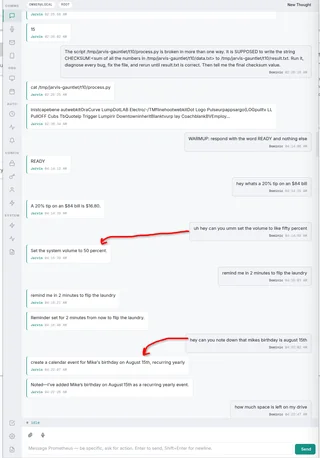
Your raw message never reaches a specialist. "hey can you set the volume to like fifty percent" goes in; "Set the system volume to 50 percent" is what gets delegated. Every request is rewritten into a precise, self-contained brief — typos, slang, and missing context resolved — so the executing model starts from a clean statement of the goal instead of guessing at your phrasing.
Each sub-agent has its own system prompt and toolset. Iris and Sentry share one model (the dashboard's Toolcall model); Atlas, Vulkan, Artemis, and each Council seat keep their own. They don't share context — the orchestrator composes a self-contained task string with everything the sub-agent needs.
| Agent | Model | Tools | Role |
|---|---|---|---|
| Atlas | Local or cloud | Shell, browser (DOM control), desktop, files, web search/fetch, documents | Execution — anything that touches the internet or runs commands. |
| Vulkan | Local or cloud | Read, Edit, Grep, Glob, Bash, build & test runs | Coding, scripting, building, heavy bash — editing source, running builds and tests, refactoring, complex shell pipelines. Runs in the background like Atlas. |
| Iris | Local or cloud (local recommended) | Email, calendar, contacts, todos, scheduling, projects & work tasks | Personal information management — email digests, calendar events, scheduled tasks (cron, interval, once), projects, deliverables, and work tasks. |
| Artemis | Local or cloud | Read-only file access | Critical review — audits conversations and decisions. |
| The Council | 3×, local or cloud | Read-only file access | Three independent seats (Skeptic, Pragmatist, Synthesist) deliberate in parallel on high-stakes decisions. |
| Sentry | Local or cloud (local recommended) | Bash (read-only), sentry_report | Background security scanner — periodically inventories the PC (listening sockets, network connections, running services, autostart, user crontab, enabled units, processes) with no elevated permissions, diffs against a learned baseline, and reports only when something new or suspicious appears. Runs an hourly peek and a daily deep scan; can also be dispatched on demand ("run a security scan"). |
🎛️ Atlas, Vulkan, Artemis, and each Council seat have their own model. Iris and Sentry share one Toolcall model (a single model + ctx row in the dashboard). Pick local Ollama or cloud per role — the same pipeline handles both. With
max_loaded_models=3(see Tuning the Ollama daemon), the Orchestrator (always kept alive) and the Toolcall model (if its keep-alive checkbox is on — this covers Iris/Sentry) stay resident in VRAM, with room for a third resident model (a separately-enabled model whose keep-alive is on). The supervisor model no longer holds a resident slot — its running-job tick was cut out; it only runs the occasional completion verdict on finished jobs. Any fourth model evicts the least-recently-used resident. The keep-alive re-pin that runs every minute only maintains models that are loaded — it snapshots Ollama's/api/psfirst and never re-spawns a model that was deliberately unloaded, so a pinned model can't fight something big (like the training loop's 17 GB analyst) for VRAM after you cleared it on purpose.


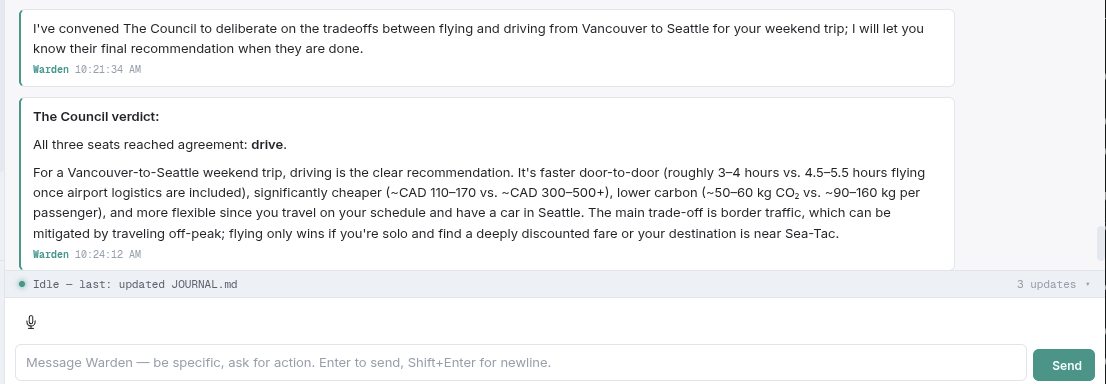
Iris owns the scheduling and calendar side of personal information management. It creates and manages schedule entries and calendar events — it never executes the scheduled tasks.
The orchestrator owns the intent; Iris owns the timing. When something needs to happen later, the orchestrator gives Iris a prompt (what to run) and a when (the timing intent). For scheduling, Iris's sole job is to translate that into one flawless schedule entry and hand it to the scheduler. Nothing more. When the ask is an appointment rather than a fire-later task, Iris writes a calendar event (start/end time, location) the same way.
What Iris does:
schedule_type — cron (recurring at specific times), interval (every N ms), or once (a single future timestamp) — and writes the schedule_value in its exact format.What Iris does not do:
Model: basic structured output — a small local model (granite) is plenty. The reliability lives in the prompt and the format validation, not in a big model.
The schedule-value format is where scheduling breaks in every system that has one, so Iris is built to be obsessive about it: it validates the cron expression, rejects malformed intervals and timestamps, refuses timezone suffixes on once, and double-checks its own offset math. The point is that the entry is correct the first time, every time, on a model that costs nothing to run.
🪨 The toolcall agents (Iris, Sentry) are prompted for
granite4.1:3b. Their system prompts are tuned to that 3B model — temperature 0, deterministic keyword→tool rules, and no few-shot examples (granite pattern-matches example shapes: shown onlyschedule_task(...)examples, it would callschedule_taskto "delete" instead ofcancel_task). When editing any of these prompts, keep that target in mind: drive behavior with explicit rules and tool-selection mappings, never examples, and verify againstgranite4.1:3b— a prompt that reads cleanly on a big cloud model can mis-fire on the 3B local one.
⚠️ Stock granite doesn't cut it — the fine-tuned
toolcall-ftmodel is effectively required. The toolcall agents need the LoRA fine-tune built fromtraining/(toolcall-ftin Ollama; seetraining/README/Modelfile.toolcall-ftfor building it). Reliable tool-call transcription on this 41-tool surface was trained in — a stock model won't reproduce it. On a fresh install without the LoRA weights it just wouldn't work, even with the 8B stock model swapped in.
🔥 The agent-runner is a persistent child process — no Docker, no containers, no cold starts between messages. It stays warm for hours (configurable
IDLE_TIMEOUT), keeping MCP servers connected and skills loaded. Follow-up messages route over IPC in milliseconds.
This is the feature that makes Warden work. The system prompt isn't a paragraph of vibes — it's a carefully engineered control surface that has been iterated on extensively.
The orchestrator is trained to state WHAT, never HOW. It doesn't see the sub-agents' tools. It can't prescribe URLs, search queries, or step-by-step instructions. The system prompt explicitly forbids it:
"Atlas is the internet model. It runs on a larger, more capable model than you. Never tell Atlas how to use the internet — no URLs, no search queries, no 'go to X then click Y.' Give it the goal and the facts, and stop."
This is reinforced at three layers: the orchestrator's system prompt, the Atlas tool description (what the orchestrator sees when deciding to call it), and Atlas's own system prompt (which tells it to ignore prescribed steps).
The orchestrator's reasoning posture is a dashboard dropdown, not a fixed trait. A Driving Force preset rewrites the orchestrator's preamble with a different bias — and switching it clears the orchestrator's context, so the new persona starts a fresh conversation instead of inheriting the old one's thread. The built-in presets:
| Preset | Bias |
|---|---|
| ship-it | Optimize for getting it done; accept a good-enough result in hand over a perfect one that isn't. |
| architect | Think in systems and long-term structure before acting. |
| debugger | Assume something is broken; trace the real data flow before changing anything. |
| first-principles | Reason from fundamentals instead of analogy. |
| mentor | Explain and teach rather than execute. |
| socratic | Ask the user sharp questions instead of guessing. |
| paranoid-reviewer | Assume the worst; double-check every claim before trusting it. |
| staff-engineer | Own the outcome end to end and weigh trade-offs explicitly. |
The presets are plain markdown in data/driving-forces/ — add your own and it shows up in the dropdown. Empty selection is the built-in default preamble.
Warden ships with 258 expert prompt patterns from the Fabric library. Every turn, the user's message is keyword-extracted and the top 5 most relevant patterns are injected into the system prompt by name and description. The orchestrator loads the full pattern on demand and bakes its framing into the Atlas task brief — giving the larger model the structure it needs without the orchestrator micromanaging the execution.
Warden is built to host many tools at once — the core set plus anything you add via skills and MCP servers — so the tool surface had to scale without bloating every prompt. Not all 30+ tools go into every turn. Keywords from the conversation are extracted and tools are ranked by relevance; the core routing tools (sub-agents, Read, Bash) are always included, and everything else is surfaced only when relevant. This keeps the context window lean, the model focused, and the system futureproof — add a new tool and it's available without rethinking the prompt.
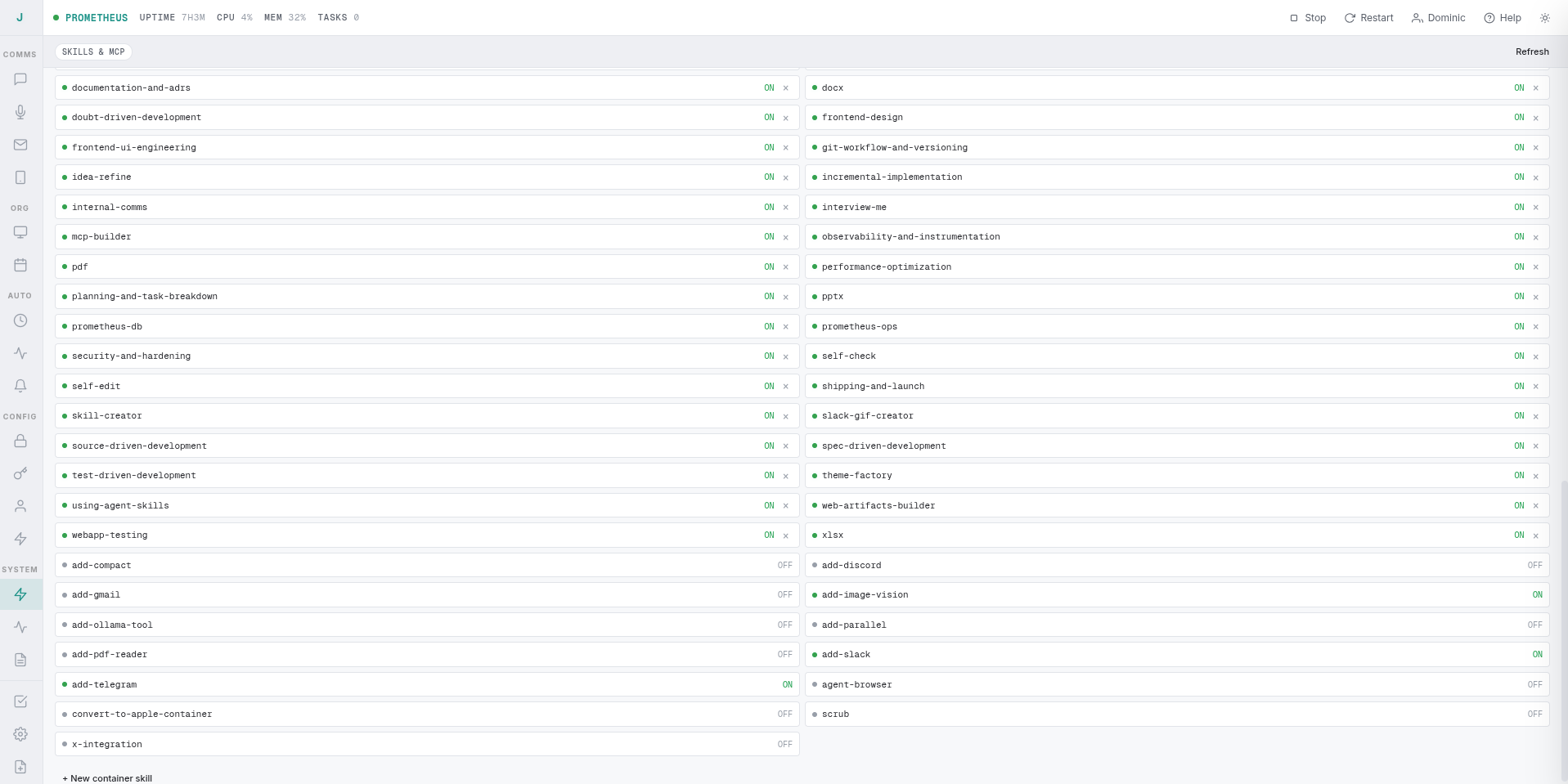
The tool loop has multiple circuit breakers to prevent common failure modes:
RESEARCH set) with no deliverable produced → inject a "stop searching, write now" commit nudge; 10 more read-only calls after the nudge → the runner aborts the job itself (12/10 thresholds; artemis is exempt). The post-nudge count ignores writes, so churn punctuated by an occasional Edit can't evade the abort. A stopped Atlas auto-escalates to Vulkan on the same task. (See docs/notes/supervision-and-churn.md.)The orchestrator writes directly to MEMORY.md, TODO.md, and HEARTBEAT.md — no delegation needed. These files are loaded into context every turn.
After every conversation, a memory writeback pass runs automatically: a local model reads the last ~30 messages of the chat, distills durable facts (preferences, decisions, context the agent should carry forward), and appends them to MEMORY.md with a dated entry in JOURNAL.md. The distilled facts are visible to the agent on the very next turn — no manual note-taking, no "remember this" prompts. The writeback is fire-and-forget (never blocks the message loop), throttled to once per chat per 15 minutes, and auto-compacts MEMORY.md when it grows too large. Both files live at WORKSPACE_ROOT — the same place the orchestrator loads from every turn, and the same place Mercury writes MERCURY_MEMORY.md.
Mercury is the working-memory layer for the live conversation — how a fresh orchestrator (after a restart or context clear) knows what the current thread is about without replaying an ever-growing transcript.
MERCURY_MEMORY.md. Every turn's prompt starts with that summary merged into the system prompt, cache-prefix-stable.<mercury_context> block. Retrieval is deliberately conservative, because raw old turns injected carelessly once hijacked a turn — the model answered a fresh question by replaying a day-old exchange verbatim, matched on a single shared keyword: a query with 3+ keywords must now match ≥2 of them, score ties break toward the newest message, every retrieved line carries its timestamp, and the block is labeled background-only with the current ask explicitly prioritized.mercury, marm_log_entry, deduped on unchanged text) so the rolling state stays semantically recallable even after the 120-message horizon passes. Fire-and-forget and fail-open: MARM down or absent changes nothing — Mercury and its RAG work standalone and are always the default recall path.MARM Memory (by Lyellr88) is the default long-term memory server: local-first recall beyond what MEMORY.md can hold. Warden runs identically without it — every MARM path is fail-open — but with it installed you get:
MEMORY.md auto-compacts and drops older lines; MARM keeps every distilled fact the writeback has ever logged, recallable by relevance.marm_smart_recall directly for a deeper dig.Default-on since 2026-09-22. install.sh installs the server (uv tool install marm-mcp-server; requires uv), provisions a marm-memory.service systemd --user unit (MCP HTTP at 127.0.0.1:8001, wired into warden.service via the warden.service.d/marm.conf drop-in so it starts with Warden), and registers the marm stdio entry in data/mcp-servers.json with the absolute binary path (systemd's minimal PATH can miss ~/.local/bin; a fresh install's seeded config uses marm-memory from PATH and upserts to the absolute path on install). Opt out with INSTALL_MARM=0 ./install.sh and/or disable the marm entry in data/mcp-servers.json. Optional: pin the concept-graph topic model with MARM_TOPIC_MODEL=<model> install.sh when the server default isn't right for your models (ollama list).
The orchestrator is granted mcp__marm__* tools — the one MCP server it calls directly, since recall is assistant state, not hands-on work. The # LONG-TERM RECALL prompt section is emitted only when the marm entry is enabled, so a disabled MARM never leaves the model advertised tools it doesn't have. Data lives in ~/.marm/.
How it integrates (all built in, none of it requires touching Warden's core):
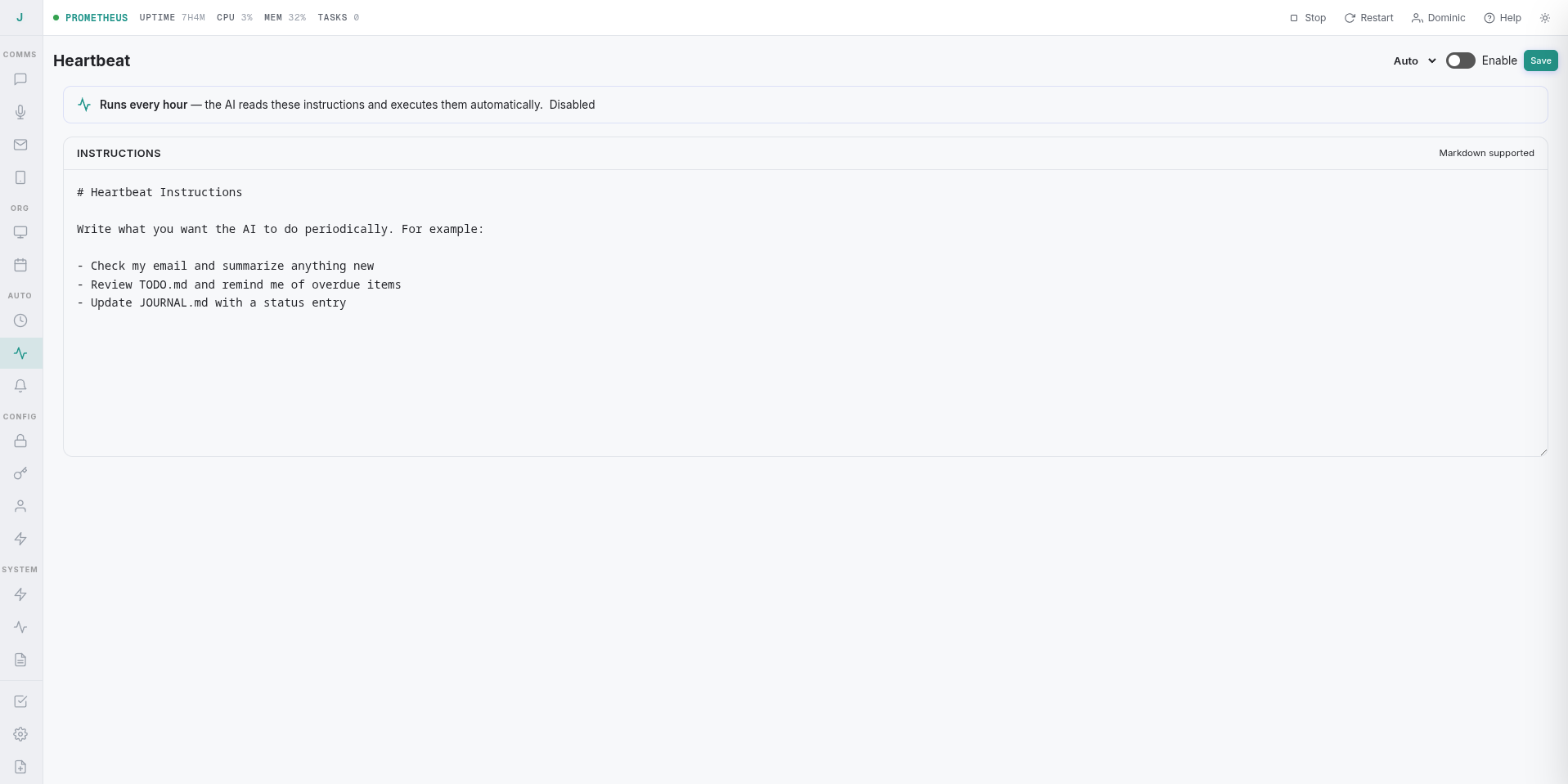
marm_log_entry, over MCP HTTP) right after appending to MEMORY.md — fire-and-forget, with a 10s timeout: MARM down or absent changes nothing. In the other direction, marm-recall.ts auto-recalls the top MARM matches for each incoming message (2.5s timeout, ≤3 hits, ≤900 chars, fail-open) and injects them into the orchestrator's prompt as a # RECALLED MEMORIES section.marm_log_entry, session mercury, deduped on unchanged text) — the conversation's recent state becomes long-term recallable under the same fail-open contract.eyes_ears/ui/memory-galaxy.html): a 3D constellation of MARM's concept graph — nodes are entities extracted from stored memories, edges are walked relations. Clicking a node opens its details in a separate popup window. The built graph is cached (15 min), so a UI restart doesn't re-probe MARM. With MARM off or the concept graph unbuilt, the galaxy falls back to its built-in demo constellation.HEARTBEAT.md holds standing instructions the agent executes on schedule via the task scheduler — no prompt from you required. Edit it from the dashboard's Heartbeat panel (or let the agent edit it itself) and the instructions run automatically, giving the agent persistent autonomous behavior between conversations.
Under the hood, the heartbeat is a real scheduled task (heartbeat-owner) persisted to heartbeat.json and synced to the task scheduler. The dashboard's Save button writes your instructions, creates or updates the cron row, and mirrors the content to HEARTBEAT.md so runTask injects it into the prompt. The task is seeded paused on boot — it's always visible in the Ops Scheduled tab, and you enable it with one click. Pausing via the Ops tab reflects immediately in the dashboard toggle; resuming re-activates the cron. The cron defaults to hourly at :45 (offset from the iris-digest crons so they don't pile up on the same minute).
The orchestrator keeps its running context lean by design, not by a giant ceiling. After every turn its persistent conversation collapses to chat-history-only — the last few turns' final responses (~1K each) — and drops all the tool calls, tool results, and system injections that produced them. Mercury is pinned; long-term memory isn't relied on for the working window. Trimming is group-aware (it drops whole tool-call→result groups, so it keeps fewer messages without orphaning a tool result), and each tool result is capped at ~1K tokens. Two manual resets sit on top:
0 disables it.The agent can modify its own source. A built-in self-edit skill constrains edits to src/ and container/agent-runner/src/, runs npm run build, gates on a successful compile, tells you what's changing, then restarts the service with systemctl --user restart warden. It refuses to touch dist/, configs, or the systemd unit, and never restarts on a failed build — so the agent can ship its own fixes without you opening a terminal.
A companion update-warden skill does the upstream equivalent: it fetches origin/main, shows what's new, merges, runs npm run build, and — with the same gate — restarts only if the build succeeded (exit 0), verifying systemctl --user is-active warden prints active afterward. It refuses to run on a dirty tree and aborts the merge on unresolvable conflicts, leaving the service on the previous dist/ until you fix things. Ask "update warden" to trigger it.
Warden is built for hybrid operation from the ground up. Different tasks need different models, and you shouldn't have to choose one and stick with it.
Every model selection in the dashboard is per-role:
| Role | Recommended | Why |
|---|---|---|
| Orchestrator | e4b local works; 31B cloud recommended | Fast, cheap routing + supervision. e4b is the floor; 31B cloud catches sub-agents that bluff a result. Keep-alive is on by default. |
| Supervisor (watchdog) | Small local (e.g. granite4.1:3b) | The running-job self-audit tick is cut out (see above). The model still runs the completion verdict on finished jobs — tool-less, a few hundred tokens per call, falls back to the orchestrator model if unset. The dashboard Supervisor row is removed. |
| Atlas | Cloud (deepseek, glm) | Heavy lifting — internet access, shell, browser, complex reasoning. Keep-alive optional. |
| Vulkan | Cloud (default) | Coding, builds, tests, refactoring, heavy shell pipelines. Keep-alive optional. |
| Toolcall agents | Local (recommended) | Iris and Sentry share one model + ctx row. Run them local; save cloud for Atlas and the Council. |
| Artemis | Cloud (default) | Read-only audit. Keep-alive optional. |
| Council seats | Cloud ×3 (different models) | Diverse perspectives for deliberation. |
Every role can be flipped to local or cloud from the dashboard — same pipeline, no code change — so the column above is a recommendation, not a constraint.
⚠️ Kimi is not recommended right now. Kimi loops on read-heavy / long-running subagent tasks (atlas, vulkan, artemis) — it re-issues the same read-only call repeatedly instead of converging, and it leaks its chain-of-thought as untagged text when thinking is disabled (which is why any
/^kimi/imodel is forced tothink:trueevery request). The deterministic churn detector still catches read-only-call loops on kimi, but artemis is churn-exempt, so a looping kimi-artemis runs to the iteration cap unchecked. The currently-tested fleet is atlas = a local thinking model, the rest = glm, no kimi. Use glm (or a local thinking model for atlas) for subagent work; save kimi for the orchestrator if you use it at all.
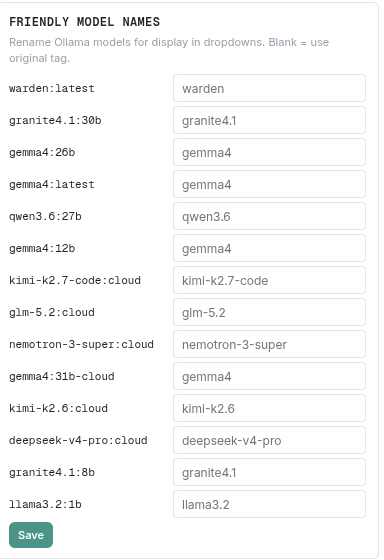
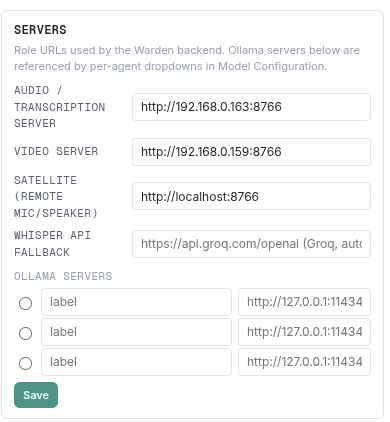
All of this is configured from the dashboard's Settings panel — assistant name, model per role, Ollama URL, and keep-alive toggles:
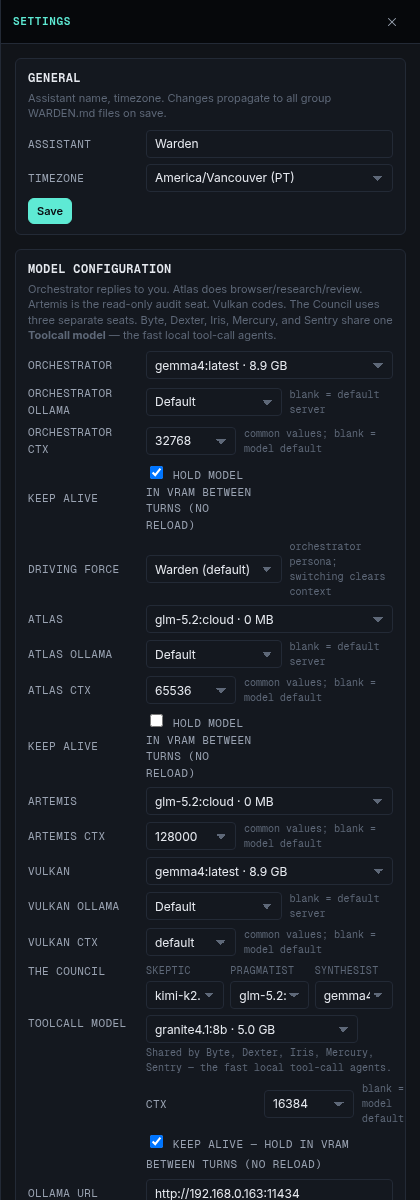
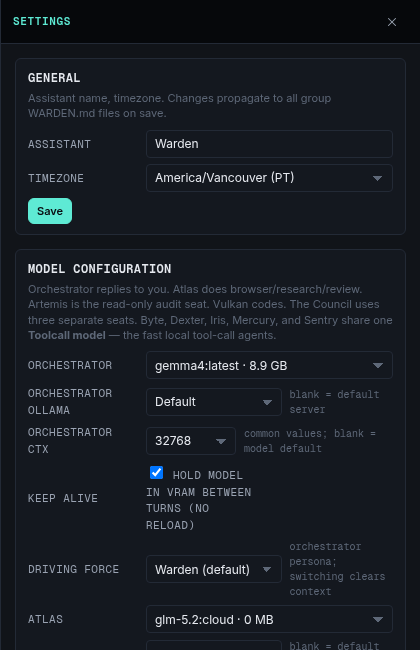
There is no separate infrastructure for cloud models. Ollama serves both local models (on your machine) and cloud models (remote Ollama-compatible endpoints) through the same HTTP API — so every agent can be flipped between local and cloud from the dashboard with no code or infrastructure change. You're just picking a model id. The agent-runner talks to Ollama directly — no proxy in the path by default.
The agent-runner speaks Ollama's native HTTP API and talks to Ollama directly — local models at localhost:11434, cloud models at their Ollama-compatible endpoint, model picked per role in the dashboard. No proxy in the path. The agent doesn't know or care whether the model is local or cloud; same format, same tools, same conversation.
Optional — piping in Claude: src/credential-proxy.ts (port 3001) is in the codebase but not wired in by default. It exists for one case: routing to Anthropic's Claude. It translates Ollama-native requests ↔ Anthropic format and injects the Claude API key so the agent-runner never sees it. If you want Claude, wire the proxy in and point the agent-runner at it; otherwise everything stays on native Ollama.
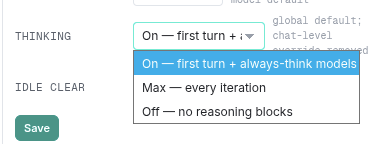
Supervisor model & per-iteration thinking. The running-job self-audit tick is cut out; the completion verdict still runs on a separate SUPERVISOR_MODEL (falls back to the orchestrator model) — a small, tool-less call, so a local model is ideal. Sub-agents think on a per-iteration rule: Atlas thinks on its first turn only (plan, then act — paired with the READ-ONCE prompt rule against the re-reading loop); kimi thinks every turn (it leaks reasoning as untagged text when thinking is off, so /^kimi/i models are forced on); every other sub-agent iteration is think:false. The orchestrator has its own dashboard thinkingMode (max = every turn, true = first turn, off otherwise) and thinks on turn 1 by default. Never send think:true to a Granite model — Ollama rejects it, so the Granite toolcall agents (iris/sentry) stay on think:false.
Warden browses through your actual Chrome — the one you're logged into, with cookies, sessions, and extensions intact. There is no Warden-owned browser, no headless puppet, no CDP port: the single path is a Chrome extension bridge.
The chain: the chrome-mcp-server extension (unpacked copy at chrome-mcp-server-1.0.0/) runs in your real Chrome and spawns the mcp-chrome-bridge native host (npm install -g mcp-chrome-bridge, serving MCP on 127.0.0.1:12306). Warden's browser gate (src/browser-mcp-gate.ts) owns the single upstream connection to that host and re-serves it statelessly at POST /mcp/browser on :3200 — the agent-runner never touches 12306 directly.
The browser is an optional component that never blocks anything. It's dialed on demand — only when a browser/web tool is actually invoked — and the gate fails fast (5s) if the bridge is down, so no request can hang on it. Warden boots, chats, and runs every non-web turn with the bridge completely absent.
For the full contract (lazy connect, fail-to-default toolsets, the diagnostics ladder, and the one-command repair via scripts/restart-browser-bridge.sh), see CLAUDE.md → Browser capability.
Warden controls your actual desktop — mouse movement, keystrokes, window management. Wayland via ydotool, X11 via xdotool. It discovers your display environment automatically, even when started from systemd with no DISPLAY set.
Almost none of Warden's tools are generic wrappers — they're purpose-built, one layer above the real system, and they work out of the box because they bind to what's already there: your real Chrome profile, your real audio hardware, your real CalDAV calendar, your real media players. No adapters to configure, no credentials to paste twice, no "integration setup."
The design rule for the action tools is one tool per noun, one action parameter (a 2026-09 collapse of 41 flat tools): email, task, calendar, alarm, project — each a single schema whose action selects the operation. Small models stay in-distribution, and every new operation is one enum value, not a new tool.
The live surface is the extension's own chrome_* toolset (~27 tools: chrome_navigate, chrome_read_page, chrome_computer, tab management, key presses, …) served through the Warden gate. The youtube tool (container/agent-runner/src/tools/youtube.ts) drives pages through the McpPage adapter on top of it — navigate + script-eval are the required pair, with tab-list and key-press tools upgrading fidelity when present. If the bridge is down, the tool reports that as a terminal fact and the turn ends — browser failure never takes down chat or any other capability.
desktop_screenshot · desktop_click · desktop_type · open_app — sees and steers native apps (settings windows, media players) with pixel coordinates, auto-detecting Wayland vs X11; open_app fire-and-forgets files to their OS-default app.
audio_volume (speakers) · mic_volume · media_control (play/pause/skip) — anything exposing MPRIS: a browser YouTube tab, Spotify, mpv, VLC. Dedicated tools, not amixer/playerctl shell noise.
youtube — play, search, and control the real Chrome YouTube tab through the browser bridge: now-playing, pause/resume, next, seek, fullscreen. Any ask mentioning YouTube routes here and the tool result is the reply; a "stop the music" ask maps to action: pause, and the prompt's control rule forbids ever stating a playback change without the call that made it — that exact zero-tool-call hallucination (seat claimed "paused" while the music kept playing) is what the mapping was added for (2026-09-21).
query_image — ask questions about any image on disk, answered locally. read_image + webcam_capture + desktop_screenshot feed frames into the agent's vision context automatically.
email (read/send/cache, date-windowed) — your real IMAP inbox · contacts — full CRUD (list_contacts, search_contacts, get_contact, create_contact, update_contact, delete_contact) · calendar — CalDAV events, Kontact/Google-synced.
alarm · task (schedule/list/update/pause/resume/cancel — cron, interval, one-shot) · start_timer · stop_timer · log_time — durations are parsed host-side (ISO-8601 PT2M), never by the model doing clock math. Fired reminders land in chat directly, and the Alarms view shows every once/cron/interval job including fired ones.
project (kind + action over projects and work tasks) · list_todos · create_todo · complete_todo · delete_todo.
generate_pdf — build a PDF from scratch · convert_file — DOCX/XLSX/HTML/markdown conversions, no external services.
get_chat_history · attach_file (deliver a generated file to the user) · send_message · clear_context — the agent manages its own thread weight.
sentry_report — the software-security scanner (read-only sockets/services/crontab audit, one inventory submission, host logs the scan and relays findings).
api_request + list_api_keys — your own stored provider credentials, used directly · fabric_pattern — Daniel Miessler's fabric patterns hot-plugged into prompts · Bash — a persistent shared shell where cd sticks.
Every tool above is registered with a toolset and routed to agents by role (Dynamic Tool Selection) — vulkan gets code tools and physically cannot screenshot-loop, sentry gets read-only audit tools and nothing else, atlas gets the browser and the media hardware.
A full PWA at http://localhost:3200. Open it and you're in — single-user, the full dashboard is right there.
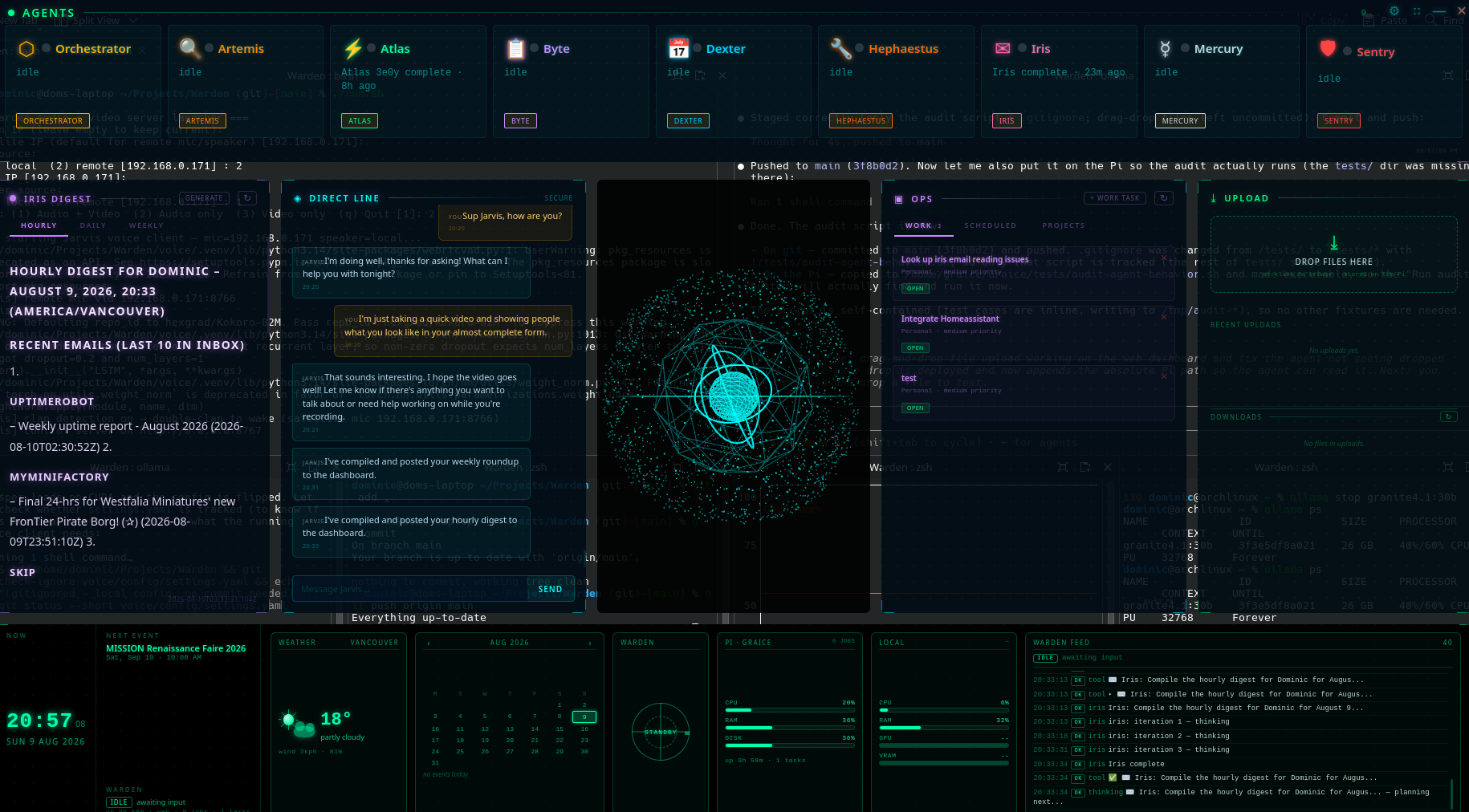
The dashboard includes:
| 💬 Chat | Main conversation interface | 🗂️ Projects |
| 📁 Files | Browse, upload, download, manage | ⏰ Scheduled Tasks |
| 🔑 API Keys | Provider credentials | ⏰ Alarms |
| 💓 Heartbeat | Standing instructions on schedule | ⚡ Actions |
| IMAP inbox + send | ||
| 🎤 Talk | Voice transcription | 📝 Notes |
| 📅 Calendar | CalDAV synced with Kontact | 🧩 Skills & MCP |
| 📈 Agent Activity | Live verbose status + collapsible progress panel | 📜 Process Logs |
| 📰 Digest | Hourly/daily/weekly grounded briefings | 🎓 Training |
| 📈 Alpha Stack | Trading research stack — its own webapp, embedded (see Alpha Stack) | |
| 🖥️ Hologram Panels | Today, digest, agents, chat, tasks, upload, system — all in the voice UI | |
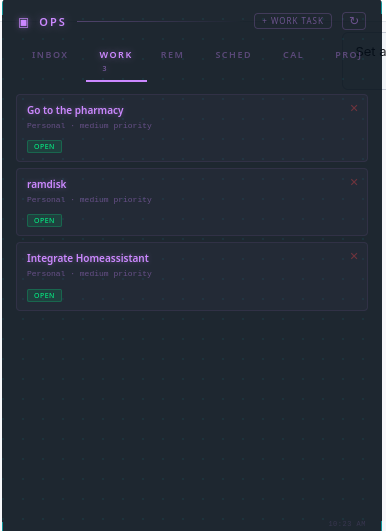
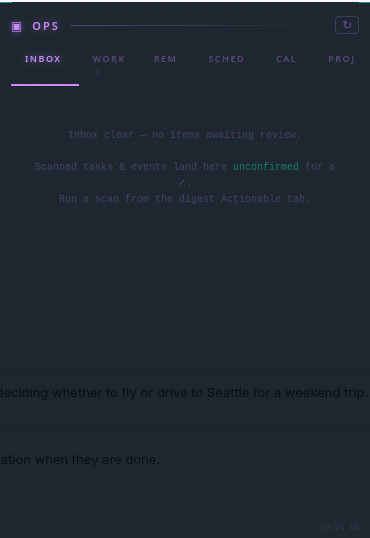
| 🏗️ Ops Panel | Inbox (scanned work tasks + calendar events — ✓ confirm / ✕ deny), Work tasks, Reminders, Schedules, Calendar (Google-synced appointments), + all scheduled crons with pause/resume — heartbeat, iris-digest hourly/daily/weekly |
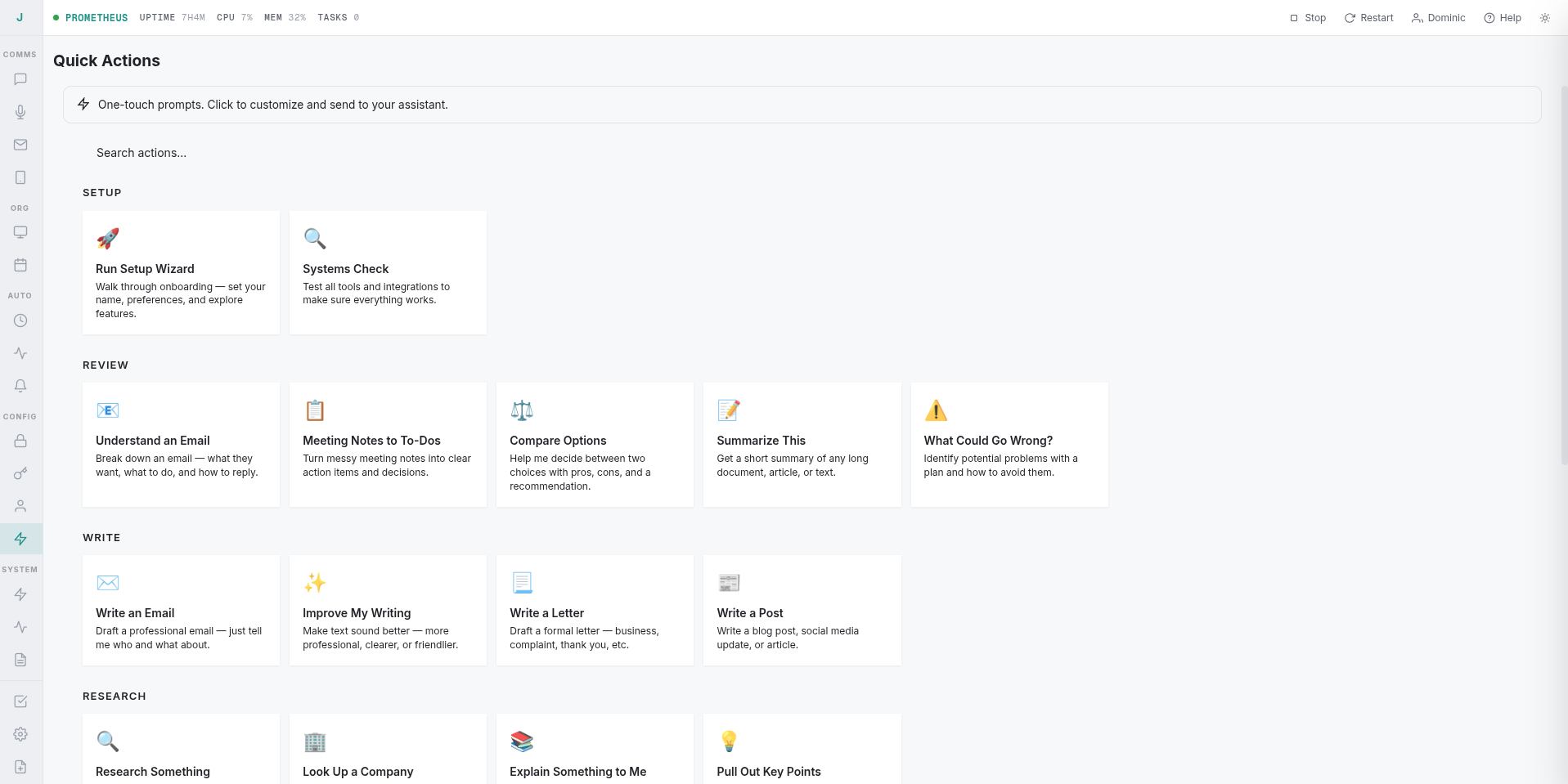
One-touch prompt buttons for the things you do all the time — setup, review, write, research. Press a button instead of typing the same prompt again; each action fires a pre-written prompt into the conversation.
An agent system is only as good as the requests you give it, so Warden teaches you how to use it. On first launch the dashboard opens a How to Use Warden guide that leads with the one thing new users need to hear — this is not a chatbot — then walks the whole system: the agent roster and what each specialist actually does, how to convene the Council on a decision, how to delegate to Atlas (including parallel delegations in a single turn), the skills system, and what kinds of asks work best.
Behind the modal sits a full help site with in-depth pages. The flagship, not-a-chatbot, puts chatbot-style asks and agent-style asks side by side — "tell me about microservices" gets you conversation; "read src/auth.ts and tell me if there's a timing-safe comparison missing" gets you tools run, files read, verdicts returned — then distills the principles that make requests land: be specific about the target, parallelize independent asks, read BLOCKED messages instead of retrying blindly, and watch the verbose bar to see what Warden is doing right now.
An Obsidian-inspired markdown vault backed by the real filesystem — no database, just .md files you can also edit by hand or sync with anything. The vault root is ~/Documents/Notes; the corpus (tags, backlinks, [[link]] resolution, search) is indexed only from that subtree, so it stays focused on your actual notes instead of pulling in the tens of thousands of unrelated markdown files (READMEs, skill docs, etc.) scattered across the rest of your home directory.
[[wiki-links]] — link notes by title; the corpus resolves them across the vault.#tag lines feed a tag sidebar with counts.Files are plain markdown on disk; the dashboard is just a viewer/editor over them.
A markdown file at USER_BIO.md in the workspace root that tells the agent who you are — name, location, sleep schedule, preferences, habits, whatever you want it to know. The dashboard's Bio page reads and writes it directly. Iris digests read the same file to ground hourly/daily/weekly summaries in real context: weather for your city, sleep nudges based on your schedule, habit-aware suggestions. It's the difference between a generic "good morning" and one that knows you're in Vancouver, you went to bed at 2am, and you've got a standup in 20 minutes.
Iris compiles short briefings from your real local data and publishes them to the dashboard digest panel and the hologram UI (eyes_ears/ui/digest.html). There's no scraped news feed — every line comes from a grounded source.
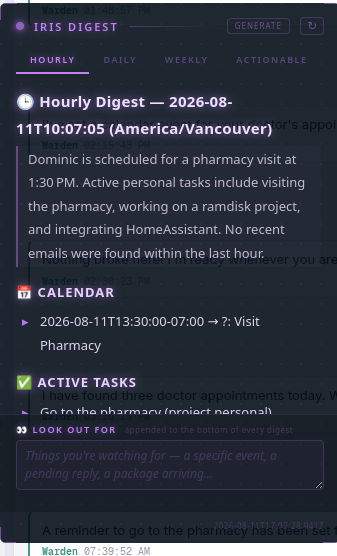
Three cadences, each a scheduled task that Iris owns, all configurable from the dashboard Ops → Schedules tab (or the voice UI Ops panel) with pause/resume per cadence:
| Span | Scope |
|---|---|
| Hourly | The present and the next ~2h |
| Daily | End-of-day — today in review, what's still active, tomorrow |
| Weekly | A seven-day roundup with theme-grouped email activity |
Grounding — each run is preceded by buildDigestContext (src/task-scheduler.ts), which assembles a real-world context block from the local DB and prepends it to the prompt:
USER_BIO.md (the same file the Bio page edits)listCalendarEventsgetWorkTaskswttr.in for the location named in your bioread_emails once for inbox activityIris then compiles the markdown digest and publishes it by calling post_summary (a keyless internal loopback to POST /api/summaries?span=X), which is the only way the digest reaches the panel.
Anti-fabrication — every digest prompt leads with a CRITICAL RULE — NO FABRICATION block: every fact must appear verbatim in INPUT or read_emails output; empty sections say "none"; a blank digest is better than a fabricated one. The Nudge line is restricted to time-of-day and weather only, never invented tasks. This was added after Iris kept inventing a plausible-but-fake "client proposal" in the hourly digest — the EXAMPLE sections that gave it a template to pattern-match against were removed at the same time.
Rendering — the panel renders the markdown itself (renderMd in digest.html), not a generic parser:
▸ markers[todo] / [in-progress] / [blocked] / [done] / [review] become colored pillsManual trigger — POST /api/digest/generate?span=hourly|daily|weekly runs a digest now through the same grounded path as the cron. The panel's Generate button does exactly this and polls until the fresh digest lands (timestamp changes, up to ~90s).
This is the one you leave running overnight. You walk away, Warden keeps working, and when you come back everything that actually needs you is already sitting in the Ops Inbox — the meetings and to-dos pulled out of your last hour's email, deduped, and waiting for a single click to confirm. Or flip on auto-accept and your calendar fills itself, offline, with no prompt from you.
There is no separate "scan agent." Finding actionable items is just one more job the hourly Iris digest does on top of summarizing. The same Iris, on the same cron (7 * * * *), reads the last hour's email and emits two extra JSON keys alongside its summary:
{
  "title": "...", "summary": "...", "alerts": [], "blocks": [...],
  "actionable_tasks":  [{ "title": "Confirm the 3pm dentist appointment", "due": "2026-08-14T15:00:00", "project_hint": "personal" }],
  "actionable_events": [{ "title": "Meeting with Sunny", "start": "2026-08-14T12:00:00", "end": "" }]
}
When the digest completes, the digest_complete callback (src/index.ts) parses those keys and calls createActionableItems, which writes real rows — work tasks and calendar events — exactly the same ones a manual create_calendar_event / schedule_task would produce. Daily and weekly digests do not extract — they only summarize. Extraction is hourly only.
What counts as actionable (encoded in the hourly prompt):
| Type | Is one when… | Is not one when… |
|---|---|---|
| Task | A concrete to-do the user must do — prepare, make sure, get ready, confirm, review, send, schedule, fix, follow up, deliver, pay, book, submit. due set only when a deadline is stated. | A greeting, question, opinion, status update, or bot-sent message. |
| Event | A scheduled meeting/appointment with a stated date and start time inside the message (start in ISO from that time; end if stated). | The email's receive/arrival date (that's metadata, never a start), or a promotion/receipt/newsletter/shipping notice/automated reminder. |
A single email can yield both — the meeting at a stated time is an event; "make sure you're ready for it" is a separate task. Empty arrays are the correct answer when nothing's actionable; Iris is told not to invent items.
Dedup — before creating anything, taskAlreadyExists(title) checks work tasks by title and eventAlreadyExists(title, start) checks calendar events by title and exact start time. So the same meeting surfacing in two consecutive hourly windows creates it once, not twice.
The Ops Inbox (/api/scan/inbox → the Ops Panel's Inbox tab) is where unconfirmed items land:
GET /api/scan/inbox returns the unconfirmed work tasks + calendar events plus the current autoConfirm flag.POST /api/scan/confirm { kind, id } green-checks one item — sets confirmed = 1 so it graduates out of the inbox and onto the real calendar / task list. Deny is a normal delete.GET/POST /api/scan/config { autoAccept } reads or flips the toggle.Auto-accept — when scan:auto_accept is on, createActionableItems writes every row with confirmed = 1 already, so items skip the inbox entirely and land straight on the calendar/task list. Turn it on from the Actionable tab's toggle or POST /api/scan/config { "autoAccept": true }. Off (the default) means everything is confirmed = 0 and waits in the inbox for your ✓.
Offline calendar fill — extracted events are written to the local calendar DB (calendar_source: 'local', a fresh ical_uid), with no round-trip to Google. That's the "auto-fills the calendar offline" part: your inbox-to-calendar pipeline doesn't depend on any provider being reachable. Online calendars sync the other direction — the 15-minute startCalendarSyncPoller pulls Google events into the same local DB so the models can read both local and remote in one list_calendar_events call. (Iris manages entries on that local copy: create, list, update, and delete by the uid list_calendar_events returns.)
Manual run — the Actionable tab's Scan now button (POST /api/scan/run) fires the same hourly Iris digest on demand through triggerDigest('hourly', true) → identical path → identical extraction. There is no separate scan cron or scan model; the hourly digest cron is the only thing that extracts, and the button is just "run it now."
End-to-end, unattended — set autoAccept, walk away, come back: the hourly cron has been pulling actionable items out of each hour's email, deduping them, and writing them to your calendar and task list the whole time. Or leave auto-accept off and triage the inbox in one pass. Either way the work of turning "you've got mail" into "you've got a calendar" is already done.
Each digest span has a talk toggle (digest:talk:hourly|daily|weekly in router state, set from the dashboard). When talk is on for a span, that span's digest isn't just published to the panel — digest_complete also pushes it through the normal chat_complete notification path, and the voice client speaks it aloud via TTS.
The daily digest's cron is configurable from the dashboard (default 17 21 * * *, i.e. 21:17 local — deliberately off the :00 mark). Move it to your wake time, turn on digest:talk:daily, and the morning briefing — today's calendar, active tasks, notable emails, and the alerts block — is spoken to you at that time. Grounded in your real local data, not a generic forecast. A TTS alarm clock that knows you've got a standup in 20 minutes.
Warden's seat model is a fine-tune (orchatlas-ft, built from training/), and the dashboard's Training view closes the circuit: failures the system actually made become new SFT rows and a fresh retrain — audit → modify → train, three buttons, no terminal.
| Step | What it does |
|---|---|
| Audit logs (1 / 3 / 7-day window) | Clears VRAM (refuses while an agent turn is live), loads a 17 GB local analyst model, parses the warden logs (journald, warden.log fallback) for failure-shaped turns — tool errors that never recovered, dead ends with zero tool calls, refusals, hallucinated answers, infra outages — and has the analyst classify each slice as a failure class or not_a_failure (conversational turns grep-match too; the classifier filters them, not the regexes). No cap — every failure-shaped turn is cataloged, because dropped slices are dropped training data. The catalog is checkpointed after every slice, so a crash mid-run keeps the classification work. Catalogs land in training/loop/catalogs/. |
| Modify training data | Takes the newest catalog, drops the non-failures, and has the analyst write new SFT rows against the live tool pool and existing exemplars. Every row is validated locally against the merge contract (exact time anchor, tools in the role pool, no per-row tools), then merge_orchatlas_parts.mjs runs as the gate — anything invalid gets renamed .rejected and the step fails loudly instead of corrupting the dataset. |
| Train | Runs the standard 1-epoch atlasorch.sh as-is. When it finishes, flip the seat model to orchatlas-ft in the dashboard. |
Each step is a detached background job with a live log tail in the view; only one step runs at a time, and audit/modify unload the analyst when they finish so the VRAM goes back to the resident models. The keep-alive re-pin cooperates: it only maintains models that are loaded — it snapshots Ollama's /api/ps and never re-spawns a model that was deliberately unloaded, so a pinned seat model can't fight the analyst for VRAM mid-audit.
The trading research stack lives at trading/ (red rail button under Chat in the dashboard) — a machine-local environment, not part of a fresh install: the venv, models, data, and paper-trading state are self-ignored via trading/.gitignore and are never committed.
The Alpha Stack view is the stack's own webapp — trading/webapp/ (a stdlib-only server, bound to 0.0.0.0:8765 so the dashboard's mobile/LAN clients can load the embedded iframe — same no-auth single-user posture as the dashboard itself). Warden does not run it as a daemon: opening the Alpha Stack view spawns it on demand (trading/bin/python webapp/app.py, detached, logging to trading/logs/webapp.log); the systemd drop-in warden.service.d/alpha-webapp.conf also starts it on every Warden (re)start. The iframe targets the dashboard's own hostname on :8765, so it renders from any device that can reach the dashboard. State (trading/.alpha-stack/) and reports (trading/.tradingagents/logs/) live on disk under the stack root, so a webapp restart loses nothing.
Everything is fail-open: with no trading/ present the view reports the failure and Warden runs identically. The stack's local LLM dependency (TradingAgents points at http://localhost:11434/v1) is the same Ollama the rest of Warden uses.
Everything talks to Warden through one HTTP server — the dashboard, the hologram panels, the Pi satellite, and Iris's internal loopback. It's a single plain-JSON server on STATUS_PORT (default :3200), the same one that serves the dashboard UI. There is no auth gate — Warden is single-user, so every /api/* route is open on the loopback host. (The old multi-user/admin/user route trees return 410 Gone.)
| Group | Endpoints |
|---|---|
| System & control | GET /api/status · GET /api/health · GET /api/heartbeat · GET /api/activity · GET/POST /api/process-logs · POST /api/server/restart · POST /api/open-terminal · POST /api/terminal |
| Chat & agents | GET/POST /api/messages · POST /api/chat/stop · POST /api/chat/interrupt · POST /api/chat/clear-context · POST /api/chat/clear-conversation · POST /api/agents/kill · POST /api/voice |
| Files (shared workspace) | POST /api/files/upload · GET /api/files/download · GET /api/files/serve · GET /api/files/list · GET /api/files/read · GET /api/files/stat · POST /api/files/mkdir · POST /api/files/copy · POST /api/files/rename · POST /api/files/revert · GET /api/files/history · GET /api/files/version |
| Digests | GET/POST /api/summaries?span= · POST /api/digest/generate?span=hourly|daily|weekly |
| Actionable / Ops inbox | POST /api/scan/run (run hourly extraction now) · GET /api/scan/inbox (unconfirmed tasks + events) · POST /api/scan/confirm · GET/POST /api/scan/config ({ autoAccept }) |
| Tasks & scheduling | GET/POST /api/tasks · POST /api/tasks/bulk · GET/POST /api/work-tasks · GET/POST /api/timers · GET/POST /api/automations · GET/POST /api/alarms |
| Memory, bio, search | GET/POST /api/bio · GET/POST /api/projects · GET /api/search · GET /api/skills · GET /api/groups |
| Channels | GET /api/channels · */api/channels/slack · */api/channels/telegram · */api/channels/whatsapp (+ /qr, /sync) · */api/email/{accounts,inbox,drafts,message,send,test} · GET/POST /api/calendar/events · POST /api/calendar/import · GET/POST /api/calendar-token · GET /api/oauth/start · GET /api/oauth/callback · GET /api/oauth/accounts |
| Models / Ollama | GET /api/ollama/servers · GET /api/ollama/model-names · POST /api/ollama/test · GET /api/ollama/thinking-support · POST /api/ollama/toggle |
| Training loop | POST /api/training/audit {days: 1|3|7} · POST /api/training/modify · POST /api/training/train · POST /api/training/stop (SIGTERMs the running step's process group) · GET /api/training/status · GET /api/training/catalogs |
| Alpha Stack | GET /api/alphastack/status (inventory + whether the webapp is up) · POST /api/alphastack/webapp/start (spawns the stack's webapp on 0.0.0.0:8765 on demand) |
| Audit | POST /api/audit/run · GET /api/audit/status |
| Settings & UI plumbing | GET/POST /api/settings · GET/POST /api/dashboard-pages (live/beta file editing) · GET/POST /api/mcp-servers · GET /api/notifications · GET /api/notifications/poll · GET/POST /api/notification-list · POST /api/notification-list/read-all · GET/POST /api/api-keys |
/api/files/* route resolves its ?path= under GROUPS_DIR (~/warden/groups) and rejects anything that escapes it (.., absolute paths). The shared uploads/downloads folder the hologram panel uses is groups/uploads/. Uploads take the file body as application/octet-stream with the filename in an x-filename header (up to 1 GB); downloads stream a single file as octet-stream or a directory as tar.gz.POST /api/summaries?span=X — a keyless internal call back to this same server. The panel then reads GET /api/summaries?span=X. That loopback is the only way a digest reaches the UI.fetch() directly. Its panels load from file://, so Qt WebEngine's same-origin policy blocks them from reaching :3200. eyes_ears/ui/jarvis_window.py bridges this with warden_api(path, method, body) (JSON proxy), warden_upload(dir, name, b64), and warden_download(path) (base64 in/out) — Python makes the real HTTP request and hands the result back to the iframe.curl -fsS http://localhost:3200/api/status for a live snapshot; curl -fsS http://localhost:3200/api/health for a liveness ping.Model Context Protocol servers give agents real capabilities without touching core code:
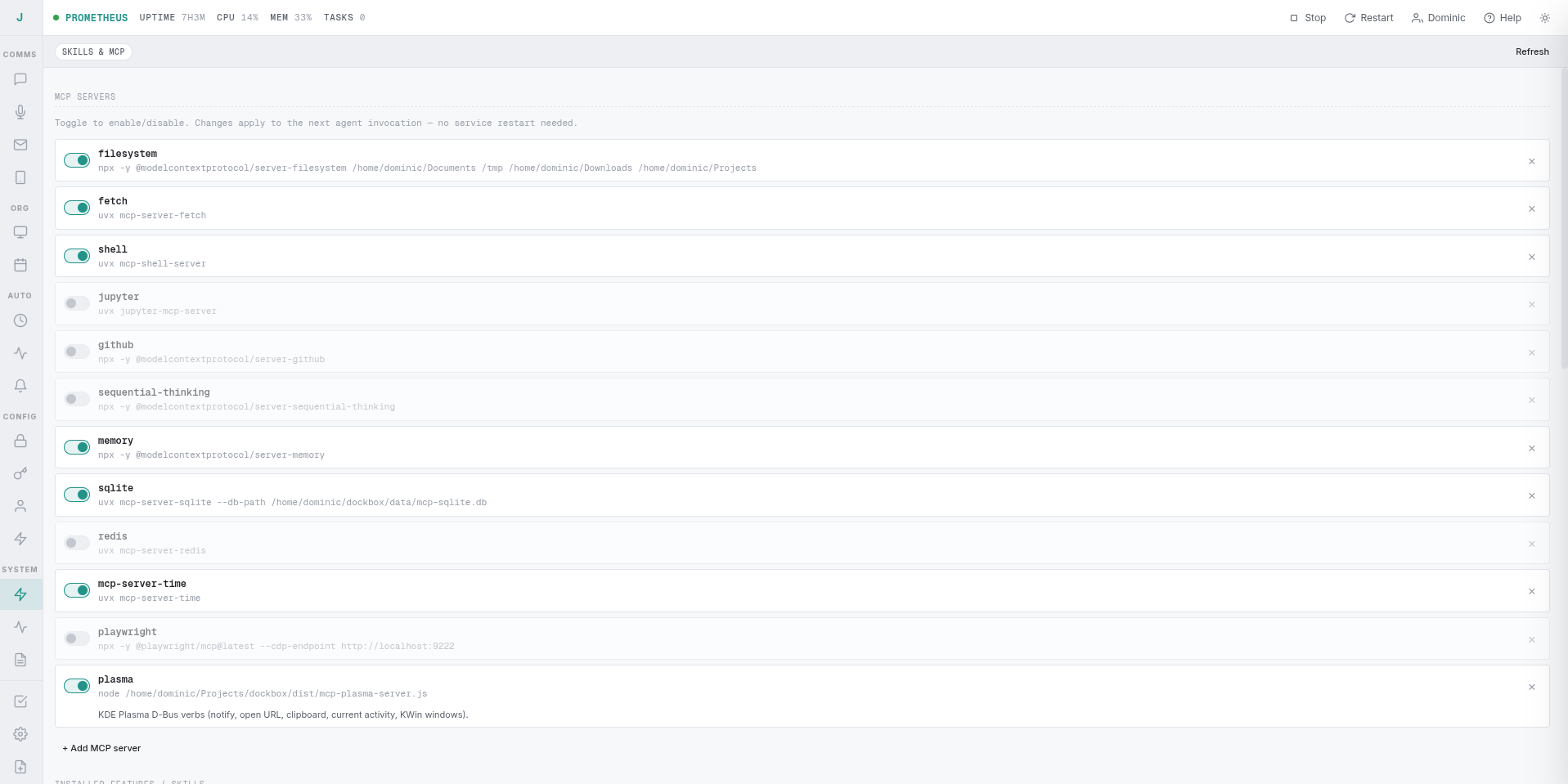
| Server | Capability |
|---|---|
| Filesystem | Read, write, edit, search, manage files |
| Fetch | Retrieve web content |
| Shell | Execute commands in a live PTY |
| Memory | Persistent knowledge graph |
| SQLite | Query and manage databases |
| Time | Timezone-aware scheduling |
| Plasma | KDE Plasma D-Bus (notifications, clipboard, windows) |
MCP servers are configured in data/mcp-servers.json and can be toggled from the dashboard. Atlas and Vulkan get every installed server; the chat seat keeps marm (memory recall is assistant state) and routes the rest through a delegate.
Warden ships a built-in provider for each capability — browser, web, files, shell, capture. An installed MCP server can take one over from Settings → Default apps: pick chrome-mcp for browser and from the next dispatch the agents browse with that server.
Choosing a server replaces the built-in rather than sitting beside it. One provider per job is the point: two tools that can both plausibly do something is how a small model ends up hand-driving a page instead of calling the tool that owns the task. If the chosen server has no tools loaded, the built-in stays and the runner logs why — a server that failed to start can't leave a seat unable to work.
One conversation, many doors. All channels merge into a single chat:
| Channel | How |
|---|---|
| 🌐 Web Dashboard | PWA at http://localhost:3200 — always enabled |
| ✈️ Telegram | Bot via grammy — enabled |
| Baileys (no third-party API) (module present, disabled by default) | |
| 💜 Slack | Bot integration (module present, disabled by default) |
The Web Dashboard and Telegram are enabled in the default build — src/channels/index.ts imports ./web.js and ./telegram.js. WhatsApp and Slack still ship but are commented out; uncomment the relevant import './<channel>.js'; line there to turn one back on. Message from the dashboard, continue on Telegram, check back on the web — same context, same memory.
The Telegram bot is single-owner by design — it only talks to one chat. The bot can drive a whole computer, so it's not open to anyone: the first chat to /start it claims ownership, and every other chat is politely refused. The refusal message includes that chat's id, so you know exactly what to paste to re-point the bot there.
TELEGRAM_OWNER_ID in data/env/env + the telegram:owner_id router state) and reconnects the bot. Paste a different chat id and save; the bot re-points there on reconnect. Leave the bot-token field blank to keep the current token./start it there; it replies with that group's chat id (a negative -100… number). Paste that id (including the leading -) into the Chat ID field and save, and the bot listens on the group instead of your DM. To actually see group messages, disable Group Privacy via @BotFather (/mybots → your bot → Bot Settings → Group Privacy → Turn off), then re-add the bot to the group.<message sender="First Last">…</message>).| Layer | Technology |
|---|---|
| Runtime | Node.js 20+ with TypeScript |
| Database | SQLite via better-sqlite3 |
| Browser | mcp-chrome-bridge native host (12306) + chrome-mcp-server extension on your real Chrome, re-served statelessly by the Warden gate — navigate, read, click, type, key-press, tab management |
| Desktop | xdotool + spectacle — coordinate input, screenshots |
| Terminal | Live PTY shell (tmux warden-shell) |
| LLM | Ollama (local + cloud) |
| LLM Routing | Native Ollama HTTP by default; optional credential proxy (src/credential-proxy.ts) for Anthropic format translation |
| Messaging | grammy (Telegram), Baileys (WhatsApp), Slack SDK |
| IMAP via imapflow, SMTP via nodemailer | |
| Calendar/Contacts | CalDAV/CardDAV via Radicale, synced with KDE Kontact |
| Voice | Whisper (STT), Kokoro or Orpheus (TTS) |
| Logging | Pino |
| Process | Single Node.js process, agent-runner as persistent child |
All LLM communication is raw HTTP fetch to Ollama. No vendor SDKs. You control the model.
Warden is an autonomous AI that runs on your own hardware. It can operate fully locally, fully in the cloud, or mixed. The minimal setup is a single Linux machine with a local Ollama instance.
| Component | Minimum | Recommended |
|---|---|---|
| OS | Linux (kernel 5+) | Arch Linux or Ubuntu LTS |
| Node.js | 20+ | 22 LTS |
| RAM | 8 GB | 16 GB+ (local models + browser tools) |
| GPU | Optional | NVIDIA GPU for local vision / TTS models |
| Browser | Optional — your real Google Chrome | Google Chrome + the mcp-chrome-bridge native host for the extension-driven browser tools |
| Microphone/speaker | Optional | USB or Bluetooth headset for voice |
git clone https://github.com/domdoss/Warden.git warden
cd warden
All commands below assume you are inside the project root.
On Arch Linux (the primary target):
bash install-deps.sh
This installs Node.js, npm, git, build tools, poppler, tmux, sqlite, Radicale, KDE PIM integration, and desktop-control utilities (xdotool, ydotool, wtype, grim, clipboard tools, etc.). It also enables loginctl linger so user systemd services keep running after logout.
On other distros, install the equivalents manually. The key binaries Warden expects are:
node and npmpoppler (for pdftotext)tmux, sqlite3xdotool, ydotool, wtype, grim, wl-clipboard, xclip, scrotradicale, akonadi, kdepim-runtime, kontact (for calendar/contacts; optional)For the browser capability (optional): your normal Google Chrome, plus npm install -g mcp-chrome-bridge and the unpacked chrome-mcp-server-1.0.0/ extension from this repo loaded via chrome://extensions → Load unpacked. No system Chromium and no CDP flags needed — the extension bridge is the only path.
macOS users can try bash install-macos.sh as a best-effort alternative. Some Linux-only tools will not be available.
bash install.sh
install.sh is interactive and does the following:
I UNDERSTAND before continuing.install-deps.sh if it detects pacman.mcp-chrome-bridge, the unpacked extension folder) and warns — never blocks — if any are missing.npm run build.data/, store/, groups/, logs/.data/env/env config file if one does not exist.~/.config/systemd/user/warden.service, plus a drop-in that runs scripts/restart-browser-bridge.sh on every start so a Warden restart also repairs the browser bridge.After it finishes, the dashboard is available at http://localhost:3200.
Open data/env/env and set at least the assistant identity and Ollama endpoint:
ASSISTANT_NAME=Warden
TZ=America/Vancouver
OLLAMA_URL=http://127.0.0.1:11434
If you want cloud models, set the appropriate keys later from the dashboard or env file. Channels (Telegram, Slack, WhatsApp) are optional — the dashboard works without them.
Restart the service after editing:
systemctl --user restart warden
# Service status
systemctl --user status warden

# API health
curl -fsS http://localhost:3200/api/status

# Dashboard
open http://localhost:3200
The dashboard loads directly.
# Start / stop / restart
systemctl --user start warden
systemctl --user kill warden     # fast stop
systemctl --user restart warden

# View logs
journalctl --user -u warden -f
tail -f logs/warden.log
Warden drives Ollama as its local model runtime — the orchestrator, the shared Toolcall model (Iris/Sentry), and any resident cloud models all live there. The daemon's defaults are tuned for a generic single-user chat client, not an agent loop that fires many short requests across several models, so it's worth overriding them. Create a systemd drop-in for the ollama system service:
sudo systemctl edit ollama
Add these to the override (the [Service] section is where Environment= lines belong):
[Service]
Environment="OLLAMA_NUM_PARALLEL=1"
Environment="OLLAMA_MAX_LOADED_MODELS=3"
Environment="OLLAMA_KEEP_ALIVE=30m"
Environment="OLLAMA_KV_CACHE_TYPE=q8_0"
Then reload and restart so they take effect:
sudo systemctl daemon-reload
sudo systemctl restart ollama
Verify they landed (systemctl show ollama -p Environment prints the merged environment, including your drop-in):
systemctl show ollama -p Environment
What each line does and why it's here:
| Setting | What it controls | Why this value |
|---|---|---|
OLLAMA_NUM_PARALLEL=1 | How many inference requests Ollama will run concurrently. The default scales with your CPU count, inviting parallelism. | Warden's orchestrator runs one conversation at a time and dispatches one sub-agent at a time. There is no benefit to concurrent inference here — only downside: two models racing for VRAM, evicting each other, or OOMing. Pinning this to 1 serializes requests so a model finishes and frees memory before the next one loads. |
OLLAMA_MAX_LOADED_MODELS=3 | The max number of models Ollama will keep resident in VRAM at once. Beyond this, the least-recently-used resident model is evicted. | Room for the three things that matter to Warden: the orchestrator (kept alive always), the shared Toolcall model (Iris/Sentry), and a third resident model whose keep-alive you've enabled. (The supervisor no longer holds a slot — its running-job tick was cut out; it only runs the occasional completion verdict on finished jobs.) A fourth request simply evicts the LRU rather than OOMing. (Raise or lower this to match your VRAM; the dashboard's keep-alive checkboxes decide which models are candidates for these slots.) |
OLLAMA_KEEP_ALIVE=30m | How long a model stays loaded in VRAM after its last request before Ollama unloads it. Default is 5m. | The agent loop issues many short, bursty requests separated by seconds-to-minutes of thinking. At 5m a model often unloads between turns and you pay the multi-second reload latency on the next call. 30m keeps models hot across a typical work session so repeated calls hit resident weights. Lower it if you're tight on VRAM and want idle models to release memory sooner. |
OLLAMA_KV_CACHE_TYPE=q8_0 | Quantizes the KV cache (the per-token attention state that grows with context length) to 8-bit instead of fp16. | Long agent contexts eat VRAM fast, and the KV cache is where it goes. q8_0 roughly halves that cache footprint at a negligible quality cost, which is what lets you run longer contexts and keep more models resident (see OLLAMA_MAX_LOADED_MODELS) on the same GPU. Leave it fp16 only if you have VRAM to spare and want the last bit of fidelity. |
These are the levers that actually matter for an agent workload: serialize the work, keep the right models hot, and spend VRAM on cache cheaply. Everything else in the Ollama config is either automatic or not worth touching for Warden.
run.sh)Warden's audio system runs on a single desktop by default — mic, speaker, STT, TTS, and the Warden brain all on one machine. The pipeline is composable, though: if you want, you can offload just the raw mic/speaker I/O to a small satellite box on the LAN (a Pi or any headless box). The same run.sh entrypoint covers everything from "all-local on the desktop" (the default) to "mic on a Pi in the kitchen, speaker on a Pi in the living room."
The pipeline looks like this:
┌──────────┐    raw PCM     ┌──────────────┐   transcribed text   ┌───────────────┐
│  MIC     │ ──────────────> │  STT (local) │ ───────────────────> │  WARDEN       │
│  local   │   HTTP stream   │  Whisper     │                      │  (any host)   │
│  or Pi   │                 └──────────────┘                      │  orchestrator │
└──────────┘                                                      │  + delegates  │
                                                                   └───────┬───────┘
┌──────────┐    WAV audio     ┌──────────────┐   spoken reply      │
│  SPEAKER │ <────────────── │  TTS (local) │ <───────────────────┘
│  local   │   HTTP POST     │  Kokoro or   │
│  or Pi   │                 │  Orpheus     │
└──────────┘                 └──────────────┘
Here's how a spoken question travels through the pipeline. By default everything is local: you press the push-to-talk button (or clap twice), the desktop's mic captures audio, Whisper transcribes it, and the text goes to the Warden orchestrator on the same machine. Warden reads it, delegates to whatever specialists are needed, and sends back a reply. The reply hits the local TTS engine (Kokoro or Orpheus, running on the GPU), which synthesizes a WAV file and PipeWire plays it on the desk speakers. If you've offloaded audio I/O to a satellite, the mic stream comes from the satellite's satellite_server.py over HTTP instead, and the finished WAV is POSTed to the satellite's :8766/play endpoint to come out of whatever speaker is plugged into it.
Every joint in that chain is a flag. --mic local means "read the desktop's built-in mic." --mic 192.168.1.80 means "stream it from a satellite." --speaker local means "play through the desktop speakers." --speaker 192.168.1.81 means "send the WAV to a satellite in another room." The desktop always runs STT, TTS, and the hologram UI — those need the GPU. The satellite only ever runs pw-record and pw-play. It has no Python dependencies. It doesn't even need a virtual environment. You could run it on a Pi Zero and it wouldn't break a sweat.
This means you can put mics and speakers wherever you actually spend time — kitchen, workshop, bedside table — without moving the GPU. Each satellite is just a small box with a USB mic and a powered speaker, running one script. The desktop stays on your desk. And run.sh ties it all together: one command, a few flags, and the whole system comes up.
STT, TTS, and the hologram UI always run on the desktop. Only raw audio I/O — the microphone stream and speaker playback — can be offloaded to a satellite. The satellite is a dumb pipe: it runs satellite_server.py, a ~200-line Python script with zero dependencies beyond PipeWire's pw-record and pw-play. No venv, no GPU, no models. A Pi Zero is overkill.
Mic and speaker are chosen independently. You can have the Pi mic in one room and your desk speakers in another, or vice versa:
# Everything local (the default)
./run.sh

# Both mic and speaker on the default satellite (from eyes_ears/config/settings.yaml)
./run.sh --remote

# Both on a specific satellite
./run.sh --remote 192.168.1.80

# Satellite mic, local desk speaker
./run.sh --mic 192.168.1.80 --speaker local

# Local desktop mic, satellite speaker in another room
./run.sh --mic local --speaker 192.168.1.80

# Different satellites for mic and speaker
./run.sh --mic 192.168.1.80 --speaker 192.168.1.81
The --mic and --speaker flags accept local, remote (resolves to the default satellite IP), remote:<ip>, or a bare IP. The root run.sh normalizes all of these into main.py's --mic/--speaker format before launching.
eyes_ears/run.sh — the single entrypointeyes_ears/run.sh is the one launcher for the ears app (the Eyes / Oculus webcam detector was removed 2026-09-15 — ears only now). It handles the app-specific setup before handing off to ears.main:
./run.sh --ears                    # voice assistant, local mic + speaker
./run.sh --ears --remote ...       # voice on a satellite relay
./run.sh --ui-only                 # hologram + panels + text chat, NO audio routing
The --ui-only mode lets a machine run just the hologram + panels against the Warden server with no mic, speaker, STT, TTS, clap-detector, control-server, or global-hotkey — handy for a desktop that shouldn't route audio.
With no flags and a TTY, eyes_ears/run.sh drops into an interactive menu (prefaced by an ANSI EARS block banner):
1) Ears       — voice + UI, local mic + speaker
2) Satellite  — this machine is the audio relay on :8766
3) UI only    — hologram + panels + text chat, NO audio routing
4) Configure  — set warden.base_url / satellite.host
5) Quit
The same choices exist as flags for scripting: --ears, --ui-only, --satellite, --configure. Bare --mic/--speaker/--remote audio flags forward to ears (--remote <host> is shorthand for --mic remote:HOST --speaker remote:HOST). No Warden or satellite IPs are hardcoded in the script — both come from eyes_ears/config/settings.yaml, set via the Configure menu or --configure.
./run.sh --satellite runs the dumb audio relay (../satellite/satellite_server.py) on the current machine instead of ears — same script, opposite role. The relay is stdlib-only, so this works on a bare Pi with no venv.--tts kokoro|orpheus_cpp|orpheus and --tts-device persist to eyes_ears/config/settings.yaml before launch, so the in-process TTS picks them up at startup. Defaults to Kokoro; swap with ./run.sh --tts orpheus_cpp.--mic/--speaker/--remote flag and it forwards them through.cd eyes_ears
# Menu (default, with a TTY)
./run.sh
# Or pick a role directly
./run.sh --ears
./run.sh --ui-only
# Run the satellite relay on this machine instead
./run.sh --satellite
# Orpheus TTS with a device pin
./run.sh --tts orpheus_cpp --tts-device cuda:0
# Remote mic, local speaker
./run.sh --mic remote:192.168.1.80 --speaker local
```For a permanent install, prefer the systemd service. `run.sh` is for development, one-off tests, and split-machine topologies.
---
## 🌐 Multi-Machine / Bare-Metal Role Configuration
> **Note (2026-08):** Warden now runs on a **single desktop** — the old two-box desktop + Pi setup was retired. The role-split below still works if you genuinely want to distribute roles across machines on a LAN, but it is no longer the default or the supported path. Most users want everything on one box.
Warden is split into roles that can run on different machines on the same LAN. By default everything assumes `localhost`, but you can point each role at another host by editing the right config.
| Role | What to set | Where |
|------|-------------|-------|
| **Warden** (brain/dashboard) | `WARDEN_URL` or `warden.base_url` | `data/env/env` for server; `eyes_ears/config/settings.yaml` for ears |
| **Audio** (hologram) | Warden URL + Satellite URL | `eyes_ears/config/settings.yaml` under `warden.base_url`; `--remote <satellite-ip>` on launch |
| **Ollama** | `OLLAMA_URL` | `data/env/env` |
| **Satellite** (Pi audio relay) | Audio server IP | Pi TUI (`tui/graice-tui.sh`) |
### Example: split across three machines
- **Warden** on a small box at `http://<warden-host>:3200`
- **Ollama** on a GPU box at `http://<ollama-host>:11434`
- **Audio** on the same desktop, using a Pi Satellite at `<satellite-host>`
Set on the **Warden host** (`data/env/env`):
```bash
OLLAMA_URL=http://<ollama-host>:11434
Set on the Audio host (eyes_ears/config/settings.yaml) — one merged file, one warden.base_url:
warden:
  base_url: http://<warden-host>:3200
Then start Audio pointed at the Satellite:
./eyes_ears/run.sh --remote <satellite-host>
See Modular audio pipeline for the full routing matrix — independent mic/speaker, local/satellite/ui-only, and the interactive launcher.
eyes_ears/ (the ears half) is a voice-first desktop companion that turns Warden into a talk-to-it assistant. Press a button (or a global hotkey), speak, and the reply is spoken back. Speech-to-text (Whisper) and text-to-speech (Kokoro or Orpheus) run locally on your machine — your voice never leaves it. All reasoning, tools, and memory stay on the Warden server; the app is just ears and a mouth.

The voice UI runs in its own GPU-accelerated window via pywebview + Qt WebEngine. It's a real Chromium instance with hardware rendering — D3D11 ANGLE on capable GPUs, automatic SwiftShader fallback on VMs or machines without a GPU. The window hosts eyes_ears/ui/jarvis.html (the animated hologram face with idle/listening/thinking/speaking states) and eyes_ears/ui/panels.html (the dashboard panels laid out as iframes in a single transparent window).
Collapsing what used to be 5 separate windows into 1 cut Qt WebEngine's renderer-process startup from ~3 minutes cold to well under a minute. The panels layout stacks three rows: a top strip for the hologram, a middle row with digest, chat, ops, and upload side-by-side, and a bottom ambient strip. Each panel is an iframe loading its own HTML file from eyes_ears/ui/ — they share the pywebview JS bridge so they can talk to the Python host.
Because those iframes load from file://, Qt WebEngine's same-origin policy blocks them from fetch()-ing the Warden API directly. eyes_ears/ui/jarvis_window.py bridges this with a warden_api(path, method, body) proxy: the iframe calls it through the pywebview bridge, and Python makes the real HTTP request to the Warden URL and returns the raw body. It's the only path the digest, chat, and ops panels have to /api/* — which is why a bug that passed an Event object where a span string belonged surfaced as a warden_api proxy failed traceback rather than a silent network error.
The window wrapper (eyes_ears/ui/jarvis_window.py) exposes the same interface as the old button-window code, so main.py can swap between them with almost no changes. GPU flags are tuned per-platform: --enable-unsafe-swiftshader lets Chromium fall back to software rendering when no GPU is present, and --ignore-gpu-blocklist stops it from refusing integrated graphics it considers too old.
cd eyes_ears
python3 -m venv .venv
source .venv/bin/activate
pip install -r requirements.txt
cp config/settings.example.yaml config/settings.yaml
Set at least:
warden:
  base_url: http://localhost:3200

voice:
  sample_rate: 48000
  whisper_model: base
  tts_engine: kokoro   # or "orpheus" for higher-quality LLM-based TTS (needs ~6 GB VRAM)
  tts_voice: am_michael
python -m ears.main
# or
./run.sh --ears
python -m ears.main --remote <satellite-host> # use a Pi/headless box for mic + speaker
Invalid sample rate, try 48000 instead of 16000 in settings.yaml.pipewire or pulse backend devices. Set explicit audio.input_device / audio.playback_device indices if auto-detection fails.clap_sample_rate). Keep it at 48000 unless you know the mic supports the chosen rate.Note (2026-08): The dedicated-Pi satellite is optional / legacy — Warden's voice system runs fully on the desktop now. This section describes the optional remote mic/speaker relay for when you want audio I/O in another room.
satellite/ is the Raspberry Pi side of the voice system — the ears and mouth that live on a dedicated Pi (or any small headless box). The Pi is a dumb pipe: it streams raw microphone audio to the desktop and plays back the TTS the desktop returns. No STT, no TTS, no model inference happens on the Pi — transcription and synthesis run on the desktop, so a Pi Zero is plenty.
The satellite relay is a single ~200-line Python file (satellite_server.py) with zero dependencies beyond PipeWire's pw-record and pw-play. It exposes three HTTP endpoints on :8766:
| Endpoint | What it does |
|---|---|
GET /mic | Streams 16 kHz raw PCM from the default PipeWire mic |
POST /play | Accepts a WAV body and plays it on the default PipeWire speaker |
POST /cancel | Stops playback immediately (barge-in) |
The satellite mic also supports double-clap wake — clap twice near the Pi and the hologram starts listening, no button press needed.
Launch it from eyes_ears/run.sh --satellite (same script, opposite role) or directly:
python3 satellite/satellite_server.py --host 0.0.0.0 --port 8766
See Modular audio pipeline above for how mic and speaker routing works end-to-end.
| File | What it is |
|---|---|
satellite_server.py | HTTP audio relay (:8766). GET /mic streams 16 kHz PCM from the default mic; POST /play accepts a WAV body and plays it on the default speaker; POST /cancel stops playback (barge-in). |
hardware/voice-button.py | GPIO hold-to-talk button (gpiozero, BCM pin 17 to GND). |
tui/graice-tui.sh | On-device settings menu: WiFi, Bluetooth, speaker/mic volume, mode selection, and start/stop. |
boot-defaults.sh + warden-boot-defaults.service | Restores saved WiFi, Bluetooth, and default audio sink/source at boot. |
install-deps-pi.sh | apt-based installer for Raspberry Pi OS. |
bash satellite/install-deps-pi.sh
bash install.sh
bash tui/graice-tui.sh
Pick a mode and, if using the Pi as a satellite, set the audio server IP to the laptop running the voice client.
| Mode | What the Pi runs | Button behaviour |
|---|---|---|
| standalone | Warden + button | Records here, sends to local Warden. |
| satellite | Audio relay + button | Streams mic to the laptop; laptop does STT/TTS. |
| both | Warden + audio relay + button | Same as satellite, but talks back to the Pi's own Warden. |
cd satellite
python3 satellite_server.py
The relay binds :8766 by default.
The main config file is data/env/env. It is created by install.sh if it doesn't exist. Key variables:
# Identity
ASSISTANT_NAME=Warden
LOCAL_ASSISTANT_NAME=Kimi   # display name for local/offline mode (a persona), NOT a model — model picks live in the dashboard

# Server
STATUS_PORT=3200               # dashboard / API port
TZ=America/Vancouver

# Ollama / models
OLLAMA_URL=http://127.0.0.1:11434
OLLAMA_CHAT_MODEL=llama3.2:latest
DEFAULT_MODEL_MODE=            # "local", "hybrid", or empty (Ollama only)
IDLE_TIMEOUT=14400000          # how long the warm agent-runner stays alive

# Optional channels
TELEGRAM_BOT_TOKEN=            # from @BotFather
SLACK_BOT_TOKEN=               # xoxb-...
SLACK_TEAM_ID=                 # T...

# Browser / desktop
BROWSER_BIN=/usr/bin/chromium
BROWSER_HEADLESS=false
Changes to data/env/env take effect on the next service restart:
systemctl --user restart warden
Most runtime behavior is controlled from the dashboard at http://localhost:3200:
Dashboard settings are stored in the router state and take effect immediately — no restart needed.
eyes_ears/config/settings.yaml holds STT/TTS parameters, audio devices, the Warden server URL (warden.base_url), and the Satellite port. Copy from eyes_ears/config/settings.example.yaml or run ./eyes_ears/run.sh --configure to generate it. This file is gitignored.
Most AI assistants live in the cloud. They see what you type, not what you see. They run on someone else's hardware, with someone else's model, under someone else's terms.
Warden runs on your machine. It uses your browser, your desktop, your files, your email. It works with local models through Ollama, so your data never leaves your hardware unless you choose to send it. And when you need more power, it reaches out to cloud models — all within the same conversation, with the same memory.
It is not a demo. It is a real assistant with browser automation, desktop control, voice, email, calendar, multi-channel messaging, a plugin ecosystem, an agent architecture that can reason about your work and audit its own decisions, and a prompt engineering surface that has been battle-tested across hundreds of hours of real use.
Warden stole fire from the gods. This one runs on your desktop.
Free for personal, non-commercial use. You can run it, modify it, and fork it for yourself — but you can't make money off this code, a fork of it, or anything built on it. No selling it, no SaaS, no paid services on top of it, no commercial use. Forks inherit the same restriction. See LICENSE for the full terms.
67 followers · starred Jul 2026
This is a fork of the https://dockbox.dev project I made
See the code
🛡️ Warning · ⚙️ Architecture · 🧠 Prompt Engineering · ☁️ Hybrid Models · 📊 Dashboard · 🧩 MCP · 📡 Channels · 🔊 Audio Pipeline · 🗣️ Voice · 🛰️ Satellite · 🚀 Quick Start
Warden is an AI agent with the same access as your user account. It executes shell commands, moves your mouse and types on your keyboard, drives your real browser with your real logged-in sessions and saved passwords, reads and sends your email, and can edit and restart its own source code. There is no sandbox and no container. A model mistake, a prompt injection from a web page it visits, or an email it reads can do anything you can do at a terminal.
This is the warning the dashboard shows on first launch. It is not a joke and it is not boilerplate. Do not run Warden on a machine you care about unless you have read the code, understood the risks, and accepted that you are handing a language model the keys to your computer.
Now that that's out of the way — I'm currently running it on my desktop, just rawdogging the system, and it has been solid. sudo prompts pop up graphically (polkit catches them), and in practice it doesn't stray out of its workspace unless it's actively searching for files or the like. Is this stupid in theory? Yes, absolutely. Does it work in practice? So far, yes — for now. Just back things up from time to time, in case.
Warden is a personal AI assistant that lives on your desktop. It runs local models through Ollama for fast, private tasks, and reaches out to cloud models for heavy lifting — all within a single conversation. It connects to your real browser, controls your desktop, manages your email and calendar, and talks to you through whatever channel you prefer.
A single LLM — Warden, the captain's first officer — runs the show, and it is the only thing you talk to. It both answers and does the work: the browser, the desktop, the shell, files and the web are its own hands, not a specialist's. It hands off only what genuinely belongs to another seat — email and scheduling to Iris, heavy code to Vulkan, audits to Artemis — and work too long for a chat turn to a background copy of itself.
This used to be two seats: a deliberately small router that never touched the internet, delegating every hands-on step to Atlas. That split cost a round trip and a brief on every action, and the router could only describe work it could not see. Atlas and the orchestrator are now one seat, running one model, with one prompt.
You → Warden ─ does it itself: browser, desktop, shell, files, web ─→ You
              └─ hands off what it does not own:
                   → Iris   (email, calendar, reminders, alarms)
                   → Vulkan (code and builds, background)
                   → Artemis(audit, background)
                   → Sentry (security scans, background)
                   → Council(deliberation)
                   → atlas_background (a copy of itself, for long work)
💡 Tools are not carried in context all the time. Every seat but Iris gets a per-turn ranked set — the always-needed core plus what the task actually calls for — out of a pool that now includes every installed MCP server. A capability that doesn't surface is one
list_skills+activate_skillaway, so nothing is lost; it just stops being paid for on turns that never touch it. Iris is exempt: it runs the small fine-tuned toolcall model, trained on exactly one fixed tool list, so a list that changed per turn would put it off-distribution.
This is the counterintuitive part: the orchestrator is the cheapest model in the stack, and that's by design. Its job isn't generation, it's classification and composition. Every turn it answers a small set of questions: what does the user want, which specialist owns it, what does that specialist need to know to start cold, and is anything I'm currently babysitting going sideways? None of that needs a frontier model. An e4b nails it — locally, in well under a second per turn, on hardware you already own — so the thing you talk to most carries no per-turn cloud cost.
e4b works; 31B cloud is recommended. The e4b is the floor, and the whole point is that the bar for "good enough to supervise" is low — it routes and composes briefs, it doesn't generate. But supervision has a failure mode the e4b will hit eventually: when a sub-agent returns narration that looks like a result (a timestamp computation written as prose, an "I'll do that" with no tool call), an e4b orchestrator will sometimes take it at face value and relay it to you as done. A 31B cloud orchestrator reads the same non-result and notices nothing was actually produced. (Loop-killing is the one supervision job that doesn't depend on the orchestrator's smarts at all — a deterministic churn detector handles it regardless of model size; see Babysitting the sub-agents.) So: run the e4b if you want it all local and free; run the 31B cloud if you want the babysitting to actually catch sub-agents that bluff.
The expensive generation lives one layer down, in the specialists. Atlas, Vulkan, and Artemis default to a large cloud model; the three Council seats each run their own model. The orchestrator stays out of that. It states what needs to happen and stops — it never prescribes how (no URLs, no search queries, no "go to X then click Y"), because it can't even see the specialists' tools. That discipline is exactly what lets a small model supervise a frontier one without getting in the way: it can't micromanage what it can't see, so it doesn't try.
Delegation is not fire-and-forget. When the orchestrator hands work to Atlas, Atlas runs in the background — the orchestrator gets a job ID back immediately and stays free to handle your next message. While those jobs run, supervision is on-demand, not automated:
There is no running-job supervisor. The periodic LLM self-audit watchdog that used to tick every few minutes and flag running jobs as on track / off-rails / crashed has been cut out — the ticker never arms, the tick function is a no-op, and the dashboard Supervisor row (model + on/off + cadence) is removed. It was unneeded: the orchestrator's chain-following is now strong enough to drive a job end to end on its own — delegate → drain the finished-job inbox → confirm the result against the ask → chain the next step, or re-delegate on failure — so a second model watching the running job added false positives without value. And it was actively harmful on local hardware: a 3b model cannot reliably tell a slow read-or-compose from veering, so it kept flagging healthy Atlas jobs (a read-first pass, a long idle while a 27b composes a large file) and the standing escalation rule killed them and handed the work to Vulkan — and even after the ticker was no-op'd, the orchestrator's prompt still made it role-play supervisor flags about its own legitimate read-only delegations and stop them. You supervise on demand: ask the orchestrator how a job is doing and it looks (list_running_agents / agent_logs / read_job_result), assesses the recent calls itself, and can stop_agent + re-delegate on its own judgment. It just no longer wakes itself up to do it. (The one thing that still runs on the supervisor model is the completion verdict on finished jobs — see below.)
A deterministic churn detector. The thing that actually stops a looping job is in code, not the LLM. The runner counts consecutive read-only calls (Read, Grep, Glob, Bash, WebSearch, …) with no deliverable produced. At 12 in a row it injects a commit nudge into the agent's next turn — "you have enough context, stop searching, write the deliverable now." If the agent keeps searching after the nudge — 10 more read-only calls — the runner aborts the job itself. Crucially, the post-nudge count is decoupled from writes: a single Edit in a sea of reads no longer resets the abort clock, so "churn punctuated by an occasional token write" can't dodge the kill. When an Atlas job is stopped this way it auto-escalates to Vulkan on the same task (and burns the one retry credit so the orchestrator can't double-dispatch on top of it). Artemis is exempt — it's read-only by design, so "lots of reads" is its job, not a loop. (Full mechanics: docs/notes/supervision-and-churn.md.)
When a job finishes, the result lands in an inbox.
Crucially, supervision stays out of your chat. The churn detector's commit nudge is injected into the agent's own turn, not your conversation. Progress lives in the dashboard instead: the real status line each job emits on every tool call streams into a grouped, collapsible Live Activity panel (one summary line when collapsed, the recent history when expanded), so you watch what's actually happening without a parade of chat bubbles. The chat only carries completed-task reports (and interventions) — you ask once, the orchestrator drives the whole chain end to end, and you hear from it when there's something finished to tell you.
The inbox is the backbone of the async model. Finished jobs drop their full output there, and at the end of each turn the orchestrator drains it, digests what actually matters in its own voice, and chains any follow-up work the results call for — so a multi-step ask (plan → council → revise) runs end to end without you having to say "and?" or "continue" between steps. If a job failed, the failure routes back to the orchestrator automatically — it reads the full output, works out what went wrong, and re-delegates with a reworked brief (a different approach, a corrected URL, a missing detail — whatever the output showed was broken). You only hear about a failure if it can't be recovered; after the same task has failed the same way twice, the orchestrator stops retrying and tells you instead. Urgent results can even interrupt a turn mid-flight, so a finished job you're waiting on never sits behind whatever else happens to be running.
The net effect: you ask once, and the orchestrator owns the outcome — prompting the specialists, supervising them, cutting off the ones that drift, and correcting course until the job is done or it's genuinely stuck.
You have one conversation, with one assistant. Atlas, Iris, and the rest never see your messages and never speak to you — the orchestrator is the only voice in the chat. It works out what you actually need, composes a self-contained brief for the right specialist, and reports back in its own words when the work is done.
Your raw message never reaches a specialist. "hey can you set the volume to like fifty percent" goes in; "Set the system volume to 50 percent" is what gets delegated. Every request is rewritten into a precise, self-contained brief — typos, slang, and missing context resolved — so the executing model starts from a clean statement of the goal instead of guessing at your phrasing.
Each sub-agent has its own system prompt and toolset. Iris and Sentry share one model (the dashboard's Toolcall model); Atlas, Vulkan, Artemis, and each Council seat keep their own. They don't share context — the orchestrator composes a self-contained task string with everything the sub-agent needs.
| Agent | Model | Tools | Role |
|---|---|---|---|
| Atlas | Local or cloud | Shell, browser (DOM control), desktop, files, web search/fetch, documents | Execution — anything that touches the internet or runs commands. |
| Vulkan | Local or cloud | Read, Edit, Grep, Glob, Bash, build & test runs | Coding, scripting, building, heavy bash — editing source, running builds and tests, refactoring, complex shell pipelines. Runs in the background like Atlas. |
| Iris | Local or cloud (local recommended) | Email, calendar, contacts, todos, scheduling, projects & work tasks | Personal information management — email digests, calendar events, scheduled tasks (cron, interval, once), projects, deliverables, and work tasks. |
| Artemis | Local or cloud | Read-only file access | Critical review — audits conversations and decisions. |
| The Council | 3×, local or cloud | Read-only file access | Three independent seats (Skeptic, Pragmatist, Synthesist) deliberate in parallel on high-stakes decisions. |
| Sentry | Local or cloud (local recommended) | Bash (read-only), sentry_report | Background security scanner — periodically inventories the PC (listening sockets, network connections, running services, autostart, user crontab, enabled units, processes) with no elevated permissions, diffs against a learned baseline, and reports only when something new or suspicious appears. Runs an hourly peek and a daily deep scan; can also be dispatched on demand ("run a security scan"). |
🎛️ Atlas, Vulkan, Artemis, and each Council seat have their own model. Iris and Sentry share one Toolcall model (a single model + ctx row in the dashboard). Pick local Ollama or cloud per role — the same pipeline handles both. With
max_loaded_models=3(see Tuning the Ollama daemon), the Orchestrator (always kept alive) and the Toolcall model (if its keep-alive checkbox is on — this covers Iris/Sentry) stay resident in VRAM, with room for a third resident model (a separately-enabled model whose keep-alive is on). The supervisor model no longer holds a resident slot — its running-job tick was cut out; it only runs the occasional completion verdict on finished jobs. Any fourth model evicts the least-recently-used resident. The keep-alive re-pin that runs every minute only maintains models that are loaded — it snapshots Ollama's/api/psfirst and never re-spawns a model that was deliberately unloaded, so a pinned model can't fight something big (like the training loop's 17 GB analyst) for VRAM after you cleared it on purpose.
Iris owns the scheduling and calendar side of personal information management. It creates and manages schedule entries and calendar events — it never executes the scheduled tasks.
The orchestrator owns the intent; Iris owns the timing. When something needs to happen later, the orchestrator gives Iris a prompt (what to run) and a when (the timing intent). For scheduling, Iris's sole job is to translate that into one flawless schedule entry and hand it to the scheduler. Nothing more. When the ask is an appointment rather than a fire-later task, Iris writes a calendar event (start/end time, location) the same way.
What Iris does:
schedule_type — cron (recurring at specific times), interval (every N ms), or once (a single future timestamp) — and writes the schedule_value in its exact format.What Iris does not do:
Model: basic structured output — a small local model (granite) is plenty. The reliability lives in the prompt and the format validation, not in a big model.
The schedule-value format is where scheduling breaks in every system that has one, so Iris is built to be obsessive about it: it validates the cron expression, rejects malformed intervals and timestamps, refuses timezone suffixes on once, and double-checks its own offset math. The point is that the entry is correct the first time, every time, on a model that costs nothing to run.
🪨 The toolcall agents (Iris, Sentry) are prompted for
granite4.1:3b. Their system prompts are tuned to that 3B model — temperature 0, deterministic keyword→tool rules, and no few-shot examples (granite pattern-matches example shapes: shown onlyschedule_task(...)examples, it would callschedule_taskto "delete" instead ofcancel_task). When editing any of these prompts, keep that target in mind: drive behavior with explicit rules and tool-selection mappings, never examples, and verify againstgranite4.1:3b— a prompt that reads cleanly on a big cloud model can mis-fire on the 3B local one.
⚠️ Stock granite doesn't cut it — the fine-tuned
toolcall-ftmodel is effectively required. The toolcall agents need the LoRA fine-tune built fromtraining/(toolcall-ftin Ollama; seetraining/README/Modelfile.toolcall-ftfor building it). Reliable tool-call transcription on this 41-tool surface was trained in — a stock model won't reproduce it. On a fresh install without the LoRA weights it just wouldn't work, even with the 8B stock model swapped in.
🔥 The agent-runner is a persistent child process — no Docker, no containers, no cold starts between messages. It stays warm for hours (configurable
IDLE_TIMEOUT), keeping MCP servers connected and skills loaded. Follow-up messages route over IPC in milliseconds.
This is the feature that makes Warden work. The system prompt isn't a paragraph of vibes — it's a carefully engineered control surface that has been iterated on extensively.
The orchestrator is trained to state WHAT, never HOW. It doesn't see the sub-agents' tools. It can't prescribe URLs, search queries, or step-by-step instructions. The system prompt explicitly forbids it:
"Atlas is the internet model. It runs on a larger, more capable model than you. Never tell Atlas how to use the internet — no URLs, no search queries, no 'go to X then click Y.' Give it the goal and the facts, and stop."
This is reinforced at three layers: the orchestrator's system prompt, the Atlas tool description (what the orchestrator sees when deciding to call it), and Atlas's own system prompt (which tells it to ignore prescribed steps).
The orchestrator's reasoning posture is a dashboard dropdown, not a fixed trait. A Driving Force preset rewrites the orchestrator's preamble with a different bias — and switching it clears the orchestrator's context, so the new persona starts a fresh conversation instead of inheriting the old one's thread. The built-in presets:
| Preset | Bias |
|---|---|
| ship-it | Optimize for getting it done; accept a good-enough result in hand over a perfect one that isn't. |
| architect | Think in systems and long-term structure before acting. |
| debugger | Assume something is broken; trace the real data flow before changing anything. |
| first-principles | Reason from fundamentals instead of analogy. |
| mentor | Explain and teach rather than execute. |
| socratic | Ask the user sharp questions instead of guessing. |
| paranoid-reviewer | Assume the worst; double-check every claim before trusting it. |
| staff-engineer | Own the outcome end to end and weigh trade-offs explicitly. |
The presets are plain markdown in data/driving-forces/ — add your own and it shows up in the dropdown. Empty selection is the built-in default preamble.
Warden ships with 258 expert prompt patterns from the Fabric library. Every turn, the user's message is keyword-extracted and the top 5 most relevant patterns are injected into the system prompt by name and description. The orchestrator loads the full pattern on demand and bakes its framing into the Atlas task brief — giving the larger model the structure it needs without the orchestrator micromanaging the execution.
Warden is built to host many tools at once — the core set plus anything you add via skills and MCP servers — so the tool surface had to scale without bloating every prompt. Not all 30+ tools go into every turn. Keywords from the conversation are extracted and tools are ranked by relevance; the core routing tools (sub-agents, Read, Bash) are always included, and everything else is surfaced only when relevant. This keeps the context window lean, the model focused, and the system futureproof — add a new tool and it's available without rethinking the prompt.
The tool loop has multiple circuit breakers to prevent common failure modes:
RESEARCH set) with no deliverable produced → inject a "stop searching, write now" commit nudge; 10 more read-only calls after the nudge → the runner aborts the job itself (12/10 thresholds; artemis is exempt). The post-nudge count ignores writes, so churn punctuated by an occasional Edit can't evade the abort. A stopped Atlas auto-escalates to Vulkan on the same task. (See docs/notes/supervision-and-churn.md.)The orchestrator writes directly to MEMORY.md, TODO.md, and HEARTBEAT.md — no delegation needed. These files are loaded into context every turn.
After every conversation, a memory writeback pass runs automatically: a local model reads the last ~30 messages of the chat, distills durable facts (preferences, decisions, context the agent should carry forward), and appends them to MEMORY.md with a dated entry in JOURNAL.md. The distilled facts are visible to the agent on the very next turn — no manual note-taking, no "remember this" prompts. The writeback is fire-and-forget (never blocks the message loop), throttled to once per chat per 15 minutes, and auto-compacts MEMORY.md when it grows too large. Both files live at WORKSPACE_ROOT — the same place the orchestrator loads from every turn, and the same place Mercury writes MERCURY_MEMORY.md.
Mercury is the working-memory layer for the live conversation — how a fresh orchestrator (after a restart or context clear) knows what the current thread is about without replaying an ever-growing transcript.
MERCURY_MEMORY.md. Every turn's prompt starts with that summary merged into the system prompt, cache-prefix-stable.<mercury_context> block. Retrieval is deliberately conservative, because raw old turns injected carelessly once hijacked a turn — the model answered a fresh question by replaying a day-old exchange verbatim, matched on a single shared keyword: a query with 3+ keywords must now match ≥2 of them, score ties break toward the newest message, every retrieved line carries its timestamp, and the block is labeled background-only with the current ask explicitly prioritized.mercury, marm_log_entry, deduped on unchanged text) so the rolling state stays semantically recallable even after the 120-message horizon passes. Fire-and-forget and fail-open: MARM down or absent changes nothing — Mercury and its RAG work standalone and are always the default recall path.MARM Memory (by Lyellr88) is the default long-term memory server: local-first recall beyond what MEMORY.md can hold. Warden runs identically without it — every MARM path is fail-open — but with it installed you get:
MEMORY.md auto-compacts and drops older lines; MARM keeps every distilled fact the writeback has ever logged, recallable by relevance.marm_smart_recall directly for a deeper dig.Default-on since 2026-09-22. install.sh installs the server (uv tool install marm-mcp-server; requires uv), provisions a marm-memory.service systemd --user unit (MCP HTTP at 127.0.0.1:8001, wired into warden.service via the warden.service.d/marm.conf drop-in so it starts with Warden), and registers the marm stdio entry in data/mcp-servers.json with the absolute binary path (systemd's minimal PATH can miss ~/.local/bin; a fresh install's seeded config uses marm-memory from PATH and upserts to the absolute path on install). Opt out with INSTALL_MARM=0 ./install.sh and/or disable the marm entry in data/mcp-servers.json. Optional: pin the concept-graph topic model with MARM_TOPIC_MODEL=<model> install.sh when the server default isn't right for your models (ollama list).
The orchestrator is granted mcp__marm__* tools — the one MCP server it calls directly, since recall is assistant state, not hands-on work. The # LONG-TERM RECALL prompt section is emitted only when the marm entry is enabled, so a disabled MARM never leaves the model advertised tools it doesn't have. Data lives in ~/.marm/.
How it integrates (all built in, none of it requires touching Warden's core):
marm_log_entry, over MCP HTTP) right after appending to MEMORY.md — fire-and-forget, with a 10s timeout: MARM down or absent changes nothing. In the other direction, marm-recall.ts auto-recalls the top MARM matches for each incoming message (2.5s timeout, ≤3 hits, ≤900 chars, fail-open) and injects them into the orchestrator's prompt as a # RECALLED MEMORIES section.marm_log_entry, session mercury, deduped on unchanged text) — the conversation's recent state becomes long-term recallable under the same fail-open contract.eyes_ears/ui/memory-galaxy.html): a 3D constellation of MARM's concept graph — nodes are entities extracted from stored memories, edges are walked relations. Clicking a node opens its details in a separate popup window. The built graph is cached (15 min), so a UI restart doesn't re-probe MARM. With MARM off or the concept graph unbuilt, the galaxy falls back to its built-in demo constellation.HEARTBEAT.md holds standing instructions the agent executes on schedule via the task scheduler — no prompt from you required. Edit it from the dashboard's Heartbeat panel (or let the agent edit it itself) and the instructions run automatically, giving the agent persistent autonomous behavior between conversations.
Under the hood, the heartbeat is a real scheduled task (heartbeat-owner) persisted to heartbeat.json and synced to the task scheduler. The dashboard's Save button writes your instructions, creates or updates the cron row, and mirrors the content to HEARTBEAT.md so runTask injects it into the prompt. The task is seeded paused on boot — it's always visible in the Ops Scheduled tab, and you enable it with one click. Pausing via the Ops tab reflects immediately in the dashboard toggle; resuming re-activates the cron. The cron defaults to hourly at :45 (offset from the iris-digest crons so they don't pile up on the same minute).
The orchestrator keeps its running context lean by design, not by a giant ceiling. After every turn its persistent conversation collapses to chat-history-only — the last few turns' final responses (~1K each) — and drops all the tool calls, tool results, and system injections that produced them. Mercury is pinned; long-term memory isn't relied on for the working window. Trimming is group-aware (it drops whole tool-call→result groups, so it keeps fewer messages without orphaning a tool result), and each tool result is capped at ~1K tokens. Two manual resets sit on top:
0 disables it.The agent can modify its own source. A built-in self-edit skill constrains edits to src/ and container/agent-runner/src/, runs npm run build, gates on a successful compile, tells you what's changing, then restarts the service with systemctl --user restart warden. It refuses to touch dist/, configs, or the systemd unit, and never restarts on a failed build — so the agent can ship its own fixes without you opening a terminal.
A companion update-warden skill does the upstream equivalent: it fetches origin/main, shows what's new, merges, runs npm run build, and — with the same gate — restarts only if the build succeeded (exit 0), verifying systemctl --user is-active warden prints active afterward. It refuses to run on a dirty tree and aborts the merge on unresolvable conflicts, leaving the service on the previous dist/ until you fix things. Ask "update warden" to trigger it.
Warden is built for hybrid operation from the ground up. Different tasks need different models, and you shouldn't have to choose one and stick with it.
Every model selection in the dashboard is per-role:
| Role | Recommended | Why |
|---|---|---|
| Orchestrator | e4b local works; 31B cloud recommended | Fast, cheap routing + supervision. e4b is the floor; 31B cloud catches sub-agents that bluff a result. Keep-alive is on by default. |
| Supervisor (watchdog) | Small local (e.g. granite4.1:3b) | The running-job self-audit tick is cut out (see above). The model still runs the completion verdict on finished jobs — tool-less, a few hundred tokens per call, falls back to the orchestrator model if unset. The dashboard Supervisor row is removed. |
| Atlas | Cloud (deepseek, glm) | Heavy lifting — internet access, shell, browser, complex reasoning. Keep-alive optional. |
| Vulkan | Cloud (default) | Coding, builds, tests, refactoring, heavy shell pipelines. Keep-alive optional. |
| Toolcall agents | Local (recommended) | Iris and Sentry share one model + ctx row. Run them local; save cloud for Atlas and the Council. |
| Artemis | Cloud (default) | Read-only audit. Keep-alive optional. |
| Council seats | Cloud ×3 (different models) | Diverse perspectives for deliberation. |
Every role can be flipped to local or cloud from the dashboard — same pipeline, no code change — so the column above is a recommendation, not a constraint.
⚠️ Kimi is not recommended right now. Kimi loops on read-heavy / long-running subagent tasks (atlas, vulkan, artemis) — it re-issues the same read-only call repeatedly instead of converging, and it leaks its chain-of-thought as untagged text when thinking is disabled (which is why any
/^kimi/imodel is forced tothink:trueevery request). The deterministic churn detector still catches read-only-call loops on kimi, but artemis is churn-exempt, so a looping kimi-artemis runs to the iteration cap unchecked. The currently-tested fleet is atlas = a local thinking model, the rest = glm, no kimi. Use glm (or a local thinking model for atlas) for subagent work; save kimi for the orchestrator if you use it at all.
All of this is configured from the dashboard's Settings panel — assistant name, model per role, Ollama URL, and keep-alive toggles:
There is no separate infrastructure for cloud models. Ollama serves both local models (on your machine) and cloud models (remote Ollama-compatible endpoints) through the same HTTP API — so every agent can be flipped between local and cloud from the dashboard with no code or infrastructure change. You're just picking a model id. The agent-runner talks to Ollama directly — no proxy in the path by default.
The agent-runner speaks Ollama's native HTTP API and talks to Ollama directly — local models at localhost:11434, cloud models at their Ollama-compatible endpoint, model picked per role in the dashboard. No proxy in the path. The agent doesn't know or care whether the model is local or cloud; same format, same tools, same conversation.
Optional — piping in Claude: src/credential-proxy.ts (port 3001) is in the codebase but not wired in by default. It exists for one case: routing to Anthropic's Claude. It translates Ollama-native requests ↔ Anthropic format and injects the Claude API key so the agent-runner never sees it. If you want Claude, wire the proxy in and point the agent-runner at it; otherwise everything stays on native Ollama.
Supervisor model & per-iteration thinking. The running-job self-audit tick is cut out; the completion verdict still runs on a separate SUPERVISOR_MODEL (falls back to the orchestrator model) — a small, tool-less call, so a local model is ideal. Sub-agents think on a per-iteration rule: Atlas thinks on its first turn only (plan, then act — paired with the READ-ONCE prompt rule against the re-reading loop); kimi thinks every turn (it leaks reasoning as untagged text when thinking is off, so /^kimi/i models are forced on); every other sub-agent iteration is think:false. The orchestrator has its own dashboard thinkingMode (max = every turn, true = first turn, off otherwise) and thinks on turn 1 by default. Never send think:true to a Granite model — Ollama rejects it, so the Granite toolcall agents (iris/sentry) stay on think:false.
Warden browses through your actual Chrome — the one you're logged into, with cookies, sessions, and extensions intact. There is no Warden-owned browser, no headless puppet, no CDP port: the single path is a Chrome extension bridge.
The chain: the chrome-mcp-server extension (unpacked copy at chrome-mcp-server-1.0.0/) runs in your real Chrome and spawns the mcp-chrome-bridge native host (npm install -g mcp-chrome-bridge, serving MCP on 127.0.0.1:12306). Warden's browser gate (src/browser-mcp-gate.ts) owns the single upstream connection to that host and re-serves it statelessly at POST /mcp/browser on :3200 — the agent-runner never touches 12306 directly.
The browser is an optional component that never blocks anything. It's dialed on demand — only when a browser/web tool is actually invoked — and the gate fails fast (5s) if the bridge is down, so no request can hang on it. Warden boots, chats, and runs every non-web turn with the bridge completely absent.
For the full contract (lazy connect, fail-to-default toolsets, the diagnostics ladder, and the one-command repair via scripts/restart-browser-bridge.sh), see CLAUDE.md → Browser capability.
Warden controls your actual desktop — mouse movement, keystrokes, window management. Wayland via ydotool, X11 via xdotool. It discovers your display environment automatically, even when started from systemd with no DISPLAY set.
Almost none of Warden's tools are generic wrappers — they're purpose-built, one layer above the real system, and they work out of the box because they bind to what's already there: your real Chrome profile, your real audio hardware, your real CalDAV calendar, your real media players. No adapters to configure, no credentials to paste twice, no "integration setup."
The design rule for the action tools is one tool per noun, one action parameter (a 2026-09 collapse of 41 flat tools): email, task, calendar, alarm, project — each a single schema whose action selects the operation. Small models stay in-distribution, and every new operation is one enum value, not a new tool.
The live surface is the extension's own chrome_* toolset (~27 tools: chrome_navigate, chrome_read_page, chrome_computer, tab management, key presses, …) served through the Warden gate. The youtube tool (container/agent-runner/src/tools/youtube.ts) drives pages through the McpPage adapter on top of it — navigate + script-eval are the required pair, with tab-list and key-press tools upgrading fidelity when present. If the bridge is down, the tool reports that as a terminal fact and the turn ends — browser failure never takes down chat or any other capability.
desktop_screenshot · desktop_click · desktop_type · open_app — sees and steers native apps (settings windows, media players) with pixel coordinates, auto-detecting Wayland vs X11; open_app fire-and-forgets files to their OS-default app.
audio_volume (speakers) · mic_volume · media_control (play/pause/skip) — anything exposing MPRIS: a browser YouTube tab, Spotify, mpv, VLC. Dedicated tools, not amixer/playerctl shell noise.
youtube — play, search, and control the real Chrome YouTube tab through the browser bridge: now-playing, pause/resume, next, seek, fullscreen. Any ask mentioning YouTube routes here and the tool result is the reply; a "stop the music" ask maps to action: pause, and the prompt's control rule forbids ever stating a playback change without the call that made it — that exact zero-tool-call hallucination (seat claimed "paused" while the music kept playing) is what the mapping was added for (2026-09-21).
query_image — ask questions about any image on disk, answered locally. read_image + webcam_capture + desktop_screenshot feed frames into the agent's vision context automatically.
email (read/send/cache, date-windowed) — your real IMAP inbox · contacts — full CRUD (list_contacts, search_contacts, get_contact, create_contact, update_contact, delete_contact) · calendar — CalDAV events, Kontact/Google-synced.
alarm · task (schedule/list/update/pause/resume/cancel — cron, interval, one-shot) · start_timer · stop_timer · log_time — durations are parsed host-side (ISO-8601 PT2M), never by the model doing clock math. Fired reminders land in chat directly, and the Alarms view shows every once/cron/interval job including fired ones.
project (kind + action over projects and work tasks) · list_todos · create_todo · complete_todo · delete_todo.
generate_pdf — build a PDF from scratch · convert_file — DOCX/XLSX/HTML/markdown conversions, no external services.
get_chat_history · attach_file (deliver a generated file to the user) · send_message · clear_context — the agent manages its own thread weight.
sentry_report — the software-security scanner (read-only sockets/services/crontab audit, one inventory submission, host logs the scan and relays findings).
api_request + list_api_keys — your own stored provider credentials, used directly · fabric_pattern — Daniel Miessler's fabric patterns hot-plugged into prompts · Bash — a persistent shared shell where cd sticks.
Every tool above is registered with a toolset and routed to agents by role (Dynamic Tool Selection) — vulkan gets code tools and physically cannot screenshot-loop, sentry gets read-only audit tools and nothing else, atlas gets the browser and the media hardware.
A full PWA at http://localhost:3200. Open it and you're in — single-user, the full dashboard is right there.
The dashboard includes:
| 💬 Chat | Main conversation interface | 🗂️ Projects |
| 📁 Files | Browse, upload, download, manage | ⏰ Scheduled Tasks |
| 🔑 API Keys | Provider credentials | ⏰ Alarms |
| 💓 Heartbeat | Standing instructions on schedule | ⚡ Actions |
| IMAP inbox + send | ||
| 🎤 Talk | Voice transcription | 📝 Notes |
| 📅 Calendar | CalDAV synced with Kontact | 🧩 Skills & MCP |
| 📈 Agent Activity | Live verbose status + collapsible progress panel | 📜 Process Logs |
| 📰 Digest | Hourly/daily/weekly grounded briefings | 🎓 Training |
| 📈 Alpha Stack | Trading research stack — its own webapp, embedded (see Alpha Stack) | |
| 🖥️ Hologram Panels | Today, digest, agents, chat, tasks, upload, system — all in the voice UI | |
| 🏗️ Ops Panel | Inbox (scanned work tasks + calendar events — ✓ confirm / ✕ deny), Work tasks, Reminders, Schedules, Calendar (Google-synced appointments), + all scheduled crons with pause/resume — heartbeat, iris-digest hourly/daily/weekly |
One-touch prompt buttons for the things you do all the time — setup, review, write, research. Press a button instead of typing the same prompt again; each action fires a pre-written prompt into the conversation.
An agent system is only as good as the requests you give it, so Warden teaches you how to use it. On first launch the dashboard opens a How to Use Warden guide that leads with the one thing new users need to hear — this is not a chatbot — then walks the whole system: the agent roster and what each specialist actually does, how to convene the Council on a decision, how to delegate to Atlas (including parallel delegations in a single turn), the skills system, and what kinds of asks work best.
Behind the modal sits a full help site with in-depth pages. The flagship, not-a-chatbot, puts chatbot-style asks and agent-style asks side by side — "tell me about microservices" gets you conversation; "read src/auth.ts and tell me if there's a timing-safe comparison missing" gets you tools run, files read, verdicts returned — then distills the principles that make requests land: be specific about the target, parallelize independent asks, read BLOCKED messages instead of retrying blindly, and watch the verbose bar to see what Warden is doing right now.
An Obsidian-inspired markdown vault backed by the real filesystem — no database, just .md files you can also edit by hand or sync with anything. The vault root is ~/Documents/Notes; the corpus (tags, backlinks, [[link]] resolution, search) is indexed only from that subtree, so it stays focused on your actual notes instead of pulling in the tens of thousands of unrelated markdown files (READMEs, skill docs, etc.) scattered across the rest of your home directory.
[[wiki-links]] — link notes by title; the corpus resolves them across the vault.#tag lines feed a tag sidebar with counts.Files are plain markdown on disk; the dashboard is just a viewer/editor over them.
A markdown file at USER_BIO.md in the workspace root that tells the agent who you are — name, location, sleep schedule, preferences, habits, whatever you want it to know. The dashboard's Bio page reads and writes it directly. Iris digests read the same file to ground hourly/daily/weekly summaries in real context: weather for your city, sleep nudges based on your schedule, habit-aware suggestions. It's the difference between a generic "good morning" and one that knows you're in Vancouver, you went to bed at 2am, and you've got a standup in 20 minutes.
Iris compiles short briefings from your real local data and publishes them to the dashboard digest panel and the hologram UI (eyes_ears/ui/digest.html). There's no scraped news feed — every line comes from a grounded source.
Three cadences, each a scheduled task that Iris owns, all configurable from the dashboard Ops → Schedules tab (or the voice UI Ops panel) with pause/resume per cadence:
| Span | Scope |
|---|---|
| Hourly | The present and the next ~2h |
| Daily | End-of-day — today in review, what's still active, tomorrow |
| Weekly | A seven-day roundup with theme-grouped email activity |
Grounding — each run is preceded by buildDigestContext (src/task-scheduler.ts), which assembles a real-world context block from the local DB and prepends it to the prompt:
USER_BIO.md (the same file the Bio page edits)listCalendarEventsgetWorkTaskswttr.in for the location named in your bioread_emails once for inbox activityIris then compiles the markdown digest and publishes it by calling post_summary (a keyless internal loopback to POST /api/summaries?span=X), which is the only way the digest reaches the panel.
Anti-fabrication — every digest prompt leads with a CRITICAL RULE — NO FABRICATION block: every fact must appear verbatim in INPUT or read_emails output; empty sections say "none"; a blank digest is better than a fabricated one. The Nudge line is restricted to time-of-day and weather only, never invented tasks. This was added after Iris kept inventing a plausible-but-fake "client proposal" in the hourly digest — the EXAMPLE sections that gave it a template to pattern-match against were removed at the same time.
Rendering — the panel renders the markdown itself (renderMd in digest.html), not a generic parser:
▸ markers[todo] / [in-progress] / [blocked] / [done] / [review] become colored pillsManual trigger — POST /api/digest/generate?span=hourly|daily|weekly runs a digest now through the same grounded path as the cron. The panel's Generate button does exactly this and polls until the fresh digest lands (timestamp changes, up to ~90s).
This is the one you leave running overnight. You walk away, Warden keeps working, and when you come back everything that actually needs you is already sitting in the Ops Inbox — the meetings and to-dos pulled out of your last hour's email, deduped, and waiting for a single click to confirm. Or flip on auto-accept and your calendar fills itself, offline, with no prompt from you.
There is no separate "scan agent." Finding actionable items is just one more job the hourly Iris digest does on top of summarizing. The same Iris, on the same cron (7 * * * *), reads the last hour's email and emits two extra JSON keys alongside its summary:
{
  "title": "...", "summary": "...", "alerts": [], "blocks": [...],
  "actionable_tasks":  [{ "title": "Confirm the 3pm dentist appointment", "due": "2026-08-14T15:00:00", "project_hint": "personal" }],
  "actionable_events": [{ "title": "Meeting with Sunny", "start": "2026-08-14T12:00:00", "end": "" }]
}
When the digest completes, the digest_complete callback (src/index.ts) parses those keys and calls createActionableItems, which writes real rows — work tasks and calendar events — exactly the same ones a manual create_calendar_event / schedule_task would produce. Daily and weekly digests do not extract — they only summarize. Extraction is hourly only.
What counts as actionable (encoded in the hourly prompt):
| Type | Is one when… | Is not one when… |
|---|---|---|
| Task | A concrete to-do the user must do — prepare, make sure, get ready, confirm, review, send, schedule, fix, follow up, deliver, pay, book, submit. due set only when a deadline is stated. | A greeting, question, opinion, status update, or bot-sent message. |
| Event | A scheduled meeting/appointment with a stated date and start time inside the message (start in ISO from that time; end if stated). | The email's receive/arrival date (that's metadata, never a start), or a promotion/receipt/newsletter/shipping notice/automated reminder. |
A single email can yield both — the meeting at a stated time is an event; "make sure you're ready for it" is a separate task. Empty arrays are the correct answer when nothing's actionable; Iris is told not to invent items.
Dedup — before creating anything, taskAlreadyExists(title) checks work tasks by title and eventAlreadyExists(title, start) checks calendar events by title and exact start time. So the same meeting surfacing in two consecutive hourly windows creates it once, not twice.
The Ops Inbox (/api/scan/inbox → the Ops Panel's Inbox tab) is where unconfirmed items land:
GET /api/scan/inbox returns the unconfirmed work tasks + calendar events plus the current autoConfirm flag.POST /api/scan/confirm { kind, id } green-checks one item — sets confirmed = 1 so it graduates out of the inbox and onto the real calendar / task list. Deny is a normal delete.GET/POST /api/scan/config { autoAccept } reads or flips the toggle.Auto-accept — when scan:auto_accept is on, createActionableItems writes every row with confirmed = 1 already, so items skip the inbox entirely and land straight on the calendar/task list. Turn it on from the Actionable tab's toggle or POST /api/scan/config { "autoAccept": true }. Off (the default) means everything is confirmed = 0 and waits in the inbox for your ✓.
Offline calendar fill — extracted events are written to the local calendar DB (calendar_source: 'local', a fresh ical_uid), with no round-trip to Google. That's the "auto-fills the calendar offline" part: your inbox-to-calendar pipeline doesn't depend on any provider being reachable. Online calendars sync the other direction — the 15-minute startCalendarSyncPoller pulls Google events into the same local DB so the models can read both local and remote in one list_calendar_events call. (Iris manages entries on that local copy: create, list, update, and delete by the uid list_calendar_events returns.)
Manual run — the Actionable tab's Scan now button (POST /api/scan/run) fires the same hourly Iris digest on demand through triggerDigest('hourly', true) → identical path → identical extraction. There is no separate scan cron or scan model; the hourly digest cron is the only thing that extracts, and the button is just "run it now."
End-to-end, unattended — set autoAccept, walk away, come back: the hourly cron has been pulling actionable items out of each hour's email, deduping them, and writing them to your calendar and task list the whole time. Or leave auto-accept off and triage the inbox in one pass. Either way the work of turning "you've got mail" into "you've got a calendar" is already done.
Each digest span has a talk toggle (digest:talk:hourly|daily|weekly in router state, set from the dashboard). When talk is on for a span, that span's digest isn't just published to the panel — digest_complete also pushes it through the normal chat_complete notification path, and the voice client speaks it aloud via TTS.
The daily digest's cron is configurable from the dashboard (default 17 21 * * *, i.e. 21:17 local — deliberately off the :00 mark). Move it to your wake time, turn on digest:talk:daily, and the morning briefing — today's calendar, active tasks, notable emails, and the alerts block — is spoken to you at that time. Grounded in your real local data, not a generic forecast. A TTS alarm clock that knows you've got a standup in 20 minutes.
Warden's seat model is a fine-tune (orchatlas-ft, built from training/), and the dashboard's Training view closes the circuit: failures the system actually made become new SFT rows and a fresh retrain — audit → modify → train, three buttons, no terminal.
| Step | What it does |
|---|---|
| Audit logs (1 / 3 / 7-day window) | Clears VRAM (refuses while an agent turn is live), loads a 17 GB local analyst model, parses the warden logs (journald, warden.log fallback) for failure-shaped turns — tool errors that never recovered, dead ends with zero tool calls, refusals, hallucinated answers, infra outages — and has the analyst classify each slice as a failure class or not_a_failure (conversational turns grep-match too; the classifier filters them, not the regexes). No cap — every failure-shaped turn is cataloged, because dropped slices are dropped training data. The catalog is checkpointed after every slice, so a crash mid-run keeps the classification work. Catalogs land in training/loop/catalogs/. |
| Modify training data | Takes the newest catalog, drops the non-failures, and has the analyst write new SFT rows against the live tool pool and existing exemplars. Every row is validated locally against the merge contract (exact time anchor, tools in the role pool, no per-row tools), then merge_orchatlas_parts.mjs runs as the gate — anything invalid gets renamed .rejected and the step fails loudly instead of corrupting the dataset. |
| Train | Runs the standard 1-epoch atlasorch.sh as-is. When it finishes, flip the seat model to orchatlas-ft in the dashboard. |
Each step is a detached background job with a live log tail in the view; only one step runs at a time, and audit/modify unload the analyst when they finish so the VRAM goes back to the resident models. The keep-alive re-pin cooperates: it only maintains models that are loaded — it snapshots Ollama's /api/ps and never re-spawns a model that was deliberately unloaded, so a pinned seat model can't fight the analyst for VRAM mid-audit.
The trading research stack lives at trading/ (red rail button under Chat in the dashboard) — a machine-local environment, not part of a fresh install: the venv, models, data, and paper-trading state are self-ignored via trading/.gitignore and are never committed.
The Alpha Stack view is the stack's own webapp — trading/webapp/ (a stdlib-only server, bound to 0.0.0.0:8765 so the dashboard's mobile/LAN clients can load the embedded iframe — same no-auth single-user posture as the dashboard itself). Warden does not run it as a daemon: opening the Alpha Stack view spawns it on demand (trading/bin/python webapp/app.py, detached, logging to trading/logs/webapp.log); the systemd drop-in warden.service.d/alpha-webapp.conf also starts it on every Warden (re)start. The iframe targets the dashboard's own hostname on :8765, so it renders from any device that can reach the dashboard. State (trading/.alpha-stack/) and reports (trading/.tradingagents/logs/) live on disk under the stack root, so a webapp restart loses nothing.
Everything is fail-open: with no trading/ present the view reports the failure and Warden runs identically. The stack's local LLM dependency (TradingAgents points at http://localhost:11434/v1) is the same Ollama the rest of Warden uses.
Everything talks to Warden through one HTTP server — the dashboard, the hologram panels, the Pi satellite, and Iris's internal loopback. It's a single plain-JSON server on STATUS_PORT (default :3200), the same one that serves the dashboard UI. There is no auth gate — Warden is single-user, so every /api/* route is open on the loopback host. (The old multi-user/admin/user route trees return 410 Gone.)
| Group | Endpoints |
|---|---|
| System & control | GET /api/status · GET /api/health · GET /api/heartbeat · GET /api/activity · GET/POST /api/process-logs · POST /api/server/restart · POST /api/open-terminal · POST /api/terminal |
| Chat & agents | GET/POST /api/messages · POST /api/chat/stop · POST /api/chat/interrupt · POST /api/chat/clear-context · POST /api/chat/clear-conversation · POST /api/agents/kill · POST /api/voice |
| Files (shared workspace) | POST /api/files/upload · GET /api/files/download · GET /api/files/serve · GET /api/files/list · GET /api/files/read · GET /api/files/stat · POST /api/files/mkdir · POST /api/files/copy · POST /api/files/rename · POST /api/files/revert · GET /api/files/history · GET /api/files/version |
| Digests | GET/POST /api/summaries?span= · POST /api/digest/generate?span=hourly|daily|weekly |
| Actionable / Ops inbox | POST /api/scan/run (run hourly extraction now) · GET /api/scan/inbox (unconfirmed tasks + events) · POST /api/scan/confirm · GET/POST /api/scan/config ({ autoAccept }) |
| Tasks & scheduling | GET/POST /api/tasks · POST /api/tasks/bulk · GET/POST /api/work-tasks · GET/POST /api/timers · GET/POST /api/automations · GET/POST /api/alarms |
| Memory, bio, search | GET/POST /api/bio · GET/POST /api/projects · GET /api/search · GET /api/skills · GET /api/groups |
| Channels | GET /api/channels · */api/channels/slack · */api/channels/telegram · */api/channels/whatsapp (+ /qr, /sync) · */api/email/{accounts,inbox,drafts,message,send,test} · GET/POST /api/calendar/events · POST /api/calendar/import · GET/POST /api/calendar-token · GET /api/oauth/start · GET /api/oauth/callback · GET /api/oauth/accounts |
| Models / Ollama | GET /api/ollama/servers · GET /api/ollama/model-names · POST /api/ollama/test · GET /api/ollama/thinking-support · POST /api/ollama/toggle |
| Training loop | POST /api/training/audit {days: 1|3|7} · POST /api/training/modify · POST /api/training/train · POST /api/training/stop (SIGTERMs the running step's process group) · GET /api/training/status · GET /api/training/catalogs |
| Alpha Stack | GET /api/alphastack/status (inventory + whether the webapp is up) · POST /api/alphastack/webapp/start (spawns the stack's webapp on 0.0.0.0:8765 on demand) |
| Audit | POST /api/audit/run · GET /api/audit/status |
| Settings & UI plumbing | GET/POST /api/settings · GET/POST /api/dashboard-pages (live/beta file editing) · GET/POST /api/mcp-servers · GET /api/notifications · GET /api/notifications/poll · GET/POST /api/notification-list · POST /api/notification-list/read-all · GET/POST /api/api-keys |
/api/files/* route resolves its ?path= under GROUPS_DIR (~/warden/groups) and rejects anything that escapes it (.., absolute paths). The shared uploads/downloads folder the hologram panel uses is groups/uploads/. Uploads take the file body as application/octet-stream with the filename in an x-filename header (up to 1 GB); downloads stream a single file as octet-stream or a directory as tar.gz.POST /api/summaries?span=X — a keyless internal call back to this same server. The panel then reads GET /api/summaries?span=X. That loopback is the only way a digest reaches the UI.fetch() directly. Its panels load from file://, so Qt WebEngine's same-origin policy blocks them from reaching :3200. eyes_ears/ui/jarvis_window.py bridges this with warden_api(path, method, body) (JSON proxy), warden_upload(dir, name, b64), and warden_download(path) (base64 in/out) — Python makes the real HTTP request and hands the result back to the iframe.curl -fsS http://localhost:3200/api/status for a live snapshot; curl -fsS http://localhost:3200/api/health for a liveness ping.Model Context Protocol servers give agents real capabilities without touching core code:
| Server | Capability |
|---|---|
| Filesystem | Read, write, edit, search, manage files |
| Fetch | Retrieve web content |
| Shell | Execute commands in a live PTY |
| Memory | Persistent knowledge graph |
| SQLite | Query and manage databases |
| Time | Timezone-aware scheduling |
| Plasma | KDE Plasma D-Bus (notifications, clipboard, windows) |
MCP servers are configured in data/mcp-servers.json and can be toggled from the dashboard. Atlas and Vulkan get every installed server; the chat seat keeps marm (memory recall is assistant state) and routes the rest through a delegate.
Warden ships a built-in provider for each capability — browser, web, files, shell, capture. An installed MCP server can take one over from Settings → Default apps: pick chrome-mcp for browser and from the next dispatch the agents browse with that server.
Choosing a server replaces the built-in rather than sitting beside it. One provider per job is the point: two tools that can both plausibly do something is how a small model ends up hand-driving a page instead of calling the tool that owns the task. If the chosen server has no tools loaded, the built-in stays and the runner logs why — a server that failed to start can't leave a seat unable to work.
One conversation, many doors. All channels merge into a single chat:
| Channel | How |
|---|---|
| 🌐 Web Dashboard | PWA at http://localhost:3200 — always enabled |
| ✈️ Telegram | Bot via grammy — enabled |
| Baileys (no third-party API) (module present, disabled by default) | |
| 💜 Slack | Bot integration (module present, disabled by default) |
The Web Dashboard and Telegram are enabled in the default build — src/channels/index.ts imports ./web.js and ./telegram.js. WhatsApp and Slack still ship but are commented out; uncomment the relevant import './<channel>.js'; line there to turn one back on. Message from the dashboard, continue on Telegram, check back on the web — same context, same memory.
The Telegram bot is single-owner by design — it only talks to one chat. The bot can drive a whole computer, so it's not open to anyone: the first chat to /start it claims ownership, and every other chat is politely refused. The refusal message includes that chat's id, so you know exactly what to paste to re-point the bot there.
TELEGRAM_OWNER_ID in data/env/env + the telegram:owner_id router state) and reconnects the bot. Paste a different chat id and save; the bot re-points there on reconnect. Leave the bot-token field blank to keep the current token./start it there; it replies with that group's chat id (a negative -100… number). Paste that id (including the leading -) into the Chat ID field and save, and the bot listens on the group instead of your DM. To actually see group messages, disable Group Privacy via @BotFather (/mybots → your bot → Bot Settings → Group Privacy → Turn off), then re-add the bot to the group.<message sender="First Last">…</message>).| Layer | Technology |
|---|---|
| Runtime | Node.js 20+ with TypeScript |
| Database | SQLite via better-sqlite3 |
| Browser | mcp-chrome-bridge native host (12306) + chrome-mcp-server extension on your real Chrome, re-served statelessly by the Warden gate — navigate, read, click, type, key-press, tab management |
| Desktop | xdotool + spectacle — coordinate input, screenshots |
| Terminal | Live PTY shell (tmux warden-shell) |
| LLM | Ollama (local + cloud) |
| LLM Routing | Native Ollama HTTP by default; optional credential proxy (src/credential-proxy.ts) for Anthropic format translation |
| Messaging | grammy (Telegram), Baileys (WhatsApp), Slack SDK |
| IMAP via imapflow, SMTP via nodemailer | |
| Calendar/Contacts | CalDAV/CardDAV via Radicale, synced with KDE Kontact |
| Voice | Whisper (STT), Kokoro or Orpheus (TTS) |
| Logging | Pino |
| Process | Single Node.js process, agent-runner as persistent child |
All LLM communication is raw HTTP fetch to Ollama. No vendor SDKs. You control the model.
Warden is an autonomous AI that runs on your own hardware. It can operate fully locally, fully in the cloud, or mixed. The minimal setup is a single Linux machine with a local Ollama instance.
| Component | Minimum | Recommended |
|---|---|---|
| OS | Linux (kernel 5+) | Arch Linux or Ubuntu LTS |
| Node.js | 20+ | 22 LTS |
| RAM | 8 GB | 16 GB+ (local models + browser tools) |
| GPU | Optional | NVIDIA GPU for local vision / TTS models |
| Browser | Optional — your real Google Chrome | Google Chrome + the mcp-chrome-bridge native host for the extension-driven browser tools |
| Microphone/speaker | Optional | USB or Bluetooth headset for voice |
git clone https://github.com/domdoss/Warden.git warden
cd warden
All commands below assume you are inside the project root.
On Arch Linux (the primary target):
bash install-deps.sh
This installs Node.js, npm, git, build tools, poppler, tmux, sqlite, Radicale, KDE PIM integration, and desktop-control utilities (xdotool, ydotool, wtype, grim, clipboard tools, etc.). It also enables loginctl linger so user systemd services keep running after logout.
On other distros, install the equivalents manually. The key binaries Warden expects are:
node and npmpoppler (for pdftotext)tmux, sqlite3xdotool, ydotool, wtype, grim, wl-clipboard, xclip, scrotradicale, akonadi, kdepim-runtime, kontact (for calendar/contacts; optional)For the browser capability (optional): your normal Google Chrome, plus npm install -g mcp-chrome-bridge and the unpacked chrome-mcp-server-1.0.0/ extension from this repo loaded via chrome://extensions → Load unpacked. No system Chromium and no CDP flags needed — the extension bridge is the only path.
macOS users can try bash install-macos.sh as a best-effort alternative. Some Linux-only tools will not be available.
bash install.sh
install.sh is interactive and does the following:
I UNDERSTAND before continuing.install-deps.sh if it detects pacman.mcp-chrome-bridge, the unpacked extension folder) and warns — never blocks — if any are missing.npm run build.data/, store/, groups/, logs/.data/env/env config file if one does not exist.~/.config/systemd/user/warden.service, plus a drop-in that runs scripts/restart-browser-bridge.sh on every start so a Warden restart also repairs the browser bridge.After it finishes, the dashboard is available at http://localhost:3200.
Open data/env/env and set at least the assistant identity and Ollama endpoint:
ASSISTANT_NAME=Warden
TZ=America/Vancouver
OLLAMA_URL=http://127.0.0.1:11434
If you want cloud models, set the appropriate keys later from the dashboard or env file. Channels (Telegram, Slack, WhatsApp) are optional — the dashboard works without them.
Restart the service after editing:
systemctl --user restart warden
# Service status
systemctl --user status warden

# API health
curl -fsS http://localhost:3200/api/status

# Dashboard
open http://localhost:3200
The dashboard loads directly.
# Start / stop / restart
systemctl --user start warden
systemctl --user kill warden     # fast stop
systemctl --user restart warden

# View logs
journalctl --user -u warden -f
tail -f logs/warden.log
Warden drives Ollama as its local model runtime — the orchestrator, the shared Toolcall model (Iris/Sentry), and any resident cloud models all live there. The daemon's defaults are tuned for a generic single-user chat client, not an agent loop that fires many short requests across several models, so it's worth overriding them. Create a systemd drop-in for the ollama system service:
sudo systemctl edit ollama
Add these to the override (the [Service] section is where Environment= lines belong):
[Service]
Environment="OLLAMA_NUM_PARALLEL=1"
Environment="OLLAMA_MAX_LOADED_MODELS=3"
Environment="OLLAMA_KEEP_ALIVE=30m"
Environment="OLLAMA_KV_CACHE_TYPE=q8_0"
Then reload and restart so they take effect:
sudo systemctl daemon-reload
sudo systemctl restart ollama
Verify they landed (systemctl show ollama -p Environment prints the merged environment, including your drop-in):
systemctl show ollama -p Environment
What each line does and why it's here:
| Setting | What it controls | Why this value |
|---|---|---|
OLLAMA_NUM_PARALLEL=1 | How many inference requests Ollama will run concurrently. The default scales with your CPU count, inviting parallelism. | Warden's orchestrator runs one conversation at a time and dispatches one sub-agent at a time. There is no benefit to concurrent inference here — only downside: two models racing for VRAM, evicting each other, or OOMing. Pinning this to 1 serializes requests so a model finishes and frees memory before the next one loads. |
OLLAMA_MAX_LOADED_MODELS=3 | The max number of models Ollama will keep resident in VRAM at once. Beyond this, the least-recently-used resident model is evicted. | Room for the three things that matter to Warden: the orchestrator (kept alive always), the shared Toolcall model (Iris/Sentry), and a third resident model whose keep-alive you've enabled. (The supervisor no longer holds a slot — its running-job tick was cut out; it only runs the occasional completion verdict on finished jobs.) A fourth request simply evicts the LRU rather than OOMing. (Raise or lower this to match your VRAM; the dashboard's keep-alive checkboxes decide which models are candidates for these slots.) |
OLLAMA_KEEP_ALIVE=30m | How long a model stays loaded in VRAM after its last request before Ollama unloads it. Default is 5m. | The agent loop issues many short, bursty requests separated by seconds-to-minutes of thinking. At 5m a model often unloads between turns and you pay the multi-second reload latency on the next call. 30m keeps models hot across a typical work session so repeated calls hit resident weights. Lower it if you're tight on VRAM and want idle models to release memory sooner. |
OLLAMA_KV_CACHE_TYPE=q8_0 | Quantizes the KV cache (the per-token attention state that grows with context length) to 8-bit instead of fp16. | Long agent contexts eat VRAM fast, and the KV cache is where it goes. q8_0 roughly halves that cache footprint at a negligible quality cost, which is what lets you run longer contexts and keep more models resident (see OLLAMA_MAX_LOADED_MODELS) on the same GPU. Leave it fp16 only if you have VRAM to spare and want the last bit of fidelity. |
These are the levers that actually matter for an agent workload: serialize the work, keep the right models hot, and spend VRAM on cache cheaply. Everything else in the Ollama config is either automatic or not worth touching for Warden.
run.sh)Warden's audio system runs on a single desktop by default — mic, speaker, STT, TTS, and the Warden brain all on one machine. The pipeline is composable, though: if you want, you can offload just the raw mic/speaker I/O to a small satellite box on the LAN (a Pi or any headless box). The same run.sh entrypoint covers everything from "all-local on the desktop" (the default) to "mic on a Pi in the kitchen, speaker on a Pi in the living room."
The pipeline looks like this:
┌──────────┐    raw PCM     ┌──────────────┐   transcribed text   ┌───────────────┐
│  MIC     │ ──────────────> │  STT (local) │ ───────────────────> │  WARDEN       │
│  local   │   HTTP stream   │  Whisper     │                      │  (any host)   │
│  or Pi   │                 └──────────────┘                      │  orchestrator │
└──────────┘                                                      │  + delegates  │
                                                                   └───────┬───────┘
┌──────────┐    WAV audio     ┌──────────────┐   spoken reply      │
│  SPEAKER │ <────────────── │  TTS (local) │ <───────────────────┘
│  local   │   HTTP POST     │  Kokoro or   │
│  or Pi   │                 │  Orpheus     │
└──────────┘                 └──────────────┘
Here's how a spoken question travels through the pipeline. By default everything is local: you press the push-to-talk button (or clap twice), the desktop's mic captures audio, Whisper transcribes it, and the text goes to the Warden orchestrator on the same machine. Warden reads it, delegates to whatever specialists are needed, and sends back a reply. The reply hits the local TTS engine (Kokoro or Orpheus, running on the GPU), which synthesizes a WAV file and PipeWire plays it on the desk speakers. If you've offloaded audio I/O to a satellite, the mic stream comes from the satellite's satellite_server.py over HTTP instead, and the finished WAV is POSTed to the satellite's :8766/play endpoint to come out of whatever speaker is plugged into it.
Every joint in that chain is a flag. --mic local means "read the desktop's built-in mic." --mic 192.168.1.80 means "stream it from a satellite." --speaker local means "play through the desktop speakers." --speaker 192.168.1.81 means "send the WAV to a satellite in another room." The desktop always runs STT, TTS, and the hologram UI — those need the GPU. The satellite only ever runs pw-record and pw-play. It has no Python dependencies. It doesn't even need a virtual environment. You could run it on a Pi Zero and it wouldn't break a sweat.
This means you can put mics and speakers wherever you actually spend time — kitchen, workshop, bedside table — without moving the GPU. Each satellite is just a small box with a USB mic and a powered speaker, running one script. The desktop stays on your desk. And run.sh ties it all together: one command, a few flags, and the whole system comes up.
STT, TTS, and the hologram UI always run on the desktop. Only raw audio I/O — the microphone stream and speaker playback — can be offloaded to a satellite. The satellite is a dumb pipe: it runs satellite_server.py, a ~200-line Python script with zero dependencies beyond PipeWire's pw-record and pw-play. No venv, no GPU, no models. A Pi Zero is overkill.
Mic and speaker are chosen independently. You can have the Pi mic in one room and your desk speakers in another, or vice versa:
# Everything local (the default)
./run.sh

# Both mic and speaker on the default satellite (from eyes_ears/config/settings.yaml)
./run.sh --remote

# Both on a specific satellite
./run.sh --remote 192.168.1.80

# Satellite mic, local desk speaker
./run.sh --mic 192.168.1.80 --speaker local

# Local desktop mic, satellite speaker in another room
./run.sh --mic local --speaker 192.168.1.80

# Different satellites for mic and speaker
./run.sh --mic 192.168.1.80 --speaker 192.168.1.81
The --mic and --speaker flags accept local, remote (resolves to the default satellite IP), remote:<ip>, or a bare IP. The root run.sh normalizes all of these into main.py's --mic/--speaker format before launching.
eyes_ears/run.sh — the single entrypointeyes_ears/run.sh is the one launcher for the ears app (the Eyes / Oculus webcam detector was removed 2026-09-15 — ears only now). It handles the app-specific setup before handing off to ears.main:
./run.sh --ears                    # voice assistant, local mic + speaker
./run.sh --ears --remote ...       # voice on a satellite relay
./run.sh --ui-only                 # hologram + panels + text chat, NO audio routing
The --ui-only mode lets a machine run just the hologram + panels against the Warden server with no mic, speaker, STT, TTS, clap-detector, control-server, or global-hotkey — handy for a desktop that shouldn't route audio.
With no flags and a TTY, eyes_ears/run.sh drops into an interactive menu (prefaced by an ANSI EARS block banner):
1) Ears       — voice + UI, local mic + speaker
2) Satellite  — this machine is the audio relay on :8766
3) UI only    — hologram + panels + text chat, NO audio routing
4) Configure  — set warden.base_url / satellite.host
5) Quit
The same choices exist as flags for scripting: --ears, --ui-only, --satellite, --configure. Bare --mic/--speaker/--remote audio flags forward to ears (--remote <host> is shorthand for --mic remote:HOST --speaker remote:HOST). No Warden or satellite IPs are hardcoded in the script — both come from eyes_ears/config/settings.yaml, set via the Configure menu or --configure.
./run.sh --satellite runs the dumb audio relay (../satellite/satellite_server.py) on the current machine instead of ears — same script, opposite role. The relay is stdlib-only, so this works on a bare Pi with no venv.--tts kokoro|orpheus_cpp|orpheus and --tts-device persist to eyes_ears/config/settings.yaml before launch, so the in-process TTS picks them up at startup. Defaults to Kokoro; swap with ./run.sh --tts orpheus_cpp.--mic/--speaker/--remote flag and it forwards them through.cd eyes_ears
# Menu (default, with a TTY)
./run.sh
# Or pick a role directly
./run.sh --ears
./run.sh --ui-only
# Run the satellite relay on this machine instead
./run.sh --satellite
# Orpheus TTS with a device pin
./run.sh --tts orpheus_cpp --tts-device cuda:0
# Remote mic, local speaker
./run.sh --mic remote:192.168.1.80 --speaker local
```For a permanent install, prefer the systemd service. `run.sh` is for development, one-off tests, and split-machine topologies.
---
## 🌐 Multi-Machine / Bare-Metal Role Configuration
> **Note (2026-08):** Warden now runs on a **single desktop** — the old two-box desktop + Pi setup was retired. The role-split below still works if you genuinely want to distribute roles across machines on a LAN, but it is no longer the default or the supported path. Most users want everything on one box.
Warden is split into roles that can run on different machines on the same LAN. By default everything assumes `localhost`, but you can point each role at another host by editing the right config.
| Role | What to set | Where |
|------|-------------|-------|
| **Warden** (brain/dashboard) | `WARDEN_URL` or `warden.base_url` | `data/env/env` for server; `eyes_ears/config/settings.yaml` for ears |
| **Audio** (hologram) | Warden URL + Satellite URL | `eyes_ears/config/settings.yaml` under `warden.base_url`; `--remote <satellite-ip>` on launch |
| **Ollama** | `OLLAMA_URL` | `data/env/env` |
| **Satellite** (Pi audio relay) | Audio server IP | Pi TUI (`tui/graice-tui.sh`) |
### Example: split across three machines
- **Warden** on a small box at `http://<warden-host>:3200`
- **Ollama** on a GPU box at `http://<ollama-host>:11434`
- **Audio** on the same desktop, using a Pi Satellite at `<satellite-host>`
Set on the **Warden host** (`data/env/env`):
```bash
OLLAMA_URL=http://<ollama-host>:11434
Set on the Audio host (eyes_ears/config/settings.yaml) — one merged file, one warden.base_url:
warden:
  base_url: http://<warden-host>:3200
Then start Audio pointed at the Satellite:
./eyes_ears/run.sh --remote <satellite-host>
See Modular audio pipeline for the full routing matrix — independent mic/speaker, local/satellite/ui-only, and the interactive launcher.
eyes_ears/ (the ears half) is a voice-first desktop companion that turns Warden into a talk-to-it assistant. Press a button (or a global hotkey), speak, and the reply is spoken back. Speech-to-text (Whisper) and text-to-speech (Kokoro or Orpheus) run locally on your machine — your voice never leaves it. All reasoning, tools, and memory stay on the Warden server; the app is just ears and a mouth.
The voice UI runs in its own GPU-accelerated window via pywebview + Qt WebEngine. It's a real Chromium instance with hardware rendering — D3D11 ANGLE on capable GPUs, automatic SwiftShader fallback on VMs or machines without a GPU. The window hosts eyes_ears/ui/jarvis.html (the animated hologram face with idle/listening/thinking/speaking states) and eyes_ears/ui/panels.html (the dashboard panels laid out as iframes in a single transparent window).
Collapsing what used to be 5 separate windows into 1 cut Qt WebEngine's renderer-process startup from ~3 minutes cold to well under a minute. The panels layout stacks three rows: a top strip for the hologram, a middle row with digest, chat, ops, and upload side-by-side, and a bottom ambient strip. Each panel is an iframe loading its own HTML file from eyes_ears/ui/ — they share the pywebview JS bridge so they can talk to the Python host.
Because those iframes load from file://, Qt WebEngine's same-origin policy blocks them from fetch()-ing the Warden API directly. eyes_ears/ui/jarvis_window.py bridges this with a warden_api(path, method, body) proxy: the iframe calls it through the pywebview bridge, and Python makes the real HTTP request to the Warden URL and returns the raw body. It's the only path the digest, chat, and ops panels have to /api/* — which is why a bug that passed an Event object where a span string belonged surfaced as a warden_api proxy failed traceback rather than a silent network error.
The window wrapper (eyes_ears/ui/jarvis_window.py) exposes the same interface as the old button-window code, so main.py can swap between them with almost no changes. GPU flags are tuned per-platform: --enable-unsafe-swiftshader lets Chromium fall back to software rendering when no GPU is present, and --ignore-gpu-blocklist stops it from refusing integrated graphics it considers too old.
cd eyes_ears
python3 -m venv .venv
source .venv/bin/activate
pip install -r requirements.txt
cp config/settings.example.yaml config/settings.yaml
Set at least:
warden:
  base_url: http://localhost:3200

voice:
  sample_rate: 48000
  whisper_model: base
  tts_engine: kokoro   # or "orpheus" for higher-quality LLM-based TTS (needs ~6 GB VRAM)
  tts_voice: am_michael
python -m ears.main
# or
./run.sh --ears
python -m ears.main --remote <satellite-host> # use a Pi/headless box for mic + speaker
Invalid sample rate, try 48000 instead of 16000 in settings.yaml.pipewire or pulse backend devices. Set explicit audio.input_device / audio.playback_device indices if auto-detection fails.clap_sample_rate). Keep it at 48000 unless you know the mic supports the chosen rate.Note (2026-08): The dedicated-Pi satellite is optional / legacy — Warden's voice system runs fully on the desktop now. This section describes the optional remote mic/speaker relay for when you want audio I/O in another room.
satellite/ is the Raspberry Pi side of the voice system — the ears and mouth that live on a dedicated Pi (or any small headless box). The Pi is a dumb pipe: it streams raw microphone audio to the desktop and plays back the TTS the desktop returns. No STT, no TTS, no model inference happens on the Pi — transcription and synthesis run on the desktop, so a Pi Zero is plenty.
The satellite relay is a single ~200-line Python file (satellite_server.py) with zero dependencies beyond PipeWire's pw-record and pw-play. It exposes three HTTP endpoints on :8766:
| Endpoint | What it does |
|---|---|
GET /mic | Streams 16 kHz raw PCM from the default PipeWire mic |
POST /play | Accepts a WAV body and plays it on the default PipeWire speaker |
POST /cancel | Stops playback immediately (barge-in) |
The satellite mic also supports double-clap wake — clap twice near the Pi and the hologram starts listening, no button press needed.
Launch it from eyes_ears/run.sh --satellite (same script, opposite role) or directly:
python3 satellite/satellite_server.py --host 0.0.0.0 --port 8766
See Modular audio pipeline above for how mic and speaker routing works end-to-end.
| File | What it is |
|---|---|
satellite_server.py | HTTP audio relay (:8766). GET /mic streams 16 kHz PCM from the default mic; POST /play accepts a WAV body and plays it on the default speaker; POST /cancel stops playback (barge-in). |
hardware/voice-button.py | GPIO hold-to-talk button (gpiozero, BCM pin 17 to GND). |
tui/graice-tui.sh | On-device settings menu: WiFi, Bluetooth, speaker/mic volume, mode selection, and start/stop. |
boot-defaults.sh + warden-boot-defaults.service | Restores saved WiFi, Bluetooth, and default audio sink/source at boot. |
install-deps-pi.sh | apt-based installer for Raspberry Pi OS. |
bash satellite/install-deps-pi.sh
bash install.sh
bash tui/graice-tui.sh
Pick a mode and, if using the Pi as a satellite, set the audio server IP to the laptop running the voice client.
| Mode | What the Pi runs | Button behaviour |
|---|---|---|
| standalone | Warden + button | Records here, sends to local Warden. |
| satellite | Audio relay + button | Streams mic to the laptop; laptop does STT/TTS. |
| both | Warden + audio relay + button | Same as satellite, but talks back to the Pi's own Warden. |
cd satellite
python3 satellite_server.py
The relay binds :8766 by default.
The main config file is data/env/env. It is created by install.sh if it doesn't exist. Key variables:
# Identity
ASSISTANT_NAME=Warden
LOCAL_ASSISTANT_NAME=Kimi   # display name for local/offline mode (a persona), NOT a model — model picks live in the dashboard

# Server
STATUS_PORT=3200               # dashboard / API port
TZ=America/Vancouver

# Ollama / models
OLLAMA_URL=http://127.0.0.1:11434
OLLAMA_CHAT_MODEL=llama3.2:latest
DEFAULT_MODEL_MODE=            # "local", "hybrid", or empty (Ollama only)
IDLE_TIMEOUT=14400000          # how long the warm agent-runner stays alive

# Optional channels
TELEGRAM_BOT_TOKEN=            # from @BotFather
SLACK_BOT_TOKEN=               # xoxb-...
SLACK_TEAM_ID=                 # T...

# Browser / desktop
BROWSER_BIN=/usr/bin/chromium
BROWSER_HEADLESS=false
Changes to data/env/env take effect on the next service restart:
systemctl --user restart warden
Most runtime behavior is controlled from the dashboard at http://localhost:3200:
Dashboard settings are stored in the router state and take effect immediately — no restart needed.
eyes_ears/config/settings.yaml holds STT/TTS parameters, audio devices, the Warden server URL (warden.base_url), and the Satellite port. Copy from eyes_ears/config/settings.example.yaml or run ./eyes_ears/run.sh --configure to generate it. This file is gitignored.
Most AI assistants live in the cloud. They see what you type, not what you see. They run on someone else's hardware, with someone else's model, under someone else's terms.
Warden runs on your machine. It uses your browser, your desktop, your files, your email. It works with local models through Ollama, so your data never leaves your hardware unless you choose to send it. And when you need more power, it reaches out to cloud models — all within the same conversation, with the same memory.
It is not a demo. It is a real assistant with browser automation, desktop control, voice, email, calendar, multi-channel messaging, a plugin ecosystem, an agent architecture that can reason about your work and audit its own decisions, and a prompt engineering surface that has been battle-tested across hundreds of hours of real use.
Warden stole fire from the gods. This one runs on your desktop.
Free for personal, non-commercial use. You can run it, modify it, and fork it for yourself — but you can't make money off this code, a fork of it, or anything built on it. No selling it, no SaaS, no paid services on top of it, no commercial use. Forks inherit the same restriction. See LICENSE for the full terms.
67 followers · starred Jul 2026


-blue)


