
README
gptel-aibo
gptel-aibo is an AI writing assistant system built on top of
gptel .
It helps you create and manage content in Emacs, including code, documents, and
even fiction, along with many other possibilities. As you talk to the LLM, it
automatically sends the content (or a portion of it) that you're currently
working on, allowing you to refer to elements like "this function," "this class,"
or "this file," etc. It also defines an action set and its format with the LLM,
so once a response is received, you can easily apply the suggestions with a single
command (gptel-aibo-apply-last-suggestions, bound to C-c !).
While you can chat with the LLM for complex tasks, when your context is clear
enough, you can use the quick command gptel-aibo-summon to invoke the LLM to
generate appropriate content right at your cursor position. If the newly
inserted content has direct implications for the next few lines, the LLM will
adjust them accordingly. All these changes will be displayed using an in-place
diff format. If you accept these inputs, the LLM can even predict what comes
next. At any point, you can press Enter to accept suggestions or Esc to dismiss
them.
The term aibo, meaning partner, is currently ambiguous—it could refer to gptel’s partner, or the user’s.
Installation
This package requires gptel and access to any LLM through it. See its README for details on setting up your LLM environment.
gptel-aibo is available on MELPA. If you have MELPA already set up, you can
install it using package-install, or by adding the following to your configuration:
(use-package gptel-aibo :ensure t)
Doom Emacs
In your packages.el, add this line:
(package! gptel-aibo)
Note: In the gptel-aibo interface, it overrides the flycheck keybinding
C-c ! (you generally won't need to use flycheck in the gptel-aibo
interface, especially with the shortcut key). Therefore, if you want to
configure further using use-package!, make sure gptel-aibo is loaded after
flycheck.
(use-package! gptel-aibo
  :after (gptel flycheck))
Alternatively, define a different keybinding:
(use-package! gptel-aibo
  :after (gptel)
  :config
  (define-key gptel-aibo-mode-map
              (kbd "C-c /") #'gptel-aibo-apply-last-suggestions))
Usage
gptel-aibo
With the gptel-aibo interactive command, you can open or switch to an existing
gptel-aibo console, which is a markdown page with the gptel-aibo minor
mode enabled, an extension of gptel-mode.
To get started, open your file, move the cursor to the section you're working
on, or even start from a project-related buffer, such as the compilation buffer,
and then switch to the gptel-aibo console. There, you can talk to the LLM
and receive suggestions. Use gptel-aibo-send to send your request, which is
bound to C-c RET, just like the send command in gptel-mode.
Once a response is received, you can apply it using the command
gptel-aibo-apply-last-suggestions (bound to C-c !), or continue the
conversation with more detailed instructions.
There is also a custom variable, gptel-aibo-auto-apply. When set, gptel-aibo
will automatically apply the LLM’s response to your project after receiving it.
This makes gptel-aibo function like the aider’s no-auto-commits. Use it carefully!
gptel-aibo-summon
Note: This command deprecates the old gptel-aibo-complete-at-point.
While you can chat with the LLM for complex tasks, when your context is clear
enough, you can use the quick command gptel-aibo-summon to invoke the LLM to
generate appropriate content right at your cursor position. If the newly
inserted content has direct implications for the next few lines, the LLM will
adjust them accordingly. All these changes will be displayed using an in-place
diff format. If you accept these inputs, the LLM can even predict what comes
next. At any point, you can press Enter to accept suggestions or Esc to dismiss
them.
You can bind the command to a proper shortcut key, for example:
- Doom Emacs
(use-package! gptel-aibo
  :after (gptel flycheck)
  :config
  (map! :map prog-mode-map "C-i" #'gptel-aibo-summon))
- Vanilla Emacs
(use-package gptel-aibo
  :after (gptel flycheck)
  :config
  (define-key prog-mode-map (kbd "C-i") #'gptel-aibo-summon))
Considering that LLM requests are usually slow, gptel-aibo-summon inserts the
result at the request position even if your cursor has already moved away by
the time the response arrives.
If you don’t like this behavior, you can set the custom variable
gptel-aibo-summon-cancel-after-moved to t to disable it.
Samples
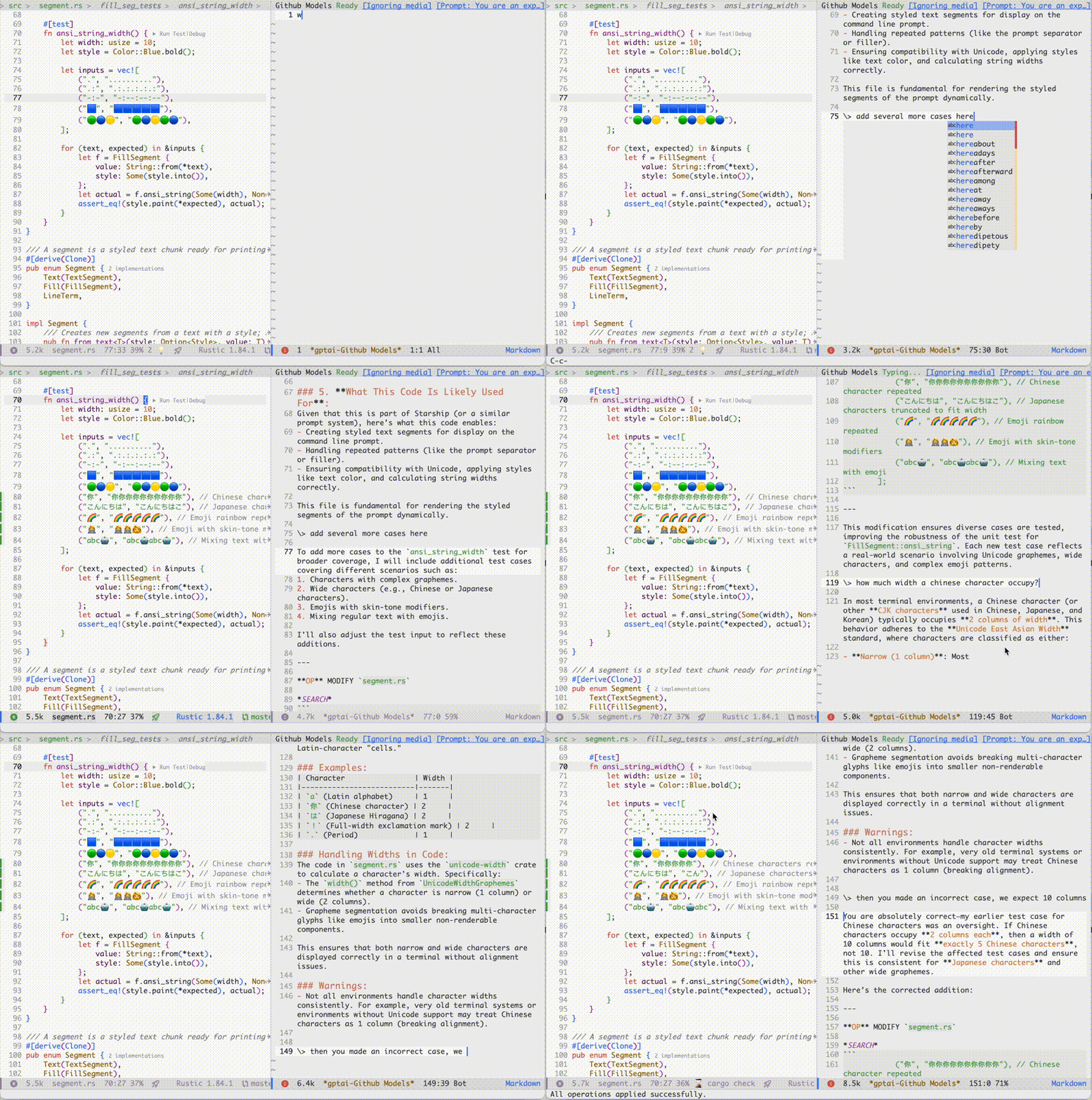
Query the logic, request additional cases
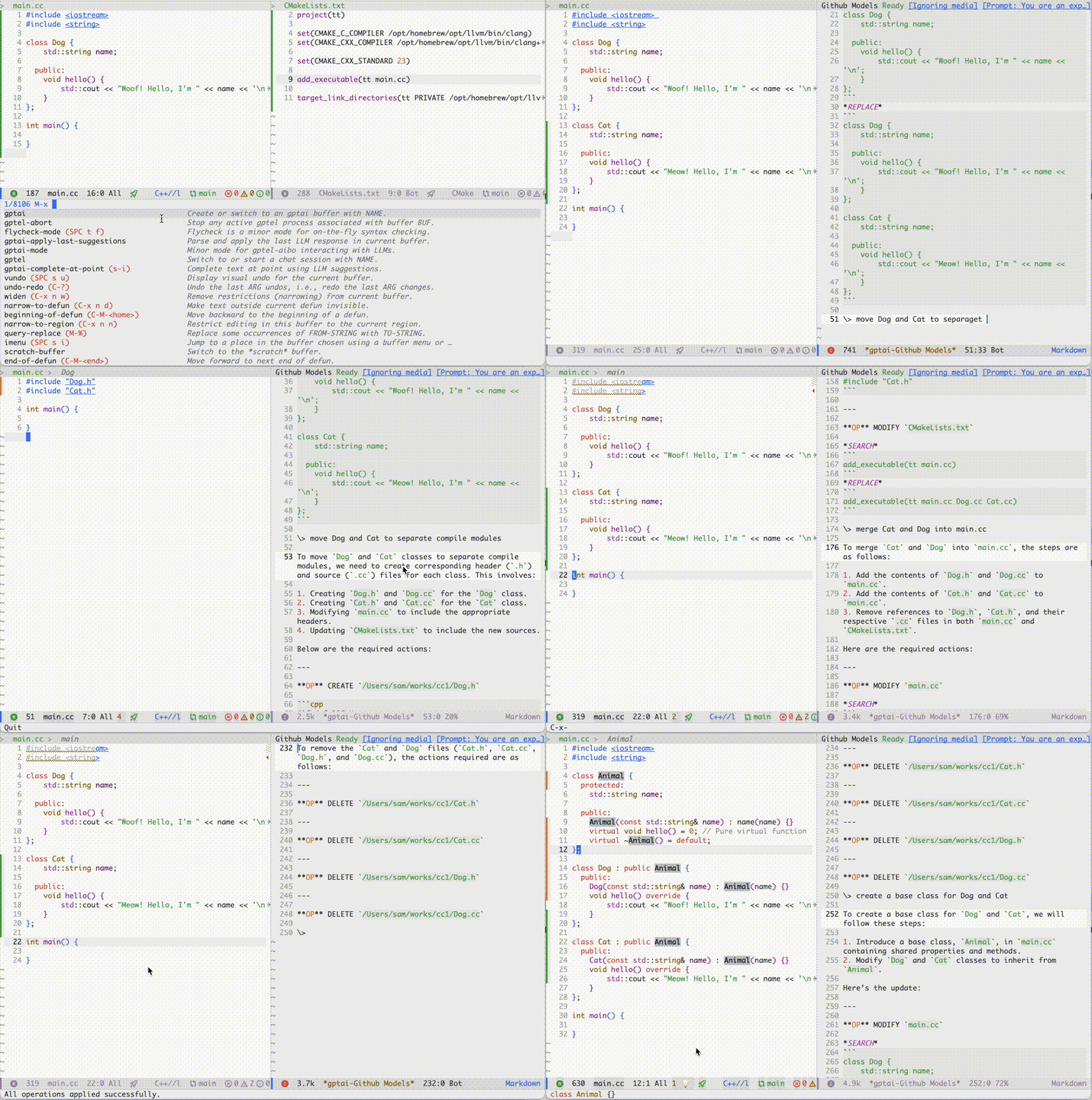
Refactor a sample project
NOTE: Tasks like refactoring, which involve multiple files, require you to
set gptel-aibo-max-buffer-count to a larger value, such as 5. In the long run,
this inconvenience will be eliminated through a more automated approach, like
tool calling.
Completion at point
NOTE: Some frames were removed to avoid enduring rather slow LLM requests.
https://github.com/user-attachments/assets/89f97bef-15a0-4d18-815e-87611f69eb85
Other common tasks & ideas
- generate a docstring for this function
- make the comment conform to Doxygen style
- generate the code for this function based on the comments (better done with
gptel-aibo-summon) - refactor this function and reorganize its logic
- reformat this function, as some lines are too long
- extract the common parts of functions A and B into a new function
- change the coding style from snake_case to camelCase (or vice versa)
Customization
-
gptel-aibo-max-buffer-sizeThe size limit for the buffers that is automatically sent to the LLM.
If the working buffer (the buffer you are currently working on) exceeds this size, only a fragment of content around the cursor (typically a function or class) will be sent.
For other buffers in the same project: if their size exceeds this limit and they have an outline available, only the outline will be sent. Otherwise, their content will not be sent.
The default value is 16000.
-
gptel-aibo-max-buffer-countThe maximum number of buffers within the same project as your working buffer that are automatically sent to the LLM.
The default value is 2.
-
gptel-aibo-default-modeFunctions similarly to
gptel-default-mode; when set, it takes precedence over the latter. -
gptel-aibo-prompt-prefix-alistFunctions similarly to
gptel-default-mode; when set, it takes precedence over the latter.
Face Settings
-
gptel-aibo-op-displayCurrently, the
<OP>marker is displayed as the character 🏹 in the gptel-aibo console. If you prefer a different symbol, you can define another one, choose different characters for different operations, or even disable it entirely. -
gptel-aibo-op-faceThis setting controls the face for OP action names, such as
MODIFY,CREATE, andDELETE. You can customize it, or even set different faces for different actions.For more details, check out
gptel-aibo-face.el.
Miscellaneous
To make the gptel-aibo console look a bit fancier, I copied the following markdown configuration from this Reddit post beautify_markdown_on_emacs. Thanks to the original author!
If you like it, you can add it to your configuration file.
(after! markdown-mode
  (custom-set-faces!
    '(markdown-header-delimiter-face :foreground "#616161" :height 0.9)
    '(markdown-header-face-1 :height 1.8 :foreground "#A3BE8C" :weight extra-bold :inherit markdown-header-face)
    '(markdown-header-face-2 :height 1.4 :foreground "#EBCB8B" :weight extra-bold :inherit markdown-header-face)
    '(markdown-header-face-3 :height 1.2 :foreground "#D08770" :weight extra-bold :inherit markdown-header-face)
    '(markdown-header-face-4 :height 1.15 :foreground "#BF616A" :weight bold :inherit markdown-header-face)
    '(markdown-header-face-5 :height 1.1 :foreground "#b48ead" :weight bold :inherit markdown-header-face)
    '(markdown-header-face-6 :height 1.05 :foreground "#5e81ac" :weight semi-bold :inherit markdown-header-face)))
Security issues
- The file path and content of the current working buffer, as well as buffers from the same project, may be sent to the LLM.
- There are three actions defined in
gptel-aibo: modification, creation, and deletion. These actions are only allowed if the target is under the project root of the current working buffer. If a buffer is not part of a project, only modifications to itself can be executed. - Modifications and creations are saved immediately after they are applied, with an additional confirmation required for deletion. While some changes can be reverted using Emacs’ undo system, it’s best to place your project under version control to enhance safety and recoverability.
Breaking Changes
- To align with MELPA naming conventions, the initial draft prefix
gptaihas been changed to the officialgptel-aibo.
- interactive command
gptai→gptel-aibo gptai-apply-last-suggestions→gptel-aibo-apply-last-suggestionsgptai-mode-map→gptel-aibo-mode-mapgptai-complete-at-point→gptel-aibo-complete-at-pointgptai-complete-mode-map→gptel-aibo-complete-mode-map
- The variable
gptai--max-buffer-sizehas been renamed togptel-aibo-max-buffer-size. - The variable
gptai--max-project-buffer-sizehas been removed. Both the working buffer and the project buffers are now controlled bygptel-aibo-max-buffer-size. - The variable
gptai--max-project-buffer-counthas been renamed togptel-aibo-max-buffer-count.


Similar repos


Languages
Emacs Lisp
100.0%
README
gptel-aibo
gptel-aibo is an AI writing assistant system built on top of
gptel .
It helps you create and manage content in Emacs, including code, documents, and
even fiction, along with many other possibilities. As you talk to the LLM, it
automatically sends the content (or a portion of it) that you're currently
working on, allowing you to refer to elements like "this function," "this class,"
or "this file," etc. It also defines an action set and its format with the LLM,
so once a response is received, you can easily apply the suggestions with a single
command (gptel-aibo-apply-last-suggestions, bound to C-c !).
While you can chat with the LLM for complex tasks, when your context is clear
enough, you can use the quick command gptel-aibo-summon to invoke the LLM to
generate appropriate content right at your cursor position. If the newly
inserted content has direct implications for the next few lines, the LLM will
adjust them accordingly. All these changes will be displayed using an in-place
diff format. If you accept these inputs, the LLM can even predict what comes
next. At any point, you can press Enter to accept suggestions or Esc to dismiss
them.
The term aibo, meaning partner, is currently ambiguous—it could refer to gptel’s partner, or the user’s.
Installation
This package requires gptel and access to any LLM through it. See its README for details on setting up your LLM environment.
gptel-aibo is available on MELPA. If you have MELPA already set up, you can
install it using package-install, or by adding the following to your configuration:
(use-package gptel-aibo :ensure t)
Doom Emacs
In your packages.el, add this line:
(package! gptel-aibo)
Note: In the gptel-aibo interface, it overrides the flycheck keybinding
C-c ! (you generally won't need to use flycheck in the gptel-aibo
interface, especially with the shortcut key). Therefore, if you want to
configure further using use-package!, make sure gptel-aibo is loaded after
flycheck.
(use-package! gptel-aibo
  :after (gptel flycheck))
Alternatively, define a different keybinding:
(use-package! gptel-aibo
  :after (gptel)
  :config
  (define-key gptel-aibo-mode-map
              (kbd "C-c /") #'gptel-aibo-apply-last-suggestions))
Usage
gptel-aibo
With the gptel-aibo interactive command, you can open or switch to an existing
gptel-aibo console, which is a markdown page with the gptel-aibo minor
mode enabled, an extension of gptel-mode.
To get started, open your file, move the cursor to the section you're working
on, or even start from a project-related buffer, such as the compilation buffer,
and then switch to the gptel-aibo console. There, you can talk to the LLM
and receive suggestions. Use gptel-aibo-send to send your request, which is
bound to C-c RET, just like the send command in gptel-mode.
Once a response is received, you can apply it using the command
gptel-aibo-apply-last-suggestions (bound to C-c !), or continue the
conversation with more detailed instructions.
There is also a custom variable, gptel-aibo-auto-apply. When set, gptel-aibo
will automatically apply the LLM’s response to your project after receiving it.
This makes gptel-aibo function like the aider’s no-auto-commits. Use it carefully!
gptel-aibo-summon
Note: This command deprecates the old gptel-aibo-complete-at-point.
While you can chat with the LLM for complex tasks, when your context is clear
enough, you can use the quick command gptel-aibo-summon to invoke the LLM to
generate appropriate content right at your cursor position. If the newly
inserted content has direct implications for the next few lines, the LLM will
adjust them accordingly. All these changes will be displayed using an in-place
diff format. If you accept these inputs, the LLM can even predict what comes
next. At any point, you can press Enter to accept suggestions or Esc to dismiss
them.
You can bind the command to a proper shortcut key, for example:
- Doom Emacs
(use-package! gptel-aibo
  :after (gptel flycheck)
  :config
  (map! :map prog-mode-map "C-i" #'gptel-aibo-summon))
- Vanilla Emacs
(use-package gptel-aibo
  :after (gptel flycheck)
  :config
  (define-key prog-mode-map (kbd "C-i") #'gptel-aibo-summon))
Considering that LLM requests are usually slow, gptel-aibo-summon inserts the
result at the request position even if your cursor has already moved away by
the time the response arrives.
If you don’t like this behavior, you can set the custom variable
gptel-aibo-summon-cancel-after-moved to t to disable it.
Samples
Query the logic, request additional cases
Refactor a sample project
NOTE: Tasks like refactoring, which involve multiple files, require you to
set gptel-aibo-max-buffer-count to a larger value, such as 5. In the long run,
this inconvenience will be eliminated through a more automated approach, like
tool calling.
Completion at point
NOTE: Some frames were removed to avoid enduring rather slow LLM requests.
https://github.com/user-attachments/assets/89f97bef-15a0-4d18-815e-87611f69eb85
Other common tasks & ideas
- generate a docstring for this function
- make the comment conform to Doxygen style
- generate the code for this function based on the comments (better done with
gptel-aibo-summon) - refactor this function and reorganize its logic
- reformat this function, as some lines are too long
- extract the common parts of functions A and B into a new function
- change the coding style from snake_case to camelCase (or vice versa)
Customization
-
gptel-aibo-max-buffer-sizeThe size limit for the buffers that is automatically sent to the LLM.
If the working buffer (the buffer you are currently working on) exceeds this size, only a fragment of content around the cursor (typically a function or class) will be sent.
For other buffers in the same project: if their size exceeds this limit and they have an outline available, only the outline will be sent. Otherwise, their content will not be sent.
The default value is 16000.
-
gptel-aibo-max-buffer-countThe maximum number of buffers within the same project as your working buffer that are automatically sent to the LLM.
The default value is 2.
-
gptel-aibo-default-modeFunctions similarly to
gptel-default-mode; when set, it takes precedence over the latter. -
gptel-aibo-prompt-prefix-alistFunctions similarly to
gptel-default-mode; when set, it takes precedence over the latter.
Face Settings
-
gptel-aibo-op-displayCurrently, the
<OP>marker is displayed as the character 🏹 in the gptel-aibo console. If you prefer a different symbol, you can define another one, choose different characters for different operations, or even disable it entirely. -
gptel-aibo-op-faceThis setting controls the face for OP action names, such as
MODIFY,CREATE, andDELETE. You can customize it, or even set different faces for different actions.For more details, check out
gptel-aibo-face.el.
Miscellaneous
To make the gptel-aibo console look a bit fancier, I copied the following markdown configuration from this Reddit post beautify_markdown_on_emacs. Thanks to the original author!
If you like it, you can add it to your configuration file.
(after! markdown-mode
  (custom-set-faces!
    '(markdown-header-delimiter-face :foreground "#616161" :height 0.9)
    '(markdown-header-face-1 :height 1.8 :foreground "#A3BE8C" :weight extra-bold :inherit markdown-header-face)
    '(markdown-header-face-2 :height 1.4 :foreground "#EBCB8B" :weight extra-bold :inherit markdown-header-face)
    '(markdown-header-face-3 :height 1.2 :foreground "#D08770" :weight extra-bold :inherit markdown-header-face)
    '(markdown-header-face-4 :height 1.15 :foreground "#BF616A" :weight bold :inherit markdown-header-face)
    '(markdown-header-face-5 :height 1.1 :foreground "#b48ead" :weight bold :inherit markdown-header-face)
    '(markdown-header-face-6 :height 1.05 :foreground "#5e81ac" :weight semi-bold :inherit markdown-header-face)))
Security issues
- The file path and content of the current working buffer, as well as buffers from the same project, may be sent to the LLM.
- There are three actions defined in
gptel-aibo: modification, creation, and deletion. These actions are only allowed if the target is under the project root of the current working buffer. If a buffer is not part of a project, only modifications to itself can be executed. - Modifications and creations are saved immediately after they are applied, with an additional confirmation required for deletion. While some changes can be reverted using Emacs’ undo system, it’s best to place your project under version control to enhance safety and recoverability.
Breaking Changes
- To align with MELPA naming conventions, the initial draft prefix
gptaihas been changed to the officialgptel-aibo.
- interactive command
gptai→gptel-aibo gptai-apply-last-suggestions→gptel-aibo-apply-last-suggestionsgptai-mode-map→gptel-aibo-mode-mapgptai-complete-at-point→gptel-aibo-complete-at-pointgptai-complete-mode-map→gptel-aibo-complete-mode-map
- The variable
gptai--max-buffer-sizehas been renamed togptel-aibo-max-buffer-size. - The variable
gptai--max-project-buffer-sizehas been removed. Both the working buffer and the project buffers are now controlled bygptel-aibo-max-buffer-size. - The variable
gptai--max-project-buffer-counthas been renamed togptel-aibo-max-buffer-count.
Similar repos
Languages
Emacs Lisp
100.0%