
README
Unity AI Assistant MCP Fixes
Fix by Dhanilka.
This package contains local fixes for Unity MCP connection issues in com.unity.ai.assistant version 2.13.0-pre.2.
It fixes the stale approval issue where Unity Project Settings shows an MCP client as Accepted, but MCP tool calls still fail with:
Connection revoked. Go to Unity Editor > Project Settings > AI > Unity MCP to change approval.
It also adds a Windows singleton launcher for the relay client to prevent random MCP disconnects caused by multiple AI sessions starting separate relay_win.exe --mcp processes.
Problem 1: Stale Approval State
The MCP approval state can become stale.
In the broken state:
Edit > Project Settings > AI > Unity MCPshows the client asAccepted.- The saved connection record is approved.
- The active MCP transport still holds an old in-memory
Deniedstate. - MCP calls fail even though the user already approved the client.
Fix 1: Approval State Recovery
The fix synchronizes the live MCP transport state with the saved approved identity.
It does not remove Unity's approval gate. It does not auto-approve unknown clients. It only repairs a live transport when the same identity is already approved in Unity settings.
Problem 2: Random Disconnects From Multiple MCP Sessions
On Windows, every AI session can start its own Unity MCP relay client:
relay_win.exe --mcp
The Unity relay can become unstable when more than one MCP relay client is active at the same time. The visible symptom is that the working MCP connection appears to randomly disconnect when a second AI session connects.
Fix 2: Windows Singleton Relay Guard
This package includes a guarded launcher:
Tools~/unity-mcp-guard.ps1
When Unity generates MCP client configuration on Windows, it now points the client to the guard script instead of directly launching relay_win.exe --mcp.
The guard script:
- allows the first MCP session to own the relay
- cleans up orphaned
relay_win.exe --mcpprocesses - blocks later sessions with a clear error message instead of breaking the active session
- leaves Linux and macOS behavior unchanged
Important: after installing this package, re-run the MCP client configuration from Unity Project Settings so your AI client config is regenerated with the guard command.
Modified Files
Modules/Unity.AI.MCP.Editor/Bridge.csModules/Unity.AI.MCP.Editor/Settings/UI/ConnectionItemControl.csModules/Unity.AI.MCP.Editor/Settings/Integration/McpLaunchConfig.csModules/Unity.AI.MCP.Editor/Settings/Integration/ClaudeCodeIntegration.csModules/Unity.AI.MCP.Editor/Settings/Integration/CodexIntegration.csModules/Unity.AI.MCP.Editor/Settings/Integration/DefaultIntegration.csModules/Unity.AI.MCP.Editor/Settings/UI/MCPSettingsProvider.csTools~/unity-mcp-guard.ps1
What Changed
Bridge.cs now includes ApproveActiveTransportsByIdentity, which marks active transports for an already-approved identity as approved.
The MCP tool-call gate now checks whether a denied live transport belongs to an identity that is already Accepted or Warning in ConnectionStore. If so, it repairs the stale transport state and continues.
ConnectionItemControl.cs now updates matching live transports when the user clicks Accept in Project Settings, instead of only updating the saved connection record.
The MCP client integration code now generates guarded Windows launch commands through McpLaunchConfig. On Windows, generated configs run:
powershell.exe -NoProfile -ExecutionPolicy Bypass -File Tools~/unity-mcp-guard.ps1
On Linux and macOS, generated configs still run the relay binary directly with --mcp.
Tested Setup
- Unity Editor:
6000.3.16f1 - Package:
com.unity.ai.assistant - Package version observed:
2.13.0-pre.2 - MCP client: Codex MCP client
Setup
The safest install path is to remove the currently installed Unity AI Assistant package first, then install this patched package from disk.
- Download or clone this repository.
- Open your Unity project.
- Open
Window > Package Manager. - Select the existing
Assistantorcom.unity.ai.assistantpackage. - Click Remove to uninstall the current package.
- In Package Manager, click the + button.
- Choose Install package from disk....
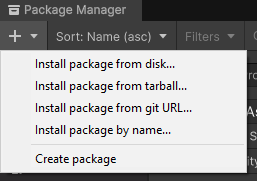
- Select this repository's
package.jsonfile. - Wait for Unity to import and compile the package.
- Restart Unity if the MCP bridge still uses the old package state.
- Open
Edit > Project Settings > AI > Unity MCP. - Reconfigure your MCP client from that settings page so the client uses the new guarded Windows launch command.
After installation, this package should appear as com.unity.ai.assistant in Package Manager, but it will be loaded from the local disk path you selected.
Verify
After Unity recompiles this package:
- Open
Edit > Project Settings > AI > Unity MCP. - Confirm the MCP client is
Accepted. - Run a lightweight MCP tool call, such as getting the Unity project root or editor state.
- The call should succeed instead of returning
Connection revoked. - On Windows, open a second AI session and try to connect Unity MCP. The second session should get a clear guard error instead of disconnecting the first working session.
Notes
This is a local community fix for stale runtime approval-state mismatch and Windows multi-session relay instability in Unity MCP.
Original Unity Assistant documentation:
https://docs.unity3d.com/Packages/com.unity.ai.assistant@latest
Similar repos


README
Unity AI Assistant MCP Fixes
Fix by Dhanilka.
This package contains local fixes for Unity MCP connection issues in com.unity.ai.assistant version 2.13.0-pre.2.
It fixes the stale approval issue where Unity Project Settings shows an MCP client as Accepted, but MCP tool calls still fail with:
Connection revoked. Go to Unity Editor > Project Settings > AI > Unity MCP to change approval.
It also adds a Windows singleton launcher for the relay client to prevent random MCP disconnects caused by multiple AI sessions starting separate relay_win.exe --mcp processes.
Problem 1: Stale Approval State
The MCP approval state can become stale.
In the broken state:
Edit > Project Settings > AI > Unity MCPshows the client asAccepted.- The saved connection record is approved.
- The active MCP transport still holds an old in-memory
Deniedstate. - MCP calls fail even though the user already approved the client.
Fix 1: Approval State Recovery
The fix synchronizes the live MCP transport state with the saved approved identity.
It does not remove Unity's approval gate. It does not auto-approve unknown clients. It only repairs a live transport when the same identity is already approved in Unity settings.
Problem 2: Random Disconnects From Multiple MCP Sessions
On Windows, every AI session can start its own Unity MCP relay client:
relay_win.exe --mcp
The Unity relay can become unstable when more than one MCP relay client is active at the same time. The visible symptom is that the working MCP connection appears to randomly disconnect when a second AI session connects.
Fix 2: Windows Singleton Relay Guard
This package includes a guarded launcher:
Tools~/unity-mcp-guard.ps1
When Unity generates MCP client configuration on Windows, it now points the client to the guard script instead of directly launching relay_win.exe --mcp.
The guard script:
- allows the first MCP session to own the relay
- cleans up orphaned
relay_win.exe --mcpprocesses - blocks later sessions with a clear error message instead of breaking the active session
- leaves Linux and macOS behavior unchanged
Important: after installing this package, re-run the MCP client configuration from Unity Project Settings so your AI client config is regenerated with the guard command.
Modified Files
Modules/Unity.AI.MCP.Editor/Bridge.csModules/Unity.AI.MCP.Editor/Settings/UI/ConnectionItemControl.csModules/Unity.AI.MCP.Editor/Settings/Integration/McpLaunchConfig.csModules/Unity.AI.MCP.Editor/Settings/Integration/ClaudeCodeIntegration.csModules/Unity.AI.MCP.Editor/Settings/Integration/CodexIntegration.csModules/Unity.AI.MCP.Editor/Settings/Integration/DefaultIntegration.csModules/Unity.AI.MCP.Editor/Settings/UI/MCPSettingsProvider.csTools~/unity-mcp-guard.ps1
What Changed
Bridge.cs now includes ApproveActiveTransportsByIdentity, which marks active transports for an already-approved identity as approved.
The MCP tool-call gate now checks whether a denied live transport belongs to an identity that is already Accepted or Warning in ConnectionStore. If so, it repairs the stale transport state and continues.
ConnectionItemControl.cs now updates matching live transports when the user clicks Accept in Project Settings, instead of only updating the saved connection record.
The MCP client integration code now generates guarded Windows launch commands through McpLaunchConfig. On Windows, generated configs run:
powershell.exe -NoProfile -ExecutionPolicy Bypass -File Tools~/unity-mcp-guard.ps1
On Linux and macOS, generated configs still run the relay binary directly with --mcp.
Tested Setup
- Unity Editor:
6000.3.16f1 - Package:
com.unity.ai.assistant - Package version observed:
2.13.0-pre.2 - MCP client: Codex MCP client
Setup
The safest install path is to remove the currently installed Unity AI Assistant package first, then install this patched package from disk.
- Download or clone this repository.
- Open your Unity project.
- Open
Window > Package Manager. - Select the existing
Assistantorcom.unity.ai.assistantpackage. - Click Remove to uninstall the current package.
- In Package Manager, click the + button.
- Choose Install package from disk....
- Select this repository's
package.jsonfile. - Wait for Unity to import and compile the package.
- Restart Unity if the MCP bridge still uses the old package state.
- Open
Edit > Project Settings > AI > Unity MCP. - Reconfigure your MCP client from that settings page so the client uses the new guarded Windows launch command.
After installation, this package should appear as com.unity.ai.assistant in Package Manager, but it will be loaded from the local disk path you selected.
Verify
After Unity recompiles this package:
- Open
Edit > Project Settings > AI > Unity MCP. - Confirm the MCP client is
Accepted. - Run a lightweight MCP tool call, such as getting the Unity project root or editor state.
- The call should succeed instead of returning
Connection revoked. - On Windows, open a second AI session and try to connect Unity MCP. The second session should get a clear guard error instead of disconnecting the first working session.
Notes
This is a local community fix for stale runtime approval-state mismatch and Windows multi-session relay instability in Unity MCP.
Original Unity Assistant documentation:
https://docs.unity3d.com/Packages/com.unity.ai.assistant@latest