Use your IP cameras as webcams: turns RTSP streams into virtual cameras for Discord, Teams, Zoom, OBS and browsers. Windows 11 (no driver) and Linux, written in Rust.
Rust
2
40 commits
updated Oct 12, 2026
A Windows 11 desktop app, written in Rust, that turns RTSP streams from IP cameras, NVRs or
mediamtx into webcams. Each stream shows up as its own camera (for example
"Front Door – Windows Virtual Camera") in Discord, Teams, Zoom, OBS, Chrome/Edge and the
Windows Camera app.
It uses the Windows 11 Media Foundation virtual camera API (MFCreateVirtualCamera), so no
kernel driver is needed. Cameras exist only while the app is running.
Status: early development. The RTSP pipeline (Phase 2) works from the developer CLI. The virtual camera media source (Phase 3) is built and tested in-process but not yet verified in camera apps. The desktop app and UI (Phases 4–5) are built and run, but the cameras have only been checked through Frame Server with a test pattern, not yet in Discord or other apps. Camera discovery, brand presets, import/export and picture options (Phase 6) are built and were tried against real ONVIF cameras. The installer (Phase 7) builds but has not been run on a clean PC. See the implementation plan and the progress records (2–3, 4–5, 6, 7) and the checkpoint.
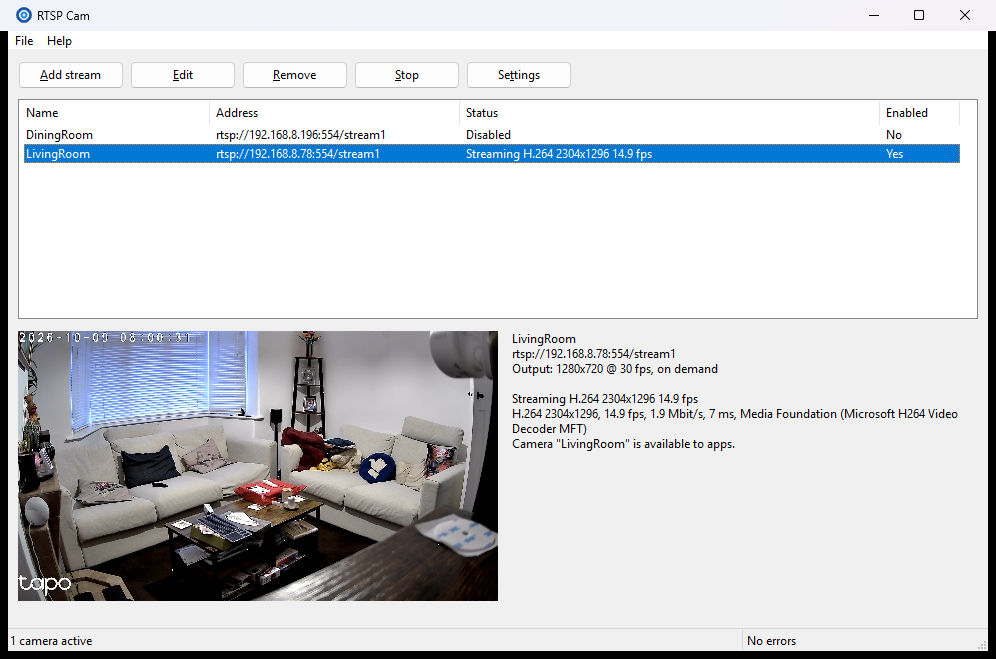
Needs the requirements below (Windows 11, Rust, Visual Studio Build Tools). Run these from the repository root in PowerShell.
Build and run the app
cargo run -p rtspcam-app # debug build, opens the window
Click Add stream, enter the camera's IP address (plus user name and password), use
Test connection, then OK. The stream's live preview appears in the window.
Config is saved to %APPDATA%\RtspCam\config.json, logs go to %LOCALAPPDATA%\RtspCam\logs.
Or click Find cameras: ONVIF cameras on your network are listed. Pick one, enter its login, Get streams, choose the main or sub stream, and the Add dialog opens filled in.
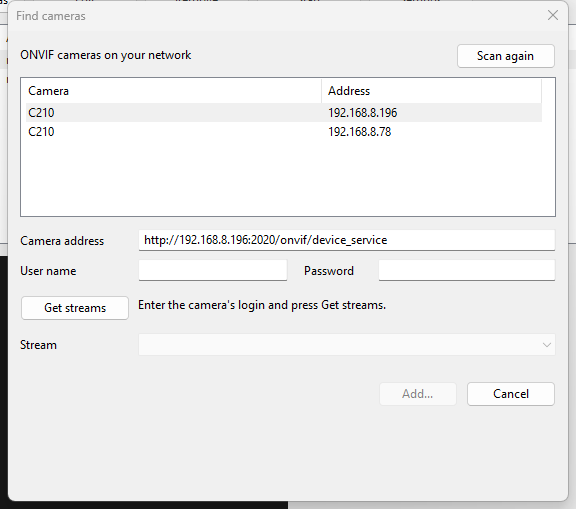
Other ways to fill in the address: the Camera brand box in the Add dialog sets the port and path for Hikvision, Dahua, Amcrest, Reolink, Tapo, UniFi Protect, Axis and Foscam; Picture... rotates, flips, crops, adds the name or the time, and chooses what apps see when the stream drops; File > Export / Import streams moves streams between PCs (passwords are not included).
Make the cameras appear in Discord, OBS, the Camera app, ... (one-time, needs admin)
cargo build -p rtspcam-cli -p rtspcam-vcam
./tools/vcam/install-dev.ps1             # asks for elevation (UAC)
Without this the preview works but each camera shows "Access is denied". Restart Discord
after adding a camera so it re-lists devices. Rebuild and re-run the script after changing
the DLL. ./tools/vcam/install-dev.ps1 -Uninstall removes it.
Build an exe
cargo build -p rtspcam-app --release # -> target\release\rtspcam.exe
The release build is a windowed app (no console) with the manifest embedded. The optional
flags are --minimized (start in the tray) and --headless (no window, Ctrl+C quits). The
exe is self-contained apart from rtspcam_vcam.dll, which is built with
cargo build -p rtspcam-vcam --release and installed with
./tools/vcam/install-dev.ps1 -Configuration release. For other PCs, build the installer instead (below).
Build an installer (needs Inno Setup 6: winget install JRSoftware.InnoSetup)
./tools/installer/build.ps1 # -> installer\out\RtspCam-<version>-setup.exe
The setup program needs admin rights once. It installs to C:\Program Files\RtspCam, registers
the virtual camera DLL, and removes both on uninstall (your config is kept). Pushing a v* tag
builds it in CI; see 08 for signing.
Windows 11 (build 22000 or later)
Rust. The toolchain is pinned in rust-toolchain.toml, and rustup
installs it automatically.
Visual Studio Build Tools with the Desktop development with C++ workload (MSVC linker and Windows SDK):
winget install Microsoft.VisualStudio.2022.BuildTools --override "--quiet --wait --add Microsoft.VisualStudio.Workload.VCTools --includeRecommended"
Optional: mise for the task shortcuts below.
Optional: mediamtx + ffmpeg, or Docker, for the test RTSP server.
cargo build --workspace
cargo test --workspace
cargo clippy --workspace --all-targets -- -D warnings
cargo fmt --all
Or with mise: mise run test, mise run lint, mise run ci.
If you build from Git Bash, its
/usr/bin/linkcan shadow MSVC'slink.exe. Build from PowerShell or a Developer PowerShell for VS prompt instead.
crates/
  rtspcam-core/       config model (JSON), Protocol + URL builder, DPAPI secrets, validation,
                      atomic save, migrations, file watching, logging, shared constants
  rtspcam-ipc/        app ↔ virtual camera frame protocol over named pipes
  rtspcam-pipeline/   RTSP ingest (retina), MF/OpenH264 decoding, scaling, frame bus, reconnects
  rtspcam-vcam/       rtspcam_vcam.dll: the Media Foundation custom media source (COM)
  rtspcam-vcam-mgr/   safe wrapper over MFCreateVirtualCamera
  rtspcam-onvif/      ONVIF: WS-Discovery scan, GetProfiles / GetStreamUri
  rtspcam-app/        rtspcam.exe: the desktop app                 (Phases 4–7)
  rtspcam-cli/        rtspcam-cli.exe: developer tool
tools/test-rtsp/      mediamtx + ffmpeg test streams
tools/vcam/          developer install of the media source DLL
installer/            Inno Setup script (tools/installer/build.ps1 builds it)
documentation/        plan and decision records
Everything lives in one JSON file at %APPDATA%\RtspCam\config.json:
{
  "version": 1,
  "settings": { "start_with_windows": false, "minimize_to_tray": true, "log_level": "info" },
  "streams": [
    {
      "id": "6f1c2d3e-8a4b-4c5d-9e0f-112233445566",
      "name": "Front Door",
      "enabled": true,
      "protocol": "rtsp",
      "host": "192.168.1.50",
      "port": 554,
      "path": "/Streaming/Channels/101",
      "username": "admin",
      "password": "dpapi:AQAAANCMnd8BFdERjHoAwE/Cl+sBAAAA...",
      "transport": "tcp",
      "output": { "width": 1280, "height": 720, "fps": 30 },
      "fit_mode": "letterbox",
      "picture": { "rotate": "90", "show_name": true, "on_disconnect": "freeze_last_frame" },
      "on_demand": true
    }
  ]
}
config.json.bak.picture is optional (all of its fields are too): rotate is "0", "90", "180" or "270"
clockwise; crop is the percentage to cut from each side (left, top, right, bottom,
at most 80 each); show_name and show_time draw text in the bottom-left corner;
on_disconnect is "no_signal" (default) or "freeze_last_frame". Order: crop, rotate, flip,
text, then scaling to the output size.The developer CLI can inspect it:
cargo run -p rtspcam-cli -- config path
cargo run -p rtspcam-cli -- config show       # passwords redacted
cargo run -p rtspcam-cli -- config validate
cargo run -p rtspcam-cli -- config add-test-streams
cargo run -p rtspcam-cli -- config export streams.json   # no passwords
cargo run -p rtspcam-cli -- config import streams.json   # new ids, names made unique
./tools/test-rtsp/start.ps1 -Docker -Detach                       # test RTSP server
cargo run -p rtspcam-cli -- probe rtsp://127.0.0.1:8554/h264-720p
cargo run -p rtspcam-cli -- view --all --seconds 30                # every stream in the config

cargo run -p rtspcam-cli -- onvif discover                         # ONVIF cameras on the LAN
cargo run -p rtspcam-cli -- onvif streams 192.168.1.50 -u admin -p secret
cargo run -p rtspcam-cli -- onvif streams 192.168.1.50:2020 --credentials-from "Front Door"

cargo build -p rtspcam-cli -p rtspcam-vcam
./tools/vcam/install-dev.ps1                                      # once, asks for admin
cargo run -p rtspcam-cli -- vcam add --name "Test" --pattern       # a camera until Ctrl+C
cargo run -p rtspcam-cli -- vcam add --name "Front" --stream rtsp://127.0.0.1:8554/h264-720p
The media source logs to %ProgramData%\RtspCam\logs\vcam.log.
Logs are written to %LOCALAPPDATA%\RtspCam\logs\ (rotated daily, 7 files kept). Set
RTSPCAM_LOG to override the level, for example RTSPCAM_LOG=debug.
Use your IP cameras as webcams: turns RTSP streams into virtual cameras for Discord, Teams, Zoom, OBS and browsers. Windows 11 (no driver) and Linux, written in Rust.
Rust
2
40 commits
updated Oct 12, 2026
A Windows 11 desktop app, written in Rust, that turns RTSP streams from IP cameras, NVRs or
mediamtx into webcams. Each stream shows up as its own camera (for example
"Front Door – Windows Virtual Camera") in Discord, Teams, Zoom, OBS, Chrome/Edge and the
Windows Camera app.
It uses the Windows 11 Media Foundation virtual camera API (MFCreateVirtualCamera), so no
kernel driver is needed. Cameras exist only while the app is running.
Status: early development. The RTSP pipeline (Phase 2) works from the developer CLI. The virtual camera media source (Phase 3) is built and tested in-process but not yet verified in camera apps. The desktop app and UI (Phases 4–5) are built and run, but the cameras have only been checked through Frame Server with a test pattern, not yet in Discord or other apps. Camera discovery, brand presets, import/export and picture options (Phase 6) are built and were tried against real ONVIF cameras. The installer (Phase 7) builds but has not been run on a clean PC. See the implementation plan and the progress records (2–3, 4–5, 6, 7) and the checkpoint.
Needs the requirements below (Windows 11, Rust, Visual Studio Build Tools). Run these from the repository root in PowerShell.
Build and run the app
cargo run -p rtspcam-app # debug build, opens the window
Click Add stream, enter the camera's IP address (plus user name and password), use
Test connection, then OK. The stream's live preview appears in the window.
Config is saved to %APPDATA%\RtspCam\config.json, logs go to %LOCALAPPDATA%\RtspCam\logs.
Or click Find cameras: ONVIF cameras on your network are listed. Pick one, enter its login, Get streams, choose the main or sub stream, and the Add dialog opens filled in.
Other ways to fill in the address: the Camera brand box in the Add dialog sets the port and path for Hikvision, Dahua, Amcrest, Reolink, Tapo, UniFi Protect, Axis and Foscam; Picture... rotates, flips, crops, adds the name or the time, and chooses what apps see when the stream drops; File > Export / Import streams moves streams between PCs (passwords are not included).
Make the cameras appear in Discord, OBS, the Camera app, ... (one-time, needs admin)
cargo build -p rtspcam-cli -p rtspcam-vcam
./tools/vcam/install-dev.ps1             # asks for elevation (UAC)
Without this the preview works but each camera shows "Access is denied". Restart Discord
after adding a camera so it re-lists devices. Rebuild and re-run the script after changing
the DLL. ./tools/vcam/install-dev.ps1 -Uninstall removes it.
Build an exe
cargo build -p rtspcam-app --release # -> target\release\rtspcam.exe
The release build is a windowed app (no console) with the manifest embedded. The optional
flags are --minimized (start in the tray) and --headless (no window, Ctrl+C quits). The
exe is self-contained apart from rtspcam_vcam.dll, which is built with
cargo build -p rtspcam-vcam --release and installed with
./tools/vcam/install-dev.ps1 -Configuration release. For other PCs, build the installer instead (below).
Build an installer (needs Inno Setup 6: winget install JRSoftware.InnoSetup)
./tools/installer/build.ps1 # -> installer\out\RtspCam-<version>-setup.exe
The setup program needs admin rights once. It installs to C:\Program Files\RtspCam, registers
the virtual camera DLL, and removes both on uninstall (your config is kept). Pushing a v* tag
builds it in CI; see 08 for signing.
Windows 11 (build 22000 or later)
Rust. The toolchain is pinned in rust-toolchain.toml, and rustup
installs it automatically.
Visual Studio Build Tools with the Desktop development with C++ workload (MSVC linker and Windows SDK):
winget install Microsoft.VisualStudio.2022.BuildTools --override "--quiet --wait --add Microsoft.VisualStudio.Workload.VCTools --includeRecommended"
Optional: mise for the task shortcuts below.
Optional: mediamtx + ffmpeg, or Docker, for the test RTSP server.
cargo build --workspace
cargo test --workspace
cargo clippy --workspace --all-targets -- -D warnings
cargo fmt --all
Or with mise: mise run test, mise run lint, mise run ci.
If you build from Git Bash, its
/usr/bin/linkcan shadow MSVC'slink.exe. Build from PowerShell or a Developer PowerShell for VS prompt instead.
crates/
  rtspcam-core/       config model (JSON), Protocol + URL builder, DPAPI secrets, validation,
                      atomic save, migrations, file watching, logging, shared constants
  rtspcam-ipc/        app ↔ virtual camera frame protocol over named pipes
  rtspcam-pipeline/   RTSP ingest (retina), MF/OpenH264 decoding, scaling, frame bus, reconnects
  rtspcam-vcam/       rtspcam_vcam.dll: the Media Foundation custom media source (COM)
  rtspcam-vcam-mgr/   safe wrapper over MFCreateVirtualCamera
  rtspcam-onvif/      ONVIF: WS-Discovery scan, GetProfiles / GetStreamUri
  rtspcam-app/        rtspcam.exe: the desktop app                 (Phases 4–7)
  rtspcam-cli/        rtspcam-cli.exe: developer tool
tools/test-rtsp/      mediamtx + ffmpeg test streams
tools/vcam/          developer install of the media source DLL
installer/            Inno Setup script (tools/installer/build.ps1 builds it)
documentation/        plan and decision records
Everything lives in one JSON file at %APPDATA%\RtspCam\config.json:
{
  "version": 1,
  "settings": { "start_with_windows": false, "minimize_to_tray": true, "log_level": "info" },
  "streams": [
    {
      "id": "6f1c2d3e-8a4b-4c5d-9e0f-112233445566",
      "name": "Front Door",
      "enabled": true,
      "protocol": "rtsp",
      "host": "192.168.1.50",
      "port": 554,
      "path": "/Streaming/Channels/101",
      "username": "admin",
      "password": "dpapi:AQAAANCMnd8BFdERjHoAwE/Cl+sBAAAA...",
      "transport": "tcp",
      "output": { "width": 1280, "height": 720, "fps": 30 },
      "fit_mode": "letterbox",
      "picture": { "rotate": "90", "show_name": true, "on_disconnect": "freeze_last_frame" },
      "on_demand": true
    }
  ]
}
config.json.bak.picture is optional (all of its fields are too): rotate is "0", "90", "180" or "270"
clockwise; crop is the percentage to cut from each side (left, top, right, bottom,
at most 80 each); show_name and show_time draw text in the bottom-left corner;
on_disconnect is "no_signal" (default) or "freeze_last_frame". Order: crop, rotate, flip,
text, then scaling to the output size.The developer CLI can inspect it:
cargo run -p rtspcam-cli -- config path
cargo run -p rtspcam-cli -- config show       # passwords redacted
cargo run -p rtspcam-cli -- config validate
cargo run -p rtspcam-cli -- config add-test-streams
cargo run -p rtspcam-cli -- config export streams.json   # no passwords
cargo run -p rtspcam-cli -- config import streams.json   # new ids, names made unique
./tools/test-rtsp/start.ps1 -Docker -Detach                       # test RTSP server
cargo run -p rtspcam-cli -- probe rtsp://127.0.0.1:8554/h264-720p
cargo run -p rtspcam-cli -- view --all --seconds 30                # every stream in the config

cargo run -p rtspcam-cli -- onvif discover                         # ONVIF cameras on the LAN
cargo run -p rtspcam-cli -- onvif streams 192.168.1.50 -u admin -p secret
cargo run -p rtspcam-cli -- onvif streams 192.168.1.50:2020 --credentials-from "Front Door"

cargo build -p rtspcam-cli -p rtspcam-vcam
./tools/vcam/install-dev.ps1                                      # once, asks for admin
cargo run -p rtspcam-cli -- vcam add --name "Test" --pattern       # a camera until Ctrl+C
cargo run -p rtspcam-cli -- vcam add --name "Front" --stream rtsp://127.0.0.1:8554/h264-720p
The media source logs to %ProgramData%\RtspCam\logs\vcam.log.
Logs are written to %LOCALAPPDATA%\RtspCam\logs\ (rotated daily, 7 files kept). Set
RTSPCAM_LOG to override the level, for example RTSPCAM_LOG=debug.



