Visualize keymaps that use advanced features like hold-taps and combos, with automatic parsing
See the code

Parse QMK & ZMK keymaps and draw them in vector graphics (SVG) format, with support for visualizing hold-taps and combos that are commonly used with smaller keyboards.
Available as a command-line tool or a web application.
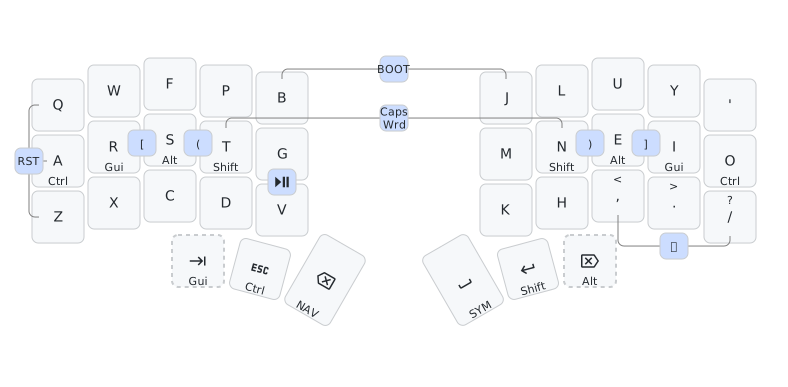
See examples in the live web demo for example inputs and outputs.
Compared to to visual editors like KLE, keymap-drawer takes a more programmatic approach.
It also decouples the physical keyboard layout from the keymap (i.e., layer and combo definitions) and provides the tooling to bootstrap it quickly from existing firmware configuration.
You can try the keymap parsing and drawing functionalities with a Streamlit web application available at https://caksoylar.github.io/keymap-drawer. Below instructions mostly apply for the web interface, where subcommands and option flags are mapped to different widgets in the UX.
The recommended way to install keymap-drawer is through pipx, which sets up an isolated environment and installs the application with a single command:
pipx install keymap-drawer
This will make the keymap command available in your PATH to use:
keymap --help
Alternatively, you can pip install keymap-drawer in a virtual environment or install into your user install directory with pip install --user keymap-drawer.
See the development section for instructions to install from source.
ℹ️ Windows command-line issues
If you are running on Windows, using the
-o/--outputparameter to save command outputs to files is recommended instead of redirecting stdout. Otherwise you might run into text encoding issues related to unicode characters in YAMLs and SVGs.
keymap parse command helps to parse an existing QMK or ZMK keymap file into the keymap YAML representation the draw command uses to generate SVGs.
-c/--columns is an optional parameter that specifies the total number of columns in the keymap to better reorganize output layers.
QMK: Only json-format keymaps are supported, which can be exported from QMK Configurator, converted from keymap.c via qmk c2json, or from a VIA backup json via qmk via2json:
# from keymap.c
qmk c2json ~/qmk_firmware/keyboards/ferris/keymaps/username/keymap.c | keymap parse -c 10 -q - >sweep_keymap.yaml

# from VIA backup
qmk via2json -kb ferris/sweep sweep_via_backup.json | keymap parse -c 10 -q - >sweep_keymap.yaml
Due to current limitations of the keymap.json format, combos and #define'd layer names will not be present in the parsing output.
However you can manually specify layer names using the layer names parameter, e.g. keymap parse --layer-names Base Sym Nav ....
ZMK: .keymap files are used for parsing. These will be preprocessed similar to the ZMK build system, so #define's and #includes will be expanded.
keymap parse -c 10 -z ~/zmk-config/config/cradio.keymap >sweep_keymap.yaml
Currently combos, hold-taps, mod-morphs, sticky keys and layer names can be determined via parsing.
For layer names, the value of the display-name property will take precedence over the layer's node name if provided.
As an alternative to parsing, you can also check out the examples to find a layout similar to yours to use as a starting point.
While the parsing step aims to create a decent starting point, you will likely want to make certain tweaks to the produced keymap representation. Please refer to the keymap schema specification while making changes:
&bootloader with BOOT. (See the customization section to modify parser's behavior.)align and/or offset properties in order to position them bettertype specifiers for certain keys, like "ghost" for keys optional to the layoutIt might be beneficial to start by draw'ing the current representation and iterate over these changes, especially for tweaking combo positioning.
ℹ️ Preserving manual modifications
If you need to re-parse a firmware file after it was changed, you can provide the previous parse output that you tweaked to the parse command via
keymap parse -b old_keymap.yaml ... >new_keymap.yamland the tool will try to preserve your manual tweaks.
Final step is to produce the SVG representation using the keymap draw command.
However to do that, we need to specify the physical layout of the keyboard, i.e., how many keys there are, where each key is positioned etc.
If you produced your keymap YAML through keymap parse, it will have tried to guess the proper layout in the layout field of your keymap.
If you like you can tweak the field value according to the spec, then finally call the draw command:
keymap draw sweep_keymap.yaml >sweep_keymap.ortho.svg
And you are done! You can view the output SVG on your browser or use a tool like CairoSVG or Inkscape to convert to a different format.
ℹ️ Specifying layouts in the CLI
If you like you can override the layout specification on the command line. For instance you can provide a QMK keyboard name with
-k/--qmk-keyboardand layout with-l/--layout-name, or an ortho layout with--ortho-layout(using YAML syntax for the value) or-n/--cols-thumbs-notation. Seekeymap draw --helpfor details.
Both parsing and drawing can be customized using a configuration file passed to the keymap executable.
This allows you to, for instance, change the default keycode-to-symbol mappings while parsing, or change font sizes, colors etc. while drawing the SVG.
Start by dumping the default configuration settings to a file:
keymap dump-config >my_config.yaml
Then, edit the file to change the settings, referring to CONFIGURATION.md. You can delete from the file the settings you don't want to change.
You can then pass this file to either draw and parse subcommands with the -c/--config argument (note the location before the subcommand):
keymap -c my_config.yaml parse [...] >my_keymap.yaml
keymap -c my_config.yaml draw [...] my_keymap.yaml >my_keymap.svg
Since configuration classes are Pydantic settings they can also be overridden by environment variables with a KEYMAP_ prefix:
KEYMAP_raw_binding_map='{"&bootloader": "BOOT"}' keymap parse -z zmk-config/config/cradio.keymap >cradio.yaml
Drawing parameters that are specified in the draw_config field can also be overridden in the keymap YAML.
Using this you can preserve your style customizations along with your keymap in a single file.
keymap-drawer can also use SVG glyphs for legends, in addition to plain or unicode text. The easiest way to do this is
to use the $$source:id$$ notation certain sources, which will automatically fetch
the SVGs from a given remote source, e.g. using $$mdi:volume-mute$$ will insert the
mute icon from Material Design Icons.
The following source values are currently supported:
mdi: Pictogrammers Material Design Icons (use icon name as id)mdil: Pictogrammers Material Design Icons Light (use icon name as id)material: Google Material Symbols (use value in "Android" tab as id)tabler: Tabler Icons ("Outline" style, use icon name as id)phosphor: Phosphor Icons (use <weight>/<name> as id, e.g. $$phosphor:bold/lock$$)fa: Font Awesome (use <type>/<name> as id where type is solid, regular or brands, e.g. $$fa:brands/apple$$)Fetched SVGs will be cached by default to speed up future runs.
The height of the SVG is bound by the config properties glyph_{tap,hold,shifted}_size and width will maintain the aspect ratio.
To allow for customization, glyphs are assigned CSS classes glyph and <glyph_name>.
SVG glyphs currently cannot be used alongside other text in the same legend field.
Instead of automatically fetching them from remote sources, you can also define custom SVG blocks under draw_config.
After a glyph is defined this way it can be used in key fields via the glyph name surrounded by $$, e.g. $$vol_up$$.
The provided SVG must specify a viewBox, given that positional or dimensional properties will be calculated by keymap-drawer:
draw_config:
  # specify the size to bound the vertical dimension of your glyph, below are defaults
  glyph_tap_size: 14
  glyph_hold_size: 12
  glyph_shifted_size: 10
  glyphs: # mapping of glyph name to be used to svg definition
    vol_up: |
      <svg viewBox="2 3 34 33">
        <path style="stroke: black; fill: black;" d="M23.41,25.25a1,1,0,0,1-.54-1.85,6.21,6.21,0,0,0-.19-10.65,1,1,0,1,1,1-1.73,8.21,8.21,0,0,1,.24,14.06A1,1,0,0,1,23.41,25.25Z"/>
        <path style="stroke: black; fill: black;" d="M25.62,31.18a1,1,0,0,1-.45-1.89A12.44,12.44,0,0,0,25,6.89a1,1,0,1,1,.87-1.8,14.44,14.44,0,0,1,.24,26A1,1,0,0,1,25.62,31.18Z"/>
        <path style="stroke: black; fill: black;" d="M18.33,4,9.07,12h-6a1,1,0,0,0-1,1v9.92a1,1,0,0,0,1,1H8.88l9.46,8.24A1,1,0,0,0,20,31.43V4.72A1,1,0,0,0,18.33,4Z"/>
      </svg>
layers:
  Media:
    - ["", "$$vol_up$$", "", "", ""]
If you use a ZMK config repo, you can set up an automated workflow that parses and draws your keymaps, then commits the YAML parse outputs and produced SVGs to your repo.
To do that you can add a new workflow to your repo at .github/workflows/draw-keymaps.yml that refers to the reusable keymap-drawer workflow:
# Example for using the keymap-drawer ZMK user config workflow
name: Draw ZMK keymaps
on:
  workflow_dispatch:  # can be triggered manually
  push:               # automatically run on changes to following paths
    paths:
      - "config/*.keymap"
      - "config/*.dtsi"
      - "keymap_drawer.config.yaml"
      # - 'boards/*/*/*.keymap'

jobs:
  draw:
    uses: caksoylar/keymap-drawer/.github/workflows/draw-zmk.yml@main
    permissions:
      contents: write  # allow workflow to commit to the repo
    with:
      keymap_patterns: "config/*.keymap"        # path to the keymaps to parse
      config_path: "keymap_drawer.config.yaml"  # config file, ignored if not exists
      output_folder: "keymap-drawer"            # path to save produced SVG and keymap YAML files
      parse_args: ""  # map of extra args to pass to `keymap parse`, e.g. "corne:'-l Def Lwr Rse' cradio:''"
      draw_args: ""   # map of extra args to pass to `keymap draw`, e.g. "corne:'-k corne_rotated' cradio:'-k paroxysm'"
The workflow will add the generated SVG and keymap representation YAML files to the output_folder, and generate a new commit with commit message "keymap-drawer render" by default.
You can modify this commit message with the commit_message input param, e.g.:
jobs:
  draw:
    uses: caksoylar/keymap-drawer/.github/workflows/draw-zmk.yml@main
    with:
      # Use the triggering commit's message, prepending the "[Draw]" tag
      commit_message: "[Draw] ${{ github.event.head_commit.message }}"
      # …other inputs
Alternatively, you can choose to amend the triggering commit instead of generating a new one by using the amend_commit: true option.
In this case the triggering commit's message will be used by default, and the commit_message input will be ignored. E.g.:
jobs:
  draw:
    uses: caksoylar/keymap-drawer/.github/workflows/draw-zmk.yml@main
    with:
      amend_commit: true
      # …other inputs
⚠️ Rewriting history
You should understand the implications of rewriting history if you amend a commit that has already been published. See remarks in
git-rebasedocumentation.
If you use locale headers via zmk-locales module or zmk-locale-generator,
you might want to preserve the keycode names without the locale prefix for keymap-drawer to parse.
To do that, follow these two steps:
Put the locale header #include in a define guard so it isn't processed by keymap-drawer:
#ifndef KEYMAP_DRAWER
#include "keys_de.h"
#endif
This step should not be necessary if you use zmk-locales as a module, like #include <locale/keys_de.h>.
Remove the locale prefix from the keycodes, so that they can be converted easier using zmk_keycode_map.
This can be done via the zmk_remove_keycode_prefix configuration option:
parse_config:
  zmk_remove_keycode_prefix: ["DE_"]
Using zmk-helpers will break the parsing of ZMK keymaps by default.
Check out this document that describes the configuration setting needed to enable parsing.
Below are a few tools and example usages from the community that might be inspirational, whether they are doing unique things with styling, configuration or legends used, or integrate keymap-drawer into other workflows.
keymap-display: Uses a converter script to convert QMK keymap.c to a keymap YAMLzkeymap: Defines a DSL to generate ZMK keymaps, can also output keymap-drawer SVGsIf you use keymap-drawer, tag your Github repo with the keymap-drawer topic and it will show up for anyone else searching for it!
keymapThis project requires Python 3.12+ and uses uv for project and dependency management.
To get started, install uv, clone this repo, then sync the project environment:
git clone https://github.com/caksoylar/keymap-drawer.git
cd keymap-drawer
uv sync              # installs base + dev group by default
uv sync --group lsp  # _also_ installs the lsp server
Run commands in the project environment with uv run, for example uv run keymap --help. You can also activate it with source .venv/bin/activate (or using your shell's variant in that folder).
Changes you make in the source code will be reflected when using the module or the command.
Run lint checks locally with uv run black --check keymap_drawer, uv run pylint keymap_drawer, uv run mypy keymap_drawer, and uv run deptry ..
If you prefer not to use uv, you can get an editable install with pip install --editable . inside the keymap-drawer folder.
The source code for the Streamlit app lives in the keymap-drawer-web repo.
If you have any questions on usage or feedback for new or existing features, please check out the Discussions tab and feel free to create a new one!
244 followers · starred Aug 2025
40 followers · starred Jan 2025
49 followers · starred Feb 2023
81 followers · starred Jul 2025
Visualize keymaps that use advanced features like hold-taps and combos, with automatic parsing
See the code
Parse QMK & ZMK keymaps and draw them in vector graphics (SVG) format, with support for visualizing hold-taps and combos that are commonly used with smaller keyboards.
Available as a command-line tool or a web application.
See examples in the live web demo for example inputs and outputs.
Compared to to visual editors like KLE, keymap-drawer takes a more programmatic approach.
It also decouples the physical keyboard layout from the keymap (i.e., layer and combo definitions) and provides the tooling to bootstrap it quickly from existing firmware configuration.
You can try the keymap parsing and drawing functionalities with a Streamlit web application available at https://caksoylar.github.io/keymap-drawer. Below instructions mostly apply for the web interface, where subcommands and option flags are mapped to different widgets in the UX.
The recommended way to install keymap-drawer is through pipx, which sets up an isolated environment and installs the application with a single command:
pipx install keymap-drawer
This will make the keymap command available in your PATH to use:
keymap --help
Alternatively, you can pip install keymap-drawer in a virtual environment or install into your user install directory with pip install --user keymap-drawer.
See the development section for instructions to install from source.
ℹ️ Windows command-line issues
If you are running on Windows, using the
-o/--outputparameter to save command outputs to files is recommended instead of redirecting stdout. Otherwise you might run into text encoding issues related to unicode characters in YAMLs and SVGs.
keymap parse command helps to parse an existing QMK or ZMK keymap file into the keymap YAML representation the draw command uses to generate SVGs.
-c/--columns is an optional parameter that specifies the total number of columns in the keymap to better reorganize output layers.
QMK: Only json-format keymaps are supported, which can be exported from QMK Configurator, converted from keymap.c via qmk c2json, or from a VIA backup json via qmk via2json:
# from keymap.c
qmk c2json ~/qmk_firmware/keyboards/ferris/keymaps/username/keymap.c | keymap parse -c 10 -q - >sweep_keymap.yaml

# from VIA backup
qmk via2json -kb ferris/sweep sweep_via_backup.json | keymap parse -c 10 -q - >sweep_keymap.yaml
Due to current limitations of the keymap.json format, combos and #define'd layer names will not be present in the parsing output.
However you can manually specify layer names using the layer names parameter, e.g. keymap parse --layer-names Base Sym Nav ....
ZMK: .keymap files are used for parsing. These will be preprocessed similar to the ZMK build system, so #define's and #includes will be expanded.
keymap parse -c 10 -z ~/zmk-config/config/cradio.keymap >sweep_keymap.yaml
Currently combos, hold-taps, mod-morphs, sticky keys and layer names can be determined via parsing.
For layer names, the value of the display-name property will take precedence over the layer's node name if provided.
As an alternative to parsing, you can also check out the examples to find a layout similar to yours to use as a starting point.
While the parsing step aims to create a decent starting point, you will likely want to make certain tweaks to the produced keymap representation. Please refer to the keymap schema specification while making changes:
&bootloader with BOOT. (See the customization section to modify parser's behavior.)align and/or offset properties in order to position them bettertype specifiers for certain keys, like "ghost" for keys optional to the layoutIt might be beneficial to start by draw'ing the current representation and iterate over these changes, especially for tweaking combo positioning.
ℹ️ Preserving manual modifications
If you need to re-parse a firmware file after it was changed, you can provide the previous parse output that you tweaked to the parse command via
keymap parse -b old_keymap.yaml ... >new_keymap.yamland the tool will try to preserve your manual tweaks.
Final step is to produce the SVG representation using the keymap draw command.
However to do that, we need to specify the physical layout of the keyboard, i.e., how many keys there are, where each key is positioned etc.
If you produced your keymap YAML through keymap parse, it will have tried to guess the proper layout in the layout field of your keymap.
If you like you can tweak the field value according to the spec, then finally call the draw command:
keymap draw sweep_keymap.yaml >sweep_keymap.ortho.svg
And you are done! You can view the output SVG on your browser or use a tool like CairoSVG or Inkscape to convert to a different format.
ℹ️ Specifying layouts in the CLI
If you like you can override the layout specification on the command line. For instance you can provide a QMK keyboard name with
-k/--qmk-keyboardand layout with-l/--layout-name, or an ortho layout with--ortho-layout(using YAML syntax for the value) or-n/--cols-thumbs-notation. Seekeymap draw --helpfor details.
Both parsing and drawing can be customized using a configuration file passed to the keymap executable.
This allows you to, for instance, change the default keycode-to-symbol mappings while parsing, or change font sizes, colors etc. while drawing the SVG.
Start by dumping the default configuration settings to a file:
keymap dump-config >my_config.yaml
Then, edit the file to change the settings, referring to CONFIGURATION.md. You can delete from the file the settings you don't want to change.
You can then pass this file to either draw and parse subcommands with the -c/--config argument (note the location before the subcommand):
keymap -c my_config.yaml parse [...] >my_keymap.yaml
keymap -c my_config.yaml draw [...] my_keymap.yaml >my_keymap.svg
Since configuration classes are Pydantic settings they can also be overridden by environment variables with a KEYMAP_ prefix:
KEYMAP_raw_binding_map='{"&bootloader": "BOOT"}' keymap parse -z zmk-config/config/cradio.keymap >cradio.yaml
Drawing parameters that are specified in the draw_config field can also be overridden in the keymap YAML.
Using this you can preserve your style customizations along with your keymap in a single file.
keymap-drawer can also use SVG glyphs for legends, in addition to plain or unicode text. The easiest way to do this is
to use the $$source:id$$ notation certain sources, which will automatically fetch
the SVGs from a given remote source, e.g. using $$mdi:volume-mute$$ will insert the
mute icon from Material Design Icons.
The following source values are currently supported:
mdi: Pictogrammers Material Design Icons (use icon name as id)mdil: Pictogrammers Material Design Icons Light (use icon name as id)material: Google Material Symbols (use value in "Android" tab as id)tabler: Tabler Icons ("Outline" style, use icon name as id)phosphor: Phosphor Icons (use <weight>/<name> as id, e.g. $$phosphor:bold/lock$$)fa: Font Awesome (use <type>/<name> as id where type is solid, regular or brands, e.g. $$fa:brands/apple$$)Fetched SVGs will be cached by default to speed up future runs.
The height of the SVG is bound by the config properties glyph_{tap,hold,shifted}_size and width will maintain the aspect ratio.
To allow for customization, glyphs are assigned CSS classes glyph and <glyph_name>.
SVG glyphs currently cannot be used alongside other text in the same legend field.
Instead of automatically fetching them from remote sources, you can also define custom SVG blocks under draw_config.
After a glyph is defined this way it can be used in key fields via the glyph name surrounded by $$, e.g. $$vol_up$$.
The provided SVG must specify a viewBox, given that positional or dimensional properties will be calculated by keymap-drawer:
draw_config:
  # specify the size to bound the vertical dimension of your glyph, below are defaults
  glyph_tap_size: 14
  glyph_hold_size: 12
  glyph_shifted_size: 10
  glyphs: # mapping of glyph name to be used to svg definition
    vol_up: |
      <svg viewBox="2 3 34 33">
        <path style="stroke: black; fill: black;" d="M23.41,25.25a1,1,0,0,1-.54-1.85,6.21,6.21,0,0,0-.19-10.65,1,1,0,1,1,1-1.73,8.21,8.21,0,0,1,.24,14.06A1,1,0,0,1,23.41,25.25Z"/>
        <path style="stroke: black; fill: black;" d="M25.62,31.18a1,1,0,0,1-.45-1.89A12.44,12.44,0,0,0,25,6.89a1,1,0,1,1,.87-1.8,14.44,14.44,0,0,1,.24,26A1,1,0,0,1,25.62,31.18Z"/>
        <path style="stroke: black; fill: black;" d="M18.33,4,9.07,12h-6a1,1,0,0,0-1,1v9.92a1,1,0,0,0,1,1H8.88l9.46,8.24A1,1,0,0,0,20,31.43V4.72A1,1,0,0,0,18.33,4Z"/>
      </svg>
layers:
  Media:
    - ["", "$$vol_up$$", "", "", ""]
If you use a ZMK config repo, you can set up an automated workflow that parses and draws your keymaps, then commits the YAML parse outputs and produced SVGs to your repo.
To do that you can add a new workflow to your repo at .github/workflows/draw-keymaps.yml that refers to the reusable keymap-drawer workflow:
# Example for using the keymap-drawer ZMK user config workflow
name: Draw ZMK keymaps
on:
  workflow_dispatch:  # can be triggered manually
  push:               # automatically run on changes to following paths
    paths:
      - "config/*.keymap"
      - "config/*.dtsi"
      - "keymap_drawer.config.yaml"
      # - 'boards/*/*/*.keymap'

jobs:
  draw:
    uses: caksoylar/keymap-drawer/.github/workflows/draw-zmk.yml@main
    permissions:
      contents: write  # allow workflow to commit to the repo
    with:
      keymap_patterns: "config/*.keymap"        # path to the keymaps to parse
      config_path: "keymap_drawer.config.yaml"  # config file, ignored if not exists
      output_folder: "keymap-drawer"            # path to save produced SVG and keymap YAML files
      parse_args: ""  # map of extra args to pass to `keymap parse`, e.g. "corne:'-l Def Lwr Rse' cradio:''"
      draw_args: ""   # map of extra args to pass to `keymap draw`, e.g. "corne:'-k corne_rotated' cradio:'-k paroxysm'"
The workflow will add the generated SVG and keymap representation YAML files to the output_folder, and generate a new commit with commit message "keymap-drawer render" by default.
You can modify this commit message with the commit_message input param, e.g.:
jobs:
  draw:
    uses: caksoylar/keymap-drawer/.github/workflows/draw-zmk.yml@main
    with:
      # Use the triggering commit's message, prepending the "[Draw]" tag
      commit_message: "[Draw] ${{ github.event.head_commit.message }}"
      # …other inputs
Alternatively, you can choose to amend the triggering commit instead of generating a new one by using the amend_commit: true option.
In this case the triggering commit's message will be used by default, and the commit_message input will be ignored. E.g.:
jobs:
  draw:
    uses: caksoylar/keymap-drawer/.github/workflows/draw-zmk.yml@main
    with:
      amend_commit: true
      # …other inputs
⚠️ Rewriting history
You should understand the implications of rewriting history if you amend a commit that has already been published. See remarks in
git-rebasedocumentation.
If you use locale headers via zmk-locales module or zmk-locale-generator,
you might want to preserve the keycode names without the locale prefix for keymap-drawer to parse.
To do that, follow these two steps:
Put the locale header #include in a define guard so it isn't processed by keymap-drawer:
#ifndef KEYMAP_DRAWER
#include "keys_de.h"
#endif
This step should not be necessary if you use zmk-locales as a module, like #include <locale/keys_de.h>.
Remove the locale prefix from the keycodes, so that they can be converted easier using zmk_keycode_map.
This can be done via the zmk_remove_keycode_prefix configuration option:
parse_config:
  zmk_remove_keycode_prefix: ["DE_"]
Using zmk-helpers will break the parsing of ZMK keymaps by default.
Check out this document that describes the configuration setting needed to enable parsing.
Below are a few tools and example usages from the community that might be inspirational, whether they are doing unique things with styling, configuration or legends used, or integrate keymap-drawer into other workflows.
keymap-display: Uses a converter script to convert QMK keymap.c to a keymap YAMLzkeymap: Defines a DSL to generate ZMK keymaps, can also output keymap-drawer SVGsIf you use keymap-drawer, tag your Github repo with the keymap-drawer topic and it will show up for anyone else searching for it!
keymapThis project requires Python 3.12+ and uses uv for project and dependency management.
To get started, install uv, clone this repo, then sync the project environment:
git clone https://github.com/caksoylar/keymap-drawer.git
cd keymap-drawer
uv sync              # installs base + dev group by default
uv sync --group lsp  # _also_ installs the lsp server
Run commands in the project environment with uv run, for example uv run keymap --help. You can also activate it with source .venv/bin/activate (or using your shell's variant in that folder).
Changes you make in the source code will be reflected when using the module or the command.
Run lint checks locally with uv run black --check keymap_drawer, uv run pylint keymap_drawer, uv run mypy keymap_drawer, and uv run deptry ..
If you prefer not to use uv, you can get an editable install with pip install --editable . inside the keymap-drawer folder.
The source code for the Streamlit app lives in the keymap-drawer-web repo.
If you have any questions on usage or feedback for new or existing features, please check out the Discussions tab and feel free to create a new one!
244 followers · starred Aug 2025
40 followers · starred Jan 2025
49 followers · starred Feb 2023
81 followers · starred Jul 2025



