
Sixgree: six degrees of your LinkedIn. See your network as a galaxy: who can introduce you, who only one connection reaches, and the shortest path to anyone. Local-first, no account, open source.
See the codeSee what people are saying
README

Sixgree
Sixgree: six degrees of your LinkedIn. (Formerly Six Degrees.)
See your LinkedIn network as a galaxy.
Who can introduce you, who only one of your connections can reach, and the shortest path to
someone you haven't met. Free, open source, and it runs on your own computer.
1.0: complete, signed and notarized by Apple, and maintained. New features come slowly.


Website · Download · Features · News · Why Sixgree · Docs · Blog · Roadmap · Contributing
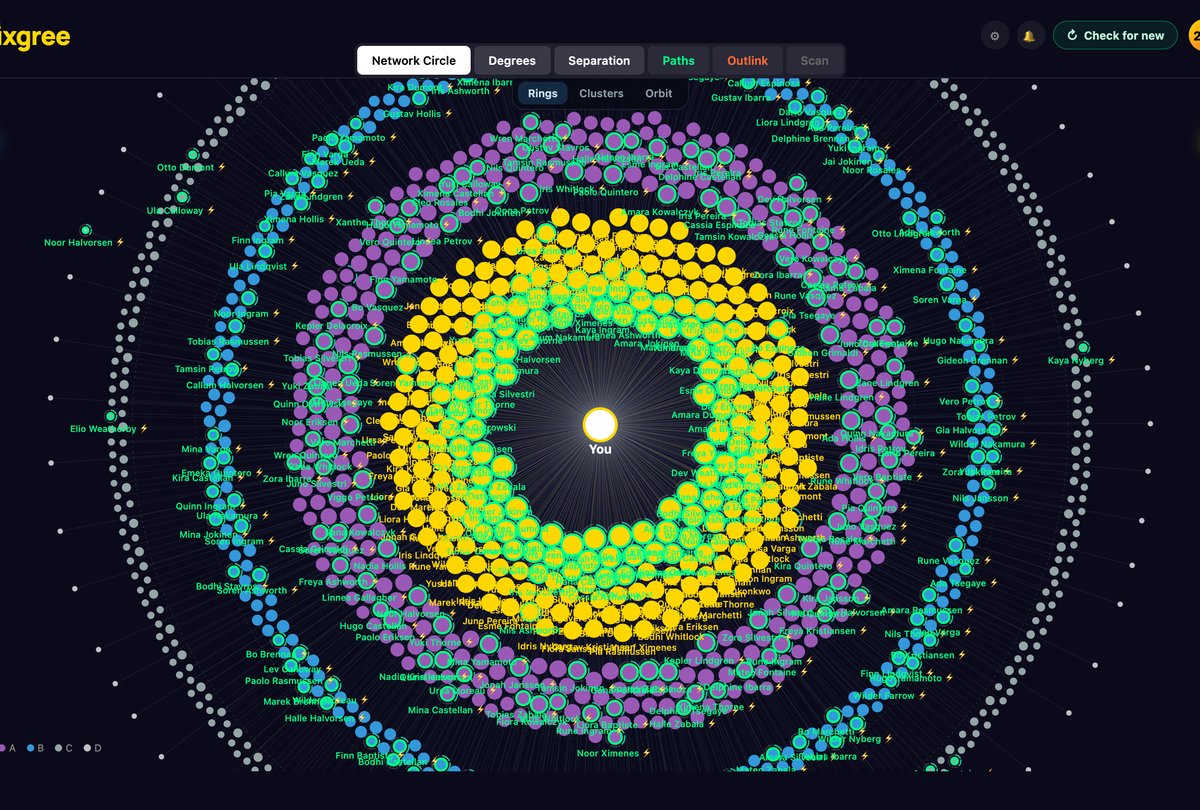
Every person shown in this README is invented — see gen-synthetic.mjs.
Your network has a shape, and you can't see it. Sixgree draws it: everyone you know placed on rings by how much they can open up for you, the handful of people whose own circles reach the furthest, and the shortest chain from you to a stranger worth meeting.
It's a Mac app, and now a Windows and Linux app too (beta). It runs on your computer, against your own data, with no account and no server.
Download
| Platform | Download | Needs |
|---|---|---|
| macOS, Apple Silicon (M1 or newer) | Sixgree-Mac-Apple-Silicon.dmg | macOS 13.5 (Ventura) or later |
| macOS, Intel | Sixgree-Mac-Intel.dmg | macOS 13.5 (Ventura) or later |
| Windows (beta) | Sixgree-Windows-Setup.exe | Windows 10 or 11, 64-bit |
| Linux (beta) | Sixgree-Linux-x64.deb or .tar.gz, or from the Terminal: npx sixgree (how) | Ubuntu or Debian, 64-bit (npx: Node 22.13 or later) |
Every release is on GitHub Releases with a
SHA256SUMS file (latest); the Terminal install below checks the download against it.
The links above always fetch the newest release.
Install it
Which download? Apple menu → About This Mac. If it says "Chip: Apple M…", take Apple Silicon. If it says "Processor: …Intel…", take Intel. It needs macOS 13.5 (Ventura) or later, and it's about 210 MB. Everything the scanner needs except Google Chrome is inside, Python included, so there's nothing else to install.
- Open the file you downloaded (Six-Degrees-Mac-….dmg, in your Downloads folder). In the window that opens, drag Sixgree onto the Applications folder.
- Open Sixgree from Applications. Signed by Blake Burford and notarized by Apple: it opens like any Mac app. The first time, macOS asks whether to open an app downloaded from the internet: click Open.
(A copy of 0.8.0 or earlier wasn't signed yet: if macOS says it can't check it for malware, close that message, not Move to Trash, then System Settings → Privacy & Security → Open Anyway. Or update it, below.)
Or install it from Terminal. Press ⌘ Space, type Terminal and press Return. Paste this line into the window that opens and press Return:
curl -fsSL https://raw.githubusercontent.com/blakeb056/six-degrees/main/install.sh | bash
It downloads the right version for your Mac, checks the file is exactly the one published here, puts Sixgree in Applications and opens it. Read the script first if you like.
Updating. Choose Sixgree → Check for Updates… (or open Settings with the ⚙
button or ⌘,). It opens the Updates section and checks. Nothing checks by
itself. If there's a newer version, click Install and restart: the app downloads it
from GitHub, checks it against the release's published checksums and checks that its code
signature is intact, closes, puts the new version in its place and opens it again. If the
new version can't be put in place, won't open, or closes before its first page appears,
your old one is put back and opened. Once the new one has started, the version you had is
kept, zipped, in ~/Library/Caches/Six Degrees until the next update: if the new one
misbehaves later, unzip it and drag the app into Applications to go back. When the app
can't update itself (for example, it's running from the disk image), it says why and what
to do, usually with a Terminal line to paste and what that line will do. Copies of 0.2.1
and older don't have the button yet, so they take the Terminal line once more.
Downloading the new .dmg and dragging it to Applications works too.
Your network isn't stored in the app. It's in a hidden folder in your home folder,
.six-degrees (open it any time with Help → Show the Data Folder), so updates never
touch it. Each new version also backs up your data, photos and all, into its backups
folder before it first opens it, and Sixgree makes a backup each day it's open
(see Backups). To take it to another computer, see
Moving to a new computer.
Windows (beta): download Sixgree-Windows-Setup.exe
and open it. It installs for you alone (no administrator password), adds Start Menu and
Desktop shortcuts, and opens Sixgree. It isn't signed with a paid certificate yet, so
SmartScreen may say it protected your PC: More info → Run anyway. A newer Setup.exe
updates it in place; your network stays in %USERPROFILE%\.six-degrees, which
uninstalling never touches. Scanning needs Google Chrome.
Linux app (beta): sudo apt install ./Six-Degrees-Linux-x64.deb with the
.deb, then open it from your apps. The
.tar.gz runs from its folder; on Ubuntu 24.04 and
later run sudo chown root:root chrome-sandbox && sudo chmod 4755 chrome-sandbox in it
once (or start it with --no-sandbox). Scanning needs Google Chrome (not Chromium).
Linux from the Terminal: install Node 22.13 or later (from nodejs.org or nvm; Ubuntu's own
nodejs package is too old), then run:
npx sixgree
It opens http://127.0.0.1:6363 in your browser (--no-open on a machine without a
desktop), keeps your data in ~/.six-degrees (it prints the folder when it starts;
--data-dir puts it elsewhere), and stops with Ctrl-C. To update, stop it and run
npx sixgree@latest; Settings → Updates gives the same
line. Scanning LinkedIn also needs Google Chrome (not Chromium), and Python: your own 3.10
to 3.14 if you have it (on Ubuntu with python3-venv), or, if not, the Scan page's Set
up the scanner button downloads a private copy into your data folder (24–33 MB, from
GitHub, checked against a checksum built into Sixgree). It's tested on Ubuntu, and
works on a Mac too if you'd rather not install the app.
npx sixgree doesn't run on Windows; use the Windows app above.
Run it from source (contributors)
Needs Node 22.13 or later and git.
git clone https://github.com/blakeb056/six-degrees.git
cd six-degrees
npm ci
npm run build
npm run start:packaged      # opens http://127.0.0.1:6363 in your browser
To update later: stop it (Ctrl-C), then
git pull && npm ci && npm run build && npm run start:packaged.
Scanning LinkedIn also needs Google Chrome, and Python 3.10 to 3.14 or the Scan page's
Set up the scanner (see below).
Features
Network Circle. Everyone you know, on rings by tier, the most powerful closest to you. Switch the drawing between Galaxy, Pyramid and List in the panel on the left.
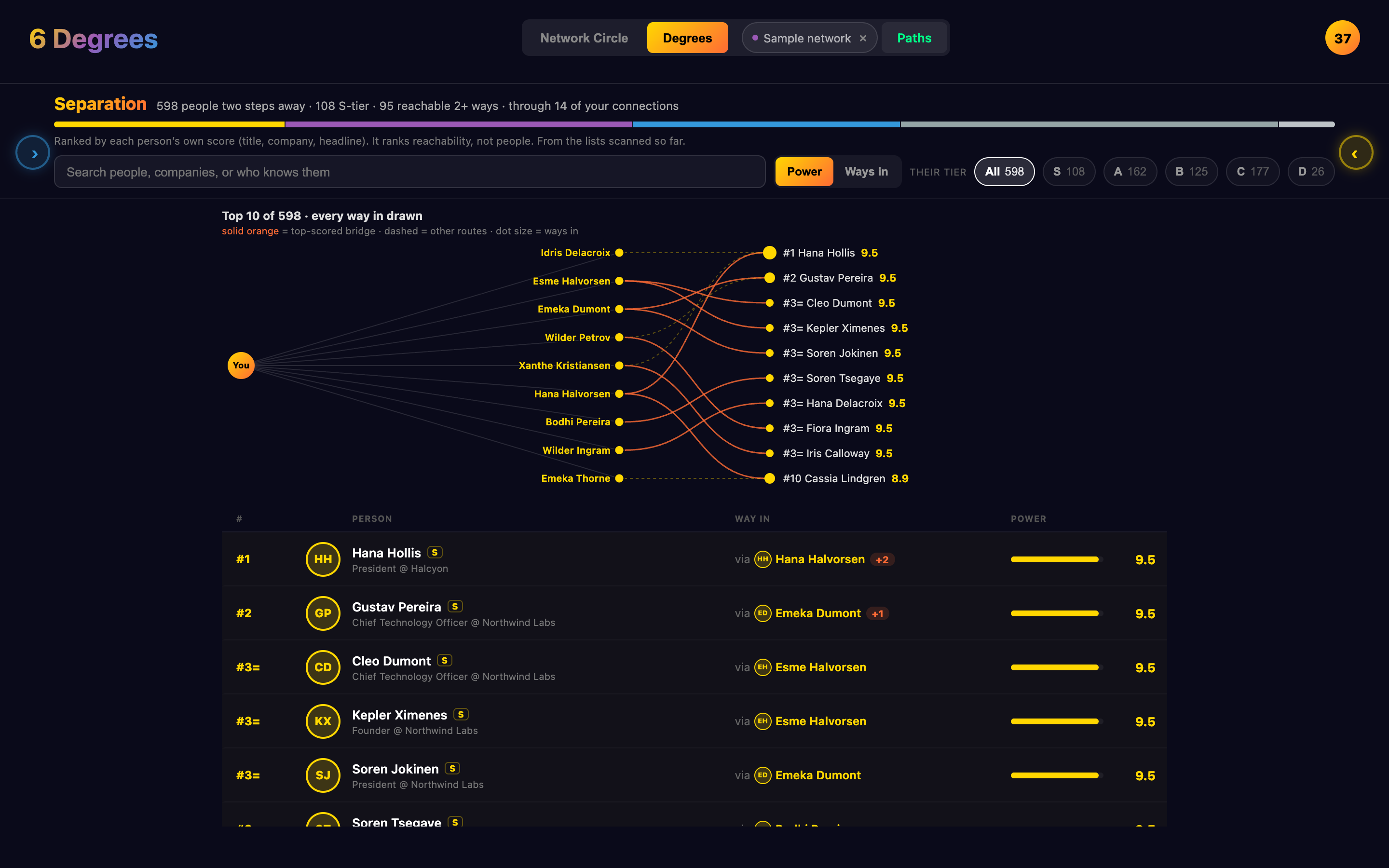
Degrees (needs a scan or the sample). The people two steps away. Separation ranks every one of them with every way in: which of your connections knows them, and how many do. Orbit, Bridge Chains, Pyramid and List draw the same people differently.
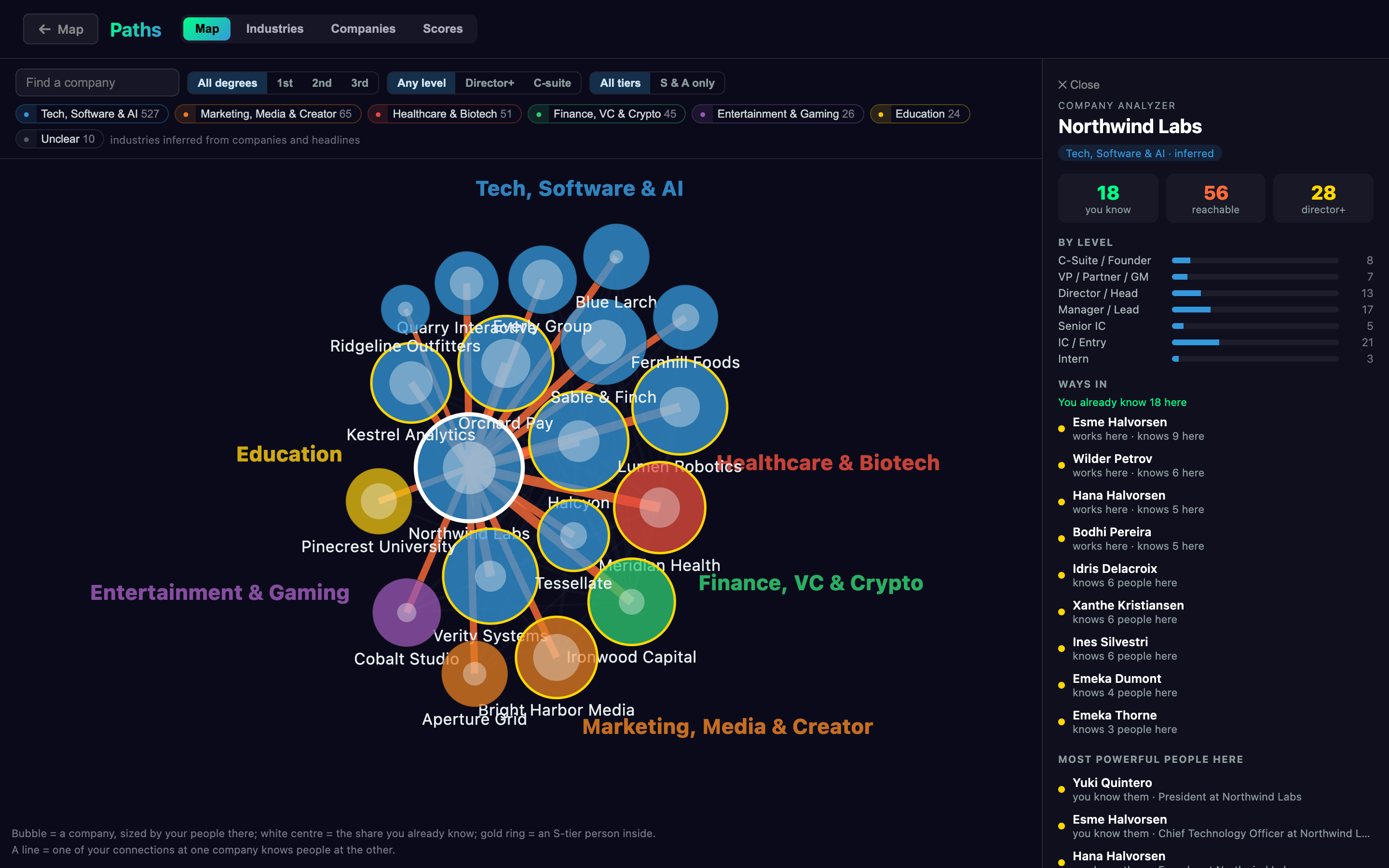
Paths. Your network by company and industry, in the spirit of LinkedIn's old InMaps:
- Map: your companies as bubbles (the 140 largest), grouped by industry and linked where your connections at one know people at another.
- Industries: a card per industry.
- Companies: pick one to see its people level by level, up to the top.
Click a company for its analyzer: who you know there, who you can reach, the warmest way in, and its most powerful people.
Insights, in your profile (the round level button at the top right). Everyone within two steps of you in one table, ranked by power, each person once: the Power Index, with filters for degree, tier and rarity, and Open circle, Scan circle or Ask on every row. Beside it, and each a board of its own in the notch: Kingmakers (your connections with the most S and A people behind them), Gatekeepers (who your S and A reach hangs on), Hidden giants (S-tier with one way in), Untapped (S and A with no request out), Company power and Industries. Report is the same numbers as a page you scroll, and Health how your network holds together. Every number says where it came from, and nothing is about money: Richest? says plainly that the app never sees it. Power ranks reachability, not people.
Scores. How a power score is worked out, and the three things you can change about it, in one place: your field (the sectors you work in), how tiers are graded (on your network's curve or the fixed scale), and every scanned company's score.
Outlink (needs a scan). Getting introduced, as a game. Each mapped connection's circle offers its best five people at a time; mark invites as sent to fill the ring and unlock the next five. It also shows the next best moves, levels and points (from invites sent and people who accepted, never from browsing).
Auto (needs a scan). Next to every Connect (a person's card, Outlink), Auto sends that one person a connection request for you, from the scanner's Chrome, without a note. One press, one person: never a batch, never on a timer. It asks once before the first one. If LinkedIn wants their email address first, Auto closes that and sends nothing (use Connect to add them yourself); if it offers a personal note (Premium), Auto sends without one. It calls a request sent only once their profile shows it pending. It stops at 15 in any 24 hours and 80 in any 7 days, opens their profile once (a profile view), and counts in Settings → LinkedIn usage.
Scan. The guided scanner. It shows progress, the budget that's left, the cooldown lock, and a Paused list you can carry on from.
Also in the app:
- Who only one connection reaches. For every connection whose circle you've scanned, the people none of your other connections reach: in Bridge Chains, and in the Insights on their card, with Show them to list exactly who.
- Network health (Scores). How much of your 2nd degree you reach two or more ways, your effective reach, and the five connections who reach the most people no one else does. Only your own numbers, never a percentile against other people.
- A physics lab for the Galaxy (experimental, in Filters). Sliders for gravity, rings, push, pull and distance; colour by tier, degree, company or warmth; find anyone; and a replay of your network growing by the date you connected, saved as a picture or a video.
- Social (experimental). From your own LinkedIn data: who's warm, dormant or waiting on a reply, and your career chapters. Message text is never kept.
Latest news

Sixgree ships often, and every release says what it added, changed and fixed:
- Releases: each version's downloads and notes (Atom feed).
- CHANGELOG.md: everything, newest first, including what's coming in the next release.
- Release notes on the website: every version, built from the changelog each time the site is published, with a feed.
- The blog: how it works, and why.
Why Sixgree
A connections list tells you who you know. Sixgree shows what that network can do:
- Who can introduce you, ranked. Everyone two steps away, each with every way in.
- Who only one connection reaches. Where a single person is your only door.
- Your network's health. How much of it you reach more than one way.
- A physics lab and a replay. Tune the Galaxy's layout, and watch your network grow.
- All on your own computer. No account, no server, no telemetry.
In the sample network that ships with the app (150 invented connections), 598 people are two steps away, and 503 of them, 84%, are reached through only one connection.
How it compares, as fairly as we can put it (the full table):
| Sixgree | LinkedIn's own search | Spreadsheets and CRMs | Network tools (SocNetV, Gephi) | |
|---|---|---|---|---|
| Your connections, from LinkedIn's export | ✓ | ✓ | ✓ | as nodes, with no ties |
| Everyone two steps away, with who can introduce you | ✓ (needs a scan, or the sample) | 2nd-degree search, mutual connections on each | — (the export is 1st degree only) | if you bring the ties |
| Who only one connection reaches | ✓ | not shown | — | brokerage measures, on your data |
| A score per person, with the working shown | ✓ | not shown | your own formulas | general centrality |
| A layout you can tune, and a replay by date | ✓ (experimental) | — | — | ✓ many layouts; Gephi's timeline |
| Any network, any data, research-grade statistics | — (LinkedIn networks only) | — | any data | ✓ what they're built for |
| Runs on your computer, with no account | ✓ | — (online, with your account) | varies | ✓ |
| Price | free, MIT | free, with paid plans | free to paid | free, open source |
| Windows | ✓ (beta) | ✓ | ✓ | ✓ |
Something out of date, or unfair to another tool? Open an issue.
Before you scan LinkedIn
[!WARNING] Scanning drives your own LinkedIn account, and LinkedIn may restrict accounts that do this. Automating LinkedIn may break its User Agreement. It has happened twice while building this:
- The account was temporarily restricted after about 20 profile views in one sitting (2026-09-09); it was lifted the same evening.
- Search was blocked after results were read too fast (2026-09-24).
The scanner now reads slowly and keeps to one daily limit (by default 50 searches a day, and as many profile views, at least a minute apart). You can change it on the Scan page, or lift it until you quit Sixgree. It locks itself during a cooldown, and stops at the first sign of push-back, lifted or not. The risk is still yours.
The CSV import and the sample network carry no LinkedIn risk at all. Details: how scanning works and what it risks.
The app asks for an explicit "I understand" once, before the first scan.
The scanner reads; the one thing it ever sends is a connection request, and only when you press Auto on a person (one each press, without a note, at most 15 a day and 80 a week). Auto asks once before its first request.
Sixgree is not affiliated with or endorsed by LinkedIn.
First run
The app opens on a welcome screen with three ways in, and asks nothing about you:
- Scan my LinkedIn: a guided page that ticks each step off as it goes. It first asks
one optional question, what field you're in (see Your sector below), and Skip for
now is fine. Then it sets up the scanner in one click, you sign into LinkedIn yourself
in a Chrome window, and then it scans in the background: the scanner's Chrome stays out
of your way and comes forward only if LinkedIn needs you (to sign in again, or to finish
a check it asks for). Needs Google Chrome. The Mac app brings its own
Python; with
npx sixgreethe page uses yours, or sets up a private one with a click. It checks and says what's missing. The app marks this Recommended because it's the only way to Degrees and Outlink. Read the warning above first. On a Mac, macOS may ask whether Sixgree can manage apps while you scan: that's Chrome updating itself, and scanning works either way (step 1 has a button to allow it once). - Import my LinkedIn CSV: LinkedIn's official export, read on your machine. On
LinkedIn: Settings & Privacy → Data privacy → Get a copy of your data →
Connections. LinkedIn emails a link in about ten minutes; unzip it and drop
Connections.csvinto the app. It's kept on your computer until you remove it. - Explore a sample network: 150 invented connections and the 598 invented people they know. Click through before deciding anything.
| Your scan | Your Connections.csv | Sample network | |
|---|---|---|---|
| Setup | Chrome (Python comes with the Mac app) | ~10 min (LinkedIn emails the file) | none |
| Network Circle, Paths | ✅ | ✅ | ✅ |
| Degrees (people you haven't met) | ✅ | — | ✅ |
| Outlink (getting introduced) | ✅ | — | — |
| Profile photos | ✅ | initials | initials |
| LinkedIn account risk | yes, see above | none | none |
The CSV is the safe path, and deliberately the shallower one. LinkedIn's export only contains people you're already connected to, so Degrees and Outlink, the views about people you haven't met, have nothing to draw. That data exists in no official export; the scanner is the only way to it, and it's opt-in for that reason.
While the sample or a CSV is loaded, the top bar shows Sample network × or Your CSV
×, and Outlink and Scan are hidden. Neither is ever added to your network. The sample
lasts as long as the app's window is open. A CSV import is kept on your computer, in the
data folder (csv-network.json), so it's still there after you close the window or
restart; click × to remove it (your Connections.csv itself isn't touched). Once you've
scanned your own connections, the map shows your scan instead; the CSV stays kept until
you remove it from the import page.
How scoring works
power = title × (0.45 + 0.055 × company score) + reach bonus + bridge boost
tiers, on your network's curve (the default):  your top 3% S, then A to 15%, B to 40%, C to 70%
tiers, on the fixed scale:                     S ≥ 7.5   A ≥ 5.5   B ≥ 4.0   C ≥ 2.5   D < 2.5
- Title (1–10) comes from someone's roles in their headline, with former roles at 70%; current students are capped. Academics have their own ladder (an assistant professor 5 up to a dean 9), and so do government and the services (a city councilmember or a colonel 7.5 up to a senator or a four-star general 10), read only where a title is written. An audience of their own counts like a title (100K+ followers 6.5, 1M+ 7.5, 10M+ 9), and a title it can't read counts as an individual contributor's (4).
- Company score (1–10) is the one you set (the Scores tab) if there is one. Otherwise it comes from a built-in list of well-known companies, or from how many of your people work there. The built-in list is the same for everyone and follows one rule: only companies most US professionals would recognise (household names, the largest companies, top investment, consulting, law and accounting firms, frontier AI labs, top universities), scored 7 to 10. Anything else is estimated from your network: a company it doesn't know counts as 5, the middle of the scale, a little more when several of your people work there. If you scanned with an earlier version, the Scores tab offers once to keep its old scores for the companies in your network whose score changed.
- Your sector (Scores, optional): pick up to three sectors you work in, and companies in them get +1 ("lean") or +2 ("strong") on that score, once, never above 10 and never on a score you set. A pick is one of twelve broad industries or a narrower sector from a built-in list of about fifty (Dental, Real Estate, Software & SaaS…). A sector matches by a fixed list of words: in the company's name, or in the headlines of at least half of the people you know there, where a job every kind of company has (recruiter, accountant, software engineer) doesn't count. An industry includes its sectors, and a company's one industry when the known list or the company's name gives it, not when only its people's job titles do. Scores suggests the sectors your network is in and shows what would change before you save. The Scan page asks for it once, before your first scan, so your first scores already use it; you can skip it and pick later.
- Multiplying means seniority counts for more at a bigger company. A VP at a company scored 10 gets 9.0; a founder at an unknown company, 7.3.
- Reach bonus (up to 1.5): investor, YC, an audience in the millions, the top award of any field (a Nobel, a Pulitzer, an Oscar, an Olympic medal…). It counts half at an unknown company, because headlines are self-written (your sector doesn't change that).
- Bridge boost (up to 2): someone whose mapped circle is unusually strong: a high share of it at A or S (up to +1), or many people there (+1 for every 25, up to +2).
- Tiers (Scores): graded on your own network's curve by default, so any network has a top: your top 3% of connections are S, the next 12% A, the next 25% B and the next 30% C. The curve only lifts, so a network full of well-known companies keeps its tiers, and it never lifts anyone under 4 into S or A. People tied at a line all come in or all stay out. Choose the fixed scale instead for the same lines as everyone else.
Scanned and sample people show the working ("VP / Partner / GM (9) · Adobe (8/10) · +0.7
strong circle"). A CSV import shows the score only, and uses the built-in company list
rather than your own scores or sectors, graded on its own curve; the sample network keeps its own. The model is
lib/scoring.js, explained in
docs/brain/SCORING.md.
It estimates network position, not what anyone is worth as a person.
Privacy
-
Your network is stored on your computer and nowhere else. No account, no server, no telemetry, no analytics, no crash reporting.
-
A CSV import is read on your machine and never added to your network. It's kept in the data folder as
csv-network.json(names, positions, companies, profile links and when you connected; never email addresses) until you click × beside Your CSV. -
The app contacts only these, and only when you act:
- LinkedIn, while you scan, and when you press Auto (one connection request, sent from the scanner's Chrome). Each profile photo is saved on your computer as the scan reads it, and the app shows photos only from there, so looking at your network never contacts LinkedIn. (Photos an older version kept as links to LinkedIn show initials until the next scan, or Save photos on the Scan page, saves them.)
- Only without the Mac app (which carries the scanner's Python and add-ons inside it), once, when you set the scanner up: PyPI (the Python package library) for the scanner's add-ons, and, if the computer has no Python the scanner can use, GitHub for a copy of Python when you click Set up the scanner. Every file is checked against a checksum built into Sixgree.
- GitHub, only when you click Check for updates, to read the newest version number. In the Mac app, also when you then click Install and restart, to download that version and the file of checksums that proves it's the one published.
Nothing about you is sent, and nothing checks on its own.
-
A copy of your network that you save (Settings → Your data) is a file you keep wherever you choose; the app never uploads it. It holds the names, headlines and profile links of the people in your network, their photos unless you leave them out, your settings, and the scanner's progress and LinkedIn budget. Your LinkedIn sign-in is never in it. Keep it private, and delete it once it's imported.
-
The web framework's own anonymous usage stats are turned off.
See SECURITY.md for the threat model.
How your data is stored
.six-degrees/               in your home folder (hidden)
├── six-degrees.sqlite      your network: connections, scores, tiers, queue, settings
├── backups/                backups of your network: daily, before each new version, before
│                           an import or a restore, and any you make (see Backups below)
├── avatars/                profile photos, if you scan
├── chrome-profile/         the scanner's Chrome sign-in, if you scan (see below)
├── venv/                   the scanner's Python add-ons, if you set it up without the Mac app
├── python/                 a private Python for them, if Set up the scanner downloaded one
├── pushback/               what LinkedIn's page said if it ever pushed back
├── csv-network.json        a LinkedIn CSV import, kept until you remove it
└── *.json                  the scanner's budget, cooldown, progress and skip lists
Settings → Your data shows where this folder is (with Copy the path and Show in Finder), what each part takes up, and the backups in it.
Backups
A backup is your whole network in one .sixdegrees file: your connections, their profile
photos, your settings (the look and your saved Galaxy layouts too), and the scanner's
progress, skip lists and LinkedIn budget. Each one is checked as it's made, the same way a
restore would check it, so a backup that's listed would restore. The Social tab's messages
and notes are never in a backup, so deleting them there (Forget it) deletes them
everywhere, and a restore leaves them as they are. Sixgree makes one:
- each day it's open with a network in it (when it starts, and after a scan, if the newest daily one is a day old; nothing runs on a timer), keeping the last 7;
- before a new version first opens your data, keeping the last 3;
- when you click Back up now in Settings → Your data. These are never deleted for you.
An import or a restore keeps what it replaced as well (before-import-…), keeping the
last 3, and never one that's under 30 days old. Anything else you put in backups/
yourself is never touched.
Settings → Your data says when the last backup was made and whether it passed its check ("Last backup: , verified"), or what's wrong with it if it didn't. Each backup has Restore and Show in Finder. Backups stay on this computer: to keep one safe if the computer is lost, copy it somewhere else (Show in Finder, then drag it to a USB stick).
They take space. For a network of about 650 connections and 5,000 people beyond them, with their photos, each backup is about 25 to 35 MB, so the kept ones add up to about 300 to 400 MB.
Moving to a new computer
- On the old computer, open Settings → Your data and click Export backup
file…. You get one file,
Sixgree backup <date>.sixdegrees, with your network, your settings, the scanner's progress, skip lists and LinkedIn budget, and the profile photos of the people in it (untick them to leave them out; they come back as you scan again). - Move that file to the new computer yourself (a USB stick, AirDrop). It holds other people's names and photos, so don't post it or share it.
- On the new computer, install Sixgree, open Settings → Your data, click Restore from a file…, choose the file and click Restore. It's checked first, and nothing changes if it isn't a whole and undamaged Sixgree copy. If that computer already has a network, you're asked to confirm that the import replaces it. The two networks are never merged. Your LinkedIn search budget is the one thing that is: it belongs to your LinkedIn account, not to a computer, so searches made on either computer still count, a pause on scanning set on either stays until it ends, and budget limits already set on that computer stay.
- The import finishes the next time Sixgree starts. The Mac app does that with
Restart now; with
npx sixgree, press Ctrl-C and start it again. If another copy of Sixgree has the same folder open (one started from the Terminal, say), the import waits, and Settings says so. What was there before is kept inbackups/(before-import-…), for at least 30 days: see Undo an import. - Sign in to LinkedIn again on the new computer before you scan. Your sign-in never goes into a copy. A LinkedIn CSV import kept on the old computer does go into it, and opens on the new one.
Undo an import
An import, or a restore, keeps what it replaced in the data folder's backups/, named with
the time it finished: before-import-<time>.sqlite, your network as it was, and
before-import-<time>-files/ beside it, with its profile photos, the scanner's notes
about it, and a CSV import kept with it if there was one.
To put it back, open Settings → Your data, open The backups, find Before an import
or a restore with that time, and click Restore. It's checked first, then finishes when
Sixgree restarts (Restart now in the Mac app; with npx sixgree, press Ctrl-C
and start it again), and what's there now is kept in the same way, so you can go back
again. Your LinkedIn search budget stays as it is: it belongs to your LinkedIn account,
not to a network.
The same Restore puts back any other backup: yesterday's, or the one from before the last update.
Don't put the live folder in iCloud Drive or Dropbox to share it between computers instead. A sync service that copies the database while it's open can damage it, and it would also sync your LinkedIn sign-in.
To remove everything: quit the app and drag Sixgree from Applications to the
Trash. Then in Finder choose Go → Go to Folder… (⇧⌘G), paste ~/.six-degrees and
move that folder to the Trash. Do the same for
~/Library/Application Support/Six Degrees, the app window's own storage and cache.
[!WARNING]
chrome-profile/holds a real, signed-in LinkedIn session. It's the one thing here that grants access to your account. Never copy it, sync it or share it. Deleting it just means signing in again.
Configuration (for developers)
Nothing to configure. Two optional environment variables exist:
| Variable | Purpose |
|---|---|
SIX_DEGREES_HOME | Where your data lives. Defaults to ~/.six-degrees. It's read at launch, so it applies to npx sixgree and source runs (npx also takes --data-dir; see npx sixgree --help), not when the Mac app is opened from the Dock or Finder. A relative folder is taken from the folder you run the command in. |
ADMIN_TOKEN | Not needed on your own computer. The app listens only on 127.0.0.1 and isn't built to be exposed: don't put it behind a tunnel or bind it to another address (SECURITY.md). If it's ever bound elsewhere, the eleven routes that delete, replace or hand over your data, run the scanner, open the data folder or update a copy run from source refuse every caller without this token, including the app's own buttons. Everything else, including reading your whole network, stays open. |
Docs
| You want | Read |
|---|---|
| To install it, step by step | Install it, or the website's guide with videos |
| How scanning works, and what it risks | docs/SCRAPING.md |
| How a power score is worked out | How scoring works, and docs/brain/SCORING.md |
| Where your data lives, moving computers | How your data is stored |
| The security model, and reporting a problem | SECURITY.md |
| What changed in each version | CHANGELOG.md, or the release notes on the website |
| How it works, and why | The blog: who can introduce you, local-first, the physics lab, scanning slowly |
| What's next | The roadmap |
| The website itself | site/README.md: previewing it, adding a post or a page |
| To change the code | CONTRIBUTING.md, then docs/brain/ |
Contributing
Bug reports, ideas and pull requests are welcome. See CONTRIBUTING.md to run it from source, and the code of conduct. Report a security problem privately, through GitHub's security advisories (SECURITY.md), not in an issue.
The rule that matters most: never commit real network data. That means no exported CSVs, no avatars, and no screenshots of real people. When you file an issue, redact names before attaching anything.
License
MIT © Blake Burford — see LICENSE.
Similar repos


Sixgree: six degrees of your LinkedIn. See your network as a galaxy: who can introduce you, who only one connection reaches, and the shortest path to anyone. Local-first, no account, open source.
See the codeSee what people are saying
README
Sixgree
Sixgree: six degrees of your LinkedIn. (Formerly Six Degrees.)
See your LinkedIn network as a galaxy.
Who can introduce you, who only one of your connections can reach, and the shortest path to
someone you haven't met. Free, open source, and it runs on your own computer.
1.0: complete, signed and notarized by Apple, and maintained. New features come slowly.
Website · Download · Features · News · Why Sixgree · Docs · Blog · Roadmap · Contributing
Every person shown in this README is invented — see gen-synthetic.mjs.
Your network has a shape, and you can't see it. Sixgree draws it: everyone you know placed on rings by how much they can open up for you, the handful of people whose own circles reach the furthest, and the shortest chain from you to a stranger worth meeting.
It's a Mac app, and now a Windows and Linux app too (beta). It runs on your computer, against your own data, with no account and no server.
Download
| Platform | Download | Needs |
|---|---|---|
| macOS, Apple Silicon (M1 or newer) | Sixgree-Mac-Apple-Silicon.dmg | macOS 13.5 (Ventura) or later |
| macOS, Intel | Sixgree-Mac-Intel.dmg | macOS 13.5 (Ventura) or later |
| Windows (beta) | Sixgree-Windows-Setup.exe | Windows 10 or 11, 64-bit |
| Linux (beta) | Sixgree-Linux-x64.deb or .tar.gz, or from the Terminal: npx sixgree (how) | Ubuntu or Debian, 64-bit (npx: Node 22.13 or later) |
Every release is on GitHub Releases with a
SHA256SUMS file (latest); the Terminal install below checks the download against it.
The links above always fetch the newest release.
Install it
Which download? Apple menu → About This Mac. If it says "Chip: Apple M…", take Apple Silicon. If it says "Processor: …Intel…", take Intel. It needs macOS 13.5 (Ventura) or later, and it's about 210 MB. Everything the scanner needs except Google Chrome is inside, Python included, so there's nothing else to install.
- Open the file you downloaded (Six-Degrees-Mac-….dmg, in your Downloads folder). In the window that opens, drag Sixgree onto the Applications folder.
- Open Sixgree from Applications. Signed by Blake Burford and notarized by Apple: it opens like any Mac app. The first time, macOS asks whether to open an app downloaded from the internet: click Open.
(A copy of 0.8.0 or earlier wasn't signed yet: if macOS says it can't check it for malware, close that message, not Move to Trash, then System Settings → Privacy & Security → Open Anyway. Or update it, below.)
Or install it from Terminal. Press ⌘ Space, type Terminal and press Return. Paste this line into the window that opens and press Return:
curl -fsSL https://raw.githubusercontent.com/blakeb056/six-degrees/main/install.sh | bash
It downloads the right version for your Mac, checks the file is exactly the one published here, puts Sixgree in Applications and opens it. Read the script first if you like.
Updating. Choose Sixgree → Check for Updates… (or open Settings with the ⚙
button or ⌘,). It opens the Updates section and checks. Nothing checks by
itself. If there's a newer version, click Install and restart: the app downloads it
from GitHub, checks it against the release's published checksums and checks that its code
signature is intact, closes, puts the new version in its place and opens it again. If the
new version can't be put in place, won't open, or closes before its first page appears,
your old one is put back and opened. Once the new one has started, the version you had is
kept, zipped, in ~/Library/Caches/Six Degrees until the next update: if the new one
misbehaves later, unzip it and drag the app into Applications to go back. When the app
can't update itself (for example, it's running from the disk image), it says why and what
to do, usually with a Terminal line to paste and what that line will do. Copies of 0.2.1
and older don't have the button yet, so they take the Terminal line once more.
Downloading the new .dmg and dragging it to Applications works too.
Your network isn't stored in the app. It's in a hidden folder in your home folder,
.six-degrees (open it any time with Help → Show the Data Folder), so updates never
touch it. Each new version also backs up your data, photos and all, into its backups
folder before it first opens it, and Sixgree makes a backup each day it's open
(see Backups). To take it to another computer, see
Moving to a new computer.
Windows (beta): download Sixgree-Windows-Setup.exe
and open it. It installs for you alone (no administrator password), adds Start Menu and
Desktop shortcuts, and opens Sixgree. It isn't signed with a paid certificate yet, so
SmartScreen may say it protected your PC: More info → Run anyway. A newer Setup.exe
updates it in place; your network stays in %USERPROFILE%\.six-degrees, which
uninstalling never touches. Scanning needs Google Chrome.
Linux app (beta): sudo apt install ./Six-Degrees-Linux-x64.deb with the
.deb, then open it from your apps. The
.tar.gz runs from its folder; on Ubuntu 24.04 and
later run sudo chown root:root chrome-sandbox && sudo chmod 4755 chrome-sandbox in it
once (or start it with --no-sandbox). Scanning needs Google Chrome (not Chromium).
Linux from the Terminal: install Node 22.13 or later (from nodejs.org or nvm; Ubuntu's own
nodejs package is too old), then run:
npx sixgree
It opens http://127.0.0.1:6363 in your browser (--no-open on a machine without a
desktop), keeps your data in ~/.six-degrees (it prints the folder when it starts;
--data-dir puts it elsewhere), and stops with Ctrl-C. To update, stop it and run
npx sixgree@latest; Settings → Updates gives the same
line. Scanning LinkedIn also needs Google Chrome (not Chromium), and Python: your own 3.10
to 3.14 if you have it (on Ubuntu with python3-venv), or, if not, the Scan page's Set
up the scanner button downloads a private copy into your data folder (24–33 MB, from
GitHub, checked against a checksum built into Sixgree). It's tested on Ubuntu, and
works on a Mac too if you'd rather not install the app.
npx sixgree doesn't run on Windows; use the Windows app above.
Run it from source (contributors)
Needs Node 22.13 or later and git.
git clone https://github.com/blakeb056/six-degrees.git
cd six-degrees
npm ci
npm run build
npm run start:packaged      # opens http://127.0.0.1:6363 in your browser
To update later: stop it (Ctrl-C), then
git pull && npm ci && npm run build && npm run start:packaged.
Scanning LinkedIn also needs Google Chrome, and Python 3.10 to 3.14 or the Scan page's
Set up the scanner (see below).
Features
Network Circle. Everyone you know, on rings by tier, the most powerful closest to you. Switch the drawing between Galaxy, Pyramid and List in the panel on the left.
Degrees (needs a scan or the sample). The people two steps away. Separation ranks every one of them with every way in: which of your connections knows them, and how many do. Orbit, Bridge Chains, Pyramid and List draw the same people differently.
Paths. Your network by company and industry, in the spirit of LinkedIn's old InMaps:
- Map: your companies as bubbles (the 140 largest), grouped by industry and linked where your connections at one know people at another.
- Industries: a card per industry.
- Companies: pick one to see its people level by level, up to the top.
Click a company for its analyzer: who you know there, who you can reach, the warmest way in, and its most powerful people.
Insights, in your profile (the round level button at the top right). Everyone within two steps of you in one table, ranked by power, each person once: the Power Index, with filters for degree, tier and rarity, and Open circle, Scan circle or Ask on every row. Beside it, and each a board of its own in the notch: Kingmakers (your connections with the most S and A people behind them), Gatekeepers (who your S and A reach hangs on), Hidden giants (S-tier with one way in), Untapped (S and A with no request out), Company power and Industries. Report is the same numbers as a page you scroll, and Health how your network holds together. Every number says where it came from, and nothing is about money: Richest? says plainly that the app never sees it. Power ranks reachability, not people.
Scores. How a power score is worked out, and the three things you can change about it, in one place: your field (the sectors you work in), how tiers are graded (on your network's curve or the fixed scale), and every scanned company's score.
Outlink (needs a scan). Getting introduced, as a game. Each mapped connection's circle offers its best five people at a time; mark invites as sent to fill the ring and unlock the next five. It also shows the next best moves, levels and points (from invites sent and people who accepted, never from browsing).
Auto (needs a scan). Next to every Connect (a person's card, Outlink), Auto sends that one person a connection request for you, from the scanner's Chrome, without a note. One press, one person: never a batch, never on a timer. It asks once before the first one. If LinkedIn wants their email address first, Auto closes that and sends nothing (use Connect to add them yourself); if it offers a personal note (Premium), Auto sends without one. It calls a request sent only once their profile shows it pending. It stops at 15 in any 24 hours and 80 in any 7 days, opens their profile once (a profile view), and counts in Settings → LinkedIn usage.
Scan. The guided scanner. It shows progress, the budget that's left, the cooldown lock, and a Paused list you can carry on from.
Also in the app:
- Who only one connection reaches. For every connection whose circle you've scanned, the people none of your other connections reach: in Bridge Chains, and in the Insights on their card, with Show them to list exactly who.
- Network health (Scores). How much of your 2nd degree you reach two or more ways, your effective reach, and the five connections who reach the most people no one else does. Only your own numbers, never a percentile against other people.
- A physics lab for the Galaxy (experimental, in Filters). Sliders for gravity, rings, push, pull and distance; colour by tier, degree, company or warmth; find anyone; and a replay of your network growing by the date you connected, saved as a picture or a video.
- Social (experimental). From your own LinkedIn data: who's warm, dormant or waiting on a reply, and your career chapters. Message text is never kept.
Latest news
Sixgree ships often, and every release says what it added, changed and fixed:
- Releases: each version's downloads and notes (Atom feed).
- CHANGELOG.md: everything, newest first, including what's coming in the next release.
- Release notes on the website: every version, built from the changelog each time the site is published, with a feed.
- The blog: how it works, and why.
Why Sixgree
A connections list tells you who you know. Sixgree shows what that network can do:
- Who can introduce you, ranked. Everyone two steps away, each with every way in.
- Who only one connection reaches. Where a single person is your only door.
- Your network's health. How much of it you reach more than one way.
- A physics lab and a replay. Tune the Galaxy's layout, and watch your network grow.
- All on your own computer. No account, no server, no telemetry.
In the sample network that ships with the app (150 invented connections), 598 people are two steps away, and 503 of them, 84%, are reached through only one connection.
How it compares, as fairly as we can put it (the full table):
| Sixgree | LinkedIn's own search | Spreadsheets and CRMs | Network tools (SocNetV, Gephi) | |
|---|---|---|---|---|
| Your connections, from LinkedIn's export | ✓ | ✓ | ✓ | as nodes, with no ties |
| Everyone two steps away, with who can introduce you | ✓ (needs a scan, or the sample) | 2nd-degree search, mutual connections on each | — (the export is 1st degree only) | if you bring the ties |
| Who only one connection reaches | ✓ | not shown | — | brokerage measures, on your data |
| A score per person, with the working shown | ✓ | not shown | your own formulas | general centrality |
| A layout you can tune, and a replay by date | ✓ (experimental) | — | — | ✓ many layouts; Gephi's timeline |
| Any network, any data, research-grade statistics | — (LinkedIn networks only) | — | any data | ✓ what they're built for |
| Runs on your computer, with no account | ✓ | — (online, with your account) | varies | ✓ |
| Price | free, MIT | free, with paid plans | free to paid | free, open source |
| Windows | ✓ (beta) | ✓ | ✓ | ✓ |
Something out of date, or unfair to another tool? Open an issue.
Before you scan LinkedIn
[!WARNING] Scanning drives your own LinkedIn account, and LinkedIn may restrict accounts that do this. Automating LinkedIn may break its User Agreement. It has happened twice while building this:
- The account was temporarily restricted after about 20 profile views in one sitting (2026-09-09); it was lifted the same evening.
- Search was blocked after results were read too fast (2026-09-24).
The scanner now reads slowly and keeps to one daily limit (by default 50 searches a day, and as many profile views, at least a minute apart). You can change it on the Scan page, or lift it until you quit Sixgree. It locks itself during a cooldown, and stops at the first sign of push-back, lifted or not. The risk is still yours.
The CSV import and the sample network carry no LinkedIn risk at all. Details: how scanning works and what it risks.
The app asks for an explicit "I understand" once, before the first scan.
The scanner reads; the one thing it ever sends is a connection request, and only when you press Auto on a person (one each press, without a note, at most 15 a day and 80 a week). Auto asks once before its first request.
Sixgree is not affiliated with or endorsed by LinkedIn.
First run
The app opens on a welcome screen with three ways in, and asks nothing about you:
- Scan my LinkedIn: a guided page that ticks each step off as it goes. It first asks
one optional question, what field you're in (see Your sector below), and Skip for
now is fine. Then it sets up the scanner in one click, you sign into LinkedIn yourself
in a Chrome window, and then it scans in the background: the scanner's Chrome stays out
of your way and comes forward only if LinkedIn needs you (to sign in again, or to finish
a check it asks for). Needs Google Chrome. The Mac app brings its own
Python; with
npx sixgreethe page uses yours, or sets up a private one with a click. It checks and says what's missing. The app marks this Recommended because it's the only way to Degrees and Outlink. Read the warning above first. On a Mac, macOS may ask whether Sixgree can manage apps while you scan: that's Chrome updating itself, and scanning works either way (step 1 has a button to allow it once). - Import my LinkedIn CSV: LinkedIn's official export, read on your machine. On
LinkedIn: Settings & Privacy → Data privacy → Get a copy of your data →
Connections. LinkedIn emails a link in about ten minutes; unzip it and drop
Connections.csvinto the app. It's kept on your computer until you remove it. - Explore a sample network: 150 invented connections and the 598 invented people they know. Click through before deciding anything.
| Your scan | Your Connections.csv | Sample network | |
|---|---|---|---|
| Setup | Chrome (Python comes with the Mac app) | ~10 min (LinkedIn emails the file) | none |
| Network Circle, Paths | ✅ | ✅ | ✅ |
| Degrees (people you haven't met) | ✅ | — | ✅ |
| Outlink (getting introduced) | ✅ | — | — |
| Profile photos | ✅ | initials | initials |
| LinkedIn account risk | yes, see above | none | none |
The CSV is the safe path, and deliberately the shallower one. LinkedIn's export only contains people you're already connected to, so Degrees and Outlink, the views about people you haven't met, have nothing to draw. That data exists in no official export; the scanner is the only way to it, and it's opt-in for that reason.
While the sample or a CSV is loaded, the top bar shows Sample network × or Your CSV
×, and Outlink and Scan are hidden. Neither is ever added to your network. The sample
lasts as long as the app's window is open. A CSV import is kept on your computer, in the
data folder (csv-network.json), so it's still there after you close the window or
restart; click × to remove it (your Connections.csv itself isn't touched). Once you've
scanned your own connections, the map shows your scan instead; the CSV stays kept until
you remove it from the import page.
How scoring works
power = title × (0.45 + 0.055 × company score) + reach bonus + bridge boost
tiers, on your network's curve (the default):  your top 3% S, then A to 15%, B to 40%, C to 70%
tiers, on the fixed scale:                     S ≥ 7.5   A ≥ 5.5   B ≥ 4.0   C ≥ 2.5   D < 2.5
- Title (1–10) comes from someone's roles in their headline, with former roles at 70%; current students are capped. Academics have their own ladder (an assistant professor 5 up to a dean 9), and so do government and the services (a city councilmember or a colonel 7.5 up to a senator or a four-star general 10), read only where a title is written. An audience of their own counts like a title (100K+ followers 6.5, 1M+ 7.5, 10M+ 9), and a title it can't read counts as an individual contributor's (4).
- Company score (1–10) is the one you set (the Scores tab) if there is one. Otherwise it comes from a built-in list of well-known companies, or from how many of your people work there. The built-in list is the same for everyone and follows one rule: only companies most US professionals would recognise (household names, the largest companies, top investment, consulting, law and accounting firms, frontier AI labs, top universities), scored 7 to 10. Anything else is estimated from your network: a company it doesn't know counts as 5, the middle of the scale, a little more when several of your people work there. If you scanned with an earlier version, the Scores tab offers once to keep its old scores for the companies in your network whose score changed.
- Your sector (Scores, optional): pick up to three sectors you work in, and companies in them get +1 ("lean") or +2 ("strong") on that score, once, never above 10 and never on a score you set. A pick is one of twelve broad industries or a narrower sector from a built-in list of about fifty (Dental, Real Estate, Software & SaaS…). A sector matches by a fixed list of words: in the company's name, or in the headlines of at least half of the people you know there, where a job every kind of company has (recruiter, accountant, software engineer) doesn't count. An industry includes its sectors, and a company's one industry when the known list or the company's name gives it, not when only its people's job titles do. Scores suggests the sectors your network is in and shows what would change before you save. The Scan page asks for it once, before your first scan, so your first scores already use it; you can skip it and pick later.
- Multiplying means seniority counts for more at a bigger company. A VP at a company scored 10 gets 9.0; a founder at an unknown company, 7.3.
- Reach bonus (up to 1.5): investor, YC, an audience in the millions, the top award of any field (a Nobel, a Pulitzer, an Oscar, an Olympic medal…). It counts half at an unknown company, because headlines are self-written (your sector doesn't change that).
- Bridge boost (up to 2): someone whose mapped circle is unusually strong: a high share of it at A or S (up to +1), or many people there (+1 for every 25, up to +2).
- Tiers (Scores): graded on your own network's curve by default, so any network has a top: your top 3% of connections are S, the next 12% A, the next 25% B and the next 30% C. The curve only lifts, so a network full of well-known companies keeps its tiers, and it never lifts anyone under 4 into S or A. People tied at a line all come in or all stay out. Choose the fixed scale instead for the same lines as everyone else.
Scanned and sample people show the working ("VP / Partner / GM (9) · Adobe (8/10) · +0.7
strong circle"). A CSV import shows the score only, and uses the built-in company list
rather than your own scores or sectors, graded on its own curve; the sample network keeps its own. The model is
lib/scoring.js, explained in
docs/brain/SCORING.md.
It estimates network position, not what anyone is worth as a person.
Privacy
-
Your network is stored on your computer and nowhere else. No account, no server, no telemetry, no analytics, no crash reporting.
-
A CSV import is read on your machine and never added to your network. It's kept in the data folder as
csv-network.json(names, positions, companies, profile links and when you connected; never email addresses) until you click × beside Your CSV. -
The app contacts only these, and only when you act:
- LinkedIn, while you scan, and when you press Auto (one connection request, sent from the scanner's Chrome). Each profile photo is saved on your computer as the scan reads it, and the app shows photos only from there, so looking at your network never contacts LinkedIn. (Photos an older version kept as links to LinkedIn show initials until the next scan, or Save photos on the Scan page, saves them.)
- Only without the Mac app (which carries the scanner's Python and add-ons inside it), once, when you set the scanner up: PyPI (the Python package library) for the scanner's add-ons, and, if the computer has no Python the scanner can use, GitHub for a copy of Python when you click Set up the scanner. Every file is checked against a checksum built into Sixgree.
- GitHub, only when you click Check for updates, to read the newest version number. In the Mac app, also when you then click Install and restart, to download that version and the file of checksums that proves it's the one published.
Nothing about you is sent, and nothing checks on its own.
-
A copy of your network that you save (Settings → Your data) is a file you keep wherever you choose; the app never uploads it. It holds the names, headlines and profile links of the people in your network, their photos unless you leave them out, your settings, and the scanner's progress and LinkedIn budget. Your LinkedIn sign-in is never in it. Keep it private, and delete it once it's imported.
-
The web framework's own anonymous usage stats are turned off.
See SECURITY.md for the threat model.
How your data is stored
.six-degrees/               in your home folder (hidden)
├── six-degrees.sqlite      your network: connections, scores, tiers, queue, settings
├── backups/                backups of your network: daily, before each new version, before
│                           an import or a restore, and any you make (see Backups below)
├── avatars/                profile photos, if you scan
├── chrome-profile/         the scanner's Chrome sign-in, if you scan (see below)
├── venv/                   the scanner's Python add-ons, if you set it up without the Mac app
├── python/                 a private Python for them, if Set up the scanner downloaded one
├── pushback/               what LinkedIn's page said if it ever pushed back
├── csv-network.json        a LinkedIn CSV import, kept until you remove it
└── *.json                  the scanner's budget, cooldown, progress and skip lists
Settings → Your data shows where this folder is (with Copy the path and Show in Finder), what each part takes up, and the backups in it.
Backups
A backup is your whole network in one .sixdegrees file: your connections, their profile
photos, your settings (the look and your saved Galaxy layouts too), and the scanner's
progress, skip lists and LinkedIn budget. Each one is checked as it's made, the same way a
restore would check it, so a backup that's listed would restore. The Social tab's messages
and notes are never in a backup, so deleting them there (Forget it) deletes them
everywhere, and a restore leaves them as they are. Sixgree makes one:
- each day it's open with a network in it (when it starts, and after a scan, if the newest daily one is a day old; nothing runs on a timer), keeping the last 7;
- before a new version first opens your data, keeping the last 3;
- when you click Back up now in Settings → Your data. These are never deleted for you.
An import or a restore keeps what it replaced as well (before-import-…), keeping the
last 3, and never one that's under 30 days old. Anything else you put in backups/
yourself is never touched.
Settings → Your data says when the last backup was made and whether it passed its check ("Last backup: , verified"), or what's wrong with it if it didn't. Each backup has Restore and Show in Finder. Backups stay on this computer: to keep one safe if the computer is lost, copy it somewhere else (Show in Finder, then drag it to a USB stick).
They take space. For a network of about 650 connections and 5,000 people beyond them, with their photos, each backup is about 25 to 35 MB, so the kept ones add up to about 300 to 400 MB.
Moving to a new computer
- On the old computer, open Settings → Your data and click Export backup
file…. You get one file,
Sixgree backup <date>.sixdegrees, with your network, your settings, the scanner's progress, skip lists and LinkedIn budget, and the profile photos of the people in it (untick them to leave them out; they come back as you scan again). - Move that file to the new computer yourself (a USB stick, AirDrop). It holds other people's names and photos, so don't post it or share it.
- On the new computer, install Sixgree, open Settings → Your data, click Restore from a file…, choose the file and click Restore. It's checked first, and nothing changes if it isn't a whole and undamaged Sixgree copy. If that computer already has a network, you're asked to confirm that the import replaces it. The two networks are never merged. Your LinkedIn search budget is the one thing that is: it belongs to your LinkedIn account, not to a computer, so searches made on either computer still count, a pause on scanning set on either stays until it ends, and budget limits already set on that computer stay.
- The import finishes the next time Sixgree starts. The Mac app does that with
Restart now; with
npx sixgree, press Ctrl-C and start it again. If another copy of Sixgree has the same folder open (one started from the Terminal, say), the import waits, and Settings says so. What was there before is kept inbackups/(before-import-…), for at least 30 days: see Undo an import. - Sign in to LinkedIn again on the new computer before you scan. Your sign-in never goes into a copy. A LinkedIn CSV import kept on the old computer does go into it, and opens on the new one.
Undo an import
An import, or a restore, keeps what it replaced in the data folder's backups/, named with
the time it finished: before-import-<time>.sqlite, your network as it was, and
before-import-<time>-files/ beside it, with its profile photos, the scanner's notes
about it, and a CSV import kept with it if there was one.
To put it back, open Settings → Your data, open The backups, find Before an import
or a restore with that time, and click Restore. It's checked first, then finishes when
Sixgree restarts (Restart now in the Mac app; with npx sixgree, press Ctrl-C
and start it again), and what's there now is kept in the same way, so you can go back
again. Your LinkedIn search budget stays as it is: it belongs to your LinkedIn account,
not to a network.
The same Restore puts back any other backup: yesterday's, or the one from before the last update.
Don't put the live folder in iCloud Drive or Dropbox to share it between computers instead. A sync service that copies the database while it's open can damage it, and it would also sync your LinkedIn sign-in.
To remove everything: quit the app and drag Sixgree from Applications to the
Trash. Then in Finder choose Go → Go to Folder… (⇧⌘G), paste ~/.six-degrees and
move that folder to the Trash. Do the same for
~/Library/Application Support/Six Degrees, the app window's own storage and cache.
[!WARNING]
chrome-profile/holds a real, signed-in LinkedIn session. It's the one thing here that grants access to your account. Never copy it, sync it or share it. Deleting it just means signing in again.
Configuration (for developers)
Nothing to configure. Two optional environment variables exist:
| Variable | Purpose |
|---|---|
SIX_DEGREES_HOME | Where your data lives. Defaults to ~/.six-degrees. It's read at launch, so it applies to npx sixgree and source runs (npx also takes --data-dir; see npx sixgree --help), not when the Mac app is opened from the Dock or Finder. A relative folder is taken from the folder you run the command in. |
ADMIN_TOKEN | Not needed on your own computer. The app listens only on 127.0.0.1 and isn't built to be exposed: don't put it behind a tunnel or bind it to another address (SECURITY.md). If it's ever bound elsewhere, the eleven routes that delete, replace or hand over your data, run the scanner, open the data folder or update a copy run from source refuse every caller without this token, including the app's own buttons. Everything else, including reading your whole network, stays open. |
Docs
| You want | Read |
|---|---|
| To install it, step by step | Install it, or the website's guide with videos |
| How scanning works, and what it risks | docs/SCRAPING.md |
| How a power score is worked out | How scoring works, and docs/brain/SCORING.md |
| Where your data lives, moving computers | How your data is stored |
| The security model, and reporting a problem | SECURITY.md |
| What changed in each version | CHANGELOG.md, or the release notes on the website |
| How it works, and why | The blog: who can introduce you, local-first, the physics lab, scanning slowly |
| What's next | The roadmap |
| The website itself | site/README.md: previewing it, adding a post or a page |
| To change the code | CONTRIBUTING.md, then docs/brain/ |
Contributing
Bug reports, ideas and pull requests are welcome. See CONTRIBUTING.md to run it from source, and the code of conduct. Report a security problem privately, through GitHub's security advisories (SECURITY.md), not in an issue.
The rule that matters most: never commit real network data. That means no exported CSVs, no avatars, and no screenshots of real people. When you file an issue, redact names before attaching anything.
License
MIT © Blake Burford — see LICENSE.