
A viewer for OCP based Code-CAD (CadQuery, build123d) integrated into VS Code
TypeScript
408
1,310 commits
updated Sep 15, 2026
README
OCP CAD Viewer for VS Code
OCP CAD Viewer for VS Code is an extension to show CadQuery and build123d objects in VS Code via the three-cad-viewer viewer component.
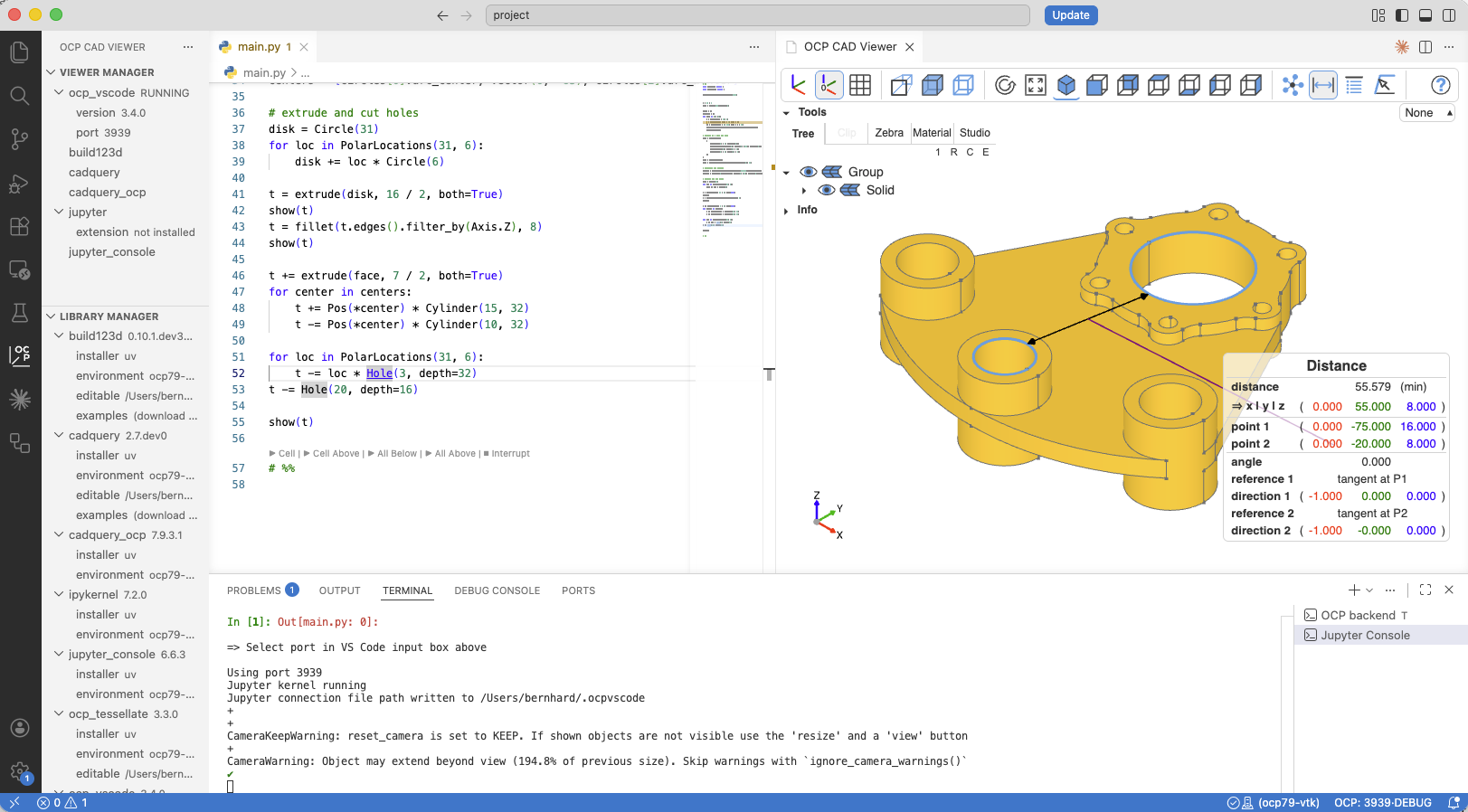
A typical session is just a few lines of Python:
# build123d
from build123d import Box
from ocp_vscode import show

show(Box(1, 2, 3))
# CadQuery
import cadquery as cq
from ocp_vscode import show

show(cq.Workplane().box(1, 2, 3))
Installation
Prerequisites
- Microsoft VS Code, 1.85.0 or newer
- The Python extension installed in VS Code
- Necessary tools:
pythonandpiporuv pip/uv addavailable in the Python environment that will be used for CAD development.
Notes:
- To use OCP CAD Viewer, start VS Code from the commandline in the Python environment you want to use or select the right Python interpreter in VS Code first. OCP CAD Viewer depends on VS Code using the right Python interpreter (i.e. mamba / conda / pyenv / poetry / ... environment).
- For VSCodium, the extension is not available in the VS code market place. You need to download the the vsix file from the release folder and install it manually.
Installation within VS Code
-
Open the VS Code Marketplace, and search and install OCP CAD Viewer 4.1.0.
Afterwards the OCP viewer is available in the VS Code sidebar:

-
Clicking on it shows the OCP CAD Viewer UI with the viewer manager and the library manager:
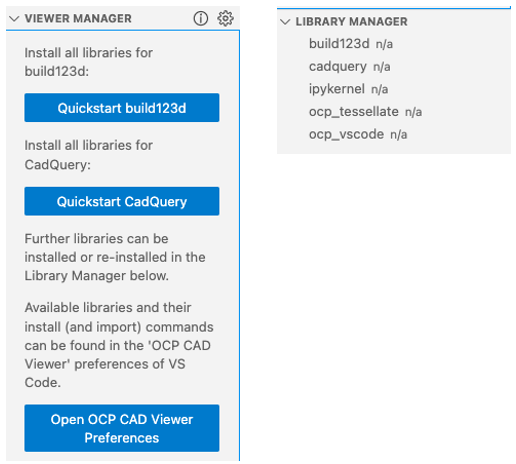
You have 3 options:
-
Prepare OCP CAD Viewer for working with build123d: Press the Quickstart build123d button.
This will install OCP, build123d, ipykernel (jupyter_client), ocp_tessellate and ocp_vscode via
pip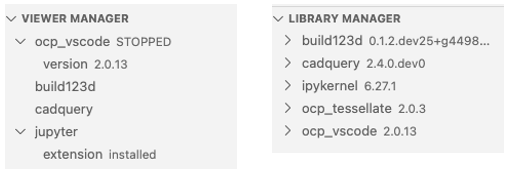
-
Prepare OCP CAD Viewer for working with CadQuery: Press the Quickstart CadQuery button.
This will install OCP, CadQuery, ipykernel (jupyter_client), ocp_tessellate and ocp_vscode via
pip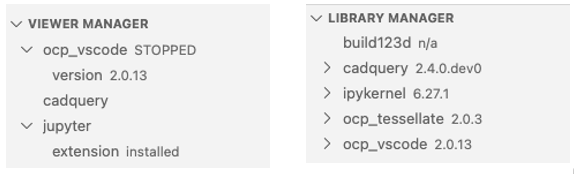
-
Ignore the quick starts and use the "Library Manager" to install the libraries via
pip(per default, this can be changed in the VS Code settings). Install the needed library by pressing the down-arrow behind the library name (hover over the library name to see the button) in the "Library Manager" section of the OCP CAD Viewer sidebar. For more details, see here
Quickstart will also
- (optionally) install the the Jupyter extension for VS Code from Microsoft
- start the OCP viewer
- create a demo file in a temporary folder to quickly see a simple usage example
-
Notes:
-
Do not use the OCP CAD Viewer logo to verify your OCP CAD Viewer settings! The logo overwrites all your settings in VS Code with its own settings to always look the same on each instance. Use a simple own model for checking your configuration
-
If you run into issues, see Troubleshooting
Installation via CLI
If you aren't using VS Code, you can install/use this extension via command line
Since this is a python extension, it is recommended to install/activate a virtual environment first, (e.g. uv, venv, poetry, conda, pip, etc)
-
uv based virtual environemnts:
source .venv/bin/activate # to activate the uv virtual environment uv add ocp-vscode -
pip for other virtual environments:
source .venv/bin/activate  # to activate venv virtual environments
conda / mamba / micromamba activate <env>  # to activate conda like virtual environments
pip install ocp-vscode
Notes:
- The extension is in pypi only pypi, so for conda, mamba or micromamba environments
piporuv pipneeds to be used. - If you want to use the Studio mode with MaterialX support, see PBR Studio
Installation in code-server
This extension is not available on the OpenVSX marketplace used by code-server. If you want to use it in code-server, you need to install it manually on the server running code-server:
- Go to the releases page
- Download the latest
ocp-cad-viewer-<version>.vsixfile, e.g. usingwget <url of vsix file> - Run
code-server --install-extension ocp-cad-viewer-<version>.vsixto install the extension
Usage
Running code with VS Code's "Run" menu
The simplest way to run a Python script with OCP CAD Viewer is via VS Code's built-in Run menu:
- Edit the file as usual. Make sure
from ocp_vscode import ...(orimport ocp_vscode) is somewhere in the file — this matches the defaultOcpCadViewer.advanced.autostartTriggersand starts the viewer automatically when the file is opened. - Use Run > Run Without Debugging (
Ctrl-F5/ on macOS⌃F5) for a plain run, or Run > Start Debugging (F5) to run under the Python debugger with visual debugging enabled (see docs/debug.md). - Each
show(...)call in your script is sent to the running viewer. If more than one viewer is open,showprompts in the terminal to choose which port to send to; callset_port(<port>)explicitly to skip the prompt.
Running code using Jupyter extension
- Start the OCP CAD Viewer by pressing the box-arrow button in the "Viewer Manager" section of the OCP CAD Viewer sidebar (hover over the
ocp_vscodeentry to see the button). - Import ocp_vscode and the CAD library by using the paste button behind the library names in the "Library Manager" section
- Use the usual Run menu to run the code
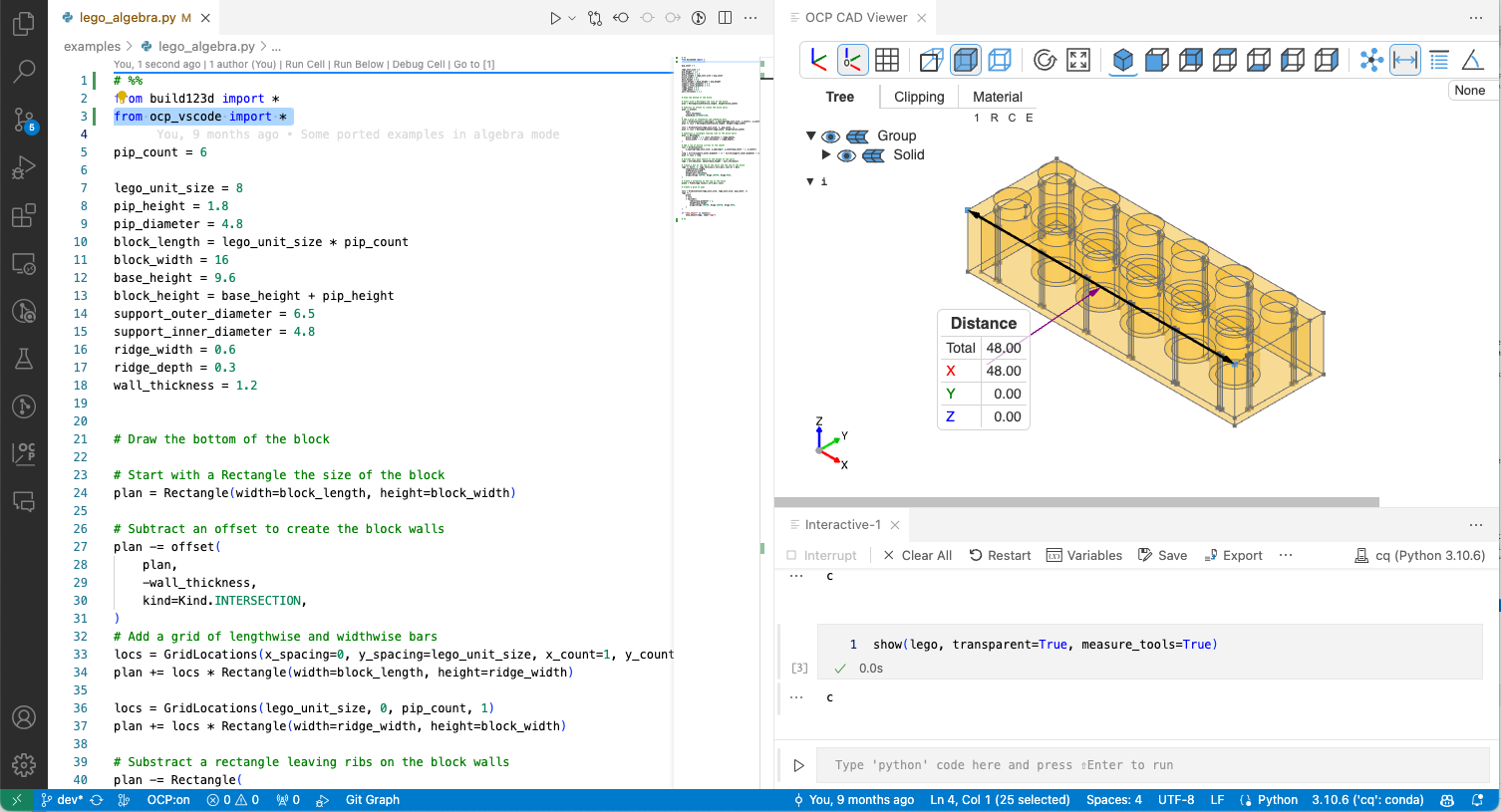
Standalone mode
The standalone viewer became its own package, ocp_viewer: pip install ocp_viewer, then python -m ocp_viewer starts a server reachable at http://127.0.0.1:3939. See OCP Viewer in the documentation, including the full CLI reference and how to run it in Docker.
Debugging code with visual debugging
After each step, the debugger checks all variables in locals() for being CAD objects and displays them with their variable name. See docs/debug.md for details.
Library Manager
The "Library Manager" in the OCP CAD Viewer sidebar lets you install or upgrade build123d, cadquery, ipykernel, ocp_viewer_core and ocp_tessellate from VS Code. See Viewer and Library Manager for the default install commands, placeholder substitution, and uv add override.
Extra topics
The full documentation lives at bernhard-42.github.io/ocp_viewer_docs — the VS Code CAD Viewer chapter covers this viewer's specifics; everything below is a deep link into it.
Getting started
Working with the viewer
- Ports and connecting to a viewer
- Config files (
~/.ocpvscode,~/.ocpvscode_standalone) - Use Jupyter to execute code
- Standalone mode (use without VS Code)
- Debug code with visual debugging
- Measurement tools
- Object selection tool
- Physical based rendering Studio
- ImageFace — use a 2-D image as a reference plane
Python show* commands
- Use the
showcommand - Use the
show_objectcommand - Use the
push_objectandshow_objectscommand - Use the
show_allcommand - Use the
set_viewer_configcommand
Python API reference
- Additional Python API (
save_screenshot,status,set_port, …) - Animation
- Color maps
- Enums reference (
Camera,Collapse,Render,AnalysisTool,UiTab,Studio*)
VS Code reference
Examples and snippets
Other editors support
Help
Development
Testing:
make tests
Changes
4.0.1
- Fixes
- Fix trackball view-flip after prolonged rotation (holroyd mode).
4.0.0
Major release — the picking/selection architecture has been rewritten in three-cad-viewer, leading to chages for OCP CAD Viewer:
-
New picking system
- Replace the CPU
THREE.Raycasterand the duplicated "exploded" scene graph with GPU id-based picking over a single compact scene graph, highlighting is GPU shader-driven. - Hover, selection, measurement and double-click resolve the component under the cursor from an offscreen id buffer, selection behavior is unchanged, with much better scaling to large models.
- The topology filter (All / Vertex / Edge / Face / Solid) is always available for CAD models, enabling whole-solid hover highlighting without a tool.
- Renamed the "None" option in object filters to "All".
- Replace the CPU
-
New mesh based Measurement
- Add a built-in TypeScript mesh-based measurement backend so the measure tools (distance / properties) work without the external Python (
ocp_vscode) backend - Computes real values (area, length, volume, bounding box, min/center distance, angle) from the tessellated mesh;
shape_type/geom_typeare exact (taken from the tessellationface_types/edge_types). - The distance measurement's mesh minimum-distance search uses a BVH (AABB-tree branch-and-bound) — exact and sub-quadratic, so measuring between large or finely-tessellated faces (spheres, helices/springs) do not freeze the viewer for many seconds (resolved in milliseconds).
- Add a built-in TypeScript mesh-based measurement backend so the measure tools (distance / properties) work without the external Python (
-
New status bar
- Always-on hover preselection for CAD models: hovering a component (no active tool required) highlights it and shows a status line with its fixed attributes — geom type, mesh-estimated length/area/volume, and for circular edges (holes, fillets) the center and radius (
r ≈ …, c ≈ …); edge start/end are the exact BRep vertices. Not enabled for GDS (dense, stacked layout data).
- Always-on hover preselection for CAD models: hovering a component (no active tool required) highlights it and shows a status line with its fixed attributes — geom type, mesh-estimated length/area/volume, and for circular edges (holes, fillets) the center and radius (
-
Other Features
- Hide-undo: cmd/meta-double-click on an object hides it, and now cmd/meta-double-click on empty space brings back the most recently hidden object (one per click, in reverse order). This restores hidden objects without the tree — handy in Studio mode, where the tree isn't shown.
-
Performance
- Initial load time on large models roughly halved (zebra-stripe initialization is deferred to first use, and the default clip-plane setup is batched into a single update instead of re-rendering once per setter).
- Clipping section caps now scale to large assemblies. The per-solid stencil and cap meshes are culled each frame to the on-screen, large-enough solids (sub-pixel solids are skipped and the total is bounded by a budget, largest-first), and are drawn only while the Clip tab is active.
-
part_local, sketch_local, and line_Local support for build123d
- build123d now also supports
part_localandline_local. The viewer can show the local versions llike it did in the past withsketch_local. As a consequenceshow_sketch_local(now deprecated) is renamed toshow_locals
- build123d now also supports
-
Fixes
- Breaking: Shortcuts (keymap) weren't unique and consistent. Changed so that default action shortcuts:
- the lowercase keys drive the always-on topology filter (
a= All,v/e/f,s= Solid) - Copy-IDs (select tool)
S→I, - Studio
s→S, - Axes
a→A - Axes-at-origin
A→0. - Button and tab tooltips reflect the configured keymap.
- the lowercase keys drive the always-on topology filter (
- Rendering a new model now disables any active tool as the first step of
render(); the incrementaladdPart/updatePart/removePartAPI keeps the tool. - Clipping section caps no longer leave stray "ghost" caps floating in empty space for non-watertight solids or for planes parked open — a cap is drawn only for a plane that actually cuts the solid.
- Clip-plane sliders now use a finer, model-size-scaled step (e.g. 0.1 instead of 1 on a ~200-unit model), for more precise sectioning.
- Studio: hiding a component with ⌘/double-click no longer leaves "ghost" edges behind after switching back to CAD.
- The Clip and Studio tabs hide the measure and select tools (explode and z-scale remain available).
- Clip settings are resolved purely from the options passed to
render()— each provided field wins and missing fields fall back to defaults. - Fix color handling for builder objects to properly support
bp.part.color,bs.sketch.color, andbl.line.color
- Breaking: Shortcuts (keymap) weren't unique and consistent. Changed so that default action shortcuts:
For the change history see CHANGELOG
Significant stargazers

83 followers · starred Apr 2025

277 followers · starred Jun 2024

130 followers · starred Apr 2024

55 followers · starred Mar 2026
Similar repos





A viewer for OCP based Code-CAD (CadQuery, build123d) integrated into VS Code
TypeScript
408
1,310 commits
updated Sep 15, 2026
README
OCP CAD Viewer for VS Code
OCP CAD Viewer for VS Code is an extension to show CadQuery and build123d objects in VS Code via the three-cad-viewer viewer component.
A typical session is just a few lines of Python:
# build123d
from build123d import Box
from ocp_vscode import show

show(Box(1, 2, 3))
# CadQuery
import cadquery as cq
from ocp_vscode import show

show(cq.Workplane().box(1, 2, 3))
Installation
Prerequisites
- Microsoft VS Code, 1.85.0 or newer
- The Python extension installed in VS Code
- Necessary tools:
pythonandpiporuv pip/uv addavailable in the Python environment that will be used for CAD development.
Notes:
- To use OCP CAD Viewer, start VS Code from the commandline in the Python environment you want to use or select the right Python interpreter in VS Code first. OCP CAD Viewer depends on VS Code using the right Python interpreter (i.e. mamba / conda / pyenv / poetry / ... environment).
- For VSCodium, the extension is not available in the VS code market place. You need to download the the vsix file from the release folder and install it manually.
Installation within VS Code
-
Open the VS Code Marketplace, and search and install OCP CAD Viewer 4.1.0.
Afterwards the OCP viewer is available in the VS Code sidebar:
-
Clicking on it shows the OCP CAD Viewer UI with the viewer manager and the library manager:
You have 3 options:
-
Prepare OCP CAD Viewer for working with build123d: Press the Quickstart build123d button.
This will install OCP, build123d, ipykernel (jupyter_client), ocp_tessellate and ocp_vscode via
pip -
Prepare OCP CAD Viewer for working with CadQuery: Press the Quickstart CadQuery button.
This will install OCP, CadQuery, ipykernel (jupyter_client), ocp_tessellate and ocp_vscode via
pip -
Ignore the quick starts and use the "Library Manager" to install the libraries via
pip(per default, this can be changed in the VS Code settings). Install the needed library by pressing the down-arrow behind the library name (hover over the library name to see the button) in the "Library Manager" section of the OCP CAD Viewer sidebar. For more details, see here
Quickstart will also
- (optionally) install the the Jupyter extension for VS Code from Microsoft
- start the OCP viewer
- create a demo file in a temporary folder to quickly see a simple usage example
-
Notes:
-
Do not use the OCP CAD Viewer logo to verify your OCP CAD Viewer settings! The logo overwrites all your settings in VS Code with its own settings to always look the same on each instance. Use a simple own model for checking your configuration
-
If you run into issues, see Troubleshooting
Installation via CLI
If you aren't using VS Code, you can install/use this extension via command line
Since this is a python extension, it is recommended to install/activate a virtual environment first, (e.g. uv, venv, poetry, conda, pip, etc)
-
uv based virtual environemnts:
source .venv/bin/activate # to activate the uv virtual environment uv add ocp-vscode -
pip for other virtual environments:
source .venv/bin/activate  # to activate venv virtual environments
conda / mamba / micromamba activate <env>  # to activate conda like virtual environments
pip install ocp-vscode
Notes:
- The extension is in pypi only pypi, so for conda, mamba or micromamba environments
piporuv pipneeds to be used. - If you want to use the Studio mode with MaterialX support, see PBR Studio
Installation in code-server
This extension is not available on the OpenVSX marketplace used by code-server. If you want to use it in code-server, you need to install it manually on the server running code-server:
- Go to the releases page
- Download the latest
ocp-cad-viewer-<version>.vsixfile, e.g. usingwget <url of vsix file> - Run
code-server --install-extension ocp-cad-viewer-<version>.vsixto install the extension
Usage
Running code with VS Code's "Run" menu
The simplest way to run a Python script with OCP CAD Viewer is via VS Code's built-in Run menu:
- Edit the file as usual. Make sure
from ocp_vscode import ...(orimport ocp_vscode) is somewhere in the file — this matches the defaultOcpCadViewer.advanced.autostartTriggersand starts the viewer automatically when the file is opened. - Use Run > Run Without Debugging (
Ctrl-F5/ on macOS⌃F5) for a plain run, or Run > Start Debugging (F5) to run under the Python debugger with visual debugging enabled (see docs/debug.md). - Each
show(...)call in your script is sent to the running viewer. If more than one viewer is open,showprompts in the terminal to choose which port to send to; callset_port(<port>)explicitly to skip the prompt.
Running code using Jupyter extension
- Start the OCP CAD Viewer by pressing the box-arrow button in the "Viewer Manager" section of the OCP CAD Viewer sidebar (hover over the
ocp_vscodeentry to see the button). - Import ocp_vscode and the CAD library by using the paste button behind the library names in the "Library Manager" section
- Use the usual Run menu to run the code
Standalone mode
The standalone viewer became its own package, ocp_viewer: pip install ocp_viewer, then python -m ocp_viewer starts a server reachable at http://127.0.0.1:3939. See OCP Viewer in the documentation, including the full CLI reference and how to run it in Docker.
Debugging code with visual debugging
After each step, the debugger checks all variables in locals() for being CAD objects and displays them with their variable name. See docs/debug.md for details.
Library Manager
The "Library Manager" in the OCP CAD Viewer sidebar lets you install or upgrade build123d, cadquery, ipykernel, ocp_viewer_core and ocp_tessellate from VS Code. See Viewer and Library Manager for the default install commands, placeholder substitution, and uv add override.
Extra topics
The full documentation lives at bernhard-42.github.io/ocp_viewer_docs — the VS Code CAD Viewer chapter covers this viewer's specifics; everything below is a deep link into it.
Getting started
Working with the viewer
- Ports and connecting to a viewer
- Config files (
~/.ocpvscode,~/.ocpvscode_standalone) - Use Jupyter to execute code
- Standalone mode (use without VS Code)
- Debug code with visual debugging
- Measurement tools
- Object selection tool
- Physical based rendering Studio
- ImageFace — use a 2-D image as a reference plane
Python show* commands
- Use the
showcommand - Use the
show_objectcommand - Use the
push_objectandshow_objectscommand - Use the
show_allcommand - Use the
set_viewer_configcommand
Python API reference
- Additional Python API (
save_screenshot,status,set_port, …) - Animation
- Color maps
- Enums reference (
Camera,Collapse,Render,AnalysisTool,UiTab,Studio*)
VS Code reference
Examples and snippets
Other editors support
Help
Development
Testing:
make tests
Changes
4.0.1
- Fixes
- Fix trackball view-flip after prolonged rotation (holroyd mode).
4.0.0
Major release — the picking/selection architecture has been rewritten in three-cad-viewer, leading to chages for OCP CAD Viewer:
-
New picking system
- Replace the CPU
THREE.Raycasterand the duplicated "exploded" scene graph with GPU id-based picking over a single compact scene graph, highlighting is GPU shader-driven. - Hover, selection, measurement and double-click resolve the component under the cursor from an offscreen id buffer, selection behavior is unchanged, with much better scaling to large models.
- The topology filter (All / Vertex / Edge / Face / Solid) is always available for CAD models, enabling whole-solid hover highlighting without a tool.
- Renamed the "None" option in object filters to "All".
- Replace the CPU
-
New mesh based Measurement
- Add a built-in TypeScript mesh-based measurement backend so the measure tools (distance / properties) work without the external Python (
ocp_vscode) backend - Computes real values (area, length, volume, bounding box, min/center distance, angle) from the tessellated mesh;
shape_type/geom_typeare exact (taken from the tessellationface_types/edge_types). - The distance measurement's mesh minimum-distance search uses a BVH (AABB-tree branch-and-bound) — exact and sub-quadratic, so measuring between large or finely-tessellated faces (spheres, helices/springs) do not freeze the viewer for many seconds (resolved in milliseconds).
- Add a built-in TypeScript mesh-based measurement backend so the measure tools (distance / properties) work without the external Python (
-
New status bar
- Always-on hover preselection for CAD models: hovering a component (no active tool required) highlights it and shows a status line with its fixed attributes — geom type, mesh-estimated length/area/volume, and for circular edges (holes, fillets) the center and radius (
r ≈ …, c ≈ …); edge start/end are the exact BRep vertices. Not enabled for GDS (dense, stacked layout data).
- Always-on hover preselection for CAD models: hovering a component (no active tool required) highlights it and shows a status line with its fixed attributes — geom type, mesh-estimated length/area/volume, and for circular edges (holes, fillets) the center and radius (
-
Other Features
- Hide-undo: cmd/meta-double-click on an object hides it, and now cmd/meta-double-click on empty space brings back the most recently hidden object (one per click, in reverse order). This restores hidden objects without the tree — handy in Studio mode, where the tree isn't shown.
-
Performance
- Initial load time on large models roughly halved (zebra-stripe initialization is deferred to first use, and the default clip-plane setup is batched into a single update instead of re-rendering once per setter).
- Clipping section caps now scale to large assemblies. The per-solid stencil and cap meshes are culled each frame to the on-screen, large-enough solids (sub-pixel solids are skipped and the total is bounded by a budget, largest-first), and are drawn only while the Clip tab is active.
-
part_local, sketch_local, and line_Local support for build123d
- build123d now also supports
part_localandline_local. The viewer can show the local versions llike it did in the past withsketch_local. As a consequenceshow_sketch_local(now deprecated) is renamed toshow_locals
- build123d now also supports
-
Fixes
- Breaking: Shortcuts (keymap) weren't unique and consistent. Changed so that default action shortcuts:
- the lowercase keys drive the always-on topology filter (
a= All,v/e/f,s= Solid) - Copy-IDs (select tool)
S→I, - Studio
s→S, - Axes
a→A - Axes-at-origin
A→0. - Button and tab tooltips reflect the configured keymap.
- the lowercase keys drive the always-on topology filter (
- Rendering a new model now disables any active tool as the first step of
render(); the incrementaladdPart/updatePart/removePartAPI keeps the tool. - Clipping section caps no longer leave stray "ghost" caps floating in empty space for non-watertight solids or for planes parked open — a cap is drawn only for a plane that actually cuts the solid.
- Clip-plane sliders now use a finer, model-size-scaled step (e.g. 0.1 instead of 1 on a ~200-unit model), for more precise sectioning.
- Studio: hiding a component with ⌘/double-click no longer leaves "ghost" edges behind after switching back to CAD.
- The Clip and Studio tabs hide the measure and select tools (explode and z-scale remain available).
- Clip settings are resolved purely from the options passed to
render()— each provided field wins and missing fields fall back to defaults. - Fix color handling for builder objects to properly support
bp.part.color,bs.sketch.color, andbl.line.color
- Breaking: Shortcuts (keymap) weren't unique and consistent. Changed so that default action shortcuts:
For the change history see CHANGELOG
Similar repos
Significant stargazers
83 followers · starred Apr 2025
277 followers · starred Jun 2024
130 followers · starred Apr 2024
55 followers · starred Mar 2026