SwiftUI iOS component for Step Indications.
See the code






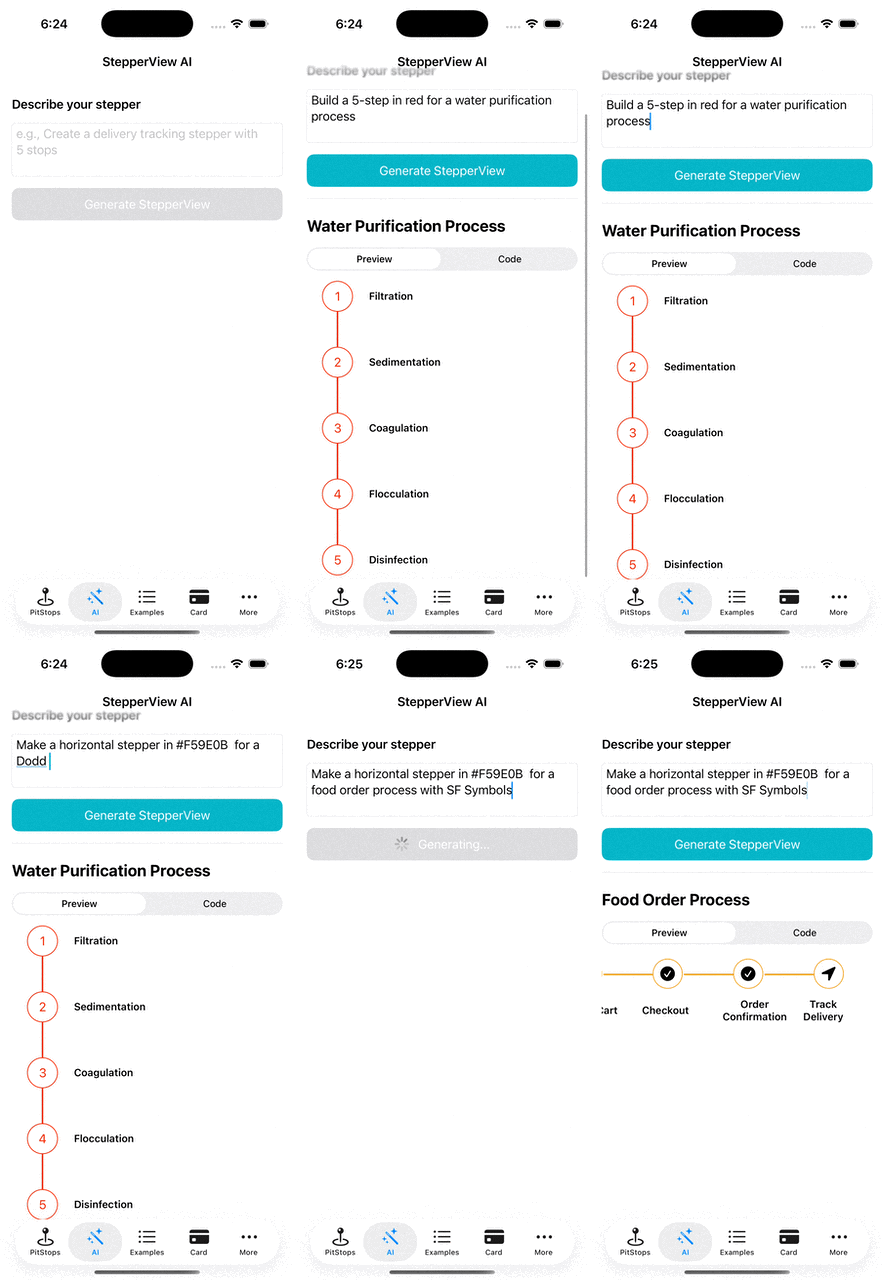
Generate fully configured StepperViews from natural language prompts using Apple's on-device Foundation Models framework. Describe what you want in plain English, and the AI generates a complete StepperView with indicators, colors, pit stops, and lifecycle states — all rendered live with copyable Swift code.
#FF6B35)import StepperView
// Add to your SwiftUI view (iOS 26+ only)
if #available(iOS 26.0, *) {
StepperViewAIGeneratorView()
}
| Prompt | What it generates |
|---|---|
| "Create a 5-step checkout flow" | Vertical stepper with numbered circles |
| "Build a horizontal flight booking stepper with sfSymbol indicators" | Horizontal stepper with SF Symbol icons |
| "Make a recipe stepper in #E11D48 with details" | Vertical stepper with hex color and pit stops |
| "Create a 4-step onboarding flow in purple" | Vertical stepper with AI-chosen purple hex color |
All AI generation behavior is configurable via ai_config.yaml — UI strings, default values, valid colors, SF Symbols allowlist, pit stop keywords, and the system prompt template can all be customized without touching Swift code.
To run the example project, clone the repo, and run pod install from the Example directory first.
StepperView is available through CocoaPods. To install it, simply add the following line to your Podfile.
pod 'StepperView','~> 2.0'
Carthage is a decentralized dependency manager that builds your dependencies and provides you with binary frameworks. To integrate StepperView into your Xcode project using Carthage, specify it in your Cartfile:
github "badrinathvm/stepperView" == 2.0
StepperView is available through Swift Package Manager.
In Xcode:
File > Add Package Dependencies...https://github.com/badrinathvm/StepperView.git2.0 or laterIn Package.swift:
dependencies: [
    .package(url: "https://github.com/badrinathvm/StepperView.git", from: "2.0.0")
]
 | 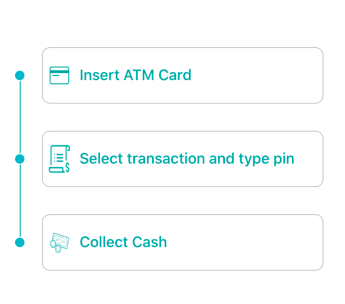 | 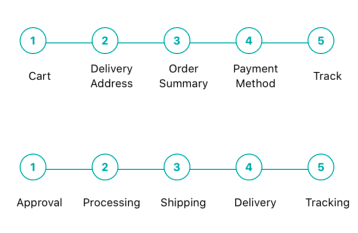 | 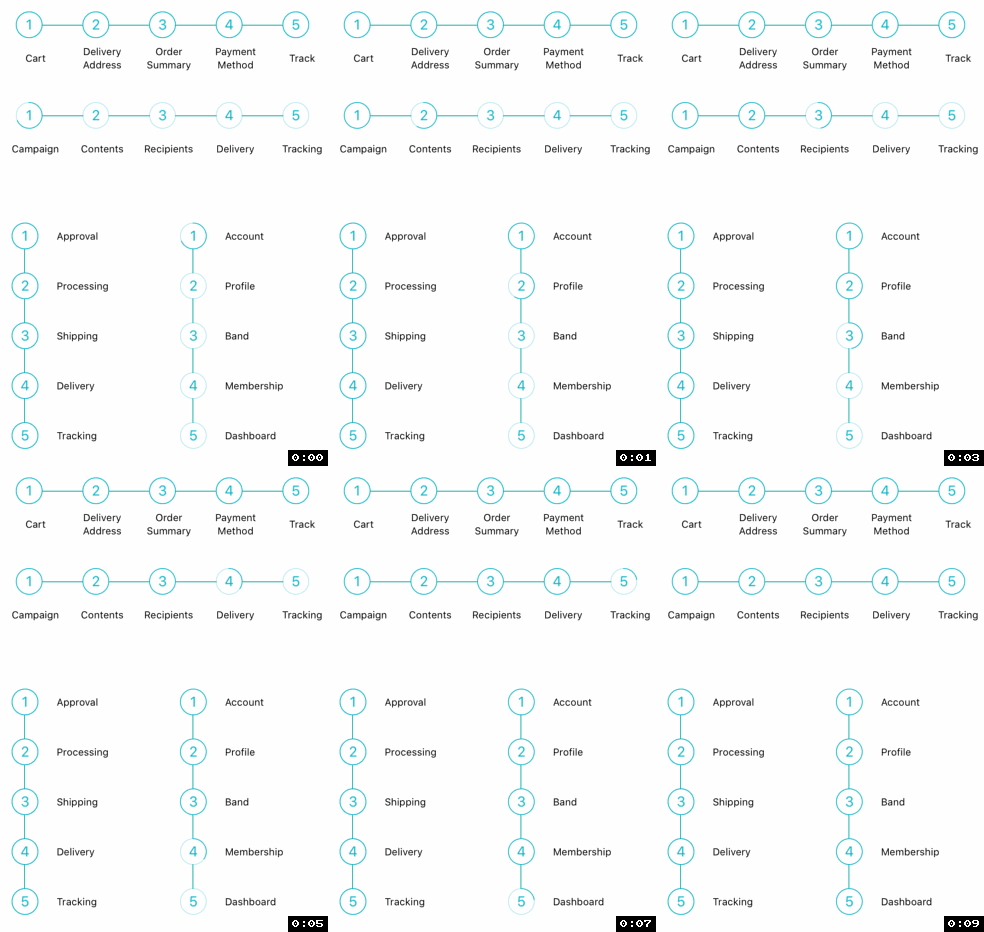 |
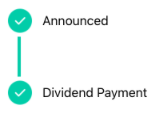 |  |  |  |
 |  |  |
 | 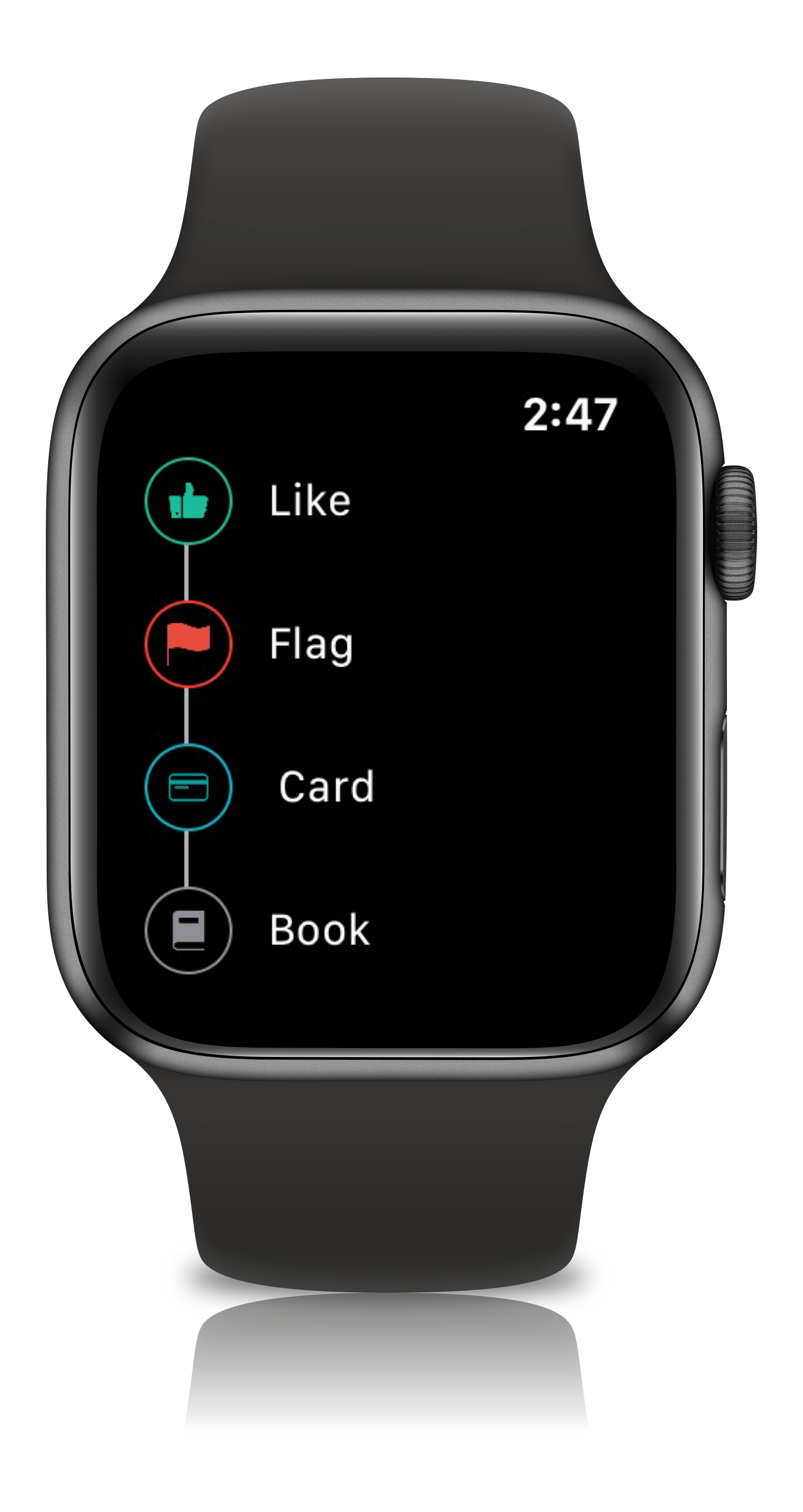 | 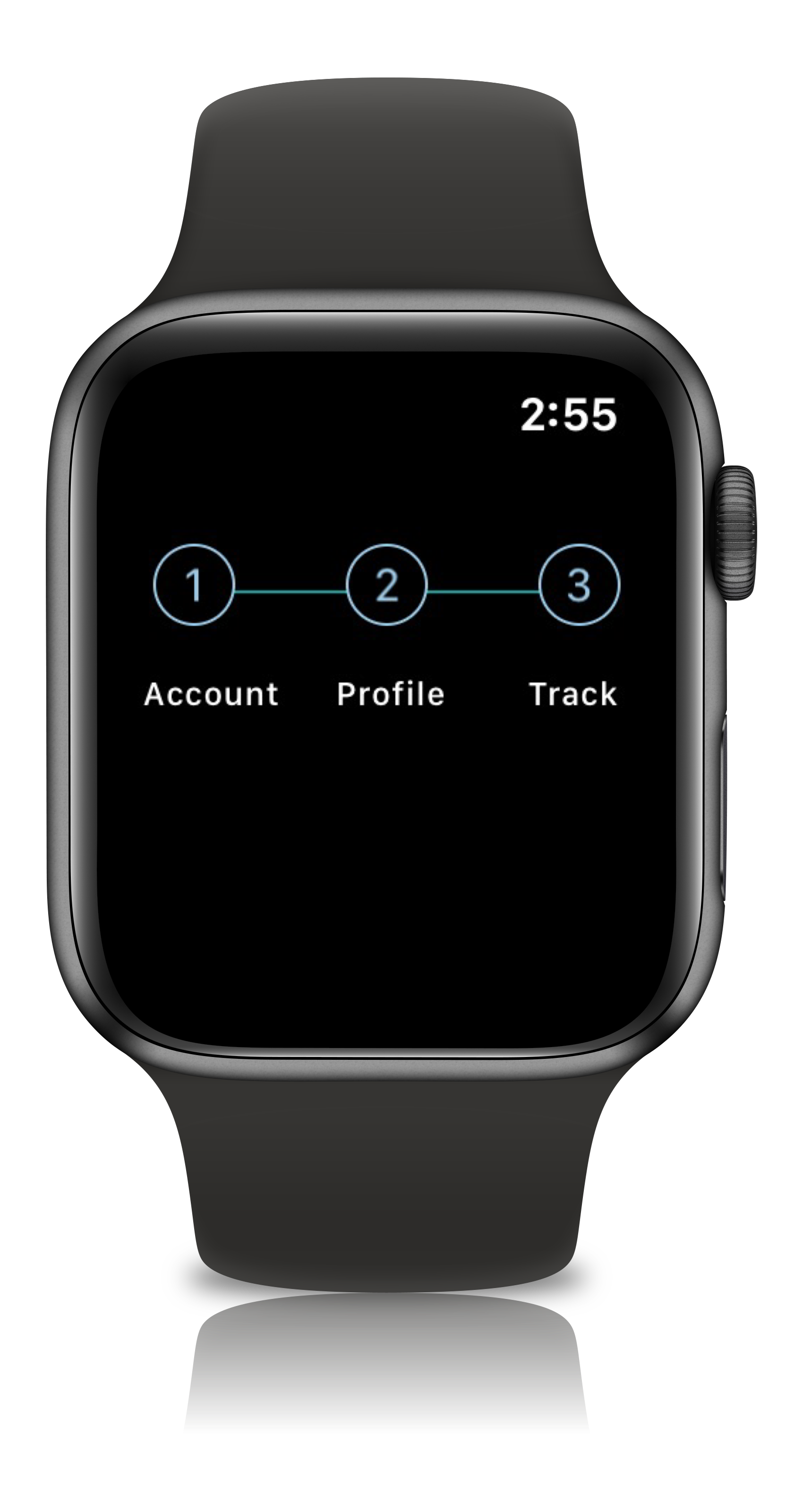 | 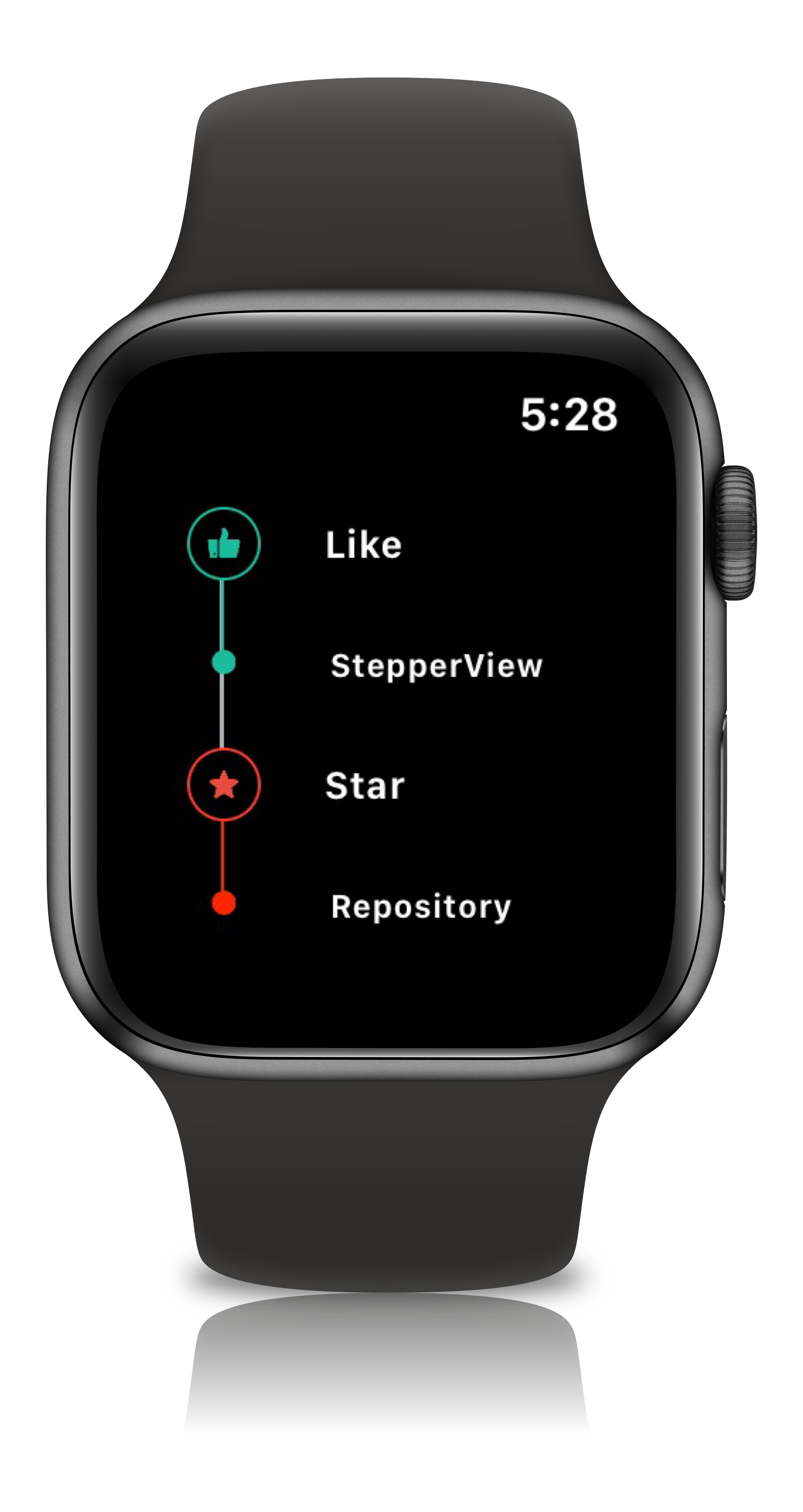 |
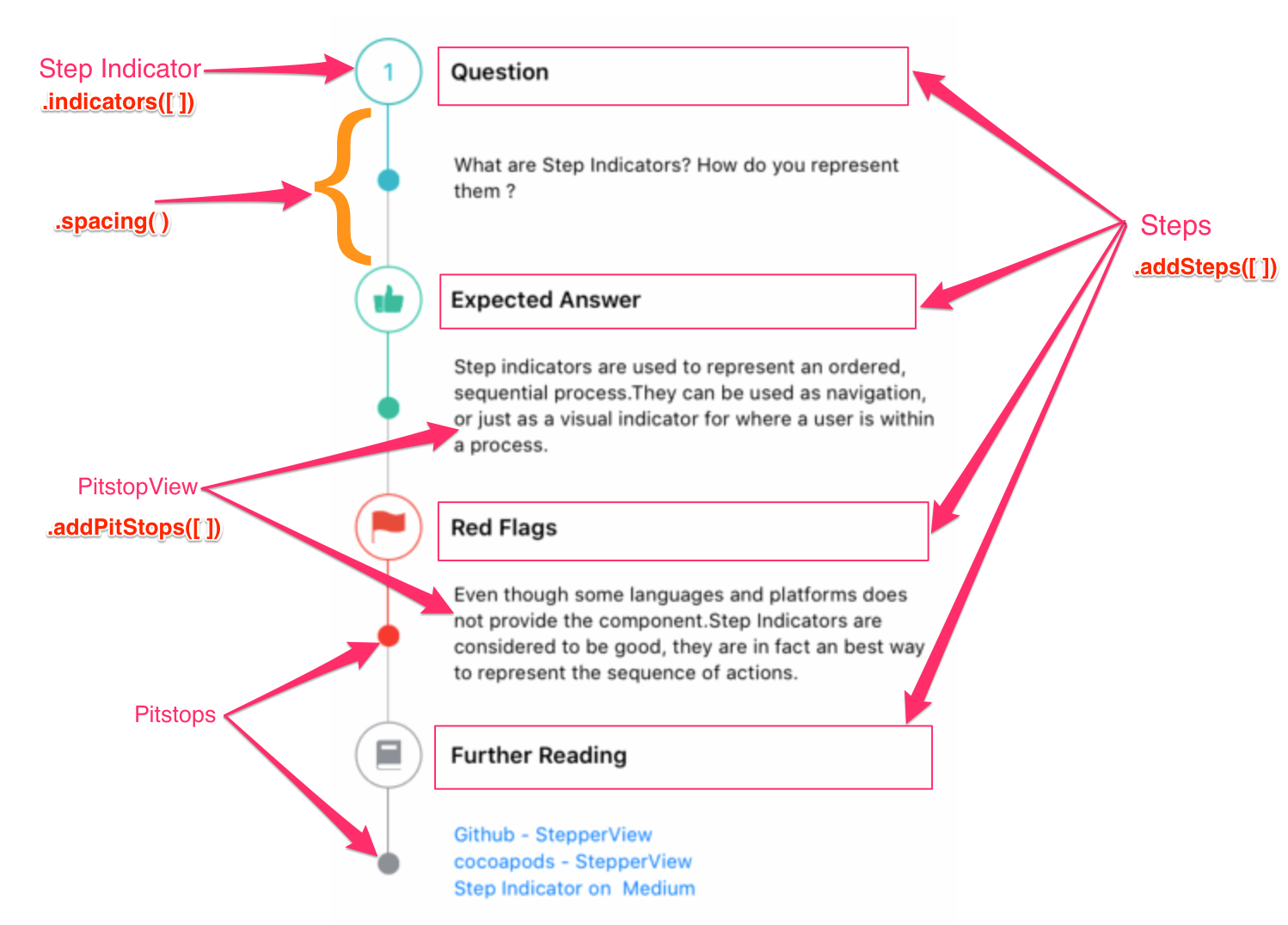
.addSteps(_ steps: [View]) :
          1. list of views to be closer to the indicator

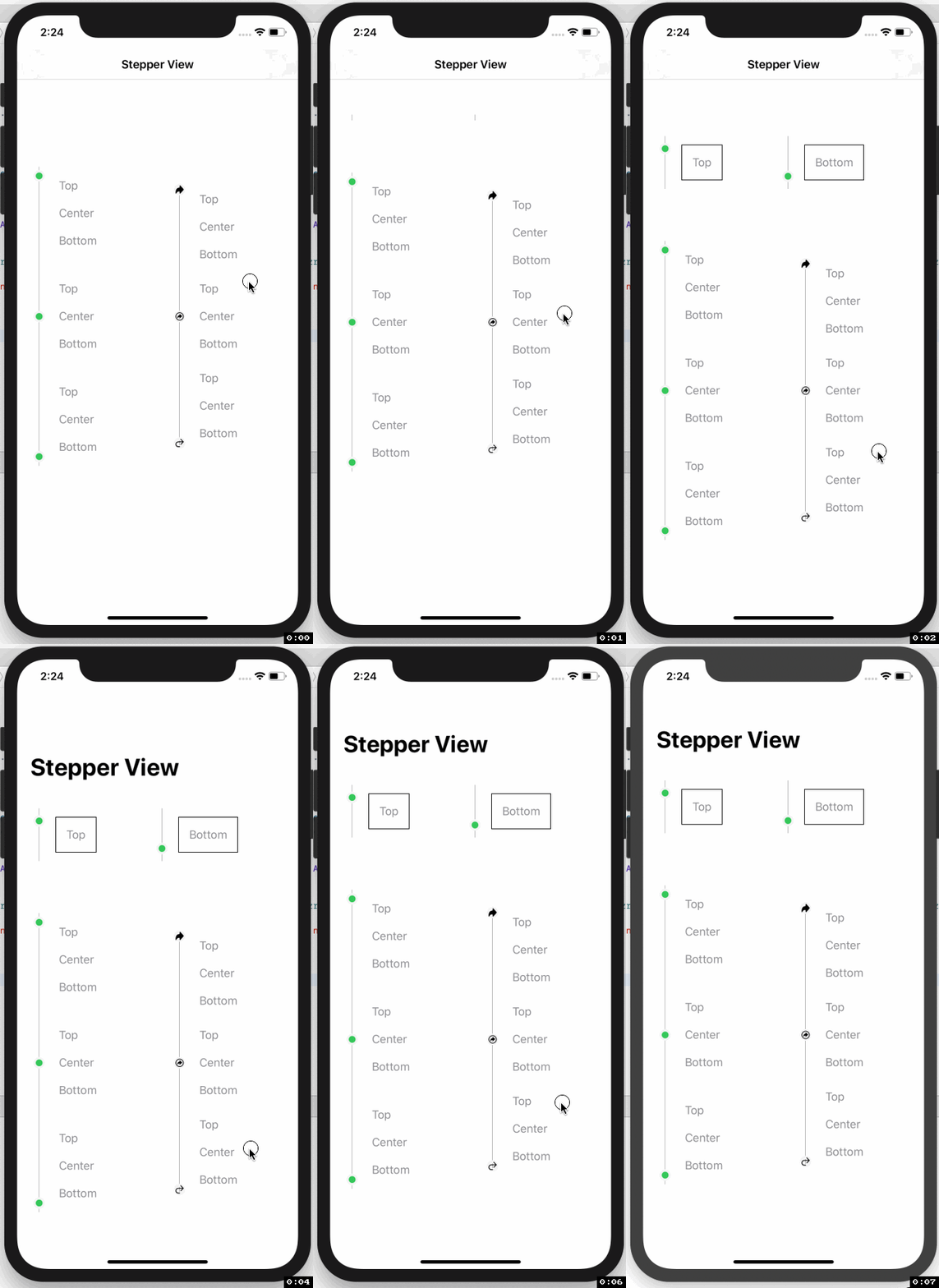
.alignments(_ alignments: [StepperAlignment])
          1. optional modifier
          2. defaults to .center, available with custom options either .top, .center, .bottom

.indicatorTypes(_ indicators:[StepperIndicationType]):
          1. modifier to customize the step indications
          2. provides enum with cases .circle(color, width), .image(Image, width), .custom(AnyView), .animation(AnyView)

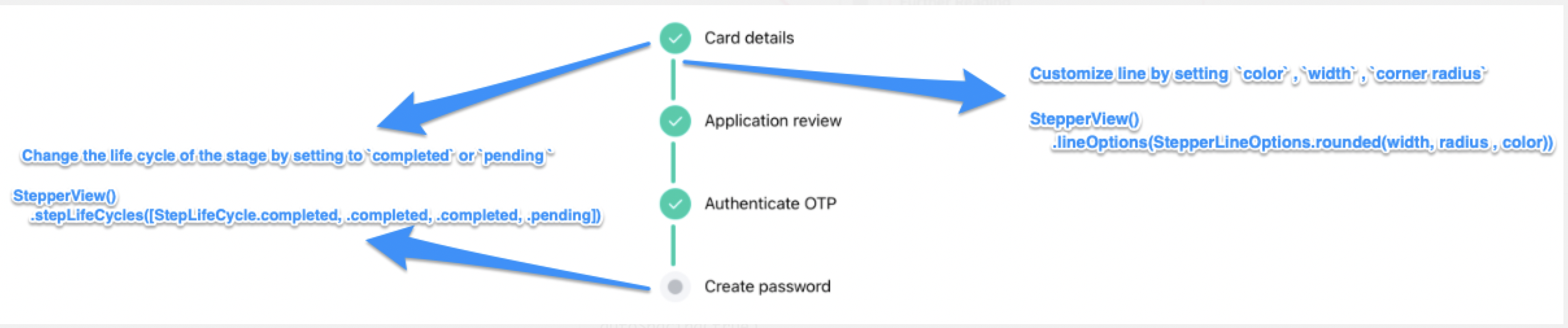
.lineOptions(_ options: StepperLineOptions):
          1. line customization `color` , `width` , `corner radius`
          2. Has the option of `defaults`, `custom` , `rounded`

.spacing(_ value: CGFloat):
          1. spacing between each of the step views either vertically or horizontally

.autoSpacing(_ value: Bool):
          1. if set to `true` - Dynamically calculates the spacing between each of the steps.

.stepIndicatorMode(_ mode: StepperMode):
          1. Step Indicator display modes either vertical or horizontal

.loadingAnimationTime(_ time: Double):
          1. controls the speed of the animation for step Indicator

.stepLifeCycles(_ lifecycle: [StepLifeCycle]):
          1. Can set the life cycle status for each of the steps as `completed`, `pending`

.addPitStops(_ steps: [View]):
          1. optional modifier
          2. list of views which will be displayed below the step text

.pitStopLineOptions(_ options: [StepperLineOptions])
          1. line customization `color` , `width` , `corner radius`

.stepperEdgeInsets(_ value: EdgeInsets)
         1. Provides custom `leading`, `trailing`, `top` & `bottom` spacing.
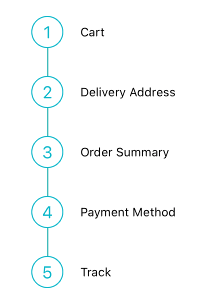
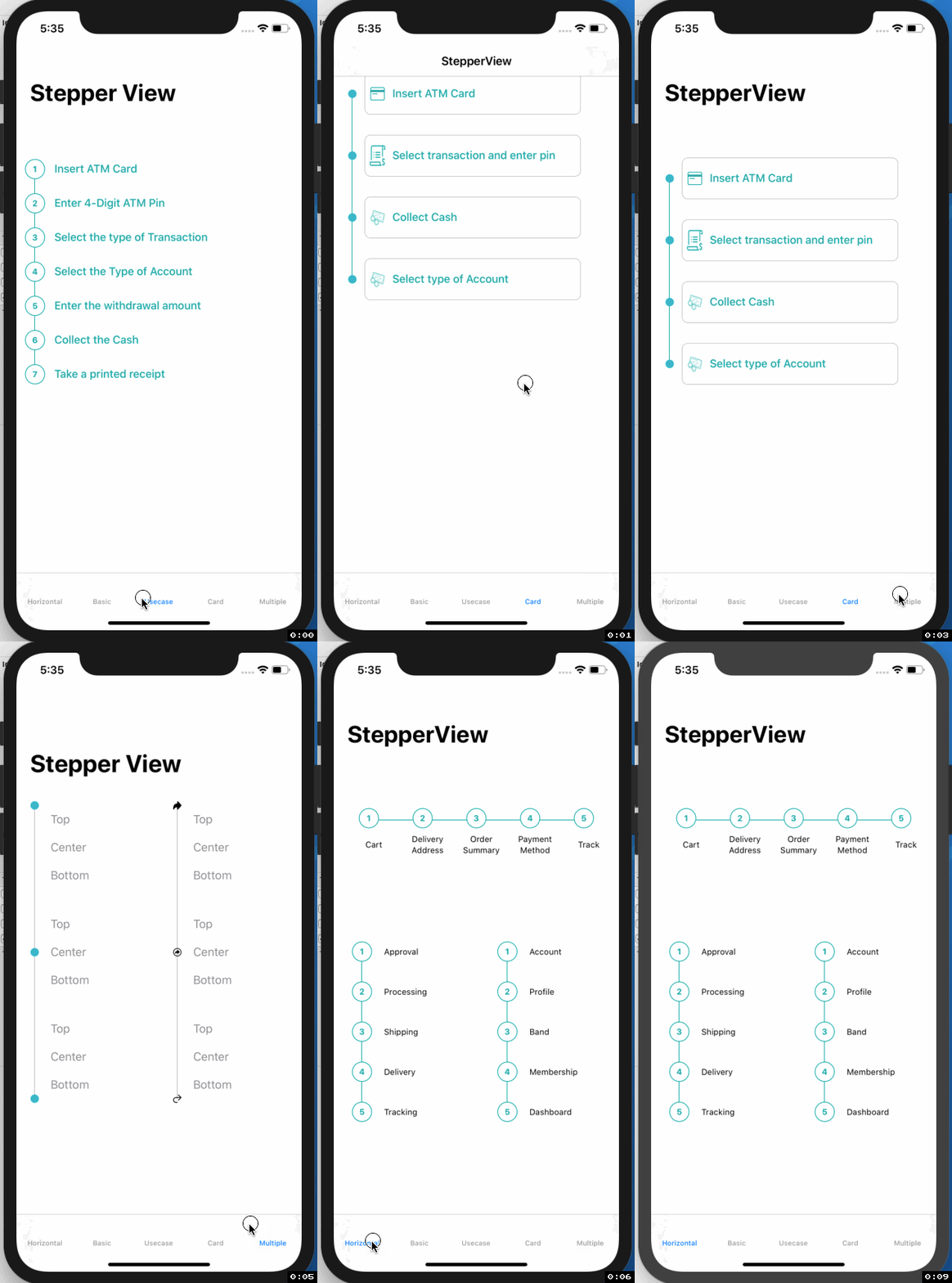
import StepperView

let steps = [ Text("Cart").font(.caption),
              Text("Delivery Address").font(.caption),
              Text("Order Summary").font(.caption),
              Text("Payment Method").font(.caption),
              Text("Track").font(.caption)]

let indicationTypes = [StepperIndicationType.custom(NumberedCircleView(text: "1")),
                        .custom(NumberedCircleView(text: "2")),
                        .custom(NumberedCircleView(text: "3")),
                        .custom(NumberedCircleView(text: "4")),
                        .custom(NumberedCircleView(text: "5"))]

var body: some View {
    StepperView()
        .addSteps(steps)
        .indicators(indicationTypes)
        .stepIndicatorMode(StepperMode.vertical)
        .spacing(30)
        .lineOptions(StepperLineOptions.custom(1, Colors.blue(.teal).rawValue))
}
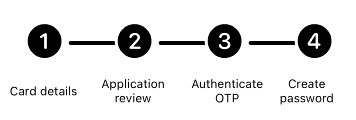
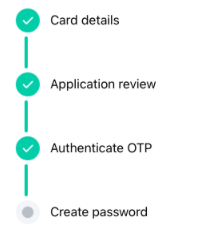
import StepperView

let steps = [
    TextView(text: "Card details", font: Font.system(size: 12, weight: Font.Weight.regular)),
    TextView(text: "Application review", font: Font.system(size: 12, weight: Font.Weight.regular)),
    TextView(text: "Authenticate OTP", font: Font.system(size: 12, weight: Font.Weight.regular)),
    TextView(text: "Create password", font: Font.system(size: 12, weight: Font.Weight.regular))
]

let indicators = [
    StepperIndicationType.custom(Image(systemName:"1.circle.fill").font(.largeTitle).eraseToAnyView()),
    StepperIndicationType.custom(Image(systemName:"2.circle.fill").font(.largeTitle).eraseToAnyView()),
    StepperIndicationType.custom(Image(systemName:"3.circle.fill").font(.largeTitle).eraseToAnyView()),
    StepperIndicationType.custom(Image(systemName:"4.circle.fill").font(.largeTitle).eraseToAnyView())
]

var body: some View {
    StepperView()
        .addSteps(steps)
        .indicators(indicators)
        .stepIndicatorMode(StepperMode.horizontal)
        .lineOptions(StepperLineOptions.rounded(4, 8, Color.black))
        .stepLifeCycles([StepLifeCycle.completed, .completed, .completed, .pending])
        .spacing(50)
}
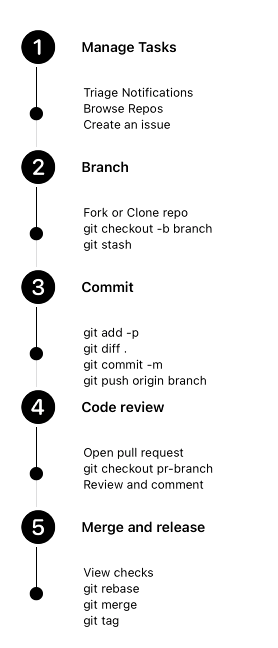
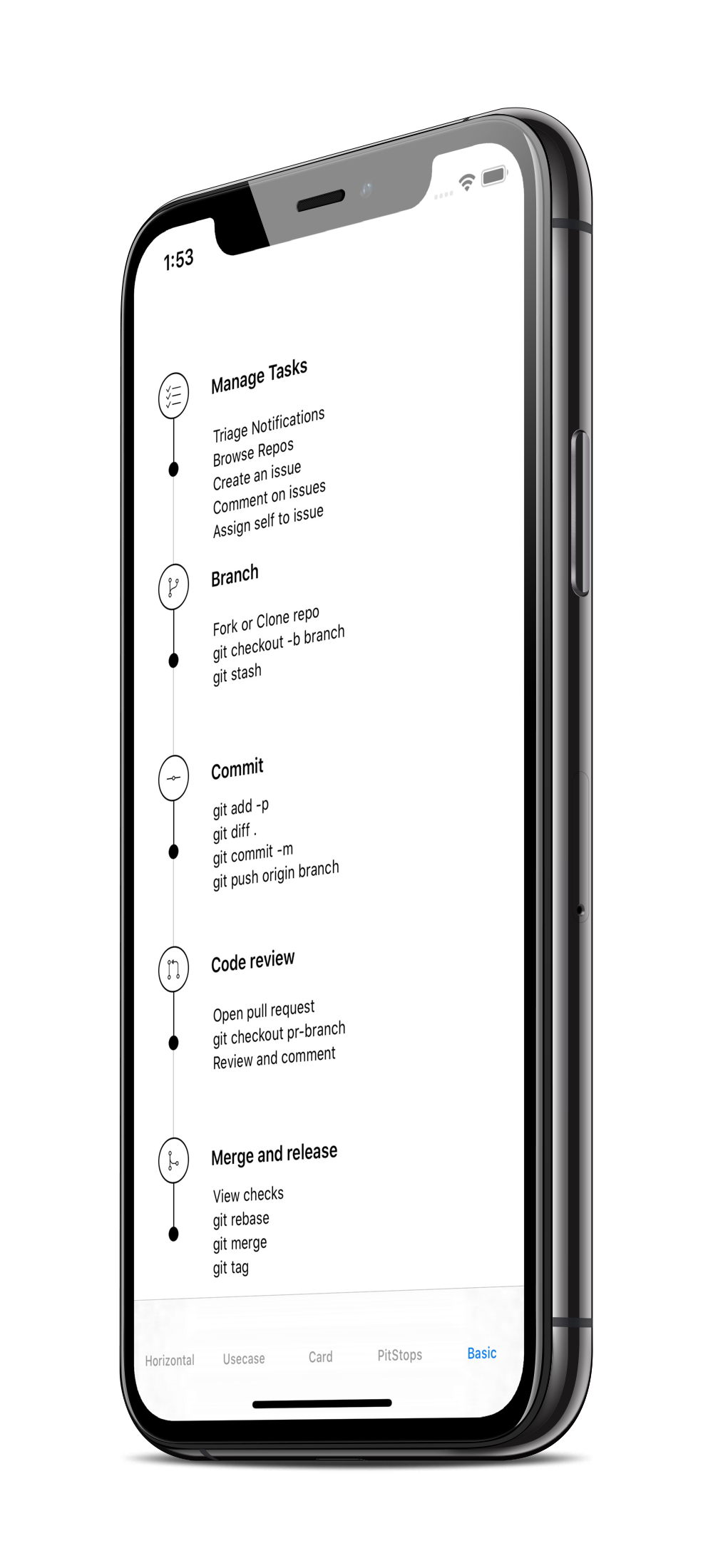
let steps = [TextView(text:"Manage Tasks", font: .system(size: 14, weight: .semibold)),
             TextView(text:"Branch", font: .system(size: 14, weight: .semibold)),
             TextView(text:"Commit", font: .system(size: 14, weight: .semibold)),
             TextView(text:"Code review", font: .system(size: 14, weight: .semibold)),
             TextView(text:"Merge and release", font: .system(size: 14, weight: .semibold))]

let indicators = [
    StepperIndicationType.custom(Image(systemName:"1.circle.fill").font(.largeTitle).eraseToAnyView()),
    StepperIndicationType.custom(Image(systemName:"2.circle.fill").font(.largeTitle).eraseToAnyView()),
    StepperIndicationType.custom(Image(systemName:"3.circle.fill").font(.largeTitle).eraseToAnyView()),
    StepperIndicationType.custom(Image(systemName:"4.circle.fill").font(.largeTitle).eraseToAnyView()),
    StepperIndicationType.custom(Image(systemName:"5.circle.fill").font(.largeTitle).eraseToAnyView())
]

let pitStopLineOptions = [
    StepperLineOptions.custom(1, Color.black),
    StepperLineOptions.custom(1, Color.black),
    StepperLineOptions.custom(1, Color.black),
    StepperLineOptions.custom(1, Color.black),
    StepperLineOptions.custom(1, Color.black)
]

let pitStops = [
    TextView(text:GithubPitstops.p1).eraseToAnyView(),
    TextView(text:GithubPitstops.p2).eraseToAnyView(),
    TextView(text:GithubPitstops.p3).eraseToAnyView(),
    TextView(text:GithubPitstops.p4).eraseToAnyView(),
    TextView(text:GithubPitstops.p5).eraseToAnyView()
]

var body: some View {
    StepperView()
        .addSteps(steps)
        .indicators(indicators)
        .addPitStops(pitStops)
        .pitStopLineOptions(pitStopLineOptions)
        .spacing(80) // auto calculates spacing between steps based on the content.
        .padding()
}

struct GithubPitstops {
    static var p1 = "Triage Notifications\nBrowse Repos\nCreate an issue"
    static var p2 = "Fork or Clone repo\ngit checkout -b branch\ngit stash"
    static var p3 = "git add -p\ngit diff .\ngit commit -m\ngit push origin branch"
    static var p4 = "Open pull request\ngit checkout pr-branch\nReview and comment"
    static var p5 = "View checks\ngit rebase\ngit merge\ngit tag"
}
This view places the number or any text inside the circle.
NumberedCircleView(text: "1", width: 40)
This view embeds an icon or image inside the circle.
CircledIconView(image: Image("flag"), width: 40, strokeColor: Color.red)
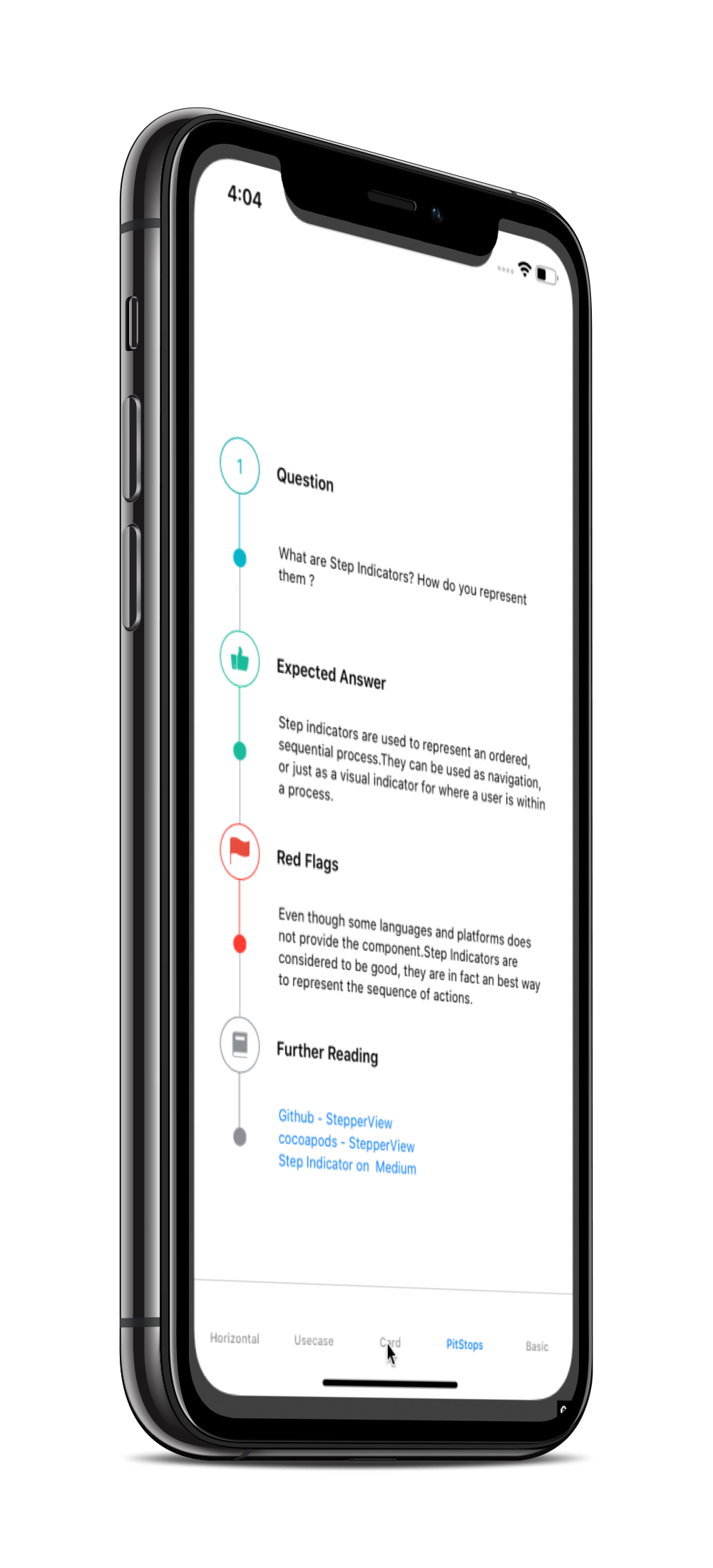 | 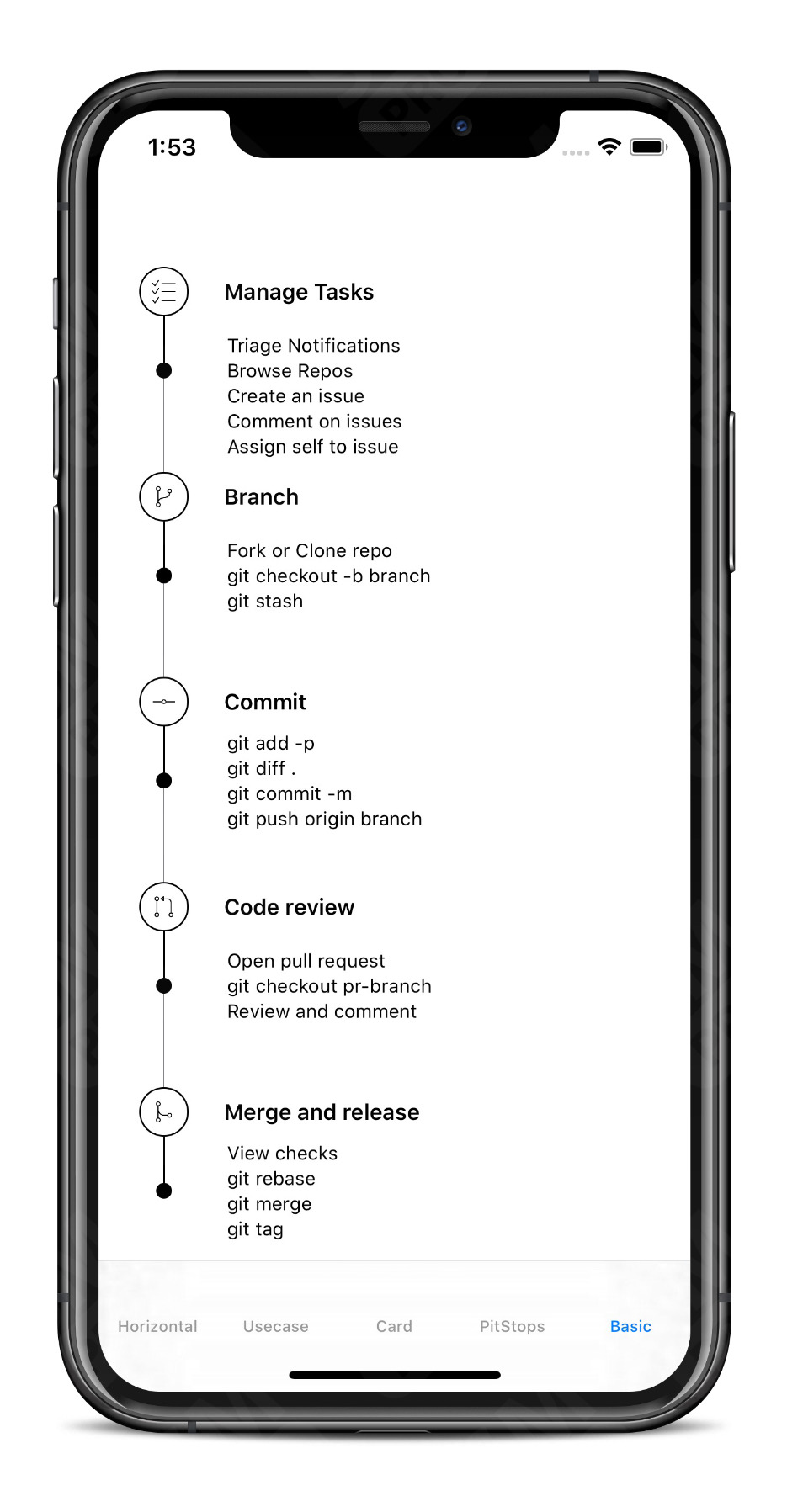 |  |
SwiftUI Weekly #5
iOS Goodies #333
MBLT DEV DIGEST #302
Awesome iOS Newsletter #201
About-SwiftUI Articles
Better Programming - 6 Amazing SwiftUI Libraries
10 SwiftUI Libraries in 2021
StepperView ships with a Swift-based Model Context Protocol server that lets any MCP-compatible AI tool (Claude Desktop, Cursor, VS Code) generate production-ready StepperView code directly in your workflow — no example app required.
cd StepperViewMCP
swift build -c release
| Tool | Description |
|---|---|
generate_stepper_code | Generate a complete SwiftUI StepperView struct from structured parameters |
list_colors | List all valid named colors + hex color support |
list_sf_symbols | List the curated SF Symbol allowlist |
get_example | Return copy-paste Swift code for common patterns (vertical, horizontal, pit_stops, hex_color, mixed_lifecycle) |
Add to ~/Library/Application Support/Claude/claude_desktop_config.json:
{
  "mcpServers": {
    "stepperview": {
      "command": "/path/to/StepperView/StepperViewMCP/.build/release/StepperViewMCP"
    }
  }
}
Then ask Claude: "Generate a 4-step onboarding stepper in teal with numbered circle indicators"
Badarinath Venkatnarayansetty.Follow and contact me on Twitter or LinkedIn
Feature requests, bug reports, and pull requests are all welcome. Refer Contributing Guidelines for more details.
StepperView is available under the MIT license. See the LICENSE file for more info.
97 followers · starred Feb 2022
819 followers · starred Jan 2026
100 followers · starred Nov 2024
30 followers · starred Aug 2024
SwiftUI iOS component for Step Indications.
See the code
Generate fully configured StepperViews from natural language prompts using Apple's on-device Foundation Models framework. Describe what you want in plain English, and the AI generates a complete StepperView with indicators, colors, pit stops, and lifecycle states — all rendered live with copyable Swift code.
#FF6B35)import StepperView
// Add to your SwiftUI view (iOS 26+ only)
if #available(iOS 26.0, *) {
StepperViewAIGeneratorView()
}
| Prompt | What it generates |
|---|---|
| "Create a 5-step checkout flow" | Vertical stepper with numbered circles |
| "Build a horizontal flight booking stepper with sfSymbol indicators" | Horizontal stepper with SF Symbol icons |
| "Make a recipe stepper in #E11D48 with details" | Vertical stepper with hex color and pit stops |
| "Create a 4-step onboarding flow in purple" | Vertical stepper with AI-chosen purple hex color |
All AI generation behavior is configurable via ai_config.yaml — UI strings, default values, valid colors, SF Symbols allowlist, pit stop keywords, and the system prompt template can all be customized without touching Swift code.
To run the example project, clone the repo, and run pod install from the Example directory first.
StepperView is available through CocoaPods. To install it, simply add the following line to your Podfile.
pod 'StepperView','~> 2.0'
Carthage is a decentralized dependency manager that builds your dependencies and provides you with binary frameworks. To integrate StepperView into your Xcode project using Carthage, specify it in your Cartfile:
github "badrinathvm/stepperView" == 2.0
StepperView is available through Swift Package Manager.
In Xcode:
File > Add Package Dependencies...https://github.com/badrinathvm/StepperView.git2.0 or laterIn Package.swift:
dependencies: [
    .package(url: "https://github.com/badrinathvm/StepperView.git", from: "2.0.0")
]
| | | |
| | | |
| | | |
| | | |
.addSteps(_ steps: [View]) :
          1. list of views to be closer to the indicator

.alignments(_ alignments: [StepperAlignment])
          1. optional modifier
          2. defaults to .center, available with custom options either .top, .center, .bottom

.indicatorTypes(_ indicators:[StepperIndicationType]):
          1. modifier to customize the step indications
          2. provides enum with cases .circle(color, width), .image(Image, width), .custom(AnyView), .animation(AnyView)

.lineOptions(_ options: StepperLineOptions):
          1. line customization `color` , `width` , `corner radius`
          2. Has the option of `defaults`, `custom` , `rounded`

.spacing(_ value: CGFloat):
          1. spacing between each of the step views either vertically or horizontally

.autoSpacing(_ value: Bool):
          1. if set to `true` - Dynamically calculates the spacing between each of the steps.

.stepIndicatorMode(_ mode: StepperMode):
          1. Step Indicator display modes either vertical or horizontal

.loadingAnimationTime(_ time: Double):
          1. controls the speed of the animation for step Indicator

.stepLifeCycles(_ lifecycle: [StepLifeCycle]):
          1. Can set the life cycle status for each of the steps as `completed`, `pending`

.addPitStops(_ steps: [View]):
          1. optional modifier
          2. list of views which will be displayed below the step text

.pitStopLineOptions(_ options: [StepperLineOptions])
          1. line customization `color` , `width` , `corner radius`

.stepperEdgeInsets(_ value: EdgeInsets)
         1. Provides custom `leading`, `trailing`, `top` & `bottom` spacing.
import StepperView

let steps = [ Text("Cart").font(.caption),
              Text("Delivery Address").font(.caption),
              Text("Order Summary").font(.caption),
              Text("Payment Method").font(.caption),
              Text("Track").font(.caption)]

let indicationTypes = [StepperIndicationType.custom(NumberedCircleView(text: "1")),
                        .custom(NumberedCircleView(text: "2")),
                        .custom(NumberedCircleView(text: "3")),
                        .custom(NumberedCircleView(text: "4")),
                        .custom(NumberedCircleView(text: "5"))]

var body: some View {
    StepperView()
        .addSteps(steps)
        .indicators(indicationTypes)
        .stepIndicatorMode(StepperMode.vertical)
        .spacing(30)
        .lineOptions(StepperLineOptions.custom(1, Colors.blue(.teal).rawValue))
}
import StepperView

let steps = [
    TextView(text: "Card details", font: Font.system(size: 12, weight: Font.Weight.regular)),
    TextView(text: "Application review", font: Font.system(size: 12, weight: Font.Weight.regular)),
    TextView(text: "Authenticate OTP", font: Font.system(size: 12, weight: Font.Weight.regular)),
    TextView(text: "Create password", font: Font.system(size: 12, weight: Font.Weight.regular))
]

let indicators = [
    StepperIndicationType.custom(Image(systemName:"1.circle.fill").font(.largeTitle).eraseToAnyView()),
    StepperIndicationType.custom(Image(systemName:"2.circle.fill").font(.largeTitle).eraseToAnyView()),
    StepperIndicationType.custom(Image(systemName:"3.circle.fill").font(.largeTitle).eraseToAnyView()),
    StepperIndicationType.custom(Image(systemName:"4.circle.fill").font(.largeTitle).eraseToAnyView())
]

var body: some View {
    StepperView()
        .addSteps(steps)
        .indicators(indicators)
        .stepIndicatorMode(StepperMode.horizontal)
        .lineOptions(StepperLineOptions.rounded(4, 8, Color.black))
        .stepLifeCycles([StepLifeCycle.completed, .completed, .completed, .pending])
        .spacing(50)
}
let steps = [TextView(text:"Manage Tasks", font: .system(size: 14, weight: .semibold)),
             TextView(text:"Branch", font: .system(size: 14, weight: .semibold)),
             TextView(text:"Commit", font: .system(size: 14, weight: .semibold)),
             TextView(text:"Code review", font: .system(size: 14, weight: .semibold)),
             TextView(text:"Merge and release", font: .system(size: 14, weight: .semibold))]

let indicators = [
    StepperIndicationType.custom(Image(systemName:"1.circle.fill").font(.largeTitle).eraseToAnyView()),
    StepperIndicationType.custom(Image(systemName:"2.circle.fill").font(.largeTitle).eraseToAnyView()),
    StepperIndicationType.custom(Image(systemName:"3.circle.fill").font(.largeTitle).eraseToAnyView()),
    StepperIndicationType.custom(Image(systemName:"4.circle.fill").font(.largeTitle).eraseToAnyView()),
    StepperIndicationType.custom(Image(systemName:"5.circle.fill").font(.largeTitle).eraseToAnyView())
]

let pitStopLineOptions = [
    StepperLineOptions.custom(1, Color.black),
    StepperLineOptions.custom(1, Color.black),
    StepperLineOptions.custom(1, Color.black),
    StepperLineOptions.custom(1, Color.black),
    StepperLineOptions.custom(1, Color.black)
]

let pitStops = [
    TextView(text:GithubPitstops.p1).eraseToAnyView(),
    TextView(text:GithubPitstops.p2).eraseToAnyView(),
    TextView(text:GithubPitstops.p3).eraseToAnyView(),
    TextView(text:GithubPitstops.p4).eraseToAnyView(),
    TextView(text:GithubPitstops.p5).eraseToAnyView()
]

var body: some View {
    StepperView()
        .addSteps(steps)
        .indicators(indicators)
        .addPitStops(pitStops)
        .pitStopLineOptions(pitStopLineOptions)
        .spacing(80) // auto calculates spacing between steps based on the content.
        .padding()
}

struct GithubPitstops {
    static var p1 = "Triage Notifications\nBrowse Repos\nCreate an issue"
    static var p2 = "Fork or Clone repo\ngit checkout -b branch\ngit stash"
    static var p3 = "git add -p\ngit diff .\ngit commit -m\ngit push origin branch"
    static var p4 = "Open pull request\ngit checkout pr-branch\nReview and comment"
    static var p5 = "View checks\ngit rebase\ngit merge\ngit tag"
}
This view places the number or any text inside the circle.
NumberedCircleView(text: "1", width: 40)
This view embeds an icon or image inside the circle.
CircledIconView(image: Image("flag"), width: 40, strokeColor: Color.red)
| | | |
SwiftUI Weekly #5
iOS Goodies #333
MBLT DEV DIGEST #302
Awesome iOS Newsletter #201
About-SwiftUI Articles
Better Programming - 6 Amazing SwiftUI Libraries
10 SwiftUI Libraries in 2021
StepperView ships with a Swift-based Model Context Protocol server that lets any MCP-compatible AI tool (Claude Desktop, Cursor, VS Code) generate production-ready StepperView code directly in your workflow — no example app required.
cd StepperViewMCP
swift build -c release
| Tool | Description |
|---|---|
generate_stepper_code | Generate a complete SwiftUI StepperView struct from structured parameters |
list_colors | List all valid named colors + hex color support |
list_sf_symbols | List the curated SF Symbol allowlist |
get_example | Return copy-paste Swift code for common patterns (vertical, horizontal, pit_stops, hex_color, mixed_lifecycle) |
Add to ~/Library/Application Support/Claude/claude_desktop_config.json:
{
  "mcpServers": {
    "stepperview": {
      "command": "/path/to/StepperView/StepperViewMCP/.build/release/StepperViewMCP"
    }
  }
}
Then ask Claude: "Generate a 4-step onboarding stepper in teal with numbered circle indicators"
Badarinath Venkatnarayansetty.Follow and contact me on Twitter or LinkedIn
Feature requests, bug reports, and pull requests are all welcome. Refer Contributing Guidelines for more details.
StepperView is available under the MIT license. See the LICENSE file for more info.
97 followers · starred Feb 2022
819 followers · starred Jan 2026
100 followers · starred Nov 2024
30 followers · starred Aug 2024