
Fast, free, native bibliography management for Omarchy. Read papers, capture notes, and bring your own AI agent. Built-in MCP support.
Rust
1
27 commits
updated Sep 18, 2026
See what people are saying (1)
README
Omabib - bibliography management optimized for fast agent workflows
A fast native Omarchy alternative to Zotero with first-class agent support.

Free and open source. Search your library, read papers, capture ideas, and put your own agent to work with the references and notes you choose.
Why Omabib?
- Fast, keyboard-first research. Search titles, authors, citation keys, abstracts, and notes from a native desktop window, with typo-tolerant search and a command palette.
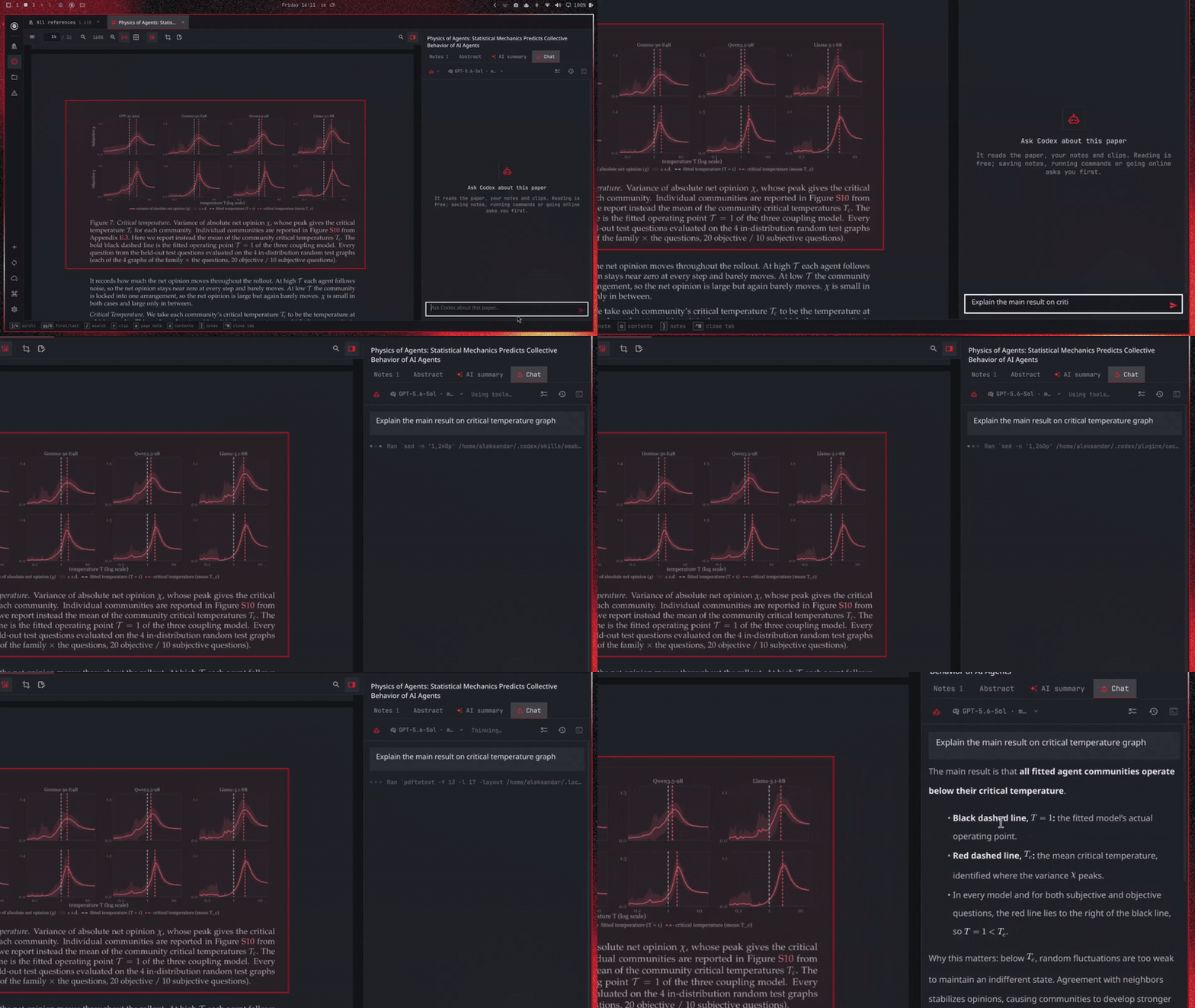
- Bring your own agent. Use Codex or Claude Code with your existing account. Chat beside the paper, in a terminal, or through supported desktop apps. Omabib itself requires no subscription; agent access uses your provider's account and billing.
- First-class agent access. The built-in MCP server lets agents search references, retrieve PDFs, read notes and figure clips, and save project assessments when asked. Batch retrieval keeps multi-paper workflows efficient.
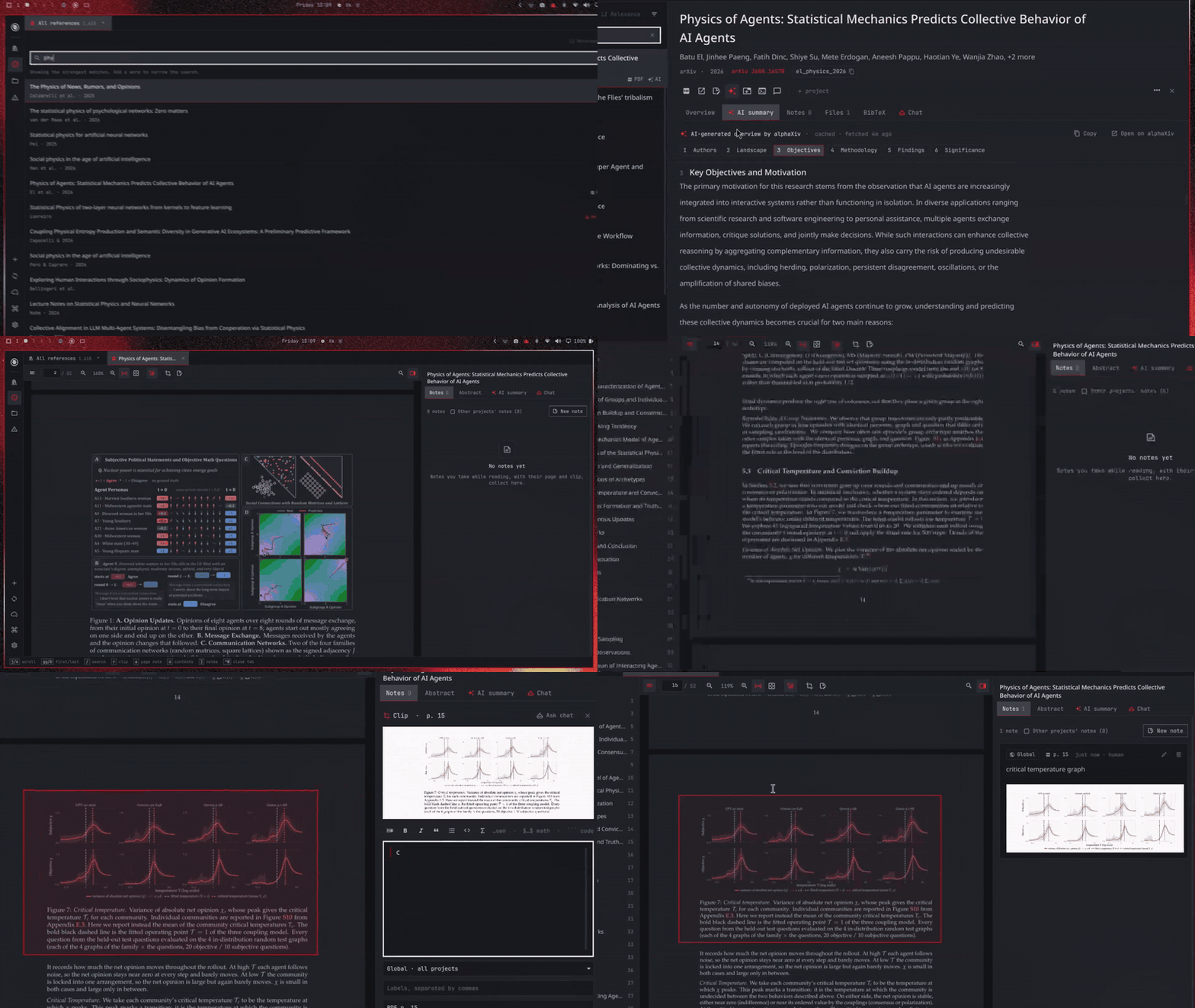
- Read, clip, and ask. Open PDFs in reader tabs, select a passage to discuss, or clip a figure, table, or equation into a Markdown note with its page reference.
- Notes that know the project. Keep shared bibliographic facts alongside separate project-specific notes, evidence, and assessments.
- Your library, locally stored. References and notes live in SQLite, with BibTeX import and export. Optional sync carries your library across computers through storage you control.
- Free software. Omabib is licensed under AGPL-3.0-or-later. The bibliography, PDF reader, and notes work without an AI account.
Install · First run · AI setup · Sync · Update · Troubleshooting
See it in action
Demo 1
Demo 2
Install
For Omarchy on Linux x86-64:
omarchy plugin add https://github.com/atomashevic/omabib.git --enable
Click the Omabib icon in your bar, then choose Install Omabib. It downloads the app and opens your library.
First run
The library starts empty. Open Add in the left rail, paste a DOI, arXiv ID, paper URL, or BibTeX entry, review the preview, and choose Import.
To import an existing bibliography:
omabib import /absolute/path/to/references.bib
Search by title, author, citation key, or note text. Enter opens a paper's PDF or reference link; Tab opens its details, and Ctrl+K opens the command palette. Use Attach PDF to link a local file, or Open PDF to look for an open-access copy. Create a project from the command palette to group papers and keep project-specific notes.
Optional keyboard shortcuts
Check for existing bindings before adding these to ~/.config/hypr/bindings.lua on Omarchy installations using Lua configuration:
o.bind("SUPER + B", "Omabib bibliography", "omabib open")
o.bind("SUPER + ALT + B", "Omabib: add reference", "omabib add")
Reload and check the configuration:
hyprctl reload
hyprctl configerrors
Super+B shows and focuses Omabib, or hides it when already focused. Super+Alt+B opens the add box. Super+W closes the window through the normal desktop binding. You can always launch it with omabib open without adding shortcuts.
Optional AI setup
Bring your existing Codex or Claude Code account for in-app and terminal chat, or use ChatGPT Desktop in Codex mode or Claude Desktop. The library, PDF reader, and notes work on their own.
Open Settings using the cog at the bottom of the rail. Choose your installed agent under Terminal chat and Desktop chat. Terminal chat also needs xdg-terminal-exec available on PATH. In-app chat is available in a paper's Chat tab or the PDF reader's side pane.
Choose Connect Codex in Settings to make the library available in your other Codex sessions. This registers the bundled MCP server and installs the Omabib skill. Reopen existing Codex sessions after connecting.
From a terminal, the same setup is:
omabib-settings register-codex
Existing custom connections are preserved. Omabib's own Codex and Claude Code launchers already connect each chat to the current library.
For Claude Desktop, use Add Omabib to Claude Desktop in Settings, then restart Claude Desktop. This merges the MCP entry into its configuration and saves a backup. ChatGPT Desktop opens a prepared draft in Codex mode; press Send to start the conversation. See Chat for context sharing, permissions, and saved conversations.
Update
omarchy plugin update io.github.atomashevic.omabib
Open Omabib after updating. If the app needs an update too, the setup screen handles it. Your library and settings carry over.
Typical uses
- Sort by newest addition to scan fresh Scholar alerts, then narrow the search to a project.
- Open a paper's PDF in a reader tab, read it beside its notes and AI overview, and clip a figure, table or equation into a note with r.
- Use the detail pane to inspect a reference's abstract, notes, files, and AlphaXiv overview.
- Press the terminal button for a CLI chat (Codex or Claude Code) or the chat button for a desktop chat (ChatGPT or Claude Desktop). Both receive a private reference snapshot with all project-labelled notes, image clips, and PDF paths, plus Omabib MCP access to the same library.
- Ask an agent to compare project assessments, read a saved image clip, or retrieve the PDF. Library writes still require an explicit request.
Use it
Open Super+B on the configured desktop, or run omabib open. An empty search field shows the newest additions first; Ctrl+S switches between date-added and citation-key order. Type a title, author, abstract term, citation key, or note fragment. Enter opens the PDF in a reader tab, or the reference link if there's no PDF. Ctrl+O opens the PDF specifically (downloading an open-access copy first if none is attached); Ctrl+U opens the reference's link/DOI specifically, skipping any attached PDF. Set OMABIB_PDF_SHORTCUT in the shell launch environment to change the PDF shortcut from Ctrl+O. Tab opens details. Ctrl+K opens actions. Esc hides the window; Q also hides it while the search field is empty, so searches can still contain q. Opening a link focuses the browser.
The window has three panes. The rail on the left switches between all references (A–Z), recently added, projects and Needs attention (references missing an abstract or a PDF); below them are Add, Sync (sync now; its dot marks changes waiting, something to review or a sync issue), Sync settings and Actions. The list shows each result's title, authors and year with badges for PDF, AI overview, notes and a missing abstract; the filter button opens author, year, type and label filters. The detail pane has an icon toolbar (Open PDF, Open link, New note, AI summary, Codex, ChatGPT, then ⋯ for Fill metadata, Edit BibTeX, Assign to project, Attach PDF, copy formats, Open PDF in another app and Delete) and five sections: Overview (abstract and metadata), AI summary (arXiv papers only), Notes, Files and BibTeX. Ctrl+1–5 select a section and Ctrl+Tab cycles through them. Titles, abstracts, notes and the AI summary use a proportional reading font, Noto Sans by default; set OMABIB_READING_FONT in the shell launch environment to change it. The abstract and the AI summary are selectable: drag to select across paragraphs and press Ctrl+C, or use their Copy buttons (the AI summary's copies the Markdown).
Settings
The cog at the bottom of the rail (or Ctrl+K action 24) opens Settings. Changes apply immediately and are saved in $XDG_CONFIG_HOME/omabib/settings.json; omabib-settings prints or changes them from a terminal (omabib-settings set ai_cli claude).
- PDF pages chooses Original colors or Omarchy theme colors for reader tabs (see Theme colors). Ctrl+R in a reader tab, the reader toolbar's half-moon button and action 27 switch it too.
- Connect Codex registers the bundled MCP server for your active library and installs the current skill under
$CODEX_HOME/skills/omabib(normally~/.codex/skills/omabib). A matching connection is reused; a different or disabled connection is left unchanged. - Terminal chat chooses Codex CLI or Claude Code for the toolbar's terminal button and action 22.
- Desktop chat chooses ChatGPT Desktop or Claude Desktop for the toolbar's chat button and action 23. Claude Desktop reads the library through Omabib's MCP server, which it loads from its own config: Add Omabib to Claude Desktop merges an
omabibentry into~/.config/Claude/claude_desktop_config.json, keeps everything else, and saves the original once asclaude_desktop_config.json.omabib-backup. Restart Claude Desktop afterwards.
Tabs
The strip above the list starts with the library tab: the current project (or All references), its reference count, and a chevron for the project picker. Papers open in paper tabs beside it, each showing that paper's detail at full width, and PDFs open in reader tabs (see Reading PDFs). The toolbar, palette and shortcuts act on the paper in the active tab.
- Open: double-click a result, press Ctrl+T or Ctrl+Enter in search, or use the toolbar's new-tab button (Ctrl+K action 25). Middle-click a result to open it in the background. A paper that is already open switches to its tab. Results that are open in a tab carry a tab badge.
- Switch: click a tab, Ctrl+PgUp/PgDn to cycle, Alt+0 for the library tab and Alt+1–9 for paper tabs. Ctrl+F, or typing while a paper tab is showing, returns to search. The search icon in a paper's toolbar finds it in the library tab.
- Close: tabs stay open until you close them, including after hiding the window or restarting the shell. Close one with its ×, a middle-click, Ctrl+W or action 26. Deleting a reference closes its tabs.
- Limits: at most 12 paper and reader tabs together; opening another is refused until one is closed. Tabs shrink as they fill the strip, and when they no longer fit they overlap, with the active tab on top.
Each paper tab remembers its section (Overview, AI summary, Notes, Files, BibTeX). Tabs are kept per library socket in $XDG_STATE_HOME/omabib/tabs.json (normally ~/.local/state/omabib/tabs.json), storing only reference IDs, citation keys, titles, the section, and for reader tabs the page and zoom.
Ctrl+K opens the command palette. Type letters to filter it, or a number to run a numbered command as before; 1 · Add new item is the DOI/arXiv/URL/BibTeX add box (see Adding references). For a first digit that could still start a two-digit action (1 or 2), press Enter immediately or wait 700 ms for a possible second digit.
Choose 7 · Import BibTeX file to browse folders or paste an absolute file path. Enter opens a folder or imports a file; Ctrl+L focuses the path. 6 · Paste BibTeX remains available.
Use the palette to add a DOI, create projects, write notes, or copy bibliographies. DOI lookup is a preview; import is a separate action. No abstract is invented when metadata lacks one.
Imports automatically consolidate repeated citation keys and identical entries within a file. Missing fields are combined; the first nonempty value wins when duplicates disagree, with conflicts reported. Entries with different DOIs remain separate. The importer also repairs unambiguous missing field commas, repeated fields, and a leading UTF-8 BOM. It retains the original imported text and leaves existing notes intact. Unclosed braces or undefined macros still produce an error instead of guessing or silently dropping records.
To import a file:
omabib import references.bib
omabib search 'network estimation'
omabib status
The normal library starts empty. Test fixtures and benchmarks use separate databases and are not imported into it.
Adding references
Paste a DOI, an arXiv ID, a paper's URL, several of those separated by spaces/commas, or a whole BibTeX entry — into the search field itself (press Enter when there are no results and it's recognized), or 1 · Add new item / Super+Alt+B. Omabib fetches title/author/year, an abstract when one can be found, and an open-access PDF link, previews the citation key it would assign (family_word_year, e.g. watts_collective_1998) alongside each item, and only writes on Import. Adding a single identifier fetches and attaches its PDF automatically; an identifier already in the library is filled in rather than duplicated. After Import, the added (or first, for several) reference becomes the current search and detail view.
For an arXiv paper, the AI summary tab checks alphaXiv for a published overview, caches it on first open, and lays the report out for reading: numbered section headings, lists, quotes and tables, with a strip that jumps between sections. Later opens use the local cache. alphaXiv reports open either with a # Research Report: title or with a sentence of prose before ### 1. Authors; both are accepted, and anything served as HTML is rejected. When no overview exists the tab says so and links to the paper on alphaXiv; the reference is unchanged.
Delete… in the detail pane's ⋯ menu (or action 21 in Ctrl+K) previews the exact citation key and counts of notes, attachment links, project links, and cached summaries before confirmation. Deletion removes the reference and those library records atomically. PDF files stay on disk. With sync on, the deletion reaches your other computers. The MCP tools delete_reference_preview and delete_reference expose the same reviewed operation; deletion requires the current revision and note/attachment counts from the preview, the exact citation key, and an idempotency key.
Notes are Markdown. The note editor previews inline: every block renders except the one being edited, which shows its source; click a block, or move past its first or last line with ↑/↓, to edit it. Enter continues a list, and a second Enter (or Enter on an empty list item) starts a new block. Backspace at the start of a block joins it to the one above. The toolbar inserts headings, emphasis, quotes, lists, code and math; on an empty line code and math become fenced blocks. Inline $…$ or \(…\) and display $$…$$ or \[…\] math is rendered by the service (render_math) and previewed under the block while you edit it; $5 and $10 stays text, and \$ is a literal dollar. Fenced code blocks show their language. Note cards and the AI summary use the same renderer. Notes are stored as plain Markdown, so search, MCP and sync use the source.
Each note card in the Notes tab has edit and delete icons. Its confirmation shows the project and a note excerpt. Deleting one note removes its saved image clip and revisions but keeps the reference and its other notes. The MCP tools delete_note_preview and delete_note provide the same operation with a current note revision, matching reference ID, and idempotency key.
With Codex CLI selected, the terminal button in the detail toolbar (or Ctrl+K action 22) opens a separate Codex CLI terminal for that entry. It passes a private context file containing metadata, BibTeX, all project-labelled notes, PDF/attachment paths, and exported image clips. Images are available for inspection on demand; MCP can retrieve current data and saved clips from the same library. The active project is the default scope for notes you ask Codex to save. Codex starts by acknowledging the entry, then waits for your question.
With ChatGPT Desktop selected, the chat button (or Ctrl+K action 23) opens a prefilled chat in ChatGPT Desktop Codex mode. It uses a stable Omabib workspace per library with gpt-5.6-sol and medium reasoning, a local Omabib skill, MCP pointed at that library, and a private snapshot for each entry. The draft remains unsent until you press Send.
With Claude Code selected, the terminal button opens claude in a separate terminal with the same private context folder, the same opening prompt, and a per-launch MCP config (mcp.json in that folder) pointing at this library. Snapshots are kept under $XDG_DATA_HOME/omabib/claude. With Claude Desktop selected, the chat button opens a new Claude Desktop chat (claude://claude.ai/new?q=…) whose prompt asks Claude to load the entry, its notes, clips and PDF through Omabib's MCP tools, since Claude Desktop cannot read the local context file.
The Codex terminal requires codex and xdg-terminal-exec. The chat uses gpt-5.6-sol with medium reasoning and a per-launch Omabib MCP override. Context snapshots are retained under $XDG_DATA_HOME/omabib/codex/chat-* (normally ~/.local/share/omabib/codex) so a resumed chat can still read its files. The stable parent directory is the Codex working directory; Codex may ask you to trust it on first use. Each note body is bounded at 65,536 characters and explicitly marked if truncated.
The library tab's chevron (or the rail's folder icon, or Ctrl+P) filters the whole result list to one project. Changing it keeps the current search text. If the focused reference is outside the new project, the detail pane closes and focus returns to search. Assign to project (the + project chip or the ⋯ menu) opens a separate project picker, including when All references is selected.
omabib add 10.1145/3025453.3025717                    # by DOI
omabib add arXiv:1706.03762 --project PROJECT_ID       # by arXiv ID, linked to a project
omabib add https://example.org/paper                   # by URL, scraping its citation_ metadata
omabib add --pdf /absolute/path/to/paper.pdf            # identified from the PDF's own DOI/arXiv ID or title
omabib add --dry-run 10.1145/x 10.1145/y                # preview several at once, writes nothing
Without a PDF or identifier, omabib add opens the add box in the Omabib window. add --no-pdf skips the automatic download. The JSON operation is add_reference (also an MCP tool); preview_entry previews without writing, and is what the popup calls before Import. identify_pdf reads a PDF's first two pages for a DOI/arXiv ID, or falls back to a Crossref title search using its Title metadata.
Data locations
Data is stored at $XDG_DATA_HOME/omabib/library.db, defaulting to ~/.local/share/omabib/library.db. The socket is $XDG_RUNTIME_DIR/omabib/socket. OMABIB_DB and OMABIB_SOCKET override these paths for isolated libraries. The UI uses OMABIB_SOCKET from its process environment and also accepts socket_path in its summon payload for isolated testing.
Migrating from omabib-mcp
MCP setup and agent instructions are now included in Omabib. Update Omabib and choose Connect Codex in Settings, or run omabib-settings register-codex. A matching connection created by the old companion installer is reused and its skill is refreshed. You can remove the old companion checkout afterwards; your library is stored separately.
The main repository's skills/omabib/SKILL.md is the authoritative agent guide. The companion repository is retired.
Project notes and agent access
Each reference has a stable UUID and a separately editable citation key. Global bibliographic facts are shared. Notes have an explicit project or global scope, optional labels/evidence, provenance, and a revision history. Multiple projects can assess the same reference differently.
The CLI accepts structured JSON on stdin, avoiding shell-quoting problems:
omabib call create_project <<'JSON'
{"name":"My project","roots":["/absolute/project/path"]}
JSON

omabib call list_projects <<'JSON'
{"cwd":"/absolute/project/path"}
JSON
Use returned UUIDs in subsequent calls:
omabib call add_note <<'JSON'
{"ref_id":"REFERENCE_UUID","project_id":"PROJECT_UUID","body":"Potential methodological comparison for this project.","labels":["method"],"evidence":"PDF p. 7","provenance":"human","idempotency_key":"A_UNIQUE_REQUEST_ID"}
JSON
A global note explicitly uses "project_id": null. An update supplies id and expected_revision, as well as the current body, scope, provenance, labels and evidence. Stale revisions fail. Repeating the same request and idempotency key returns the previous result; reusing a key for different content fails.
The stdio MCP server exposes search, retrieval, note, PDF, reference, and deletion tools. Use omabib schema for the current tool list and schemas; reconnect the MCP client after updating the executable. The installed omabib Codex skill covers selective retrieval, evidence-aware notes, reviewed deletions, adding references, and reading PDFs through get_pdf.
- Search defaults to eight results, capped at 25 per page.
cursorcontinues the result set. - With a project, metadata is searched globally but note bodies are limited to global/current-project notes. Explicit
include_other_projectsbroadens note search. - Without a project, search can discover notes from all projects, with attribution.
- Fetching a reference does not include notes or attachments unless requested. Other-project note bodies remain opt-in.
project_contextdefaults to 8,000 serialized characters. Follow its reference cursor; fetch a reference to obtain additional or unabridged notes.- The service never launches an LLM or extracts/indexes PDF text. It can validate, download, archive and restore PDF files. Paths are returned to agents; reading the paper remains their responsibility.
omabib schema prints tool schemas and available CLI-only operations; omabib schema get_reference search prints only those tools. See API.md for metadata, export and attachment operations.
Search behavior and performance
SQLite word/prefix and trigram indexes generate candidates. A separate title/author/key pass protects those matches. Rust ranks a bounded candidate set by field weight and a modest project boost. Exact keys/DOIs precede keyword, substring and typo stages. SymSpell handles one-edit misspellings for words of at least four characters, using library vocabulary. Numeric identifiers are excluded from typo dictionaries.
This deliberately avoids exhaustive BM25 sorting of every match on every keystroke. Broad queries return a bounded ranked selection; the UI indicates when narrowing is useful. This is not a globally exhaustive relevance ordering. With an empty search field, the popup shows newest additions first; click the sort button or press Ctrl+S to switch to citation-key order. The date-added order uses a SQLite index and pages without sorting the whole library. Search terms keep relevance ranking. Typo vocabulary initializes in the background so keyword search can start immediately.
Results include a short matching excerpt and attributed note matches, plus has_pdf and has_abstract. Search never sends full PDFs or the entire note collection to an agent.
See VERIFICATION.md for measured results, test coverage and remaining limits. The synthetic scale fixture does not establish real-world search relevance.
Abstracts
An identifier match (DOI, arXiv ID, or a URL that resolves to one) looks for an abstract automatically: the primary record (Crossref or DataCite) if it has one, otherwise OpenAlex, then Semantic Scholar, then Europe PMC — the first gateways not every publisher registers an abstract with. This runs for add_reference, the popup's add box, and 17 · Fill metadata; the abstract's source is reported alongside it.
To backfill existing references that have an exact DOI or arXiv ID but no abstract yet:
omabib enrich --abstracts --dry-run --limit 20   # preview, writes nothing
omabib enrich --abstracts                        # fill the whole library, ~1 request/second
It prints progress per reference to stderr and a summary (filled, by source; not found; skipped for lacking an identifier; failed) to stdout. It's resumable — already-filled references are skipped — so interrupting and rerunning is safe.
Backup, restore and removal
omabib backup /absolute/path/library-backup.db
omabib restore /absolute/path/library-backup.db --to /absolute/path/restored.db
Backups use SQLite's consistent backup API. Restore validates the backup and only writes a new path. Stop the service before deliberately replacing the active library with a restored file. Do not copy a live database without its WAL; use backup instead. Future schema upgrades must take a backup before changing an existing schema. This release creates schema 1 and refuses newer versions.
To remove Omabib while keeping your library:
python3 ~/.config/omarchy/plugins/io.github.atomashevic.omabib/scripts/omabib-plugin remove-backend
omarchy plugin remove io.github.atomashevic.omabib
Removing only the plugin leaves the background service and CLI available. Agent registrations and your library stay in place; remove any agent registration separately if you no longer use it.
Build from source
For development, other architectures, or when no prebuilt release is available, install Rust/Cargo (Typst requires Rust 1.92 or newer), Git, clang, and a C/C++ build toolchain. On Omarchy:
sudo pacman -S --needed base-devel clang git rust

git clone https://github.com/atomashevic/omabib.git
cd omabib
./scripts/build.sh
./scripts/install.sh
If you already installed the plugin with omarchy plugin add, use ./scripts/install.sh --backend-only after building to keep the Git-managed UI intact.
If you manage Rust with rustup, omit rust from the package command and use a compatible toolchain. The build uses locked dependencies and compiles MuPDF from source; the first build can take several minutes. The installer uses target/release/omabib (or $CARGO_TARGET_DIR/release/omabib), and also accepts an explicit binary path: ./scripts/install.sh /path/to/omabib.
To update a source checkout, preserve any local changes, then run:
git pull --ff-only
./scripts/build.sh
./scripts/install.sh
Troubleshooting
omabibcommand not found: open a new terminal or run~/.local/bin/omabib open. Ensure~/.local/binis on your shell'sPATH.- Prebuilt binary will not start: confirm the machine is Linux x86-64 (
uname -sm) and inspect the error printed bybin/omabib --version. The binaries use glibc and system font libraries; they are not static or intended for musl-based distributions. - Build fails (source installations): check
rustc --version,cargo --version,clang --version, andmake --version. A first build compiles MuPDF and Typst and can take several minutes. - Service is unavailable: inspect
systemctl --user status omabib.serviceandjournalctl --user -u omabib.service -n 50 --no-pager. After resolving the reported issue, runsystemctl --user restart omabib.serviceandomabib status. - Installer reports that omarchy-shell is not responding: run it from an active Omarchy desktop session. Restore the shell, then rerun
./scripts/install.shto complete installation. - The UI still shows an older version: close any open Omabib editor, unlock the desktop if needed, then run
omarchy restart shell. - An unmanaged plugin already exists: the installer refuses to overwrite an Omabib plugin directory without its
.omabib-managedmarker. Inspect and back up that directory, then move it aside before rerunning the installer.
How plugin setup works, and installing a release archive directly
Omarchy manages the plugin checkout. On first use, Install Omabib downloads the matching version from this repository's GitHub Releases, checks its SHA-256 checksum, and installs the backend and launch helpers in your user account. It enables omabib.service, a systemd user service. No administrator access or build tools are needed.
The download happens when you choose Install. If that version has not been released yet, the setup screen explains this and lets you retry later. Plugin updates keep the backend version matched to the UI. Release maintainers must publish matching assets before directing users to an updated plugin version.
Existing installations keep the same library, settings, service name, and omabib command. Setup disables the old managed omabib plugin to avoid duplicate windows and leaves its files in place. The new plugin ID is io.github.atomashevic.omabib.
You can also download omabib-VERSION-linux-x86_64.tar.gz from GitHub Releases, extract it, and run ./scripts/install.sh. This installs a standalone plugin copy; update it by installing a newer archive. A Git-managed plugin can use the same archive's ./scripts/install.sh --backend-only without changing its checkout.
Installation paths and optional checksum verification
| Component | Default location |
|---|---|
| CLI and launch helpers | ~/.local/bin/ |
| Quickshell plugin | ~/.config/omarchy/plugins/io.github.atomashevic.omabib/ |
| User service | ~/.config/systemd/user/omabib.service |
| Omabib skill for Codex | ~/.codex/skills/omabib/ |
| License texts and dependency notices | ~/.local/share/omabib/licenses/ |
The prebuilt app uses Omarchy's standard runtime libraries, Bash, and Python 3. Rust and C/C++ build tools are needed only for source builds.
To verify a downloaded archive, download SHA256SUMS from the same release into the same folder, then run:
sha256sum --check --ignore-missing SHA256SUMS
A matching archive prints OK.
Publishing a release
The release workflow builds on Ubuntu 24.04 x86-64, runs the Rust tests, packages and checks the installation, then publishes assets when a v* tag is pushed. The tag must match the versions in both Cargo.toml and manifest.json; update Cargo.lock alongside a package version change. Commit all code needed by the release before tagging.
Each release includes:
omabib-VERSION-linux-x86_64.tar.gz: binary, QML plugin, helpers, user service, agent skill, and license texts.omabib-VERSION-source.tar.gz: the tagged source with vendored Cargo dependencies, including native dependency sources. With the build toolchain installed, it can be built using./scripts/build.sh --offline.SHA256SUMS: SHA-256 checksums for both archives.
A manual workflow run builds and retains test artifacts without publishing. To package an existing local build, run python3 scripts/package-release.py --version vVERSION; add --source from a clean checkout to include vendored source. Packaging needs Cargo, Python 3.12 or newer, and network access for uncached dependencies. The release install test uses a temporary home and stubs desktop activation commands; a new release should also be checked in a real Omarchy session.
Verification commands
cargo test --locked
cargo clippy --all-targets -- -D warnings
python scripts/test_transport.py target/release/omabib
omarchy plugin validate .
python3 scripts/test_plugin_entry.py
python3 scripts/test_plugin_lifecycle.py
python3 scripts/test_plugin_backend.py target/dist/omabib-0.1.0-linux-x86_64.tar.gz
python scripts/benchmark.py --directory /absolute/scratch/benchmark --binary target/release/omabib
scripts/test_metadata.py target/release/omabib makes live requests to Crossref/DataCite/OpenAlex/Semantic Scholar/Europe PMC/arXiv against a temporary, isolated library; run it only when checking those gateways specifically, since a busy run can hit Crossref's rate limit. The benchmark refuses to overwrite a database and uses synthetic metadata. scripts/test_ui.py is an opt-in live keyboard test requiring an isolated socket; it interacts with the desktop and should run while no one else is typing. scripts/test_tabs_ui.py is the same kind of test for the detail tabs, the cached AI summary, the project menu and the command palette. scripts/test_claude.py target/release/omabib checks the Claude Code and Claude Desktop handoffs and the settings helper against an isolated library and a temporary config directory. scripts/test_chat_agents.py target/release/omabib chats with the real Claude Code and Codex through an isolated service (a read, then a write that must wait for approval); it uses a few messages of each subscription. scripts/record_chat_fixtures.py target/release/omabib re-records the CLI event streams the chat adapters are tested against (tests/fixtures/chat/, scrubbed of personal details) after a CLI update.
The UI components render offscreen without a desktop: QT_QPA_PLATFORM=offscreen QT_QUICK_BACKEND=rhi QSG_RHI_BACKEND=opengl /usr/lib/qt6/bin/qmltestrunner -import tests/qml/imports -input tests/qml loads them against stub qs.Commons/qs.Ui modules and a stand-in for App.qml, and saves screenshots of every tab to /tmp/omabib-qml-shots (create it first). The OpenGL backend is needed for the check of theme page colors; without it Qt renders in software, skips shaders, and that check is skipped with a warning. node scripts/test_overview_text.js [overview.md] tests the AI summary's Markdown renderer, optionally on a real overview file, and node scripts/test_markdown.js tests the note features (source line ranges, math, code blocks), and node scripts/test_chat_text.js the chat's tool labels, approval text and page links.
V1 excludes automatically merging duplicate references, embeddings, and remote ChatGPT connectivity. identify_pdf reads a PDF's first two pages to recognize an identifier or search by title, but that text is never stored or indexed for search — full-text PDF indexing and annotation remain out of scope.
Sync
Sync keeps the library the same on all your computers, through storage you already have. Open it from the rail (the cloud button), Settings → Sync…, or Ctrl+K action 20.
- Choose where: Google Drive, Dropbox, OneDrive, a folder on this computer (kept in sync by Syncthing, Nextcloud or Dropbox's own app), or Other, any storage rclone reaches (S3, R2, B2, WebDAV…).
- Sign in: the cloud choices go through rclone. If it isn't installed, Install rclone opens a terminal running
omarchy-pkg-add rclone. Omabib opens the provider's sign-in page; after Allow, the dialog continues by itself. Dropbox's and OneDrive's pages name rclone, the tool Omabib uses to reach them. Google Drive requires your own OAuth desktop client for this source build; see the credential setup below. Its requested access is limited to files created by the app. - Start or join: the first computer uploads its library. On the next one, Omabib shows what it found ("1,617 references, 13 notes, 17 PDFs, last synced from laptop 4 minutes ago"). An empty library joins with Use it. One with references offers Merge, which keeps everything from both, or Replace this computer's library. Either way the local database is backed up first to
backups/before-sync-*.db, and the three newest backups are kept.
After that, sync runs in the service:
- When: about 30 seconds after you stop editing, every 5 minutes, when the window opens, and when you press Sync.
- Seeing changes: changes from other computers appear in the open window.
- The Sync button: reads "Synced 2 min ago", "Changes waiting to sync", "Offline, will sync later", "Reconnect Google Drive" or "N sync changes to review".
What syncs:
- Records: references, notes (with their clips), projects and project links, attachments and cached AI overviews.
- PDFs: every PDF is uploaded. Cloud uploads group PDFs and clips into batches of eight with up to four concurrent transfers in one rclone process. Failed batches remain queued for retry. Other computers download one the first time it's opened (Open PDF), or all at once with Download all in the Sync dialog.
- Stays on each computer: chats, note revision history, and each computer's own file paths.
- Storage layout: a visible
Omabib/folder with readablepdfs/<citekey>.pdffiles you can open from a phone. The library file itself never leaves the computer.
When edits meet:
- Different fields or records: everything merges. For the same field, the later edit wins on every computer.
- A note edited on two computers: the later edit wins everywhere. The other computer keeps its version as a second note, and Needs attention → Sync offers Keep both, Keep mine or Keep theirs.
- Deleted on one computer after you changed it on another: the deletion wins, and your changes are kept for Restore.
- The same paper added on two computers before syncing: both references stay. Only one shows the DOI, the pair is pointed out, and you delete the one you don't need.
- Two papers with the same citekey: one gets a suffix.
- Projects with the same name: they become one.
Stop syncing this computer in the Sync dialog leaves its library as it is.
omabib sync                             # sync now; prints what was sent and received
omabib sync status
omabib sync connect dropbox|onedrive|drive   # opens the sign-in page and waits
omabib sync connect folder ~/Sync
omabib sync connect rclone REMOTE       # a remote in Omabib's rclone config
omabib sync start new|join|merge|replace
omabib sync disconnect
Omabib keeps its own rclone config at ~/.config/omabib/rclone.conf, apart from yours. Sync replaced the Git history export of earlier versions. An old history checkout and its GitHub repository are left as they were.
For Google Drive, configure a Google OAuth desktop client and save Google's downloaded JSON as google-client.json beside Omabib's rclone.conf, with owner-only permissions (0600). Omabib reads its installed.client_id and installed.client_secret; the OMABIB_GOOGLE_CLIENT_ID and OMABIB_GOOGLE_CLIENT_SECRET environment variables take precedence. Credentials stay outside the source repository.
Reading PDFs
Open PDF (Enter on a result with a PDF, Ctrl+O, the toolbar's PDF button, action 12, or omabib pdf open CITATION_KEY) opens the paper in a reader tab. The Omabib service renders pages with MuPDF and caches them under $XDG_CACHE_HOME/omabib/pages (at most 500 MB, oldest documents dropped first); the PDF file itself is never modified. The tab keeps its page and zoom across restarts. The reference's Notes, Abstract and AI summary sit in a pane to the right.
| Keys | |
|---|---|
| j / k, arrows | scroll |
| Space / Shift+Space, PgDn / PgUp | next / previous screen |
| gg / G, NG | first / last page, page N |
| + / − / 0 (or w) / z, Ctrl+wheel | zoom in / out / fit width / fit page |
| / then n / N | search, next / previous match |
| drag, double-click, Ctrl+C | select words, copy |
| r | clip tool: drag a rectangle to clip it into a note |
| a | note on the current page |
| o / ] | contents / notes pane |
| c | chat about the selection, or open the chat |
| Ctrl+R | original / theme page colors |
| Esc | cancel the clip tool, selection or search |
| Ctrl+W | close the tab |
Internal links jump to their page and web links open in the browser. Open PDF in another app in the ⋯ menu hands the file to xdg-open when you need a different viewer.
Theme colors
With Omarchy theme colors on, reader tabs draw each page in the current theme: the paper takes the theme's background and black ink its text color, with every shade in between on that ramp, so a dark theme reads as light text on a dark page. Colored ink keeps its hue and saturation, so links, highlighted terms and chart series stay recognizable, though their lightness follows the page (a dark red becomes a light red on a dark theme). Photographs look like tinted negatives on dark themes; switch back with Ctrl+R when a figure needs its real colors. Changing the Omarchy theme recolors open pages immediately.
The recoloring happens on the GPU as the page is drawn (plugin/components/shaders/pagecolors.frag); the PDF, the page cache and clips saved to notes keep the PDF's own colors. After editing the shader, rebuild its .qsb with scripts/build-shaders (needs qt6-shadertools).
Chat
Omabib can chat with Claude Code or Codex about the paper you are looking at, inside the window: the Chat tab of a paper tab (Ctrl+6), or the Chat section of a reader tab's side pane (c). Both agents run under your own logins; nothing needs an API key, and every turn uses your Claude or ChatGPT subscription.
- What the agent sees: the same private context the terminal button prepares (the reference, abstract, BibTeX, every note with its project, exported clips and the PDF path) plus Omabib's MCP tools for this library. Instructions ask it to cite pages as "p. N"; those become links that open the page in the reader. Codex's own file citations (
:codex-file-citation{…}) show as the file name and link to it: the paper's PDF opens in the reader, other files in their default application. - Asking about part of the paper: select words in a reader tab and press c to attach them with their page, or drag a clip with r and press Ask chat instead of writing a note; the region goes along as an image.
- Streaming and stopping: answers stream in and render with the same Markdown and math as notes. Stop interrupts a reply.
- Agent steps: the agent's steps are hidden by default: tool calls, and the short messages it writes before one ("Let me check the PDF"). While it works, the current step shows beside the typing dots. The steps button in the chat header shows them as one-line rows ("Read the reference", "Ran
ls") that expand to their output; the choice is remembered. - Model and effort: the model chip in the header picks the model and reasoning effort. Codex lists the models from
codex debug models; Claude Code offers its aliases (Fable, Opus, Sonnet, Haiku) and effort levels. Default uses the agent's own configuration (~/.codex/config.toml,~/.claude/settings.json), and the chip names that model. A change applies from the chat's next message (Claude Code restarts on the same session) and becomes the default for new chats with that agent. - Permissions: reading is free: the context file, the PDF, and Omabib's read tools. Anything that changes the library (saving or editing a note, adding or deleting a reference, attaching a PDF) waits for an Allow once / Deny card in the chat; unanswered requests are denied after ten minutes. Claude Code also asks there before running commands that change things, editing files or going online. Codex runs its shell in a read-only sandbox without network, so it can look but not change or fetch.
- Saving answers: Copy and Save as note sit under each turn's final answer (the note editor opens with the answer and, when it cites a page, that page as evidence).
- History: each paper keeps its chats; the history button lists them, starts a new chat (choosing Claude Code or Codex; the default follows Settings → Terminal chat) or deletes one. Continue in a terminal resumes the same session with
claude --resumeorcodex resume, outside Omabib's approval queue.
The service runs the agents, so a reply keeps streaming while the window is hidden. Claude Code keeps one process per chat and is stopped after ten idle minutes (the next message resumes the session); Codex starts one process per turn and resumes its thread. At most three chats run agents at once. Transcripts are stored in the local library database and its backups; they do not sync between computers. Each chat's context folder is under $XDG_DATA_HOME/omabib/chats/. Deleting a reference deletes its chats.
Visual notes
In a reader tab press r (or the crop button) and drag over a figure, table or equation. The note opens in the side pane beside the page, with a preview, the region outlined on the page, the evidence set to the page, and the current project as scope; add commentary and press Ctrl+Enter, or Esc to discard. New note and the pencil on a note card open there too while a reader tab is active. A click without dragging, or a, writes a text note for the page instead. Saved clips are outlined on the page; hover shows the note and a click edits it.
The service renders each clip from the PDF itself at 216 dpi, so it stays sharp at any zoom. add_visual_note accepts rect_pt (x, y, width, height in PDF points from the page's top-left corner) with source_pdf and page; clips are stored with "unit":"pt". Clips saved by earlier versions from screen captures keep their screen-pixel rectangles and are not outlined on pages.
Clips are stored atomically with their notes in SQLite, included in database backups, and synced as PNG files in Omabib/clips/. Ordinary note/search responses carry compact image metadata. The MCP tool get_note_image returns the original PNG as an image content block for reading numbers, math, text, or code. Image-only notes are supported; the source PDF path and page remain attached. One PNG per visual note, up to 8 MiB and 32 million pixels.
PDFs
Open an entry with Tab and choose Attach PDF… in the Files tab, or use action 10, to link an existing local file. Use Open PDF (Ctrl+O, action 12) to have Omabib find one itself — an existing attachment, one downloaded from the sync storage, or a freshly downloaded open-access copy (the reference's own link, an arXiv direct link, OpenAlex, or Semantic Scholar) — and open it in a reader tab; Open link (Ctrl+U, action 11) opens the reference's own URL/DOI instead, even if a PDF is attached; Copy PDF path (action 13) copies the PDF's path without opening it. Each attachment also has Open, Pull when its path is missing, and Remove link; removing a link keeps the file.
Downloaded and restored PDFs are stored as pdfs/<citekey>.pdf (e.g. pdfs/watts_collective_1998.pdf), with a short hash suffix only on a genuine name collision — not a content hash, so they're findable by browsing.
omabib pdf add CITATION_KEY /absolute/path/paper.pdf
omabib pdf get CITATION_KEY [--no-download]     # print a readable local path
omabib pdf open CITATION_KEY                     # ...and open it in a reader tab
omabib pdf pull --attachment ATTACHMENT_UUID
omabib pdf pull --reference CITATION_KEY --url https://example.org/paper.pdf
omabib pdf remove ATTACHMENT_UUID
Pulling by attachment ID downloads it from the sync storage and updates that attachment's path, keeping its ID. Pulling a supplied HTTPS URL downloads and attaches a validated PDF. Downloads/restored files live under the library's pdfs/ directory; the maximum file size is 512 MiB. With sync on, a linked PDF is uploaded at the next sync.
The MCP tools add_pdf, pull_pdf, remove_pdf, and get_pdf expose these operations to agents. Existing MCP clients may need to reconnect after updating the executable to discover them.
Online metadata and opening references
Enter opens an existing attached PDF in a reader tab, then the bibliographic URL/PDF link, then the DOI landing page. Missing local PDFs fall back to the available web link. Copying a citation key is action 2 in Ctrl+K.
Select a reference, open its details with Tab, and choose Fill metadata, or use action 14. Crossref looks up DOIs or returns five title/author/year candidates. DataCite handles repository DOIs, including arXiv URLs/eprints. A missing abstract is then looked for via OpenAlex, Semantic Scholar and Europe PMC, in that order, stopping at the first substantial one. No API key is required for any of these. Gateway coverage varies; unavailable fields remain missing.
Review the matching record and choose Fill missing fields (Ctrl+Enter). Existing values, citation keys, IDs, attachments and notes are preserved. Concurrent edits reject stale previews. Nothing is fetched during normal search and no bulk enrichment is run automatically — see Abstracts for the explicit, opt-in omabib enrich --abstracts backfill.
omabib lookup CITEKEY returns the unsaved candidate preview. JSON CLI operations are lookup_metadata (id), supplement_metadata (id, doi), lookup_abstract (id; a single reference's abstract-only preview by its exact DOI/arXiv ID), and apply_metadata (id, expected_revision, fields, source, optional idempotency_key). Apply accepts missing bibliographic fields only and records the source. open_target (id) resolves the preferred target without launching it; get_pdf (id, optional download) resolves — and, unless told not to, downloads — a readable PDF path.
Gateway documentation: Crossref REST API, DataCite REST API, OpenAlex API, Semantic Scholar Graph API, Europe PMC.
License
Omabib is licensed under the GNU Affero General Public License v3.0 or later, Copyright (c) 2026 Omabib contributors. It links MuPDF (AGPL-3.0) for PDF rendering. The embedded mitex Typst scope in src/mitex/ and the Typst libraries used for math rendering are Apache-2.0.
MCP latency and batching
Use get_references with ids (1–25 IDs or citation keys) to fetch several
selected papers in one tool call. It accepts the same metadata, attachment,
note pagination and project visibility options as get_reference. Its results
array preserves input order, including duplicates; each item contains the input
id and either reference or error. Invalid batch arguments reject the call.
Use include_metadata:false when abstracts and BibTeX are unnecessary.
The stdio adapter runs up to eight tool calls concurrently, with eight additional
queued calls. Responses may arrive out of order and must be matched by JSON-RPC
ID. At capacity, additional calls receive a retryable busy error; accepted calls
drain on input EOF. Ping and discovery remain responsive during tool work.
Send dependent mutations only after their prerequisite call completes.
PDF retrieval still runs synchronously within its own call; use
add_reference(download_pdf:false) when only metadata is needed immediately.
Contributors

27 commits
Similar repos


Languages
Rust
44.0%
QML
35.4%
Python
11.0%
JavaScript
4.8%
Typst
4.1%
Fast, free, native bibliography management for Omarchy. Read papers, capture notes, and bring your own AI agent. Built-in MCP support.
Rust
1
27 commits
updated Sep 18, 2026
See what people are saying (1)
README
Omabib - bibliography management optimized for fast agent workflows
A fast native Omarchy alternative to Zotero with first-class agent support.
Free and open source. Search your library, read papers, capture ideas, and put your own agent to work with the references and notes you choose.
Why Omabib?
- Fast, keyboard-first research. Search titles, authors, citation keys, abstracts, and notes from a native desktop window, with typo-tolerant search and a command palette.
- Bring your own agent. Use Codex or Claude Code with your existing account. Chat beside the paper, in a terminal, or through supported desktop apps. Omabib itself requires no subscription; agent access uses your provider's account and billing.
- First-class agent access. The built-in MCP server lets agents search references, retrieve PDFs, read notes and figure clips, and save project assessments when asked. Batch retrieval keeps multi-paper workflows efficient.
- Read, clip, and ask. Open PDFs in reader tabs, select a passage to discuss, or clip a figure, table, or equation into a Markdown note with its page reference.
- Notes that know the project. Keep shared bibliographic facts alongside separate project-specific notes, evidence, and assessments.
- Your library, locally stored. References and notes live in SQLite, with BibTeX import and export. Optional sync carries your library across computers through storage you control.
- Free software. Omabib is licensed under AGPL-3.0-or-later. The bibliography, PDF reader, and notes work without an AI account.
Install · First run · AI setup · Sync · Update · Troubleshooting
See it in action
Demo 1
Demo 2
Install
For Omarchy on Linux x86-64:
omarchy plugin add https://github.com/atomashevic/omabib.git --enable
Click the Omabib icon in your bar, then choose Install Omabib. It downloads the app and opens your library.
First run
The library starts empty. Open Add in the left rail, paste a DOI, arXiv ID, paper URL, or BibTeX entry, review the preview, and choose Import.
To import an existing bibliography:
omabib import /absolute/path/to/references.bib
Search by title, author, citation key, or note text. Enter opens a paper's PDF or reference link; Tab opens its details, and Ctrl+K opens the command palette. Use Attach PDF to link a local file, or Open PDF to look for an open-access copy. Create a project from the command palette to group papers and keep project-specific notes.
Optional keyboard shortcuts
Check for existing bindings before adding these to ~/.config/hypr/bindings.lua on Omarchy installations using Lua configuration:
o.bind("SUPER + B", "Omabib bibliography", "omabib open")
o.bind("SUPER + ALT + B", "Omabib: add reference", "omabib add")
Reload and check the configuration:
hyprctl reload
hyprctl configerrors
Super+B shows and focuses Omabib, or hides it when already focused. Super+Alt+B opens the add box. Super+W closes the window through the normal desktop binding. You can always launch it with omabib open without adding shortcuts.
Optional AI setup
Bring your existing Codex or Claude Code account for in-app and terminal chat, or use ChatGPT Desktop in Codex mode or Claude Desktop. The library, PDF reader, and notes work on their own.
Open Settings using the cog at the bottom of the rail. Choose your installed agent under Terminal chat and Desktop chat. Terminal chat also needs xdg-terminal-exec available on PATH. In-app chat is available in a paper's Chat tab or the PDF reader's side pane.
Choose Connect Codex in Settings to make the library available in your other Codex sessions. This registers the bundled MCP server and installs the Omabib skill. Reopen existing Codex sessions after connecting.
From a terminal, the same setup is:
omabib-settings register-codex
Existing custom connections are preserved. Omabib's own Codex and Claude Code launchers already connect each chat to the current library.
For Claude Desktop, use Add Omabib to Claude Desktop in Settings, then restart Claude Desktop. This merges the MCP entry into its configuration and saves a backup. ChatGPT Desktop opens a prepared draft in Codex mode; press Send to start the conversation. See Chat for context sharing, permissions, and saved conversations.
Update
omarchy plugin update io.github.atomashevic.omabib
Open Omabib after updating. If the app needs an update too, the setup screen handles it. Your library and settings carry over.
Typical uses
- Sort by newest addition to scan fresh Scholar alerts, then narrow the search to a project.
- Open a paper's PDF in a reader tab, read it beside its notes and AI overview, and clip a figure, table or equation into a note with r.
- Use the detail pane to inspect a reference's abstract, notes, files, and AlphaXiv overview.
- Press the terminal button for a CLI chat (Codex or Claude Code) or the chat button for a desktop chat (ChatGPT or Claude Desktop). Both receive a private reference snapshot with all project-labelled notes, image clips, and PDF paths, plus Omabib MCP access to the same library.
- Ask an agent to compare project assessments, read a saved image clip, or retrieve the PDF. Library writes still require an explicit request.
Use it
Open Super+B on the configured desktop, or run omabib open. An empty search field shows the newest additions first; Ctrl+S switches between date-added and citation-key order. Type a title, author, abstract term, citation key, or note fragment. Enter opens the PDF in a reader tab, or the reference link if there's no PDF. Ctrl+O opens the PDF specifically (downloading an open-access copy first if none is attached); Ctrl+U opens the reference's link/DOI specifically, skipping any attached PDF. Set OMABIB_PDF_SHORTCUT in the shell launch environment to change the PDF shortcut from Ctrl+O. Tab opens details. Ctrl+K opens actions. Esc hides the window; Q also hides it while the search field is empty, so searches can still contain q. Opening a link focuses the browser.
The window has three panes. The rail on the left switches between all references (A–Z), recently added, projects and Needs attention (references missing an abstract or a PDF); below them are Add, Sync (sync now; its dot marks changes waiting, something to review or a sync issue), Sync settings and Actions. The list shows each result's title, authors and year with badges for PDF, AI overview, notes and a missing abstract; the filter button opens author, year, type and label filters. The detail pane has an icon toolbar (Open PDF, Open link, New note, AI summary, Codex, ChatGPT, then ⋯ for Fill metadata, Edit BibTeX, Assign to project, Attach PDF, copy formats, Open PDF in another app and Delete) and five sections: Overview (abstract and metadata), AI summary (arXiv papers only), Notes, Files and BibTeX. Ctrl+1–5 select a section and Ctrl+Tab cycles through them. Titles, abstracts, notes and the AI summary use a proportional reading font, Noto Sans by default; set OMABIB_READING_FONT in the shell launch environment to change it. The abstract and the AI summary are selectable: drag to select across paragraphs and press Ctrl+C, or use their Copy buttons (the AI summary's copies the Markdown).
Settings
The cog at the bottom of the rail (or Ctrl+K action 24) opens Settings. Changes apply immediately and are saved in $XDG_CONFIG_HOME/omabib/settings.json; omabib-settings prints or changes them from a terminal (omabib-settings set ai_cli claude).
- PDF pages chooses Original colors or Omarchy theme colors for reader tabs (see Theme colors). Ctrl+R in a reader tab, the reader toolbar's half-moon button and action 27 switch it too.
- Connect Codex registers the bundled MCP server for your active library and installs the current skill under
$CODEX_HOME/skills/omabib(normally~/.codex/skills/omabib). A matching connection is reused; a different or disabled connection is left unchanged. - Terminal chat chooses Codex CLI or Claude Code for the toolbar's terminal button and action 22.
- Desktop chat chooses ChatGPT Desktop or Claude Desktop for the toolbar's chat button and action 23. Claude Desktop reads the library through Omabib's MCP server, which it loads from its own config: Add Omabib to Claude Desktop merges an
omabibentry into~/.config/Claude/claude_desktop_config.json, keeps everything else, and saves the original once asclaude_desktop_config.json.omabib-backup. Restart Claude Desktop afterwards.
Tabs
The strip above the list starts with the library tab: the current project (or All references), its reference count, and a chevron for the project picker. Papers open in paper tabs beside it, each showing that paper's detail at full width, and PDFs open in reader tabs (see Reading PDFs). The toolbar, palette and shortcuts act on the paper in the active tab.
- Open: double-click a result, press Ctrl+T or Ctrl+Enter in search, or use the toolbar's new-tab button (Ctrl+K action 25). Middle-click a result to open it in the background. A paper that is already open switches to its tab. Results that are open in a tab carry a tab badge.
- Switch: click a tab, Ctrl+PgUp/PgDn to cycle, Alt+0 for the library tab and Alt+1–9 for paper tabs. Ctrl+F, or typing while a paper tab is showing, returns to search. The search icon in a paper's toolbar finds it in the library tab.
- Close: tabs stay open until you close them, including after hiding the window or restarting the shell. Close one with its ×, a middle-click, Ctrl+W or action 26. Deleting a reference closes its tabs.
- Limits: at most 12 paper and reader tabs together; opening another is refused until one is closed. Tabs shrink as they fill the strip, and when they no longer fit they overlap, with the active tab on top.
Each paper tab remembers its section (Overview, AI summary, Notes, Files, BibTeX). Tabs are kept per library socket in $XDG_STATE_HOME/omabib/tabs.json (normally ~/.local/state/omabib/tabs.json), storing only reference IDs, citation keys, titles, the section, and for reader tabs the page and zoom.
Ctrl+K opens the command palette. Type letters to filter it, or a number to run a numbered command as before; 1 · Add new item is the DOI/arXiv/URL/BibTeX add box (see Adding references). For a first digit that could still start a two-digit action (1 or 2), press Enter immediately or wait 700 ms for a possible second digit.
Choose 7 · Import BibTeX file to browse folders or paste an absolute file path. Enter opens a folder or imports a file; Ctrl+L focuses the path. 6 · Paste BibTeX remains available.
Use the palette to add a DOI, create projects, write notes, or copy bibliographies. DOI lookup is a preview; import is a separate action. No abstract is invented when metadata lacks one.
Imports automatically consolidate repeated citation keys and identical entries within a file. Missing fields are combined; the first nonempty value wins when duplicates disagree, with conflicts reported. Entries with different DOIs remain separate. The importer also repairs unambiguous missing field commas, repeated fields, and a leading UTF-8 BOM. It retains the original imported text and leaves existing notes intact. Unclosed braces or undefined macros still produce an error instead of guessing or silently dropping records.
To import a file:
omabib import references.bib
omabib search 'network estimation'
omabib status
The normal library starts empty. Test fixtures and benchmarks use separate databases and are not imported into it.
Adding references
Paste a DOI, an arXiv ID, a paper's URL, several of those separated by spaces/commas, or a whole BibTeX entry — into the search field itself (press Enter when there are no results and it's recognized), or 1 · Add new item / Super+Alt+B. Omabib fetches title/author/year, an abstract when one can be found, and an open-access PDF link, previews the citation key it would assign (family_word_year, e.g. watts_collective_1998) alongside each item, and only writes on Import. Adding a single identifier fetches and attaches its PDF automatically; an identifier already in the library is filled in rather than duplicated. After Import, the added (or first, for several) reference becomes the current search and detail view.
For an arXiv paper, the AI summary tab checks alphaXiv for a published overview, caches it on first open, and lays the report out for reading: numbered section headings, lists, quotes and tables, with a strip that jumps between sections. Later opens use the local cache. alphaXiv reports open either with a # Research Report: title or with a sentence of prose before ### 1. Authors; both are accepted, and anything served as HTML is rejected. When no overview exists the tab says so and links to the paper on alphaXiv; the reference is unchanged.
Delete… in the detail pane's ⋯ menu (or action 21 in Ctrl+K) previews the exact citation key and counts of notes, attachment links, project links, and cached summaries before confirmation. Deletion removes the reference and those library records atomically. PDF files stay on disk. With sync on, the deletion reaches your other computers. The MCP tools delete_reference_preview and delete_reference expose the same reviewed operation; deletion requires the current revision and note/attachment counts from the preview, the exact citation key, and an idempotency key.
Notes are Markdown. The note editor previews inline: every block renders except the one being edited, which shows its source; click a block, or move past its first or last line with ↑/↓, to edit it. Enter continues a list, and a second Enter (or Enter on an empty list item) starts a new block. Backspace at the start of a block joins it to the one above. The toolbar inserts headings, emphasis, quotes, lists, code and math; on an empty line code and math become fenced blocks. Inline $…$ or \(…\) and display $$…$$ or \[…\] math is rendered by the service (render_math) and previewed under the block while you edit it; $5 and $10 stays text, and \$ is a literal dollar. Fenced code blocks show their language. Note cards and the AI summary use the same renderer. Notes are stored as plain Markdown, so search, MCP and sync use the source.
Each note card in the Notes tab has edit and delete icons. Its confirmation shows the project and a note excerpt. Deleting one note removes its saved image clip and revisions but keeps the reference and its other notes. The MCP tools delete_note_preview and delete_note provide the same operation with a current note revision, matching reference ID, and idempotency key.
With Codex CLI selected, the terminal button in the detail toolbar (or Ctrl+K action 22) opens a separate Codex CLI terminal for that entry. It passes a private context file containing metadata, BibTeX, all project-labelled notes, PDF/attachment paths, and exported image clips. Images are available for inspection on demand; MCP can retrieve current data and saved clips from the same library. The active project is the default scope for notes you ask Codex to save. Codex starts by acknowledging the entry, then waits for your question.
With ChatGPT Desktop selected, the chat button (or Ctrl+K action 23) opens a prefilled chat in ChatGPT Desktop Codex mode. It uses a stable Omabib workspace per library with gpt-5.6-sol and medium reasoning, a local Omabib skill, MCP pointed at that library, and a private snapshot for each entry. The draft remains unsent until you press Send.
With Claude Code selected, the terminal button opens claude in a separate terminal with the same private context folder, the same opening prompt, and a per-launch MCP config (mcp.json in that folder) pointing at this library. Snapshots are kept under $XDG_DATA_HOME/omabib/claude. With Claude Desktop selected, the chat button opens a new Claude Desktop chat (claude://claude.ai/new?q=…) whose prompt asks Claude to load the entry, its notes, clips and PDF through Omabib's MCP tools, since Claude Desktop cannot read the local context file.
The Codex terminal requires codex and xdg-terminal-exec. The chat uses gpt-5.6-sol with medium reasoning and a per-launch Omabib MCP override. Context snapshots are retained under $XDG_DATA_HOME/omabib/codex/chat-* (normally ~/.local/share/omabib/codex) so a resumed chat can still read its files. The stable parent directory is the Codex working directory; Codex may ask you to trust it on first use. Each note body is bounded at 65,536 characters and explicitly marked if truncated.
The library tab's chevron (or the rail's folder icon, or Ctrl+P) filters the whole result list to one project. Changing it keeps the current search text. If the focused reference is outside the new project, the detail pane closes and focus returns to search. Assign to project (the + project chip or the ⋯ menu) opens a separate project picker, including when All references is selected.
omabib add 10.1145/3025453.3025717                    # by DOI
omabib add arXiv:1706.03762 --project PROJECT_ID       # by arXiv ID, linked to a project
omabib add https://example.org/paper                   # by URL, scraping its citation_ metadata
omabib add --pdf /absolute/path/to/paper.pdf            # identified from the PDF's own DOI/arXiv ID or title
omabib add --dry-run 10.1145/x 10.1145/y                # preview several at once, writes nothing
Without a PDF or identifier, omabib add opens the add box in the Omabib window. add --no-pdf skips the automatic download. The JSON operation is add_reference (also an MCP tool); preview_entry previews without writing, and is what the popup calls before Import. identify_pdf reads a PDF's first two pages for a DOI/arXiv ID, or falls back to a Crossref title search using its Title metadata.
Data locations
Data is stored at $XDG_DATA_HOME/omabib/library.db, defaulting to ~/.local/share/omabib/library.db. The socket is $XDG_RUNTIME_DIR/omabib/socket. OMABIB_DB and OMABIB_SOCKET override these paths for isolated libraries. The UI uses OMABIB_SOCKET from its process environment and also accepts socket_path in its summon payload for isolated testing.
Migrating from omabib-mcp
MCP setup and agent instructions are now included in Omabib. Update Omabib and choose Connect Codex in Settings, or run omabib-settings register-codex. A matching connection created by the old companion installer is reused and its skill is refreshed. You can remove the old companion checkout afterwards; your library is stored separately.
The main repository's skills/omabib/SKILL.md is the authoritative agent guide. The companion repository is retired.
Project notes and agent access
Each reference has a stable UUID and a separately editable citation key. Global bibliographic facts are shared. Notes have an explicit project or global scope, optional labels/evidence, provenance, and a revision history. Multiple projects can assess the same reference differently.
The CLI accepts structured JSON on stdin, avoiding shell-quoting problems:
omabib call create_project <<'JSON'
{"name":"My project","roots":["/absolute/project/path"]}
JSON

omabib call list_projects <<'JSON'
{"cwd":"/absolute/project/path"}
JSON
Use returned UUIDs in subsequent calls:
omabib call add_note <<'JSON'
{"ref_id":"REFERENCE_UUID","project_id":"PROJECT_UUID","body":"Potential methodological comparison for this project.","labels":["method"],"evidence":"PDF p. 7","provenance":"human","idempotency_key":"A_UNIQUE_REQUEST_ID"}
JSON
A global note explicitly uses "project_id": null. An update supplies id and expected_revision, as well as the current body, scope, provenance, labels and evidence. Stale revisions fail. Repeating the same request and idempotency key returns the previous result; reusing a key for different content fails.
The stdio MCP server exposes search, retrieval, note, PDF, reference, and deletion tools. Use omabib schema for the current tool list and schemas; reconnect the MCP client after updating the executable. The installed omabib Codex skill covers selective retrieval, evidence-aware notes, reviewed deletions, adding references, and reading PDFs through get_pdf.
- Search defaults to eight results, capped at 25 per page.
cursorcontinues the result set. - With a project, metadata is searched globally but note bodies are limited to global/current-project notes. Explicit
include_other_projectsbroadens note search. - Without a project, search can discover notes from all projects, with attribution.
- Fetching a reference does not include notes or attachments unless requested. Other-project note bodies remain opt-in.
project_contextdefaults to 8,000 serialized characters. Follow its reference cursor; fetch a reference to obtain additional or unabridged notes.- The service never launches an LLM or extracts/indexes PDF text. It can validate, download, archive and restore PDF files. Paths are returned to agents; reading the paper remains their responsibility.
omabib schema prints tool schemas and available CLI-only operations; omabib schema get_reference search prints only those tools. See API.md for metadata, export and attachment operations.
Search behavior and performance
SQLite word/prefix and trigram indexes generate candidates. A separate title/author/key pass protects those matches. Rust ranks a bounded candidate set by field weight and a modest project boost. Exact keys/DOIs precede keyword, substring and typo stages. SymSpell handles one-edit misspellings for words of at least four characters, using library vocabulary. Numeric identifiers are excluded from typo dictionaries.
This deliberately avoids exhaustive BM25 sorting of every match on every keystroke. Broad queries return a bounded ranked selection; the UI indicates when narrowing is useful. This is not a globally exhaustive relevance ordering. With an empty search field, the popup shows newest additions first; click the sort button or press Ctrl+S to switch to citation-key order. The date-added order uses a SQLite index and pages without sorting the whole library. Search terms keep relevance ranking. Typo vocabulary initializes in the background so keyword search can start immediately.
Results include a short matching excerpt and attributed note matches, plus has_pdf and has_abstract. Search never sends full PDFs or the entire note collection to an agent.
See VERIFICATION.md for measured results, test coverage and remaining limits. The synthetic scale fixture does not establish real-world search relevance.
Abstracts
An identifier match (DOI, arXiv ID, or a URL that resolves to one) looks for an abstract automatically: the primary record (Crossref or DataCite) if it has one, otherwise OpenAlex, then Semantic Scholar, then Europe PMC — the first gateways not every publisher registers an abstract with. This runs for add_reference, the popup's add box, and 17 · Fill metadata; the abstract's source is reported alongside it.
To backfill existing references that have an exact DOI or arXiv ID but no abstract yet:
omabib enrich --abstracts --dry-run --limit 20   # preview, writes nothing
omabib enrich --abstracts                        # fill the whole library, ~1 request/second
It prints progress per reference to stderr and a summary (filled, by source; not found; skipped for lacking an identifier; failed) to stdout. It's resumable — already-filled references are skipped — so interrupting and rerunning is safe.
Backup, restore and removal
omabib backup /absolute/path/library-backup.db
omabib restore /absolute/path/library-backup.db --to /absolute/path/restored.db
Backups use SQLite's consistent backup API. Restore validates the backup and only writes a new path. Stop the service before deliberately replacing the active library with a restored file. Do not copy a live database without its WAL; use backup instead. Future schema upgrades must take a backup before changing an existing schema. This release creates schema 1 and refuses newer versions.
To remove Omabib while keeping your library:
python3 ~/.config/omarchy/plugins/io.github.atomashevic.omabib/scripts/omabib-plugin remove-backend
omarchy plugin remove io.github.atomashevic.omabib
Removing only the plugin leaves the background service and CLI available. Agent registrations and your library stay in place; remove any agent registration separately if you no longer use it.
Build from source
For development, other architectures, or when no prebuilt release is available, install Rust/Cargo (Typst requires Rust 1.92 or newer), Git, clang, and a C/C++ build toolchain. On Omarchy:
sudo pacman -S --needed base-devel clang git rust

git clone https://github.com/atomashevic/omabib.git
cd omabib
./scripts/build.sh
./scripts/install.sh
If you already installed the plugin with omarchy plugin add, use ./scripts/install.sh --backend-only after building to keep the Git-managed UI intact.
If you manage Rust with rustup, omit rust from the package command and use a compatible toolchain. The build uses locked dependencies and compiles MuPDF from source; the first build can take several minutes. The installer uses target/release/omabib (or $CARGO_TARGET_DIR/release/omabib), and also accepts an explicit binary path: ./scripts/install.sh /path/to/omabib.
To update a source checkout, preserve any local changes, then run:
git pull --ff-only
./scripts/build.sh
./scripts/install.sh
Troubleshooting
omabibcommand not found: open a new terminal or run~/.local/bin/omabib open. Ensure~/.local/binis on your shell'sPATH.- Prebuilt binary will not start: confirm the machine is Linux x86-64 (
uname -sm) and inspect the error printed bybin/omabib --version. The binaries use glibc and system font libraries; they are not static or intended for musl-based distributions. - Build fails (source installations): check
rustc --version,cargo --version,clang --version, andmake --version. A first build compiles MuPDF and Typst and can take several minutes. - Service is unavailable: inspect
systemctl --user status omabib.serviceandjournalctl --user -u omabib.service -n 50 --no-pager. After resolving the reported issue, runsystemctl --user restart omabib.serviceandomabib status. - Installer reports that omarchy-shell is not responding: run it from an active Omarchy desktop session. Restore the shell, then rerun
./scripts/install.shto complete installation. - The UI still shows an older version: close any open Omabib editor, unlock the desktop if needed, then run
omarchy restart shell. - An unmanaged plugin already exists: the installer refuses to overwrite an Omabib plugin directory without its
.omabib-managedmarker. Inspect and back up that directory, then move it aside before rerunning the installer.
How plugin setup works, and installing a release archive directly
Omarchy manages the plugin checkout. On first use, Install Omabib downloads the matching version from this repository's GitHub Releases, checks its SHA-256 checksum, and installs the backend and launch helpers in your user account. It enables omabib.service, a systemd user service. No administrator access or build tools are needed.
The download happens when you choose Install. If that version has not been released yet, the setup screen explains this and lets you retry later. Plugin updates keep the backend version matched to the UI. Release maintainers must publish matching assets before directing users to an updated plugin version.
Existing installations keep the same library, settings, service name, and omabib command. Setup disables the old managed omabib plugin to avoid duplicate windows and leaves its files in place. The new plugin ID is io.github.atomashevic.omabib.
You can also download omabib-VERSION-linux-x86_64.tar.gz from GitHub Releases, extract it, and run ./scripts/install.sh. This installs a standalone plugin copy; update it by installing a newer archive. A Git-managed plugin can use the same archive's ./scripts/install.sh --backend-only without changing its checkout.
Installation paths and optional checksum verification
| Component | Default location |
|---|---|
| CLI and launch helpers | ~/.local/bin/ |
| Quickshell plugin | ~/.config/omarchy/plugins/io.github.atomashevic.omabib/ |
| User service | ~/.config/systemd/user/omabib.service |
| Omabib skill for Codex | ~/.codex/skills/omabib/ |
| License texts and dependency notices | ~/.local/share/omabib/licenses/ |
The prebuilt app uses Omarchy's standard runtime libraries, Bash, and Python 3. Rust and C/C++ build tools are needed only for source builds.
To verify a downloaded archive, download SHA256SUMS from the same release into the same folder, then run:
sha256sum --check --ignore-missing SHA256SUMS
A matching archive prints OK.
Publishing a release
The release workflow builds on Ubuntu 24.04 x86-64, runs the Rust tests, packages and checks the installation, then publishes assets when a v* tag is pushed. The tag must match the versions in both Cargo.toml and manifest.json; update Cargo.lock alongside a package version change. Commit all code needed by the release before tagging.
Each release includes:
omabib-VERSION-linux-x86_64.tar.gz: binary, QML plugin, helpers, user service, agent skill, and license texts.omabib-VERSION-source.tar.gz: the tagged source with vendored Cargo dependencies, including native dependency sources. With the build toolchain installed, it can be built using./scripts/build.sh --offline.SHA256SUMS: SHA-256 checksums for both archives.
A manual workflow run builds and retains test artifacts without publishing. To package an existing local build, run python3 scripts/package-release.py --version vVERSION; add --source from a clean checkout to include vendored source. Packaging needs Cargo, Python 3.12 or newer, and network access for uncached dependencies. The release install test uses a temporary home and stubs desktop activation commands; a new release should also be checked in a real Omarchy session.
Verification commands
cargo test --locked
cargo clippy --all-targets -- -D warnings
python scripts/test_transport.py target/release/omabib
omarchy plugin validate .
python3 scripts/test_plugin_entry.py
python3 scripts/test_plugin_lifecycle.py
python3 scripts/test_plugin_backend.py target/dist/omabib-0.1.0-linux-x86_64.tar.gz
python scripts/benchmark.py --directory /absolute/scratch/benchmark --binary target/release/omabib
scripts/test_metadata.py target/release/omabib makes live requests to Crossref/DataCite/OpenAlex/Semantic Scholar/Europe PMC/arXiv against a temporary, isolated library; run it only when checking those gateways specifically, since a busy run can hit Crossref's rate limit. The benchmark refuses to overwrite a database and uses synthetic metadata. scripts/test_ui.py is an opt-in live keyboard test requiring an isolated socket; it interacts with the desktop and should run while no one else is typing. scripts/test_tabs_ui.py is the same kind of test for the detail tabs, the cached AI summary, the project menu and the command palette. scripts/test_claude.py target/release/omabib checks the Claude Code and Claude Desktop handoffs and the settings helper against an isolated library and a temporary config directory. scripts/test_chat_agents.py target/release/omabib chats with the real Claude Code and Codex through an isolated service (a read, then a write that must wait for approval); it uses a few messages of each subscription. scripts/record_chat_fixtures.py target/release/omabib re-records the CLI event streams the chat adapters are tested against (tests/fixtures/chat/, scrubbed of personal details) after a CLI update.
The UI components render offscreen without a desktop: QT_QPA_PLATFORM=offscreen QT_QUICK_BACKEND=rhi QSG_RHI_BACKEND=opengl /usr/lib/qt6/bin/qmltestrunner -import tests/qml/imports -input tests/qml loads them against stub qs.Commons/qs.Ui modules and a stand-in for App.qml, and saves screenshots of every tab to /tmp/omabib-qml-shots (create it first). The OpenGL backend is needed for the check of theme page colors; without it Qt renders in software, skips shaders, and that check is skipped with a warning. node scripts/test_overview_text.js [overview.md] tests the AI summary's Markdown renderer, optionally on a real overview file, and node scripts/test_markdown.js tests the note features (source line ranges, math, code blocks), and node scripts/test_chat_text.js the chat's tool labels, approval text and page links.
V1 excludes automatically merging duplicate references, embeddings, and remote ChatGPT connectivity. identify_pdf reads a PDF's first two pages to recognize an identifier or search by title, but that text is never stored or indexed for search — full-text PDF indexing and annotation remain out of scope.
Sync
Sync keeps the library the same on all your computers, through storage you already have. Open it from the rail (the cloud button), Settings → Sync…, or Ctrl+K action 20.
- Choose where: Google Drive, Dropbox, OneDrive, a folder on this computer (kept in sync by Syncthing, Nextcloud or Dropbox's own app), or Other, any storage rclone reaches (S3, R2, B2, WebDAV…).
- Sign in: the cloud choices go through rclone. If it isn't installed, Install rclone opens a terminal running
omarchy-pkg-add rclone. Omabib opens the provider's sign-in page; after Allow, the dialog continues by itself. Dropbox's and OneDrive's pages name rclone, the tool Omabib uses to reach them. Google Drive requires your own OAuth desktop client for this source build; see the credential setup below. Its requested access is limited to files created by the app. - Start or join: the first computer uploads its library. On the next one, Omabib shows what it found ("1,617 references, 13 notes, 17 PDFs, last synced from laptop 4 minutes ago"). An empty library joins with Use it. One with references offers Merge, which keeps everything from both, or Replace this computer's library. Either way the local database is backed up first to
backups/before-sync-*.db, and the three newest backups are kept.
After that, sync runs in the service:
- When: about 30 seconds after you stop editing, every 5 minutes, when the window opens, and when you press Sync.
- Seeing changes: changes from other computers appear in the open window.
- The Sync button: reads "Synced 2 min ago", "Changes waiting to sync", "Offline, will sync later", "Reconnect Google Drive" or "N sync changes to review".
What syncs:
- Records: references, notes (with their clips), projects and project links, attachments and cached AI overviews.
- PDFs: every PDF is uploaded. Cloud uploads group PDFs and clips into batches of eight with up to four concurrent transfers in one rclone process. Failed batches remain queued for retry. Other computers download one the first time it's opened (Open PDF), or all at once with Download all in the Sync dialog.
- Stays on each computer: chats, note revision history, and each computer's own file paths.
- Storage layout: a visible
Omabib/folder with readablepdfs/<citekey>.pdffiles you can open from a phone. The library file itself never leaves the computer.
When edits meet:
- Different fields or records: everything merges. For the same field, the later edit wins on every computer.
- A note edited on two computers: the later edit wins everywhere. The other computer keeps its version as a second note, and Needs attention → Sync offers Keep both, Keep mine or Keep theirs.
- Deleted on one computer after you changed it on another: the deletion wins, and your changes are kept for Restore.
- The same paper added on two computers before syncing: both references stay. Only one shows the DOI, the pair is pointed out, and you delete the one you don't need.
- Two papers with the same citekey: one gets a suffix.
- Projects with the same name: they become one.
Stop syncing this computer in the Sync dialog leaves its library as it is.
omabib sync                             # sync now; prints what was sent and received
omabib sync status
omabib sync connect dropbox|onedrive|drive   # opens the sign-in page and waits
omabib sync connect folder ~/Sync
omabib sync connect rclone REMOTE       # a remote in Omabib's rclone config
omabib sync start new|join|merge|replace
omabib sync disconnect
Omabib keeps its own rclone config at ~/.config/omabib/rclone.conf, apart from yours. Sync replaced the Git history export of earlier versions. An old history checkout and its GitHub repository are left as they were.
For Google Drive, configure a Google OAuth desktop client and save Google's downloaded JSON as google-client.json beside Omabib's rclone.conf, with owner-only permissions (0600). Omabib reads its installed.client_id and installed.client_secret; the OMABIB_GOOGLE_CLIENT_ID and OMABIB_GOOGLE_CLIENT_SECRET environment variables take precedence. Credentials stay outside the source repository.
Reading PDFs
Open PDF (Enter on a result with a PDF, Ctrl+O, the toolbar's PDF button, action 12, or omabib pdf open CITATION_KEY) opens the paper in a reader tab. The Omabib service renders pages with MuPDF and caches them under $XDG_CACHE_HOME/omabib/pages (at most 500 MB, oldest documents dropped first); the PDF file itself is never modified. The tab keeps its page and zoom across restarts. The reference's Notes, Abstract and AI summary sit in a pane to the right.
| Keys | |
|---|---|
| j / k, arrows | scroll |
| Space / Shift+Space, PgDn / PgUp | next / previous screen |
| gg / G, NG | first / last page, page N |
| + / − / 0 (or w) / z, Ctrl+wheel | zoom in / out / fit width / fit page |
| / then n / N | search, next / previous match |
| drag, double-click, Ctrl+C | select words, copy |
| r | clip tool: drag a rectangle to clip it into a note |
| a | note on the current page |
| o / ] | contents / notes pane |
| c | chat about the selection, or open the chat |
| Ctrl+R | original / theme page colors |
| Esc | cancel the clip tool, selection or search |
| Ctrl+W | close the tab |
Internal links jump to their page and web links open in the browser. Open PDF in another app in the ⋯ menu hands the file to xdg-open when you need a different viewer.
Theme colors
With Omarchy theme colors on, reader tabs draw each page in the current theme: the paper takes the theme's background and black ink its text color, with every shade in between on that ramp, so a dark theme reads as light text on a dark page. Colored ink keeps its hue and saturation, so links, highlighted terms and chart series stay recognizable, though their lightness follows the page (a dark red becomes a light red on a dark theme). Photographs look like tinted negatives on dark themes; switch back with Ctrl+R when a figure needs its real colors. Changing the Omarchy theme recolors open pages immediately.
The recoloring happens on the GPU as the page is drawn (plugin/components/shaders/pagecolors.frag); the PDF, the page cache and clips saved to notes keep the PDF's own colors. After editing the shader, rebuild its .qsb with scripts/build-shaders (needs qt6-shadertools).
Chat
Omabib can chat with Claude Code or Codex about the paper you are looking at, inside the window: the Chat tab of a paper tab (Ctrl+6), or the Chat section of a reader tab's side pane (c). Both agents run under your own logins; nothing needs an API key, and every turn uses your Claude or ChatGPT subscription.
- What the agent sees: the same private context the terminal button prepares (the reference, abstract, BibTeX, every note with its project, exported clips and the PDF path) plus Omabib's MCP tools for this library. Instructions ask it to cite pages as "p. N"; those become links that open the page in the reader. Codex's own file citations (
:codex-file-citation{…}) show as the file name and link to it: the paper's PDF opens in the reader, other files in their default application. - Asking about part of the paper: select words in a reader tab and press c to attach them with their page, or drag a clip with r and press Ask chat instead of writing a note; the region goes along as an image.
- Streaming and stopping: answers stream in and render with the same Markdown and math as notes. Stop interrupts a reply.
- Agent steps: the agent's steps are hidden by default: tool calls, and the short messages it writes before one ("Let me check the PDF"). While it works, the current step shows beside the typing dots. The steps button in the chat header shows them as one-line rows ("Read the reference", "Ran
ls") that expand to their output; the choice is remembered. - Model and effort: the model chip in the header picks the model and reasoning effort. Codex lists the models from
codex debug models; Claude Code offers its aliases (Fable, Opus, Sonnet, Haiku) and effort levels. Default uses the agent's own configuration (~/.codex/config.toml,~/.claude/settings.json), and the chip names that model. A change applies from the chat's next message (Claude Code restarts on the same session) and becomes the default for new chats with that agent. - Permissions: reading is free: the context file, the PDF, and Omabib's read tools. Anything that changes the library (saving or editing a note, adding or deleting a reference, attaching a PDF) waits for an Allow once / Deny card in the chat; unanswered requests are denied after ten minutes. Claude Code also asks there before running commands that change things, editing files or going online. Codex runs its shell in a read-only sandbox without network, so it can look but not change or fetch.
- Saving answers: Copy and Save as note sit under each turn's final answer (the note editor opens with the answer and, when it cites a page, that page as evidence).
- History: each paper keeps its chats; the history button lists them, starts a new chat (choosing Claude Code or Codex; the default follows Settings → Terminal chat) or deletes one. Continue in a terminal resumes the same session with
claude --resumeorcodex resume, outside Omabib's approval queue.
The service runs the agents, so a reply keeps streaming while the window is hidden. Claude Code keeps one process per chat and is stopped after ten idle minutes (the next message resumes the session); Codex starts one process per turn and resumes its thread. At most three chats run agents at once. Transcripts are stored in the local library database and its backups; they do not sync between computers. Each chat's context folder is under $XDG_DATA_HOME/omabib/chats/. Deleting a reference deletes its chats.
Visual notes
In a reader tab press r (or the crop button) and drag over a figure, table or equation. The note opens in the side pane beside the page, with a preview, the region outlined on the page, the evidence set to the page, and the current project as scope; add commentary and press Ctrl+Enter, or Esc to discard. New note and the pencil on a note card open there too while a reader tab is active. A click without dragging, or a, writes a text note for the page instead. Saved clips are outlined on the page; hover shows the note and a click edits it.
The service renders each clip from the PDF itself at 216 dpi, so it stays sharp at any zoom. add_visual_note accepts rect_pt (x, y, width, height in PDF points from the page's top-left corner) with source_pdf and page; clips are stored with "unit":"pt". Clips saved by earlier versions from screen captures keep their screen-pixel rectangles and are not outlined on pages.
Clips are stored atomically with their notes in SQLite, included in database backups, and synced as PNG files in Omabib/clips/. Ordinary note/search responses carry compact image metadata. The MCP tool get_note_image returns the original PNG as an image content block for reading numbers, math, text, or code. Image-only notes are supported; the source PDF path and page remain attached. One PNG per visual note, up to 8 MiB and 32 million pixels.
PDFs
Open an entry with Tab and choose Attach PDF… in the Files tab, or use action 10, to link an existing local file. Use Open PDF (Ctrl+O, action 12) to have Omabib find one itself — an existing attachment, one downloaded from the sync storage, or a freshly downloaded open-access copy (the reference's own link, an arXiv direct link, OpenAlex, or Semantic Scholar) — and open it in a reader tab; Open link (Ctrl+U, action 11) opens the reference's own URL/DOI instead, even if a PDF is attached; Copy PDF path (action 13) copies the PDF's path without opening it. Each attachment also has Open, Pull when its path is missing, and Remove link; removing a link keeps the file.
Downloaded and restored PDFs are stored as pdfs/<citekey>.pdf (e.g. pdfs/watts_collective_1998.pdf), with a short hash suffix only on a genuine name collision — not a content hash, so they're findable by browsing.
omabib pdf add CITATION_KEY /absolute/path/paper.pdf
omabib pdf get CITATION_KEY [--no-download]     # print a readable local path
omabib pdf open CITATION_KEY                     # ...and open it in a reader tab
omabib pdf pull --attachment ATTACHMENT_UUID
omabib pdf pull --reference CITATION_KEY --url https://example.org/paper.pdf
omabib pdf remove ATTACHMENT_UUID
Pulling by attachment ID downloads it from the sync storage and updates that attachment's path, keeping its ID. Pulling a supplied HTTPS URL downloads and attaches a validated PDF. Downloads/restored files live under the library's pdfs/ directory; the maximum file size is 512 MiB. With sync on, a linked PDF is uploaded at the next sync.
The MCP tools add_pdf, pull_pdf, remove_pdf, and get_pdf expose these operations to agents. Existing MCP clients may need to reconnect after updating the executable to discover them.
Online metadata and opening references
Enter opens an existing attached PDF in a reader tab, then the bibliographic URL/PDF link, then the DOI landing page. Missing local PDFs fall back to the available web link. Copying a citation key is action 2 in Ctrl+K.
Select a reference, open its details with Tab, and choose Fill metadata, or use action 14. Crossref looks up DOIs or returns five title/author/year candidates. DataCite handles repository DOIs, including arXiv URLs/eprints. A missing abstract is then looked for via OpenAlex, Semantic Scholar and Europe PMC, in that order, stopping at the first substantial one. No API key is required for any of these. Gateway coverage varies; unavailable fields remain missing.
Review the matching record and choose Fill missing fields (Ctrl+Enter). Existing values, citation keys, IDs, attachments and notes are preserved. Concurrent edits reject stale previews. Nothing is fetched during normal search and no bulk enrichment is run automatically — see Abstracts for the explicit, opt-in omabib enrich --abstracts backfill.
omabib lookup CITEKEY returns the unsaved candidate preview. JSON CLI operations are lookup_metadata (id), supplement_metadata (id, doi), lookup_abstract (id; a single reference's abstract-only preview by its exact DOI/arXiv ID), and apply_metadata (id, expected_revision, fields, source, optional idempotency_key). Apply accepts missing bibliographic fields only and records the source. open_target (id) resolves the preferred target without launching it; get_pdf (id, optional download) resolves — and, unless told not to, downloads — a readable PDF path.
Gateway documentation: Crossref REST API, DataCite REST API, OpenAlex API, Semantic Scholar Graph API, Europe PMC.
License
Omabib is licensed under the GNU Affero General Public License v3.0 or later, Copyright (c) 2026 Omabib contributors. It links MuPDF (AGPL-3.0) for PDF rendering. The embedded mitex Typst scope in src/mitex/ and the Typst libraries used for math rendering are Apache-2.0.
MCP latency and batching
Use get_references with ids (1–25 IDs or citation keys) to fetch several
selected papers in one tool call. It accepts the same metadata, attachment,
note pagination and project visibility options as get_reference. Its results
array preserves input order, including duplicates; each item contains the input
id and either reference or error. Invalid batch arguments reject the call.
Use include_metadata:false when abstracts and BibTeX are unnecessary.
The stdio adapter runs up to eight tool calls concurrently, with eight additional
queued calls. Responses may arrive out of order and must be matched by JSON-RPC
ID. At capacity, additional calls receive a retryable busy error; accepted calls
drain on input EOF. Ping and discovery remain responsive during tool work.
Send dependent mutations only after their prerequisite call completes.
PDF retrieval still runs synchronously within its own call; use
add_reference(download_pdf:false) when only metadata is needed immediately.
Similar repos
Contributors
27 commits
Languages
Rust
44.0%
QML
35.4%
Python
11.0%
JavaScript
4.8%
Typst
4.1%