A passive recording project allows you to have complete control over your data. Automatically take screenshots of all your screens, index them, and save them locally.
Python
1,392
937 commits
updated Jul 19, 2026

I changed the name to Pensieve because Memos was already taken.
Pensieve is a privacy-focused passive recording project. It can automatically record screen content, build intelligent indices, and provide a convenient web interface to retrieve historical records.
This project draws heavily from two other projects: one called Rewind and another called Windows Recall. However, unlike both of them, Pensieve allows you to have complete control over your data, avoiding the transfer of data to untrusted data centers.
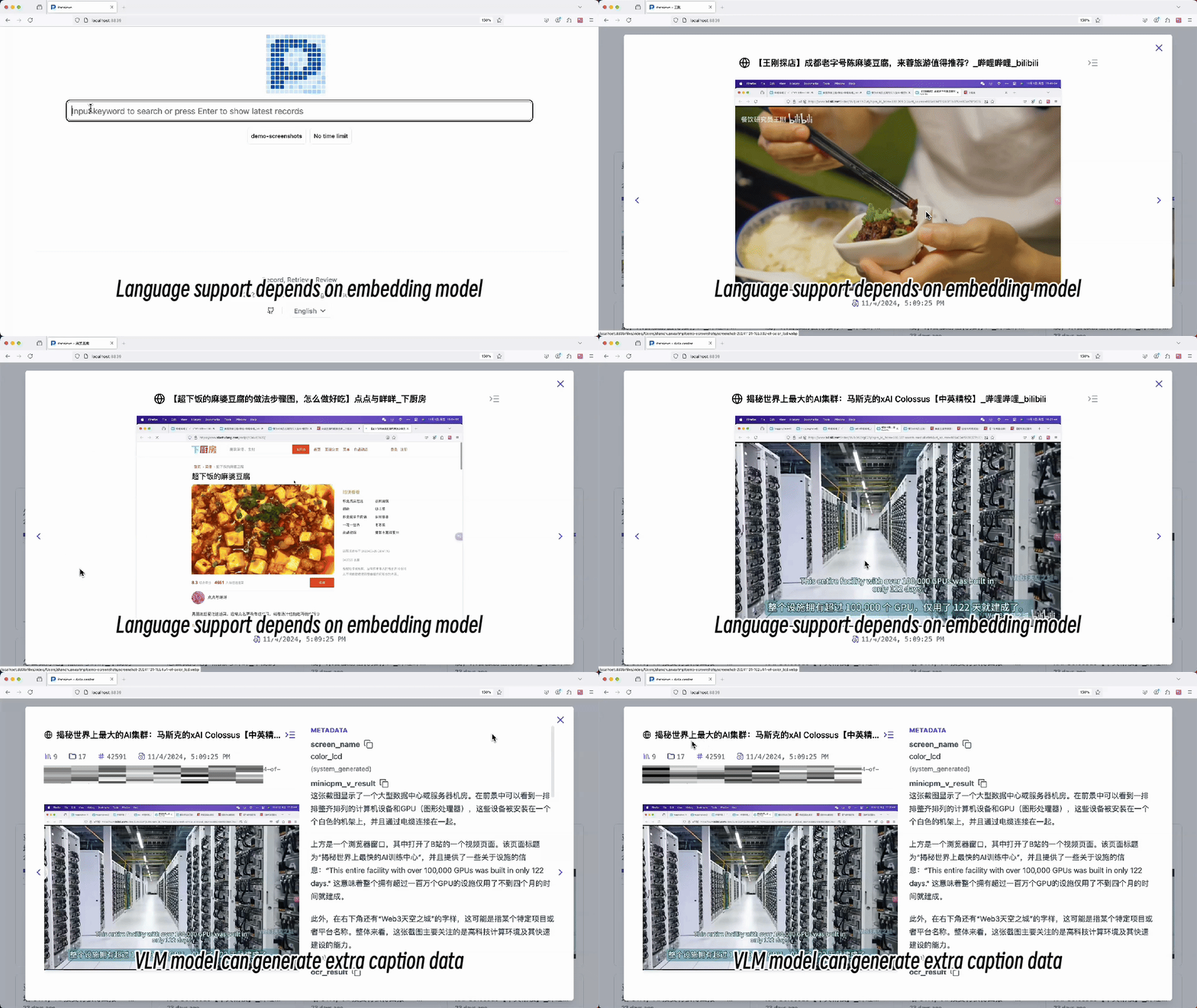
v0.33.0 ships an agent skill so any Skill-aware AI tool — Claude Code, Codex, opencode, etc. — can search your screenshot archive in natural language and link straight to the entity detail page. See Searching with an Agent Skill.v0.30.0 introduces an application blacklist feature that allows you to exclude specific applications from screenshot recording. This feature includes blacklist checking in both recording and file watching processes, with an enhanced UI for blacklist management in the configuration panel.v0.29.0 introduces a new entity detail page with interactive context navigation, allowing you to browse through screenshots chronologically with improved visual context and metadata display.v0.27.0 introduces an intuitive configuration management interface that allows you to easily configure all Pensieve settings through the web interface.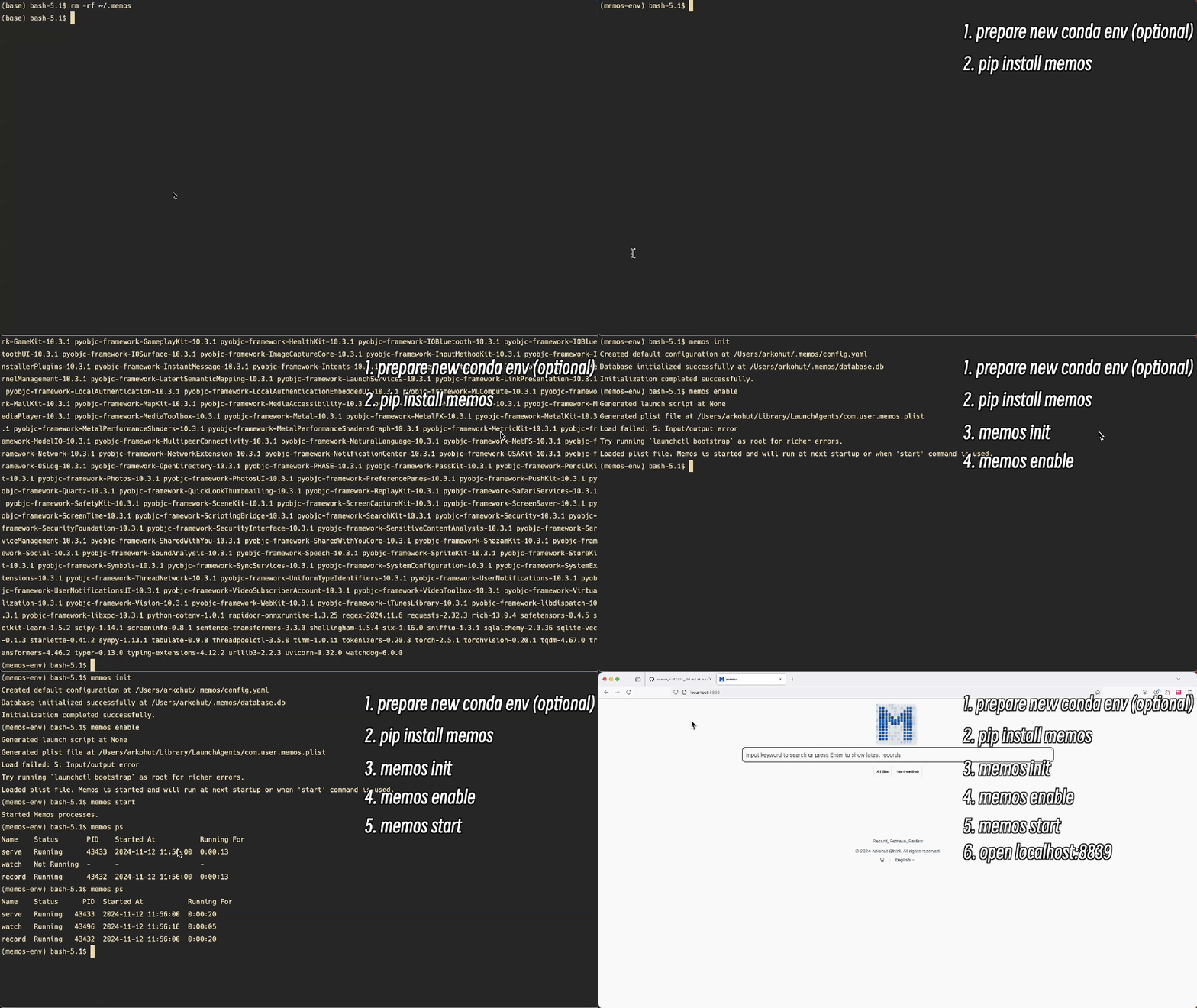
[!IMPORTANT]
It seems that not all versions of Python's sqlite3 library supportenable_load_extension. However, I'm not sure which environments or Python versions might encounter this issue. I usecondato manage Python, and Python installed viacondaworks fine on macOS, Windows x86, and Ubuntu 22.04.Please ensure the following command works in your Python environment:
import sqlite3

# Check sqlite version
print(f"SQLite version: {sqlite3.sqlite_version}")

# Test if enable_load_extension is supported
try:
    conn = sqlite3.connect(':memory:')
    conn.enable_load_extension(True)
    print("enable_load_extension is supported")
except AttributeError:
    print("enable_load_extension is not supported")
finally:
    conn.close()
If you find that this does not work properly, you can install miniconda to manage your Python environment. Alternatively, check the current issue list to see if others have encountered the same problem.
pip install memos
On Windows, prefer
uv tool install memosorpipx install memosover barepip install— see Windows Installation Notes for the full setup checklist.
Initialize the pensieve configuration file and sqlite database:
memos init
Data will be stored in the ~/.memos directory.
memos enable
memos start
This command will:
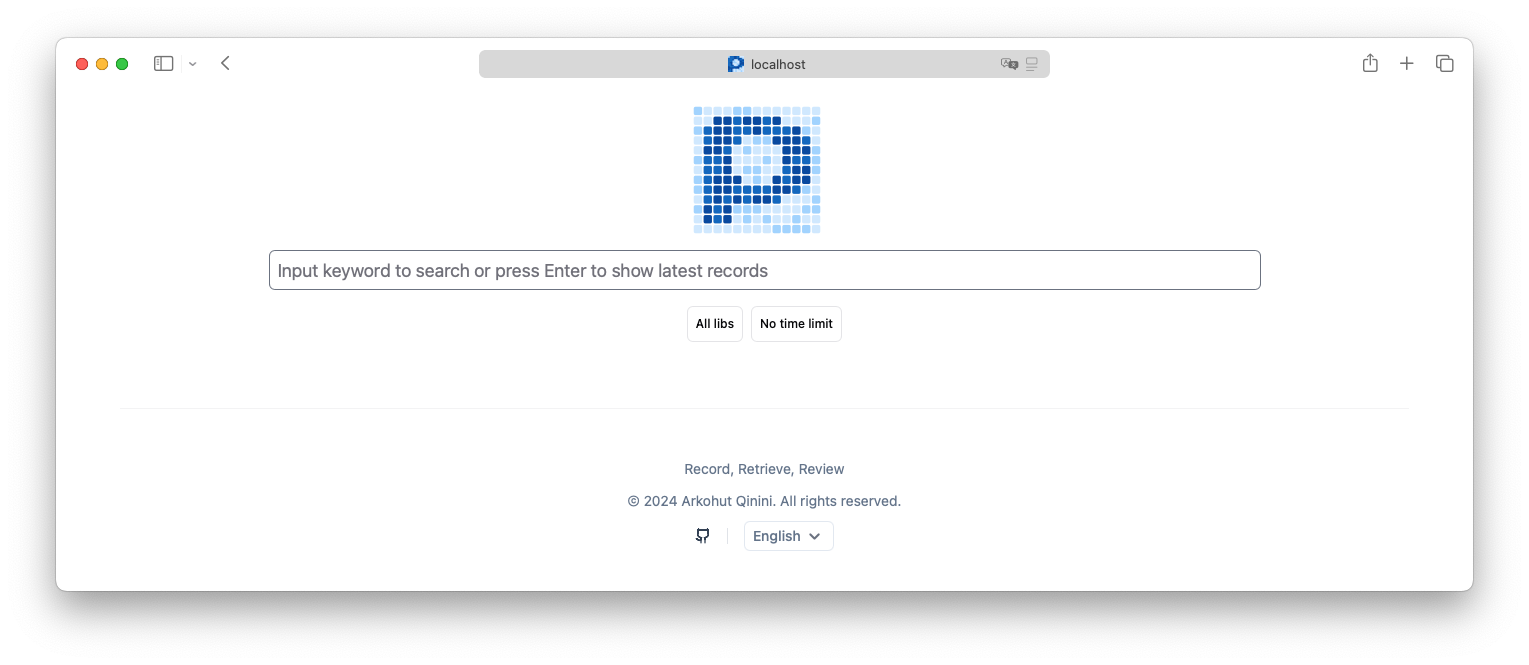
Open your browser and visit http://localhost:8839
On Mac, Pensieve needs screen recording permission. The first time memos start runs, macOS will prompt you to allow screen recording — please allow it.
To check what is currently authorized (without triggering a prompt), run:
memos doctor
It will print the Python interpreter path that needs the permission, and tell you exactly where to find it in System Settings → Privacy & Security → Screen & System Audio Recording.
If you upgrade Python (e.g. brew upgrade python, a new pyenv version, recreating a conda env), the previously granted permission becomes stale because TCC is keyed on the binary path. Reset and re-authorize:
tccutil reset ScreenCapture
memos stop && memos start
To avoid this churn, install via pipx install memos or uv tool install memos — both pin the interpreter path so authorization survives memos upgrades.
For a smoother Windows setup, install memos as an isolated tool rather than into the global site-packages:
# Option A: uv (fast, single binary)
powershell -ExecutionPolicy ByPass -c "irm https://astral.sh/uv/install.ps1 | iex"
uv tool install memos

# Option B: pipx
pip install --user pipx
python -m pipx ensurepath
pipx install memos
Both keep memos in a dedicated venv so the Python interpreter path stays stable across upgrades. After install, run memos doctor to verify the environment.
Before memos enable && memos start, two preparations make a real difference:
# Run in an Admin PowerShell

# Enable long paths — some ML wheels (torch, modelscope) have deep paths
Set-ItemProperty -Path "HKLM:\SYSTEM\CurrentControlSet\Control\FileSystem" -Name "LongPathsEnabled" -Value 1

# Exclude ~/.memos from Defender so screenshot writes aren't scanned
Add-MpPreference -ExclusionPath "$env:USERPROFILE\.memos"
If your %USERPROFILE% is redirected to OneDrive, ~/.memos may sync ~400MB of screenshots per day to the cloud. Change base_dir in ~/.memos/config.yaml to a local, non-synced path.
Avoid these setups on Windows:
~/.memos paths and subprocess behavior%USERPROFILE% synced by OneDrive (see above)To use PostgreSQL with Pensieve, you need to install the package with PostgreSQL support:
pip install memos[postgresql]
Starting from version v0.25.4, Pensieve fully supports using PostgreSQL as the backend database. Compared to SQLite, PostgreSQL can maintain excellent retrieval performance even with large data volumes.
If your screenshot data is large or you require high retrieval response speed, it is strongly recommended to use PostgreSQL as the backend database.
Since Pensieve uses vector search functionality, it requires PostgreSQL with the pgvector extension. We recommend using the official pgvector image:
On Linux/macOS:
docker run -d \
    --name pensieve-pgvector \
    --restart always \
    -p 5432:5432 \
    -e POSTGRES_PASSWORD=mysecretpassword \
    -v pensieve-pgdata:/var/lib/postgresql/data \
    pgvector/pgvector:pg17
On Windows PowerShell:
docker run -d `
    --name pensieve-pgvector `
    --restart always `
    -p 5432:5432 `
    -e POSTGRES_PASSWORD=mysecretpassword `
    -v pensieve-pgdata:/var/lib/postgresql/data `
    pgvector/pgvector:pg17
On Windows Command Prompt:
docker run -d ^
    --name pensieve-pgvector ^
    --restart always ^
    -p 5432:5432 ^
    -e POSTGRES_PASSWORD=mysecretpassword ^
    -v pensieve-pgdata:/var/lib/postgresql/data ^
    pgvector/pgvector:pg17
This command will:
pensieve-pgvectormysecretpasswordpensieve-pgdata for persistent data storageNote: If you are using Windows, make sure Docker Desktop is installed and running. You can download and install Docker Desktop from the Docker website.
Modify the database configuration in the ~/.memos/config.yaml file:
# Change the original SQLite configuration:
database_path: database.db

# To PostgreSQL configuration:
database_path: postgresql://postgres:mysecretpassword@localhost:5432/postgres
Configuration explanation:
postgres:mysecretpassword: Database username and passwordlocalhost:5432: PostgreSQL server address and portpostgres: Database nameIf you previously used SQLite and want to migrate to PostgreSQL, Pensieve provides a dedicated migration command:
# Stop the Pensieve service
memos stop

# Execute the migration
memos migrate \
  --sqlite-url "sqlite:///absolute/path/to/your/database.db" \
  --pg-url "postgresql://postgres:mysecretpassword@localhost:5432/postgres"

# Modify the configuration file to point to PostgreSQL
# Edit ~/.memos/config.yaml to update database_path

# Restart the service
memos start
Notes:
Below are the migration commands for Mac and Windows:
# Mac
memos migrate \
  --sqlite-url "sqlite:///~/.memos/database.db" \
  --pg-url "postgresql://postgres:mysecretpassword@localhost:5432/postgres"
# Windows PowerShell
memos migrate `
  --sqlite-url "sqlite:///$env:USERPROFILE/.memos/database.db" `
  --pg-url "postgresql://postgres:mysecretpassword@localhost:5432/postgres"
# Windows Command Line
memos migrate ^
  --sqlite-url "sqlite:///%USERPROFILE%/.memos/database.db" ^
  --pg-url "postgresql://postgres:mysecretpassword@localhost:5432/postgres"
Pensieve v0.29.0 introduces a comprehensive entity detail view that provides deeper insights into your screenshots:
The new entity view makes it easier to reconstruct your digital timeline and find related content around specific moments.
Pensieve v0.33.0 ships an agent skill — a portable, agent-agnostic instruction file that teaches any Skill-aware AI tool (Claude Code, Codex, opencode, …) how to query your screenshot archive over the HTTP API.
What you get:
/api/search calls with the right text, time window, and active_app filters./entities/<id>, so every citation is one click away from the actual screenshot.active_app / url distribution before narrowing — because the topic you ask about rarely appears as its literal string in the captured corpus.To use it, point your agent at the skill file. If you open this repo as the working directory, the skill is auto-discovered from skills/pensieve-search/SKILL.md. To use it from any other project, copy or symlink that file into whichever skills directory your agent loads from — for example ~/.claude/skills/pensieve-search/ (Claude Code) or ~/.agents/skills/pensieve-search/ (Codex / opencode and others that follow the shared .agents/ convention). Make sure memos is running locally first — the skill talks to http://127.0.0.1:8839 by default.
Pensieve v0.27.0 introduced a new configuration management interface that makes it easier to manage your system settings:
http://localhost:8839/config in your browserThrough this configuration interface, you can easily adjust various settings such as OCR and VLM options, idle processing strategy, database configuration, and more without manually editing configuration files.
Pensieve uses embedding models to extract semantic information and build vector indices. Therefore, choosing an appropriate embedding model is crucial. Depending on the user's primary language, different embedding models should be selected.
Open the ~/.memos/config.yaml file with your preferred text editor and modify the embedding configuration:
embedding:
  use_local: true
  model: jinaai/jina-embeddings-v2-base-en   # Model name used
  num_dim: 768                               # Model dimensions
  use_modelscope: false                      # Whether to use ModelScope's model
memos stop
memos start
The first time you use the embedding model, Pensieve will automatically download and load the model.
If you switch the embedding model during use, meaning you have already indexed screenshots before, you need to rebuild the index:
memos reindex --force
The --force parameter indicates rebuilding the index table and deleting previously indexed screenshot data.
By default, Pensieve only enables the OCR plugin to extract text from screenshots and build indices. However, this method significantly limits search effectiveness for images without text.
To achieve more comprehensive visual search capabilities, we need a multimodal image understanding service compatible with the OpenAI API. Ollama perfectly fits this role.
Before deciding to enable the VLM feature, please note the following:
Hardware Requirements
Performance and Power Consumption Impact
Visit the Ollama official documentation for detailed installation and configuration instructions.
Download and run the multimodal model minicpm-v using the following command:
ollama run minicpm-v "Describe what this service is"
This command will download and run the minicpm-v model. If the running speed is too slow, it is not recommended to use this feature.
Open the ~/.memos/config.yaml file with your preferred text editor and modify the vlm configuration:
vlm:
  endpoint: http://localhost:11434  # Ollama service address
  modelname: minicpm-v              # Model name to use
  force_jpeg: true                  # Convert images to JPEG format to ensure compatibility
  prompt: Please describe the content of this image, including the layout and visual elements  # Prompt sent to the model
Use the above configuration to overwrite the vlm configuration in the ~/.memos/config.yaml file.
Also, modify the default_plugins configuration in the ~/.memos/plugins/vlm/config.yaml file:
default_plugins:
- builtin_ocr
- builtin_vlm
This adds the builtin_vlm plugin to the default plugin list.
memos stop
memos start
After restarting the Pensieve service, wait a moment to see the data extracted by VLM in the latest screenshots on the Pensieve web interface:
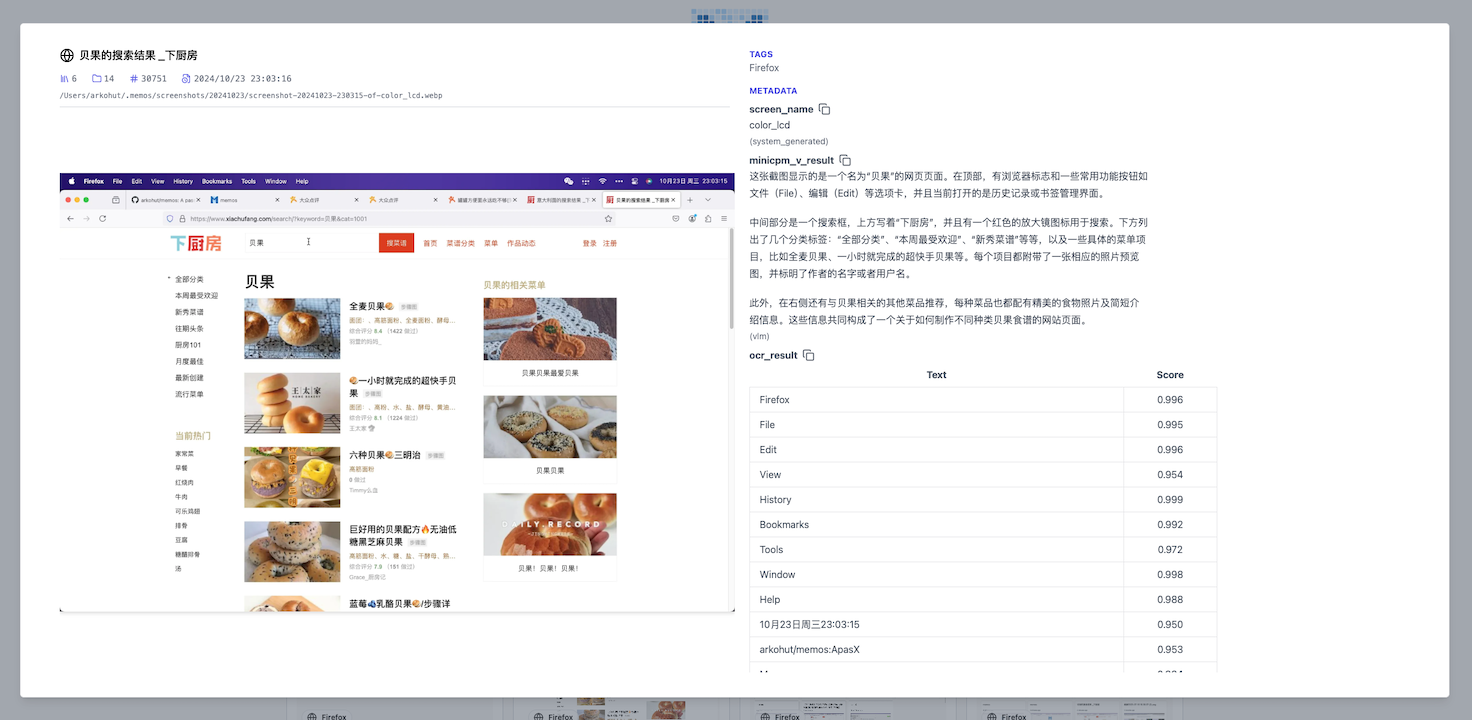
If you do not see the VLM results, you can:
memos ps to check if the Pensieve process is running normally~/.memos/logs/memos.logollama ps)Pensieve is a compute-intensive application. The indexing process requires the collaboration of OCR, VLM, and embedding models. To minimize the impact on the user's computer, Pensieve calculates the average processing time for each screenshot and adjusts the indexing frequency accordingly. Therefore, not all screenshots are indexed immediately by default.
If you want to index all screenshots, you can use the following command for full indexing:
memos scan
This command will scan and index all recorded screenshots. Note that depending on the number of screenshots and system configuration, this process may take some time and consume significant system resources. The index construction is idempotent, and running this command multiple times will not re-index already indexed data.
Pensieve dynamically adjusts the image processing interval based on the speed of screenshot generation and the speed of processing individual images. In environments without NVIDIA GPUs, it may be challenging to ensure that image processing keeps up with the rate of screenshot generation. To address this, Pensieve processes images on a sampled basis.
To prevent excessive system load, Pensieve's default sampling strategy is intentionally conservative. However, this conservative approach might limit the performance of devices with higher computational capacity. To provide more flexibility, additional control options have been introduced in ~/.memos/config.yaml, allowing users to configure the system for either more conservative or more aggressive processing strategies.
watch:
  # number of recent events to consider when calculating processing rates
  rate_window_size: 10
  # sparsity factor for file processing
  # a higher value means less frequent processing
  # 1.0 means process every file, can not be less than 1.0
  sparsity_factor: 3.0
  # initial processing interval for file processing, means process one file
  # with plugins for every N files
  # but will be adjusted automatically based on the processing rate
  # 12 means processing one file every 12 screenshots generated
  processing_interval: 12
If you want every screenshot file to be processed, you can configure the settings as follows:
# A watch config like this means process every file with plugins at the beginning
# but if the processing rate is slower than file generated, the processing interval
# will be increased automatically
watch:
  rate_window_size: 10
  sparsity_factor: 1.0
  processing_interval: 1
Remember to do memos stop && memos start to make the new config work.
Pensieve implements an intelligent idle processing strategy to handle skipped files during system idle time. This helps ensure all screenshots are eventually processed while minimizing impact on system performance during active use.
The idle processing behavior can be customized in ~/.memos/config.yaml:
watch:
  # seconds before marking state as idle
  idle_timeout: 300
  # time interval for processing skipped files
  # format: ["HH:MM", "HH:MM"]
  idle_process_interval: ["00:00", "07:00"]
idle_timeout: How long (in seconds) the system should wait without activity before entering idle stateidle_process_interval: The time window during which skipped files can be processed
This strategy ensures that:
Remember to do memos stop && memos start to make any configuration changes take effect.
During the development of Pensieve, I closely followed the progress of similar products, especially Rewind and Windows Recall. I greatly appreciate their product philosophy, but they do not do enough in terms of privacy protection, which is a concern for many users (or potential users). Recording the screen of a personal computer may expose extremely sensitive private data, such as bank accounts, passwords, chat records, etc. Therefore, ensuring that data storage and processing are completely controlled by the user to prevent data leakage is particularly important.
The advantages of Pensieve are:
~/.memos directory.memos stop && memos disable, then uninstall it with pip uninstall memos, and finally delete the ~/.memos directory to clean up all databases and screenshot data.Of course, there is still room for improvement in terms of privacy, and contributions are welcome to make Pensieve better.
Pensieve records the screen every 5 seconds and saves the original screenshots in the ~/.memos/screenshots directory. Storage space usage mainly depends on the following factors:
Screenshot Data:
Screenshots are deduplicated. If the content of consecutive screenshots does not change much, only one screenshot will be retained. The deduplication mechanism can significantly reduce storage usage in scenarios where content does not change frequently (such as reading, document editing, etc.).
Database Space:
Pensieve requires two compute-intensive tasks by default:
OCR Task: Executed using the CPU, and optimized to select the OCR engine based on different operating systems to minimize CPU usage
Embedding Task: Intelligently selects the computing device
To avoid affecting users' daily use, Pensieve has adopted the following optimization measures:
In fact, after Pensieve starts, it runs three programs:
memos serve starts the web servicememos record starts the screenshot recording programmemos watch listens to the image events generated by memos record and dynamically submits indexing requests to the server based on actual processing speedTherefore, if you are a developer or want to see the logs of the entire project running more clearly, you can use these three commands to run each part in the foreground instead of the memos enable && memos start command.
6,487 followers · starred Jan 2025
153 followers · starred Mar 2026
5,629 followers · starred Nov 2024
702 followers · starred Nov 2024
A passive recording project allows you to have complete control over your data. Automatically take screenshots of all your screens, index them, and save them locally.
Python
1,392
937 commits
updated Jul 19, 2026
I changed the name to Pensieve because Memos was already taken.
Pensieve is a privacy-focused passive recording project. It can automatically record screen content, build intelligent indices, and provide a convenient web interface to retrieve historical records.
This project draws heavily from two other projects: one called Rewind and another called Windows Recall. However, unlike both of them, Pensieve allows you to have complete control over your data, avoiding the transfer of data to untrusted data centers.
v0.33.0 ships an agent skill so any Skill-aware AI tool — Claude Code, Codex, opencode, etc. — can search your screenshot archive in natural language and link straight to the entity detail page. See Searching with an Agent Skill.v0.30.0 introduces an application blacklist feature that allows you to exclude specific applications from screenshot recording. This feature includes blacklist checking in both recording and file watching processes, with an enhanced UI for blacklist management in the configuration panel.v0.29.0 introduces a new entity detail page with interactive context navigation, allowing you to browse through screenshots chronologically with improved visual context and metadata display.v0.27.0 introduces an intuitive configuration management interface that allows you to easily configure all Pensieve settings through the web interface.
[!IMPORTANT]
It seems that not all versions of Python's sqlite3 library supportenable_load_extension. However, I'm not sure which environments or Python versions might encounter this issue. I usecondato manage Python, and Python installed viacondaworks fine on macOS, Windows x86, and Ubuntu 22.04.Please ensure the following command works in your Python environment:
import sqlite3

# Check sqlite version
print(f"SQLite version: {sqlite3.sqlite_version}")

# Test if enable_load_extension is supported
try:
    conn = sqlite3.connect(':memory:')
    conn.enable_load_extension(True)
    print("enable_load_extension is supported")
except AttributeError:
    print("enable_load_extension is not supported")
finally:
    conn.close()
If you find that this does not work properly, you can install miniconda to manage your Python environment. Alternatively, check the current issue list to see if others have encountered the same problem.
pip install memos
On Windows, prefer
uv tool install memosorpipx install memosover barepip install— see Windows Installation Notes for the full setup checklist.
Initialize the pensieve configuration file and sqlite database:
memos init
Data will be stored in the ~/.memos directory.
memos enable
memos start
This command will:
Open your browser and visit http://localhost:8839
On Mac, Pensieve needs screen recording permission. The first time memos start runs, macOS will prompt you to allow screen recording — please allow it.
To check what is currently authorized (without triggering a prompt), run:
memos doctor
It will print the Python interpreter path that needs the permission, and tell you exactly where to find it in System Settings → Privacy & Security → Screen & System Audio Recording.
If you upgrade Python (e.g. brew upgrade python, a new pyenv version, recreating a conda env), the previously granted permission becomes stale because TCC is keyed on the binary path. Reset and re-authorize:
tccutil reset ScreenCapture
memos stop && memos start
To avoid this churn, install via pipx install memos or uv tool install memos — both pin the interpreter path so authorization survives memos upgrades.
For a smoother Windows setup, install memos as an isolated tool rather than into the global site-packages:
# Option A: uv (fast, single binary)
powershell -ExecutionPolicy ByPass -c "irm https://astral.sh/uv/install.ps1 | iex"
uv tool install memos

# Option B: pipx
pip install --user pipx
python -m pipx ensurepath
pipx install memos
Both keep memos in a dedicated venv so the Python interpreter path stays stable across upgrades. After install, run memos doctor to verify the environment.
Before memos enable && memos start, two preparations make a real difference:
# Run in an Admin PowerShell

# Enable long paths — some ML wheels (torch, modelscope) have deep paths
Set-ItemProperty -Path "HKLM:\SYSTEM\CurrentControlSet\Control\FileSystem" -Name "LongPathsEnabled" -Value 1

# Exclude ~/.memos from Defender so screenshot writes aren't scanned
Add-MpPreference -ExclusionPath "$env:USERPROFILE\.memos"
If your %USERPROFILE% is redirected to OneDrive, ~/.memos may sync ~400MB of screenshots per day to the cloud. Change base_dir in ~/.memos/config.yaml to a local, non-synced path.
Avoid these setups on Windows:
~/.memos paths and subprocess behavior%USERPROFILE% synced by OneDrive (see above)To use PostgreSQL with Pensieve, you need to install the package with PostgreSQL support:
pip install memos[postgresql]
Starting from version v0.25.4, Pensieve fully supports using PostgreSQL as the backend database. Compared to SQLite, PostgreSQL can maintain excellent retrieval performance even with large data volumes.
If your screenshot data is large or you require high retrieval response speed, it is strongly recommended to use PostgreSQL as the backend database.
Since Pensieve uses vector search functionality, it requires PostgreSQL with the pgvector extension. We recommend using the official pgvector image:
On Linux/macOS:
docker run -d \
    --name pensieve-pgvector \
    --restart always \
    -p 5432:5432 \
    -e POSTGRES_PASSWORD=mysecretpassword \
    -v pensieve-pgdata:/var/lib/postgresql/data \
    pgvector/pgvector:pg17
On Windows PowerShell:
docker run -d `
    --name pensieve-pgvector `
    --restart always `
    -p 5432:5432 `
    -e POSTGRES_PASSWORD=mysecretpassword `
    -v pensieve-pgdata:/var/lib/postgresql/data `
    pgvector/pgvector:pg17
On Windows Command Prompt:
docker run -d ^
    --name pensieve-pgvector ^
    --restart always ^
    -p 5432:5432 ^
    -e POSTGRES_PASSWORD=mysecretpassword ^
    -v pensieve-pgdata:/var/lib/postgresql/data ^
    pgvector/pgvector:pg17
This command will:
pensieve-pgvectormysecretpasswordpensieve-pgdata for persistent data storageNote: If you are using Windows, make sure Docker Desktop is installed and running. You can download and install Docker Desktop from the Docker website.
Modify the database configuration in the ~/.memos/config.yaml file:
# Change the original SQLite configuration:
database_path: database.db

# To PostgreSQL configuration:
database_path: postgresql://postgres:mysecretpassword@localhost:5432/postgres
Configuration explanation:
postgres:mysecretpassword: Database username and passwordlocalhost:5432: PostgreSQL server address and portpostgres: Database nameIf you previously used SQLite and want to migrate to PostgreSQL, Pensieve provides a dedicated migration command:
# Stop the Pensieve service
memos stop

# Execute the migration
memos migrate \
  --sqlite-url "sqlite:///absolute/path/to/your/database.db" \
  --pg-url "postgresql://postgres:mysecretpassword@localhost:5432/postgres"

# Modify the configuration file to point to PostgreSQL
# Edit ~/.memos/config.yaml to update database_path

# Restart the service
memos start
Notes:
Below are the migration commands for Mac and Windows:
# Mac
memos migrate \
  --sqlite-url "sqlite:///~/.memos/database.db" \
  --pg-url "postgresql://postgres:mysecretpassword@localhost:5432/postgres"
# Windows PowerShell
memos migrate `
  --sqlite-url "sqlite:///$env:USERPROFILE/.memos/database.db" `
  --pg-url "postgresql://postgres:mysecretpassword@localhost:5432/postgres"
# Windows Command Line
memos migrate ^
  --sqlite-url "sqlite:///%USERPROFILE%/.memos/database.db" ^
  --pg-url "postgresql://postgres:mysecretpassword@localhost:5432/postgres"
Pensieve v0.29.0 introduces a comprehensive entity detail view that provides deeper insights into your screenshots:
The new entity view makes it easier to reconstruct your digital timeline and find related content around specific moments.
Pensieve v0.33.0 ships an agent skill — a portable, agent-agnostic instruction file that teaches any Skill-aware AI tool (Claude Code, Codex, opencode, …) how to query your screenshot archive over the HTTP API.
What you get:
/api/search calls with the right text, time window, and active_app filters./entities/<id>, so every citation is one click away from the actual screenshot.active_app / url distribution before narrowing — because the topic you ask about rarely appears as its literal string in the captured corpus.To use it, point your agent at the skill file. If you open this repo as the working directory, the skill is auto-discovered from skills/pensieve-search/SKILL.md. To use it from any other project, copy or symlink that file into whichever skills directory your agent loads from — for example ~/.claude/skills/pensieve-search/ (Claude Code) or ~/.agents/skills/pensieve-search/ (Codex / opencode and others that follow the shared .agents/ convention). Make sure memos is running locally first — the skill talks to http://127.0.0.1:8839 by default.
Pensieve v0.27.0 introduced a new configuration management interface that makes it easier to manage your system settings:
http://localhost:8839/config in your browserThrough this configuration interface, you can easily adjust various settings such as OCR and VLM options, idle processing strategy, database configuration, and more without manually editing configuration files.
Pensieve uses embedding models to extract semantic information and build vector indices. Therefore, choosing an appropriate embedding model is crucial. Depending on the user's primary language, different embedding models should be selected.
Open the ~/.memos/config.yaml file with your preferred text editor and modify the embedding configuration:
embedding:
  use_local: true
  model: jinaai/jina-embeddings-v2-base-en   # Model name used
  num_dim: 768                               # Model dimensions
  use_modelscope: false                      # Whether to use ModelScope's model
memos stop
memos start
The first time you use the embedding model, Pensieve will automatically download and load the model.
If you switch the embedding model during use, meaning you have already indexed screenshots before, you need to rebuild the index:
memos reindex --force
The --force parameter indicates rebuilding the index table and deleting previously indexed screenshot data.
By default, Pensieve only enables the OCR plugin to extract text from screenshots and build indices. However, this method significantly limits search effectiveness for images without text.
To achieve more comprehensive visual search capabilities, we need a multimodal image understanding service compatible with the OpenAI API. Ollama perfectly fits this role.
Before deciding to enable the VLM feature, please note the following:
Hardware Requirements
Performance and Power Consumption Impact
Visit the Ollama official documentation for detailed installation and configuration instructions.
Download and run the multimodal model minicpm-v using the following command:
ollama run minicpm-v "Describe what this service is"
This command will download and run the minicpm-v model. If the running speed is too slow, it is not recommended to use this feature.
Open the ~/.memos/config.yaml file with your preferred text editor and modify the vlm configuration:
vlm:
  endpoint: http://localhost:11434  # Ollama service address
  modelname: minicpm-v              # Model name to use
  force_jpeg: true                  # Convert images to JPEG format to ensure compatibility
  prompt: Please describe the content of this image, including the layout and visual elements  # Prompt sent to the model
Use the above configuration to overwrite the vlm configuration in the ~/.memos/config.yaml file.
Also, modify the default_plugins configuration in the ~/.memos/plugins/vlm/config.yaml file:
default_plugins:
- builtin_ocr
- builtin_vlm
This adds the builtin_vlm plugin to the default plugin list.
memos stop
memos start
After restarting the Pensieve service, wait a moment to see the data extracted by VLM in the latest screenshots on the Pensieve web interface:
If you do not see the VLM results, you can:
memos ps to check if the Pensieve process is running normally~/.memos/logs/memos.logollama ps)Pensieve is a compute-intensive application. The indexing process requires the collaboration of OCR, VLM, and embedding models. To minimize the impact on the user's computer, Pensieve calculates the average processing time for each screenshot and adjusts the indexing frequency accordingly. Therefore, not all screenshots are indexed immediately by default.
If you want to index all screenshots, you can use the following command for full indexing:
memos scan
This command will scan and index all recorded screenshots. Note that depending on the number of screenshots and system configuration, this process may take some time and consume significant system resources. The index construction is idempotent, and running this command multiple times will not re-index already indexed data.
Pensieve dynamically adjusts the image processing interval based on the speed of screenshot generation and the speed of processing individual images. In environments without NVIDIA GPUs, it may be challenging to ensure that image processing keeps up with the rate of screenshot generation. To address this, Pensieve processes images on a sampled basis.
To prevent excessive system load, Pensieve's default sampling strategy is intentionally conservative. However, this conservative approach might limit the performance of devices with higher computational capacity. To provide more flexibility, additional control options have been introduced in ~/.memos/config.yaml, allowing users to configure the system for either more conservative or more aggressive processing strategies.
watch:
  # number of recent events to consider when calculating processing rates
  rate_window_size: 10
  # sparsity factor for file processing
  # a higher value means less frequent processing
  # 1.0 means process every file, can not be less than 1.0
  sparsity_factor: 3.0
  # initial processing interval for file processing, means process one file
  # with plugins for every N files
  # but will be adjusted automatically based on the processing rate
  # 12 means processing one file every 12 screenshots generated
  processing_interval: 12
If you want every screenshot file to be processed, you can configure the settings as follows:
# A watch config like this means process every file with plugins at the beginning
# but if the processing rate is slower than file generated, the processing interval
# will be increased automatically
watch:
  rate_window_size: 10
  sparsity_factor: 1.0
  processing_interval: 1
Remember to do memos stop && memos start to make the new config work.
Pensieve implements an intelligent idle processing strategy to handle skipped files during system idle time. This helps ensure all screenshots are eventually processed while minimizing impact on system performance during active use.
The idle processing behavior can be customized in ~/.memos/config.yaml:
watch:
  # seconds before marking state as idle
  idle_timeout: 300
  # time interval for processing skipped files
  # format: ["HH:MM", "HH:MM"]
  idle_process_interval: ["00:00", "07:00"]
idle_timeout: How long (in seconds) the system should wait without activity before entering idle stateidle_process_interval: The time window during which skipped files can be processed
This strategy ensures that:
Remember to do memos stop && memos start to make any configuration changes take effect.
During the development of Pensieve, I closely followed the progress of similar products, especially Rewind and Windows Recall. I greatly appreciate their product philosophy, but they do not do enough in terms of privacy protection, which is a concern for many users (or potential users). Recording the screen of a personal computer may expose extremely sensitive private data, such as bank accounts, passwords, chat records, etc. Therefore, ensuring that data storage and processing are completely controlled by the user to prevent data leakage is particularly important.
The advantages of Pensieve are:
~/.memos directory.memos stop && memos disable, then uninstall it with pip uninstall memos, and finally delete the ~/.memos directory to clean up all databases and screenshot data.Of course, there is still room for improvement in terms of privacy, and contributions are welcome to make Pensieve better.
Pensieve records the screen every 5 seconds and saves the original screenshots in the ~/.memos/screenshots directory. Storage space usage mainly depends on the following factors:
Screenshot Data:
Screenshots are deduplicated. If the content of consecutive screenshots does not change much, only one screenshot will be retained. The deduplication mechanism can significantly reduce storage usage in scenarios where content does not change frequently (such as reading, document editing, etc.).
Database Space:
Pensieve requires two compute-intensive tasks by default:
OCR Task: Executed using the CPU, and optimized to select the OCR engine based on different operating systems to minimize CPU usage
Embedding Task: Intelligently selects the computing device
To avoid affecting users' daily use, Pensieve has adopted the following optimization measures:
In fact, after Pensieve starts, it runs three programs:
memos serve starts the web servicememos record starts the screenshot recording programmemos watch listens to the image events generated by memos record and dynamically submits indexing requests to the server based on actual processing speedTherefore, if you are a developer or want to see the logs of the entire project running more clearly, you can use these three commands to run each part in the foreground instead of the memos enable && memos start command.
6,487 followers · starred Jan 2025
153 followers · starred Mar 2026
5,629 followers · starred Nov 2024
702 followers · starred Nov 2024





