
Modern Android companion for Xournal++ (.xopp). Fast handwriting, PDF annotation, graphics tablet & shortcut key support, lossless round-trips, and built-in STEM drafting tools.
Kotlin
0
2 commits
updated Oct 4, 2026
See what people are saying
README
MobiXournal
A stylus-first Xournal++ (.xopp) editor & STEM note-taking companion for Android



-orange)

MobiXournal opens, edits, and saves Xournal++ .xopp
files on Android. It is an independent, unofficial project by amarzano2005, not affiliated
with, endorsed by, or maintained by the Xournal++ authors, and it installs under the label
MobiXournal. Draw and handwrite with a pen/stylus on a tablet or phone, then
save back to the same .xopp format so the file round-trips cleanly to and from desktop
Xournal++ on Linux. The guiding principle is format fidelity and round-trip safety: a file
edited on Android reopens correctly on the desktop, and vice versa.
Built with deep, dedicated support for STEM disciplines (Science, Technology, Engineering, and
Mathematics), MobiXournal equips students, educators, and professionals with specialized tools for
technical note-taking: electronic circuits (resistors, capacitors, inductors, ground), digital logic
gates (AND, NAND, OR, NOR, XOR, XNOR, NOT), relational database schema tables, coordinate axes,
parametric splines, regular geometric figures, virtual drafting instruments (setsquare, compass,
protractor), and on-device LaTeX formula rendering — all saved as pure, standard .xopp strokes
that round-trip losslessly to desktop Xournal++.
Based on Xournal++ — credits and licence. This app is a derivative work: its
.xoppformat handling, colour palette, shape recogniser and highlighter behaviour are derived from or matched to Xournal++, whose authors hold the copyright in that work. Xournal++ is licensed under GPL-2.0-or-later, so this app is distributed under the same licence — seeLICENSE. The app icon is this project's own artwork. Source: github.com/amarzano2005/MobiXournal.Based on NeXopp. MobiXournal is a continuation of NeXopp by Brian Monroe (
bamonroe) — the same Android.xoppeditor this codebase started from. The document layer, editor, build tooling and documentation structure come from there, under its GPL-2.0-or-later licence; the project has been renamed, rebranded and extended since. NeXopp's author is credited in the About page andNOTICE.
- What the project is and how to work in it:
AGENTS.md. - How it works internally (the
.xoppschema, data path, model):docs/architecture.md. - Build/emulator tooling:
docs/tools.md. - What's next (active tasks):
TODO.toml; what's already shipped:FINISHED.toml. These are TOML task files driven by thetodoskill — runscripts/todo.sh listorscripts/todo.sh statsto read them.
Status: the
.xoppread/write core and its tests are in place, and the Android editor is functional — pen/highlighter/eraser drawing with pressure, colour and width pickers, undo/redo, zoom, pan, a page navigator (add/remove/jump, 1-4 pages per row), on-device authoring of text/image/LaTeX elements, LaTeX math rendering, multi-page documents with layers and backgrounds, PDF import and export, and a rich STEM suite (electronic circuits, digital logic gates, relational tables, coordinate axes, splines, and virtual drafting guides). The controls live in a vertical rail and a dual top bar. Runscripts/todo.sh listfor what's next.
Requirements
Everything builds through the shared Android toolchain in /data/android (a baked
android-builder:local container), so the only host requirement is Docker. You do not need
a local JDK, Android SDK, or Gradle. To run the app on a virtual device you additionally need a
KVM-capable host for that directory's headless emulator (see docs/tools.md).
Build & test
The one command you need:
scripts/build.sh
This runs the full check loop through the shared toolchain container — unit tests + a debug
APK. Task variants, output paths, caching behaviour and the rest of the pipeline live in
docs/tools.md, the authoritative home for the build.
The unit tests run on the JVM with no device attached, covering the .xopp round-trip, the pure
render/ geometry and the audio sidecar mapping. What each one asserts — and the rule for the
optional real-file udiff.xopp test — is documented in
docs/architecture.md.
Run on a device / emulator
Installing and launching the built APK — the headless emulator (emulator.sh install /
launch), when a raw adb install to a physical device is appropriate, and how builds reach
the owner's tablets and phones — is documented in docs/tools.md. That is the
authoritative flow; don't invent another one.
Using the app
Built for STEM (Science, Technology, Engineering & Mathematics)
MobiXournal is purpose-built for the rigorous demands of STEM education, scientific research, and engineering workflows. Rather than struggling with wobbly freehand sketches or switching between separate apps, you have a complete technical toolbox at your fingertips that produces clean vector figures and round-trips losslessly to desktop Xournal++:
-
Electrical & Electronic Engineering:
- Passive circuit components (Resistors, Capacitors, Inductors, Earth Ground): draw schematic symbols directly along your drag vector with perfectly proportioned leads and terminals.
-
Digital Logic & Computer Engineering:
- Full IEEE logic gate library (AND, NAND, OR, NOR, XOR, XNOR, NOT/Inverter): accurately drawn gate bodies with input leads, standard curvature, inversion bubbles, and output lines.
-
Computer Science & Relational Databases:
- Relational schema tables: structured grid tables with dynamic row/column controls, interactive canvas drag or 1-tap viewport centering, and a relational table header toggle (attribute columns separated top-to-bottom and divided from data rows by a standard double horizontal line).
-
Calculus, Physics & Advanced Mathematics:
- On-device LaTeX formula editor: enter LaTeX math directly or pick symbols from a curated STEM palette (Calculus integrals/differentials, Greek alphabet, algebraic operators, and physics shortcuts), rendered crisp on the canvas as math elements.
-
Coordinate Geometry, Vectors & Analytics:
- Coordinate axes: instant Cartesian coordinate systems with directional arrowheads, starting at your touch point.
- Regular polygons & geometry: triangles, squares, rhombuses, pentagons, hexagons, and stars.
- Vectors & state diagrams: single and double-ended arrows for force vectors, dimensions, and state transitions.
- Parametric splines: smooth curve fitting through interactive control points and tangent handles for plotting mathematical functions and experimental data curves.
-
Virtual Technical Drafting Instruments:
- Setsquare (30°/60°/90° triangle): rotatable drafting triangle with snap-to-edge ruling.
- Compass: circle and arc guide with adjustable radius.
- Protractor: graduated 180° scale with 5°/15° tick marks, straight diameter ruler, rim arc snapping, and 15° radial vector snapping.
-
Engineering Paper & Snapping:
- Millimeter/graph (quad) paper, dotted grid, lined ruling, and PDF background annotation for lecture slides, problem sets, and textbooks, with Snap to grid and 15° Snap rotation.
-
100% Round-trip Safety:
- Every circuit, gate, table, and figure is saved as standard
.xoppstroke geometry in the native Xournal++ format, so your technical diagrams reopen identically on Linux, macOS, and Windows.
- Every circuit, gate, table, and figure is saved as standard
-
First-launch onboarding — on fresh installations, MobiXournal displays a 3-step introductory guide explaining stylus pressure and barrel button configuration, how to harmonize figure sizes with pen pressure sensitivity, and how to configure shortcuts for graphics tablets and keyboards. You can navigate through it with Next / Back or dismiss it with Skip / Get started.
-
Open — the top-bar menu (the ☰ button, top right) has Open; it launches the system file picker; choose a file. It's read in place via the Storage Access Framework. Open accepts several kinds of file and works out which is which from the file's contents, not its name: a gzip-compressed
.xopp(the usual desktop format), a single-file zipped.xopppackage (its bundled PDF travels inside), an uncompressed Xournal++ XML file, a plain PDF — picking a PDF opens it as a fresh annotatable document exactly as Import PDF below does — and a plain-text file (see Open a text file below), and an image (see Open an image below). A file that is none of these is refused with an "Open failed" notice. Whichever.xoppcontainer it came from is remembered, so a later Save writes it back in the same one. Files on remote shares work too — anything the system picker lists, including SSHFS, FTP, WebDAV and cloud providers mounted as storage. Those reads can be slow, so the document is fetched in the background behind an "Opening…" note and only appears once it has fully landed; a link that drops mid-transfer leaves the app as it was and reports the failure. Every page is shown, one above the next, each drawn with its own background ruling (plain, lined, ruled, graph, or dotted) and all of its layers — including strokes, text boxes, images, and LaTeX images (rendered as real math — fractions, super/subscripts, roots, and Greek/operator symbols; malformed formulae fall back to their source text). If the.xoppwas made by annotating a PDF, its PDF background is reloaded automatically — the reference the file stores is resolved and the PDF pages render underneath your annotations again, so a saved project reopens intact. Every way Xournal++ can name that PDF is understood: a plain file path, a path relative to the.xoppitself (bg.pdforscans/bg.pdf— how a portable, desktop-authored document usually stores it), and an attachedyourfile.xopp.bg.pdfsibling. If the referenced PDF can't be found (e.g. a desktop path that doesn't exist on the device, or a folder MobiXournal wasn't given access to), those pages open blank and a notice is shown — the reference itself is kept, so saving the file doesn't throw the background away. -
Open a PDF from another app — MobiXournal registers as a PDF handler, so it shows up in the Open with / Share sheet of file managers, browsers, and mail clients. Tap a PDF there, pick Xournal++, and it opens straight into a new tab as a fresh annotatable document over the PDF's pages — the same result as opening that PDF through the menu's Open. This works whether the app was closed or already running; a PDF handed over while it's running is added as another tab, leaving the documents you already had open untouched. The tab is named after the PDF. The first Save asks where to put the
.xopp. A PDF handed over this way has no.xoppfile behind it, and MobiXournal never writes document bytes over your original PDF — so the first Save opens the destination picker, pre-filled with the PDF's own name and a.xoppextension (bhm_prior.pdf→bhm_prior.xopp), which normally puts the annotations beside the original. After that first save the tab belongs to the.xoppit was written to, and later Saves write straight back to it. The PDF stays on as the page background and is referenced by the saved file, so the document reopens over those same pages in desktop Xournal++ (Save As… → zipped package embeds the PDF inside the file instead, if you'd rather carry it around as one file). -
Open a
.xoppfrom another app — a.xoppis a document type of its own, not a generic blob: MobiXournal writes every file it saves asapplication/x-xopp— the same type desktop Xournal++ declares for.xopp— and registers itself as a handler for it. So a.xoppnow shows up in a file manager's Open with / Share sheet with Xournal++ offered, and tapping it there opens straight into a new tab, exactly like opening it through the menu's Open. (A file that arrives over a plainfile://link is matched by extension too, so an Open with still works even where the system doesn't recognise the type.) -
Tabs — several documents open at once — every document you open lives in its own tab, and the tab strip under the top bar is always shown — even with a single document open — so the same tab controls are always in the same place. Tap a tab to switch to that document; every tab carries its own ✕, so you can close any document without switching to it first; tap + at the end of the strip — or New document in the ☰ menu — to start a fresh blank document in a new tab. The tabs, the ✕ and the + are all finger-sized targets, so switching or closing a document works with a fingertip and doesn't need a stylus. The strip is kept deliberately compact (a slim 42dp band) so it gives up as little of the canvas as it can. Open always opens into a new tab rather than replacing what you're working on. Each tab carries its own save format, its own background PDF and the page you were on, so switching back lands you where you left off. Closing the last tab leaves you on a fresh blank document. One thing to note: undo history doesn't follow a tab switch — the incoming document starts with a clean undo history, though all of its content and unsaved edits are intact. Reopening the app brings the whole strip straight back, however many tabs it holds: each document is read in the background at the moment you switch to it, so the app starts and stays responsive instead of stalling on a big session.
-
Split view — two documents side by side — Split view in the ☰ menu divides the drawing area into a left and a right pane, each showing its own document. Drag the bar down the middle to rebalance the two halves (it's a finger-wide grab strip, and neither pane can be squeezed below about a sixth of the width). Each pane has its own tab strip, so the two halves hold entirely separate sets of open documents, and each keeps its own scroll position, zoom, current page, layers and undo history. Handy for copying between two notebooks, or for writing notes beside a PDF you're reading.
The toolbar and the ☰ menu always drive the pane you last touched — tap or draw in a pane to give it focus, and Save, Import PDF, the pen settings and undo/redo then apply to that document. Choosing Close split view hands the whole area back to the left pane; the right pane's tabs are kept, so turning split view on again brings the same documents back.
-
Tab overview — see every open document at a glance — the grid button in the top bar (between redo and the ☰ menu) opens a grid of every tab in the current pane, each shown as a small picture of the page that tab was left on, with its name underneath and the current tab outlined. Tap a picture to switch straight to that document. It is the quickest way to find the right document when several tabs are named alike (or are all "Untitled"). Pictures appear as they are drawn — a document that hasn't been reopened since the app started has to be read from the session cache first, so its card is blank for a moment. PDF and image page backgrounds aren't drawn in the pictures; your handwriting and drawings are.
-
The tab strip scrolls sideways — open more documents than fit across the screen and the strip scrolls rather than pushing tabs off the edge, so every tab (and the trailing +) stays reachable. Drag anywhere on the strip except the current tab to scroll it, and the selected tab is always scrolled back into view when you switch documents.
-
Drag the current tab sideways to reorder it — press the selected tab and slide it left or right along its strip to move it past its neighbours; the order sticks and is restored with the rest of the session. Only the selected tab reorders — dragging any other tab scrolls the strip instead, so tap a tab first if you want to move it. A drag only takes over once your finger has actually moved, so a plain tap still switches document and a stationary hold still opens the long-press menu below. Dragging reorders within a strip; use that menu to send a tab to the other pane.
-
Long-press a tab to send it to the other view — holding a tab pops up a small menu with two entries. Move to other view takes that document out of this pane and opens it in the other one; Mirror on other view leaves it where it is and opens a second view of the same document in the other pane. Either one opens split view automatically if it was closed.
-
A mirrored document is live in both panes — the two mirrored tabs are two windows onto one document, not two copies: a stroke, an erase or a page change made on one side appears on the other immediately, and both save back to the same file. The views stay independent in every other respect — each keeps its own scroll position, zoom and current page, so you can work at the top of a page on the left while watching the bottom of it on the right, or keep a diagram in view while writing about it further down. Undo lives in the pane you are editing in: the other view drops its undo history when it takes an edit, so an undo can't quietly discard the work the other side just did.
Because tabs are named after files, and different files are often named alike, mirrored tabs are marked with a small coloured dot. Tabs sharing a dot colour are views of the same document — two "notes.xopp" tabs with no dots are two different files that merely share a name.
-
Tabs are restored when you reopen the app — the set of open tabs is cached on the device (including edits you hadn't saved yet), so closing the app and starting it again brings back exactly the tabs you had, with the same one showing. This is a convenience cache, not a substitute for saving: your
.xoppfile on disk is still only written when you Save, and that file is the only thing desktop Xournal++ ever sees. -
Open a text file — picking a plain-text file (a
.txt, a log, a source file, notes) opens it as an annotatable document: the text is typeset onto A4 pages in a monospace face, wrapped at the margin and split across as many pages as it needs, and those pages become the document you draw on. The text is real, selectable text, not a picture of text, so the Select text (PDF) tool works on it and you can copy passages straight out. Annotate it exactly like any other document. The first Save asks where to put the.xopp, since a text file has no.xoppof its own, and the typeset pages are saved inside the.xopp(the zipped single-file package) — so the file reopens with its text intact on this device and in desktop Xournal++, with nothing else to keep alongside it. Reopening the same text file again reuses the pages already typeset. A file named.mdor.markdownis recognised as markdown and typeset as markdown, cached separately from the same text opened under a.txtname. Headings are set large and bold,**bold**and*italic*are drawn in real bold and italic type,`code`and fenced code blocks in monospace, lists get hanging bullets or numbers, block quotes are indented, and---becomes a drawn horizontal rule — with the markup characters themselves gone from the page. The result is still selectable text, so Select text (PDF) copies the words without the syntax. Very large files are refused rather than opened: typesetting a huge log takes minutes and fills the cache, so a file over the text import limit (64 MB by default) comes back as "Text file is N MB, over the 64 MB import limit" instead of stalling the app. Raise or lower that limit under Settings → Storage. -
Open an image — picking a PNG, JPEG or WebP opens it as a one-page document with the picture as the page background, at the picture's own proportions, with an empty layer on top to draw on. Annotate it like any other document. The image itself is linked, not copied — the saved
.xopppoints at the picture where it already lives, so keep it in place — and, as with a PDF, the first Save asks where to put the.xopp, since an image has no.xoppof its own. A truncated or corrupt image is refused with a "Couldn't read that image" notice. MobiXournal also registers as an image handler, so — exactly as with a PDF — it appears in the Open with / Share sheet of gallery apps, file managers, browsers, and mail clients: tap a picture there, pick Xournal++, and it opens in a new tab without disturbing the tabs you already had. Reopening such a.xoppfinds its picture again the same ways desktop Xournal++ does: bycontent://URI, by absolute path, by a path relative to the.xopp's own folder, or from the sibling file an attached background names. A picture that can't be found leaves those pages blank with a "Background image not found" notice — the reference itself is preserved, so putting the file back makes it render again. Saving through Save As… → zipped.xoppinstead bundles the pictures inside the.xopp, one archive entry per image-backed page, so the file carries its backgrounds to another machine. -
Import PDF — the menu's Import PDF first asks how the PDF should join the document: Replace (the PDF's pages become the document, discarding the pages currently open) or Append (the PDF's pages are added after the pages already open, keeping their annotations — and it's a single undo away). A
.xoppcan reference just one background PDF, so appending onto a document that already has one merges the two into a single joined PDF — the incoming PDF's pages are added to the end of the existing background PDF, that joined file becomes the document's one background source, and the appended pages are renumbered against it. Repeat appends keep composing onto the joined PDF without touching the original files, and the joined PDF is what the saved.xopplinks to (or embeds, for a zipped Save As), so the result reopens in desktop Xournal++ with every appended page's background intact. Appending onto a brand-new, untouched blank page drops that stray blank sheet. Choosing a mode launches the picker filtered to PDFs; the import gives you one page per PDF page, each PDF page rasterised and shown as the page background (à la desktop Xournal++ PDF annotation). Draw on top as usual; the strokes are kept separate from the PDF and thepdfbackgrounds round-trip when you Save the.xopp. The source PDF's reference is recorded in the saved file, so reopening the.xopplater reloads that PDF and shows the same backgrounds again — no need to re-import. MobiXournal writes that reference as a relative path whenever it can: if the PDF sits in the same folder you save the.xoppinto, the file records justthepdf.pdfrather than a device-specific location. That's the portable form — copy the two files to a Linux box together and desktop Xournal++ finds the background exactly as it does here. When the PDF lives somewhere else entirely, the full reference is recorded instead, which still works on this device. Nothing to configure; it just picks the more portable of the two. -
Select text (PDF) — for an imported PDF that carries a real text layer (i.e. not a pure scan), the rail's Select slot's Select text (PDF) member lets you drag across the page to select the underlying text; the selected words highlight, and a Copy button puts them on the system clipboard to paste elsewhere. It reads the PDF's own text — no OCR — so scanned image-only PDFs have nothing to select (OCR for those is planned). The selection is view-only and doesn't change the document.
-
Vertical space — pick Vertical space from the rail to reflow a page: drag down on the page to insert blank vertical space, pushing everything below the grab line down with your finger, or drag up to close a gap and pull that content back. A dashed guide shows the grab line while you drag; only objects whose top edge is below the line move (one the line passes through stays put rather than being torn), and all layers move together. The whole drag is a single undo step, and since it only shifts coordinates it round-trips to desktop Xournal++ unchanged.
-
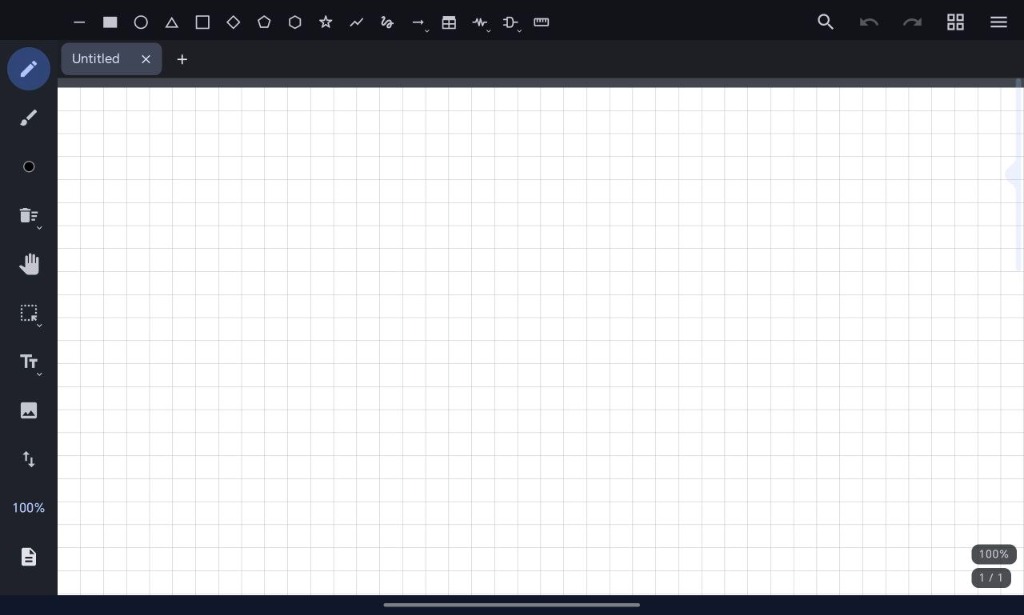
Draw — the controls live in a vertical rail down the left edge. It starts with the tool slots, each standing for a tool or a group of related tools and showing the one that group is currently set to: Pen, Highlighter, Eraser (partial · whole stroke), Line, Rectangle, Shapes (ellipse · arrow · double arrow · coordinate axis · spline), Table, Circuits (resistor · capacitor · inductor · ground), Logic gates (AND · OR · NOT · NAND · NOR · XOR · XNOR gates), Pan, Select (rectangle · lasso · select text · background copy), Insert (image), Text (text · LaTeX), Vertical space, and Play object. Line and Rectangle get a slot of their own because they are the shapes you reach for most; every other figure shares the Shapes slot, whose face starts as the ellipse (the circle). Tap a slot to switch to the tool it shows — the active slot is highlighted; tap it again once it is the live tool to open a picker over the group's other members (no long-press needed, though a long-press still works), and picking one both switches to that tool and re-faces the slot. Those per-slot choices are remembered across app restarts, so the rail comes back the way you left it. The pop-up buttons — Colour & size, Shape recognition, Guides, Layers, Zoom, Background, Pages, Audio — each open a small menu anchored to their own button (opening to the right of the rail); tapping the button again closes it. A tool slot whose menu offers a choice of tools (any group with more than one member) wears a small chevron (⌄) in its bottom-right corner, so a slot that can be re-faced reads differently at a glance from one that just activates a single tool. The pop-up buttons above do not wear it: they each open their own panel, not a submenu of alternatives. The Play object slot sits at the very bottom of the rail. Pick Pen or Highlighter and draw with one finger or the stylus; pen pressure sets stroke width. The Highlighter instead lays down a broad, constant-width band (pressure-independent) that blends like a real marker — a multiply blend at desktop Xournal++'s ~47% opacity, so dark ink shows through darkened rather than veiled — and saves as a
highlighterstroke (colour alpha7f, the byte the desktop app writes) that reopens the same way in desktop Xournal++. Its thickness is snapped to desktop Xournal++'s own highlighter tips (1 mm / 3 mm / 7 mm), so a highlighter drawn here is as thick as one drawn there, whatever the pen's width slots are set to. Choose a colour and a base width from the Colour & size pop-up, which holds colour, width and line style in one compact menu — its button face is a dot sized to the current width and filled with the current colour. The swatches are eight colours: Black (#000000), Red (#FF0000), Green (#008000), Blue (#3333CC), Orange (#FF8000), Magenta (#FF00FF), Yellow (#FFFF00), White (#FFFFFF), in that order, each hex taken from desktop Xournal++'s own palette so a colour picked here is byte-for-byte the colour it would write there — and the palette itself is yours to change under Settings → Colors (add, redefine, delete). Its colour half ends with an editable custom slot (marked with a pencil): tap it to draw with its current colour, or long-press it to open a picker — a saturation/value square over a hue slider plus a#RRGGBBhex field — to set any colour. Its size half offers three width slots as one compact row of small boxes, each drawn as a filled dot sized to that slot's width (the widest slot fills the box, the rest scale down in proportion) under its exact point size, so the three read as a tip-size ladder rather than three arbitrary letters: tap a slot to draw with it, or long-press a slot to open a resize dialog (0.5 → 15 pt) that redefines that slot's width — drag the slider for a broad sweep, tap − / + to nudge it 0.1 pt at a time, or type an exact point size into the text field. That same palette — swatches and the custom slot — is what the text-box dialog and the selection recolour menu offer, so the three always agree. The custom colour, the three widths, and the colour/width you were last drawing with are all remembered across restarts, so the app reopens with the pen you left off with. Each tool keeps its own colour and width across a switch: the pen comes back to the pen's, the highlighter and the figures to theirs — and that holds whichever way you switch (rail slot, keyboard shortcut, barrel button), so picking the pen after a fat figure or highlighter draws with the pen's own medium width again instead of inheriting theirs. New strokes land on the active layer (see Layers below) of whichever page you draw on. -
Line & shapes — the rail's Line, Rectangle, Shapes, and Table slots offer Line, Rectangle, Ellipse, the STEM figures (Triangle, Square, Rhombus, Pentagon, Hexagon, Star), Table, Coordinate axis, Spline, and the two arrow tools (Arrow, Double arrow); Line, Rectangle, and Table are one tool each; the rest share the Shapes slot (with the figures first and the arrows separated by a divider; order and visibility can be customised in Settings → Figures). Pick one and drag from one corner/endpoint to the other; a live preview follows your finger and the shape commits on release. The Table tool lets you draw or insert custom grid tables: configure the number of rows and columns directly on the canvas via the contextual bar (or under Settings → Figures), toggle Header to add a relational double separator line under the first row (the relational database schema standard), then drag to size it interactively, or tap Insert to place it centered in the visible viewport. Tables are stroked with figure styling (adjustable shape width, color, and line style) and round-trip losslessly to desktop Xournal++ as standard strokes. Shapes are saved as ordinary strokes in the current pen colour and the shape width — a width of its own, kept separate from the pen's and defaulting to the middle size slot, the same one the pen starts at (the default slot is set in Settings → Figures), so a fresh shape and fresh handwriting come out the same weight; the wide slot is left to the highlighter. A shape draws at that width directly — it does not taper with pen pressure the way a freehand stroke does, so with pressure on a shape can look thicker than a light pen stroke (the Figures section is where you compensate); a shape and a fully-pressed pen match. Set the width from the Colour & size pop-up while a line/shape tool is active (tap a width slot, or long-press one to redefine it); that same pop-up carries the Line style submenu — Solid, Dashed, Dash-dot, Dotted — so the pen and the figures can be dashed without leaving it. Width and style are remembered across restarts. The result round-trips to desktop Xournal++ like any other stroke. A double arrow gets a head at each end; a coordinate axis puts its origin where the drag started and runs an arrowed x and y axis out to the drag's width and height. The Spline tool is for a smooth curve through points you place one at a time. Tap to drop a control point; drag away from a tap instead of lifting to pull out a tangent handle that bows the curve through that point (lift where you want the curve to lean). Keep tapping to extend it — the whole curve previews live as you go, with a dot on every control point, a line through each tangent handle showing how hard that point is bowed, and a dashed rubber band from the last point to a hovering stylus, so you can see where the next tap will take it. While a curve is open, a bar shows how many points it has and offers Finish (disabled until there are two, since a single point draws nothing), an undo button that drops just the last point, and a close button that discards the whole curve. Double-tap or Enter also finishes it, Backspace drops the last point, and Escape or Back throws it away; switching to another tool commits whatever you have so far. The result is one ordinary constant-width stroke in the current pen colour and width, so it round-trips to desktop Xournal++ like any other stroke. The Colour & size pop-up sets Line style (Solid, Dashed, Dash-dot, Dotted) as a row of chips, as well as the colour and the tip size — there is no separate Style slot any more, so the three are one tap from the rail. The line style applies to all shapes and strokes drawn with the line/shape tools and saves on the
<stroke>element (style), reopening the same way in desktop Xournal++. Fill is gone: the app no longer offers it, and strokes drawn here are never flooded — a.xoppthat already carriesfillon a stroke still opens, renders and re-saves with it untouched. -
Electronic circuits — the rail's (and secondary top bar's) Circuits tool offers fundamental passive circuit components: Resistor (standard 6-peak zigzag between lead wires), Capacitor (parallel plates with symmetric terminal wires), Inductor (smooth 4-loop coil), and Ground (3-tier stepped earth/chassis ground symbol). Drag from the start terminal to the end terminal; the component dynamically scales and rotates along your drag vector with clean engineering proportions. Drawn in the active shape width and pen colour, circuits save as standard constant-width strokes that round-trip losslessly to desktop Xournal++.
-
Logic gates — the Logic gates tool provides the complete IEEE-standard digital logic gate set for computer science, digital logic design, and boolean algebra: AND, NAND (with inversion bubble), OR, NOR, XOR (with dual curved input arcs), XNOR (dual curved input arcs plus output inversion bubble), and NOT (inverter triangle + bubble). Drag from the input side toward the output; the gate is drawn with symmetrical input leads and an output wire, oriented precisely along your drag vector. Like all figures, logic gates round-trip cleanly to desktop Xournal++ as standard strokes.
-
Shape recognition — turn it on from the rail's Shape recognition button (the triangle; it tints while on, and the state is the same persisted setting as Settings → Stylus → Shape recognition, so you can flip it mid-page without leaving the editor) and a freehand stroke is snapped, the moment you lift, to the shape it clearly resembles: a straight line, a triangle, a rectangle, or a circle. This is desktop Xournal++'s own shape recognizer, ported line for line with its thresholds intact, so a stroke is judged here exactly the way it is judged on the desktop — and, as there, that means circles rather than ovals: an ellipse stroke is left as drawn. Anything else the recogniser doesn't recognise — handwriting above all, but also arrows and open polylines, which upstream doesn't attempt — is kept exactly as you drew it, and a stroke under 40 pt across is never snapped at all. A rectangle you draw roughly upright is squared to the page axes, and the corners of every recognised shape are rebuilt from where the fitted lines cross, so they come out sharp instead of wobbly. The result is one ordinary constant-width stroke, so it round-trips to desktop Xournal++ like any other. The toggle is on by default and applies to the pen and the highlighter alike — as on desktop, where both tools carry the recogniser — so a straight highlighter line snaps to a line too.
-
Snapping — two optional aids under Settings → Editor. Snap to grid pulls the start and end of a shape drag onto the page background's ruling, so lines and boxes line up with the paper: a graph or dotted page snaps both axes to its squares, a lined/ruled page snaps only the vertical position (it rules no vertical lines), and a plain page snaps nothing. Snap rotation makes the selection's rotate handle step in 15° increments — handy for turning something exactly upright or square. Both are off by default, and neither changes what is written to the file: the result is still ordinary stroke geometry.
-
Drawing guides (setsquare, compass & protractor) — the Guides rail button lays a virtual instrument on the page: a Setsquare (a 30/60/90 geometry triangle), a Compass (a circle), or a Protractor (a graduated semicircular scale with 5°/15° ticks and degree labels). Anything drawn near the protractor's flat diameter rules straight, near its curved rim snaps to a circular arc, and vectors drawn through its body snap to 15° radial angles. Anything you draw within about a quarter-inch of the instrument's edge is ruled onto it, so a freehand stroke along the setsquare comes out perfectly straight and a stroke swept around the compass comes out as a clean arc of that radius; move the pen away from the edge and it draws freehand again. Slide the guide with a finger placed on its body — inside the setsquare's shaded triangle, or on the compass's centre dot — and drag its amber tip handle to re-pose it: that rotates and resizes the setsquare (with Snap rotation on it lands on 15° steps) and opens or closes the compass. The edges themselves are left free to draw against, so ruling along the outside of the setsquare never drags it out from under your pen, and you can go on holding it steady while you draw. Choose Off to take it away. The guide is purely an input aid: it is never written to the
.xoppfile, so what you draw with it is ordinary stroke geometry. Which guide is out is remembered across app restarts. -
Erase — tap the rail's Eraser slot and drag over strokes. Long-press the slot to pick which eraser it stands for: Eraser (partial) rubs out just the part of a stroke the eraser passes over, splitting it into the surviving pieces; Eraser (whole stroke) removes any stroke the eraser touches entirely. Like every tool slot, the choice is remembered across restarts. The eraser has no size of its own — its tip follows the width slots in the Colour & size pop-up: the tip's radius is the selected pen's full width, so the rubber is twice as wide as the ink it removes — wide enough to bite, narrow enough to erase precisely — and the three slots still give three clearly different tips. It is measured in document points, so it rubs out the same amount of ink whatever the zoom. A thin black circle shows exactly where the tip's edge falls — it follows a hovering stylus, and follows the contact point while you rub (finger touches included). When you erase by holding the stylus barrel button, the circle appears the moment the button goes down, so you can see the tip's reach before touching the page. It is on-screen chrome only: it is never part of the page and never written to the
.xoppfile. The eraser only affects the selected layer — ink on other layers is left alone — and hidden layers are never erased. If your stylus has an eraser tip (the flip-over end), using it erases no matter which tool is selected; so does holding the stylus barrel button (configurable — see Settings) — and the tip circle appears the moment the button goes down while the pen hovers, so you can see what you are about to rub out before touching the glass. The button is understood however your pen reports it: the standard stylus button bits, the barrel-button key events a Bluetooth pen sends on Android 14 and later, or a plain right-click from a pen the tablet only ever sees as a mouse (which is how some tablets present a pen they never promoted to a stylus). Pressing it mid-stroke hands the rest of that stroke to the eraser — the ink already drawn stays, and everything the pen passes over from then on is rubbed out — so holding the button erases whether you press it before the tip lands or while writing; letting go does not bring the stroke back. Double-clicking the barrel button with the pen lifted off the glass runs its own action — undo by default (see Settings). -
Layers — the Layers pop-up manages the visible page's layers (top of the list = top of the page). Each row can make the layer active (tap its name — new ink lands there, marked with a filled dot), show/hide it in the editor (the eye toggle — hiding is view-only and never changes the file), reorder it up/down (z-order), merge it down into the layer below (the merge button — the two layers' contents combine in z-order, the lower layer keeps its name, and the emptied upper layer goes away; disabled on the bottom layer), rename it, or delete it (a page always keeps at least one layer). Add layer puts a fresh empty layer on top. With something selected, each row also shows a move-selection-here button. Layer names round-trip via the
<layer name>attribute; every structural change is undoable. -
Stylus — the app is stylus-first. Rest your palm on the screen while you write: once the pen is down, finger/palm touches are ignored for drawing (a second finger still pans). A hovering stylus shows a preview ring where the tip will land. Pen pressure sets stroke width, with a configurable feel, tapering more deeply at a light touch to match desktop Xournal++. Handwriting is smoothed as you write — digitiser wobble in both position and pressure is filtered out, and redundant points are dropped when the pen lifts, so strokes look clean and files stay small. All of this is tuned in Settings below.
-
Select — the rail's Select slot selects objects the way desktop Xournal++ does. The marquee shape is the tool itself: long-press the slot to pick Select rectangle (drag a box; every object fully inside is selected), Select lasso (trace a free-form loop; everything wholly inside is selected), Select text (PDF), or Select background (flatten). Both shapes allow a few points of slack at the edge, so tracing tightly around a hairline stroke still catches it. A marquee only picks objects on the active layer, as on the desktop — switch layers to select the ink on another one. Or tap a single object to select just that one. Selected objects get a dashed outline with handles:
- Drag inside the outline to move them — push the drag into the top or bottom edge of the screen and the page scrolls with you, carrying the element along (so you can move something far down a long page without letting go), and drag onto a different page to move them there.
- Drag a corner handle to resize (uniform scale). A small element moves when you drag it: the corner handles only win the touch right on the corners, so a tiny stroke or dot no longer flips straight into resize-by-accident.
- Drag the round knob poking out from the right edge to rotate — shown only when the selection is all
strokes (text and images have no rotation in the
.xoppformat, so they can't be rotated). - The floating action bar offers Cut, Copy, Duplicate, a palette to recolour (the same swatches and custom slot as the pen's colour pop-up) and a line-weight menu to re-width the selection, Delete, and Done (deselect).
- Paste appears in the bottom bar (when nothing is selected) and drops the copied objects where you're looking — centred on the current view of the page you're on, not back where they were when you copied them (which may be many screens away).
- Select background (flatten) is rectangle-only: drag a box to mark out a region, then copy it as one flat image including the page background and all layers. Paste then drops that image back onto the current view of the current page. The box stays on the page after you let go, and the bottom bar gains Copy, Cut and a ✕ for it: Copy puts the region on the clipboard (you can press it again later, once the clipboard has moved on to something else), Cut copies it and then erases the objects inside it on the active layer, and ✕ (or Back) drops the box. Marking out a box does not touch the clipboard on its own — only Copy/Cut do, so drawing a region never silently throws away what you had copied. The page background itself is copied but never erased — it belongs to the page, not to the region.
Object selection edits are undoable, and so is a background Cut. A background Copy only fills the clipboard; the later paste is undoable. (Selection is per page; two-finger pan still works.)
-
Text — pick Text from the rail's Text slot and tap where you want a text box; a dialog takes the content from the keyboard and lets you style it: font family (Sans / Serif / Monospace), bold, italic, a size slider (6–96 pt), and a colour — the same picker the pen uses, so the custom slot is shared with it. Tapping an existing text box reopens it for editing with all of that prefilled from the box (clearing the text deletes it). Every property round-trips to and from desktop Xournal++ via the
.xopp<text>element. (Underline isn't offered — the format can't store it.) -
Image — pick Image and tap where the image should go; the system picker opens, and the chosen picture is placed at that point (scaled to a sensible size).
-
LaTeX — pick LaTeX (the Text slot's second member) and tap to place a math image; a dedicated formula dialog opens with a STEM symbol palette (Calculus, Greek letters, Operators, and Physics shortcuts) for quick insertion at the cursor, and it's rendered as real math.
-
Undo / Redo — the arrows in the top bar undo and redo edits, one gesture at a time (drawing, erasing, and adding/editing text/image/LaTeX are all undoable). They enable and disable as history allows; opening a file starts fresh history. History is 200 edits deep — past that the oldest step is dropped, so the most recent edits always stay undoable without the stack growing forever.
-
Scroll — drag with two fingers to move around the page stack, or pick the Hand tool from the rail to pan with one finger (handy on a stylus). A quick one-finger flick keeps the pages gliding with momentum and coasts to a stop — the faster the flick, the much farther it carries — while a two-finger pan stops the instant you lift. Touch down again to halt a glide at once. With the Hand tool, a double-tap navigates: tap twice on the left edge to jump to the previous page, on the right edge for the next page, or in the centre to toggle full-page view (hides the top bar and side toolbar for a distraction-free canvas; double-tap the centre again to restore them). A PDF-style scroll thumb rides the right edge whenever the document is taller than the screen: drag it to page quickly through a long document (a page-number bubble shows where you are as you drag). A small grip bulges out of its centre so it's easy to grab. It sits faint while idle and brightens as you scroll; only the thumb itself grabs touches, so the rest of the page's right margin still takes ink. A page counter ("3 / 12") sits permanently in a corner of the canvas — the bottom-right by default, and movable from Settings ▸ Appearance — so you always know which page of how many you're on; it stays put in full-page view, where the bars are hidden. Directly above it a zoom badge ("125%") in the same pill shows the current zoom level at a glance, and tapping it resets the zoom to 100%. With a mouse connected, the scroll wheel scrolls the document vertically — wheel down moves further down the pages, the same direction as dragging the scroll thumb down — and leaves the zoom level alone.
-
Back button — the Android back button (or back gesture) navigates instead of quitting. Each press steps one layer out of wherever you are, and only the last press leaves the app. Dialogs and pop-up menus close on back as you'd expect; beyond those, back cancels an unfinished spline, then leaves a text edit or drops a selection, then clears picked pages and leaves the page-overview edit mode, then restores the chrome from full-page view — and finally exits. In Settings, back returns from a section to the settings index, exactly like the on-screen back arrow, and a second press closes Settings back to your document. Back is ignored while a document is opening or saving, so a slow transfer can't be interrupted half-way.
-
Zoom — pinch with two fingers anywhere on the canvas to zoom in or out; the point between your fingers stays put as the page grows or shrinks, and you can pan at the same time in the one gesture. The % button on the rail also opens a zoom pop-up with − / + buttons; tap the percentage to reset to 100% — or tap the zoom badge above the page counter for the same shortcut without opening anything. Zooming wider than the screen lets you pan sideways. Zoom ranges from 25% to 1000%, so you can work on fine detail; ink stays sharp at every level. PDF page backgrounds stay sharp too: past a certain zoom only the part of the page you can actually see is re-rendered, at full screen resolution, so PDF text is crisp all the way to 1000%. A freshly zoomed or panned area may look soft for a moment before the sharp version lands.
-
Background — the grid button on the rail opens the page-background pop-up, which sets the paper ruling of the page in view: Plain (bare sheet), Lined, Ruled (lined with a red margin), Graph, or Dotted. The current style is check-marked; picking another re-rules the page immediately (an undoable edit) and round-trips via the
<background style>attribute. The ruling is drawn in desktop Xournal++'s own paper colours — lined rules in itsxopp_dodgerblue, graph/dotted in itsxopp_silver— so the paper looks the same on both. On a PDF or image-backed page there's no solid sheet to re-rule, so the items are disabled. -
Pages — the document button on the rail opens the page navigator: it shows Page N / M with ◀ / ▶ to jump to the previous/next page, plus Add page (a blank page after the one in view — it is born at the default page size and keeps the current page's paper ruling, but a PDF/image background is dropped to a plain white sheet so the new page is genuinely blank, not a copy of the page underneath) and Remove page (the one in view; the last page is never removed). Add and remove are undoable.
- Pages per row — the 1 / 2 / 3 / 4 chips zoom the canvas out to a page overview: pick 2, 3 or 4 and the pages lay out side by side in a grid of that many columns (each fit to its column, rows top to bottom), instead of the usual single-page stack. Everything still works in the grid — you can draw, erase and select on whichever page you touch — so it doubles as a two-page spread for reading and a thumbnail overview for finding a page. The choice is remembered across launches; 1 returns to the single-page stack.
- Overview mode — View or Edit — under the columns chips, the View / Edit chips decide what the grid does with a tap. View (the default) keeps the overview a pure reading-and-navigation layout: tapping a page with the Hand tool simply jumps to that page, and there is no selection, no selection tint, and no drag-to-reorder. Edit turns the page tooling on — tap to select, drag to reorder, and copy/paste/delete the selected pages (all described below). Leaving edit mode clears any selection, so the grid never keeps stale selection chrome on it. The chips are only available at 2 or more pages per row; drawing, erasing and selecting on a page work the same in either mode.
- Reorder pages in the overview — while the grid is showing in Edit mode, press and
hold a page with your finger until it dims: that lifts it. Drag to another page — the slot it
would land in is outlined — and lift your finger to drop it there; the page moves to that
position and the pages after it shift along. The move is a single undoable edit, and the new
order is what gets written to the
.xopp, so it round-trips to desktop Xournal++. The pen is never a candidate for the lift, so drawing on a grid page is unaffected; sliding your finger before the press registers pans as usual. - Delete pages from the overview — while the grid is showing in Edit mode, pick the Hand tool and tap
pages to select them: each picked page is tinted and outlined, and tapping it again unpicks it.
The Pages pop-up then grows three entries — Copy N selected, Delete N selected, which
removes every picked page in one undoable edit, and Clear selection. A document always keeps at least one page, so
selecting every page deletes nothing (that entry is disabled). The remaining pages keep their
order and are what gets written to the
.xopp. The selection is view-only state: it clears when you return to 1 page per row, and after any page add/remove/reorder (the indices have moved). - Copy and paste pages — Copy N selected puts the picked pages on a page clipboard (in document order) without changing anything yet. The Pages pop-up then offers Paste N pages, which inserts them in one undoable edit directly after the last selected page — or after the page in view when nothing is selected — and scrolls to the first pasted page. The copies carry everything the page holds: strokes with pressure, every layer and its name, page size, and the background (a ruled sheet, an imported image, or the same PDF page), so a pasted page is a true duplicate that round-trips to desktop Xournal++. The clipboard survives until the next copy, so one copy can be pasted repeatedly.
- Page size… — the last row shows the page-in-view's size (a preset name like A4, or its dimensions) and opens a Page size dialog: pick a preset (A4 / A5 / Letter / Legal), or type a custom width and height in mm / in / pt (the unit toggle converts the fields), and swap width↔height for landscape. The entry matching the size now in the fields is set bold, so the dialog shows at a glance where the page stands.
- Default page size — the preset row's last entry, Default, restores the app's default
page size: the paper every created sheet is born with — a new document (a new tab, and the
blank sheet a pane falls back to when its last tab closes) and Add page — so a document can
never start at a size you didn't pick. Set it once with Save as default, which takes the width
and height currently in the fields and remembers them (the Default entry then lights up
whenever the fields match it); it is the same value Settings ▸ Editor's Default page size
shows, where it can also be typed in directly. Set resizes only the page in view (undoable);
either way the dimensions round-trip via the
<page width= height=>attributes to desktop Xournal++.
-
Settings — the top-bar menu opens Settings, a list of sections — Stylus, Editor, Toolbar, Figures, Colors, Shortcuts, Navigation, Appearance, Storage, Backup and About. Tap a section to open it as its own page; back returns to the list, and back from the list returns to the editor. Your choices persist across restarts. Under Stylus:
- Finger draws — off by default (a fresh install never lets a resting hand ink the page): with it off, fingers only pan/zoom and never actuate a tool at all — pen, highlighter, eraser, text and selection all become stylus-only. Turn it on to draw with a finger. It exists per install, so an upgrade keeps whatever you last chose.
- Hover preview — show a ring where a hovering stylus will land.
- Barrel button — what the stylus side-button does while held: Erase (default), Select,
or None. It is detected however your pen delivers it (stylus button state, a Bluetooth pen's
barrel-button key events on Android 14+, or a right-click from a pen the tablet treats as a
mouse). A pen whose firmware reports the button as a key of its own is covered too, whatever
code it invented: Android names every key it defines, so an unnamed key code cannot be a real
keyboard key and is taken as the barrel. That is how the Honor Choice Pencil works — the
tablet sees it as a Bluetooth keyboard and it sends the side button as key code
755while no motion event of the stroke mentions a button at all — and because the button then exists only on the key stream, a press stays latched until the key comes up rather than being cleared by the first touch. Holding it applies while you draw as well as before: pressing it mid-stroke turns the rest of that stroke into an erase. If holding your pen's button still does nothing, open ☰ menu → Pen diagnostics (below) and press the button over the canvas: if nothing at all appears, the tablet is swallowing the button before any app sees it — on some Honor/Huawei styli the side button is wired into the vendor's own apps only, and no setting in this app can reach it. That is also the pen whose press exists only as a click (its firmware reports one press for a whole double-click, and nothing at all for a single tap), so the Barrel button choice above is inert on it and Barrel double-click below is the setting that matters. Such pens still have their own paths: the flipped-over eraser end, and the keyboard shortcuts set under Shortcuts below. If the log shows a key you do not expect, send it on — that is a path the app can learn. - Pen diagnostics — ☰ menu → Pen diagnostics floats a small live log over the canvas:
every input device the tablet exposes, then pointer and key events as the app receives them —
action, tool type (
stylus/mouse/finger), button bits, key codes and source flags. It is the way to find out what a stylus really sends, and it stays on the canvas because that is the only place the pen's events arrive: press and hold the side button while drawing and read the last few lines. The log also carries lines the app itself adds —CLICK -> toggle eraser, orCLICK swallowed (same gesture)— which say what it did with the press, next to what arrived, so a dead button can be traced to the pen, to the tablet, or to the app's own reading of the event. Copy puts the whole log on the clipboard if you want to send it on, and Clear empties it without closing the panel; back or the menu closes it. It is a debugging aid, not a preference — it starts off every launch and nothing about drawing changes while it is on. - Barrel double-click — what a rapid double-click of that same button does, recognised only with the tip off the glass (so it never interrupts a stroke): Undo (default), Redo, Toggle eraser, Toggle select, Toggle full page, or None. The two toggles flip back to the previous tool when double-clicked again. A pen whose own firmware recognises the double-click and sends the app one click — the Honor Choice Pencil — runs this action on each click, and the edges of one gesture are collapsed into a single action (over Android's own 300 ms double-tap window) so a toggle can't flip straight back and a quick second click is never swallowed. On such a pen the click also works while the pen is on the glass: the stroke so far is finished first, then the action runs, so a click made right after erasing is not lost. To switch between the eraser and your pen with the button, set this to Toggle eraser — it switches to the eraser the rail's Eraser slot is showing, which is the whole-stroke eraser by default (pick the partial eraser from that slot's menu to make the toggle use that instead).
- Pressure sensitivity — a switch. On (default) presses harder thickens the line; Off
draws every stroke at its set size, so a pen stroke and a shape come out the same thickness.
When it is on, two more controls appear — the same two the desktop app has, so the same press
stores the same width on both:
- Minimum pressure — the lightest a stroke can get, as a fraction of the pen's width. 0.05 is the desktop default; raise it if a very light touch should still draw a visible line.
- Pressure multiplier — a slider that scales your pen's pressure before it thickens the line. 1× leaves it as the tablet reports it; raise it if you write lightly and want thicker strokes (above 1 a stroke can exceed its set width, as on the desktop). The size your pen and shapes carry is the desktop's own: a shape draws at the set size, and a pen stroke at the pressure it was written with — so a shape is as thick as a fully-pressed pen and a little thicker than a light stroke, exactly as in Xournal++.
- Stroke precision — how much of the pen's detail a stroke keeps: Economy, Balanced
(default), High, or Maximum. Strokes are thinned to a sub-pixel error budget as they're
drawn; raising the precision shrinks that budget, which draws visibly rounder curves on a large,
high-density tablet at 100% zoom and below, at the cost of a bigger
.xopp. Lowering it keeps files small. Existing strokes are unaffected — the setting applies to what you draw next. The budget is also capped in page units, so a stroke drawn zoomed out or in the multi-page overview stores the same detail as one drawn at 100% — zooming out never costs you precision. - Shape recognition — on by default; when on, a finished freehand pen stroke snaps to the primitive it resembles (see Shape recognition above).
Under Shortcuts — the keyboard shortcuts, gathered in their own section rather than mixed in with the input behaviours:
- Pen ↔ Eraser and Hand/Pan — the two toggles. The first flips between the pen (or the highlighter) and the eraser the rail's Eraser slot is showing; the second flips between the hand tool and the pen. Leave a field empty to disable that key.
- Tool shortcuts — one key for every tool in the app: pen, highlighter, both erasers, the line and every figure, spline, hand, all four selections, text, image, LaTeX, vertical space and Play object. Pressing a tool's key jumps straight to it, exactly as tapping its rail slot would — restoring that tool's own colour and width. Leave a field empty to disable it.
- Colour shortcuts — one key for every pen colour in your palette (the swatch list edited under Settings → Colors; it starts as the eight predefined colours Black, Red, Green, Blue, Orange, Magenta, Yellow, White). Pressing a colour's key selects the pen in that colour. Leave a field empty to disable it. Deleting a colour under Colors deletes its shortcut with it.
- Every field takes a single character — a letter, digit or symbol — and the whole table is remembered across restarts. You can enter a key manually or tap the keyboard detection button on any row to listen for and bind a physical key press directly from a hardware keyboard or graphics tablet ExpressKey with a single click. Shortcuts only do anything on a hardware keyboard or a graphics tablet (or a pen whose button reports key events), since a touch canvas has nothing to type on.
-
Optimizing for graphics tablets (tavoletta grafica): MobiXournal works seamlessly with external USB (via OTG) and Bluetooth drawing tablets (such as Wacom, Huion, XP-Pen, and Gaomon). Recommended setup:
- ExpressKey mapping with 1-click detection: Map your tablet's physical shortcut buttons (ExpressKeys) to tool and colour shortcuts in Settings → Shortcuts. Instead of looking up key codes or typing them manually, simply tap the keyboard detection icon next to any shortcut field and click the physical button on your tablet to detect and assign it in one click.
- Tool & Color shortcuts: Configure ExpressKeys to jump straight to your primary tools (Pen, Highlighter, standard/whole-stroke Eraser, Hand pan, Lasso/Rectangle Selection, Figures) or palette colors.
- Harmonize figure sizes with pen sensitivity: Geometric figures (rectangles, ellipses, lines) are drawn at a fixed nominal width with no pressure sensitivity. Pen strokes, on the other hand, taper with pressure. If figures appear thicker than your writing, select a smaller default slot in Settings → Figures (e.g.
SorM) to balance them with your average pen pressure, or disable pressure sensitivity in Settings → Stylus for completely uniform strokes across pen and figures. - Palm rejection on touch-enabled tablets: If your tablet has a capacitive multi-touch surface, leave Finger draws switched off in Settings → Stylus (the default). In this mode, fingers/palms only pan and zoom, ensuring that a resting hand on the active drawing area never creates stray marks.
- Pressure curve calibration: In Settings → Stylus, adjust Minimum pressure and Pressure multiplier to calibrate the tablet stylus's dynamic range (e.g. 4096 or 8192 pressure levels) for the most natural writing and drawing feel.
Under Editor:
- Snap to grid — off by default; when on, the endpoints of a shape you drag out land on the page background's ruling instead of anywhere in between (see Snapping above).
- Snap rotation — off by default; when on, rotating a selection steps in 15° increments.
- Default tool — which tool is active when a document opens: Pen (default), Highlighter, Eraser, or Hand (pan).
- Default page size — the width and height, in pt, that every created sheet is born with: a new document, a new tab, and Add page. A4 (595.3 × 841.9 pt) unless you change it. It applies to pages created from then on — a page already on screen keeps the size it has (resize that one from the Page size… dialog instead, see Pages), and the values are clamped to 1 in–200 in per side. The page-size dialog's Default tab reads this same value, and its Save as default button writes it.
Under Toolbar:
- Toolbar position — which edge the tool rail is docked to: Left (default), Right, Top, or Bottom. Top/bottom lay the rail's buttons out in a horizontal row along that edge; left/right keep the familiar vertical rail.
- Show tools in top bar (Dual toolbar) — active by default; displays drawing tools and colour selector in the empty space of the 40dp top app bar without expanding its height or shrinking the canvas/sheet, allowing you to keep both the top tools and the side rail accessible together.
- Rail buttons — the full list of rail positions (the tool slots — Pen, Highlighter, Colour & size, Eraser, Pan, Select, Text, Insert, Vertical space, Zoom, Pages, Background, Layers, Audio, Play object, Shape recognition, Line, Rectangle, Shapes, Arrows, Table, Circuits, Logic gates, Guides), each with a switch to hide it. To move one, press and hold its row and drag it up or down. The rail draws them in this order, top-to-bottom (left-to-right when docked horizontally). By default, drawing-tool groups already shown in the secondary top bar (Line, Rectangle, Shapes, Arrows, Table, Circuits, Logic gates, Guides) are hidden from the rail to avoid redundancy; re-enable any of them with its switch. Both the order and the hidden set are remembered across app restarts.
- Top bar buttons — customize which tools appear in the secondary top bar and in what order. Geometric figures (Line, Rectangle, Circle/Ellipse, Triangle, Square, Rhombus, Pentagon, Hexagon, Star, Coordinate axis, Spline) are displayed individually for fast 1-tap drawing, alongside multi-tool dropdown groups (Arrows, Table, Physical circuits, Logic gates) and drawing guides. Each item can be reordered by dragging and toggled on or off with its switch.
Under Figures:
- Default figure size — which of the pen's S/M/L width slots a new figure starts at.
- Table header (relational) — when on, tables format the top row as a relational header: all columns are divided from top to bottom so each attribute has its own header cell, separated from the data rows below by a double horizontal line.
- Shapes submenu — the figures offered by the rail's Shapes slot (listing all geometric and STEM figures; arrows now have their own dedicated toolbar slot), each with a switch to hide it. Reorder by press and hold a row and drag it.
Under Colors:
- Pen palette — the swatches every colour picker offers (the toolbar's Colour & size
pop-up, the text dialog and the selection recolour menu): each row shows the colour's name and hex
(e.g.
Black (#000000)), with an edit button opening the HSV/hex picker and a delete button removing it. Add colour appends a new swatch (the grid is capped so it stays a grid), and Restore default palette puts back the eight defaults. The last remaining colour cannot be deleted — an empty palette would leave the pickers with nothing to pick — and deleting a colour also drops its keyboard shortcut, so no key points at a swatch that no longer exists.
Under Navigation:
- Momentum scrolling — a slider setting how far a one-finger pan keeps gliding after you flick it. 0 turns momentum off (a released pan stops dead), 1.0 is normal (the default — a moderate flick coasts at about the speed you flicked), and higher values up to 10.0× stretch every coast farther. Two-finger pans never glide, whatever this is set to.
- Momentum curve — picks how sharply a faster flick coasts farther: Linear (even), Quadratic (the default — coast grows with the square of flick speed), Cubic, or Exponential (rewards fast swipes the most, so a tiny flick barely drifts while a hard swipe flies many pages). All four meet at the same moderate-flick reference, so this only changes how small flicks fall off and fast ones take off — the slider above still sets the overall strength.
- Panning sensitivity — a slider setting how far the canvas moves per unit of pan travel. 1.0 is one-to-one (the default — the page tracks your finger exactly), values below 1 pan slower than your finger, values up to 4.0× pan faster, and 0 turns panning off entirely. The gain also scales the fling, so a released pan coasts at the same visual rate it was moving.
Under Appearance:
- Theme — System (the default — follows the device's light/dark setting), Light, or Dark. The choice repaints the whole app from one Material 3 scheme: the top bar, the tool rail and its swatch rings, the settings pages, and the canvas backdrop, selection and guide colours. Page and ink colours are document data and never change with the theme.
- Use system colours — On Android 12+ takes colours from your wallpaper (Material You). When off, the app uses its fixed purple accent. Works alongside Theme to control the overall colour scheme.
- Page counter position — two drop-downs placing the always-visible "page X of Y" badge: Vertical (Top / Center / Bottom) and Horizontal (Left / Center / Right). The default is the bottom-right corner.
Under Storage — two budgets that bound what opening documents costs on disk and in memory:
- Text import limit — the largest plain-text file that may be typeset into a document (1 / 16 / 64 / 128 / 256 MB). Text is typeset a line at a time, so the limit is about time and output size rather than memory — a several-hundred-megabyte log is tens of thousands of pages and would take minutes; anything over the limit is refused with a message naming both sizes. Raise it if you really do mean to import something huge.
- PDF cache limit — how much space the app keeps for the background PDFs it generates and imports (64 / 128 / 256 / 512 / 1024 MB). These are what make reopening the same text file instant. Once the cache is over budget, the oldest ones no open tab is using are deleted; they are regenerated the next time you open that file, so nothing is lost but time.
Under Backup — export and import preferences across devices and versions:
- Export to JSON — serialises your full settings configuration (toolbars, shortcuts, the whole
colour palette — including any colour you added yourself, stylus curves, snapping, page sizes, and
budgets) into a
.jsonbackup file via the system file picker. - Import from JSON — restores preferences from an exported JSON file. The backup format is forwards and backwards compatible: settings not present in an older backup will keep their default values, and unrecognised keys from newer app versions are safely ignored.
- Reset to Defaults — restores all preferences back to factory defaults after confirmation.
Under About — what this build is and where it came from:
- Version — the version name. Quote it when filing a bug.
- Licence — MobiXournal is free software under the GNU GPL, version 2 or later, the same licence
as Xournal++; the full text is in
LICENSE, and the page links to the GPL and to the Xournal++ project. - Credits — the attribution owed to Xournal++ and
to NeXopp by Brian Monroe, the Android
.xoppeditor this codebase continues, plus a plain statement that this app is unofficial and not affiliated with the Xournal++ authors. - Source — a link to github.com/amarzano2005/MobiXournal. Every link opens in your browser.
-
Export PDF — the menu's Export PDF flattens the whole document to a PDF: each page is drawn at its true size with its background (a PDF page, an image, or a ruled sheet) and every stroke and element merged on top, then written to the location you pick — pre-filled with the open document's own name and a
.pdfextension, sonotes.xoppexports asnotes.pdfand the export lands beside the document it came from (a document that has no name of its own yet is offered asUntitled.pdf). Pages backed by an image keep that picture in the export, at print-usable resolution. When a page came from an imported PDF, its original page is kept as vector content and your annotations are laid over it as vectors too — so re-exporting an unchanged PDF stays about its original size and sharpness instead of ballooning from a rasterised copy. Use this to share an annotated copy; Save keeps the editable.xopp. -
Fonts in generated PDFs — when MobiXournal generates a PDF page for you (the text-import path), it typesets with DejaVu Sans (plus its bold, oblique and bold-oblique companions, used for markdown emphasis) and DejaVu Sans Mono, which ship inside the app. Because they are embedded (and subsetted) into the PDF, imported text in Cyrillic, Greek, CJK, or box-drawing characters renders the same on any viewer without those fonts installed, and the file only carries the glyphs it actually used. A character even DejaVu doesn't have is drawn as a
�placeholder rather than failing the export. Both fonts are freely licensed; the full licence ships with the app and is checked in atapp/src/main/assets/fonts/LICENSE.txt. -
Audio (record & replay) — the rail's Audio slot records the microphone while you write, and every stroke you draw is tagged with the moment in that recording it was started. Tap Record to start (Android asks for microphone permission the first time), and Stop recording to finish. Then pick the Play object tool from the rail and tap any stroke to hear the audio from the instant that stroke was drawn — the same
fn/tsstroke tagging desktop Xournal++ uses, so recordings made there replay here and vice versa. Stop playback in the same pop-up silences it.Audio is not stored inside the
.xopp— it lives in a.wavfile beside it, exactly as on the desktop. Android only grants an app access to the one file you picked, not its folder, so the first time you record, use Choose audio folder… in the Audio pop-up and pick the folder your.xoppfiles live in. MobiXournal then writes new recordings there when you save, and loads a document's recordings from there when you open it. Until you choose a folder, recording and playback still work for the session, but the.wavnever leaves the app — so a file you take back to the desktop won't have its audio. -
Save — the menu's Save writes the whole document back out to a
.xoppfile, preserving every page, layer, background, and element — strokes plus the text, images, and LaTeX images you authored on-device. Save writes in whichever format you last chose in Save As… (see below): it starts as Original, and once you Save As Zipped, every later Save stays Zipped until you switch back. Opening a file adopts the format it was stored in. Save writes straight back to the file the tab came from — no picker — whether that file is on local storage or a mounted remote share; you're only asked for a location when the tab has no file yet (or the grant on it has lapsed). The document is encoded locally and then pushed across in one pass behind a "Saving…" note, so a slow or broken link can never leave a half-written.xoppon the far end. -
Save As… — the menu's Save As… opens a dialog to name the file and pick its format. Whatever you type is saved as a
.xopp: the name you enter is given the.xoppextension (and an existing extension is replaced), so a Xournal++ document never lands on disk under a name — or a type — the system and desktop Xournal++ can't recognise as one:- Original (gzip) — the standard Xournal++
.xopp(gzip-compressed XML). For a PDF-backed document the PDF stays linked by location (its path/URI), so the.xoppis small and reopening it reloads that PDF from where it lives — the interchange-safe default. - Zipped (single file) — one self-contained
.xoppwith the PDF embedded inside it, so the document is fully portable and moves as a single file. It reopens with its background intact in MobiXournal itself (the PDF travels in the same file) as well as on desktop Xournal++.- Note — targeting release Xournal++ on Arch Linux. The current released desktop Xournal++ (1.3.5) has a bug in its ZIP reader that rejects a correctly labelled archive, so MobiXournal deliberately writes a slightly non-standard internal marker to open on that release. This is a temporary workaround; it will be reverted to the standard once upstream fixes the bug.
- Original (gzip) — the standard Xournal++
The file on disk is the only source of truth — there's no cloud, account, or custom format.
Project layout
Every package and what it holds is documented, file by file, in
docs/architecture.md — the authoritative layout. The app's Kotlin
sources live under app/src/main/java/com/mobixournal/ (format/, io/, render/, audio/,
tabs/, panes/, ui/, plus MainActivity.kt), with JVM unit tests under app/src/test/ and
the containerized build in Dockerfile, compose.yaml and scripts/build.sh.
Licence
MobiXournal is free software under the GNU General Public License, version 2 or
later — the same licence as Xournal++, the project it is
based on. This is an unofficial derivative: not affiliated with, endorsed by, or maintained by
the Xournal++ authors. The app icon is this project's own artwork. The full text is in
LICENSE. It comes with no warranty.
Similar repos


Languages
Kotlin
98.3%
Python
1.4%
Modern Android companion for Xournal++ (.xopp). Fast handwriting, PDF annotation, graphics tablet & shortcut key support, lossless round-trips, and built-in STEM drafting tools.
Kotlin
0
2 commits
updated Oct 4, 2026
See what people are saying
README
MobiXournal
A stylus-first Xournal++ (.xopp) editor & STEM note-taking companion for Android
MobiXournal opens, edits, and saves Xournal++ .xopp
files on Android. It is an independent, unofficial project by amarzano2005, not affiliated
with, endorsed by, or maintained by the Xournal++ authors, and it installs under the label
MobiXournal. Draw and handwrite with a pen/stylus on a tablet or phone, then
save back to the same .xopp format so the file round-trips cleanly to and from desktop
Xournal++ on Linux. The guiding principle is format fidelity and round-trip safety: a file
edited on Android reopens correctly on the desktop, and vice versa.
Built with deep, dedicated support for STEM disciplines (Science, Technology, Engineering, and
Mathematics), MobiXournal equips students, educators, and professionals with specialized tools for
technical note-taking: electronic circuits (resistors, capacitors, inductors, ground), digital logic
gates (AND, NAND, OR, NOR, XOR, XNOR, NOT), relational database schema tables, coordinate axes,
parametric splines, regular geometric figures, virtual drafting instruments (setsquare, compass,
protractor), and on-device LaTeX formula rendering — all saved as pure, standard .xopp strokes
that round-trip losslessly to desktop Xournal++.
Based on Xournal++ — credits and licence. This app is a derivative work: its
.xoppformat handling, colour palette, shape recogniser and highlighter behaviour are derived from or matched to Xournal++, whose authors hold the copyright in that work. Xournal++ is licensed under GPL-2.0-or-later, so this app is distributed under the same licence — seeLICENSE. The app icon is this project's own artwork. Source: github.com/amarzano2005/MobiXournal.Based on NeXopp. MobiXournal is a continuation of NeXopp by Brian Monroe (
bamonroe) — the same Android.xoppeditor this codebase started from. The document layer, editor, build tooling and documentation structure come from there, under its GPL-2.0-or-later licence; the project has been renamed, rebranded and extended since. NeXopp's author is credited in the About page andNOTICE.
- What the project is and how to work in it:
AGENTS.md. - How it works internally (the
.xoppschema, data path, model):docs/architecture.md. - Build/emulator tooling:
docs/tools.md. - What's next (active tasks):
TODO.toml; what's already shipped:FINISHED.toml. These are TOML task files driven by thetodoskill — runscripts/todo.sh listorscripts/todo.sh statsto read them.
Status: the
.xoppread/write core and its tests are in place, and the Android editor is functional — pen/highlighter/eraser drawing with pressure, colour and width pickers, undo/redo, zoom, pan, a page navigator (add/remove/jump, 1-4 pages per row), on-device authoring of text/image/LaTeX elements, LaTeX math rendering, multi-page documents with layers and backgrounds, PDF import and export, and a rich STEM suite (electronic circuits, digital logic gates, relational tables, coordinate axes, splines, and virtual drafting guides). The controls live in a vertical rail and a dual top bar. Runscripts/todo.sh listfor what's next.
Requirements
Everything builds through the shared Android toolchain in /data/android (a baked
android-builder:local container), so the only host requirement is Docker. You do not need
a local JDK, Android SDK, or Gradle. To run the app on a virtual device you additionally need a
KVM-capable host for that directory's headless emulator (see docs/tools.md).
Build & test
The one command you need:
scripts/build.sh
This runs the full check loop through the shared toolchain container — unit tests + a debug
APK. Task variants, output paths, caching behaviour and the rest of the pipeline live in
docs/tools.md, the authoritative home for the build.
The unit tests run on the JVM with no device attached, covering the .xopp round-trip, the pure
render/ geometry and the audio sidecar mapping. What each one asserts — and the rule for the
optional real-file udiff.xopp test — is documented in
docs/architecture.md.
Run on a device / emulator
Installing and launching the built APK — the headless emulator (emulator.sh install /
launch), when a raw adb install to a physical device is appropriate, and how builds reach
the owner's tablets and phones — is documented in docs/tools.md. That is the
authoritative flow; don't invent another one.
Using the app
Built for STEM (Science, Technology, Engineering & Mathematics)
MobiXournal is purpose-built for the rigorous demands of STEM education, scientific research, and engineering workflows. Rather than struggling with wobbly freehand sketches or switching between separate apps, you have a complete technical toolbox at your fingertips that produces clean vector figures and round-trips losslessly to desktop Xournal++:
-
Electrical & Electronic Engineering:
- Passive circuit components (Resistors, Capacitors, Inductors, Earth Ground): draw schematic symbols directly along your drag vector with perfectly proportioned leads and terminals.
-
Digital Logic & Computer Engineering:
- Full IEEE logic gate library (AND, NAND, OR, NOR, XOR, XNOR, NOT/Inverter): accurately drawn gate bodies with input leads, standard curvature, inversion bubbles, and output lines.
-
Computer Science & Relational Databases:
- Relational schema tables: structured grid tables with dynamic row/column controls, interactive canvas drag or 1-tap viewport centering, and a relational table header toggle (attribute columns separated top-to-bottom and divided from data rows by a standard double horizontal line).
-
Calculus, Physics & Advanced Mathematics:
- On-device LaTeX formula editor: enter LaTeX math directly or pick symbols from a curated STEM palette (Calculus integrals/differentials, Greek alphabet, algebraic operators, and physics shortcuts), rendered crisp on the canvas as math elements.
-
Coordinate Geometry, Vectors & Analytics:
- Coordinate axes: instant Cartesian coordinate systems with directional arrowheads, starting at your touch point.
- Regular polygons & geometry: triangles, squares, rhombuses, pentagons, hexagons, and stars.
- Vectors & state diagrams: single and double-ended arrows for force vectors, dimensions, and state transitions.
- Parametric splines: smooth curve fitting through interactive control points and tangent handles for plotting mathematical functions and experimental data curves.
-
Virtual Technical Drafting Instruments:
- Setsquare (30°/60°/90° triangle): rotatable drafting triangle with snap-to-edge ruling.
- Compass: circle and arc guide with adjustable radius.
- Protractor: graduated 180° scale with 5°/15° tick marks, straight diameter ruler, rim arc snapping, and 15° radial vector snapping.
-
Engineering Paper & Snapping:
- Millimeter/graph (quad) paper, dotted grid, lined ruling, and PDF background annotation for lecture slides, problem sets, and textbooks, with Snap to grid and 15° Snap rotation.
-
100% Round-trip Safety:
- Every circuit, gate, table, and figure is saved as standard
.xoppstroke geometry in the native Xournal++ format, so your technical diagrams reopen identically on Linux, macOS, and Windows.
- Every circuit, gate, table, and figure is saved as standard
-
First-launch onboarding — on fresh installations, MobiXournal displays a 3-step introductory guide explaining stylus pressure and barrel button configuration, how to harmonize figure sizes with pen pressure sensitivity, and how to configure shortcuts for graphics tablets and keyboards. You can navigate through it with Next / Back or dismiss it with Skip / Get started.
-
Open — the top-bar menu (the ☰ button, top right) has Open; it launches the system file picker; choose a file. It's read in place via the Storage Access Framework. Open accepts several kinds of file and works out which is which from the file's contents, not its name: a gzip-compressed
.xopp(the usual desktop format), a single-file zipped.xopppackage (its bundled PDF travels inside), an uncompressed Xournal++ XML file, a plain PDF — picking a PDF opens it as a fresh annotatable document exactly as Import PDF below does — and a plain-text file (see Open a text file below), and an image (see Open an image below). A file that is none of these is refused with an "Open failed" notice. Whichever.xoppcontainer it came from is remembered, so a later Save writes it back in the same one. Files on remote shares work too — anything the system picker lists, including SSHFS, FTP, WebDAV and cloud providers mounted as storage. Those reads can be slow, so the document is fetched in the background behind an "Opening…" note and only appears once it has fully landed; a link that drops mid-transfer leaves the app as it was and reports the failure. Every page is shown, one above the next, each drawn with its own background ruling (plain, lined, ruled, graph, or dotted) and all of its layers — including strokes, text boxes, images, and LaTeX images (rendered as real math — fractions, super/subscripts, roots, and Greek/operator symbols; malformed formulae fall back to their source text). If the.xoppwas made by annotating a PDF, its PDF background is reloaded automatically — the reference the file stores is resolved and the PDF pages render underneath your annotations again, so a saved project reopens intact. Every way Xournal++ can name that PDF is understood: a plain file path, a path relative to the.xoppitself (bg.pdforscans/bg.pdf— how a portable, desktop-authored document usually stores it), and an attachedyourfile.xopp.bg.pdfsibling. If the referenced PDF can't be found (e.g. a desktop path that doesn't exist on the device, or a folder MobiXournal wasn't given access to), those pages open blank and a notice is shown — the reference itself is kept, so saving the file doesn't throw the background away. -
Open a PDF from another app — MobiXournal registers as a PDF handler, so it shows up in the Open with / Share sheet of file managers, browsers, and mail clients. Tap a PDF there, pick Xournal++, and it opens straight into a new tab as a fresh annotatable document over the PDF's pages — the same result as opening that PDF through the menu's Open. This works whether the app was closed or already running; a PDF handed over while it's running is added as another tab, leaving the documents you already had open untouched. The tab is named after the PDF. The first Save asks where to put the
.xopp. A PDF handed over this way has no.xoppfile behind it, and MobiXournal never writes document bytes over your original PDF — so the first Save opens the destination picker, pre-filled with the PDF's own name and a.xoppextension (bhm_prior.pdf→bhm_prior.xopp), which normally puts the annotations beside the original. After that first save the tab belongs to the.xoppit was written to, and later Saves write straight back to it. The PDF stays on as the page background and is referenced by the saved file, so the document reopens over those same pages in desktop Xournal++ (Save As… → zipped package embeds the PDF inside the file instead, if you'd rather carry it around as one file). -
Open a
.xoppfrom another app — a.xoppis a document type of its own, not a generic blob: MobiXournal writes every file it saves asapplication/x-xopp— the same type desktop Xournal++ declares for.xopp— and registers itself as a handler for it. So a.xoppnow shows up in a file manager's Open with / Share sheet with Xournal++ offered, and tapping it there opens straight into a new tab, exactly like opening it through the menu's Open. (A file that arrives over a plainfile://link is matched by extension too, so an Open with still works even where the system doesn't recognise the type.) -
Tabs — several documents open at once — every document you open lives in its own tab, and the tab strip under the top bar is always shown — even with a single document open — so the same tab controls are always in the same place. Tap a tab to switch to that document; every tab carries its own ✕, so you can close any document without switching to it first; tap + at the end of the strip — or New document in the ☰ menu — to start a fresh blank document in a new tab. The tabs, the ✕ and the + are all finger-sized targets, so switching or closing a document works with a fingertip and doesn't need a stylus. The strip is kept deliberately compact (a slim 42dp band) so it gives up as little of the canvas as it can. Open always opens into a new tab rather than replacing what you're working on. Each tab carries its own save format, its own background PDF and the page you were on, so switching back lands you where you left off. Closing the last tab leaves you on a fresh blank document. One thing to note: undo history doesn't follow a tab switch — the incoming document starts with a clean undo history, though all of its content and unsaved edits are intact. Reopening the app brings the whole strip straight back, however many tabs it holds: each document is read in the background at the moment you switch to it, so the app starts and stays responsive instead of stalling on a big session.
-
Split view — two documents side by side — Split view in the ☰ menu divides the drawing area into a left and a right pane, each showing its own document. Drag the bar down the middle to rebalance the two halves (it's a finger-wide grab strip, and neither pane can be squeezed below about a sixth of the width). Each pane has its own tab strip, so the two halves hold entirely separate sets of open documents, and each keeps its own scroll position, zoom, current page, layers and undo history. Handy for copying between two notebooks, or for writing notes beside a PDF you're reading.
The toolbar and the ☰ menu always drive the pane you last touched — tap or draw in a pane to give it focus, and Save, Import PDF, the pen settings and undo/redo then apply to that document. Choosing Close split view hands the whole area back to the left pane; the right pane's tabs are kept, so turning split view on again brings the same documents back.
-
Tab overview — see every open document at a glance — the grid button in the top bar (between redo and the ☰ menu) opens a grid of every tab in the current pane, each shown as a small picture of the page that tab was left on, with its name underneath and the current tab outlined. Tap a picture to switch straight to that document. It is the quickest way to find the right document when several tabs are named alike (or are all "Untitled"). Pictures appear as they are drawn — a document that hasn't been reopened since the app started has to be read from the session cache first, so its card is blank for a moment. PDF and image page backgrounds aren't drawn in the pictures; your handwriting and drawings are.
-
The tab strip scrolls sideways — open more documents than fit across the screen and the strip scrolls rather than pushing tabs off the edge, so every tab (and the trailing +) stays reachable. Drag anywhere on the strip except the current tab to scroll it, and the selected tab is always scrolled back into view when you switch documents.
-
Drag the current tab sideways to reorder it — press the selected tab and slide it left or right along its strip to move it past its neighbours; the order sticks and is restored with the rest of the session. Only the selected tab reorders — dragging any other tab scrolls the strip instead, so tap a tab first if you want to move it. A drag only takes over once your finger has actually moved, so a plain tap still switches document and a stationary hold still opens the long-press menu below. Dragging reorders within a strip; use that menu to send a tab to the other pane.
-
Long-press a tab to send it to the other view — holding a tab pops up a small menu with two entries. Move to other view takes that document out of this pane and opens it in the other one; Mirror on other view leaves it where it is and opens a second view of the same document in the other pane. Either one opens split view automatically if it was closed.
-
A mirrored document is live in both panes — the two mirrored tabs are two windows onto one document, not two copies: a stroke, an erase or a page change made on one side appears on the other immediately, and both save back to the same file. The views stay independent in every other respect — each keeps its own scroll position, zoom and current page, so you can work at the top of a page on the left while watching the bottom of it on the right, or keep a diagram in view while writing about it further down. Undo lives in the pane you are editing in: the other view drops its undo history when it takes an edit, so an undo can't quietly discard the work the other side just did.
Because tabs are named after files, and different files are often named alike, mirrored tabs are marked with a small coloured dot. Tabs sharing a dot colour are views of the same document — two "notes.xopp" tabs with no dots are two different files that merely share a name.
-
Tabs are restored when you reopen the app — the set of open tabs is cached on the device (including edits you hadn't saved yet), so closing the app and starting it again brings back exactly the tabs you had, with the same one showing. This is a convenience cache, not a substitute for saving: your
.xoppfile on disk is still only written when you Save, and that file is the only thing desktop Xournal++ ever sees. -
Open a text file — picking a plain-text file (a
.txt, a log, a source file, notes) opens it as an annotatable document: the text is typeset onto A4 pages in a monospace face, wrapped at the margin and split across as many pages as it needs, and those pages become the document you draw on. The text is real, selectable text, not a picture of text, so the Select text (PDF) tool works on it and you can copy passages straight out. Annotate it exactly like any other document. The first Save asks where to put the.xopp, since a text file has no.xoppof its own, and the typeset pages are saved inside the.xopp(the zipped single-file package) — so the file reopens with its text intact on this device and in desktop Xournal++, with nothing else to keep alongside it. Reopening the same text file again reuses the pages already typeset. A file named.mdor.markdownis recognised as markdown and typeset as markdown, cached separately from the same text opened under a.txtname. Headings are set large and bold,**bold**and*italic*are drawn in real bold and italic type,`code`and fenced code blocks in monospace, lists get hanging bullets or numbers, block quotes are indented, and---becomes a drawn horizontal rule — with the markup characters themselves gone from the page. The result is still selectable text, so Select text (PDF) copies the words without the syntax. Very large files are refused rather than opened: typesetting a huge log takes minutes and fills the cache, so a file over the text import limit (64 MB by default) comes back as "Text file is N MB, over the 64 MB import limit" instead of stalling the app. Raise or lower that limit under Settings → Storage. -
Open an image — picking a PNG, JPEG or WebP opens it as a one-page document with the picture as the page background, at the picture's own proportions, with an empty layer on top to draw on. Annotate it like any other document. The image itself is linked, not copied — the saved
.xopppoints at the picture where it already lives, so keep it in place — and, as with a PDF, the first Save asks where to put the.xopp, since an image has no.xoppof its own. A truncated or corrupt image is refused with a "Couldn't read that image" notice. MobiXournal also registers as an image handler, so — exactly as with a PDF — it appears in the Open with / Share sheet of gallery apps, file managers, browsers, and mail clients: tap a picture there, pick Xournal++, and it opens in a new tab without disturbing the tabs you already had. Reopening such a.xoppfinds its picture again the same ways desktop Xournal++ does: bycontent://URI, by absolute path, by a path relative to the.xopp's own folder, or from the sibling file an attached background names. A picture that can't be found leaves those pages blank with a "Background image not found" notice — the reference itself is preserved, so putting the file back makes it render again. Saving through Save As… → zipped.xoppinstead bundles the pictures inside the.xopp, one archive entry per image-backed page, so the file carries its backgrounds to another machine. -
Import PDF — the menu's Import PDF first asks how the PDF should join the document: Replace (the PDF's pages become the document, discarding the pages currently open) or Append (the PDF's pages are added after the pages already open, keeping their annotations — and it's a single undo away). A
.xoppcan reference just one background PDF, so appending onto a document that already has one merges the two into a single joined PDF — the incoming PDF's pages are added to the end of the existing background PDF, that joined file becomes the document's one background source, and the appended pages are renumbered against it. Repeat appends keep composing onto the joined PDF without touching the original files, and the joined PDF is what the saved.xopplinks to (or embeds, for a zipped Save As), so the result reopens in desktop Xournal++ with every appended page's background intact. Appending onto a brand-new, untouched blank page drops that stray blank sheet. Choosing a mode launches the picker filtered to PDFs; the import gives you one page per PDF page, each PDF page rasterised and shown as the page background (à la desktop Xournal++ PDF annotation). Draw on top as usual; the strokes are kept separate from the PDF and thepdfbackgrounds round-trip when you Save the.xopp. The source PDF's reference is recorded in the saved file, so reopening the.xopplater reloads that PDF and shows the same backgrounds again — no need to re-import. MobiXournal writes that reference as a relative path whenever it can: if the PDF sits in the same folder you save the.xoppinto, the file records justthepdf.pdfrather than a device-specific location. That's the portable form — copy the two files to a Linux box together and desktop Xournal++ finds the background exactly as it does here. When the PDF lives somewhere else entirely, the full reference is recorded instead, which still works on this device. Nothing to configure; it just picks the more portable of the two. -
Select text (PDF) — for an imported PDF that carries a real text layer (i.e. not a pure scan), the rail's Select slot's Select text (PDF) member lets you drag across the page to select the underlying text; the selected words highlight, and a Copy button puts them on the system clipboard to paste elsewhere. It reads the PDF's own text — no OCR — so scanned image-only PDFs have nothing to select (OCR for those is planned). The selection is view-only and doesn't change the document.
-
Vertical space — pick Vertical space from the rail to reflow a page: drag down on the page to insert blank vertical space, pushing everything below the grab line down with your finger, or drag up to close a gap and pull that content back. A dashed guide shows the grab line while you drag; only objects whose top edge is below the line move (one the line passes through stays put rather than being torn), and all layers move together. The whole drag is a single undo step, and since it only shifts coordinates it round-trips to desktop Xournal++ unchanged.
-
Draw — the controls live in a vertical rail down the left edge. It starts with the tool slots, each standing for a tool or a group of related tools and showing the one that group is currently set to: Pen, Highlighter, Eraser (partial · whole stroke), Line, Rectangle, Shapes (ellipse · arrow · double arrow · coordinate axis · spline), Table, Circuits (resistor · capacitor · inductor · ground), Logic gates (AND · OR · NOT · NAND · NOR · XOR · XNOR gates), Pan, Select (rectangle · lasso · select text · background copy), Insert (image), Text (text · LaTeX), Vertical space, and Play object. Line and Rectangle get a slot of their own because they are the shapes you reach for most; every other figure shares the Shapes slot, whose face starts as the ellipse (the circle). Tap a slot to switch to the tool it shows — the active slot is highlighted; tap it again once it is the live tool to open a picker over the group's other members (no long-press needed, though a long-press still works), and picking one both switches to that tool and re-faces the slot. Those per-slot choices are remembered across app restarts, so the rail comes back the way you left it. The pop-up buttons — Colour & size, Shape recognition, Guides, Layers, Zoom, Background, Pages, Audio — each open a small menu anchored to their own button (opening to the right of the rail); tapping the button again closes it. A tool slot whose menu offers a choice of tools (any group with more than one member) wears a small chevron (⌄) in its bottom-right corner, so a slot that can be re-faced reads differently at a glance from one that just activates a single tool. The pop-up buttons above do not wear it: they each open their own panel, not a submenu of alternatives. The Play object slot sits at the very bottom of the rail. Pick Pen or Highlighter and draw with one finger or the stylus; pen pressure sets stroke width. The Highlighter instead lays down a broad, constant-width band (pressure-independent) that blends like a real marker — a multiply blend at desktop Xournal++'s ~47% opacity, so dark ink shows through darkened rather than veiled — and saves as a
highlighterstroke (colour alpha7f, the byte the desktop app writes) that reopens the same way in desktop Xournal++. Its thickness is snapped to desktop Xournal++'s own highlighter tips (1 mm / 3 mm / 7 mm), so a highlighter drawn here is as thick as one drawn there, whatever the pen's width slots are set to. Choose a colour and a base width from the Colour & size pop-up, which holds colour, width and line style in one compact menu — its button face is a dot sized to the current width and filled with the current colour. The swatches are eight colours: Black (#000000), Red (#FF0000), Green (#008000), Blue (#3333CC), Orange (#FF8000), Magenta (#FF00FF), Yellow (#FFFF00), White (#FFFFFF), in that order, each hex taken from desktop Xournal++'s own palette so a colour picked here is byte-for-byte the colour it would write there — and the palette itself is yours to change under Settings → Colors (add, redefine, delete). Its colour half ends with an editable custom slot (marked with a pencil): tap it to draw with its current colour, or long-press it to open a picker — a saturation/value square over a hue slider plus a#RRGGBBhex field — to set any colour. Its size half offers three width slots as one compact row of small boxes, each drawn as a filled dot sized to that slot's width (the widest slot fills the box, the rest scale down in proportion) under its exact point size, so the three read as a tip-size ladder rather than three arbitrary letters: tap a slot to draw with it, or long-press a slot to open a resize dialog (0.5 → 15 pt) that redefines that slot's width — drag the slider for a broad sweep, tap − / + to nudge it 0.1 pt at a time, or type an exact point size into the text field. That same palette — swatches and the custom slot — is what the text-box dialog and the selection recolour menu offer, so the three always agree. The custom colour, the three widths, and the colour/width you were last drawing with are all remembered across restarts, so the app reopens with the pen you left off with. Each tool keeps its own colour and width across a switch: the pen comes back to the pen's, the highlighter and the figures to theirs — and that holds whichever way you switch (rail slot, keyboard shortcut, barrel button), so picking the pen after a fat figure or highlighter draws with the pen's own medium width again instead of inheriting theirs. New strokes land on the active layer (see Layers below) of whichever page you draw on. -
Line & shapes — the rail's Line, Rectangle, Shapes, and Table slots offer Line, Rectangle, Ellipse, the STEM figures (Triangle, Square, Rhombus, Pentagon, Hexagon, Star), Table, Coordinate axis, Spline, and the two arrow tools (Arrow, Double arrow); Line, Rectangle, and Table are one tool each; the rest share the Shapes slot (with the figures first and the arrows separated by a divider; order and visibility can be customised in Settings → Figures). Pick one and drag from one corner/endpoint to the other; a live preview follows your finger and the shape commits on release. The Table tool lets you draw or insert custom grid tables: configure the number of rows and columns directly on the canvas via the contextual bar (or under Settings → Figures), toggle Header to add a relational double separator line under the first row (the relational database schema standard), then drag to size it interactively, or tap Insert to place it centered in the visible viewport. Tables are stroked with figure styling (adjustable shape width, color, and line style) and round-trip losslessly to desktop Xournal++ as standard strokes. Shapes are saved as ordinary strokes in the current pen colour and the shape width — a width of its own, kept separate from the pen's and defaulting to the middle size slot, the same one the pen starts at (the default slot is set in Settings → Figures), so a fresh shape and fresh handwriting come out the same weight; the wide slot is left to the highlighter. A shape draws at that width directly — it does not taper with pen pressure the way a freehand stroke does, so with pressure on a shape can look thicker than a light pen stroke (the Figures section is where you compensate); a shape and a fully-pressed pen match. Set the width from the Colour & size pop-up while a line/shape tool is active (tap a width slot, or long-press one to redefine it); that same pop-up carries the Line style submenu — Solid, Dashed, Dash-dot, Dotted — so the pen and the figures can be dashed without leaving it. Width and style are remembered across restarts. The result round-trips to desktop Xournal++ like any other stroke. A double arrow gets a head at each end; a coordinate axis puts its origin where the drag started and runs an arrowed x and y axis out to the drag's width and height. The Spline tool is for a smooth curve through points you place one at a time. Tap to drop a control point; drag away from a tap instead of lifting to pull out a tangent handle that bows the curve through that point (lift where you want the curve to lean). Keep tapping to extend it — the whole curve previews live as you go, with a dot on every control point, a line through each tangent handle showing how hard that point is bowed, and a dashed rubber band from the last point to a hovering stylus, so you can see where the next tap will take it. While a curve is open, a bar shows how many points it has and offers Finish (disabled until there are two, since a single point draws nothing), an undo button that drops just the last point, and a close button that discards the whole curve. Double-tap or Enter also finishes it, Backspace drops the last point, and Escape or Back throws it away; switching to another tool commits whatever you have so far. The result is one ordinary constant-width stroke in the current pen colour and width, so it round-trips to desktop Xournal++ like any other stroke. The Colour & size pop-up sets Line style (Solid, Dashed, Dash-dot, Dotted) as a row of chips, as well as the colour and the tip size — there is no separate Style slot any more, so the three are one tap from the rail. The line style applies to all shapes and strokes drawn with the line/shape tools and saves on the
<stroke>element (style), reopening the same way in desktop Xournal++. Fill is gone: the app no longer offers it, and strokes drawn here are never flooded — a.xoppthat already carriesfillon a stroke still opens, renders and re-saves with it untouched. -
Electronic circuits — the rail's (and secondary top bar's) Circuits tool offers fundamental passive circuit components: Resistor (standard 6-peak zigzag between lead wires), Capacitor (parallel plates with symmetric terminal wires), Inductor (smooth 4-loop coil), and Ground (3-tier stepped earth/chassis ground symbol). Drag from the start terminal to the end terminal; the component dynamically scales and rotates along your drag vector with clean engineering proportions. Drawn in the active shape width and pen colour, circuits save as standard constant-width strokes that round-trip losslessly to desktop Xournal++.
-
Logic gates — the Logic gates tool provides the complete IEEE-standard digital logic gate set for computer science, digital logic design, and boolean algebra: AND, NAND (with inversion bubble), OR, NOR, XOR (with dual curved input arcs), XNOR (dual curved input arcs plus output inversion bubble), and NOT (inverter triangle + bubble). Drag from the input side toward the output; the gate is drawn with symmetrical input leads and an output wire, oriented precisely along your drag vector. Like all figures, logic gates round-trip cleanly to desktop Xournal++ as standard strokes.
-
Shape recognition — turn it on from the rail's Shape recognition button (the triangle; it tints while on, and the state is the same persisted setting as Settings → Stylus → Shape recognition, so you can flip it mid-page without leaving the editor) and a freehand stroke is snapped, the moment you lift, to the shape it clearly resembles: a straight line, a triangle, a rectangle, or a circle. This is desktop Xournal++'s own shape recognizer, ported line for line with its thresholds intact, so a stroke is judged here exactly the way it is judged on the desktop — and, as there, that means circles rather than ovals: an ellipse stroke is left as drawn. Anything else the recogniser doesn't recognise — handwriting above all, but also arrows and open polylines, which upstream doesn't attempt — is kept exactly as you drew it, and a stroke under 40 pt across is never snapped at all. A rectangle you draw roughly upright is squared to the page axes, and the corners of every recognised shape are rebuilt from where the fitted lines cross, so they come out sharp instead of wobbly. The result is one ordinary constant-width stroke, so it round-trips to desktop Xournal++ like any other. The toggle is on by default and applies to the pen and the highlighter alike — as on desktop, where both tools carry the recogniser — so a straight highlighter line snaps to a line too.
-
Snapping — two optional aids under Settings → Editor. Snap to grid pulls the start and end of a shape drag onto the page background's ruling, so lines and boxes line up with the paper: a graph or dotted page snaps both axes to its squares, a lined/ruled page snaps only the vertical position (it rules no vertical lines), and a plain page snaps nothing. Snap rotation makes the selection's rotate handle step in 15° increments — handy for turning something exactly upright or square. Both are off by default, and neither changes what is written to the file: the result is still ordinary stroke geometry.
-
Drawing guides (setsquare, compass & protractor) — the Guides rail button lays a virtual instrument on the page: a Setsquare (a 30/60/90 geometry triangle), a Compass (a circle), or a Protractor (a graduated semicircular scale with 5°/15° ticks and degree labels). Anything drawn near the protractor's flat diameter rules straight, near its curved rim snaps to a circular arc, and vectors drawn through its body snap to 15° radial angles. Anything you draw within about a quarter-inch of the instrument's edge is ruled onto it, so a freehand stroke along the setsquare comes out perfectly straight and a stroke swept around the compass comes out as a clean arc of that radius; move the pen away from the edge and it draws freehand again. Slide the guide with a finger placed on its body — inside the setsquare's shaded triangle, or on the compass's centre dot — and drag its amber tip handle to re-pose it: that rotates and resizes the setsquare (with Snap rotation on it lands on 15° steps) and opens or closes the compass. The edges themselves are left free to draw against, so ruling along the outside of the setsquare never drags it out from under your pen, and you can go on holding it steady while you draw. Choose Off to take it away. The guide is purely an input aid: it is never written to the
.xoppfile, so what you draw with it is ordinary stroke geometry. Which guide is out is remembered across app restarts. -
Erase — tap the rail's Eraser slot and drag over strokes. Long-press the slot to pick which eraser it stands for: Eraser (partial) rubs out just the part of a stroke the eraser passes over, splitting it into the surviving pieces; Eraser (whole stroke) removes any stroke the eraser touches entirely. Like every tool slot, the choice is remembered across restarts. The eraser has no size of its own — its tip follows the width slots in the Colour & size pop-up: the tip's radius is the selected pen's full width, so the rubber is twice as wide as the ink it removes — wide enough to bite, narrow enough to erase precisely — and the three slots still give three clearly different tips. It is measured in document points, so it rubs out the same amount of ink whatever the zoom. A thin black circle shows exactly where the tip's edge falls — it follows a hovering stylus, and follows the contact point while you rub (finger touches included). When you erase by holding the stylus barrel button, the circle appears the moment the button goes down, so you can see the tip's reach before touching the page. It is on-screen chrome only: it is never part of the page and never written to the
.xoppfile. The eraser only affects the selected layer — ink on other layers is left alone — and hidden layers are never erased. If your stylus has an eraser tip (the flip-over end), using it erases no matter which tool is selected; so does holding the stylus barrel button (configurable — see Settings) — and the tip circle appears the moment the button goes down while the pen hovers, so you can see what you are about to rub out before touching the glass. The button is understood however your pen reports it: the standard stylus button bits, the barrel-button key events a Bluetooth pen sends on Android 14 and later, or a plain right-click from a pen the tablet only ever sees as a mouse (which is how some tablets present a pen they never promoted to a stylus). Pressing it mid-stroke hands the rest of that stroke to the eraser — the ink already drawn stays, and everything the pen passes over from then on is rubbed out — so holding the button erases whether you press it before the tip lands or while writing; letting go does not bring the stroke back. Double-clicking the barrel button with the pen lifted off the glass runs its own action — undo by default (see Settings). -
Layers — the Layers pop-up manages the visible page's layers (top of the list = top of the page). Each row can make the layer active (tap its name — new ink lands there, marked with a filled dot), show/hide it in the editor (the eye toggle — hiding is view-only and never changes the file), reorder it up/down (z-order), merge it down into the layer below (the merge button — the two layers' contents combine in z-order, the lower layer keeps its name, and the emptied upper layer goes away; disabled on the bottom layer), rename it, or delete it (a page always keeps at least one layer). Add layer puts a fresh empty layer on top. With something selected, each row also shows a move-selection-here button. Layer names round-trip via the
<layer name>attribute; every structural change is undoable. -
Stylus — the app is stylus-first. Rest your palm on the screen while you write: once the pen is down, finger/palm touches are ignored for drawing (a second finger still pans). A hovering stylus shows a preview ring where the tip will land. Pen pressure sets stroke width, with a configurable feel, tapering more deeply at a light touch to match desktop Xournal++. Handwriting is smoothed as you write — digitiser wobble in both position and pressure is filtered out, and redundant points are dropped when the pen lifts, so strokes look clean and files stay small. All of this is tuned in Settings below.
-
Select — the rail's Select slot selects objects the way desktop Xournal++ does. The marquee shape is the tool itself: long-press the slot to pick Select rectangle (drag a box; every object fully inside is selected), Select lasso (trace a free-form loop; everything wholly inside is selected), Select text (PDF), or Select background (flatten). Both shapes allow a few points of slack at the edge, so tracing tightly around a hairline stroke still catches it. A marquee only picks objects on the active layer, as on the desktop — switch layers to select the ink on another one. Or tap a single object to select just that one. Selected objects get a dashed outline with handles:
- Drag inside the outline to move them — push the drag into the top or bottom edge of the screen and the page scrolls with you, carrying the element along (so you can move something far down a long page without letting go), and drag onto a different page to move them there.
- Drag a corner handle to resize (uniform scale). A small element moves when you drag it: the corner handles only win the touch right on the corners, so a tiny stroke or dot no longer flips straight into resize-by-accident.
- Drag the round knob poking out from the right edge to rotate — shown only when the selection is all
strokes (text and images have no rotation in the
.xoppformat, so they can't be rotated). - The floating action bar offers Cut, Copy, Duplicate, a palette to recolour (the same swatches and custom slot as the pen's colour pop-up) and a line-weight menu to re-width the selection, Delete, and Done (deselect).
- Paste appears in the bottom bar (when nothing is selected) and drops the copied objects where you're looking — centred on the current view of the page you're on, not back where they were when you copied them (which may be many screens away).
- Select background (flatten) is rectangle-only: drag a box to mark out a region, then copy it as one flat image including the page background and all layers. Paste then drops that image back onto the current view of the current page. The box stays on the page after you let go, and the bottom bar gains Copy, Cut and a ✕ for it: Copy puts the region on the clipboard (you can press it again later, once the clipboard has moved on to something else), Cut copies it and then erases the objects inside it on the active layer, and ✕ (or Back) drops the box. Marking out a box does not touch the clipboard on its own — only Copy/Cut do, so drawing a region never silently throws away what you had copied. The page background itself is copied but never erased — it belongs to the page, not to the region.
Object selection edits are undoable, and so is a background Cut. A background Copy only fills the clipboard; the later paste is undoable. (Selection is per page; two-finger pan still works.)
-
Text — pick Text from the rail's Text slot and tap where you want a text box; a dialog takes the content from the keyboard and lets you style it: font family (Sans / Serif / Monospace), bold, italic, a size slider (6–96 pt), and a colour — the same picker the pen uses, so the custom slot is shared with it. Tapping an existing text box reopens it for editing with all of that prefilled from the box (clearing the text deletes it). Every property round-trips to and from desktop Xournal++ via the
.xopp<text>element. (Underline isn't offered — the format can't store it.) -
Image — pick Image and tap where the image should go; the system picker opens, and the chosen picture is placed at that point (scaled to a sensible size).
-
LaTeX — pick LaTeX (the Text slot's second member) and tap to place a math image; a dedicated formula dialog opens with a STEM symbol palette (Calculus, Greek letters, Operators, and Physics shortcuts) for quick insertion at the cursor, and it's rendered as real math.
-
Undo / Redo — the arrows in the top bar undo and redo edits, one gesture at a time (drawing, erasing, and adding/editing text/image/LaTeX are all undoable). They enable and disable as history allows; opening a file starts fresh history. History is 200 edits deep — past that the oldest step is dropped, so the most recent edits always stay undoable without the stack growing forever.
-
Scroll — drag with two fingers to move around the page stack, or pick the Hand tool from the rail to pan with one finger (handy on a stylus). A quick one-finger flick keeps the pages gliding with momentum and coasts to a stop — the faster the flick, the much farther it carries — while a two-finger pan stops the instant you lift. Touch down again to halt a glide at once. With the Hand tool, a double-tap navigates: tap twice on the left edge to jump to the previous page, on the right edge for the next page, or in the centre to toggle full-page view (hides the top bar and side toolbar for a distraction-free canvas; double-tap the centre again to restore them). A PDF-style scroll thumb rides the right edge whenever the document is taller than the screen: drag it to page quickly through a long document (a page-number bubble shows where you are as you drag). A small grip bulges out of its centre so it's easy to grab. It sits faint while idle and brightens as you scroll; only the thumb itself grabs touches, so the rest of the page's right margin still takes ink. A page counter ("3 / 12") sits permanently in a corner of the canvas — the bottom-right by default, and movable from Settings ▸ Appearance — so you always know which page of how many you're on; it stays put in full-page view, where the bars are hidden. Directly above it a zoom badge ("125%") in the same pill shows the current zoom level at a glance, and tapping it resets the zoom to 100%. With a mouse connected, the scroll wheel scrolls the document vertically — wheel down moves further down the pages, the same direction as dragging the scroll thumb down — and leaves the zoom level alone.
-
Back button — the Android back button (or back gesture) navigates instead of quitting. Each press steps one layer out of wherever you are, and only the last press leaves the app. Dialogs and pop-up menus close on back as you'd expect; beyond those, back cancels an unfinished spline, then leaves a text edit or drops a selection, then clears picked pages and leaves the page-overview edit mode, then restores the chrome from full-page view — and finally exits. In Settings, back returns from a section to the settings index, exactly like the on-screen back arrow, and a second press closes Settings back to your document. Back is ignored while a document is opening or saving, so a slow transfer can't be interrupted half-way.
-
Zoom — pinch with two fingers anywhere on the canvas to zoom in or out; the point between your fingers stays put as the page grows or shrinks, and you can pan at the same time in the one gesture. The % button on the rail also opens a zoom pop-up with − / + buttons; tap the percentage to reset to 100% — or tap the zoom badge above the page counter for the same shortcut without opening anything. Zooming wider than the screen lets you pan sideways. Zoom ranges from 25% to 1000%, so you can work on fine detail; ink stays sharp at every level. PDF page backgrounds stay sharp too: past a certain zoom only the part of the page you can actually see is re-rendered, at full screen resolution, so PDF text is crisp all the way to 1000%. A freshly zoomed or panned area may look soft for a moment before the sharp version lands.
-
Background — the grid button on the rail opens the page-background pop-up, which sets the paper ruling of the page in view: Plain (bare sheet), Lined, Ruled (lined with a red margin), Graph, or Dotted. The current style is check-marked; picking another re-rules the page immediately (an undoable edit) and round-trips via the
<background style>attribute. The ruling is drawn in desktop Xournal++'s own paper colours — lined rules in itsxopp_dodgerblue, graph/dotted in itsxopp_silver— so the paper looks the same on both. On a PDF or image-backed page there's no solid sheet to re-rule, so the items are disabled. -
Pages — the document button on the rail opens the page navigator: it shows Page N / M with ◀ / ▶ to jump to the previous/next page, plus Add page (a blank page after the one in view — it is born at the default page size and keeps the current page's paper ruling, but a PDF/image background is dropped to a plain white sheet so the new page is genuinely blank, not a copy of the page underneath) and Remove page (the one in view; the last page is never removed). Add and remove are undoable.
- Pages per row — the 1 / 2 / 3 / 4 chips zoom the canvas out to a page overview: pick 2, 3 or 4 and the pages lay out side by side in a grid of that many columns (each fit to its column, rows top to bottom), instead of the usual single-page stack. Everything still works in the grid — you can draw, erase and select on whichever page you touch — so it doubles as a two-page spread for reading and a thumbnail overview for finding a page. The choice is remembered across launches; 1 returns to the single-page stack.
- Overview mode — View or Edit — under the columns chips, the View / Edit chips decide what the grid does with a tap. View (the default) keeps the overview a pure reading-and-navigation layout: tapping a page with the Hand tool simply jumps to that page, and there is no selection, no selection tint, and no drag-to-reorder. Edit turns the page tooling on — tap to select, drag to reorder, and copy/paste/delete the selected pages (all described below). Leaving edit mode clears any selection, so the grid never keeps stale selection chrome on it. The chips are only available at 2 or more pages per row; drawing, erasing and selecting on a page work the same in either mode.
- Reorder pages in the overview — while the grid is showing in Edit mode, press and
hold a page with your finger until it dims: that lifts it. Drag to another page — the slot it
would land in is outlined — and lift your finger to drop it there; the page moves to that
position and the pages after it shift along. The move is a single undoable edit, and the new
order is what gets written to the
.xopp, so it round-trips to desktop Xournal++. The pen is never a candidate for the lift, so drawing on a grid page is unaffected; sliding your finger before the press registers pans as usual. - Delete pages from the overview — while the grid is showing in Edit mode, pick the Hand tool and tap
pages to select them: each picked page is tinted and outlined, and tapping it again unpicks it.
The Pages pop-up then grows three entries — Copy N selected, Delete N selected, which
removes every picked page in one undoable edit, and Clear selection. A document always keeps at least one page, so
selecting every page deletes nothing (that entry is disabled). The remaining pages keep their
order and are what gets written to the
.xopp. The selection is view-only state: it clears when you return to 1 page per row, and after any page add/remove/reorder (the indices have moved). - Copy and paste pages — Copy N selected puts the picked pages on a page clipboard (in document order) without changing anything yet. The Pages pop-up then offers Paste N pages, which inserts them in one undoable edit directly after the last selected page — or after the page in view when nothing is selected — and scrolls to the first pasted page. The copies carry everything the page holds: strokes with pressure, every layer and its name, page size, and the background (a ruled sheet, an imported image, or the same PDF page), so a pasted page is a true duplicate that round-trips to desktop Xournal++. The clipboard survives until the next copy, so one copy can be pasted repeatedly.
- Page size… — the last row shows the page-in-view's size (a preset name like A4, or its dimensions) and opens a Page size dialog: pick a preset (A4 / A5 / Letter / Legal), or type a custom width and height in mm / in / pt (the unit toggle converts the fields), and swap width↔height for landscape. The entry matching the size now in the fields is set bold, so the dialog shows at a glance where the page stands.
- Default page size — the preset row's last entry, Default, restores the app's default
page size: the paper every created sheet is born with — a new document (a new tab, and the
blank sheet a pane falls back to when its last tab closes) and Add page — so a document can
never start at a size you didn't pick. Set it once with Save as default, which takes the width
and height currently in the fields and remembers them (the Default entry then lights up
whenever the fields match it); it is the same value Settings ▸ Editor's Default page size
shows, where it can also be typed in directly. Set resizes only the page in view (undoable);
either way the dimensions round-trip via the
<page width= height=>attributes to desktop Xournal++.
-
Settings — the top-bar menu opens Settings, a list of sections — Stylus, Editor, Toolbar, Figures, Colors, Shortcuts, Navigation, Appearance, Storage, Backup and About. Tap a section to open it as its own page; back returns to the list, and back from the list returns to the editor. Your choices persist across restarts. Under Stylus:
- Finger draws — off by default (a fresh install never lets a resting hand ink the page): with it off, fingers only pan/zoom and never actuate a tool at all — pen, highlighter, eraser, text and selection all become stylus-only. Turn it on to draw with a finger. It exists per install, so an upgrade keeps whatever you last chose.
- Hover preview — show a ring where a hovering stylus will land.
- Barrel button — what the stylus side-button does while held: Erase (default), Select,
or None. It is detected however your pen delivers it (stylus button state, a Bluetooth pen's
barrel-button key events on Android 14+, or a right-click from a pen the tablet treats as a
mouse). A pen whose firmware reports the button as a key of its own is covered too, whatever
code it invented: Android names every key it defines, so an unnamed key code cannot be a real
keyboard key and is taken as the barrel. That is how the Honor Choice Pencil works — the
tablet sees it as a Bluetooth keyboard and it sends the side button as key code
755while no motion event of the stroke mentions a button at all — and because the button then exists only on the key stream, a press stays latched until the key comes up rather than being cleared by the first touch. Holding it applies while you draw as well as before: pressing it mid-stroke turns the rest of that stroke into an erase. If holding your pen's button still does nothing, open ☰ menu → Pen diagnostics (below) and press the button over the canvas: if nothing at all appears, the tablet is swallowing the button before any app sees it — on some Honor/Huawei styli the side button is wired into the vendor's own apps only, and no setting in this app can reach it. That is also the pen whose press exists only as a click (its firmware reports one press for a whole double-click, and nothing at all for a single tap), so the Barrel button choice above is inert on it and Barrel double-click below is the setting that matters. Such pens still have their own paths: the flipped-over eraser end, and the keyboard shortcuts set under Shortcuts below. If the log shows a key you do not expect, send it on — that is a path the app can learn. - Pen diagnostics — ☰ menu → Pen diagnostics floats a small live log over the canvas:
every input device the tablet exposes, then pointer and key events as the app receives them —
action, tool type (
stylus/mouse/finger), button bits, key codes and source flags. It is the way to find out what a stylus really sends, and it stays on the canvas because that is the only place the pen's events arrive: press and hold the side button while drawing and read the last few lines. The log also carries lines the app itself adds —CLICK -> toggle eraser, orCLICK swallowed (same gesture)— which say what it did with the press, next to what arrived, so a dead button can be traced to the pen, to the tablet, or to the app's own reading of the event. Copy puts the whole log on the clipboard if you want to send it on, and Clear empties it without closing the panel; back or the menu closes it. It is a debugging aid, not a preference — it starts off every launch and nothing about drawing changes while it is on. - Barrel double-click — what a rapid double-click of that same button does, recognised only with the tip off the glass (so it never interrupts a stroke): Undo (default), Redo, Toggle eraser, Toggle select, Toggle full page, or None. The two toggles flip back to the previous tool when double-clicked again. A pen whose own firmware recognises the double-click and sends the app one click — the Honor Choice Pencil — runs this action on each click, and the edges of one gesture are collapsed into a single action (over Android's own 300 ms double-tap window) so a toggle can't flip straight back and a quick second click is never swallowed. On such a pen the click also works while the pen is on the glass: the stroke so far is finished first, then the action runs, so a click made right after erasing is not lost. To switch between the eraser and your pen with the button, set this to Toggle eraser — it switches to the eraser the rail's Eraser slot is showing, which is the whole-stroke eraser by default (pick the partial eraser from that slot's menu to make the toggle use that instead).
- Pressure sensitivity — a switch. On (default) presses harder thickens the line; Off
draws every stroke at its set size, so a pen stroke and a shape come out the same thickness.
When it is on, two more controls appear — the same two the desktop app has, so the same press
stores the same width on both:
- Minimum pressure — the lightest a stroke can get, as a fraction of the pen's width. 0.05 is the desktop default; raise it if a very light touch should still draw a visible line.
- Pressure multiplier — a slider that scales your pen's pressure before it thickens the line. 1× leaves it as the tablet reports it; raise it if you write lightly and want thicker strokes (above 1 a stroke can exceed its set width, as on the desktop). The size your pen and shapes carry is the desktop's own: a shape draws at the set size, and a pen stroke at the pressure it was written with — so a shape is as thick as a fully-pressed pen and a little thicker than a light stroke, exactly as in Xournal++.
- Stroke precision — how much of the pen's detail a stroke keeps: Economy, Balanced
(default), High, or Maximum. Strokes are thinned to a sub-pixel error budget as they're
drawn; raising the precision shrinks that budget, which draws visibly rounder curves on a large,
high-density tablet at 100% zoom and below, at the cost of a bigger
.xopp. Lowering it keeps files small. Existing strokes are unaffected — the setting applies to what you draw next. The budget is also capped in page units, so a stroke drawn zoomed out or in the multi-page overview stores the same detail as one drawn at 100% — zooming out never costs you precision. - Shape recognition — on by default; when on, a finished freehand pen stroke snaps to the primitive it resembles (see Shape recognition above).
Under Shortcuts — the keyboard shortcuts, gathered in their own section rather than mixed in with the input behaviours:
- Pen ↔ Eraser and Hand/Pan — the two toggles. The first flips between the pen (or the highlighter) and the eraser the rail's Eraser slot is showing; the second flips between the hand tool and the pen. Leave a field empty to disable that key.
- Tool shortcuts — one key for every tool in the app: pen, highlighter, both erasers, the line and every figure, spline, hand, all four selections, text, image, LaTeX, vertical space and Play object. Pressing a tool's key jumps straight to it, exactly as tapping its rail slot would — restoring that tool's own colour and width. Leave a field empty to disable it.
- Colour shortcuts — one key for every pen colour in your palette (the swatch list edited under Settings → Colors; it starts as the eight predefined colours Black, Red, Green, Blue, Orange, Magenta, Yellow, White). Pressing a colour's key selects the pen in that colour. Leave a field empty to disable it. Deleting a colour under Colors deletes its shortcut with it.
- Every field takes a single character — a letter, digit or symbol — and the whole table is remembered across restarts. You can enter a key manually or tap the keyboard detection button on any row to listen for and bind a physical key press directly from a hardware keyboard or graphics tablet ExpressKey with a single click. Shortcuts only do anything on a hardware keyboard or a graphics tablet (or a pen whose button reports key events), since a touch canvas has nothing to type on.
-
Optimizing for graphics tablets (tavoletta grafica): MobiXournal works seamlessly with external USB (via OTG) and Bluetooth drawing tablets (such as Wacom, Huion, XP-Pen, and Gaomon). Recommended setup:
- ExpressKey mapping with 1-click detection: Map your tablet's physical shortcut buttons (ExpressKeys) to tool and colour shortcuts in Settings → Shortcuts. Instead of looking up key codes or typing them manually, simply tap the keyboard detection icon next to any shortcut field and click the physical button on your tablet to detect and assign it in one click.
- Tool & Color shortcuts: Configure ExpressKeys to jump straight to your primary tools (Pen, Highlighter, standard/whole-stroke Eraser, Hand pan, Lasso/Rectangle Selection, Figures) or palette colors.
- Harmonize figure sizes with pen sensitivity: Geometric figures (rectangles, ellipses, lines) are drawn at a fixed nominal width with no pressure sensitivity. Pen strokes, on the other hand, taper with pressure. If figures appear thicker than your writing, select a smaller default slot in Settings → Figures (e.g.
SorM) to balance them with your average pen pressure, or disable pressure sensitivity in Settings → Stylus for completely uniform strokes across pen and figures. - Palm rejection on touch-enabled tablets: If your tablet has a capacitive multi-touch surface, leave Finger draws switched off in Settings → Stylus (the default). In this mode, fingers/palms only pan and zoom, ensuring that a resting hand on the active drawing area never creates stray marks.
- Pressure curve calibration: In Settings → Stylus, adjust Minimum pressure and Pressure multiplier to calibrate the tablet stylus's dynamic range (e.g. 4096 or 8192 pressure levels) for the most natural writing and drawing feel.
Under Editor:
- Snap to grid — off by default; when on, the endpoints of a shape you drag out land on the page background's ruling instead of anywhere in between (see Snapping above).
- Snap rotation — off by default; when on, rotating a selection steps in 15° increments.
- Default tool — which tool is active when a document opens: Pen (default), Highlighter, Eraser, or Hand (pan).
- Default page size — the width and height, in pt, that every created sheet is born with: a new document, a new tab, and Add page. A4 (595.3 × 841.9 pt) unless you change it. It applies to pages created from then on — a page already on screen keeps the size it has (resize that one from the Page size… dialog instead, see Pages), and the values are clamped to 1 in–200 in per side. The page-size dialog's Default tab reads this same value, and its Save as default button writes it.
Under Toolbar:
- Toolbar position — which edge the tool rail is docked to: Left (default), Right, Top, or Bottom. Top/bottom lay the rail's buttons out in a horizontal row along that edge; left/right keep the familiar vertical rail.
- Show tools in top bar (Dual toolbar) — active by default; displays drawing tools and colour selector in the empty space of the 40dp top app bar without expanding its height or shrinking the canvas/sheet, allowing you to keep both the top tools and the side rail accessible together.
- Rail buttons — the full list of rail positions (the tool slots — Pen, Highlighter, Colour & size, Eraser, Pan, Select, Text, Insert, Vertical space, Zoom, Pages, Background, Layers, Audio, Play object, Shape recognition, Line, Rectangle, Shapes, Arrows, Table, Circuits, Logic gates, Guides), each with a switch to hide it. To move one, press and hold its row and drag it up or down. The rail draws them in this order, top-to-bottom (left-to-right when docked horizontally). By default, drawing-tool groups already shown in the secondary top bar (Line, Rectangle, Shapes, Arrows, Table, Circuits, Logic gates, Guides) are hidden from the rail to avoid redundancy; re-enable any of them with its switch. Both the order and the hidden set are remembered across app restarts.
- Top bar buttons — customize which tools appear in the secondary top bar and in what order. Geometric figures (Line, Rectangle, Circle/Ellipse, Triangle, Square, Rhombus, Pentagon, Hexagon, Star, Coordinate axis, Spline) are displayed individually for fast 1-tap drawing, alongside multi-tool dropdown groups (Arrows, Table, Physical circuits, Logic gates) and drawing guides. Each item can be reordered by dragging and toggled on or off with its switch.
Under Figures:
- Default figure size — which of the pen's S/M/L width slots a new figure starts at.
- Table header (relational) — when on, tables format the top row as a relational header: all columns are divided from top to bottom so each attribute has its own header cell, separated from the data rows below by a double horizontal line.
- Shapes submenu — the figures offered by the rail's Shapes slot (listing all geometric and STEM figures; arrows now have their own dedicated toolbar slot), each with a switch to hide it. Reorder by press and hold a row and drag it.
Under Colors:
- Pen palette — the swatches every colour picker offers (the toolbar's Colour & size
pop-up, the text dialog and the selection recolour menu): each row shows the colour's name and hex
(e.g.
Black (#000000)), with an edit button opening the HSV/hex picker and a delete button removing it. Add colour appends a new swatch (the grid is capped so it stays a grid), and Restore default palette puts back the eight defaults. The last remaining colour cannot be deleted — an empty palette would leave the pickers with nothing to pick — and deleting a colour also drops its keyboard shortcut, so no key points at a swatch that no longer exists.
Under Navigation:
- Momentum scrolling — a slider setting how far a one-finger pan keeps gliding after you flick it. 0 turns momentum off (a released pan stops dead), 1.0 is normal (the default — a moderate flick coasts at about the speed you flicked), and higher values up to 10.0× stretch every coast farther. Two-finger pans never glide, whatever this is set to.
- Momentum curve — picks how sharply a faster flick coasts farther: Linear (even), Quadratic (the default — coast grows with the square of flick speed), Cubic, or Exponential (rewards fast swipes the most, so a tiny flick barely drifts while a hard swipe flies many pages). All four meet at the same moderate-flick reference, so this only changes how small flicks fall off and fast ones take off — the slider above still sets the overall strength.
- Panning sensitivity — a slider setting how far the canvas moves per unit of pan travel. 1.0 is one-to-one (the default — the page tracks your finger exactly), values below 1 pan slower than your finger, values up to 4.0× pan faster, and 0 turns panning off entirely. The gain also scales the fling, so a released pan coasts at the same visual rate it was moving.
Under Appearance:
- Theme — System (the default — follows the device's light/dark setting), Light, or Dark. The choice repaints the whole app from one Material 3 scheme: the top bar, the tool rail and its swatch rings, the settings pages, and the canvas backdrop, selection and guide colours. Page and ink colours are document data and never change with the theme.
- Use system colours — On Android 12+ takes colours from your wallpaper (Material You). When off, the app uses its fixed purple accent. Works alongside Theme to control the overall colour scheme.
- Page counter position — two drop-downs placing the always-visible "page X of Y" badge: Vertical (Top / Center / Bottom) and Horizontal (Left / Center / Right). The default is the bottom-right corner.
Under Storage — two budgets that bound what opening documents costs on disk and in memory:
- Text import limit — the largest plain-text file that may be typeset into a document (1 / 16 / 64 / 128 / 256 MB). Text is typeset a line at a time, so the limit is about time and output size rather than memory — a several-hundred-megabyte log is tens of thousands of pages and would take minutes; anything over the limit is refused with a message naming both sizes. Raise it if you really do mean to import something huge.
- PDF cache limit — how much space the app keeps for the background PDFs it generates and imports (64 / 128 / 256 / 512 / 1024 MB). These are what make reopening the same text file instant. Once the cache is over budget, the oldest ones no open tab is using are deleted; they are regenerated the next time you open that file, so nothing is lost but time.
Under Backup — export and import preferences across devices and versions:
- Export to JSON — serialises your full settings configuration (toolbars, shortcuts, the whole
colour palette — including any colour you added yourself, stylus curves, snapping, page sizes, and
budgets) into a
.jsonbackup file via the system file picker. - Import from JSON — restores preferences from an exported JSON file. The backup format is forwards and backwards compatible: settings not present in an older backup will keep their default values, and unrecognised keys from newer app versions are safely ignored.
- Reset to Defaults — restores all preferences back to factory defaults after confirmation.
Under About — what this build is and where it came from:
- Version — the version name. Quote it when filing a bug.
- Licence — MobiXournal is free software under the GNU GPL, version 2 or later, the same licence
as Xournal++; the full text is in
LICENSE, and the page links to the GPL and to the Xournal++ project. - Credits — the attribution owed to Xournal++ and
to NeXopp by Brian Monroe, the Android
.xoppeditor this codebase continues, plus a plain statement that this app is unofficial and not affiliated with the Xournal++ authors. - Source — a link to github.com/amarzano2005/MobiXournal. Every link opens in your browser.
-
Export PDF — the menu's Export PDF flattens the whole document to a PDF: each page is drawn at its true size with its background (a PDF page, an image, or a ruled sheet) and every stroke and element merged on top, then written to the location you pick — pre-filled with the open document's own name and a
.pdfextension, sonotes.xoppexports asnotes.pdfand the export lands beside the document it came from (a document that has no name of its own yet is offered asUntitled.pdf). Pages backed by an image keep that picture in the export, at print-usable resolution. When a page came from an imported PDF, its original page is kept as vector content and your annotations are laid over it as vectors too — so re-exporting an unchanged PDF stays about its original size and sharpness instead of ballooning from a rasterised copy. Use this to share an annotated copy; Save keeps the editable.xopp. -
Fonts in generated PDFs — when MobiXournal generates a PDF page for you (the text-import path), it typesets with DejaVu Sans (plus its bold, oblique and bold-oblique companions, used for markdown emphasis) and DejaVu Sans Mono, which ship inside the app. Because they are embedded (and subsetted) into the PDF, imported text in Cyrillic, Greek, CJK, or box-drawing characters renders the same on any viewer without those fonts installed, and the file only carries the glyphs it actually used. A character even DejaVu doesn't have is drawn as a
�placeholder rather than failing the export. Both fonts are freely licensed; the full licence ships with the app and is checked in atapp/src/main/assets/fonts/LICENSE.txt. -
Audio (record & replay) — the rail's Audio slot records the microphone while you write, and every stroke you draw is tagged with the moment in that recording it was started. Tap Record to start (Android asks for microphone permission the first time), and Stop recording to finish. Then pick the Play object tool from the rail and tap any stroke to hear the audio from the instant that stroke was drawn — the same
fn/tsstroke tagging desktop Xournal++ uses, so recordings made there replay here and vice versa. Stop playback in the same pop-up silences it.Audio is not stored inside the
.xopp— it lives in a.wavfile beside it, exactly as on the desktop. Android only grants an app access to the one file you picked, not its folder, so the first time you record, use Choose audio folder… in the Audio pop-up and pick the folder your.xoppfiles live in. MobiXournal then writes new recordings there when you save, and loads a document's recordings from there when you open it. Until you choose a folder, recording and playback still work for the session, but the.wavnever leaves the app — so a file you take back to the desktop won't have its audio. -
Save — the menu's Save writes the whole document back out to a
.xoppfile, preserving every page, layer, background, and element — strokes plus the text, images, and LaTeX images you authored on-device. Save writes in whichever format you last chose in Save As… (see below): it starts as Original, and once you Save As Zipped, every later Save stays Zipped until you switch back. Opening a file adopts the format it was stored in. Save writes straight back to the file the tab came from — no picker — whether that file is on local storage or a mounted remote share; you're only asked for a location when the tab has no file yet (or the grant on it has lapsed). The document is encoded locally and then pushed across in one pass behind a "Saving…" note, so a slow or broken link can never leave a half-written.xoppon the far end. -
Save As… — the menu's Save As… opens a dialog to name the file and pick its format. Whatever you type is saved as a
.xopp: the name you enter is given the.xoppextension (and an existing extension is replaced), so a Xournal++ document never lands on disk under a name — or a type — the system and desktop Xournal++ can't recognise as one:- Original (gzip) — the standard Xournal++
.xopp(gzip-compressed XML). For a PDF-backed document the PDF stays linked by location (its path/URI), so the.xoppis small and reopening it reloads that PDF from where it lives — the interchange-safe default. - Zipped (single file) — one self-contained
.xoppwith the PDF embedded inside it, so the document is fully portable and moves as a single file. It reopens with its background intact in MobiXournal itself (the PDF travels in the same file) as well as on desktop Xournal++.- Note — targeting release Xournal++ on Arch Linux. The current released desktop Xournal++ (1.3.5) has a bug in its ZIP reader that rejects a correctly labelled archive, so MobiXournal deliberately writes a slightly non-standard internal marker to open on that release. This is a temporary workaround; it will be reverted to the standard once upstream fixes the bug.
- Original (gzip) — the standard Xournal++
The file on disk is the only source of truth — there's no cloud, account, or custom format.
Project layout
Every package and what it holds is documented, file by file, in
docs/architecture.md — the authoritative layout. The app's Kotlin
sources live under app/src/main/java/com/mobixournal/ (format/, io/, render/, audio/,
tabs/, panes/, ui/, plus MainActivity.kt), with JVM unit tests under app/src/test/ and
the containerized build in Dockerfile, compose.yaml and scripts/build.sh.
Licence
MobiXournal is free software under the GNU General Public License, version 2 or
later — the same licence as Xournal++, the project it is
based on. This is an unofficial derivative: not affiliated with, endorsed by, or maintained by
the Xournal++ authors. The app icon is this project's own artwork. The full text is in
LICENSE. It comes with no warranty.
Similar repos
Languages
Kotlin
98.3%
Python
1.4%