
Remote-control Codex or OpenCode agents from anywhere
TypeScript
368
273 commits
updated Apr 29, 2026
README
Farfield
Remote control for AI coding agents — read conversations, send messages, switch models, and monitor agent activity from a clean web UI.
Built by @anshuchimala.
This is an independent project and is not affiliated with, endorsed by, or sponsored by OpenAI or the OpenCode team.

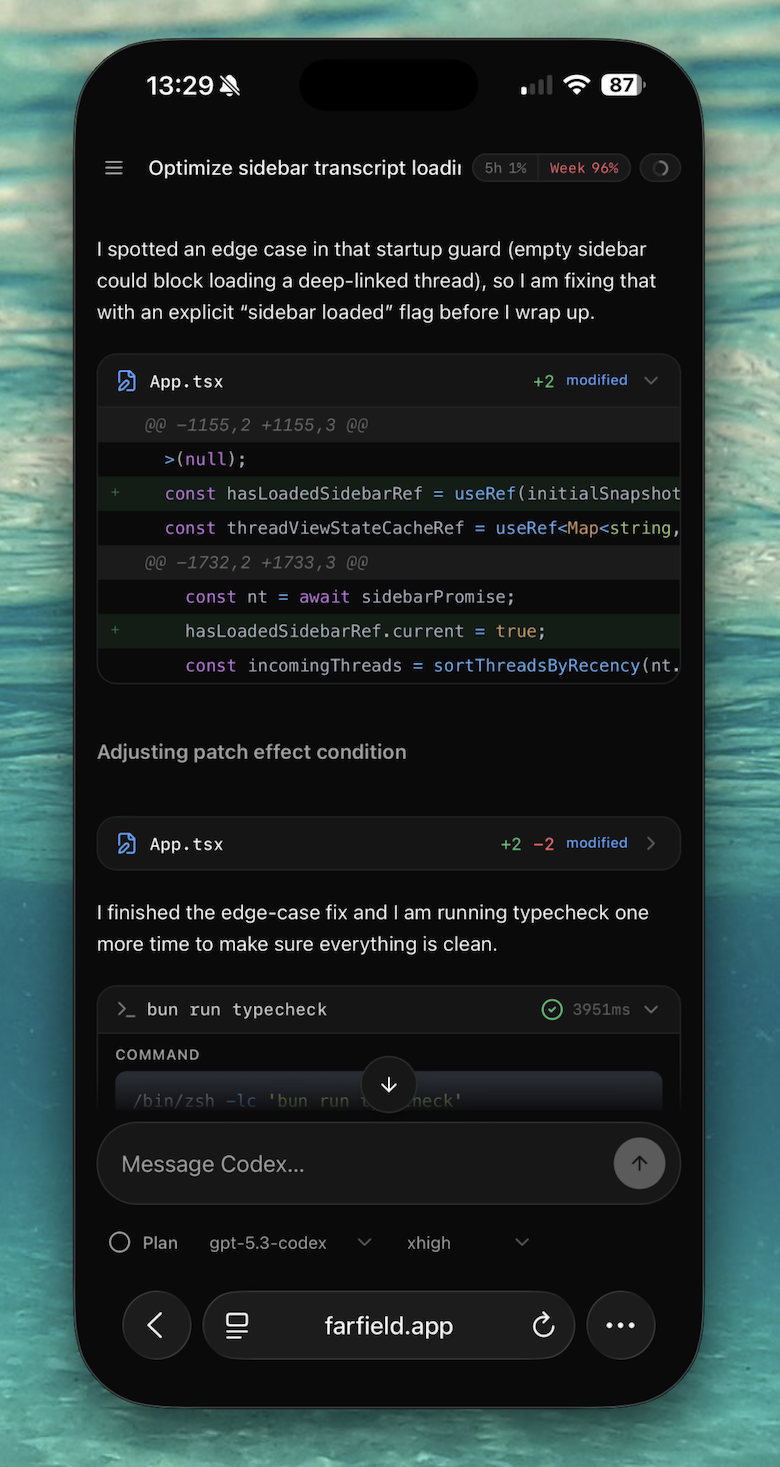
Features
- Thread browser grouped by project
- Chat view with model/reasoning controls
- Plan mode toggle
- Live agent monitoring and interrupts
- Debug tab with full IPC history
Quick start (recommended)
Start the Farfield server:
npx -y @farfield/server@latest
or:
bunx @farfield/server@latest
This runs the backend on 127.0.0.1:4311 by default.
You can pass server flags too to customize the agents (default is only Codex):
npx -y @farfield/server@latest -- --agents=opencode
npx -y @farfield/server@latest -- --agents=codex,opencode
npx -y @farfield/server@latest -- --agents=all
You can access the web app at farfield.app. Tap the bottom left status dot to pull up settings.
You will need to make port 4311 remotely accessible via HTTPS and give the public URL to it to the Farfield frontend. None of this routes through an external server. The app runs inside entirely in your browser and tunnels directly to the Farfield server you started above, and all of it is open-source for you to audit yourself. However, if you are ultra paranoid, you can run and host the Farfield frontend too; read on!
The securest way to open the port for remote access is by putting all devices involved in a private VPN. Tailscale is a free option that works.
Doing this with Tailscale is as simple as installing Tailscale on your phone, computer, etc., and running this command on the device hosting the Farfield server:
tailscale serve --https=443 http://127.0.0.1:4311
We are working on easier options. Stay tuned!
Running from source
Clone the repo and do this:
bun install
bun run server
bun run server runs only the backend on 0.0.0.0:4311.
If you need to pick agent providers:
bun run server -- --agents=opencode
bun run server -- --agents=codex,opencode
bun run server -- --agents=all
Warning: This exposes the Farfield server on your network. Only use on trusted networks. See below for how to configure Tailscale as a VPN for secure remote access.
Local development and self-hosted frontend
Use this if you are working on Farfield itself, or if you want to run both frontend and backend locally.
bun install
bun run dev
Opens local frontend at http://localhost:4312. By default dev does not expose the port, it's only accessible on your device.
More local dev options:
bun run dev -- --agents=opencode             # OpenCode only
bun run dev -- --agents=codex,opencode       # both
bun run dev -- --agents=all                  # expands to codex,opencode
bun run dev:remote                           # exposes frontend + backend on your network
bun run dev:remote -- --agents=opencode      # remote mode with OpenCode only
Warning:
dev:remoteexposes Farfield with no authentication. Only use on trusted networks.
Production Mode (No Extra Proxy)
Build once and run in production mode with two commands:
bun run build
bun run start
Open http://127.0.0.1:4312.
By default, this is local-only:
- backend on
127.0.0.1:4311 - frontend preview on
127.0.0.1:4312
If you need a custom backend origin for API proxying:
FARFIELD_API_ORIGIN=http://127.0.0.1:4311 bun run start
React Compiler and production profiling
Frontend build supports optional flags:
REACT_COMPILER=0disables React Compiler transform (compiler is enabled by default forvite build).REACT_PROFILING=1uses React profiling build so React DevTools Profiler works in production preview.DISABLE_RATE_LIMITS=1disables quota/rate-limit fetching and hides usage badges in the UI. Useful with custom Codex-compatible backends that do not implement account quota endpoints.
Example A/B commands:
# default production build (compiler enabled)
bun run --filter @farfield/web build

# baseline production build (compiler disabled)
REACT_COMPILER=0 bun run --filter @farfield/web build

# production profiling build (compiler enabled)
REACT_PROFILING=1 bun run --filter @farfield/web build

# production profiling build (compiler disabled)
REACT_PROFILING=1 REACT_COMPILER=0 bun run --filter @farfield/web build
Run two UIs side-by-side against one backend:
# backend (terminal 1)
bun run --filter @farfield/server start

# baseline UI (terminal 2, compiler disabled)
REACT_PROFILING=1 REACT_COMPILER=0 bun run --filter @farfield/web build -- --outDir dist-baseline
bun run --filter @farfield/web preview -- --host 127.0.0.1 --port 4312 --strictPort --outDir dist-baseline

# compiler UI (terminal 3, compiler enabled by default)
REACT_PROFILING=1 bun run --filter @farfield/web build -- --outDir dist-compiler
bun run --filter @farfield/web preview -- --host 127.0.0.1 --port 4313 --strictPort --outDir dist-compiler
Requirements
- Node.js 20+
- Bun 1.2+ (needed for source checkout workflow)
- Codex or OpenCode installed locally
More details on Tailscale setup
This is the detailed setup for the recommended model:
- Hosted frontend (
https://farfield.app) - Local Farfield server running on your machine
- Secure VPN path using Tailscale
You still need to run the server locally so it can talk to your coding agent.
1) Start the Farfield server on your machine
HOST=0.0.0.0 PORT=4311 bun run --filter @farfield/server dev
Quick local check:
curl http://127.0.0.1:4311/api/health
2) Put Tailscale HTTPS in front of port 4311
On the same machine:
tailscale serve --https=443 http://127.0.0.1:4311
tailscale serve status
This gives you a URL like:
https://<machine>.<tailnet>.ts.net
Check it from a device on your tailnet:
curl https://<machine>.<tailnet>.ts.net/api/health
3) Pair farfield.app to your server
- Visit farfield.app on your other device
- Click the status pill in the lower-left corner (green/red dot + commit hash) to open Settings.
- In Server, enter your Tailscale HTTPS URL, for example:
https://<machine>.<tailnet>.ts.net
(note: no port)
- Click Save.
Farfield stores this in browser storage and uses it for API calls and live event stream.
Notes
- Do not use raw tailnet IPs with
https://(for examplehttps://100.x.x.x:4311) in the browser; this won't work. - If you use
tailscale serve --https=443, do not include:4311in the URL you enter in Settings. - Use automatic in Settings clears the saved server URL and returns to built-in default behavior.
License
MIT
Contributors


Similar repos


Languages
TypeScript
94.0%
JavaScript
4.9%
Remote-control Codex or OpenCode agents from anywhere
TypeScript
368
273 commits
updated Apr 29, 2026
README
Farfield
Remote control for AI coding agents — read conversations, send messages, switch models, and monitor agent activity from a clean web UI.
Built by @anshuchimala.
This is an independent project and is not affiliated with, endorsed by, or sponsored by OpenAI or the OpenCode team.
Features
- Thread browser grouped by project
- Chat view with model/reasoning controls
- Plan mode toggle
- Live agent monitoring and interrupts
- Debug tab with full IPC history
Quick start (recommended)
Start the Farfield server:
npx -y @farfield/server@latest
or:
bunx @farfield/server@latest
This runs the backend on 127.0.0.1:4311 by default.
You can pass server flags too to customize the agents (default is only Codex):
npx -y @farfield/server@latest -- --agents=opencode
npx -y @farfield/server@latest -- --agents=codex,opencode
npx -y @farfield/server@latest -- --agents=all
You can access the web app at farfield.app. Tap the bottom left status dot to pull up settings.
You will need to make port 4311 remotely accessible via HTTPS and give the public URL to it to the Farfield frontend. None of this routes through an external server. The app runs inside entirely in your browser and tunnels directly to the Farfield server you started above, and all of it is open-source for you to audit yourself. However, if you are ultra paranoid, you can run and host the Farfield frontend too; read on!
The securest way to open the port for remote access is by putting all devices involved in a private VPN. Tailscale is a free option that works.
Doing this with Tailscale is as simple as installing Tailscale on your phone, computer, etc., and running this command on the device hosting the Farfield server:
tailscale serve --https=443 http://127.0.0.1:4311
We are working on easier options. Stay tuned!
Running from source
Clone the repo and do this:
bun install
bun run server
bun run server runs only the backend on 0.0.0.0:4311.
If you need to pick agent providers:
bun run server -- --agents=opencode
bun run server -- --agents=codex,opencode
bun run server -- --agents=all
Warning: This exposes the Farfield server on your network. Only use on trusted networks. See below for how to configure Tailscale as a VPN for secure remote access.
Local development and self-hosted frontend
Use this if you are working on Farfield itself, or if you want to run both frontend and backend locally.
bun install
bun run dev
Opens local frontend at http://localhost:4312. By default dev does not expose the port, it's only accessible on your device.
More local dev options:
bun run dev -- --agents=opencode             # OpenCode only
bun run dev -- --agents=codex,opencode       # both
bun run dev -- --agents=all                  # expands to codex,opencode
bun run dev:remote                           # exposes frontend + backend on your network
bun run dev:remote -- --agents=opencode      # remote mode with OpenCode only
Warning:
dev:remoteexposes Farfield with no authentication. Only use on trusted networks.
Production Mode (No Extra Proxy)
Build once and run in production mode with two commands:
bun run build
bun run start
Open http://127.0.0.1:4312.
By default, this is local-only:
- backend on
127.0.0.1:4311 - frontend preview on
127.0.0.1:4312
If you need a custom backend origin for API proxying:
FARFIELD_API_ORIGIN=http://127.0.0.1:4311 bun run start
React Compiler and production profiling
Frontend build supports optional flags:
REACT_COMPILER=0disables React Compiler transform (compiler is enabled by default forvite build).REACT_PROFILING=1uses React profiling build so React DevTools Profiler works in production preview.DISABLE_RATE_LIMITS=1disables quota/rate-limit fetching and hides usage badges in the UI. Useful with custom Codex-compatible backends that do not implement account quota endpoints.
Example A/B commands:
# default production build (compiler enabled)
bun run --filter @farfield/web build

# baseline production build (compiler disabled)
REACT_COMPILER=0 bun run --filter @farfield/web build

# production profiling build (compiler enabled)
REACT_PROFILING=1 bun run --filter @farfield/web build

# production profiling build (compiler disabled)
REACT_PROFILING=1 REACT_COMPILER=0 bun run --filter @farfield/web build
Run two UIs side-by-side against one backend:
# backend (terminal 1)
bun run --filter @farfield/server start

# baseline UI (terminal 2, compiler disabled)
REACT_PROFILING=1 REACT_COMPILER=0 bun run --filter @farfield/web build -- --outDir dist-baseline
bun run --filter @farfield/web preview -- --host 127.0.0.1 --port 4312 --strictPort --outDir dist-baseline

# compiler UI (terminal 3, compiler enabled by default)
REACT_PROFILING=1 bun run --filter @farfield/web build -- --outDir dist-compiler
bun run --filter @farfield/web preview -- --host 127.0.0.1 --port 4313 --strictPort --outDir dist-compiler
Requirements
- Node.js 20+
- Bun 1.2+ (needed for source checkout workflow)
- Codex or OpenCode installed locally
More details on Tailscale setup
This is the detailed setup for the recommended model:
- Hosted frontend (
https://farfield.app) - Local Farfield server running on your machine
- Secure VPN path using Tailscale
You still need to run the server locally so it can talk to your coding agent.
1) Start the Farfield server on your machine
HOST=0.0.0.0 PORT=4311 bun run --filter @farfield/server dev
Quick local check:
curl http://127.0.0.1:4311/api/health
2) Put Tailscale HTTPS in front of port 4311
On the same machine:
tailscale serve --https=443 http://127.0.0.1:4311
tailscale serve status
This gives you a URL like:
https://<machine>.<tailnet>.ts.net
Check it from a device on your tailnet:
curl https://<machine>.<tailnet>.ts.net/api/health
3) Pair farfield.app to your server
- Visit farfield.app on your other device
- Click the status pill in the lower-left corner (green/red dot + commit hash) to open Settings.
- In Server, enter your Tailscale HTTPS URL, for example:
https://<machine>.<tailnet>.ts.net
(note: no port)
- Click Save.
Farfield stores this in browser storage and uses it for API calls and live event stream.
Notes
- Do not use raw tailnet IPs with
https://(for examplehttps://100.x.x.x:4311) in the browser; this won't work. - If you use
tailscale serve --https=443, do not include:4311in the URL you enter in Settings. - Use automatic in Settings clears the saved server URL and returns to built-in default behavior.
License
MIT
Similar repos
Contributors
Languages
TypeScript
94.0%
JavaScript
4.9%