[DEPRECATED] A minimal dark Theme for Sublime Text 2 and 3
See the code
Afterglow is a minimal dark Theme for Sublime Text 2 and 3. Also it is a syntax color scheme. The theme is based on the great theme Spacegray. The syntax color scheme is mostly derived from idlefingers.
Special thanks to Max Riveiro @kavu for add a lot of icons for sidebar to this repository.
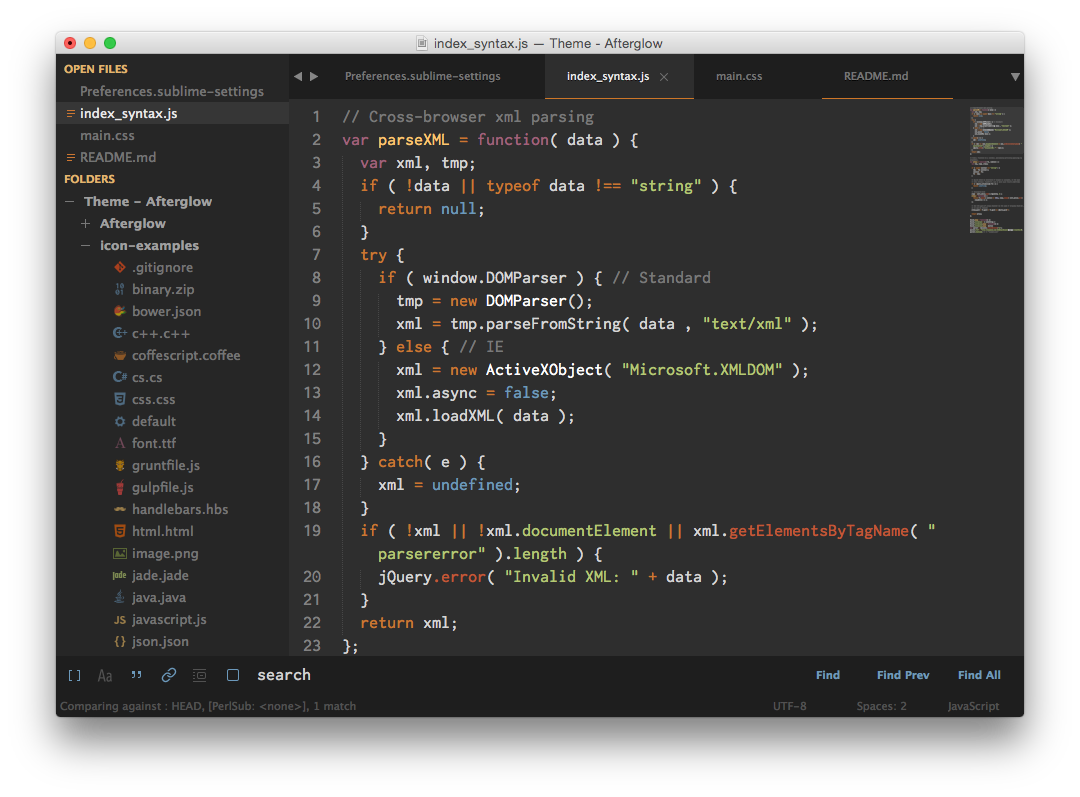
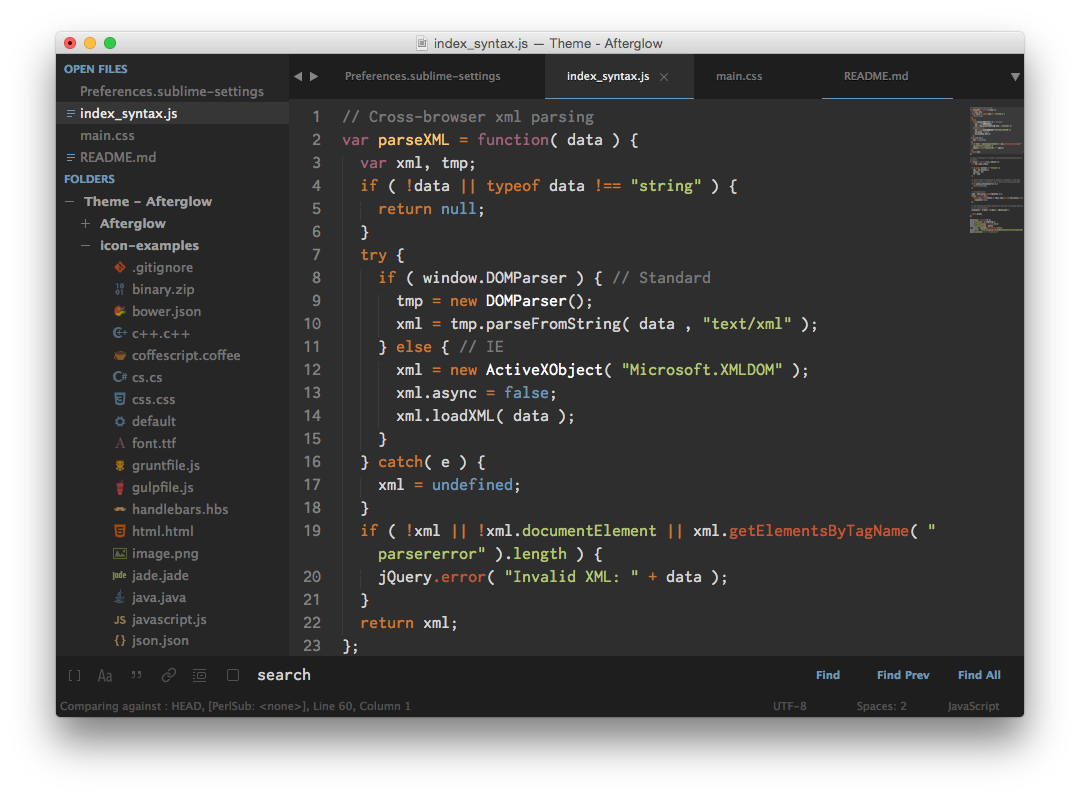
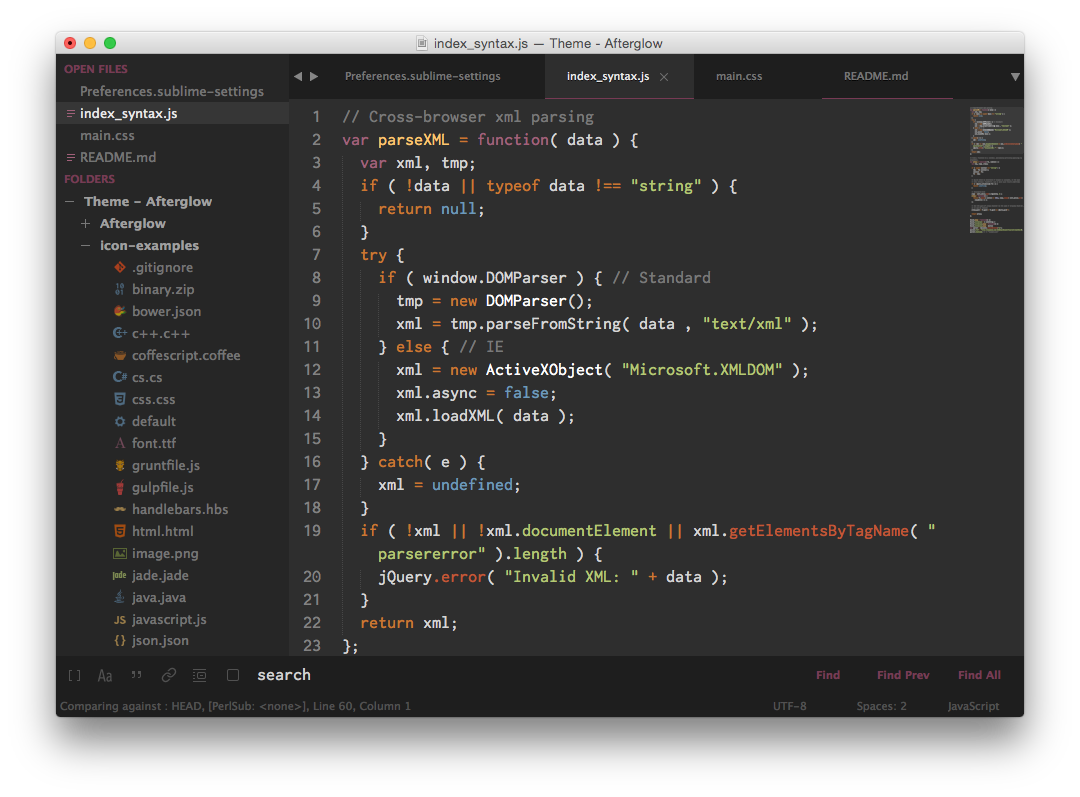
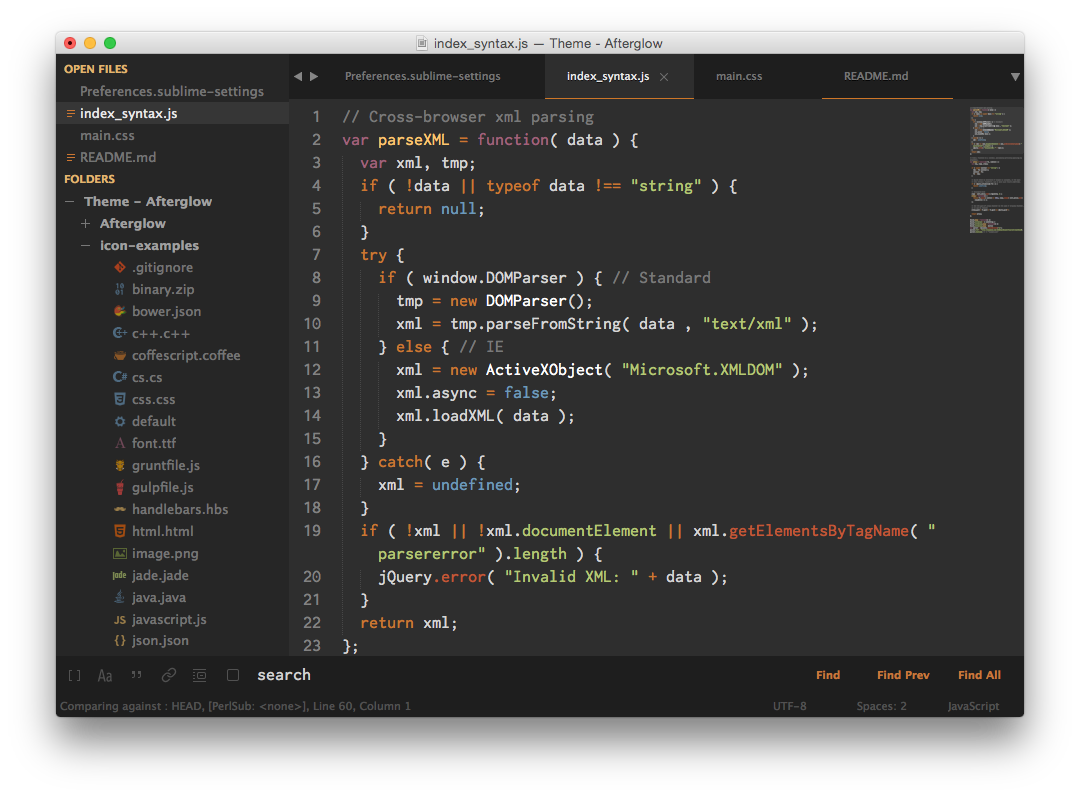
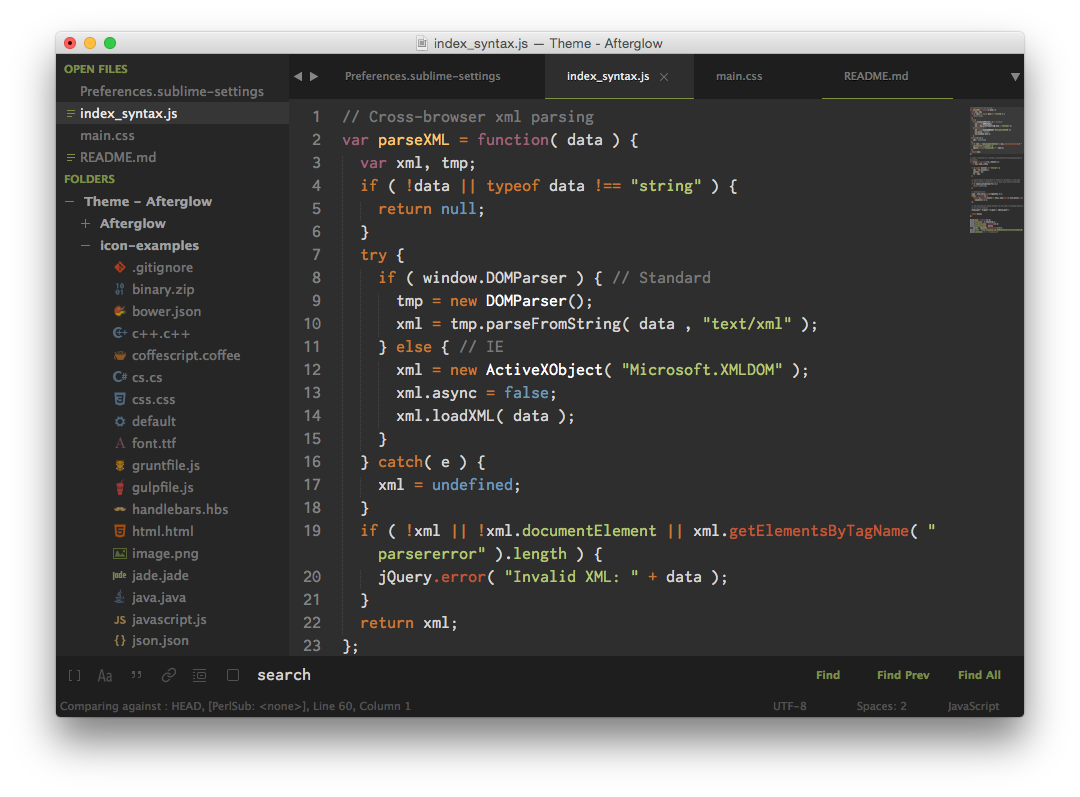
The font used in the screenshots is Inconsolata -g.
The easiest way to install is using Sublime Package Control.
Command Palette using menu item Tools -> Command Palette..., or Cmd+Shift+P (OS X) Ctrl+Shift+P (Win/Linux)Package Control: Install PackageTheme - AfterglowLocate your Sublime Text Packages directory by using the menu item Preferences -> Browse Packages....
Then, clone the repository using this command:
git clone https://github.com/Yabatadesign/afterglow-theme/ "Theme - Afterglow"
Theme - AfterglowPackages directory using the menu item Preferences -> Browse Packages...Packages directory.Activate this theme and color scheme by modifying your user preferences file, which you can find using the menu item Sublime Text -> Preferences -> Settings - User.
Then add the following code settings, depending on the theme you choose. (After activating the theme, you must restart Sublime Text.)
{
    "theme": "Afterglow.sublime-theme",
    "color_scheme": "Packages/Theme - Afterglow/Afterglow.tmTheme"
}
{
    "theme": "Afterglow-blue.sublime-theme",
    "color_scheme": "Packages/Theme - Afterglow/Afterglow.tmTheme"
}
{
    "theme": "Afterglow-magenta.sublime-theme",
    "color_scheme": "Packages/Theme - Afterglow/Afterglow.tmTheme"
}
{
    "theme": "Afterglow-orange.sublime-theme",
    "color_scheme": "Packages/Theme - Afterglow/Afterglow.tmTheme"
}
{
    "theme": "Afterglow-green.sublime-theme",
    "color_scheme": "Packages/Theme - Afterglow/Afterglow.tmTheme"
}
New: Now Afterglow theme support sidebar icons.
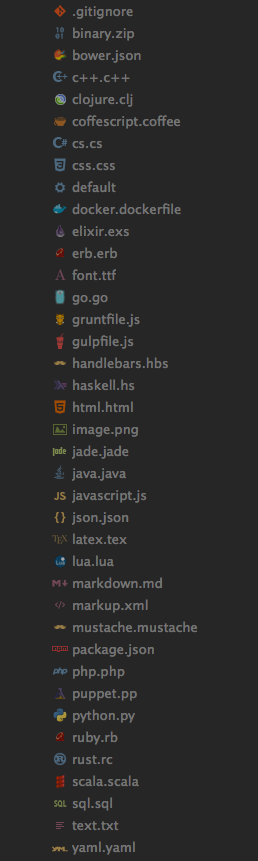
Don't like the icons? Just add this to your preferences file Sublime Text -> Preferences -> Settings - User:
{
    "sidebar_no_icon": true
}
Don't like the folder icon? Just add this to your preferences file Sublime Text -> Preferences -> Settings - User:
{
    "folder_no_icon": true
}
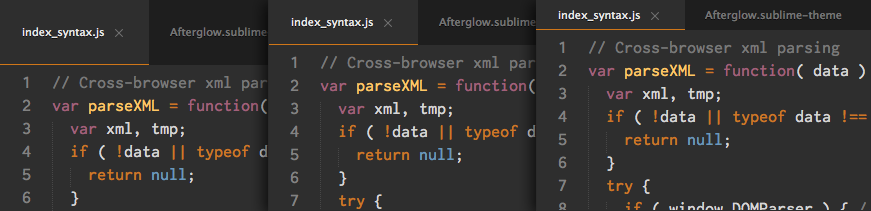
You can change the height of the file tabs (medium or small) by adding either to your preferences file Sublime Text -> Preferences -> Settings - User:
{
    "tabs_medium": true
}
or
{
    "tabs_small": true
}
You can change the font size of the sidebar and the row padding.
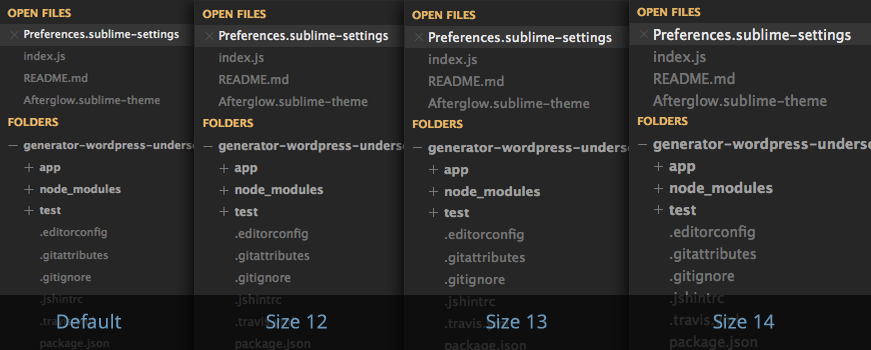
To change the font size (12, 13 or 14; default size is 11), you must add this to your preferences file Sublime Text -> Preferences -> Settings - User:
{
    "sidebar_size_12": true
}
or
{
    "sidebar_size_13": true
}
or
{
    "sidebar_size_14": true
}
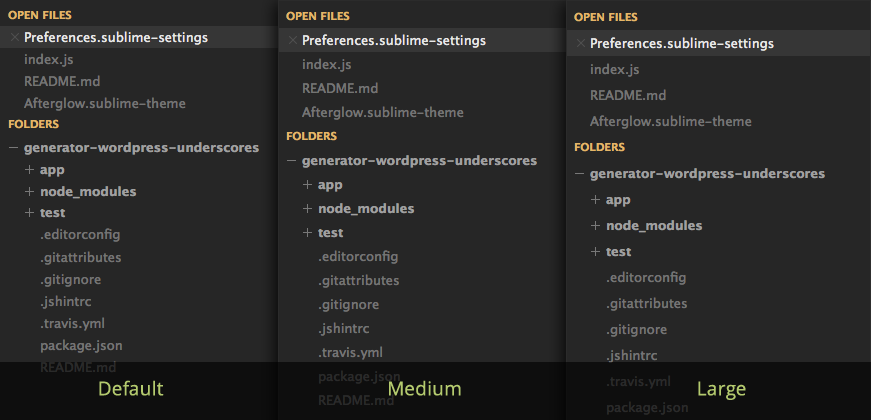
To change the row padding (medium or large), you must add this to your preferences file Sublime Text -> Preferences -> Settings - User:
{
    "sidebar_row_padding_medium": true
}
or
{
    "sidebar_row_padding_large": true
}
To change the font size (12, 13 or 14; default size is 11), you must add this to your preferences file Sublime Text -> Preferences -> Settings - User:
{
    "statusbar_size_12": true
}
or
{
    "statusbar_size_13": true
}
or
{
    "statusbar_size_14": true
}
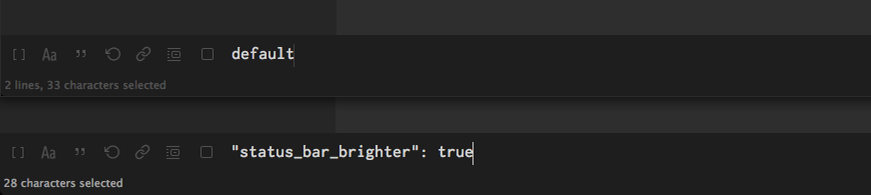
If you prefer that the status bar has a brighter color, you have to add this in your user preferences file Sublime Text -> Preferences -> Settings - User:
{
    "status_bar_brighter": true
}
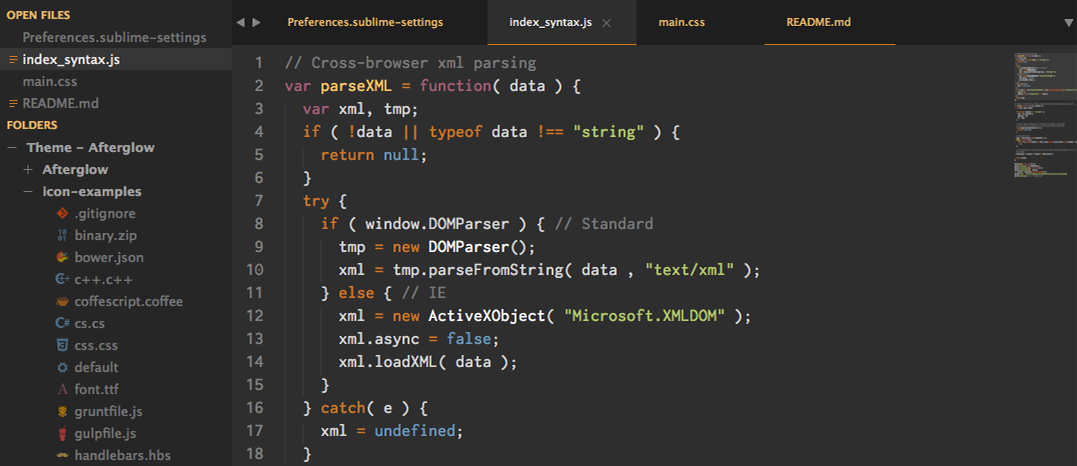
You can highlight the color of inactive tabs, adding this to the user preferences file Sublime Text -> Preferences -> Settings - User:
{
    "color_inactive_tabs": true
}
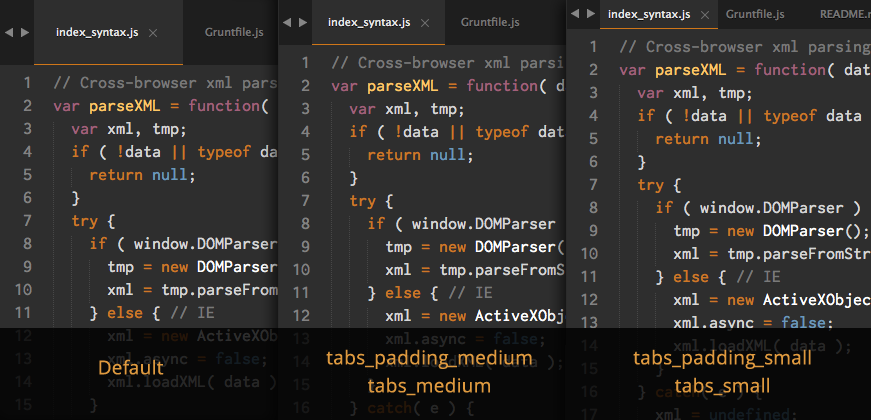
Through the user preferences file, you can modify the horizontal padding of tabs. It works on all three types of height tabs (default, "tabs_medium" and "tabs_small").
You must add this to your user preferences file Sublime Text -> Preferences -> Settings - User:
{
    "tabs_padding_medium": true
}
or
{
    "tabs_padding_small": true
}
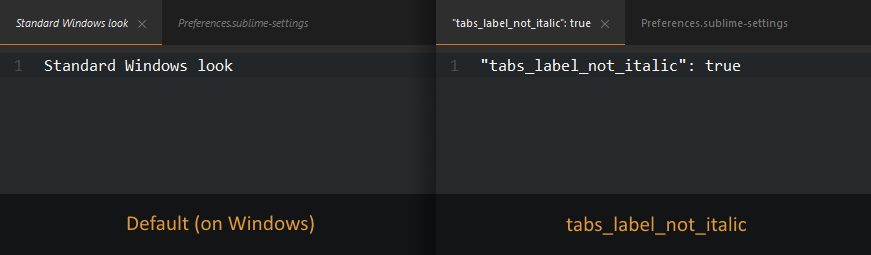
On Windows, tab labels are displayed in italic font. If you don't like that, you can add this to the user preferences file Sublime Text -> Preferences -> Settings - User:
{
    "tabs_label_not_italic": true
}
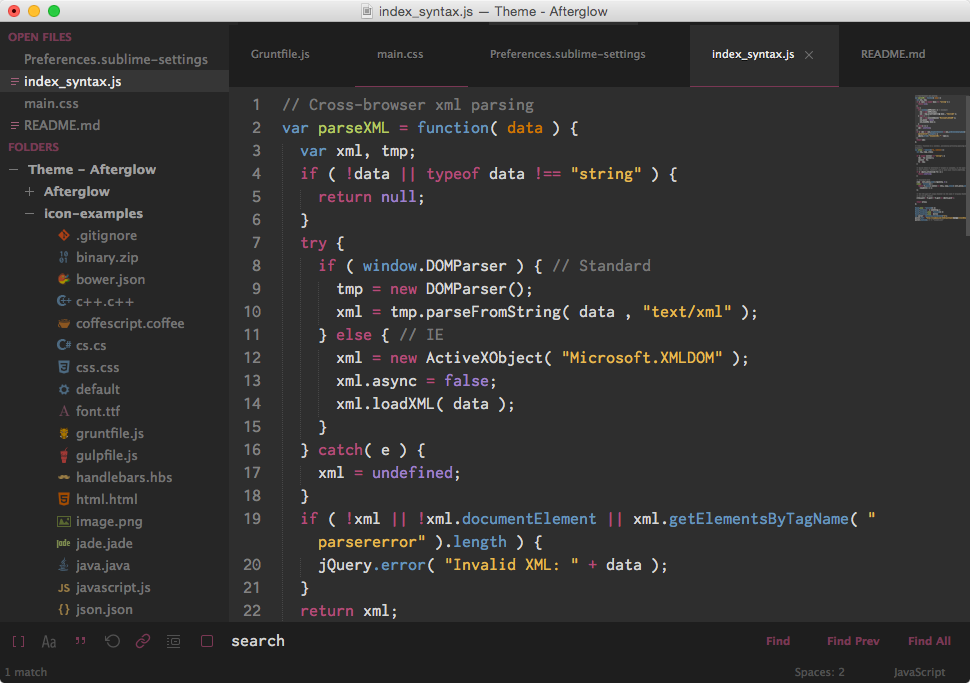
Besides color scheme by default, you can use the color scheme Afterglow - Monokai based on the original Monokai, slightly modified to be consistent with the Theme colors.
You must add this in your user preferences file Sublime Text -> Preferences -> Settings - User:
{
    "color_scheme": "Packages/Theme - Afterglow/Afterglow-monokai.tmTheme"
}
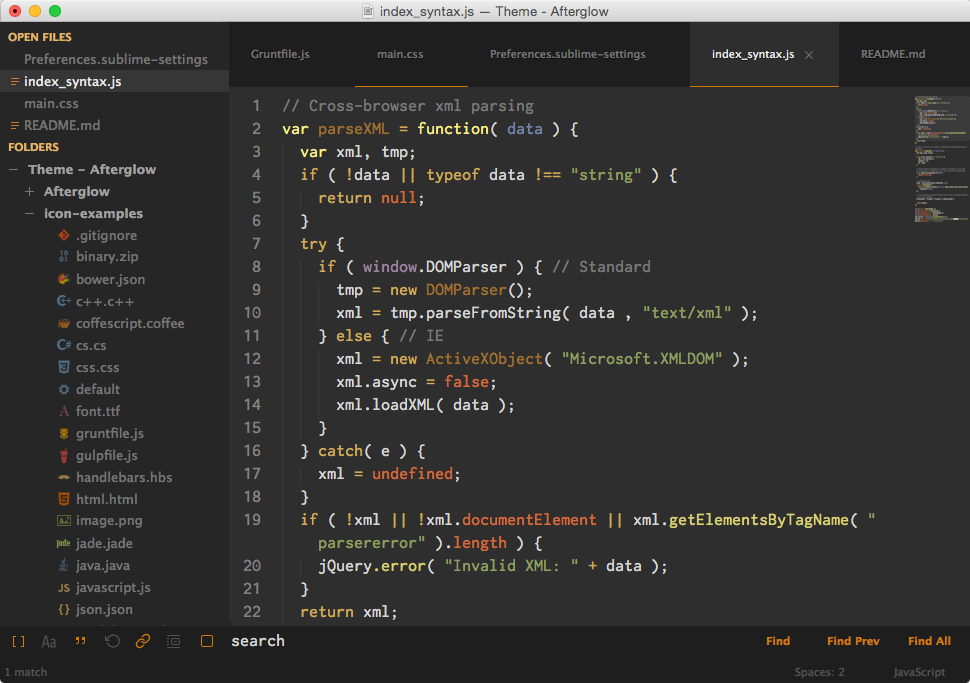
If you prefer, you can use the color scheme Afterglow - Twilight (very slightly modified from the original), adding this to the user preferences file Sublime Text -> Preferences -> Settings - User:
{
    "color_scheme": "Packages/Theme - Afterglow/Afterglow-twilight.tmTheme"
}
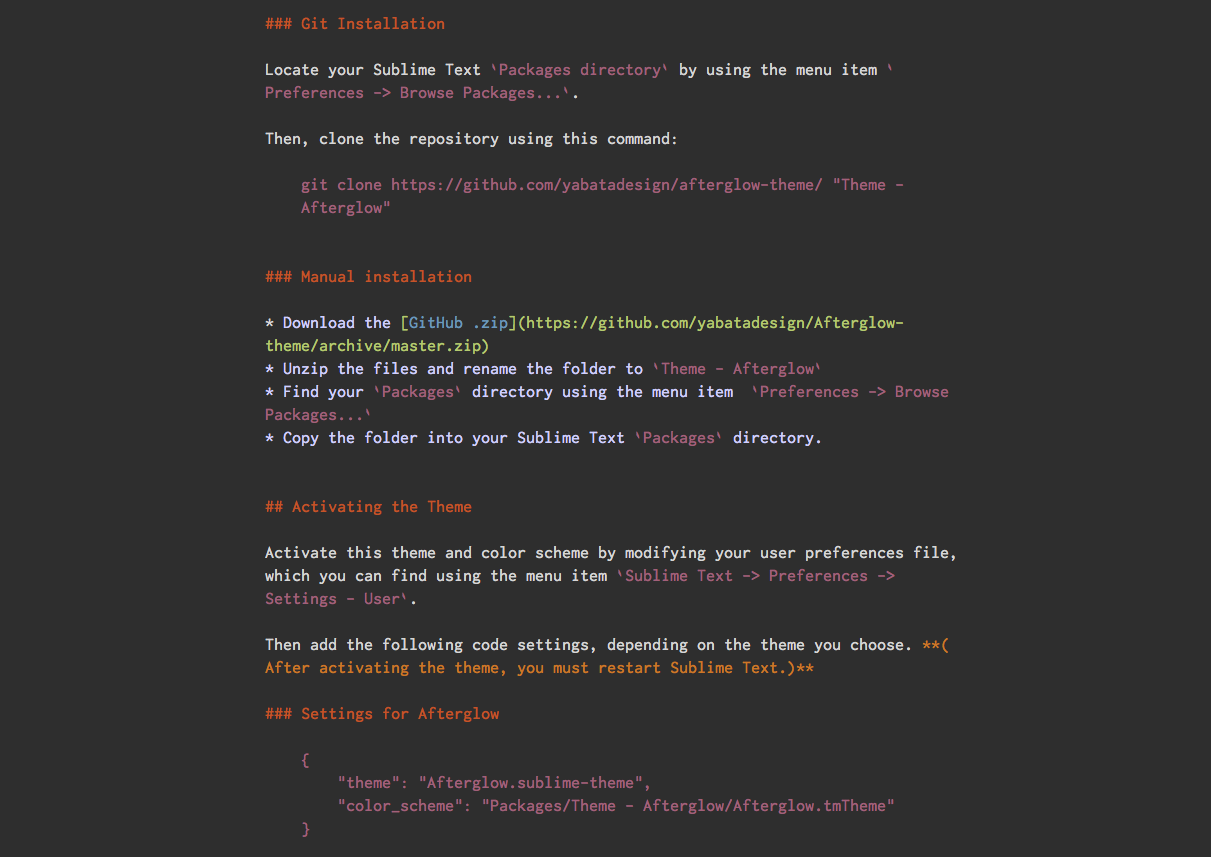
NEW: This color scheme support Github Flavored Markdown.
(I highly recommend installing Sublime Markdown Extending plugin.)
First, open a markdown(.md) file, then navigate to Sublime Text -> Preferences -> Settings - More -> Syntax Specific - User in the menu bar.
Add to your current settings or replace with the following:
{
    "color_scheme": "Packages/Theme - Afterglow/Afterglow-markdown.tmTheme",
    "draw_centered": true,
    "draw_indent_guides": false,
    "trim_trailing_white_space_on_save": false,
    "word_wrap": true,
    "wrap_width": 80  // Sets the # of characters per line
}
You can also download a replacement icon for Sublime Text here.

Afterglow Theme support retina display.
9,086 followers · starred Apr 2014
1,232 followers · starred Sep 2016
2,148 followers · starred Mar 2015
1,600 followers · starred Apr 2014
[DEPRECATED] A minimal dark Theme for Sublime Text 2 and 3
See the code
Afterglow is a minimal dark Theme for Sublime Text 2 and 3. Also it is a syntax color scheme. The theme is based on the great theme Spacegray. The syntax color scheme is mostly derived from idlefingers.
Special thanks to Max Riveiro @kavu for add a lot of icons for sidebar to this repository.
The font used in the screenshots is Inconsolata -g.
The easiest way to install is using Sublime Package Control.
Command Palette using menu item Tools -> Command Palette..., or Cmd+Shift+P (OS X) Ctrl+Shift+P (Win/Linux)Package Control: Install PackageTheme - AfterglowLocate your Sublime Text Packages directory by using the menu item Preferences -> Browse Packages....
Then, clone the repository using this command:
git clone https://github.com/Yabatadesign/afterglow-theme/ "Theme - Afterglow"
Theme - AfterglowPackages directory using the menu item Preferences -> Browse Packages...Packages directory.Activate this theme and color scheme by modifying your user preferences file, which you can find using the menu item Sublime Text -> Preferences -> Settings - User.
Then add the following code settings, depending on the theme you choose. (After activating the theme, you must restart Sublime Text.)
{
    "theme": "Afterglow.sublime-theme",
    "color_scheme": "Packages/Theme - Afterglow/Afterglow.tmTheme"
}
{
    "theme": "Afterglow-blue.sublime-theme",
    "color_scheme": "Packages/Theme - Afterglow/Afterglow.tmTheme"
}
{
    "theme": "Afterglow-magenta.sublime-theme",
    "color_scheme": "Packages/Theme - Afterglow/Afterglow.tmTheme"
}
{
    "theme": "Afterglow-orange.sublime-theme",
    "color_scheme": "Packages/Theme - Afterglow/Afterglow.tmTheme"
}
{
    "theme": "Afterglow-green.sublime-theme",
    "color_scheme": "Packages/Theme - Afterglow/Afterglow.tmTheme"
}
New: Now Afterglow theme support sidebar icons.
Don't like the icons? Just add this to your preferences file Sublime Text -> Preferences -> Settings - User:
{
    "sidebar_no_icon": true
}
Don't like the folder icon? Just add this to your preferences file Sublime Text -> Preferences -> Settings - User:
{
    "folder_no_icon": true
}
You can change the height of the file tabs (medium or small) by adding either to your preferences file Sublime Text -> Preferences -> Settings - User:
{
    "tabs_medium": true
}
or
{
    "tabs_small": true
}
You can change the font size of the sidebar and the row padding.
To change the font size (12, 13 or 14; default size is 11), you must add this to your preferences file Sublime Text -> Preferences -> Settings - User:
{
    "sidebar_size_12": true
}
or
{
    "sidebar_size_13": true
}
or
{
    "sidebar_size_14": true
}
To change the row padding (medium or large), you must add this to your preferences file Sublime Text -> Preferences -> Settings - User:
{
    "sidebar_row_padding_medium": true
}
or
{
    "sidebar_row_padding_large": true
}
To change the font size (12, 13 or 14; default size is 11), you must add this to your preferences file Sublime Text -> Preferences -> Settings - User:
{
    "statusbar_size_12": true
}
or
{
    "statusbar_size_13": true
}
or
{
    "statusbar_size_14": true
}
If you prefer that the status bar has a brighter color, you have to add this in your user preferences file Sublime Text -> Preferences -> Settings - User:
{
    "status_bar_brighter": true
}
You can highlight the color of inactive tabs, adding this to the user preferences file Sublime Text -> Preferences -> Settings - User:
{
    "color_inactive_tabs": true
}
Through the user preferences file, you can modify the horizontal padding of tabs. It works on all three types of height tabs (default, "tabs_medium" and "tabs_small").
You must add this to your user preferences file Sublime Text -> Preferences -> Settings - User:
{
    "tabs_padding_medium": true
}
or
{
    "tabs_padding_small": true
}
On Windows, tab labels are displayed in italic font. If you don't like that, you can add this to the user preferences file Sublime Text -> Preferences -> Settings - User:
{
    "tabs_label_not_italic": true
}
Besides color scheme by default, you can use the color scheme Afterglow - Monokai based on the original Monokai, slightly modified to be consistent with the Theme colors.
You must add this in your user preferences file Sublime Text -> Preferences -> Settings - User:
{
    "color_scheme": "Packages/Theme - Afterglow/Afterglow-monokai.tmTheme"
}
If you prefer, you can use the color scheme Afterglow - Twilight (very slightly modified from the original), adding this to the user preferences file Sublime Text -> Preferences -> Settings - User:
{
    "color_scheme": "Packages/Theme - Afterglow/Afterglow-twilight.tmTheme"
}
NEW: This color scheme support Github Flavored Markdown.
(I highly recommend installing Sublime Markdown Extending plugin.)
First, open a markdown(.md) file, then navigate to Sublime Text -> Preferences -> Settings - More -> Syntax Specific - User in the menu bar.
Add to your current settings or replace with the following:
{
    "color_scheme": "Packages/Theme - Afterglow/Afterglow-markdown.tmTheme",
    "draw_centered": true,
    "draw_indent_guides": false,
    "trim_trailing_white_space_on_save": false,
    "word_wrap": true,
    "wrap_width": 80  // Sets the # of characters per line
}
You can also download a replacement icon for Sublime Text here.
Afterglow Theme support retina display.
9,086 followers · starred Apr 2014
1,232 followers · starred Sep 2016
2,148 followers · starred Mar 2015
1,600 followers · starred Apr 2014