

Your music library, your rules.
A self-hosted web app that enforces your personal genre definitions across your music library. You decide each artist's genre once; the app writes it to the GENRE tag of every file by that artist. No more Hip Hop / Hiphop / Hip-hop / Rap / Boom Bap scattered across the same artist's albums, and no outsourcing a subjective opinion to MusicBrainz or Last.fm.
It runs as a single Docker container: a small Python (FastAPI) backend that does the work and serves the web UI. It is not a MusicBrainz Picard plugin. Tag with Picard (or anything else) first, then let this overwrite the genre field afterwards.
You need Docker with Compose, and a music library laid out as in How it works. The image is currently built for linux/amd64 only.
docker compose (recommended). Save as compose.yaml:
services:
  music-genre-enforcer:
    image: wb20244/music-genre-enforcer:latest
    container_name: music-genre-enforcer
    user: "1000:1000"                 # a user that can WRITE to your music files
    environment:
      - TZ=Europe/London              # optional
    volumes:
      - ./config:/config              # your definitions, settings, history, backups
      - /path/to/your/music:/music    # your library (must be writable)
    ports:
      - 8320:8320
    restart: unless-stopped
docker compose up -d
or plain docker run:
docker run -d --name music-genre-enforcer --restart unless-stopped \
  --user 1000:1000 -p 8320:8320 \
  -v "$PWD/config:/config" -v /path/to/your/music:/music \
  wb20244/music-genre-enforcer:latest
Then open http://<your-host>:8320.
| Setting | What it is |
|---|---|
/music | Your library. Mount it read-write; tags are written in place. |
/config | Everything the app saves (see Config & data). Keep this on persistent storage. |
user: | Must match a user that owns/can write your music files (find yours with id). Run ls -ln on your library to see the owner's numeric uid/gid. |
8320 | Web UI port. |
⚠️ There is no login. The app writes tags to your library, so keep it on your LAN or put it behind a reverse proxy with authentication. Do not expose it to the internet.
/music, change Settings → Library path.artist_genres.json (from the old terminal version, or another install)? Go to Import / Export and upload it. You get a preview of what will be added or changed, and a backup is taken when you commit.docker compose pull && docker compose up -d
Your settings and definitions live in /config, so they survive updates. If a run is in progress, wait for it to finish first: restarting the container stops it.
(Demo library with example artists.)
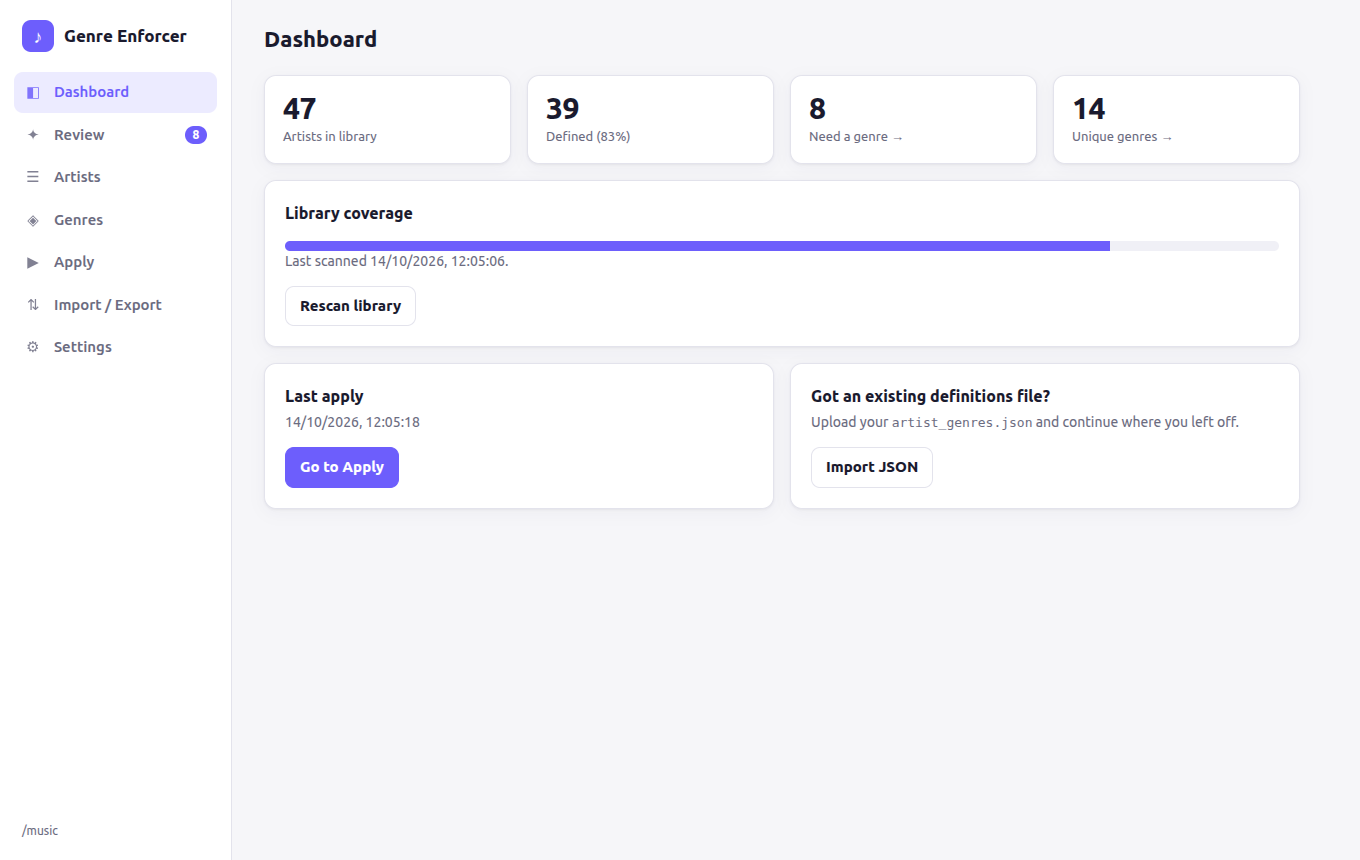
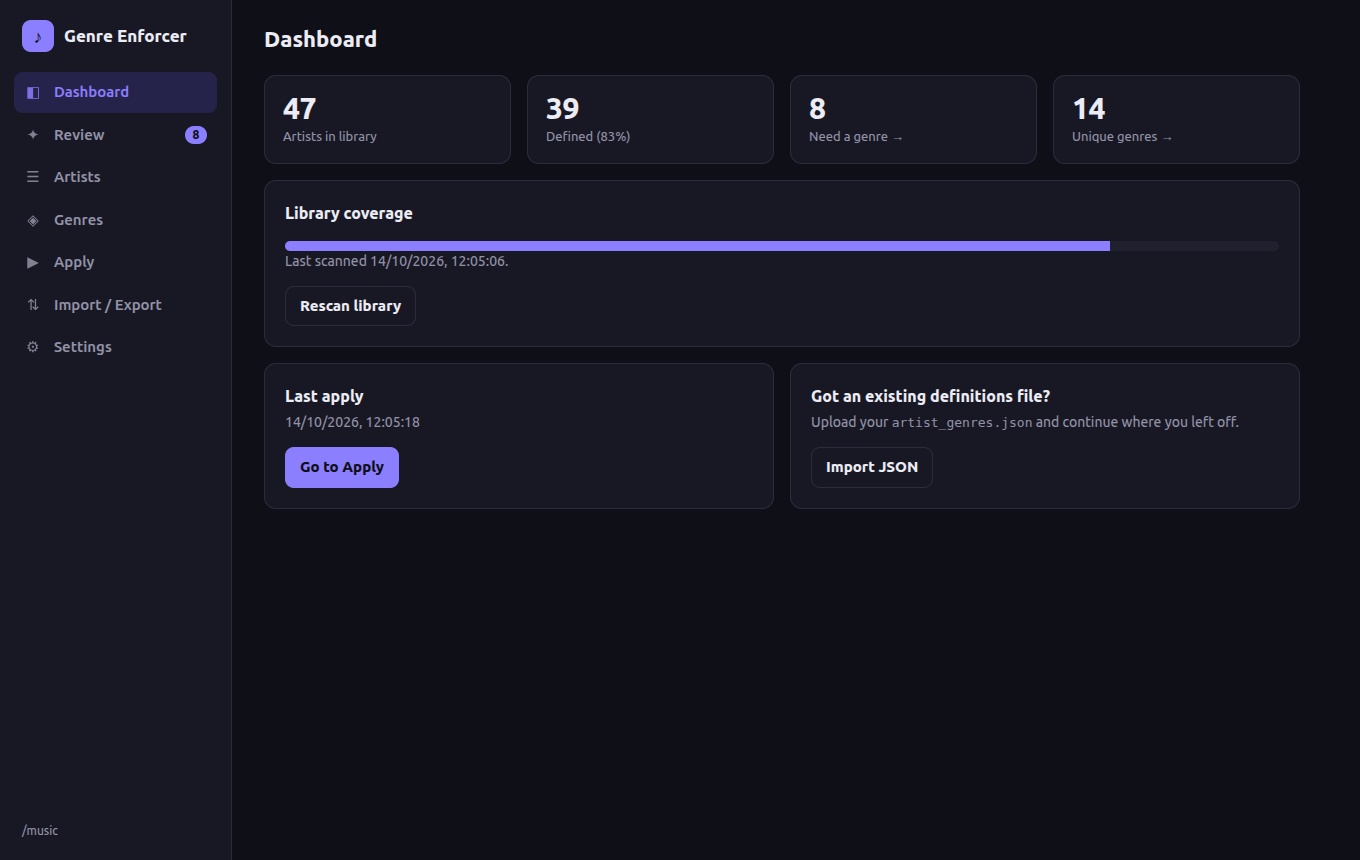
Dashboard — library coverage at a glance, in light and dark.
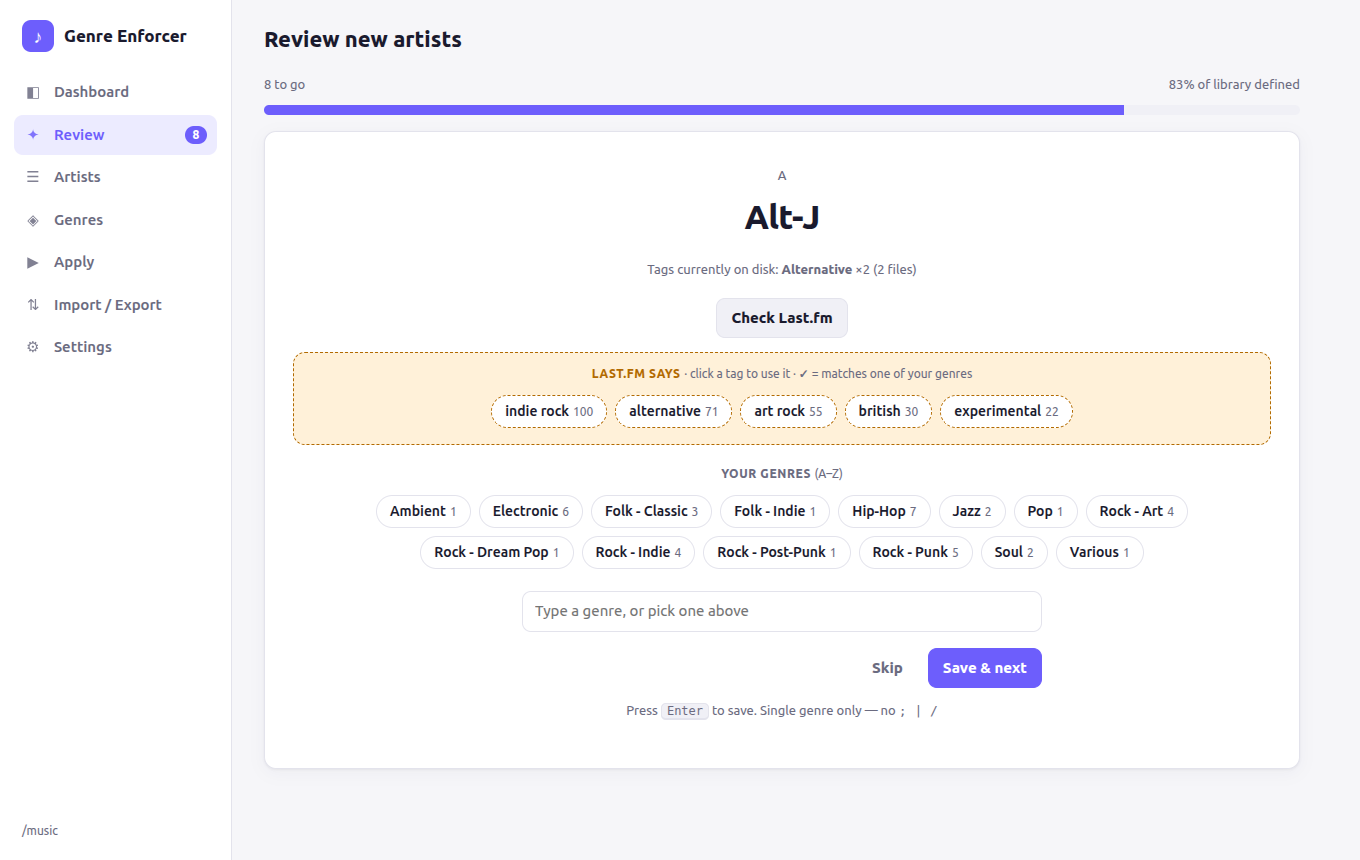
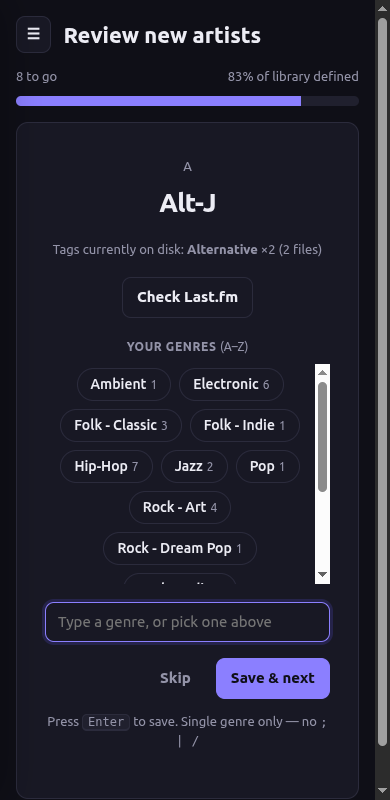
Review — define new artists one at a time. See the tags already on disk, pick from your own genres (A–Z), or click Check Last.fm (optional API key) for suggestions, shown in their own panel so they never get mixed up with your genres.
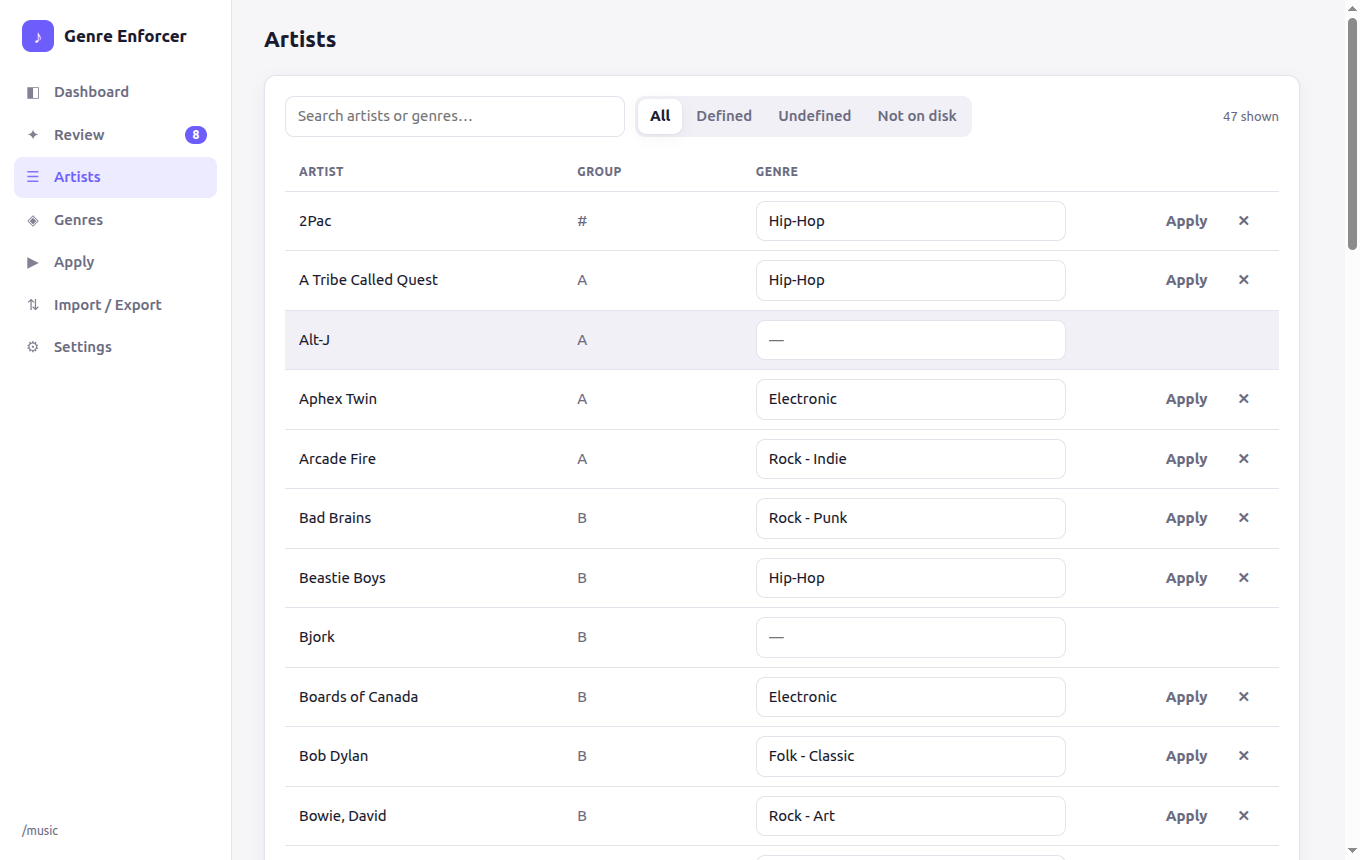
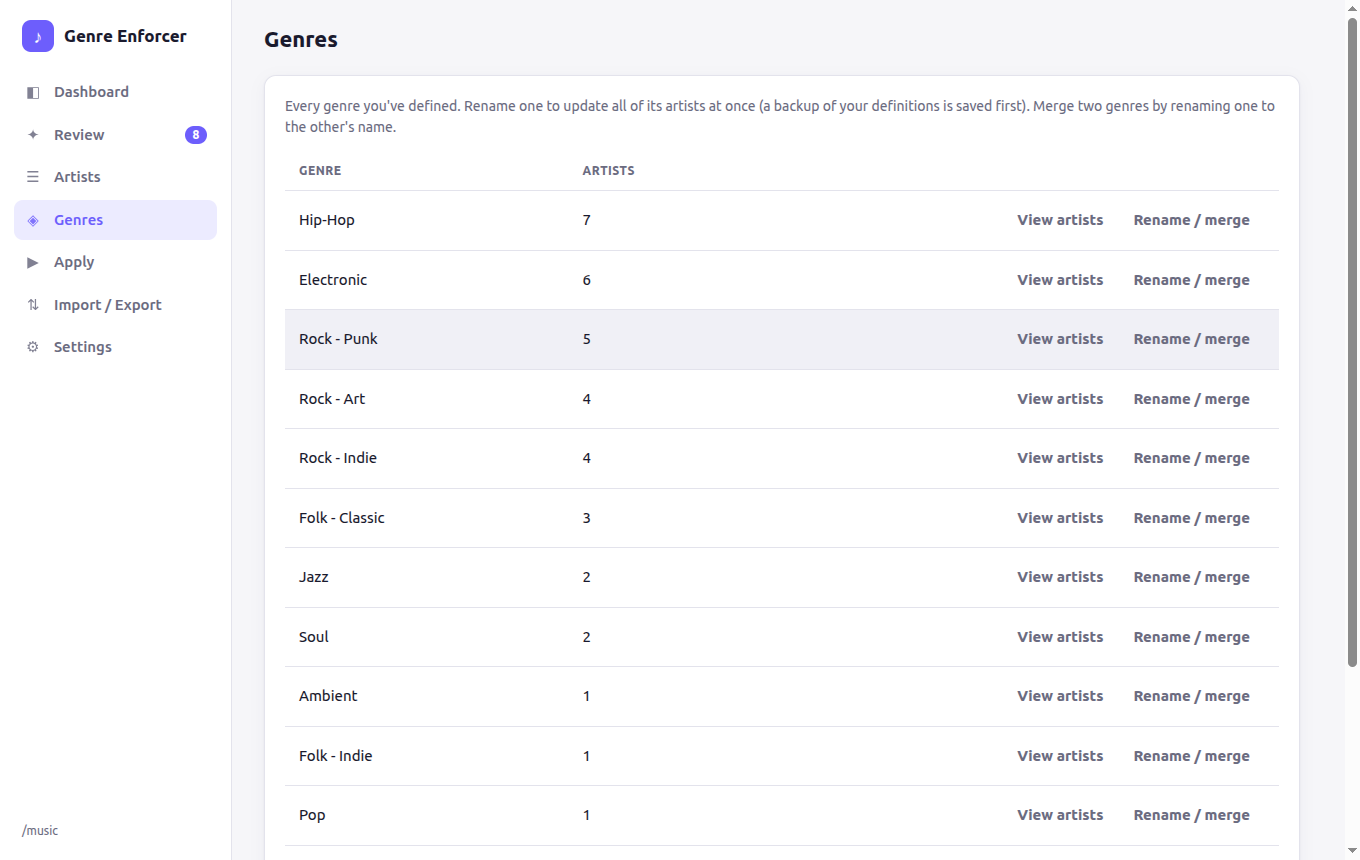
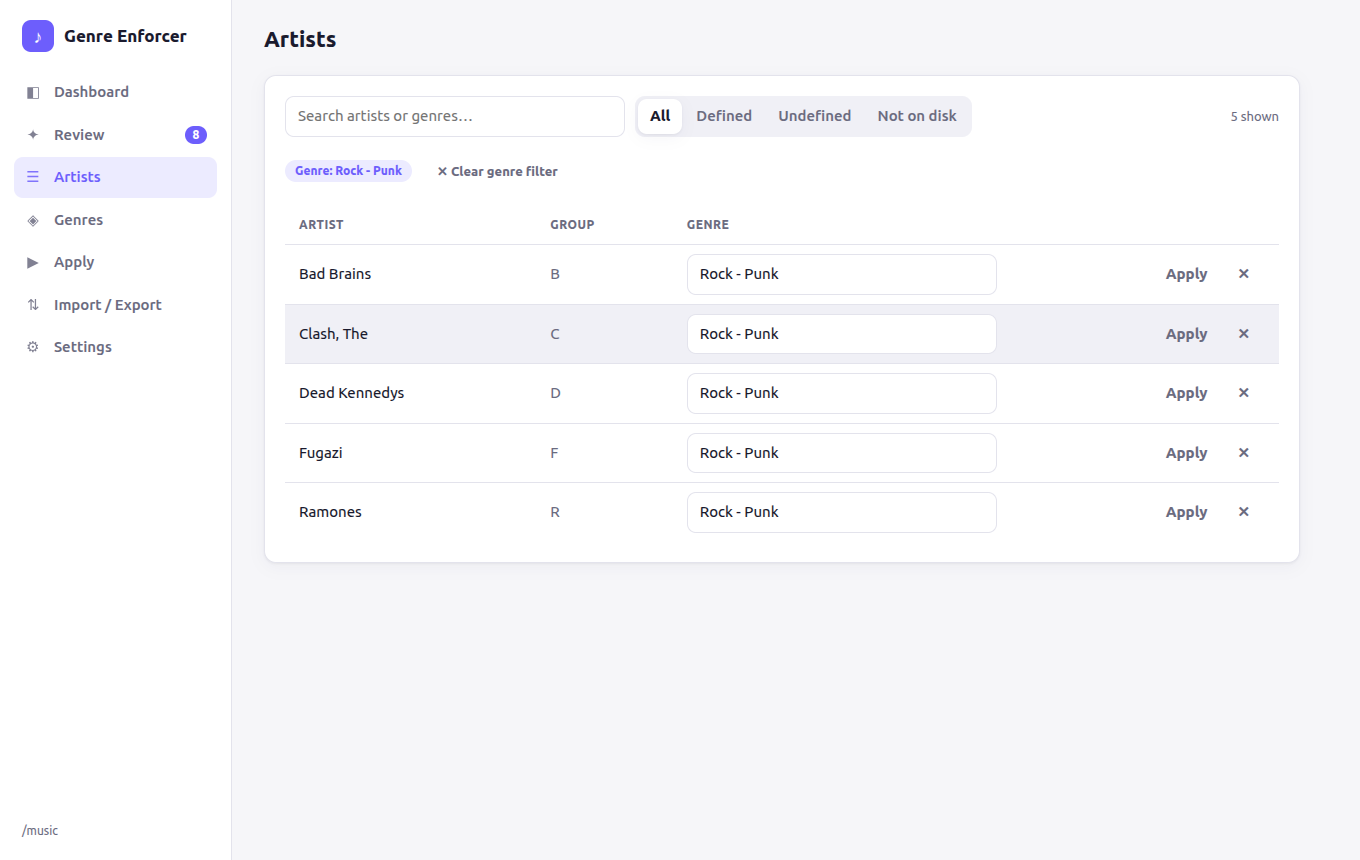
Artists & Genres — edit inline, filter by exact genre, rename or merge a genre across every artist.
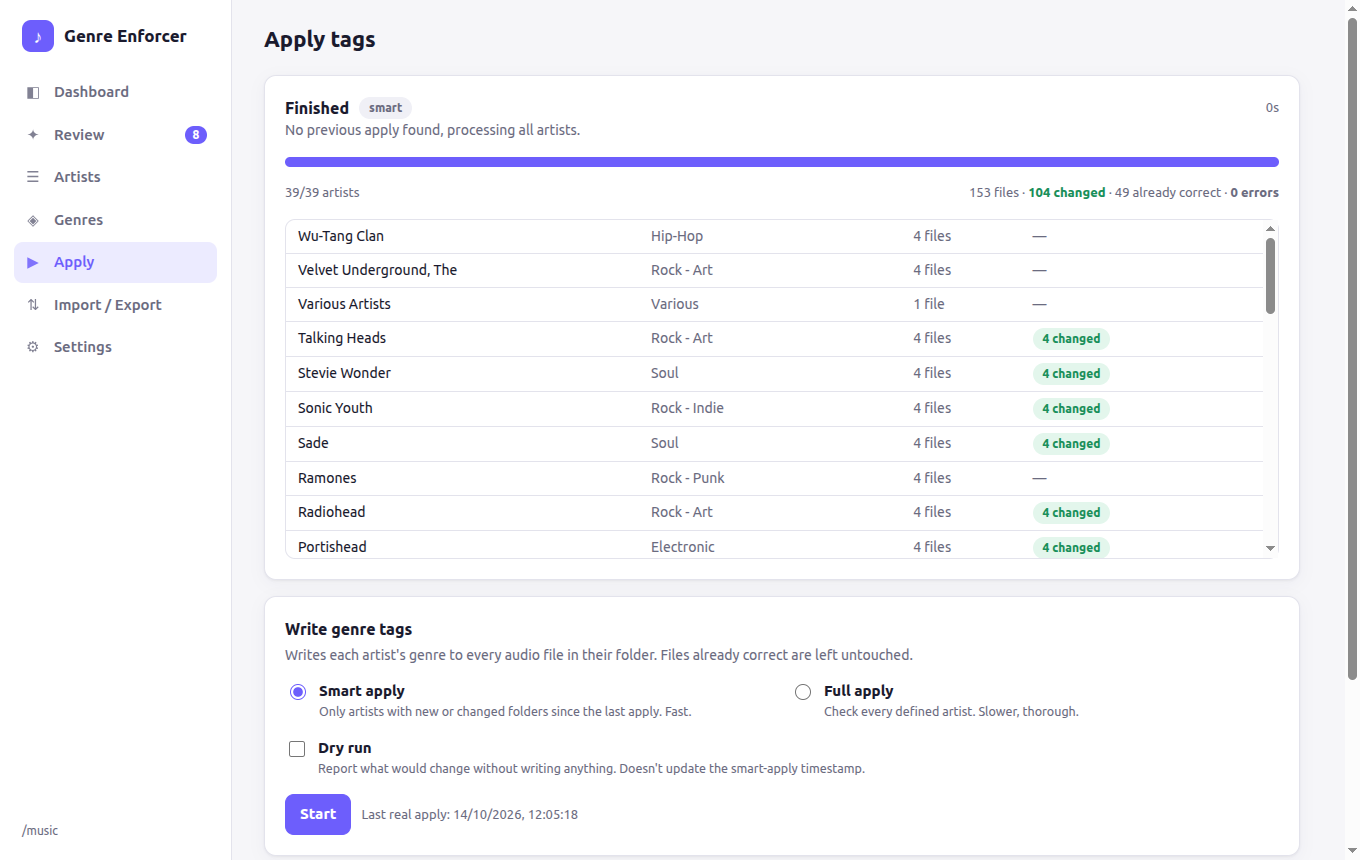
Apply — smart or full apply with live progress and a per-artist log; dry-run supported.
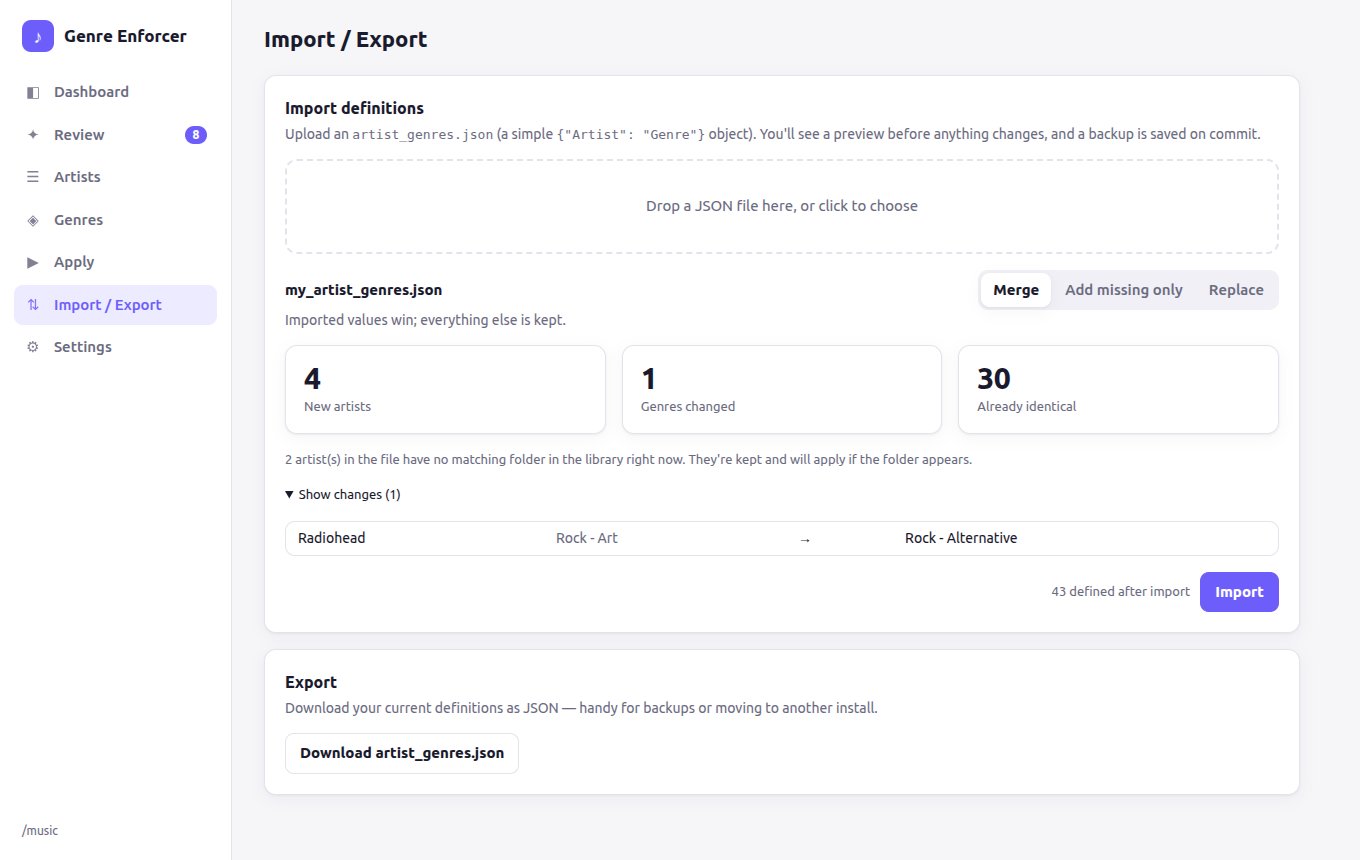
Import / Export — bring an existing artist_genres.json with you. Preview what will be added or changed (merge, add-missing-only, or replace) before committing; a backup is taken automatically.
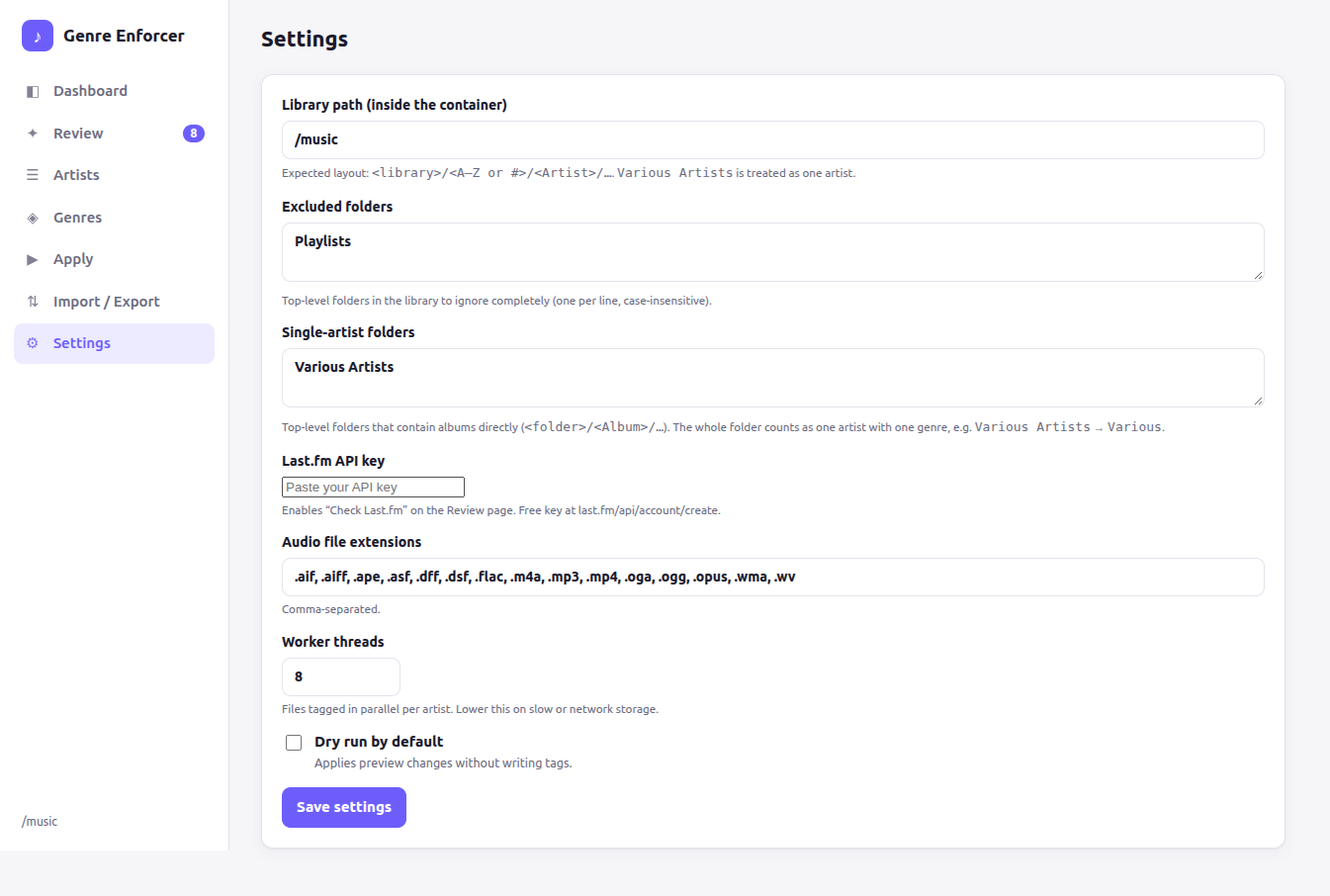
Settings — library path, excluded folders (e.g. Playlists), single-artist folders (e.g. Various Artists), Last.fm key.
Works on phones too:
The app expects this layout:
/your/music/library/
├── A/
│   ├── Aphex Twin/
│   │   └── [1992] Selected Ambient Works 85-92/
│   │       ├── 01 - Xtal.flac
│   │       └── ...
├── B/
│   └── Bowie, David/
│       └── ...
├── #/
│   └── 2Pac/
│       └── ...
├── Various Artists/
│   └── [1999] Some Compilation/    # albums sit directly inside
└── Playlists/                      # excluded in Settings
#).Various).GENRE value per file, using Mutagen (MP3, FLAC, M4A/MP4, OGG, Opus, WavPack, APE, WMA, AIFF, DSF/DFF).Pop; Pop Rock; Rock ends up as just your single genre.;, | or /).artist_genres.json (preview and automatic backups)| Setting | Default | Notes |
|---|---|---|
| Library path | /music | Path inside the container. |
| Excluded folders | Playlists | Top-level folders to ignore completely. |
| Single-artist folders | Various Artists | Top-level folders that hold albums directly; the whole folder is one artist. |
| Audio extensions | common formats | Comma-separated. |
| Worker threads | 8 | Files tagged in parallel per artist; lower it on slow or network storage. |
| Dry run | off | Applies report changes without writing. |
| Last.fm API key | none | Optional. Free key at https://www.last.fm/api/account/create. Stored in /config, never sent back to the browser. |
| Library watcher | on | See below. |
The app checks your library on a schedule (default every 10 minutes). It uses polling rather than inotify, so it behaves the same over Samba/NFS/bind mounts and has no watch-limit problems on huge libraries.
Everything is stored under /config (the volume you mounted):
config/
├── config.json          # settings
├── artist_genres.json   # your artist → genre map  (the important one)
├── last_apply.json      # timestamp used by smart apply
├── history.json         # recent apply runs
├── watcher.json         # watcher state and activity feed
└── backups/             # automatic backups of artist_genres.json
Back up artist_genres.json; the rest can be rebuilt. It's a plain {"Artist Folder Name": "Genre"} object, so it's easy to edit or move between installs.
You ripped CDs, downloaded from different sources, used multiple taggers—now you have:
Solution: Define your canonical genre once per artist, enforce it everywhere.
As far as you're concerned, all 2Pac songs are Hip-Hop and all Velvet Underground songs are Rock - Art—regardless of what MusicBrainz says.
Solution: This tool enforces your subjective opinion, not a database's.
Every time you add a new artist, you'd have to manually tag every file.
Solution: Define the artist's genre once; the tool writes it to all files (even multi-disc sets with hundreds of tracks).
"Library path … does not exist": the path in Settings must be the path inside the container (usually /music), and your volume must be mounted there.
Tag writes fail / lots of errors on apply: the container user can't write your files. Set user: to the uid:gid that owns the library (ls -ln /path/to/music) and make sure the mount isn't :ro.
Artists show as "not on disk": a definition exists for a folder name that isn't in the library (renamed, removed, or excluded). Filter by Not on disk in Artists to clean them up.
An artist isn't showing in Review: it may be inside an excluded folder, or Various Artists-style folders may need adding to Single-artist folders. The Review page rescans the library each time you open it.
Files are "already correct" on apply: that's normal. Those files already have exactly your genre and are left untouched.
Genre rejected: genres must be a single value (no ;, |, /).
Won't start on a Raspberry Pi / ARM server: the published image is linux/amd64 only for now. Build it yourself (see Development below) or open an issue.
git clone https://github.com/WB2024/Artist-Genre-Metadata-Enforcer.git
cd Artist-Genre-Metadata-Enforcer

# build the image yourself
docker build -t music-genre-enforcer .

# or run from source
pip install -r requirements.txt
CONFIG_DIR=./config LIBRARY_PATH=/path/to/music uvicorn app.main:app --port 8320
The backend is app/ (FastAPI: main.py API, core.py tagging and storage, watcher.py library watcher); the frontend is plain HTML/CSS/JS in app/static/ with no build step. API docs are served at /api/docs.
The original single-file TUI (music-genre-enforcer.py) is still in the repo and works independently of the Docker app. Most people should use the Docker version above. Its own install/usage docs are kept here.
On Debian/Ubuntu:
sudo apt update
sudo apt install -y python3-mutagen
On other distros (using pip):
pip install mutagen
sudo curl -o /usr/local/bin/music-genre-enforcer https://raw.githubusercontent.com/WB2024/Artist-Genre-Metadata-Enforcer/main/music-genre-enforcer.py
sudo chmod +x /usr/local/bin/music-genre-enforcer
Or clone the repo:
git clone https://github.com/WB2024/Artist-Genre-Metadata-Enforcer.git
cd Artist-Genre-Metadata-Enforcer
sudo cp music-genre-enforcer.py /usr/local/bin/music-genre-enforcer
sudo chmod +x /usr/local/bin/music-genre-enforcer
music-genre-enforcer
On first run, you'll be prompted to configure your library base path.
When a new version is released, simply re-download and replace the script:
sudo curl -o /usr/local/bin/music-genre-enforcer https://raw.githubusercontent.com/WB2024/Artist-Genre-Metadata-Enforcer/main/music-genre-enforcer.py && sudo chmod +x /usr/local/bin/music-genre-enforcer
cd Artist-Genre-Metadata-Enforcer
git pull
sudo cp music-genre-enforcer.py /usr/local/bin/music-genre-enforcer
sudo chmod +x /usr/local/bin/music-genre-enforcer
Note: Your configuration and artist definitions in
~/.config/music-genre-enforcer/are preserved—updating only replaces the script itself.
The tool expects this folder hierarchy:
/your/music/library/
├── A/
│   ├── Aphex Twin/
│   │   ├── [1992] Selected Ambient Works 85-92/
│   │   │   ├── 01 - Xtal.flac
│   │   │   └── ...
│   └── ...
├── B/
│   ├── Bowie, David/
│   │   └── ...
├── #/
│   └── 2Pac/
│       └── ...
└── Various Artists/
    └── ...
Where:
A, B, #, Various Artists, etc.)1)2)
l to list existing genresp to pick from existing genres (keeps spelling/casing consistent)s to skip an artist3) — Only processes artists with new/modified files since last run4) — Checks all artists (use periodically for thorough verification)GENRE tag to every audio file under each artist folderWhen prompted for a genre:
| Command | Action |
|---|---|
| (type text) | Define a new genre (free text) |
l | List all your existing unique genres |
p | Pick a genre by number from the list |
s | Skip this artist for now |
? | Show help |
Example:
Genre for [Aphex Twin] (or l/p/?/s): p
Existing genres:
  [1] Electronic - Ambient
  [2] Hip-Hop
  [3] Post-Punk
  [4] Rock - Art
Pick number (blank cancels): 1
  -> Set [Aphex Twin] = Electronic - Ambient
1) Configure — Edit base library path, file extensions, dry-run mode
2) Scan artists and prompt for NEW artist genres
3) Smart apply — Only process artists modified since last run (fast)
4) Full apply — Check ALL artists (slower but thorough)
5) List undefined artists
6) Edit an existing artist genre (numbered picker)
7) Toggle dry-run (preview mode on/off)
q) Quit
All settings and definitions are stored in:
~/.config/music-genre-enforcer/
├── config.json          # Library path, extensions, dry-run setting
├── artist_genres.json   # Your artist → genre mappings
└── last_apply.json      # Timestamp of last apply (for smart mode)
Portable? Yes—copy these files to another machine and your definitions travel with you.
Anything Mutagen supports in easy mode:
Edit ~/.config/music-genre-enforcer/config.json:
{
  "library_base": "/your/music/path",
  "supported_exts": [".mp3", ".flac", ".m4a", ".ogg", ".opus"],
  "dry_run": false
}
Or use menu option 1 to configure interactively.
Enable via menu option 6 or edit config.json to set "dry_run": true.
The tool will:
Perfect for testing before committing.
Debian/Ubuntu:
sudo apt install python3-mutagen
Other (pip):
pip install mutagen
Run menu option 1 (Configure) and double-check your path. Use absolute paths (e.g., /srv/data/Music).
This is normal. Skipped = file already has the correct genre tag (no need to rewrite).
The tool enforces single genre only (no ;, |, or / separators).
If you need multi-genre tags, open an issue—I can add that as an option.
Contributions welcome! Please:
git checkout -b feature/amazing-feature)git commit -m 'Add amazing feature')git push origin feature/amazing-feature)This project is licensed under the MIT License—see LICENSE for details.
You are free to use, modify, and distribute this software. Attribution appreciated but not required.
If this tool saved you hours of manual tagging, consider buying me a coffee:
Happy tagging! 🎶
Your music library, your rules.
A self-hosted web app that enforces your personal genre definitions across your music library. You decide each artist's genre once; the app writes it to the GENRE tag of every file by that artist. No more Hip Hop / Hiphop / Hip-hop / Rap / Boom Bap scattered across the same artist's albums, and no outsourcing a subjective opinion to MusicBrainz or Last.fm.
It runs as a single Docker container: a small Python (FastAPI) backend that does the work and serves the web UI. It is not a MusicBrainz Picard plugin. Tag with Picard (or anything else) first, then let this overwrite the genre field afterwards.
You need Docker with Compose, and a music library laid out as in How it works. The image is currently built for linux/amd64 only.
docker compose (recommended). Save as compose.yaml:
services:
  music-genre-enforcer:
    image: wb20244/music-genre-enforcer:latest
    container_name: music-genre-enforcer
    user: "1000:1000"                 # a user that can WRITE to your music files
    environment:
      - TZ=Europe/London              # optional
    volumes:
      - ./config:/config              # your definitions, settings, history, backups
      - /path/to/your/music:/music    # your library (must be writable)
    ports:
      - 8320:8320
    restart: unless-stopped
docker compose up -d
or plain docker run:
docker run -d --name music-genre-enforcer --restart unless-stopped \
  --user 1000:1000 -p 8320:8320 \
  -v "$PWD/config:/config" -v /path/to/your/music:/music \
  wb20244/music-genre-enforcer:latest
Then open http://<your-host>:8320.
| Setting | What it is |
|---|---|
/music | Your library. Mount it read-write; tags are written in place. |
/config | Everything the app saves (see Config & data). Keep this on persistent storage. |
user: | Must match a user that owns/can write your music files (find yours with id). Run ls -ln on your library to see the owner's numeric uid/gid. |
8320 | Web UI port. |
⚠️ There is no login. The app writes tags to your library, so keep it on your LAN or put it behind a reverse proxy with authentication. Do not expose it to the internet.
/music, change Settings → Library path.artist_genres.json (from the old terminal version, or another install)? Go to Import / Export and upload it. You get a preview of what will be added or changed, and a backup is taken when you commit.docker compose pull && docker compose up -d
Your settings and definitions live in /config, so they survive updates. If a run is in progress, wait for it to finish first: restarting the container stops it.
(Demo library with example artists.)
Dashboard — library coverage at a glance, in light and dark.
Review — define new artists one at a time. See the tags already on disk, pick from your own genres (A–Z), or click Check Last.fm (optional API key) for suggestions, shown in their own panel so they never get mixed up with your genres.
Artists & Genres — edit inline, filter by exact genre, rename or merge a genre across every artist.
Apply — smart or full apply with live progress and a per-artist log; dry-run supported.
Import / Export — bring an existing artist_genres.json with you. Preview what will be added or changed (merge, add-missing-only, or replace) before committing; a backup is taken automatically.
Settings — library path, excluded folders (e.g. Playlists), single-artist folders (e.g. Various Artists), Last.fm key.
Works on phones too:
The app expects this layout:
/your/music/library/
├── A/
│   ├── Aphex Twin/
│   │   └── [1992] Selected Ambient Works 85-92/
│   │       ├── 01 - Xtal.flac
│   │       └── ...
├── B/
│   └── Bowie, David/
│       └── ...
├── #/
│   └── 2Pac/
│       └── ...
├── Various Artists/
│   └── [1999] Some Compilation/    # albums sit directly inside
└── Playlists/                      # excluded in Settings
#).Various).GENRE value per file, using Mutagen (MP3, FLAC, M4A/MP4, OGG, Opus, WavPack, APE, WMA, AIFF, DSF/DFF).Pop; Pop Rock; Rock ends up as just your single genre.;, | or /).artist_genres.json (preview and automatic backups)| Setting | Default | Notes |
|---|---|---|
| Library path | /music | Path inside the container. |
| Excluded folders | Playlists | Top-level folders to ignore completely. |
| Single-artist folders | Various Artists | Top-level folders that hold albums directly; the whole folder is one artist. |
| Audio extensions | common formats | Comma-separated. |
| Worker threads | 8 | Files tagged in parallel per artist; lower it on slow or network storage. |
| Dry run | off | Applies report changes without writing. |
| Last.fm API key | none | Optional. Free key at https://www.last.fm/api/account/create. Stored in /config, never sent back to the browser. |
| Library watcher | on | See below. |
The app checks your library on a schedule (default every 10 minutes). It uses polling rather than inotify, so it behaves the same over Samba/NFS/bind mounts and has no watch-limit problems on huge libraries.
Everything is stored under /config (the volume you mounted):
config/
├── config.json          # settings
├── artist_genres.json   # your artist → genre map  (the important one)
├── last_apply.json      # timestamp used by smart apply
├── history.json         # recent apply runs
├── watcher.json         # watcher state and activity feed
└── backups/             # automatic backups of artist_genres.json
Back up artist_genres.json; the rest can be rebuilt. It's a plain {"Artist Folder Name": "Genre"} object, so it's easy to edit or move between installs.
You ripped CDs, downloaded from different sources, used multiple taggers—now you have:
Solution: Define your canonical genre once per artist, enforce it everywhere.
As far as you're concerned, all 2Pac songs are Hip-Hop and all Velvet Underground songs are Rock - Art—regardless of what MusicBrainz says.
Solution: This tool enforces your subjective opinion, not a database's.
Every time you add a new artist, you'd have to manually tag every file.
Solution: Define the artist's genre once; the tool writes it to all files (even multi-disc sets with hundreds of tracks).
"Library path … does not exist": the path in Settings must be the path inside the container (usually /music), and your volume must be mounted there.
Tag writes fail / lots of errors on apply: the container user can't write your files. Set user: to the uid:gid that owns the library (ls -ln /path/to/music) and make sure the mount isn't :ro.
Artists show as "not on disk": a definition exists for a folder name that isn't in the library (renamed, removed, or excluded). Filter by Not on disk in Artists to clean them up.
An artist isn't showing in Review: it may be inside an excluded folder, or Various Artists-style folders may need adding to Single-artist folders. The Review page rescans the library each time you open it.
Files are "already correct" on apply: that's normal. Those files already have exactly your genre and are left untouched.
Genre rejected: genres must be a single value (no ;, |, /).
Won't start on a Raspberry Pi / ARM server: the published image is linux/amd64 only for now. Build it yourself (see Development below) or open an issue.
git clone https://github.com/WB2024/Artist-Genre-Metadata-Enforcer.git
cd Artist-Genre-Metadata-Enforcer

# build the image yourself
docker build -t music-genre-enforcer .

# or run from source
pip install -r requirements.txt
CONFIG_DIR=./config LIBRARY_PATH=/path/to/music uvicorn app.main:app --port 8320
The backend is app/ (FastAPI: main.py API, core.py tagging and storage, watcher.py library watcher); the frontend is plain HTML/CSS/JS in app/static/ with no build step. API docs are served at /api/docs.
The original single-file TUI (music-genre-enforcer.py) is still in the repo and works independently of the Docker app. Most people should use the Docker version above. Its own install/usage docs are kept here.
On Debian/Ubuntu:
sudo apt update
sudo apt install -y python3-mutagen
On other distros (using pip):
pip install mutagen
sudo curl -o /usr/local/bin/music-genre-enforcer https://raw.githubusercontent.com/WB2024/Artist-Genre-Metadata-Enforcer/main/music-genre-enforcer.py
sudo chmod +x /usr/local/bin/music-genre-enforcer
Or clone the repo:
git clone https://github.com/WB2024/Artist-Genre-Metadata-Enforcer.git
cd Artist-Genre-Metadata-Enforcer
sudo cp music-genre-enforcer.py /usr/local/bin/music-genre-enforcer
sudo chmod +x /usr/local/bin/music-genre-enforcer
music-genre-enforcer
On first run, you'll be prompted to configure your library base path.
When a new version is released, simply re-download and replace the script:
sudo curl -o /usr/local/bin/music-genre-enforcer https://raw.githubusercontent.com/WB2024/Artist-Genre-Metadata-Enforcer/main/music-genre-enforcer.py && sudo chmod +x /usr/local/bin/music-genre-enforcer
cd Artist-Genre-Metadata-Enforcer
git pull
sudo cp music-genre-enforcer.py /usr/local/bin/music-genre-enforcer
sudo chmod +x /usr/local/bin/music-genre-enforcer
Note: Your configuration and artist definitions in
~/.config/music-genre-enforcer/are preserved—updating only replaces the script itself.
The tool expects this folder hierarchy:
/your/music/library/
├── A/
│   ├── Aphex Twin/
│   │   ├── [1992] Selected Ambient Works 85-92/
│   │   │   ├── 01 - Xtal.flac
│   │   │   └── ...
│   └── ...
├── B/
│   ├── Bowie, David/
│   │   └── ...
├── #/
│   └── 2Pac/
│       └── ...
└── Various Artists/
    └── ...
Where:
A, B, #, Various Artists, etc.)1)2)
l to list existing genresp to pick from existing genres (keeps spelling/casing consistent)s to skip an artist3) — Only processes artists with new/modified files since last run4) — Checks all artists (use periodically for thorough verification)GENRE tag to every audio file under each artist folderWhen prompted for a genre:
| Command | Action |
|---|---|
| (type text) | Define a new genre (free text) |
l | List all your existing unique genres |
p | Pick a genre by number from the list |
s | Skip this artist for now |
? | Show help |
Example:
Genre for [Aphex Twin] (or l/p/?/s): p
Existing genres:
  [1] Electronic - Ambient
  [2] Hip-Hop
  [3] Post-Punk
  [4] Rock - Art
Pick number (blank cancels): 1
  -> Set [Aphex Twin] = Electronic - Ambient
1) Configure — Edit base library path, file extensions, dry-run mode
2) Scan artists and prompt for NEW artist genres
3) Smart apply — Only process artists modified since last run (fast)
4) Full apply — Check ALL artists (slower but thorough)
5) List undefined artists
6) Edit an existing artist genre (numbered picker)
7) Toggle dry-run (preview mode on/off)
q) Quit
All settings and definitions are stored in:
~/.config/music-genre-enforcer/
├── config.json          # Library path, extensions, dry-run setting
├── artist_genres.json   # Your artist → genre mappings
└── last_apply.json      # Timestamp of last apply (for smart mode)
Portable? Yes—copy these files to another machine and your definitions travel with you.
Anything Mutagen supports in easy mode:
Edit ~/.config/music-genre-enforcer/config.json:
{
  "library_base": "/your/music/path",
  "supported_exts": [".mp3", ".flac", ".m4a", ".ogg", ".opus"],
  "dry_run": false
}
Or use menu option 1 to configure interactively.
Enable via menu option 6 or edit config.json to set "dry_run": true.
The tool will:
Perfect for testing before committing.
Debian/Ubuntu:
sudo apt install python3-mutagen
Other (pip):
pip install mutagen
Run menu option 1 (Configure) and double-check your path. Use absolute paths (e.g., /srv/data/Music).
This is normal. Skipped = file already has the correct genre tag (no need to rewrite).
The tool enforces single genre only (no ;, |, or / separators).
If you need multi-genre tags, open an issue—I can add that as an option.
Contributions welcome! Please:
git checkout -b feature/amazing-feature)git commit -m 'Add amazing feature')git push origin feature/amazing-feature)This project is licensed under the MIT License—see LICENSE for details.
You are free to use, modify, and distribute this software. Attribution appreciated but not required.
If this tool saved you hours of manual tagging, consider buying me a coffee:
Happy tagging! 🎶





