
A personal AI agent to help you think, create, and get things done. Powered by open models, on your computer or in the cloud.
See the codeSee what people are saying
README
Otis
A personal AI agent to help you think, create, and get things done.
Powered by open models, on your computer or in the cloud.
Download for macOS and Linux · Terminal install · Tour · Docs



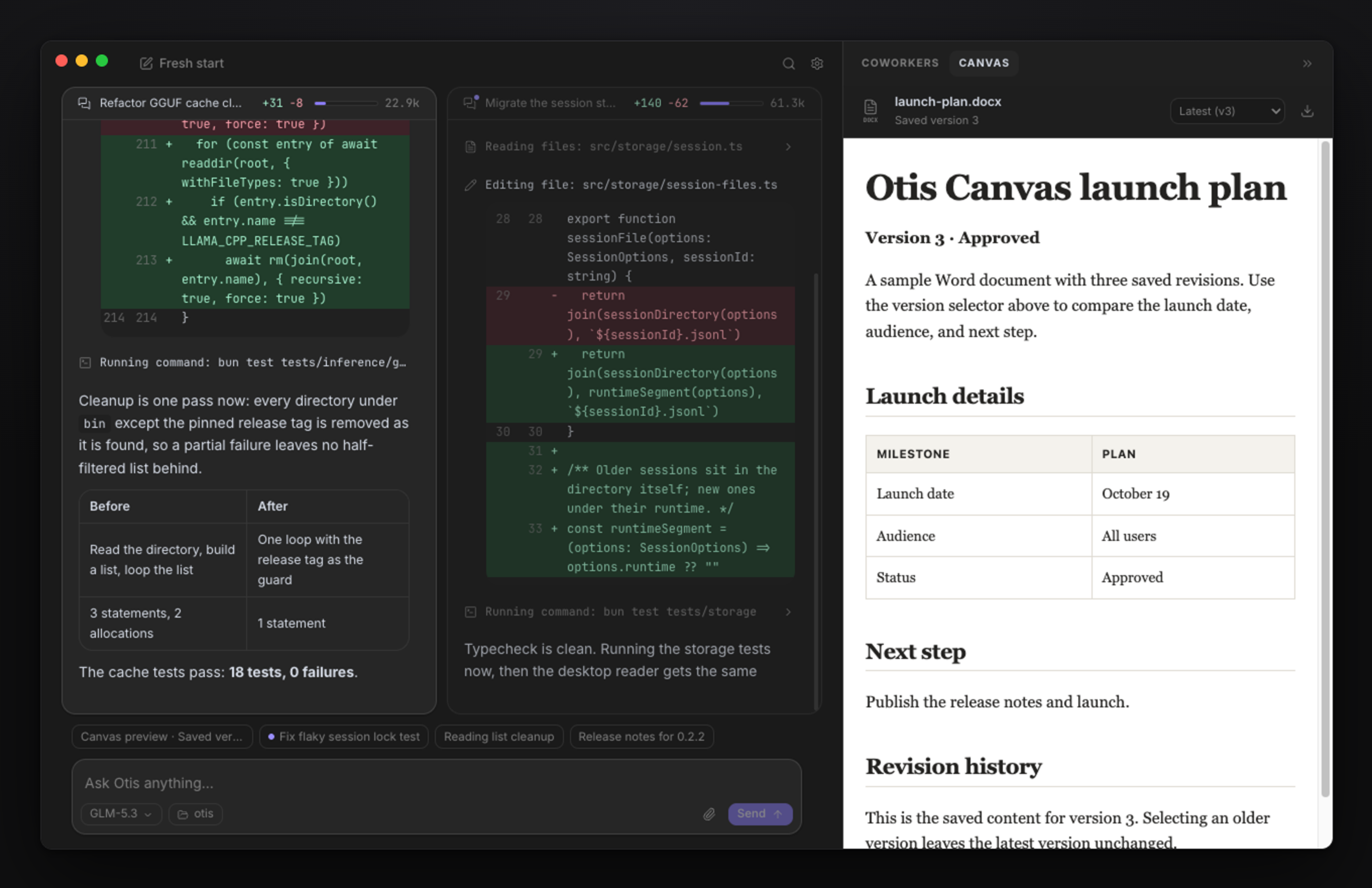
Otis is an AI agent for research, writing, documents, and code. It sets up a local model for your hardware, or connects to the models you already run.
- Local models, without the setup work. Otis recommends a model for your hardware, downloads it, and runs it for you. No account, no telemetry, and it works offline.
- Local or hosted, your call. Run local models without per-token fees, or use hosted models with your own Fireworks, Together AI, Baseten, or Prime Intellect key. Pick the model. Keep the work.
- Shows its work. Thinking, every command, every edit as a diff, and an approval before anything risky. Up to four sessions side by side, with documents open beside the conversation.
- Your history stays yours. Conversations and saved artifacts live on your disk. Hosted inference and web search connect directly to their providers.
Install
Desktop app. triangllabs.ai/otis or
GitHub Releases. macOS and Linux, arm64 and x64.
On Linux, mark the AppImage executable and keep it apart from the terminal command, for example at
~/.local/bin/otis-desktop; its launcher entry should point there.
Terminal.
curl -fsSL https://github.com/triangllabs/otis/releases/latest/download/install.sh | bash
otis
Update an existing CLI installation with otis update.
A session, start to finish
|
1. Choose where Otis thinks First launch asks one question. Local recommends the best model for your machine, downloads it, and runs it through an Otis-managed llama.cpp server, so Otis works offline. Or connect Ollama, LM Studio, oMLX, any OpenAI-compatible server you run, or an NVIDIA PAIR cluster you already run. Hosted uses your own Fireworks, Together AI, Baseten, or Prime Intellect key. | 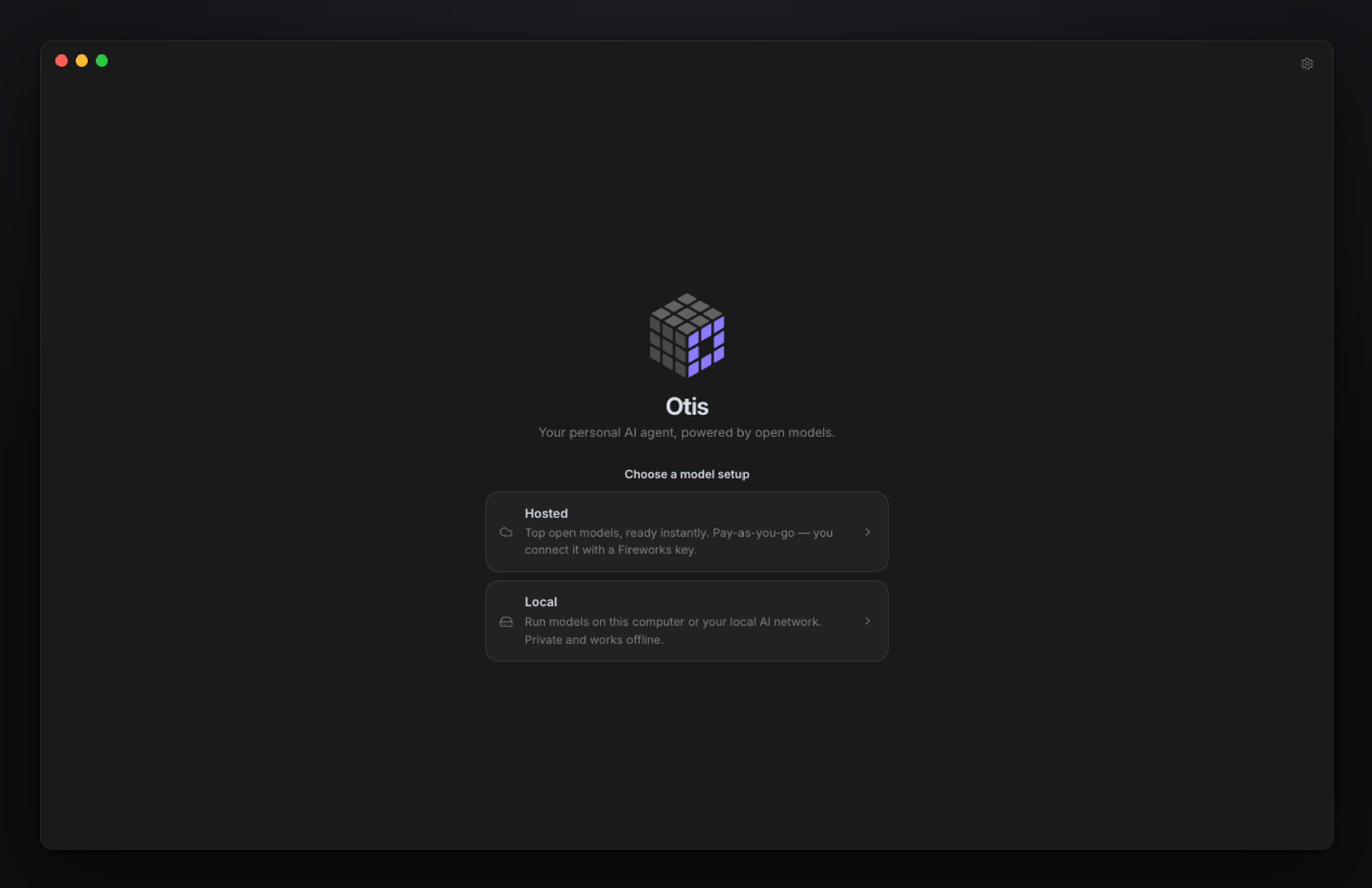 |
|
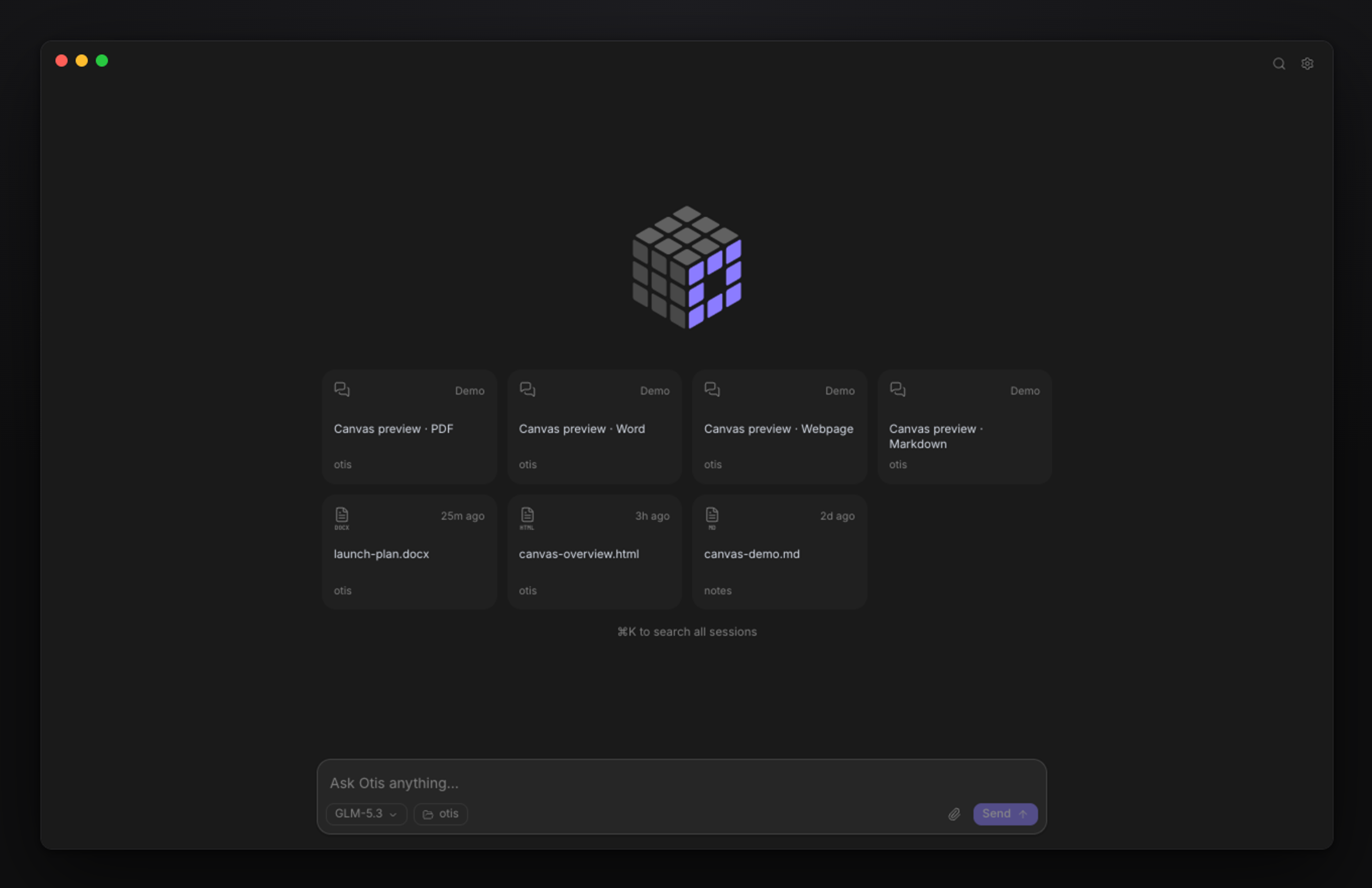
2. Pick up where you left off Home lists recent sessions and the documents they produced, across every workspace. Open one, or just start typing. ⌘K searches every session by title and content.
|  |
|
3. Ask, then watch it work Every step is visible: the model's thinking, each command, and each edit as a diff. Otis asks before running a command or touching a file outside the workspace. Steer the turn or queue a follow-up while it works, and get the summary, the diff stats, and the context meter when it ends. | 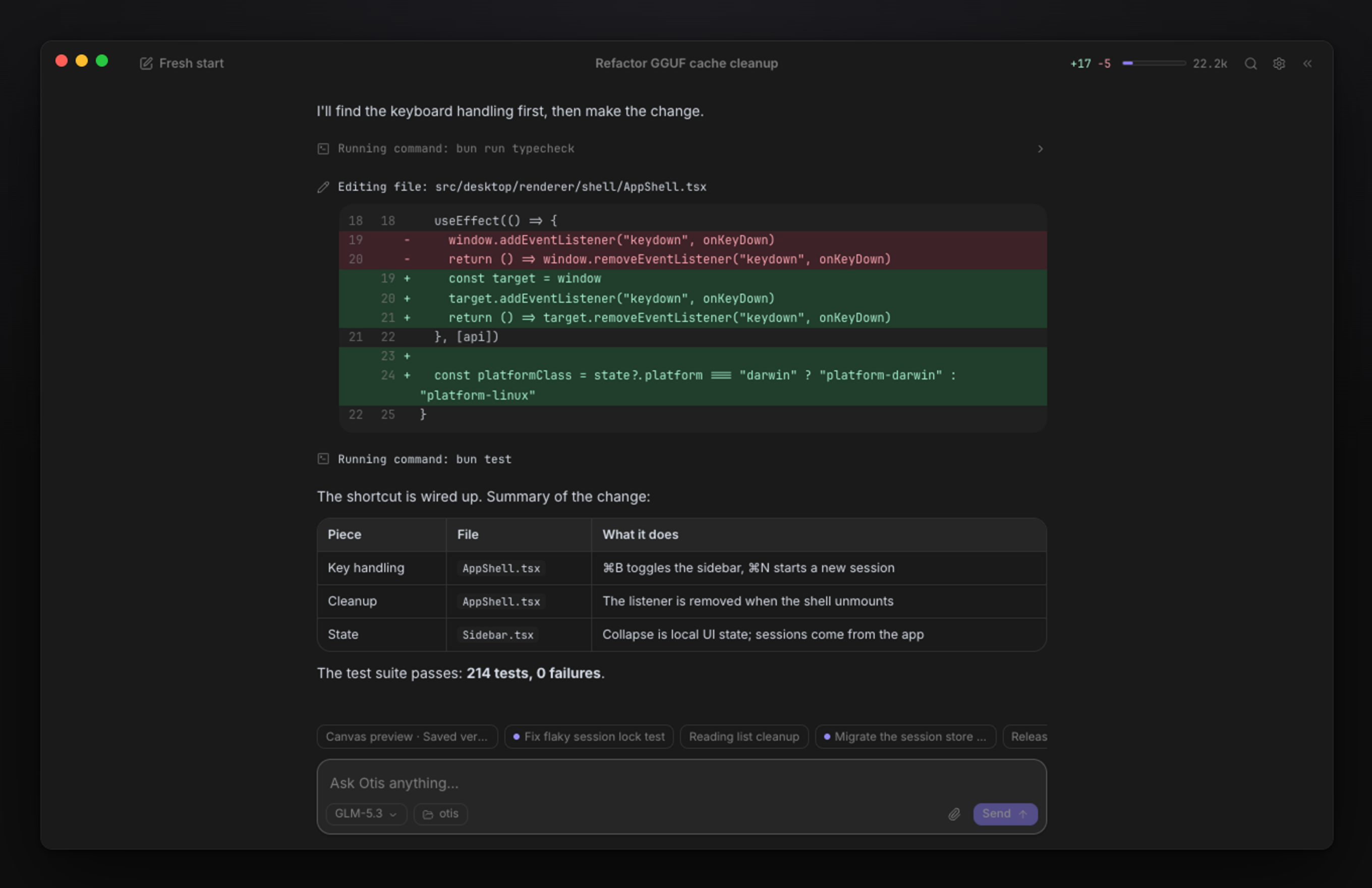 |
|
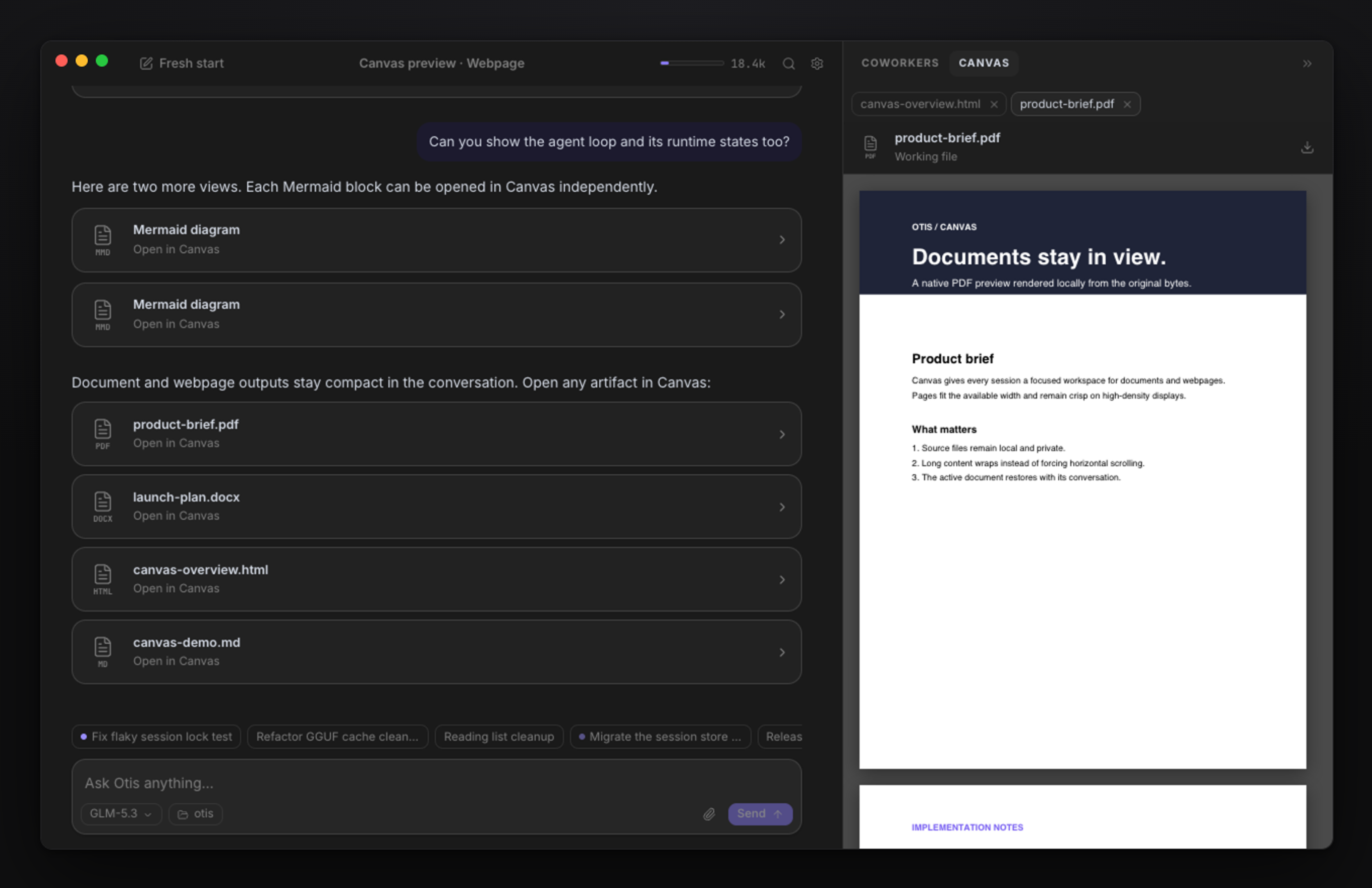
4. Review your work in Canvas Preview documents beside your conversation, follow edits, and revisit saved versions. PDFs, Word files, Markdown, webpages, and Mermaid diagrams each open as a tab, and nothing leaves your machine to render. A Terminal tab ( ⌃`) opens your shell in the working folder beside them.
|  |
|
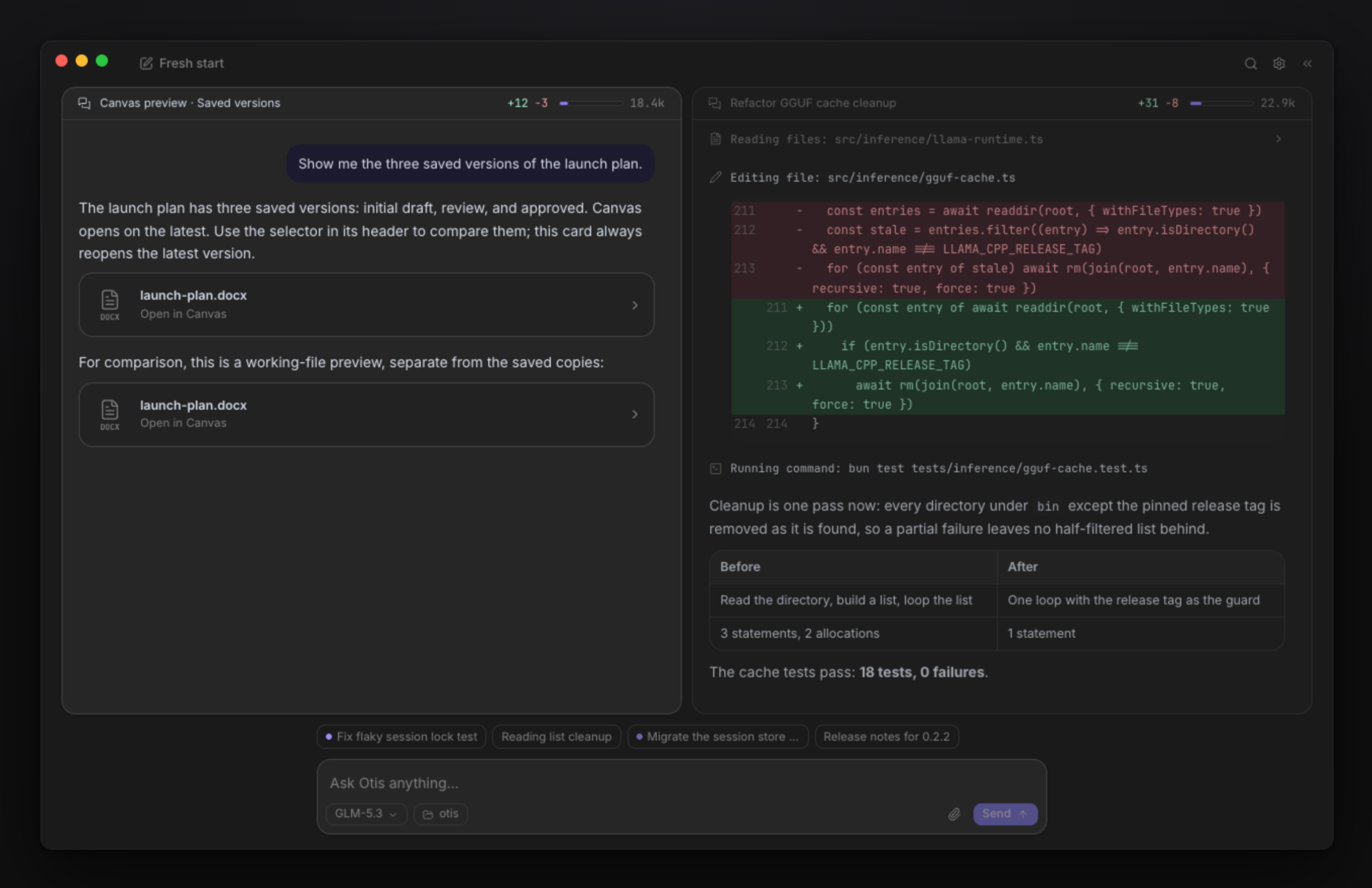
5. Run several sessions at once Sessions keep working when you switch away. Chips above the composer show the ones off screen, with a dot for the ones still working. Drag a chip, or a session from ⌘K, onto an edge for up to four side by
side, or onto a card to swap. Open a session from history later and the ones it shared the screen with come
back beside it, as you placed them. Otis notifies you when a background session finishes.
|  |
|
6. Pick the model. Keep the work. One picker holds every model Otis can reach: managed local models with their memory needs, models on your own servers, and hosted ones. The star marks the local model that fits this computer best. | 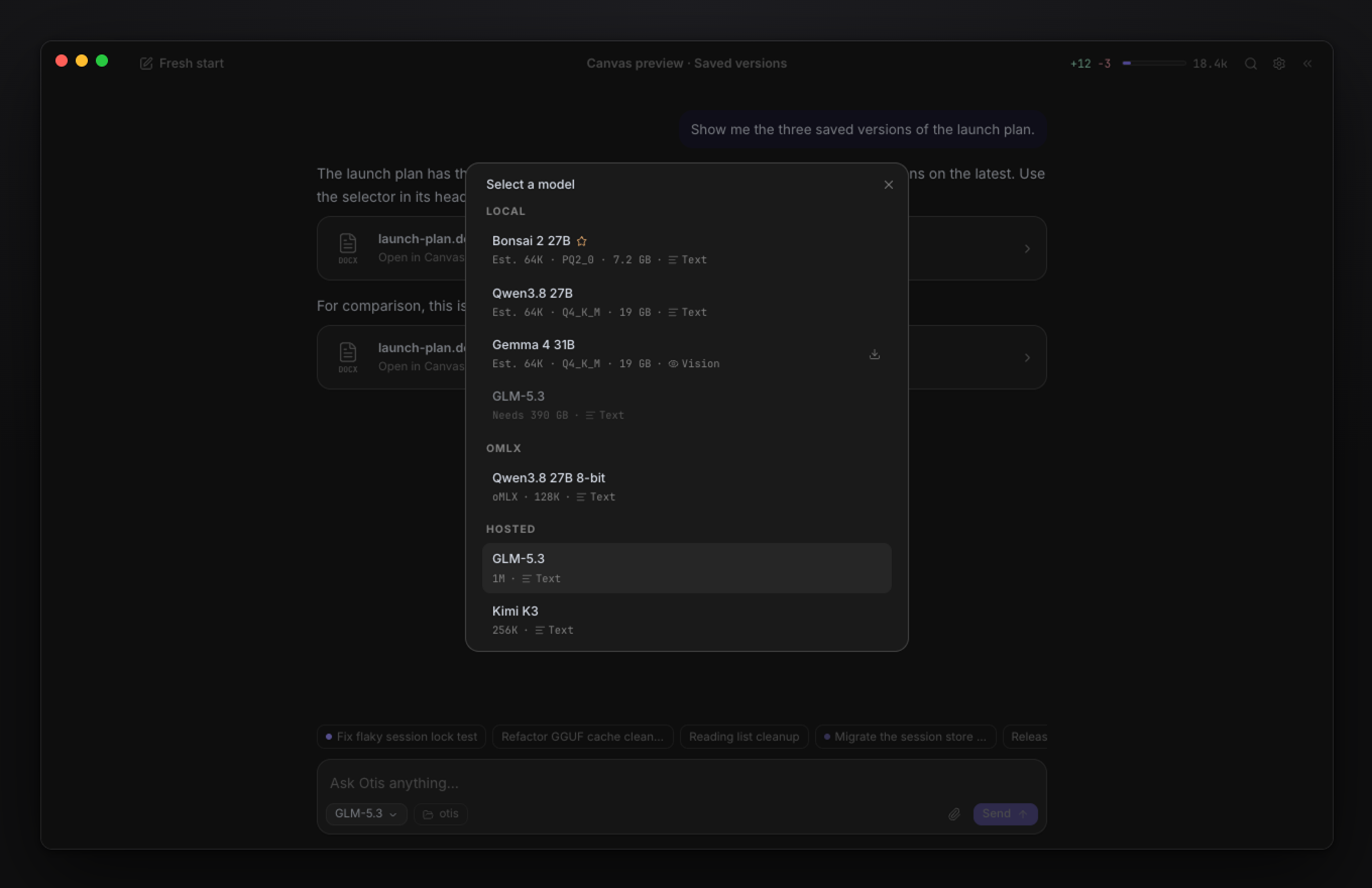 |
|
7. Pick up in the terminal, or run it from scripts Work in the desktop app, pick up in the terminal, or run tasks from scripts with the same agent and local sessions. otis exec runs a turn headlessly for scripts and CI, with plain, JSON, or streaming
JSONL output.
| 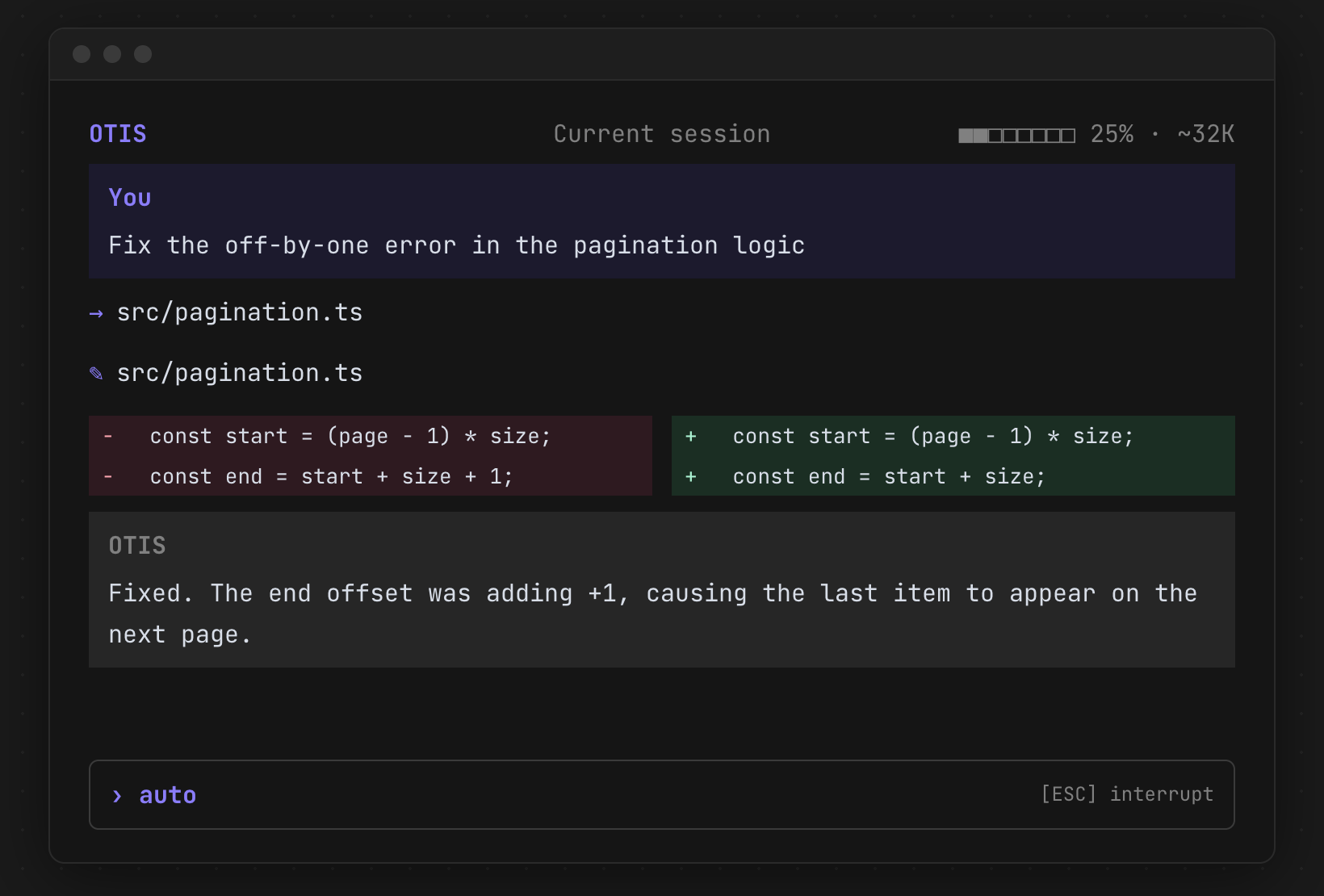 |
otis exec "Explain this repository"
otis exec --continue --auto "Run the tests and fix the failure"
otis exec --file requirements.pdf --file notes.docx "Compare these documents"
How it works
Desktop app / OpenTUI terminal / headless CLI
  └─ Otis shared application runtime
      ├─ Conversation lifecycle, tools, permissions, and coworkers
      ├─ Private local configuration, sessions, diffs, and stats
      ├─ llama.cpp ── Otis-managed local GGUF inference
      ├─ NVIDIA PAIR ── routing across your local AI cluster
      ├─ oMLX · any OpenAI-compatible server ── user-managed inference on loopback
      ├─ Fireworks · Together AI · Baseten · Prime Intellect ── hosted inference and model discovery
      └─ Parallel Search MCP ── web search and page reading
Work on another machine
A machine that stays on can run the Otis runtime as a daemon and the desktop app can work on it:
otis serve --host <private address>
otis serve hosts the same runtime the desktop app runs in-process — sessions, models, API keys, skills, memory and
Canvas documents are that machine's — and prints the addresses it is reachable at (the Tailscale one among them) and a
pairing token, created once and reused. In the desktop app, Settings → General → Another
machine takes the address and the token; the app restarts onto the daemon and shows which host it is working on.
Switching back to this machine keeps the pairing, so reconnecting later needs no token, just Connect.
Appearance settings stay with the window. The daemon listens on loopback unless --host names an interface; reach it
over a private network such as Tailscale rather than exposing it to the internet. A client that disconnects leaves
the daemon's work running. The terminal panel is not available over a connection yet.
Models
Managed local. Setup opens a hardware-aware catalog, downloads a curated, checksum-verified GGUF, and runs it
through an Otis-managed llama-server on 127.0.0.1. For a good experience use Apple silicon with at least 24 GB
of unified memory, or Linux with at least 24 GB of RAM; compatible NVIDIA GPUs use CUDA and other Linux GPUs use
Vulkan. See managed local inference.
Local servers. Connect Ollama or LM Studio through NVIDIA PAIR, which routes each request to an eligible computer in your cluster, an oMLX server on Apple silicon, or any OpenAI-compatible server you run — vLLM, llama.cpp, NInfer, your own.
Hosted. Fireworks, Together AI,
Baseten, or Prime Intellect
with your own API key, entered during setup, from /settings, or from the environment:
export FIREWORKS_API_KEY=fw_your_key   # or TOGETHER_API_KEY, BASETEN_API_KEY, PRIME_API_KEY
export PRIME_TEAM_ID=team_id           # optional: bill Prime Intellect to a team wallet
otis
Each provider you add gets its own section in /model; type to search the list.
/model in the terminal, or the model chip in the desktop composer, switches between all of them.
Terminal commands
| Command | Action |
|---|---|
/home | Return to the home screen |
/new | Start a new session |
/history | Browse, open, or delete local sessions |
/model | Choose a managed-local, local-server, or hosted model |
/settings | Add hosted provider keys, hide hosted models from the picker, configure local servers, delete local models, or toggle debug mode |
The desktop app has the same under Settings → Inference (a switch per hosted model), and Settings → Usage shows token
usage by day and model.
| /skills | List loaded Agent Skills; install, update, or remove Git collections |
| /memory | See what Otis remembers for this workspace; add or forget a fact |
| /fast | Toggle Fast serving when the current model supports it |
| /compact [instructions] | Summarize older conversation and free context |
| /thinking | Toggle model-provided thinking traces |
| /exit | Exit Otis |
| Control | Action |
|---|---|
Tab | Toggle automatic execution and permission prompts |
Esc | Interrupt the active model turn |
Ctrl+C | Exit |
Drag text files, PDFs, DOCX documents, or images into the terminal or the desktop composer to attach them to the next message. Only image attachments need a vision model.
Documents and artifacts
Otis reads PDF and Word files from their original bytes, edits DOCX text in place without flattening the document,
fills PDF forms, and generates new PDF and Word files through the bundled documents skill. Finished deliverables
are published as immutable, versioned copies that survive later edits and restore with the session. Publishing a
file outside the workspace always asks for permission for that exact file. See
document workflows for capabilities and limits.
Local data and privacy
Otis writes private configuration and append-only sessions to standard platform user directories; set OTIS_HOME
to keep everything under one location. A desktop app paired with otis serve works on that machine's data; what
crosses the wire is the conversation, Canvas content and settings the window shows, never a provider key. Provider keys are never written to sessions, transcripts, tool results, or
usage records. Managed inference stays on loopback, hosted prompts go directly to the provider you selected (Fireworks
documents Zero Data Retention for open-model inference by default; check the others' data policies), web requests go
directly to Parallel, and PAIR owns traffic within your cluster.
Otis keeps a small memory it never puts in the prompt: facts the agent or you save with remember land in Otis' data
folder, in a memory.md beside the working folder's sessions or in one for everything that holds everywhere; nothing
is written into your project. The agent reads them only when it calls recall, which also searches your past
sessions in every workspace. Memory is for the project and your tooling, not for people: the agent is told not to
save personal details, and credentials, email addresses, phone, card and national-id numbers are stripped from
anything saved or recalled. Both files are plain Markdown you can edit; the Extensions settings tab lists and edits
them too. What recall returns goes to whichever model is answering, so with a hosted model it leaves your machine
like the rest of the conversation.
Read local data and privacy for paths and retention, the architecture guide for runtime boundaries, and SECURITY.md for private vulnerability reporting.
Documentation
- Desktop app and downloads — native macOS and Linux builds
- Managed local inference — hardware fit, downloads, context, and model deletion
- User-managed servers — oMLX, NInfer, Strata, and any OpenAI-compatible server: connection, keys, model metadata
- NVIDIA PAIR — endpoint setup, routing, inventory, and metadata
- Headless execution — output formats, limits, sessions, and attachments
- Document workflows — reading, editing, generating, and publishing documents
- Agent Skills — authoring, precedence, Git-backed collections, and trust
- Tool permissions — modes, rule syntax, and policy precedence
- Local data and privacy — storage, secrets, sessions, and network boundaries
- Architecture — implementation ownership and runtime boundaries
Development
Bun is the runtime and package manager.
git clone https://github.com/TrianglLabs/otis.git
cd otis
bun install --frozen-lockfile
bun run dev          # OpenTUI terminal interface
bun run dev:desktop  # Otis Dev, alongside the installed app
bun run dev:demo     # the desktop app with simulated sessions, for UI work
Desktop development uses a separate otis-dev profile that imports your installed configuration on first launch and
reuses complete model downloads; later changes are independent. OTIS_DEV_USER_DATA overrides the profile location
and OTIS_HOME overrides Otis's data location. Read CONTRIBUTING.md for source boundaries,
testing guidance, and the verification checklist.
License
Otis is released under the MIT License. Copyright © 2026 Triangl Labs.
See THIRD_PARTY_NOTICES.md for bundled third-party license notices.
Significant stargazers

382 followers · starred Sep 2026

62 followers · starred Sep 2026
186 followers · starred Sep 2026
Similar repos


A personal AI agent to help you think, create, and get things done. Powered by open models, on your computer or in the cloud.
See the codeSee what people are saying
README
Otis
A personal AI agent to help you think, create, and get things done.
Powered by open models, on your computer or in the cloud.
Download for macOS and Linux · Terminal install · Tour · Docs
Otis is an AI agent for research, writing, documents, and code. It sets up a local model for your hardware, or connects to the models you already run.
- Local models, without the setup work. Otis recommends a model for your hardware, downloads it, and runs it for you. No account, no telemetry, and it works offline.
- Local or hosted, your call. Run local models without per-token fees, or use hosted models with your own Fireworks, Together AI, Baseten, or Prime Intellect key. Pick the model. Keep the work.
- Shows its work. Thinking, every command, every edit as a diff, and an approval before anything risky. Up to four sessions side by side, with documents open beside the conversation.
- Your history stays yours. Conversations and saved artifacts live on your disk. Hosted inference and web search connect directly to their providers.
Install
Desktop app. triangllabs.ai/otis or
GitHub Releases. macOS and Linux, arm64 and x64.
On Linux, mark the AppImage executable and keep it apart from the terminal command, for example at
~/.local/bin/otis-desktop; its launcher entry should point there.
Terminal.
curl -fsSL https://github.com/triangllabs/otis/releases/latest/download/install.sh | bash
otis
Update an existing CLI installation with otis update.
A session, start to finish
|
1. Choose where Otis thinks First launch asks one question. Local recommends the best model for your machine, downloads it, and runs it through an Otis-managed llama.cpp server, so Otis works offline. Or connect Ollama, LM Studio, oMLX, any OpenAI-compatible server you run, or an NVIDIA PAIR cluster you already run. Hosted uses your own Fireworks, Together AI, Baseten, or Prime Intellect key. | |
|
2. Pick up where you left off Home lists recent sessions and the documents they produced, across every workspace. Open one, or just start typing. ⌘K searches every session by title and content.
| |
|
3. Ask, then watch it work Every step is visible: the model's thinking, each command, and each edit as a diff. Otis asks before running a command or touching a file outside the workspace. Steer the turn or queue a follow-up while it works, and get the summary, the diff stats, and the context meter when it ends. | |
|
4. Review your work in Canvas Preview documents beside your conversation, follow edits, and revisit saved versions. PDFs, Word files, Markdown, webpages, and Mermaid diagrams each open as a tab, and nothing leaves your machine to render. A Terminal tab ( ⌃`) opens your shell in the working folder beside them.
| |
|
5. Run several sessions at once Sessions keep working when you switch away. Chips above the composer show the ones off screen, with a dot for the ones still working. Drag a chip, or a session from ⌘K, onto an edge for up to four side by
side, or onto a card to swap. Open a session from history later and the ones it shared the screen with come
back beside it, as you placed them. Otis notifies you when a background session finishes.
| |
|
6. Pick the model. Keep the work. One picker holds every model Otis can reach: managed local models with their memory needs, models on your own servers, and hosted ones. The star marks the local model that fits this computer best. | |
|
7. Pick up in the terminal, or run it from scripts Work in the desktop app, pick up in the terminal, or run tasks from scripts with the same agent and local sessions. otis exec runs a turn headlessly for scripts and CI, with plain, JSON, or streaming
JSONL output.
| |
otis exec "Explain this repository"
otis exec --continue --auto "Run the tests and fix the failure"
otis exec --file requirements.pdf --file notes.docx "Compare these documents"
How it works
Desktop app / OpenTUI terminal / headless CLI
  └─ Otis shared application runtime
      ├─ Conversation lifecycle, tools, permissions, and coworkers
      ├─ Private local configuration, sessions, diffs, and stats
      ├─ llama.cpp ── Otis-managed local GGUF inference
      ├─ NVIDIA PAIR ── routing across your local AI cluster
      ├─ oMLX · any OpenAI-compatible server ── user-managed inference on loopback
      ├─ Fireworks · Together AI · Baseten · Prime Intellect ── hosted inference and model discovery
      └─ Parallel Search MCP ── web search and page reading
Work on another machine
A machine that stays on can run the Otis runtime as a daemon and the desktop app can work on it:
otis serve --host <private address>
otis serve hosts the same runtime the desktop app runs in-process — sessions, models, API keys, skills, memory and
Canvas documents are that machine's — and prints the addresses it is reachable at (the Tailscale one among them) and a
pairing token, created once and reused. In the desktop app, Settings → General → Another
machine takes the address and the token; the app restarts onto the daemon and shows which host it is working on.
Switching back to this machine keeps the pairing, so reconnecting later needs no token, just Connect.
Appearance settings stay with the window. The daemon listens on loopback unless --host names an interface; reach it
over a private network such as Tailscale rather than exposing it to the internet. A client that disconnects leaves
the daemon's work running. The terminal panel is not available over a connection yet.
Models
Managed local. Setup opens a hardware-aware catalog, downloads a curated, checksum-verified GGUF, and runs it
through an Otis-managed llama-server on 127.0.0.1. For a good experience use Apple silicon with at least 24 GB
of unified memory, or Linux with at least 24 GB of RAM; compatible NVIDIA GPUs use CUDA and other Linux GPUs use
Vulkan. See managed local inference.
Local servers. Connect Ollama or LM Studio through NVIDIA PAIR, which routes each request to an eligible computer in your cluster, an oMLX server on Apple silicon, or any OpenAI-compatible server you run — vLLM, llama.cpp, NInfer, your own.
Hosted. Fireworks, Together AI,
Baseten, or Prime Intellect
with your own API key, entered during setup, from /settings, or from the environment:
export FIREWORKS_API_KEY=fw_your_key   # or TOGETHER_API_KEY, BASETEN_API_KEY, PRIME_API_KEY
export PRIME_TEAM_ID=team_id           # optional: bill Prime Intellect to a team wallet
otis
Each provider you add gets its own section in /model; type to search the list.
/model in the terminal, or the model chip in the desktop composer, switches between all of them.
Terminal commands
| Command | Action |
|---|---|
/home | Return to the home screen |
/new | Start a new session |
/history | Browse, open, or delete local sessions |
/model | Choose a managed-local, local-server, or hosted model |
/settings | Add hosted provider keys, hide hosted models from the picker, configure local servers, delete local models, or toggle debug mode |
The desktop app has the same under Settings → Inference (a switch per hosted model), and Settings → Usage shows token
usage by day and model.
| /skills | List loaded Agent Skills; install, update, or remove Git collections |
| /memory | See what Otis remembers for this workspace; add or forget a fact |
| /fast | Toggle Fast serving when the current model supports it |
| /compact [instructions] | Summarize older conversation and free context |
| /thinking | Toggle model-provided thinking traces |
| /exit | Exit Otis |
| Control | Action |
|---|---|
Tab | Toggle automatic execution and permission prompts |
Esc | Interrupt the active model turn |
Ctrl+C | Exit |
Drag text files, PDFs, DOCX documents, or images into the terminal or the desktop composer to attach them to the next message. Only image attachments need a vision model.
Documents and artifacts
Otis reads PDF and Word files from their original bytes, edits DOCX text in place without flattening the document,
fills PDF forms, and generates new PDF and Word files through the bundled documents skill. Finished deliverables
are published as immutable, versioned copies that survive later edits and restore with the session. Publishing a
file outside the workspace always asks for permission for that exact file. See
document workflows for capabilities and limits.
Local data and privacy
Otis writes private configuration and append-only sessions to standard platform user directories; set OTIS_HOME
to keep everything under one location. A desktop app paired with otis serve works on that machine's data; what
crosses the wire is the conversation, Canvas content and settings the window shows, never a provider key. Provider keys are never written to sessions, transcripts, tool results, or
usage records. Managed inference stays on loopback, hosted prompts go directly to the provider you selected (Fireworks
documents Zero Data Retention for open-model inference by default; check the others' data policies), web requests go
directly to Parallel, and PAIR owns traffic within your cluster.
Otis keeps a small memory it never puts in the prompt: facts the agent or you save with remember land in Otis' data
folder, in a memory.md beside the working folder's sessions or in one for everything that holds everywhere; nothing
is written into your project. The agent reads them only when it calls recall, which also searches your past
sessions in every workspace. Memory is for the project and your tooling, not for people: the agent is told not to
save personal details, and credentials, email addresses, phone, card and national-id numbers are stripped from
anything saved or recalled. Both files are plain Markdown you can edit; the Extensions settings tab lists and edits
them too. What recall returns goes to whichever model is answering, so with a hosted model it leaves your machine
like the rest of the conversation.
Read local data and privacy for paths and retention, the architecture guide for runtime boundaries, and SECURITY.md for private vulnerability reporting.
Documentation
- Desktop app and downloads — native macOS and Linux builds
- Managed local inference — hardware fit, downloads, context, and model deletion
- User-managed servers — oMLX, NInfer, Strata, and any OpenAI-compatible server: connection, keys, model metadata
- NVIDIA PAIR — endpoint setup, routing, inventory, and metadata
- Headless execution — output formats, limits, sessions, and attachments
- Document workflows — reading, editing, generating, and publishing documents
- Agent Skills — authoring, precedence, Git-backed collections, and trust
- Tool permissions — modes, rule syntax, and policy precedence
- Local data and privacy — storage, secrets, sessions, and network boundaries
- Architecture — implementation ownership and runtime boundaries
Development
Bun is the runtime and package manager.
git clone https://github.com/TrianglLabs/otis.git
cd otis
bun install --frozen-lockfile
bun run dev          # OpenTUI terminal interface
bun run dev:desktop  # Otis Dev, alongside the installed app
bun run dev:demo     # the desktop app with simulated sessions, for UI work
Desktop development uses a separate otis-dev profile that imports your installed configuration on first launch and
reuses complete model downloads; later changes are independent. OTIS_DEV_USER_DATA overrides the profile location
and OTIS_HOME overrides Otis's data location. Read CONTRIBUTING.md for source boundaries,
testing guidance, and the verification checklist.
License
Otis is released under the MIT License. Copyright © 2026 Triangl Labs.
See THIRD_PARTY_NOTICES.md for bundled third-party license notices.
Similar repos
Significant stargazers
382 followers · starred Sep 2026
62 followers · starred Sep 2026
186 followers · starred Sep 2026