Free, open-source DAW for Windows (C++/JUCE): VST3, ASIO, MIDI, sampler, drum rack, automation, comping, warp
See the code






A free, open-source digital audio workstation for Windows.
Audio and MIDI tracks, VST3 plugins, sampler, drum rack, deep automation and a full effects chain.
Website · Download · Guide · How it compares · Discord · Report a bug or request a feature
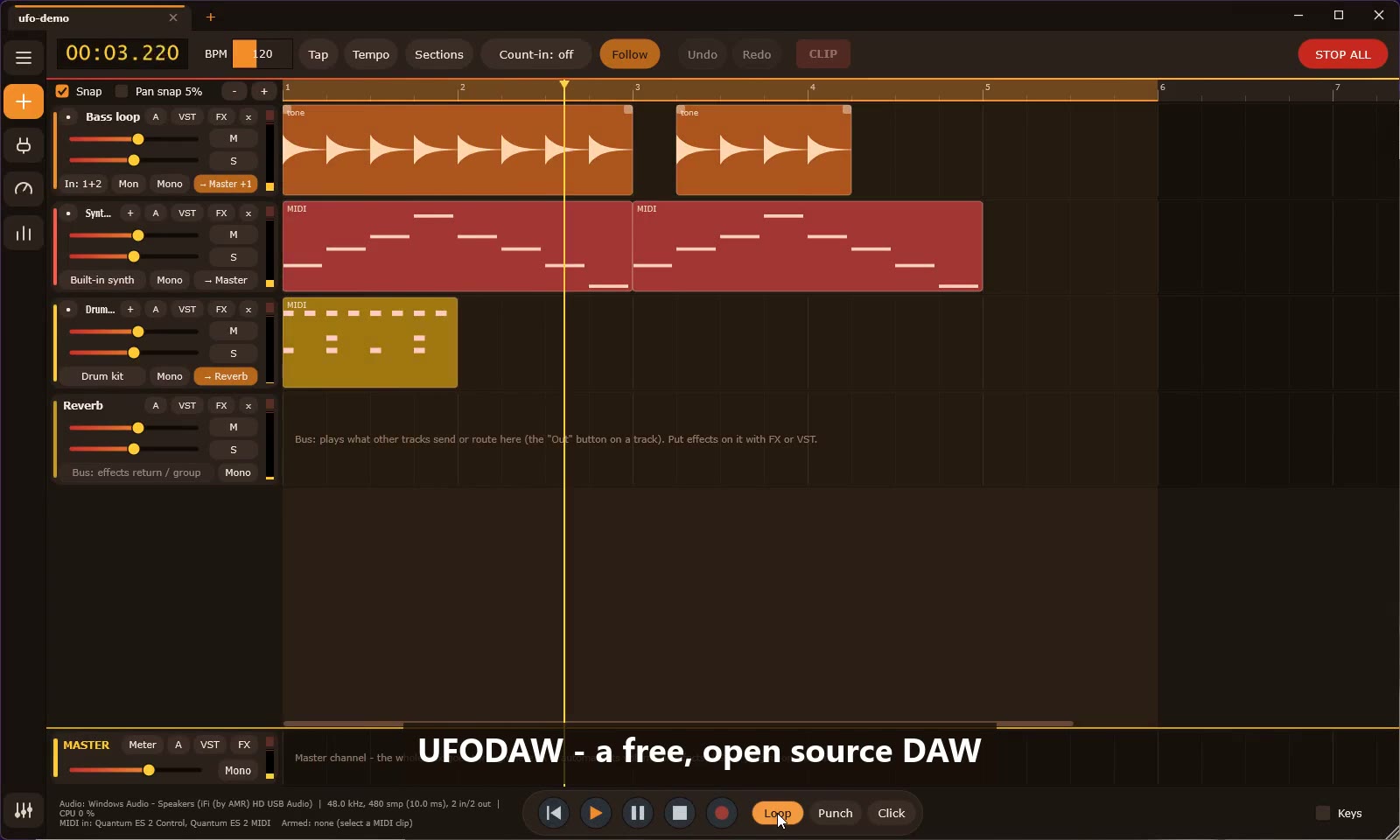
UFODAW is a small, fast DAW written in C++17 with JUCE. It installs with a small installer (no administrator rights needed), saves everything in one project file (.mdaw) and stays out of your way with a warm dark interface.
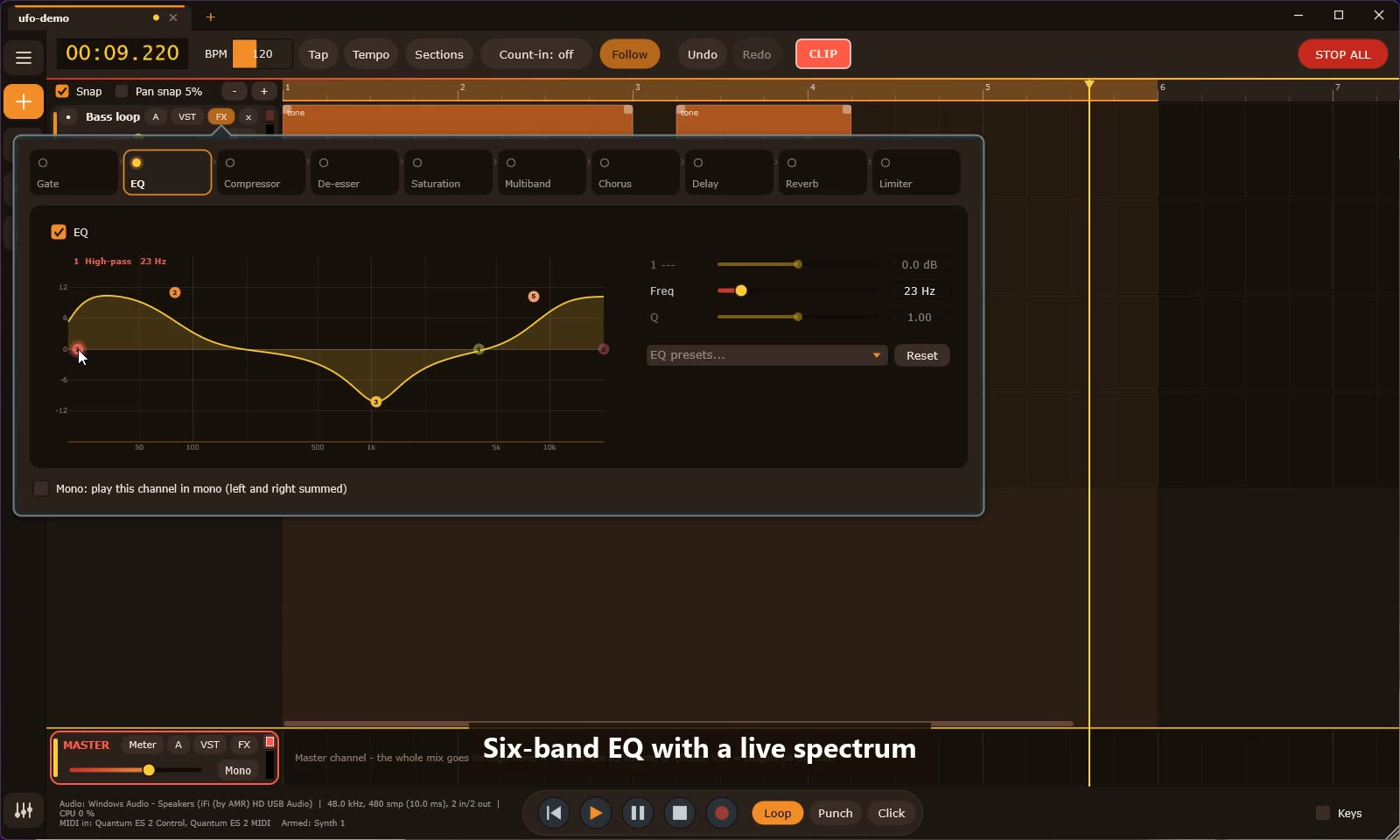 Six-band EQ with a live spectrum | 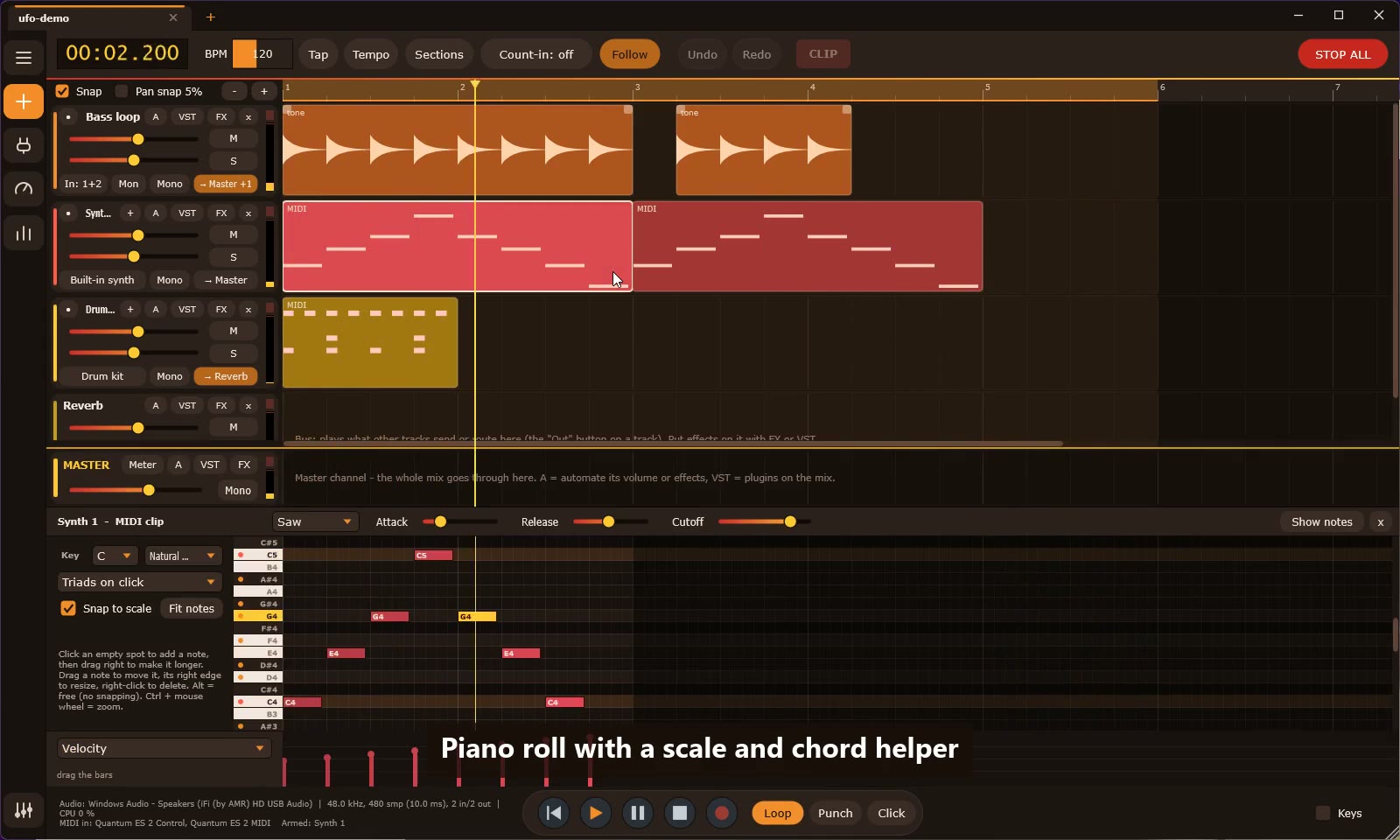 Piano roll with scale and chord helper |
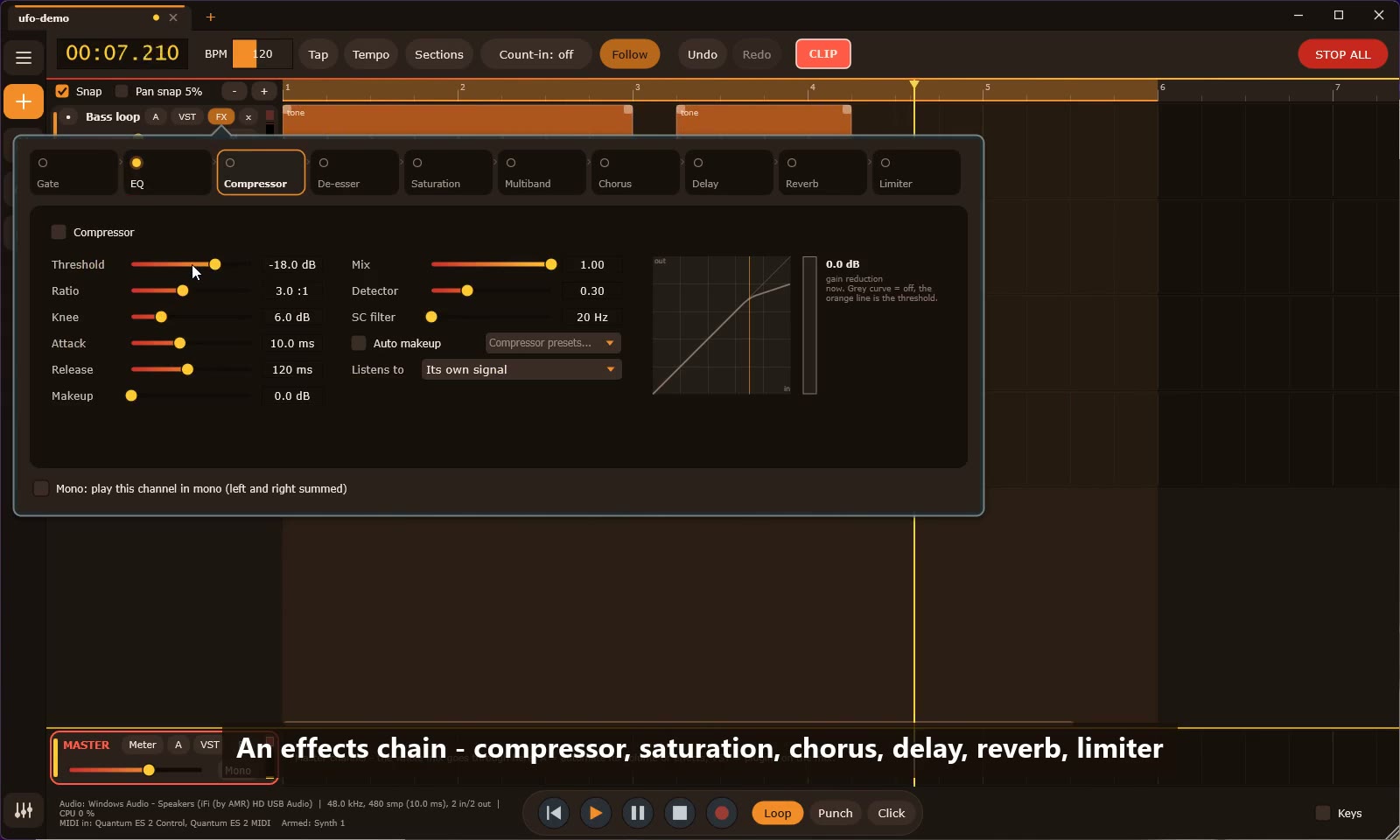 Compressor with sidechain | 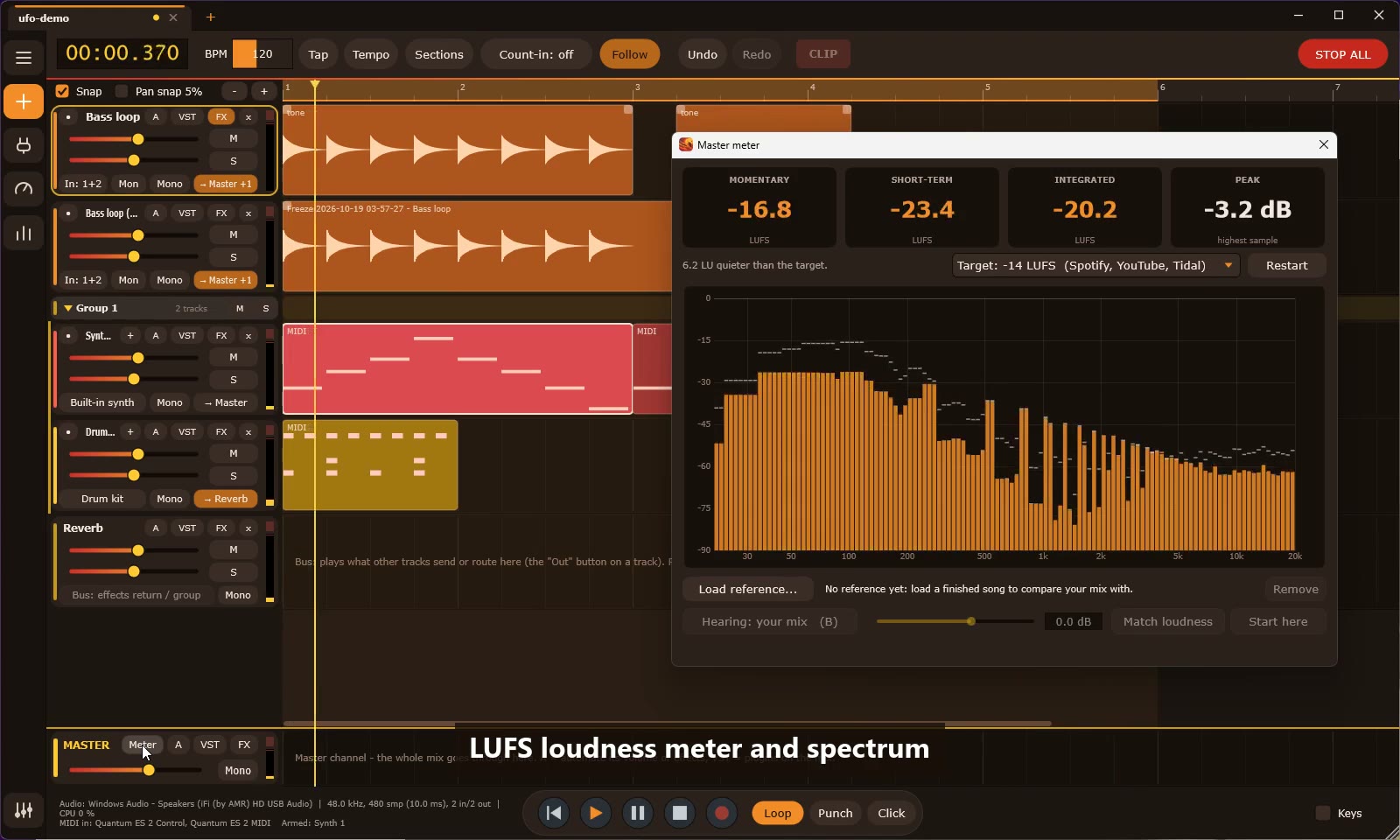 LUFS loudness meter and spectrum |
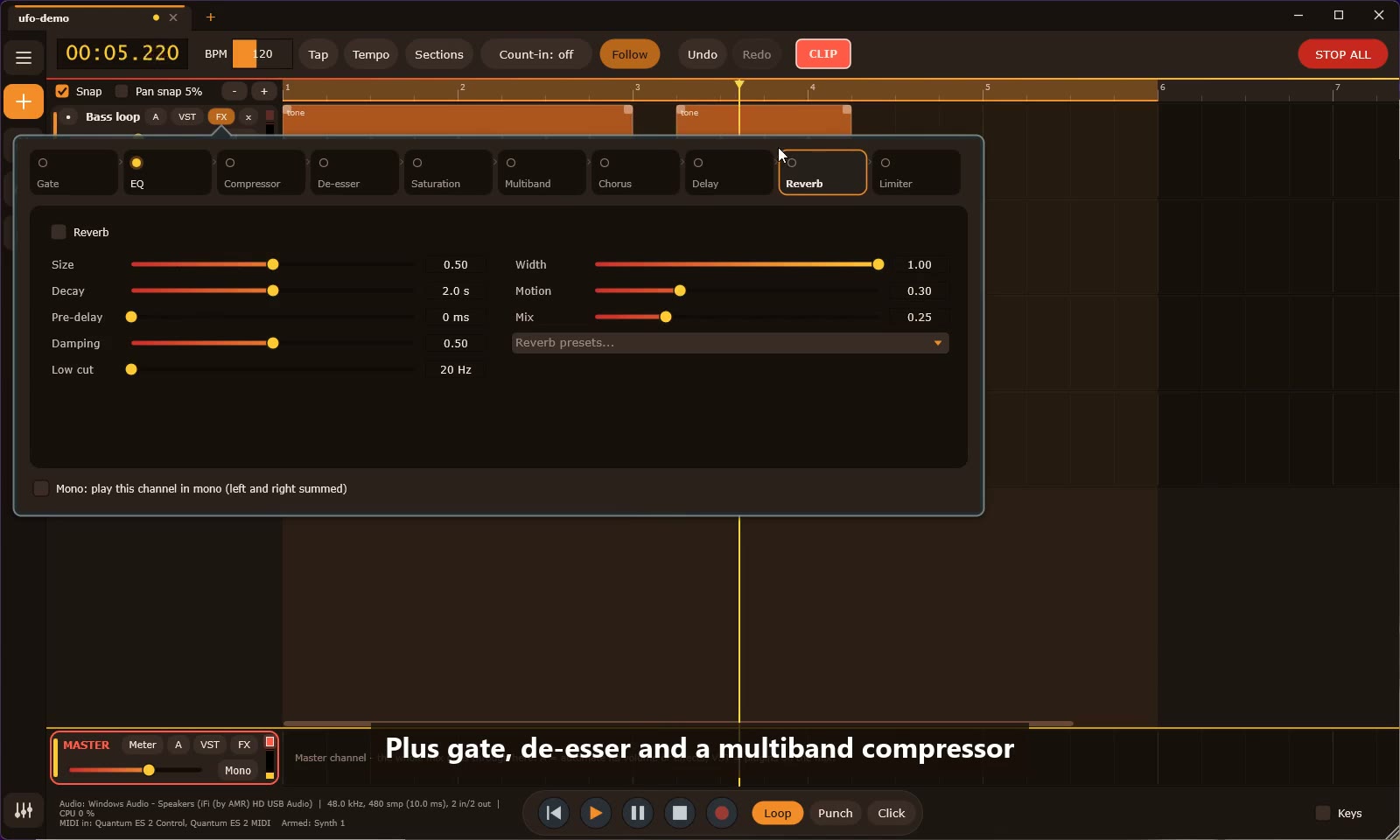 Reverb | 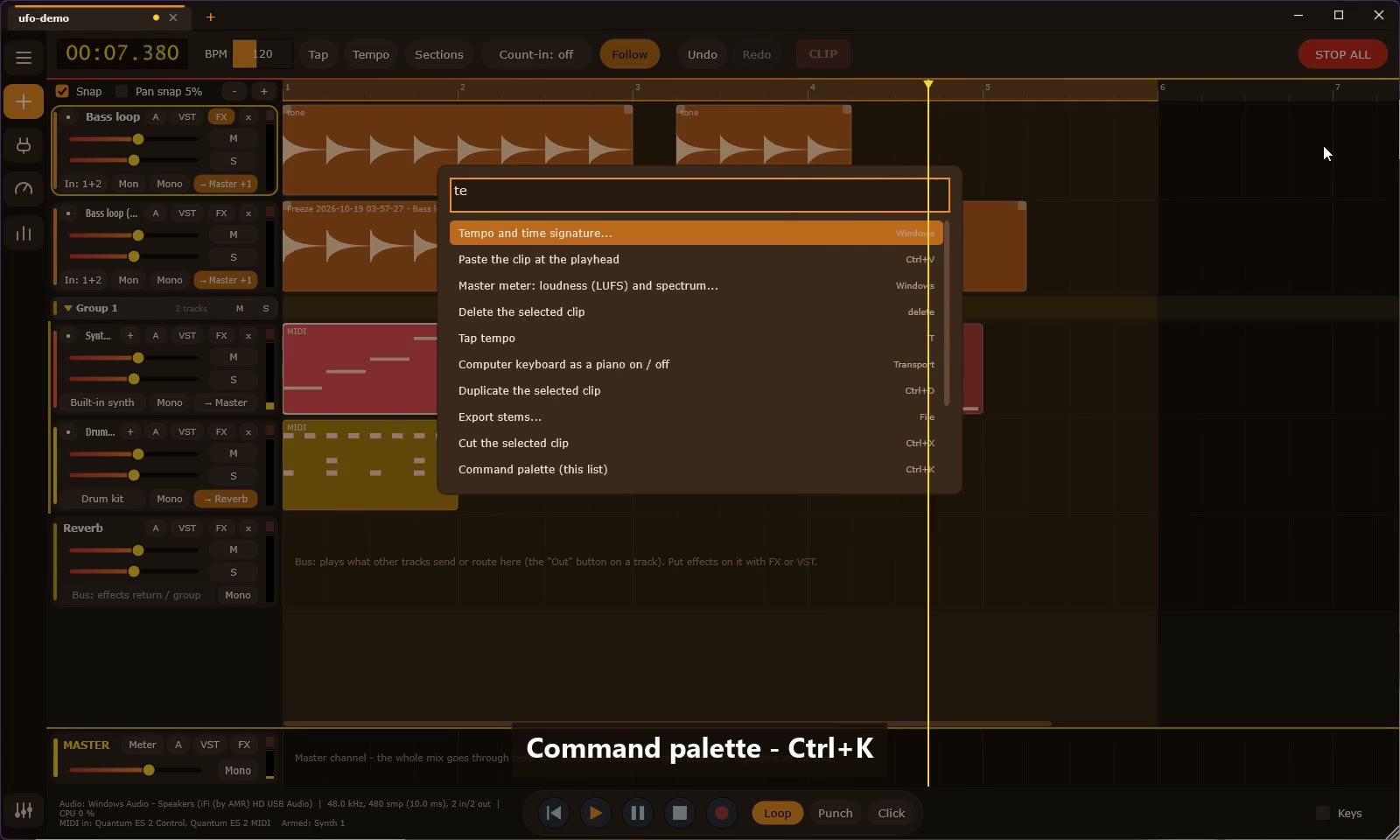 Command palette (Ctrl+K) |
More screenshots and a demo video are on the website.
UFODAW-<version>-win64.zip (or the installer) from the Releases page.UFODAW.exe. Windows may show a SmartScreen message because the program is not code-signed yet: More info > Run anyway.Ctrl+K opens the command palette.New to it? The guide explains the deeper features step by step, and a short tour starts on the first launch.
M) switches the metronome on and off, also while playing
or recording. Count-in (top bar) sets 0-4 bars of clicks before a recording starts; they follow the tempo and time signature at
the playhead, play even when the metronome is off, and nothing is recorded during them (the display counts the beats down).S) cuts all takes at the playhead, so each part can use a different take (comping); Keep this take
flattens the result..mdaw) and WAV export (24-bit).Q): grid from 1/4 to 1/32 and triplets, strength, swing
(100% = triplet feel), random timing (ms) and velocity variation, optionally the note lengths too. Works on drum clips as well./EHa): its windows close, the plugin is blocked and a message names it. If the program is closed anyway, the faulting module is recorded, that plugin is blocked at the next start (with a notice), and the autosave brings your work back.version, savedWith).<folder>Audio and opens the project from there, so the
whole folder can be moved to another disk or PC. Every normal save also leaves a time-stamped copy in <project> backups (the newest
twenty are kept; Show the backups folder in the same menu).%APPDATA%\UFODAW\StarterPack. The drum rack loads five ready-made kits (Punch, 808, Lo-fi, House, Tight) from a box at the top, the piano roll has ten sounds for the built-in synth (pluck, pad, strings, brass, lead, keys, bell, sub and fat bass), and File > New from a template opens a beat, a lo-fi sketch, a house and a trap groove, a song sketch with named sections, or a vocal-recording setup as a new, unsaved project. The sample browser (File menu or Ctrl+K) lists the starter pack and folders of your own with search, plays a sound when you click it, and adds it to a new track on double-click or drag.UFODAW-<version>-setup.exe, built by scripts\package.ps1 with Inno Setup): start menu entry, optional desktop shortcut, optional .mdaw file association, and an uninstaller. In the program, File > Check for updates... asks GitHub for the latest release (one small request, nothing about you or your projects is sent); when a newer version exists an orange Update available button appears in the top bar with what is new and a download link. It also checks once a day at start-up, which you can switch off in the same menu.%APPDATA%\UFODAW\Scripts: they can read and change the project (tracks, MIDI clips and notes, the synth, the tempo, the transport, rendering) through a ufodaw table, with a small music library (note names, scales, chords, euclidean rhythms). The program asks for a script's settings (--@param lines) first, a run is one undo step, and scripts run in a sandbox (no files, programs or network; time and memory limits). Six example scripts are written on the first start. Command line: UFODAW.exe --run-script script.lua [project.mdaw]. See SCRIPTING.md..mdaw project files get the UFODAW icon and open in UFODAW when double-clicked (set up by the installer, and by the program itself for the current user).Download UFODAW-<version>-win64.zip from the Releases page (or build it yourself, see Packaging), unzip it and start UFODAW.exe. Or run the installer (UFODAW-<version>-setup.exe).
UFODAW.exe project.mdaw (or "Open with" on a .mdaw file) opens that project right away.
The interface uses a warm dark theme with red, orange and yellow accents; the colours live in Source/Theme.h. Track colours tell the types apart: orange = audio, red = MIDI synth, yellow = drums.
Export stems (top bar) writes one WAV file per track into a folder you pick, named 01 - Bass loop.wav,
02 - Synth 1.wav, ... in track order. A progress window with a Cancel button shows while it renders, and when it is done
you can open the folder.
Click the Audio icon (sliders, bottom of the left rail) to choose the driver type, the device, the sample rate, the buffer size and which channels are on. The choice is remembered. The status line at the bottom shows what is in use. UFODAW plays through the first two enabled output channels. Which input an audio track records from is chosen per track (see below); only inputs that are switched on in this window can be picked.
Without extra steps you get Windows Audio (WASAPI), Windows Audio (Exclusive Mode) / (Low Latency Mode) and DirectSound. For ASIO drivers (PreSonus Quantum / Studio 192, Roland Rubix, AudioBox, ...) UFODAW has to be built with Steinberg's ASIO SDK, which cannot be shipped with the sources:
third_party\ so that third_party\asiosdk_<version>\common\iasiodrv.h exists
(or point at it: cmake -S . -B build -DASIO_SDK_DIR=C:\path\to\asiosdk, or set the ASIO_SDK_DIR environment variable).cmake -S . -B build, then cmake --build build --config Release). The configure step prints
ASIO support: ON, and ASIO appears as a driver type in the Audio window.Once the SDK is in third_party\, every build you make there has ASIO on (it is detected on each configure, Debug and
Release alike), and scripts\package.ps1 refuses to make a package without it (use -NoAsio to build one on purpose).
Notes: Windows lets a program use one ASIO driver at a time. To use two interfaces together, use Windows Audio (input and output can be different devices there) or an aggregate driver from the interface maker. Distributing a build that includes ASIO means following Steinberg's ASIO license (the SDK is also offered under the GPLv3).
Any MIDI track, and any sequencer track (Stochas...), can play hardware: open the track's VST panel and tick the MIDI output under External MIDI instruments (hardware), for example your interface's "... MIDI" output, or a USB MIDI device.
You can combine outputs: a Stochas sequencer track can drive internal synths and several hardware synths at once, each with its own channel. Exports never play the hardware.
Audio... has three tabs. Audio device is the usual driver / device / buffer choice.
Recording latency. Sound takes time to go out to your headphones and back in through the interface, so a recording arrives late. UFODAW places a recording on the timeline earlier by that round trip, so it lines up with what you played along to.
MIDI clock. Tick the MIDI output(s) of your drum machine, sequencer or synth under MIDI clock: while the transport runs they get 24 clock ticks per quarter note (following the tempo map, so tempo changes carry over), a Start (or Continue with the song position when you start somewhere else), a new position when you jump (a loop, a click on the ruler), and a Stop when playback ends. Clock shift moves the clock a few milliseconds earlier or later to line the hardware up with the audio. Exports never send clock. Notes to hardware are set up separately, in a track's VST panel (External MIDI instruments).
An arpeggiator or similar plugin that should change the notes of one track goes under MIDI effects in that track's VST panel instead.
| Action | How |
|---|---|
| Play / pause | Space |
| Rewind | Enter |
| Record (audio, or MIDI when a MIDI track is armed) | R |
| Loop on / off | L (Shift+L loops the selected clip) |
| Set the loop region | right-drag on the ruler or in any track (a right-click without dragging opens the clip menu) |
| Add an empty audio track | + (left rail) > Audio track (it starts armed for recording); drop audio files on it later, several files go one after the other |
| Record into a specific audio track | click the red dot left of the track name to arm it, then Record (R). Arm several tracks to record them all at once. Without an armed track the recording becomes a new track from inputs 1+2 |
| Clip gain / stretch / pitch | right-click an audio clip > Gain, stretch and pitch... |
| Volume curve of a clip | right-click the clip > Edit volume curve (click = add, drag = move, right-click = remove, Esc = done) |
| New version / collect audio / backups | Save As button: its menu |
| Sampler | + (left rail) > Sampler, then Load... (or drop an audio file on the track); right-click an audio clip > Sample this clip |
| Find a plugin | VST panel > the Instrument button or + Add effect plugin...: type to search by name, maker or category; Up / Down, Enter |
| Fade in / out of an audio clip | drag the squares in the top corners of the clip; right-click > Remove fades |
| Crossfade two clips | let the clips overlap a little, right-click one > Crossfade with overlapping clip(s) |
| Reverse a clip | right-click > Reverse |
| Tempo / time signature changes | Tempo button next to BPM: add sections that start at a bar, each with a BPM and a time signature |
| Mono or stereo | the Mono button on the track, bus or master strip (lit = mono; also in the FX panel) |
| Send a track to a bus / choose its output | Out button (bottom right of the track header, e.g. → Master): pick the output and set a send level per bus |
| Quantize / swing / humanize a MIDI clip | select the clip and press Q, or right-click it |
| Metronome on / off | Click next to Punch, or M (works during playback and recording) |
| Count-in before recording | Count-in in the top bar: off, 1, 2, 3 or 4 bars; applies when you press Record from a stop |
| Latency compensation | Audio icon > Recording latency: automatic, measured with a cable from an output to an input, plus a manual offset |
| MIDI clock to hardware | Audio icon > MIDI clock: tick the outputs that should follow the tempo |
| Punch in/out | turn on Punch (P); the region is the selected clip, or two bars at the playhead. Change it with Shift + right-drag on the ruler (red). Press Record: playback starts a bar before the region, records inside it, and the recording closes itself at the punch-out |
| Record a keyboard and an e-drum together | arm both MIDI tracks with their red dot, set each track's MIDI input in its VST panel, press Record |
| Edit a mod wheel / pedal / pitch bend | piano roll: the box in the lane under the notes (Velocity by default) lists the controllers |
| Record several takes | turn on Loop (set the loop with right-drag on the ruler) and press Record; stop when you have enough. Pick takes with right-click > Choose take; S splits all takes of a clip at the playhead for comping |
| Tune an instrument | Tuner icon in the left rail; pick the input (defaults to the armed track's input) |
| Choose a track's input | click the input button on the audio track (e.g. In: 1+2): mono inputs, stereo pairs, or Audio settings... |
| Hear the input while playing | arm the track and turn on Mon; it goes through the track's effects, volume and pan (not in exports). Use headphones, or direct monitoring on your interface, to avoid feedback and double latency |
| Move the playhead | click or drag on the ruler / empty lane |
| Split clip(s) at the playhead | S |
| Delete clip / note | Delete |
| Duplicate clip | Ctrl+D |
| Cut / copy / paste clips | right-click a clip (or an empty spot in a lane) for Cut, Copy, Paste here, Split here, Duplicate, Delete; or Ctrl+X / Ctrl+C / Ctrl+V (paste goes to the playhead, on the selected track of the same kind). Works for audio and MIDI clips, also between tracks |
| Undo / redo | Ctrl+Z / Ctrl+Y |
| Save / open | Ctrl+S / Ctrl+O |
| Zoom | Ctrl + mouse wheel, or the - / + buttons |
| Ignore snapping while dragging | hold Alt |
| Create a MIDI clip | double-click an empty spot on a MIDI track |
| Add / remove a note or drum step | click / right-click in the piano roll or step sequencer |
| Open a VST plugin's own window | picking a plugin opens it; later: double-click the track name, double-click a MIDI clip, or Plugin window in the piano roll |
| Change note velocity | drag the bars under the piano roll (sideways = paint several); Ctrl+drag a drum step |
| Pan a track | pan slider on the track; with Pan snap 5% on it jumps in 5% steps (L 5%, L 10%, ... R 100%), off = free. Hold Alt while dragging for the other mode. Double-click = center. Pan envelopes snap the same way |
| Automate a parameter | A button on the track, pick the parameter, then click in the lane to add points (right-click a point removes it) |
| Play with the computer keyboard | turn on Keys, then A W S E D F T G Y H U J K O L P (Z / X change octave) |
Buttons on every track: FX (built-in effects), VST (VST3 instrument and inserts), A (volume / pan automation). Use the Plugins icon in the left rail to scan for VST3 plugins first.
Requirements: Windows 10/11, Visual Studio with the Desktop development with C++ workload, CMake 3.22+ (the copy in Visual Studio works), git.
cmake -S . -B build
cmake --build build --config Release
build\UFODAW_artefacts\Release\UFODAW.exe
The first configure downloads JUCE 8.0.4 from GitHub. Use Release for real use: the Debug build is far too slow for audio and will crackle.
powershell -ExecutionPolicy Bypass -File scripts\package.ps1
builds Release and writes dist\UFODAW-<version>-win64.zip. For a regular installer, install Inno Setup and compile installer\UFODAW.iss (after running the script above).
Every push runs .github/workflows/tests.yml on GitHub: it builds the program and the engine tests, then runs
cmake -S . -B build -DUFODAW_BUILD_TESTS=ON
cmake --build build --config Release
build\EngineTest_artefacts\Release\EngineTest.exe 3
powershell -ExecutionPolicy Bypass -File scripts\selftest.ps1
EngineTest (tests/engine/EngineTest.cpp) renders a project with synth, drums, audio, a plugin with latency, buses, sends and a sidechain, in real time and offline, once on one thread and once with worker threads: the results must be identical. It also checks pitch shifting and the clip launcher.scripts/selftest.ps1 starts the program with --selftest, which opens every project in tests/projects/ (an old format, a newer format, a missing file, launcher cells) and the starter-pack projects without dialogs, renders a few seconds of each and checks the result.| File | What it does |
|---|---|
Source/Engine.* | Real-time mixer: tracks, clips, transport, loop, automation, recording, offline render |
Source/Synth.*, Source/SynthPresets.h, Source/SynthPanel.h, Source/DrumKit.* | Built-in instruments: the synth, its sounds and its window; the drum kit |
Source/Fx.* | EQ, compressor, delay, reverb |
Source/PluginHost.*, Source/Plugin.h | VST3 scanning, loading, editor windows |
Source/MainComponent.* | Main window: arrangement, transport, project files, undo/redo |
Source/PianoRoll.*, Source/DrumSequencer.* | Note editors below the arrangement |
Source/Sampler.*, Source/SamplerPanel.h | The sampler instrument and its window |
Source/Stretch.*, Source/ClipPanel.h | Time-stretch and pitch-shift (Rubber Band), and the clip gain / stretch / pitch panel |
Source/Tuner.* | Pitch detection (YIN) and the tuner window |
Source/TempoMap.h, Source/TempoPanel.h | Tempo and time signature sections: seconds / beats / bars, and the list to edit them |
Source/SyncPanels.h | The latency and MIDI clock tabs of the audio settings |
Source/RoutingPanel.h, Source/MidiTools.h | Output and sends of a track; quantize / swing / humanize |
Source/FxPanel.*, Source/PluginPanel.* | Per-track effect and plugin panels |
Source/EngineLauncher.cpp, Source/ClipLauncher.h | The clip launcher: cells, quantized launching, and its window |
Source/Scripting.* | Lua scripting: the sandbox, the ufodaw and music libraries, the example scripts |
Source/PluginCrash.h, Source/CrashReport.h, Source/UpdateInstall.h | Plugin crash handling, problem reports, in-program updates |
The audio thread never blocks: the UI edits the project under a lock that the audio callback only tries to take. Undo works with cheap snapshots of the whole project (sample data is shared, not copied).
UFODAW is free software, released under the GNU Affero General Public License v3.0 (see LICENSE). If you distribute a modified
version, or let people use it over a network, you must offer them the source under the same terms.
It is built on:
VST is a registered trademark of Steinberg Media Technologies GmbH. UFODAW is not affiliated with or endorsed by Steinberg, the JUCE team or Particular Programs.
Free code signing provided by SignPath.io, certificate by SignPath Foundation. (Active once the project has been accepted by SignPath Foundation; until then releases are not signed and Windows SmartScreen may warn.)
UFODAW.exe of the official releases, built from this repository by the GitHub Actions workflow
.github/workflows/release.yml (so the signed program can be checked against the source). Builds you make yourself are not signed.Free, open-source DAW for Windows (C++/JUCE): VST3, ASIO, MIDI, sampler, drum rack, automation, comping, warp
See the code
A free, open-source digital audio workstation for Windows.
Audio and MIDI tracks, VST3 plugins, sampler, drum rack, deep automation and a full effects chain.
Website · Download · Guide · How it compares · Discord · Report a bug or request a feature
UFODAW is a small, fast DAW written in C++17 with JUCE. It installs with a small installer (no administrator rights needed), saves everything in one project file (.mdaw) and stays out of your way with a warm dark interface.
Six-band EQ with a live spectrum | Piano roll with scale and chord helper |
Compressor with sidechain | LUFS loudness meter and spectrum |
Reverb | Command palette (Ctrl+K) |
More screenshots and a demo video are on the website.
UFODAW-<version>-win64.zip (or the installer) from the Releases page.UFODAW.exe. Windows may show a SmartScreen message because the program is not code-signed yet: More info > Run anyway.Ctrl+K opens the command palette.New to it? The guide explains the deeper features step by step, and a short tour starts on the first launch.
M) switches the metronome on and off, also while playing
or recording. Count-in (top bar) sets 0-4 bars of clicks before a recording starts; they follow the tempo and time signature at
the playhead, play even when the metronome is off, and nothing is recorded during them (the display counts the beats down).S) cuts all takes at the playhead, so each part can use a different take (comping); Keep this take
flattens the result..mdaw) and WAV export (24-bit).Q): grid from 1/4 to 1/32 and triplets, strength, swing
(100% = triplet feel), random timing (ms) and velocity variation, optionally the note lengths too. Works on drum clips as well./EHa): its windows close, the plugin is blocked and a message names it. If the program is closed anyway, the faulting module is recorded, that plugin is blocked at the next start (with a notice), and the autosave brings your work back.version, savedWith).<folder>Audio and opens the project from there, so the
whole folder can be moved to another disk or PC. Every normal save also leaves a time-stamped copy in <project> backups (the newest
twenty are kept; Show the backups folder in the same menu).%APPDATA%\UFODAW\StarterPack. The drum rack loads five ready-made kits (Punch, 808, Lo-fi, House, Tight) from a box at the top, the piano roll has ten sounds for the built-in synth (pluck, pad, strings, brass, lead, keys, bell, sub and fat bass), and File > New from a template opens a beat, a lo-fi sketch, a house and a trap groove, a song sketch with named sections, or a vocal-recording setup as a new, unsaved project. The sample browser (File menu or Ctrl+K) lists the starter pack and folders of your own with search, plays a sound when you click it, and adds it to a new track on double-click or drag.UFODAW-<version>-setup.exe, built by scripts\package.ps1 with Inno Setup): start menu entry, optional desktop shortcut, optional .mdaw file association, and an uninstaller. In the program, File > Check for updates... asks GitHub for the latest release (one small request, nothing about you or your projects is sent); when a newer version exists an orange Update available button appears in the top bar with what is new and a download link. It also checks once a day at start-up, which you can switch off in the same menu.%APPDATA%\UFODAW\Scripts: they can read and change the project (tracks, MIDI clips and notes, the synth, the tempo, the transport, rendering) through a ufodaw table, with a small music library (note names, scales, chords, euclidean rhythms). The program asks for a script's settings (--@param lines) first, a run is one undo step, and scripts run in a sandbox (no files, programs or network; time and memory limits). Six example scripts are written on the first start. Command line: UFODAW.exe --run-script script.lua [project.mdaw]. See SCRIPTING.md..mdaw project files get the UFODAW icon and open in UFODAW when double-clicked (set up by the installer, and by the program itself for the current user).Download UFODAW-<version>-win64.zip from the Releases page (or build it yourself, see Packaging), unzip it and start UFODAW.exe. Or run the installer (UFODAW-<version>-setup.exe).
UFODAW.exe project.mdaw (or "Open with" on a .mdaw file) opens that project right away.
The interface uses a warm dark theme with red, orange and yellow accents; the colours live in Source/Theme.h. Track colours tell the types apart: orange = audio, red = MIDI synth, yellow = drums.
Export stems (top bar) writes one WAV file per track into a folder you pick, named 01 - Bass loop.wav,
02 - Synth 1.wav, ... in track order. A progress window with a Cancel button shows while it renders, and when it is done
you can open the folder.
Click the Audio icon (sliders, bottom of the left rail) to choose the driver type, the device, the sample rate, the buffer size and which channels are on. The choice is remembered. The status line at the bottom shows what is in use. UFODAW plays through the first two enabled output channels. Which input an audio track records from is chosen per track (see below); only inputs that are switched on in this window can be picked.
Without extra steps you get Windows Audio (WASAPI), Windows Audio (Exclusive Mode) / (Low Latency Mode) and DirectSound. For ASIO drivers (PreSonus Quantum / Studio 192, Roland Rubix, AudioBox, ...) UFODAW has to be built with Steinberg's ASIO SDK, which cannot be shipped with the sources:
third_party\ so that third_party\asiosdk_<version>\common\iasiodrv.h exists
(or point at it: cmake -S . -B build -DASIO_SDK_DIR=C:\path\to\asiosdk, or set the ASIO_SDK_DIR environment variable).cmake -S . -B build, then cmake --build build --config Release). The configure step prints
ASIO support: ON, and ASIO appears as a driver type in the Audio window.Once the SDK is in third_party\, every build you make there has ASIO on (it is detected on each configure, Debug and
Release alike), and scripts\package.ps1 refuses to make a package without it (use -NoAsio to build one on purpose).
Notes: Windows lets a program use one ASIO driver at a time. To use two interfaces together, use Windows Audio (input and output can be different devices there) or an aggregate driver from the interface maker. Distributing a build that includes ASIO means following Steinberg's ASIO license (the SDK is also offered under the GPLv3).
Any MIDI track, and any sequencer track (Stochas...), can play hardware: open the track's VST panel and tick the MIDI output under External MIDI instruments (hardware), for example your interface's "... MIDI" output, or a USB MIDI device.
You can combine outputs: a Stochas sequencer track can drive internal synths and several hardware synths at once, each with its own channel. Exports never play the hardware.
Audio... has three tabs. Audio device is the usual driver / device / buffer choice.
Recording latency. Sound takes time to go out to your headphones and back in through the interface, so a recording arrives late. UFODAW places a recording on the timeline earlier by that round trip, so it lines up with what you played along to.
MIDI clock. Tick the MIDI output(s) of your drum machine, sequencer or synth under MIDI clock: while the transport runs they get 24 clock ticks per quarter note (following the tempo map, so tempo changes carry over), a Start (or Continue with the song position when you start somewhere else), a new position when you jump (a loop, a click on the ruler), and a Stop when playback ends. Clock shift moves the clock a few milliseconds earlier or later to line the hardware up with the audio. Exports never send clock. Notes to hardware are set up separately, in a track's VST panel (External MIDI instruments).
An arpeggiator or similar plugin that should change the notes of one track goes under MIDI effects in that track's VST panel instead.
| Action | How |
|---|---|
| Play / pause | Space |
| Rewind | Enter |
| Record (audio, or MIDI when a MIDI track is armed) | R |
| Loop on / off | L (Shift+L loops the selected clip) |
| Set the loop region | right-drag on the ruler or in any track (a right-click without dragging opens the clip menu) |
| Add an empty audio track | + (left rail) > Audio track (it starts armed for recording); drop audio files on it later, several files go one after the other |
| Record into a specific audio track | click the red dot left of the track name to arm it, then Record (R). Arm several tracks to record them all at once. Without an armed track the recording becomes a new track from inputs 1+2 |
| Clip gain / stretch / pitch | right-click an audio clip > Gain, stretch and pitch... |
| Volume curve of a clip | right-click the clip > Edit volume curve (click = add, drag = move, right-click = remove, Esc = done) |
| New version / collect audio / backups | Save As button: its menu |
| Sampler | + (left rail) > Sampler, then Load... (or drop an audio file on the track); right-click an audio clip > Sample this clip |
| Find a plugin | VST panel > the Instrument button or + Add effect plugin...: type to search by name, maker or category; Up / Down, Enter |
| Fade in / out of an audio clip | drag the squares in the top corners of the clip; right-click > Remove fades |
| Crossfade two clips | let the clips overlap a little, right-click one > Crossfade with overlapping clip(s) |
| Reverse a clip | right-click > Reverse |
| Tempo / time signature changes | Tempo button next to BPM: add sections that start at a bar, each with a BPM and a time signature |
| Mono or stereo | the Mono button on the track, bus or master strip (lit = mono; also in the FX panel) |
| Send a track to a bus / choose its output | Out button (bottom right of the track header, e.g. → Master): pick the output and set a send level per bus |
| Quantize / swing / humanize a MIDI clip | select the clip and press Q, or right-click it |
| Metronome on / off | Click next to Punch, or M (works during playback and recording) |
| Count-in before recording | Count-in in the top bar: off, 1, 2, 3 or 4 bars; applies when you press Record from a stop |
| Latency compensation | Audio icon > Recording latency: automatic, measured with a cable from an output to an input, plus a manual offset |
| MIDI clock to hardware | Audio icon > MIDI clock: tick the outputs that should follow the tempo |
| Punch in/out | turn on Punch (P); the region is the selected clip, or two bars at the playhead. Change it with Shift + right-drag on the ruler (red). Press Record: playback starts a bar before the region, records inside it, and the recording closes itself at the punch-out |
| Record a keyboard and an e-drum together | arm both MIDI tracks with their red dot, set each track's MIDI input in its VST panel, press Record |
| Edit a mod wheel / pedal / pitch bend | piano roll: the box in the lane under the notes (Velocity by default) lists the controllers |
| Record several takes | turn on Loop (set the loop with right-drag on the ruler) and press Record; stop when you have enough. Pick takes with right-click > Choose take; S splits all takes of a clip at the playhead for comping |
| Tune an instrument | Tuner icon in the left rail; pick the input (defaults to the armed track's input) |
| Choose a track's input | click the input button on the audio track (e.g. In: 1+2): mono inputs, stereo pairs, or Audio settings... |
| Hear the input while playing | arm the track and turn on Mon; it goes through the track's effects, volume and pan (not in exports). Use headphones, or direct monitoring on your interface, to avoid feedback and double latency |
| Move the playhead | click or drag on the ruler / empty lane |
| Split clip(s) at the playhead | S |
| Delete clip / note | Delete |
| Duplicate clip | Ctrl+D |
| Cut / copy / paste clips | right-click a clip (or an empty spot in a lane) for Cut, Copy, Paste here, Split here, Duplicate, Delete; or Ctrl+X / Ctrl+C / Ctrl+V (paste goes to the playhead, on the selected track of the same kind). Works for audio and MIDI clips, also between tracks |
| Undo / redo | Ctrl+Z / Ctrl+Y |
| Save / open | Ctrl+S / Ctrl+O |
| Zoom | Ctrl + mouse wheel, or the - / + buttons |
| Ignore snapping while dragging | hold Alt |
| Create a MIDI clip | double-click an empty spot on a MIDI track |
| Add / remove a note or drum step | click / right-click in the piano roll or step sequencer |
| Open a VST plugin's own window | picking a plugin opens it; later: double-click the track name, double-click a MIDI clip, or Plugin window in the piano roll |
| Change note velocity | drag the bars under the piano roll (sideways = paint several); Ctrl+drag a drum step |
| Pan a track | pan slider on the track; with Pan snap 5% on it jumps in 5% steps (L 5%, L 10%, ... R 100%), off = free. Hold Alt while dragging for the other mode. Double-click = center. Pan envelopes snap the same way |
| Automate a parameter | A button on the track, pick the parameter, then click in the lane to add points (right-click a point removes it) |
| Play with the computer keyboard | turn on Keys, then A W S E D F T G Y H U J K O L P (Z / X change octave) |
Buttons on every track: FX (built-in effects), VST (VST3 instrument and inserts), A (volume / pan automation). Use the Plugins icon in the left rail to scan for VST3 plugins first.
Requirements: Windows 10/11, Visual Studio with the Desktop development with C++ workload, CMake 3.22+ (the copy in Visual Studio works), git.
cmake -S . -B build
cmake --build build --config Release
build\UFODAW_artefacts\Release\UFODAW.exe
The first configure downloads JUCE 8.0.4 from GitHub. Use Release for real use: the Debug build is far too slow for audio and will crackle.
powershell -ExecutionPolicy Bypass -File scripts\package.ps1
builds Release and writes dist\UFODAW-<version>-win64.zip. For a regular installer, install Inno Setup and compile installer\UFODAW.iss (after running the script above).
Every push runs .github/workflows/tests.yml on GitHub: it builds the program and the engine tests, then runs
cmake -S . -B build -DUFODAW_BUILD_TESTS=ON
cmake --build build --config Release
build\EngineTest_artefacts\Release\EngineTest.exe 3
powershell -ExecutionPolicy Bypass -File scripts\selftest.ps1
EngineTest (tests/engine/EngineTest.cpp) renders a project with synth, drums, audio, a plugin with latency, buses, sends and a sidechain, in real time and offline, once on one thread and once with worker threads: the results must be identical. It also checks pitch shifting and the clip launcher.scripts/selftest.ps1 starts the program with --selftest, which opens every project in tests/projects/ (an old format, a newer format, a missing file, launcher cells) and the starter-pack projects without dialogs, renders a few seconds of each and checks the result.| File | What it does |
|---|---|
Source/Engine.* | Real-time mixer: tracks, clips, transport, loop, automation, recording, offline render |
Source/Synth.*, Source/SynthPresets.h, Source/SynthPanel.h, Source/DrumKit.* | Built-in instruments: the synth, its sounds and its window; the drum kit |
Source/Fx.* | EQ, compressor, delay, reverb |
Source/PluginHost.*, Source/Plugin.h | VST3 scanning, loading, editor windows |
Source/MainComponent.* | Main window: arrangement, transport, project files, undo/redo |
Source/PianoRoll.*, Source/DrumSequencer.* | Note editors below the arrangement |
Source/Sampler.*, Source/SamplerPanel.h | The sampler instrument and its window |
Source/Stretch.*, Source/ClipPanel.h | Time-stretch and pitch-shift (Rubber Band), and the clip gain / stretch / pitch panel |
Source/Tuner.* | Pitch detection (YIN) and the tuner window |
Source/TempoMap.h, Source/TempoPanel.h | Tempo and time signature sections: seconds / beats / bars, and the list to edit them |
Source/SyncPanels.h | The latency and MIDI clock tabs of the audio settings |
Source/RoutingPanel.h, Source/MidiTools.h | Output and sends of a track; quantize / swing / humanize |
Source/FxPanel.*, Source/PluginPanel.* | Per-track effect and plugin panels |
Source/EngineLauncher.cpp, Source/ClipLauncher.h | The clip launcher: cells, quantized launching, and its window |
Source/Scripting.* | Lua scripting: the sandbox, the ufodaw and music libraries, the example scripts |
Source/PluginCrash.h, Source/CrashReport.h, Source/UpdateInstall.h | Plugin crash handling, problem reports, in-program updates |
The audio thread never blocks: the UI edits the project under a lock that the audio callback only tries to take. Undo works with cheap snapshots of the whole project (sample data is shared, not copied).
UFODAW is free software, released under the GNU Affero General Public License v3.0 (see LICENSE). If you distribute a modified
version, or let people use it over a network, you must offer them the source under the same terms.
It is built on:
VST is a registered trademark of Steinberg Media Technologies GmbH. UFODAW is not affiliated with or endorsed by Steinberg, the JUCE team or Particular Programs.
Free code signing provided by SignPath.io, certificate by SignPath Foundation. (Active once the project has been accepted by SignPath Foundation; until then releases are not signed and Windows SmartScreen may warn.)
UFODAW.exe of the official releases, built from this repository by the GitHub Actions workflow
.github/workflows/release.yml (so the signed program can be checked against the source). Builds you make yourself are not signed.


