Use OCR in Windows quickly and easily with Text Grab. With optional background process and notifications.
See the code

Copy any text you can see.



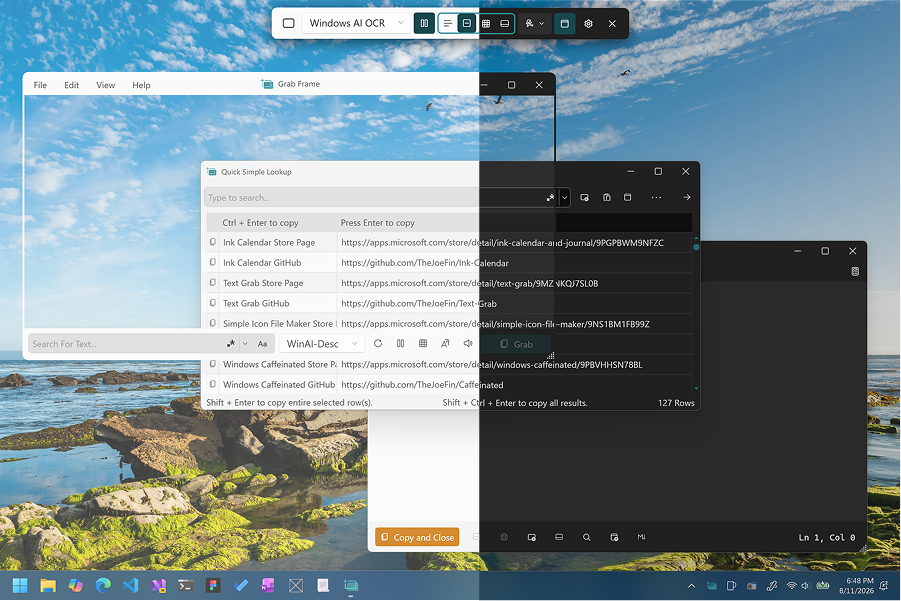
Use Text Grab on Windows to capture text with OCR, clean it up quickly, and move it into the next step of your workflow.
When text gets trapped inside images, videos, PDFs, and parts of apps where you cannot select it, Text Grab helps you get it back out. You can take a screenshot or open a supported file, run it through the OCR engine, and send the result to the clipboard or straight into an editor. All OCR runs entirely on your device — no internet connection, no cloud service, and no per-use cost. Everything stays local and private. You can also do much more than copy text from images, because Text Grab gives you multiple modes for capture, post-grab cleanup, spreadsheet-style editing, and fast text reuse.
You can use it all day without friction. Launch it quickly from the taskbar, open specific modes from the command line, or enable the background process so global hotkeys work anywhere in Windows.
The Full-Screen Grab mode is also the basis of the PowerToys Text Extractor.
Build and test Text Grab on Windows.
Get the code:
winget install git.gitgit clone https://github.com/TheJoeFin/Text-Grab.git10.0.22621.0Text-Grab.sln in Visual Studio.Text-Grab-Package as the startup project.x64 or ARM64.F5 or choose Local Machine.10.0.100 in global.json.Text-Grab folder in VS Code.dotnet restore Text-Grab.slndotnet build Text-Grab\Text-Grab.csprojdotnet test Tests\Tests.csprojF5 to launch with the included debug configuration.The Windows UI automation inventory, safe local release sign-off command, runner requirements, and opt-in system/package lanes are documented in UiTests/README.md.

Use Full-Screen Mode when you want to select any region of the screen and copy the recognized text straight to your clipboard.
You can also click once to try to copy a single word. That works because the Windows OCR API draws a bounding box around each recognized word.
If you click or select an area with no text, the Text Grab window stays active so you can try again. To exit, press Escape, right-click and choose Cancel, or press Alt+F4.

Use Grab Frame when you want a movable OCR window you can keep over part of your screen. Position the frame over the text you want, then grab text by searching for it, clicking a word border, or clicking the Grab button.
Grab Frame uses the same OCR engine as Full-Screen Mode, so you get the same strengths and tradeoffs. OCR is not perfect, but you can often improve accuracy by adjusting the size and position of the frame.

Use the Edit Text Window to turn OCR results into clean, usable content. You can work in plain text, spreadsheet-style, or markdown mode depending on what you need. Grab text with Full-Screen Mode or Grab Frame, then keep refining it without leaving Text Grab.
Inside the Edit Text Window, you get tools that help you quickly fix, extract, and structure text.
Clean OCR output
Search and extract
Structure data
Workflow helpers
If you capture tabular data, use Spreadsheet mode to keep cleaning it after OCR. You can straighten columns, copy selected rows, copy the current column, and save the final result as delimited data for use elsewhere.
The Edit Text Window also includes a Calc Pane for quick calculations alongside your text. It evaluates expressions in real time line by line, so you can stay in the same window while checking totals, conversions, or quick calculations from OCR results.
The Calc Pane can help with:
+, -, *, /, %, and exponentssin, cos, tan, sqrt, abs, and logx = 10, pi, e, and tau5 miles to km or 100 fahrenheit to celsiustoday + 5 days or comparing dates in weeksUse the Calc Pane when OCR pulls numbers, quantities, dates, or measurements out of an image and you want quick answers without moving the data into another calculator first. It can also summarize numeric values from spreadsheet selections, copy all calculation results, and hide or show errors depending on how much detail you want while cleaning data.
Quick Simple Lookup is not about OCR. Use it to retrieve frequently used text like URLs, emails, part numbers, and more. Think of it as your long-term memory: a custom dictionary you can edit and recall instantly whenever you need it. The workflow is fast:
Text Grab isn't limited to screenshots. The Text Grab Extension for Chrome and Edge lets you grab raw, selectable text straight from a web page and send it into Text Grab — no OCR needed since the text is already there. It's a fast way to pull text out of pages that block copy/paste or have awkward formatting, and get it into Text Grab for cleanup, spreadsheet mode, or your usual post-grab workflow.
Text Grab keeps working after OCR. After each grab, you can run one or more post-grab actions to clean or route the text before it lands in the next tool. That helps when you repeatedly grab invoice line items, SKU tables, IDs, or lists from screenshots and want them in a cleaner, more usable shape right away.
Examples of post-grab actions and workflow helpers include:
One example workflow: capture a pricing table with Full-Screen Grab or Grab Frame, run a post-grab action like Trim each line to remove extra whitespace, then send the result into the Edit Text Window in Spreadsheet mode. From there you can correct OCR mistakes, move data into the right columns, transpose the table if needed, and then copy or save the cleaned result as data ready for Excel, Google Sheets, an ERP, or another step in your workflow.
Text Grab supports several capture methods so you can choose the one that best fits your hardware, workflow, and source material. All methods run entirely on your device — nothing is sent to a server, and there are no per-use costs.
The newest and most accurate option. The Windows AI API is available on Copilot+ PCs with Text Grab installed through the Microsoft Store, and runs on the dedicated Neural Processing Unit (NPU). Because inference happens on dedicated silicon, it is fast and power-efficient. It produces higher-quality results than traditional OCR, especially on handwriting, stylized fonts, and complex layouts. WinAI models support a wide range of languages automatically without requiring additional language packs. If your device supports it, Text Grab will offer this as an option automatically.
The default capture method for most users. The Windows Runtime OCR API has shipped with Windows since Windows 10 and runs entirely on your device. It is fast, reliable, and produces excellent results for printed text in screenshots, documents, and images. Recognized languages depend on the language packs installed in Windows — add languages through Windows Settings to enable recognition in those languages.
An open-source OCR engine that Text Grab can use as an alternative to the WinRT API. Tesseract has been around for decades, is highly configurable, and supports a very large range of languages through downloadable language data files available in the tessdata repository. It can be a good choice when you need more control over recognition parameters or when working with image types where you want to compare output between engines.
Sometimes OCR is not needed at all. When text is displayed in a native UI element — a text box, label, list, or document rendered by the operating system — Text Grab can read it directly using Windows UI Automation without running any OCR. This approach is faster, perfectly accurate, and works regardless of display resolution or font. Use it when the text is selectable in theory but not easily accessible through normal copy and paste.
Use these arguments with Text-Grab.exe:
Fullscreen launches into Fullscreen Grab modeGrabFrame launches a new Grab FrameEditText launches a new Edit Text WindowQuickLookup launches Quick Simple LookupSettings opens Text Grab settings--grabframe "file path" opens a supported image or PDF directly in Grab Frame--windowless "file path" reads or OCRs a file and copies the resulting text without opening a window"file path" opens text files in Edit Text and opens supported image or PDF files in Grab Frame"folder path" e.g. .\Text-Grab.exe "C:\Users\myPC\Downloads" opens a new Edit Text Window and scans the images in that directoryYou are not limited to one screenshot at a time. You can also bulk process a folder full of images or PDFs and collect the OCR output in the Edit Text Window for review, cleanup, and export.
Use this when you have a batch of scans, receipts, product labels, screenshots, or archived documents that all need text extracted in one pass. Instead of opening files one by one, point Text Grab at the folder and let it process the supported files it finds.
Use bulk folder OCR to:
.txt output files for the processed itemsAfter the batch OCR finishes, you can continue cleaning the combined results in the Edit Text Window, use find and replace or regex extraction, convert stacked data into table form, or move the result into Spreadsheet mode for final cleanup before sending it elsewhere in your workflow.
Patterns, also known as regular expressions or RegEx, help you make text cleanup more robust, accurate, fast, and repeatable throughout Text Grab. They are especially useful when OCR results contain IDs, dates, prices, email addresses, URLs, phone numbers, or other text that follows a recognizable structure even when the surrounding text is messy.
Patterns are not just a niche power-user feature. They help you turn one successful cleanup step into a reusable workflow you can apply again and again.
Patterns are used throughout the app to:
Text Grab also helps you build patterns faster. In the Edit Text Window, selecting text can generate a suggested pattern automatically, and you can adjust how broad or specific it is. That makes it easier for you to start with a real OCR result, find similar matches, and then reuse the pattern in Find and Replace or save it for later.
Built-in and saved patterns make repeated cleanup more practical. For example, you can save patterns for common data types like email addresses, phone numbers, URLs, GUIDs, dates, currency amounts, or custom IDs used in your work. Once a pattern is saved, you can test it, explain it, reuse it in searches, and include it in templates so your cleanup steps stay consistent across future grabs and bulk-processing jobs.
Grab Templates turn a one-time OCR setup into a repeatable workflow. You can define how Text Grab should collect text from similar screenshots, images, PDFs, forms, labels, invoices, or tables so you do not have to rebuild the same extraction steps every time.
Build templates from:
Use Grab Templates when some data always appears in the same place, while other data is easier to find by pattern. One template can OCR exact regions for known fields and also use Patterns to pull the first, last, all, or specific matches for values like IDs, dates, totals, email addresses, or codes.
Grab Templates help make OCR workflows:
Grab Templates fit naturally with the rest of Text Grab. You can apply them during capture, use them with bulk image-folder processing, and send the formatted output into the Edit Text Window or Spreadsheet mode for final cleanup before the data moves to the next step in your workflow.
Text Grab does more than copy text from images. You can use it as a platform for understanding text through patterns, position, and automation.
Some information makes the most sense based on where it appears on the screen or page. Other information makes the most sense based on the pattern it follows, like an ID, a date, a price, an email address, or a code. Text Grab brings those approaches together so you can capture text, identify what matters, clean it up, structure it, calculate with it, and move it into the next step of your work.
That is why the features in Text Grab are designed to work together:
Instead of treating OCR as the end of the process, Text Grab is the beginning of a smarter text workflow.
I hope this app saves you time. If you have questions or feedback, reach out on Bluesky @TheJoeFin, Twitter @TheJoeFin, or by email at joe@textgrab.net.
For the current direct NuGet dependency list and local third-party license notices, see BUILT-WITH.md.
Check out the awesome app Text Sniper. It is very similar to Text Grab, but for Mac. If you use my affiliate link here, you will also support Text Grab development.
1,644 followers · starred Dec 2025
109 followers · starred Apr 2021
78 followers · starred Oct 2022
214 followers · starred Aug 2022
Use OCR in Windows quickly and easily with Text Grab. With optional background process and notifications.
See the code
Copy any text you can see.
Use Text Grab on Windows to capture text with OCR, clean it up quickly, and move it into the next step of your workflow.
When text gets trapped inside images, videos, PDFs, and parts of apps where you cannot select it, Text Grab helps you get it back out. You can take a screenshot or open a supported file, run it through the OCR engine, and send the result to the clipboard or straight into an editor. All OCR runs entirely on your device — no internet connection, no cloud service, and no per-use cost. Everything stays local and private. You can also do much more than copy text from images, because Text Grab gives you multiple modes for capture, post-grab cleanup, spreadsheet-style editing, and fast text reuse.
You can use it all day without friction. Launch it quickly from the taskbar, open specific modes from the command line, or enable the background process so global hotkeys work anywhere in Windows.
The Full-Screen Grab mode is also the basis of the PowerToys Text Extractor.
Build and test Text Grab on Windows.
Get the code:
winget install git.gitgit clone https://github.com/TheJoeFin/Text-Grab.git10.0.22621.0Text-Grab.sln in Visual Studio.Text-Grab-Package as the startup project.x64 or ARM64.F5 or choose Local Machine.10.0.100 in global.json.Text-Grab folder in VS Code.dotnet restore Text-Grab.slndotnet build Text-Grab\Text-Grab.csprojdotnet test Tests\Tests.csprojF5 to launch with the included debug configuration.The Windows UI automation inventory, safe local release sign-off command, runner requirements, and opt-in system/package lanes are documented in UiTests/README.md.
Use Full-Screen Mode when you want to select any region of the screen and copy the recognized text straight to your clipboard.
You can also click once to try to copy a single word. That works because the Windows OCR API draws a bounding box around each recognized word.
If you click or select an area with no text, the Text Grab window stays active so you can try again. To exit, press Escape, right-click and choose Cancel, or press Alt+F4.
Use Grab Frame when you want a movable OCR window you can keep over part of your screen. Position the frame over the text you want, then grab text by searching for it, clicking a word border, or clicking the Grab button.
Grab Frame uses the same OCR engine as Full-Screen Mode, so you get the same strengths and tradeoffs. OCR is not perfect, but you can often improve accuracy by adjusting the size and position of the frame.
Use the Edit Text Window to turn OCR results into clean, usable content. You can work in plain text, spreadsheet-style, or markdown mode depending on what you need. Grab text with Full-Screen Mode or Grab Frame, then keep refining it without leaving Text Grab.
Inside the Edit Text Window, you get tools that help you quickly fix, extract, and structure text.
Clean OCR output
Search and extract
Structure data
Workflow helpers
If you capture tabular data, use Spreadsheet mode to keep cleaning it after OCR. You can straighten columns, copy selected rows, copy the current column, and save the final result as delimited data for use elsewhere.
The Edit Text Window also includes a Calc Pane for quick calculations alongside your text. It evaluates expressions in real time line by line, so you can stay in the same window while checking totals, conversions, or quick calculations from OCR results.
The Calc Pane can help with:
+, -, *, /, %, and exponentssin, cos, tan, sqrt, abs, and logx = 10, pi, e, and tau5 miles to km or 100 fahrenheit to celsiustoday + 5 days or comparing dates in weeksUse the Calc Pane when OCR pulls numbers, quantities, dates, or measurements out of an image and you want quick answers without moving the data into another calculator first. It can also summarize numeric values from spreadsheet selections, copy all calculation results, and hide or show errors depending on how much detail you want while cleaning data.
Quick Simple Lookup is not about OCR. Use it to retrieve frequently used text like URLs, emails, part numbers, and more. Think of it as your long-term memory: a custom dictionary you can edit and recall instantly whenever you need it. The workflow is fast:
Text Grab isn't limited to screenshots. The Text Grab Extension for Chrome and Edge lets you grab raw, selectable text straight from a web page and send it into Text Grab — no OCR needed since the text is already there. It's a fast way to pull text out of pages that block copy/paste or have awkward formatting, and get it into Text Grab for cleanup, spreadsheet mode, or your usual post-grab workflow.
Text Grab keeps working after OCR. After each grab, you can run one or more post-grab actions to clean or route the text before it lands in the next tool. That helps when you repeatedly grab invoice line items, SKU tables, IDs, or lists from screenshots and want them in a cleaner, more usable shape right away.
Examples of post-grab actions and workflow helpers include:
One example workflow: capture a pricing table with Full-Screen Grab or Grab Frame, run a post-grab action like Trim each line to remove extra whitespace, then send the result into the Edit Text Window in Spreadsheet mode. From there you can correct OCR mistakes, move data into the right columns, transpose the table if needed, and then copy or save the cleaned result as data ready for Excel, Google Sheets, an ERP, or another step in your workflow.
Text Grab supports several capture methods so you can choose the one that best fits your hardware, workflow, and source material. All methods run entirely on your device — nothing is sent to a server, and there are no per-use costs.
The newest and most accurate option. The Windows AI API is available on Copilot+ PCs with Text Grab installed through the Microsoft Store, and runs on the dedicated Neural Processing Unit (NPU). Because inference happens on dedicated silicon, it is fast and power-efficient. It produces higher-quality results than traditional OCR, especially on handwriting, stylized fonts, and complex layouts. WinAI models support a wide range of languages automatically without requiring additional language packs. If your device supports it, Text Grab will offer this as an option automatically.
The default capture method for most users. The Windows Runtime OCR API has shipped with Windows since Windows 10 and runs entirely on your device. It is fast, reliable, and produces excellent results for printed text in screenshots, documents, and images. Recognized languages depend on the language packs installed in Windows — add languages through Windows Settings to enable recognition in those languages.
An open-source OCR engine that Text Grab can use as an alternative to the WinRT API. Tesseract has been around for decades, is highly configurable, and supports a very large range of languages through downloadable language data files available in the tessdata repository. It can be a good choice when you need more control over recognition parameters or when working with image types where you want to compare output between engines.
Sometimes OCR is not needed at all. When text is displayed in a native UI element — a text box, label, list, or document rendered by the operating system — Text Grab can read it directly using Windows UI Automation without running any OCR. This approach is faster, perfectly accurate, and works regardless of display resolution or font. Use it when the text is selectable in theory but not easily accessible through normal copy and paste.
Use these arguments with Text-Grab.exe:
Fullscreen launches into Fullscreen Grab modeGrabFrame launches a new Grab FrameEditText launches a new Edit Text WindowQuickLookup launches Quick Simple LookupSettings opens Text Grab settings--grabframe "file path" opens a supported image or PDF directly in Grab Frame--windowless "file path" reads or OCRs a file and copies the resulting text without opening a window"file path" opens text files in Edit Text and opens supported image or PDF files in Grab Frame"folder path" e.g. .\Text-Grab.exe "C:\Users\myPC\Downloads" opens a new Edit Text Window and scans the images in that directoryYou are not limited to one screenshot at a time. You can also bulk process a folder full of images or PDFs and collect the OCR output in the Edit Text Window for review, cleanup, and export.
Use this when you have a batch of scans, receipts, product labels, screenshots, or archived documents that all need text extracted in one pass. Instead of opening files one by one, point Text Grab at the folder and let it process the supported files it finds.
Use bulk folder OCR to:
.txt output files for the processed itemsAfter the batch OCR finishes, you can continue cleaning the combined results in the Edit Text Window, use find and replace or regex extraction, convert stacked data into table form, or move the result into Spreadsheet mode for final cleanup before sending it elsewhere in your workflow.
Patterns, also known as regular expressions or RegEx, help you make text cleanup more robust, accurate, fast, and repeatable throughout Text Grab. They are especially useful when OCR results contain IDs, dates, prices, email addresses, URLs, phone numbers, or other text that follows a recognizable structure even when the surrounding text is messy.
Patterns are not just a niche power-user feature. They help you turn one successful cleanup step into a reusable workflow you can apply again and again.
Patterns are used throughout the app to:
Text Grab also helps you build patterns faster. In the Edit Text Window, selecting text can generate a suggested pattern automatically, and you can adjust how broad or specific it is. That makes it easier for you to start with a real OCR result, find similar matches, and then reuse the pattern in Find and Replace or save it for later.
Built-in and saved patterns make repeated cleanup more practical. For example, you can save patterns for common data types like email addresses, phone numbers, URLs, GUIDs, dates, currency amounts, or custom IDs used in your work. Once a pattern is saved, you can test it, explain it, reuse it in searches, and include it in templates so your cleanup steps stay consistent across future grabs and bulk-processing jobs.
Grab Templates turn a one-time OCR setup into a repeatable workflow. You can define how Text Grab should collect text from similar screenshots, images, PDFs, forms, labels, invoices, or tables so you do not have to rebuild the same extraction steps every time.
Build templates from:
Use Grab Templates when some data always appears in the same place, while other data is easier to find by pattern. One template can OCR exact regions for known fields and also use Patterns to pull the first, last, all, or specific matches for values like IDs, dates, totals, email addresses, or codes.
Grab Templates help make OCR workflows:
Grab Templates fit naturally with the rest of Text Grab. You can apply them during capture, use them with bulk image-folder processing, and send the formatted output into the Edit Text Window or Spreadsheet mode for final cleanup before the data moves to the next step in your workflow.
Text Grab does more than copy text from images. You can use it as a platform for understanding text through patterns, position, and automation.
Some information makes the most sense based on where it appears on the screen or page. Other information makes the most sense based on the pattern it follows, like an ID, a date, a price, an email address, or a code. Text Grab brings those approaches together so you can capture text, identify what matters, clean it up, structure it, calculate with it, and move it into the next step of your work.
That is why the features in Text Grab are designed to work together:
Instead of treating OCR as the end of the process, Text Grab is the beginning of a smarter text workflow.
I hope this app saves you time. If you have questions or feedback, reach out on Bluesky @TheJoeFin, Twitter @TheJoeFin, or by email at joe@textgrab.net.
For the current direct NuGet dependency list and local third-party license notices, see BUILT-WITH.md.
Check out the awesome app Text Sniper. It is very similar to Text Grab, but for Mac. If you use my affiliate link here, you will also support Text Grab development.
1,644 followers · starred Dec 2025
109 followers · starred Apr 2021
78 followers · starred Oct 2022
214 followers · starred Aug 2022