ComfyUI nodes to enhance swapping with Viggle-Animate and get rid of identity drift
JavaScript
3
2 commits
updated Oct 9, 2026
Experimental, vibe-coded ComfyUI node suite for Viggle-Animate. The best settings are not yet known, especially sigmas, scheduler and guide attention. Bugs are possible; bug reports and feedback from practical use are welcome.
This node collection grew through extensive experimentation: many renders, comparisons and iterations on real Viggle workflows.
Character transformation and visual guidance for Viggle-Animate.
The nodes were designed around the chunk workflow provided by ComfyUI-Viggle-Animate-H3. Chunk planning, the loop and final assembly come from Viggle's own nodes; this suite adds guide preparation, attention controls and the adapters needed to use them in that workflow. The same setup handles short clips and longer videos, as far as your hardware, storage and rendering time allow.
Viggle transfers a character into a driving video, but likeness can drift with pose, expression or camera angle changes. Correct selected frames with Qwen Image 2.1 head or full-body swaps, then use them to guide Viggle throughout generation.
The workflow is built around Qwen Image 2.1 and the excellent BFS — Best Face Swap LoRAs by Alissonerdx. Thanks to the author for the head and body swap models that make this workflow possible.
The guide system works with the resulting images, so you can replace the swap subgraph with any other image-editing model and/or compatible LoRA, or a model without a LoRA. Use that model's own encoders, VAE and prompts, and preserve the guide image order and connections. Qwen and BFS are the workflow's starting point, not a requirement of the guide mechanism.
Viggle-Animate is a fine-tune of MiniMax H3's ref2va (reference-to-video-and-audio) transformer. Its character-replacement training builds on a model that already generates from visual references: the driving video supplies motion, while an edited reference frame supplies the new appearance.
This suite uses H3's image-guide conditioning alongside Viggle's normal inputs. A guide is an edited source frame, encoded by the H3 video VAE and assigned a position in the generated sequence. It supplies clean visual tokens that the video can attend to during sampling. Its timestamp places it in the sequence; its influence can extend well beyond that frame through the model's attention. It does not paste a finished image into the output.
Pick useful poses in Video Manager and edit them with your swap subgraph. You are giving Viggle several views of the intended result: the face from another angle, a new outfit, a different body type or a full character replacement. The guides reinforce these changes across the video, while per-step attention factors control their influence. Optional SAM3 masks focus access on the head or person. Qwen edits selected images; Viggle generates the moving sequence.
In one test, the main reference deliberately had no face: a single well-placed guide carried the corrected face across the entire video. Guides effectively multiply the available visual references, although they use a different conditioning path from the main reference. The main reference appears stronger in our tests; its relative weight has not been measured. Guides follow the chunk plan from Viggle, with continuation anchors connecting successive chunks.
The method works for strengthening identity, outfits and body changes. There is still plenty of room for the community to find better combinations of scheduler, sigmas, step counts and attention factors. The settings below are starting points to compare, rather than a single best recipe.
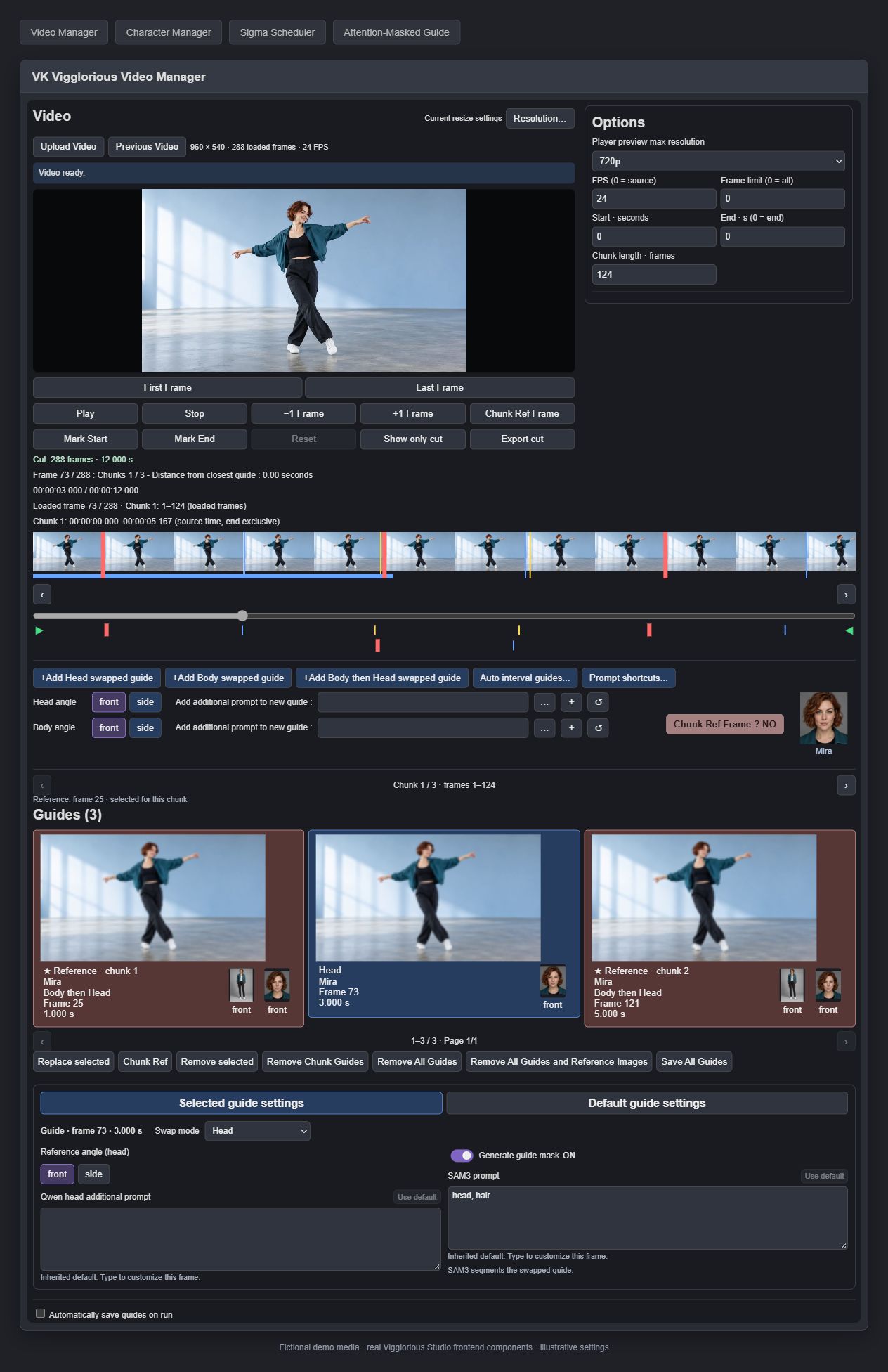
Illustrations use the original frontend components in an isolated demo page, with fictional AI-generated characters and media. They illustrate the interface, not Viggle generation results; the surrounding page is not the full ComfyUI canvas.
In Video Manager, set the light-red Chunk Ref Frame ? button to YES beside the prompt shortcuts, then add a Head / Body / Body then Head guide with the desired angles and prompts. It becomes this chunk's reference; the previous reference becomes an ordinary guide. The button returns to NO after creation and is muted while this chunk has a reference. A red warning appears when the video mixes body-swapped references (Body or Body then Head) with head-only references. Alternatively, select an ordinary guide and press Chunk Ref to promote it while keeping its settings. The player’s Chunk Ref Frame button seeks the local reference and is disabled when the chunk has none. References cannot be assigned to another chunk. Thick red cursors mark references on both timelines. A missing chunk uses the nearest chunk's reference; equal distances choose the earlier chunk. Gallery previews stay chronological. Borrowed references show Default reference from chunk # - please select a reference frame from this chunk if possible.
Remove Chunk Guides and Remove All Guides preserve reference images. Remove All Guides and Reference Images clears the entire video selection, including outside the cut.
Keep Video Manager Ref Frame → global reference swap → Windowed Conditioning · ref_image. Enable reuse_initial_reference in Prepare Chunk Guides: chunks choosing that initial reference reuse its existing conditioning without another swap or VAE encode. Other chunk references use Prepare Chunk Guides → swap → Attention-Masked Guide, before applying RefMods. One assigned reference is enough for the entire video; with no assignments, the saved global reference still passes through its original swap. Leave reuse off if Windowed receives an unswapped frame. References use native image-reference conditioning, remain active with attention guides OFF, and skip SAM3. Other guides retain their attention schedules and masks. With no reference assignments, the original Windowed reference is retained. The separate player reference panel has been removed; saved global-reference records become editable reference guides when loaded.
Restart ComfyUI fully and refresh the browser. Test three chunks with references in chunks 1 and 3: chunk 2 must use chunk 1's reference. Compare the same seed with and without local assignments; generation quality still needs model-backed testing.
These are the practical lessons behind this workflow:
| Node | What it does |
|---|---|
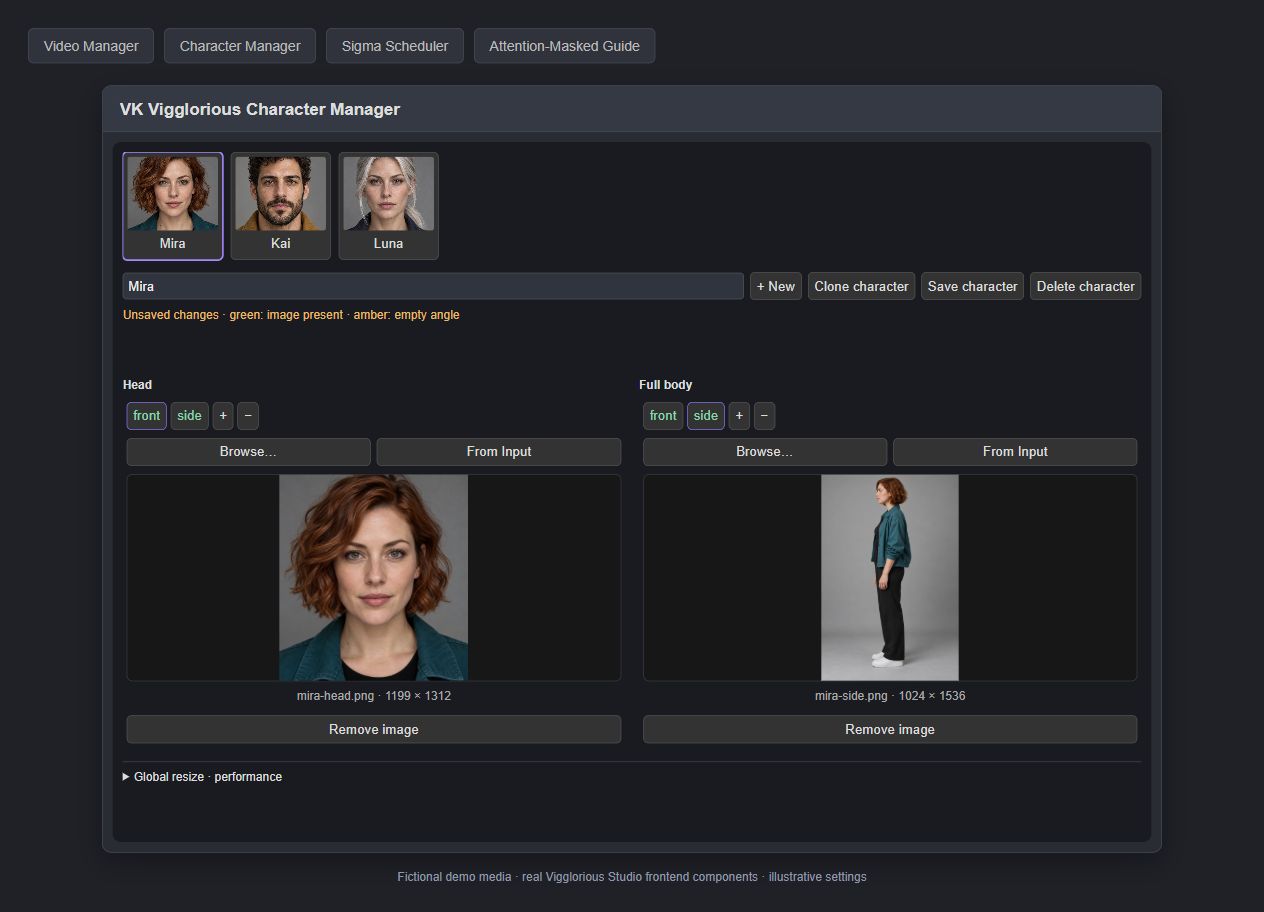
| VK Vigglorious Character Manager | Stores characters with head and optional full-body reference angles. Supplies the reference collections to Video Manager. |
| VK Vigglorious Video Manager | Loads and trims video, sets FPS/resolution/chunks, and places guides with individual characters, angles, swap modes and prompts. |
| VK Vigglorious Load Image | Loads a reference image with upload, paste, recent-image navigation and optional resizing. |
| VK Vigglorious Extract Chunk State | Prepares the current chunk's conditioning, video/audio latent, continuation mask, noise and seed for one external sampler. |
| VK Vigglorious Prepare Chunk Guides | Sends the current chunk's selected frames, references and per-guide settings to the swap subgraph; supplies positions for encoding. |
| VK Vigglorious Extract Chunk Frames | Extracts the source chunk, including overlap and final-frame padding, for optional source-mask tracking. |
| VK Vigglorious Guide Mask | Uses native SAM3 to segment each swapped guide with its chosen concept. No mask skips segmentation and uses the whole image. |
| VK Vigglorious Attention-Masked Guide | Encodes swapped images as H3 guides with optional masks and constant or per-step attention factors. |
| VK Vigglorious Patch Guide Attention | Applies the guide and RefMod attention controls to the model. Connect after LoRAs and before BasicGuider. |
| VK Vigglorious Sigma Scheduler | Edits the sampling sigma curve and outputs the schedule shared by the sampler and attention controls. |
| VK Vigglorious Wrapper Schedule RefMod Apply | Optionally schedules external RefMods per step, using latent strength, native attention bias or experimental residual attention. |
| VK Vigglorious Chunk Finish | Saves completed video/audio latents and advances the chunk loop. Outputs a video latent for preview decoding. |
Two internal RefMod helpers are registered for the wrapper; they do not need manual wiring.
Use a recent ComfyUI with native H3, Qwen Image 2.1 and SAM3 support. The SAM3 module is required to load this package, even without masks.
Install ComfyUI-Viggle-Animate-H3 and its dependencies, Viggle model, H3 VAEs and frozen text conditioning. For the Qwen/BFS workflow, supply the Qwen Image 2.1 model, text encoder, VAE and BFS LoRAs separately. A replacement swap model needs its own matching components.
Clone into ComfyUI/custom_nodes, replacing the placeholder with this repository's GitHub URL:
git clone https://github.com/Tablaski/VK-Vigglorious-Studio.git VK-Vigglorious-Studio
Or extract the ZIP so custom_nodes/VK-Vigglorious-Studio/__init__.py exists.
Provide FFmpeg with libx264. The loader checks VHS_FORCE_FFMPEG_PATH, system PATH, then imageio_ffmpeg. For the fallback, run python -m pip install imageio-ffmpeg with ComfyUI's Python. On Windows portable, use python_embeded\python.exe from the portable root.
Fully restart ComfyUI and refresh the browser. Nodes appear under VK / Viggle.
There is no separate requirements.txt; Python imports use ComfyUI's dependencies. SAM3 weights are needed only for segmentation. The Qwen swap subgraphs are included in the blank example workflow. Load your own video and character images before queuing.
Optional workflow dependencies: RefMod scheduling needs H3RefModApplySimple from an extension such as MiniMaxH3Mod, plus compatible bundles from a picker such as H3RefModPicker. KJNodes supplies mask growth/blur and switches in our workflows; VideoHelperSuite supplies video saving. The loader itself imports neither.
Install these packages and their own requirements using ComfyUI's Python, then fully restart ComfyUI and refresh the browser. Studio includes every VK node used here; no other VK extension is required.
| Package | Nodes used in the example |
|---|---|
| ComfyUI | Native H3, Qwen Image 2.1, SAM3, model/LoRA/VAE loaders, samplers, string concatenation, previews and notes. Use a build exposing TextEncodeQwenImage21, QwenImage21Cache, MiniMaxH3SigmaShift and comfy_extras.nodes_sam3. |
| ComfyUI-Viggle-Animate-H3 | ViggleTextCondLoader, ViggleAnimateConditioningWindowed, ViggleChunkLoopStart, ViggleChunkLoopEnd, ViggleAssembleChunkLatents. The local integration was inspected with revision 6ae081a; a clean-install generation has not yet been verified. |
| ComfyUI-KJNodes | LazySwitchKJ, GrowMaskWithBlur, ModelPreviewOverrideKJ. |
| rgthree-comfy | Power Lora Loader (rgthree), Image Comparer (rgthree), Fast Groups Muter (rgthree), Fast Groups Bypasser (rgthree). |
| Rebalance Pack | Switch, used to choose an already-swapped reference image or the workflow's reference swap. Older workflow metadata names this package Conditioning Rebalance. |
| VideoHelperSuite | VHS_VideoCombine, VHS_PruneOutputs. |
FFmpeg with libx264 is also required. Native SAM3 is part of ComfyUI; a separate KJ SAM3 extension is not used. Custom Scripts and RefMod extensions are not required by this example.
The two rgthree group togglers and image comparators are convenience controls: they can be removed and groups managed manually. ModelPreviewOverrideKJ can be replaced by routing its model input directly to its consumers. Power Lora Loader can be replaced by chained native model-only LoRA loaders. Switches can be replaced by a compatible lazy switch or explicit rewiring, and VHS saving by another suitable video saver; these are edited-workflow alternatives, not automatic replacements. KJNodes remains necessary for the unchanged mask/switch paths, and rgthree remains necessary for the unchanged LoRA paths.
The example uses public filenames directly in the folders below, without private subfolders. Select the installed files in the loader menus, including loaders inside both Qwen subgraphs. No weights or source media are included or downloaded automatically.
Folder under ComfyUI/models/ | File selected in the example | Source |
|---|---|---|
diffusion_models/ | minimax_h3_ref2va_viggle_pruned_int8_convrot.safetensors | Viggle ComfyUI models |
loras/ | viggle_animate_dmd_lora_r64.safetensors | Viggle DMD LoRAs |
text_cond/ | fixed_embed_fwd_anyframe.safetensors | Viggle frozen conditioning |
vae/ | minimax_h3_video_vae_fp16.safetensors | H3 VAEs |
diffusion_models/ | qwen_image_2.1_int8_convrot.safetensors | Qwen Image 2.1 |
text_encoders/ | qwen3vl_8b_int8_convrot.safetensors | Qwen text encoders |
vae/ | qwen_image_2.1_vae_bf16.safetensors | Qwen VAE |
loras/ | bfs_head_v1.1_qwen_2.1.safetensors | BFS head swap |
loras/ | bfs_body_swap_v1.0_qwen_2.1.safetensors | BFS body swap |
loras/ | p_qwen_image_2.1_8step_v0.1_comfyui.safetensors | Pruna LoRA converted for ComfyUI / original Pruna models |
checkpoints/ | sam3.1_multiplex_fp16.safetensors | Native SAM3.1 checkpoint |
The Pruna LoRA is enabled in the supplied 8-step swap subgraphs; removing it requires retuning Qwen sampling. BFS Head V1.1 can be replaced by another compatible BFS Qwen 2.1 head version. SAM3 weights are needed for masked guides; disabling masks skips guide segmentation, but the ComfyUI SAM3 Python module is still required to import Studio. The example decodes video only: the H3 audio VAE is not required by its current wiring. Add minimax_h3_audio_vae_fp32.safetensors from the H3 VAE source only if adding generated-audio decoding; this workflow saves source audio.
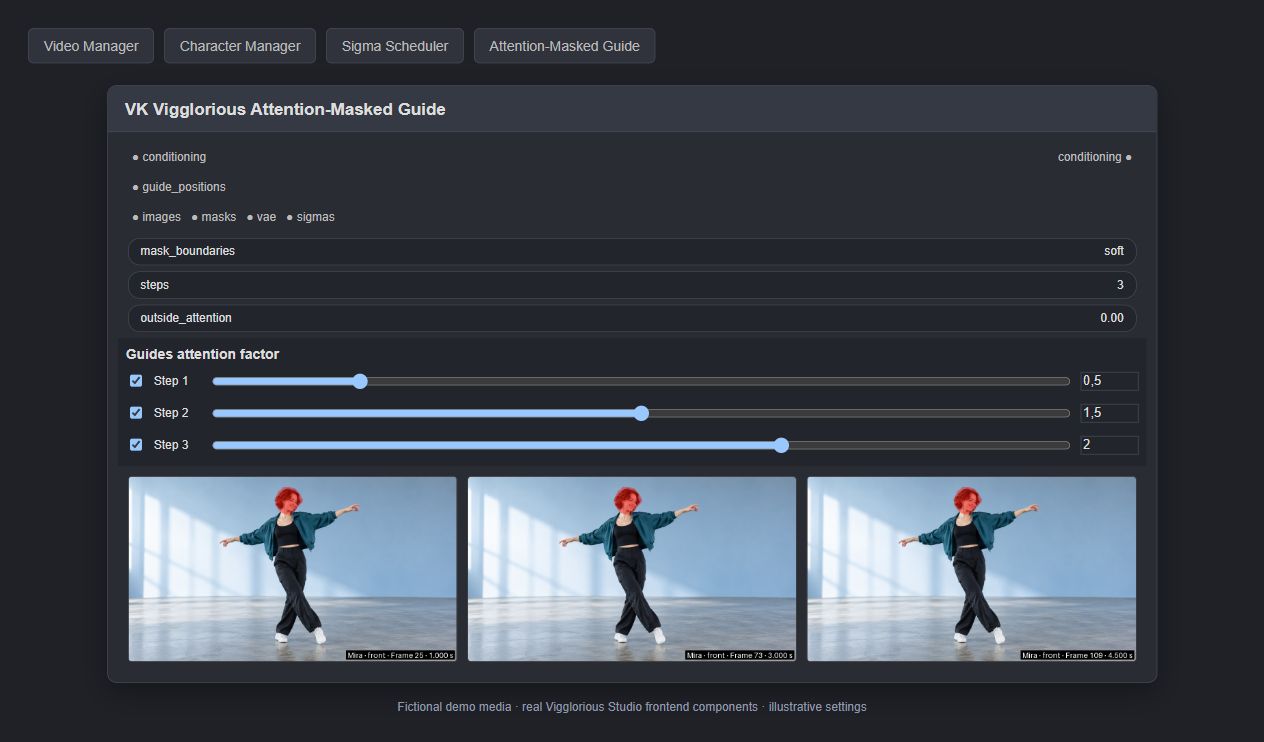
Illustrative attention settings and manually prepared mask overlays; these masks are not SAM3 inference results.
Our working approach is to keep guide attention low at high sigma, giving Viggle room to establish motion and composition, then strengthen appearance guidance. Strong early guidance can also pull in a guide's pose or background. This balances replacement against the source motion and composition; the first step also contributes to the replacement itself, so it is not a strict split between “motion” and “detail” steps.
For three steps, 0.5 / 2 / 2 is a starting point for guide attention. A factor of 1 is native attention; 2 increases the relative weight before normalization, not likeness by 200%. OFF removes these guides for that step. ON at 0 retains guide tokens and can still have indirect effects. RefMod modes have separate strength meanings; do not copy these factors into residual attention.
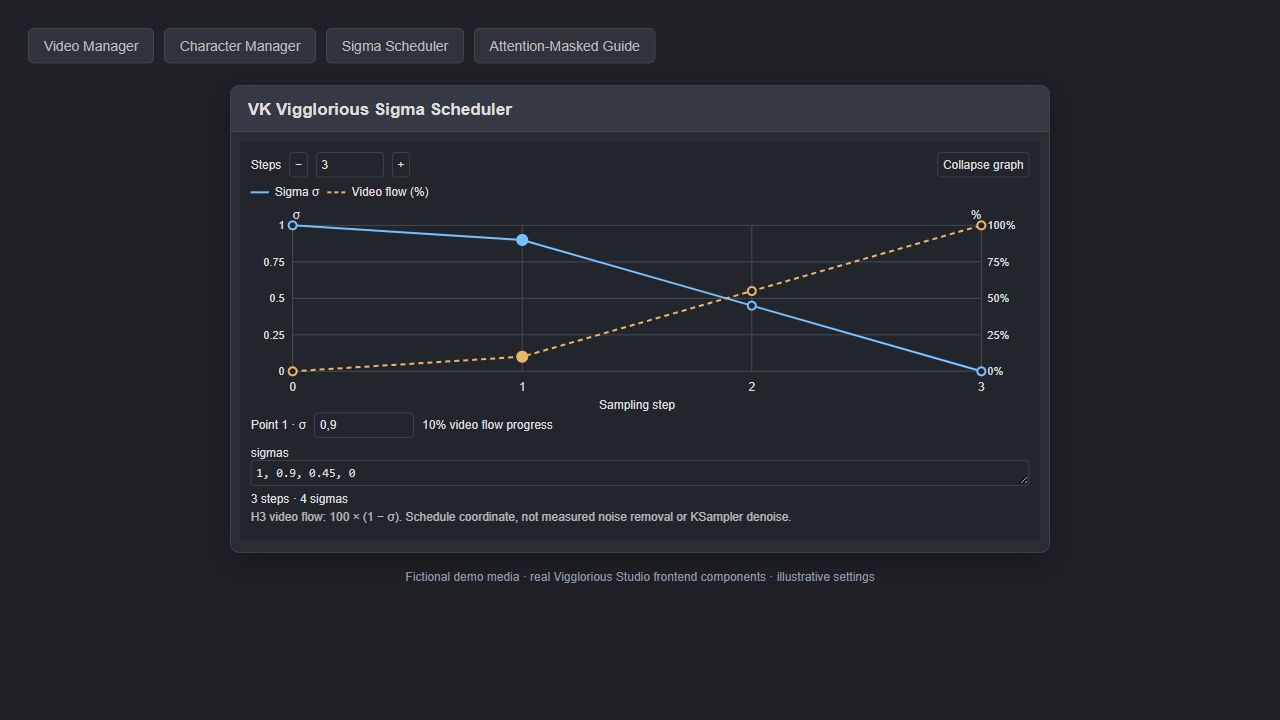
Start from 1, 0.9, 0.45, 0 with Euler: four points define three steps. Moving the second sigma closer to 1 makes the first transition smaller; lowering it makes it larger. Changing sigmas also moves where the scheduled guidance acts along the sampling trajectory.
The scheduler's Video flow axis shows 100 × (1 − sigma): 0 → 10 → 55 → 100% here. This is a flow coordinate, not measured noise removal or KSampler's denoise. A clean-looking preview may show a predicted denoised image while the intermediate latent is still noisy.
Changing steps interpolates the curve while keeping its endpoints. Match the step counts in the guide and RefMod controls, and share the same complete schedule with the sampler. More steps are not automatically better for distilled Viggle.
Connect Character Manager to Video Manager, select a few clear frames, and choose Head, Full body or Full body then Head for each guide.
Video Manager previews the selected character and reference angles beside the swap controls. Guide cards show their chosen angles and their reference chunk. Replace selected moves a guide while keeping its swap settings; a reference can only move within its own chunk. Show only cut focuses navigation on the cut; Export cut saves it as MP4 at the processing resolution and FPS, with source audio.
Prompt shortcuts... manages reusable Head and Body prompts shared across characters and videos, saved locally in the browser. Beside Additional prompt, use […] to combine shortcuts or + to save the entered text.
In Video Manager's Options, Player preview max resolution offers 480p, 720p (default), 1080p and Original. It limits the short edge without enlarging small videos. The first load prepares a cached H.264 preview of the entire source with frequent keyframes; cuts and processing-resolution changes reuse it, including navigation in shaded timeline regions. The player and thumbnails use this preview; guides and generated image outputs are extracted from the original at the processing resolution. Frame indexes and preview images are cached in ComfyUI's temporary directory. Restart ComfyUI after installing this Python change, then refresh the browser.
Loading status appears above the player with the current stage and elapsed time. Server logs prefixed [VK Video] identify source analysis, preview encoding, cache reuse and completion times. HTTP 413 means upload was rejected before preview preparation; increase ComfyUI's --max-upload-size (MiB, default 100) and restart, or place the video in ComfyUI/input and refresh the file list.
Clone character creates a selected, unsaved copy with independent character and angle IDs, using the same image files. Give it a label, replace its clothing/body references, then use Save character. Editing the copy leaves the original and its existing guides unchanged. Global resize · performance provides separate Head and Full body settings shared across characters; neither is saved in character datasets.
Prepare Chunk Guides → Qwen swap subgraph → Attention-Masked Guide
                                  └→ Guide Mask → masks input
Connect guide_positions directly to Attention-Masked Guide, along with the H3 video VAE. Preserve image/mask list order. Send chunk conditioning through the guides and optional RefMod wrapper to BasicGuider; connect Patch Guide Attention on its MODEL path. Without guide masks, the whole image contributes.
Completed latents are saved under output/viggle_chunks/<run_name>; they can be recovered, but re-queuing this external-sampler workflow samples again from chunk 1.
Built on ComfyUI's native H3 tools and ComfyUI-Viggle-Animate-H3. The video loader includes FFmpeg helpers adapted from VK Load Video FFMPEG. Code is licensed under GPL-3.0; models, LoRAs, external extensions and media retain their own licenses. The Qwen/Pruna, MiniMax/Viggle, BFS and SAM model terms are linked from their sources above; this repository does not distribute their weights or grant additional rights.
ComfyUI nodes to enhance swapping with Viggle-Animate and get rid of identity drift
JavaScript
3
2 commits
updated Oct 9, 2026
Experimental, vibe-coded ComfyUI node suite for Viggle-Animate. The best settings are not yet known, especially sigmas, scheduler and guide attention. Bugs are possible; bug reports and feedback from practical use are welcome.
This node collection grew through extensive experimentation: many renders, comparisons and iterations on real Viggle workflows.
Character transformation and visual guidance for Viggle-Animate.
The nodes were designed around the chunk workflow provided by ComfyUI-Viggle-Animate-H3. Chunk planning, the loop and final assembly come from Viggle's own nodes; this suite adds guide preparation, attention controls and the adapters needed to use them in that workflow. The same setup handles short clips and longer videos, as far as your hardware, storage and rendering time allow.
Viggle transfers a character into a driving video, but likeness can drift with pose, expression or camera angle changes. Correct selected frames with Qwen Image 2.1 head or full-body swaps, then use them to guide Viggle throughout generation.
The workflow is built around Qwen Image 2.1 and the excellent BFS — Best Face Swap LoRAs by Alissonerdx. Thanks to the author for the head and body swap models that make this workflow possible.
The guide system works with the resulting images, so you can replace the swap subgraph with any other image-editing model and/or compatible LoRA, or a model without a LoRA. Use that model's own encoders, VAE and prompts, and preserve the guide image order and connections. Qwen and BFS are the workflow's starting point, not a requirement of the guide mechanism.
Viggle-Animate is a fine-tune of MiniMax H3's ref2va (reference-to-video-and-audio) transformer. Its character-replacement training builds on a model that already generates from visual references: the driving video supplies motion, while an edited reference frame supplies the new appearance.
This suite uses H3's image-guide conditioning alongside Viggle's normal inputs. A guide is an edited source frame, encoded by the H3 video VAE and assigned a position in the generated sequence. It supplies clean visual tokens that the video can attend to during sampling. Its timestamp places it in the sequence; its influence can extend well beyond that frame through the model's attention. It does not paste a finished image into the output.
Pick useful poses in Video Manager and edit them with your swap subgraph. You are giving Viggle several views of the intended result: the face from another angle, a new outfit, a different body type or a full character replacement. The guides reinforce these changes across the video, while per-step attention factors control their influence. Optional SAM3 masks focus access on the head or person. Qwen edits selected images; Viggle generates the moving sequence.
In one test, the main reference deliberately had no face: a single well-placed guide carried the corrected face across the entire video. Guides effectively multiply the available visual references, although they use a different conditioning path from the main reference. The main reference appears stronger in our tests; its relative weight has not been measured. Guides follow the chunk plan from Viggle, with continuation anchors connecting successive chunks.
The method works for strengthening identity, outfits and body changes. There is still plenty of room for the community to find better combinations of scheduler, sigmas, step counts and attention factors. The settings below are starting points to compare, rather than a single best recipe.
Illustrations use the original frontend components in an isolated demo page, with fictional AI-generated characters and media. They illustrate the interface, not Viggle generation results; the surrounding page is not the full ComfyUI canvas.
In Video Manager, set the light-red Chunk Ref Frame ? button to YES beside the prompt shortcuts, then add a Head / Body / Body then Head guide with the desired angles and prompts. It becomes this chunk's reference; the previous reference becomes an ordinary guide. The button returns to NO after creation and is muted while this chunk has a reference. A red warning appears when the video mixes body-swapped references (Body or Body then Head) with head-only references. Alternatively, select an ordinary guide and press Chunk Ref to promote it while keeping its settings. The player’s Chunk Ref Frame button seeks the local reference and is disabled when the chunk has none. References cannot be assigned to another chunk. Thick red cursors mark references on both timelines. A missing chunk uses the nearest chunk's reference; equal distances choose the earlier chunk. Gallery previews stay chronological. Borrowed references show Default reference from chunk # - please select a reference frame from this chunk if possible.
Remove Chunk Guides and Remove All Guides preserve reference images. Remove All Guides and Reference Images clears the entire video selection, including outside the cut.
Keep Video Manager Ref Frame → global reference swap → Windowed Conditioning · ref_image. Enable reuse_initial_reference in Prepare Chunk Guides: chunks choosing that initial reference reuse its existing conditioning without another swap or VAE encode. Other chunk references use Prepare Chunk Guides → swap → Attention-Masked Guide, before applying RefMods. One assigned reference is enough for the entire video; with no assignments, the saved global reference still passes through its original swap. Leave reuse off if Windowed receives an unswapped frame. References use native image-reference conditioning, remain active with attention guides OFF, and skip SAM3. Other guides retain their attention schedules and masks. With no reference assignments, the original Windowed reference is retained. The separate player reference panel has been removed; saved global-reference records become editable reference guides when loaded.
Restart ComfyUI fully and refresh the browser. Test three chunks with references in chunks 1 and 3: chunk 2 must use chunk 1's reference. Compare the same seed with and without local assignments; generation quality still needs model-backed testing.
These are the practical lessons behind this workflow:
| Node | What it does |
|---|---|
| VK Vigglorious Character Manager | Stores characters with head and optional full-body reference angles. Supplies the reference collections to Video Manager. |
| VK Vigglorious Video Manager | Loads and trims video, sets FPS/resolution/chunks, and places guides with individual characters, angles, swap modes and prompts. |
| VK Vigglorious Load Image | Loads a reference image with upload, paste, recent-image navigation and optional resizing. |
| VK Vigglorious Extract Chunk State | Prepares the current chunk's conditioning, video/audio latent, continuation mask, noise and seed for one external sampler. |
| VK Vigglorious Prepare Chunk Guides | Sends the current chunk's selected frames, references and per-guide settings to the swap subgraph; supplies positions for encoding. |
| VK Vigglorious Extract Chunk Frames | Extracts the source chunk, including overlap and final-frame padding, for optional source-mask tracking. |
| VK Vigglorious Guide Mask | Uses native SAM3 to segment each swapped guide with its chosen concept. No mask skips segmentation and uses the whole image. |
| VK Vigglorious Attention-Masked Guide | Encodes swapped images as H3 guides with optional masks and constant or per-step attention factors. |
| VK Vigglorious Patch Guide Attention | Applies the guide and RefMod attention controls to the model. Connect after LoRAs and before BasicGuider. |
| VK Vigglorious Sigma Scheduler | Edits the sampling sigma curve and outputs the schedule shared by the sampler and attention controls. |
| VK Vigglorious Wrapper Schedule RefMod Apply | Optionally schedules external RefMods per step, using latent strength, native attention bias or experimental residual attention. |
| VK Vigglorious Chunk Finish | Saves completed video/audio latents and advances the chunk loop. Outputs a video latent for preview decoding. |
Two internal RefMod helpers are registered for the wrapper; they do not need manual wiring.
Use a recent ComfyUI with native H3, Qwen Image 2.1 and SAM3 support. The SAM3 module is required to load this package, even without masks.
Install ComfyUI-Viggle-Animate-H3 and its dependencies, Viggle model, H3 VAEs and frozen text conditioning. For the Qwen/BFS workflow, supply the Qwen Image 2.1 model, text encoder, VAE and BFS LoRAs separately. A replacement swap model needs its own matching components.
Clone into ComfyUI/custom_nodes, replacing the placeholder with this repository's GitHub URL:
git clone https://github.com/Tablaski/VK-Vigglorious-Studio.git VK-Vigglorious-Studio
Or extract the ZIP so custom_nodes/VK-Vigglorious-Studio/__init__.py exists.
Provide FFmpeg with libx264. The loader checks VHS_FORCE_FFMPEG_PATH, system PATH, then imageio_ffmpeg. For the fallback, run python -m pip install imageio-ffmpeg with ComfyUI's Python. On Windows portable, use python_embeded\python.exe from the portable root.
Fully restart ComfyUI and refresh the browser. Nodes appear under VK / Viggle.
There is no separate requirements.txt; Python imports use ComfyUI's dependencies. SAM3 weights are needed only for segmentation. The Qwen swap subgraphs are included in the blank example workflow. Load your own video and character images before queuing.
Optional workflow dependencies: RefMod scheduling needs H3RefModApplySimple from an extension such as MiniMaxH3Mod, plus compatible bundles from a picker such as H3RefModPicker. KJNodes supplies mask growth/blur and switches in our workflows; VideoHelperSuite supplies video saving. The loader itself imports neither.
Install these packages and their own requirements using ComfyUI's Python, then fully restart ComfyUI and refresh the browser. Studio includes every VK node used here; no other VK extension is required.
| Package | Nodes used in the example |
|---|---|
| ComfyUI | Native H3, Qwen Image 2.1, SAM3, model/LoRA/VAE loaders, samplers, string concatenation, previews and notes. Use a build exposing TextEncodeQwenImage21, QwenImage21Cache, MiniMaxH3SigmaShift and comfy_extras.nodes_sam3. |
| ComfyUI-Viggle-Animate-H3 | ViggleTextCondLoader, ViggleAnimateConditioningWindowed, ViggleChunkLoopStart, ViggleChunkLoopEnd, ViggleAssembleChunkLatents. The local integration was inspected with revision 6ae081a; a clean-install generation has not yet been verified. |
| ComfyUI-KJNodes | LazySwitchKJ, GrowMaskWithBlur, ModelPreviewOverrideKJ. |
| rgthree-comfy | Power Lora Loader (rgthree), Image Comparer (rgthree), Fast Groups Muter (rgthree), Fast Groups Bypasser (rgthree). |
| Rebalance Pack | Switch, used to choose an already-swapped reference image or the workflow's reference swap. Older workflow metadata names this package Conditioning Rebalance. |
| VideoHelperSuite | VHS_VideoCombine, VHS_PruneOutputs. |
FFmpeg with libx264 is also required. Native SAM3 is part of ComfyUI; a separate KJ SAM3 extension is not used. Custom Scripts and RefMod extensions are not required by this example.
The two rgthree group togglers and image comparators are convenience controls: they can be removed and groups managed manually. ModelPreviewOverrideKJ can be replaced by routing its model input directly to its consumers. Power Lora Loader can be replaced by chained native model-only LoRA loaders. Switches can be replaced by a compatible lazy switch or explicit rewiring, and VHS saving by another suitable video saver; these are edited-workflow alternatives, not automatic replacements. KJNodes remains necessary for the unchanged mask/switch paths, and rgthree remains necessary for the unchanged LoRA paths.
The example uses public filenames directly in the folders below, without private subfolders. Select the installed files in the loader menus, including loaders inside both Qwen subgraphs. No weights or source media are included or downloaded automatically.
Folder under ComfyUI/models/ | File selected in the example | Source |
|---|---|---|
diffusion_models/ | minimax_h3_ref2va_viggle_pruned_int8_convrot.safetensors | Viggle ComfyUI models |
loras/ | viggle_animate_dmd_lora_r64.safetensors | Viggle DMD LoRAs |
text_cond/ | fixed_embed_fwd_anyframe.safetensors | Viggle frozen conditioning |
vae/ | minimax_h3_video_vae_fp16.safetensors | H3 VAEs |
diffusion_models/ | qwen_image_2.1_int8_convrot.safetensors | Qwen Image 2.1 |
text_encoders/ | qwen3vl_8b_int8_convrot.safetensors | Qwen text encoders |
vae/ | qwen_image_2.1_vae_bf16.safetensors | Qwen VAE |
loras/ | bfs_head_v1.1_qwen_2.1.safetensors | BFS head swap |
loras/ | bfs_body_swap_v1.0_qwen_2.1.safetensors | BFS body swap |
loras/ | p_qwen_image_2.1_8step_v0.1_comfyui.safetensors | Pruna LoRA converted for ComfyUI / original Pruna models |
checkpoints/ | sam3.1_multiplex_fp16.safetensors | Native SAM3.1 checkpoint |
The Pruna LoRA is enabled in the supplied 8-step swap subgraphs; removing it requires retuning Qwen sampling. BFS Head V1.1 can be replaced by another compatible BFS Qwen 2.1 head version. SAM3 weights are needed for masked guides; disabling masks skips guide segmentation, but the ComfyUI SAM3 Python module is still required to import Studio. The example decodes video only: the H3 audio VAE is not required by its current wiring. Add minimax_h3_audio_vae_fp32.safetensors from the H3 VAE source only if adding generated-audio decoding; this workflow saves source audio.
Illustrative attention settings and manually prepared mask overlays; these masks are not SAM3 inference results.
Our working approach is to keep guide attention low at high sigma, giving Viggle room to establish motion and composition, then strengthen appearance guidance. Strong early guidance can also pull in a guide's pose or background. This balances replacement against the source motion and composition; the first step also contributes to the replacement itself, so it is not a strict split between “motion” and “detail” steps.
For three steps, 0.5 / 2 / 2 is a starting point for guide attention. A factor of 1 is native attention; 2 increases the relative weight before normalization, not likeness by 200%. OFF removes these guides for that step. ON at 0 retains guide tokens and can still have indirect effects. RefMod modes have separate strength meanings; do not copy these factors into residual attention.
Start from 1, 0.9, 0.45, 0 with Euler: four points define three steps. Moving the second sigma closer to 1 makes the first transition smaller; lowering it makes it larger. Changing sigmas also moves where the scheduled guidance acts along the sampling trajectory.
The scheduler's Video flow axis shows 100 × (1 − sigma): 0 → 10 → 55 → 100% here. This is a flow coordinate, not measured noise removal or KSampler's denoise. A clean-looking preview may show a predicted denoised image while the intermediate latent is still noisy.
Changing steps interpolates the curve while keeping its endpoints. Match the step counts in the guide and RefMod controls, and share the same complete schedule with the sampler. More steps are not automatically better for distilled Viggle.
Connect Character Manager to Video Manager, select a few clear frames, and choose Head, Full body or Full body then Head for each guide.
Video Manager previews the selected character and reference angles beside the swap controls. Guide cards show their chosen angles and their reference chunk. Replace selected moves a guide while keeping its swap settings; a reference can only move within its own chunk. Show only cut focuses navigation on the cut; Export cut saves it as MP4 at the processing resolution and FPS, with source audio.
Prompt shortcuts... manages reusable Head and Body prompts shared across characters and videos, saved locally in the browser. Beside Additional prompt, use […] to combine shortcuts or + to save the entered text.
In Video Manager's Options, Player preview max resolution offers 480p, 720p (default), 1080p and Original. It limits the short edge without enlarging small videos. The first load prepares a cached H.264 preview of the entire source with frequent keyframes; cuts and processing-resolution changes reuse it, including navigation in shaded timeline regions. The player and thumbnails use this preview; guides and generated image outputs are extracted from the original at the processing resolution. Frame indexes and preview images are cached in ComfyUI's temporary directory. Restart ComfyUI after installing this Python change, then refresh the browser.
Loading status appears above the player with the current stage and elapsed time. Server logs prefixed [VK Video] identify source analysis, preview encoding, cache reuse and completion times. HTTP 413 means upload was rejected before preview preparation; increase ComfyUI's --max-upload-size (MiB, default 100) and restart, or place the video in ComfyUI/input and refresh the file list.
Clone character creates a selected, unsaved copy with independent character and angle IDs, using the same image files. Give it a label, replace its clothing/body references, then use Save character. Editing the copy leaves the original and its existing guides unchanged. Global resize · performance provides separate Head and Full body settings shared across characters; neither is saved in character datasets.
Prepare Chunk Guides → Qwen swap subgraph → Attention-Masked Guide
                                  └→ Guide Mask → masks input
Connect guide_positions directly to Attention-Masked Guide, along with the H3 video VAE. Preserve image/mask list order. Send chunk conditioning through the guides and optional RefMod wrapper to BasicGuider; connect Patch Guide Attention on its MODEL path. Without guide masks, the whole image contributes.
Completed latents are saved under output/viggle_chunks/<run_name>; they can be recovered, but re-queuing this external-sampler workflow samples again from chunk 1.
Built on ComfyUI's native H3 tools and ComfyUI-Viggle-Animate-H3. The video loader includes FFmpeg helpers adapted from VK Load Video FFMPEG. Code is licensed under GPL-3.0; models, LoRAs, external extensions and media retain their own licenses. The Qwen/Pruna, MiniMax/Viggle, BFS and SAM model terms are linked from their sources above; this repository does not distribute their weights or grant additional rights.