This GitHub repository presents a scalable and reproducible framework for utilising Mapillary data in greenness visibility modelling.
Jupyter Notebook
21
88 commits
updated Sep 12, 2023


Urban green spaces provide various benefits, but assessing their visibility is challenging. Traditional methods and Google Street View (GSV) has limitations, therefore integrating Volunteered Street View Imagery (VSVI) platforms like Mapillary has been proposed. Mapillary offers open data and a large community of contributors, but it has its own limitations in terms of data quality and coverage. However, for areas with insufficient street image data, the Normalised Difference Vegetation Index (NDVI) can be used as an alternative indicator for quantifying greenery. While some studies have shown the potential of Mapillary for evaluating urban greenness visibility, there is a lack of systematic evaluation and standardised methodologies.
The primary objective of this project is to develop a scalable and reproducible framework for leveraging Mapillary street-view image data to assess the Green View Index (GVI) in diverse geographical contexts. Additionally, the framework will utilise NDVI to supplement information in areas where data is unavailable.
To run the project in Google Colab, you have two options:
Before running the Jupyter Notebook, it is optional but highly recommended to configure Google Colab to use a GPU. Follow these steps:
This notebook contains the following code:
%pip install transformers==4.29.2
%pip install geopandas=0.12.2
%pip install torch==1.13.1
%pip install vt2geojson==0.2.1
%pip install mercantile==1.2.1
%pip install osmnx==1.3.0
from google.colab import drive

drive.mount('/content/drive')

%cd /content/drive/MyDrive
import os

if not os.path.isdir('StreetView-NatureVisibility'):
  !git clone https://github.com/Spatial-Data-Science-and-GEO-AI-Lab/StreetView-NatureVisibility.git

%cd StreetView-NatureVisibility
place = 'De Uithof, Utrecht'
distance = 50
cut_by_road_centres = 0
access_token = 'MLY|'
file_name = 'utrecht-gvi'
max_workers = 6
num_sample_images = 10
begin = None
end = None
In this example, the main_script.py file will be executed to analyse the Green View Index for De Uithof, Utrecht (Utrecht Science Park).
Replace the following parameters with appropriate values:
command = f"python main_script.py '{place}' {distance} {cut_by_road_centres} '{access_token}' {file_name} {max_workers} {begin if begin is not None else ''} {end if end is not None else ''}"
!{command}
command = f"python get_gvi_gpkg.py '{place}'"
!{command}
command = f"python mean_gvi_street.py '{place}'"
!{command}
Once this script was executed, the code to calculate the Image Availability Score and Image Usability Score, along with other quality metrics can be run.
command = f"python results_metrics.py '{place}'"
!{command}
Important note: please note that the EPSG code specified in the code, which is 32631, is just an example for De Uithof, Netherlands.
epsg_code = 32631
command = f"python predict_missing_gvi.py '{place}' {epsg_code} {distance}"
!{command}
To create a Conda environment and run the code using the provided YML file, follow these steps:
cd Documents
git clone https://github.com/Spatial-Data-Science-and-GEO-AI-Lab/StreetView-NatureVisibility.git
This command will download the repository and create a local copy on your computer.
cd StreetView-NatureVisibility
conda env create -f mapillaryGVI.yml
This command will read the YML file and start creating the environment with the specified dependencies. The process may take a few minutes to complete.
conda activate mapillaryGVI
python main_script.py place distance cut_by_road_centres access_token file_name max_workers num_sample_images begin end
Replace the following parameters with appropriate values:
python get_gvi_gpkg.py place
python mean_gvi_street.py place
Once this script was executed, the script to calculate the Image Availability Score and Image Usability Score, along with other quality metrics can be run.
python results_metrics.py place
python predict_missing_gvi.py {place} {epsg_code} {distance}
For this explanation, Utrecht Science Park will be used. Therefore, the command should look like this:
python main_script.py 'De Uithof, Utrecht' 50 0 'MLY|' sample-file 8
When executing this command, the code will automatically run from Step 1 to Step 4.
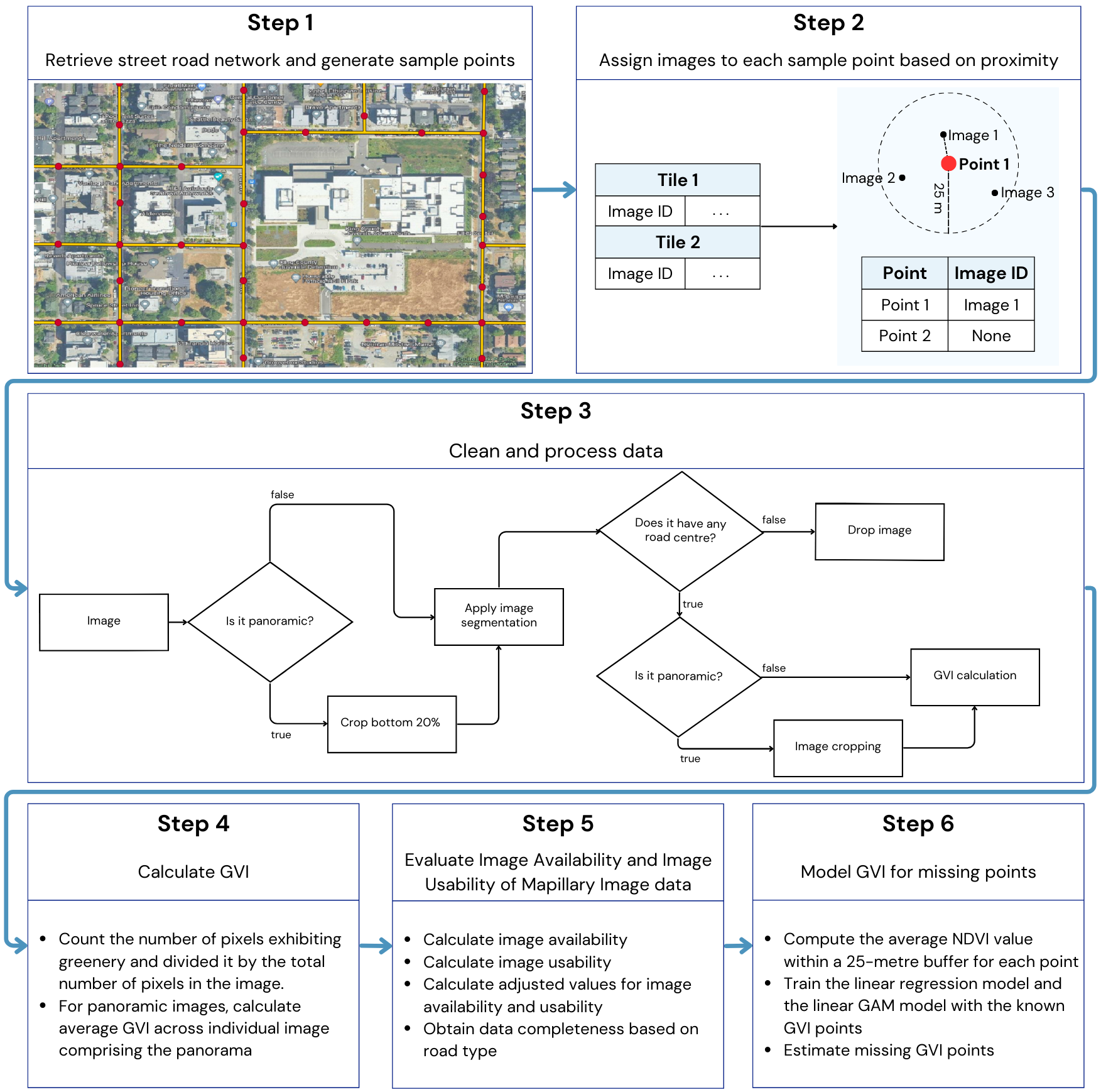
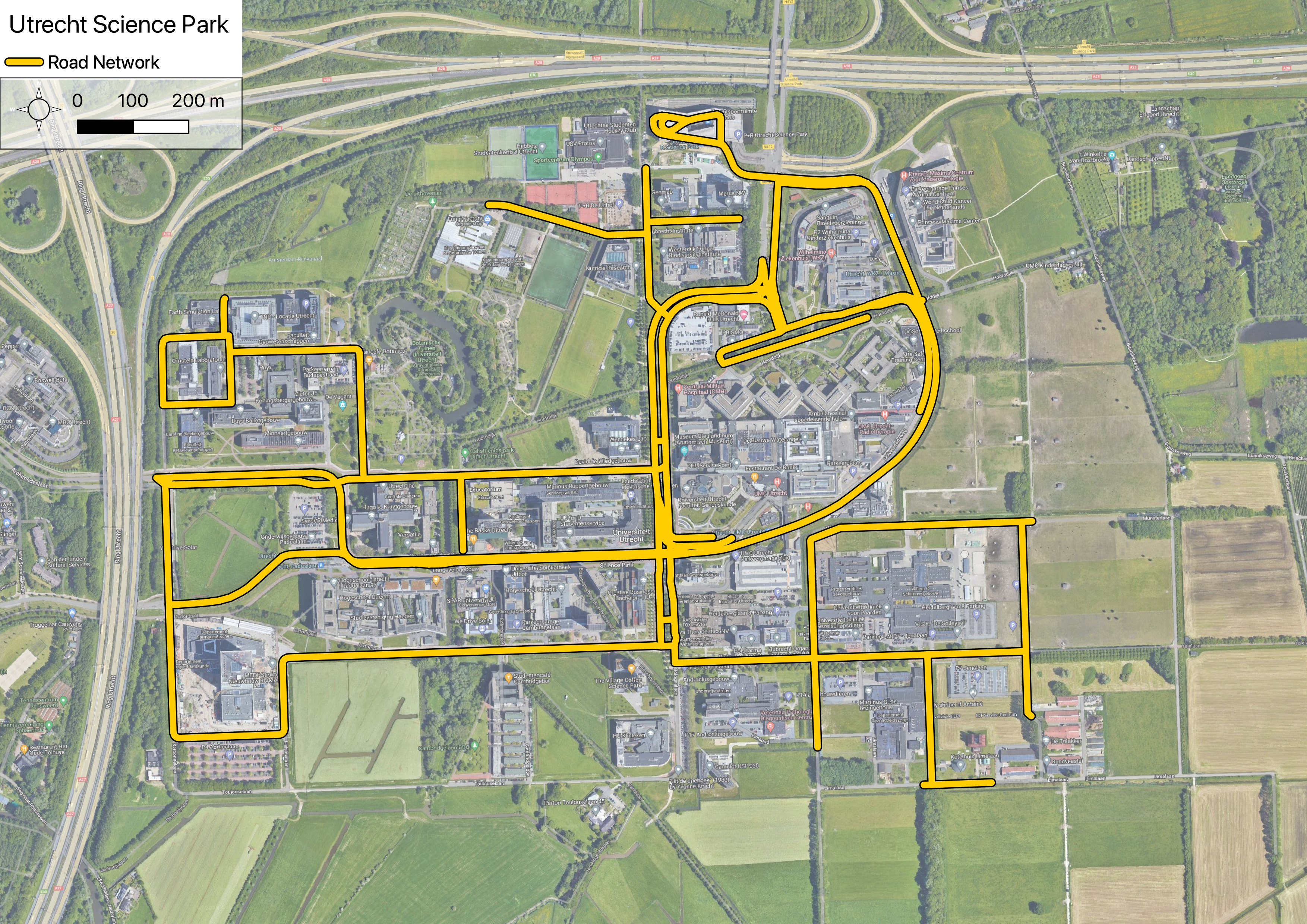
The first step of the code is to retrieve the road network for a specific place using OpenStreetMap data with the help of the OSMNX library. It begins by fetching the road network graph, focusing on roads that are suitable for driving. One important thing to note is that for bidirectional streets, the osmnx library returns duplicate lines. In this code, we take care to remove these duplicates and keep only the unique road segments to ensure that samples are not taken on the same road multiple times, preventing redundancy in subsequent analysis.
Following that, the code proceeds to project the graph from its original latitude-longitude coordinates to a local projection in metres. This projection is crucial for achieving accurate measurements in subsequent steps where we need to calculate distances between points. By converting the graph to a local projection, we ensure that our measurements align with the real-world distances on the ground, enabling precise analysis and calculations based on the road network data.
road = get_road_network(place)
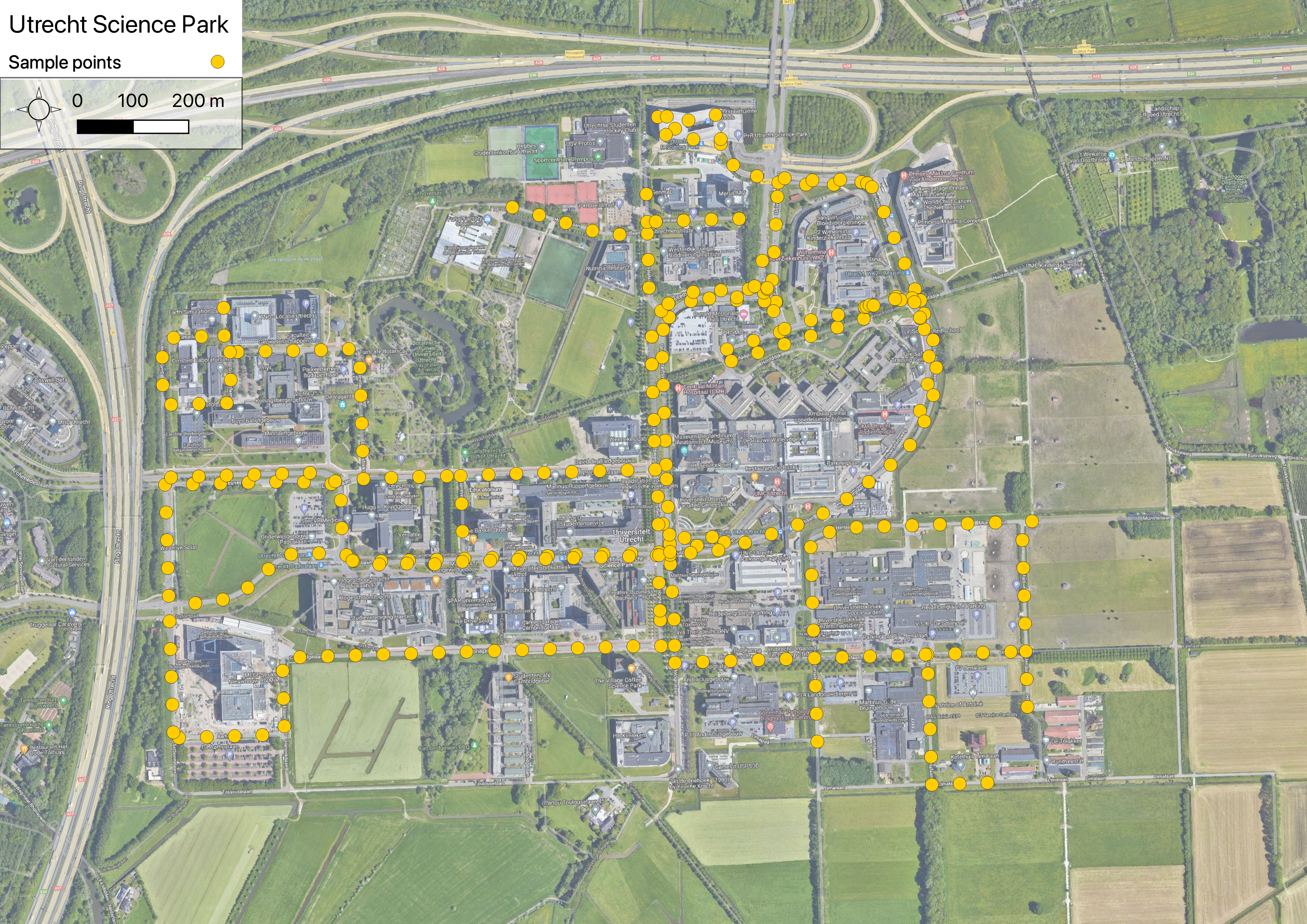
Then, a list of evenly distributed points along the road network, with a specified distance between each point is generated. This is achieved using a function that takes the road network data and an optional distance parameter N, which is set to a default value of 50 metres.
The function iterates over each road in the roads dataframe and creates points at regular intervals of the specified distance (N). By doing so, it ensures that the generated points are evenly spaced along the road network.
To maintain a consistent spatial reference, the function sets the Coordinate Reference System (CRS) of the gdf_points dataframe to match the CRS of the roads dataframe. This ensures that the points and the road network are in the same local projected CRS, measured in metres.
Furthermore, to avoid duplication and redundancy, the function removes any duplicate points in the gdf_points dataframe based on the geometry column. This ensures that each point in the resulting dataframe is unique and represents a distinct location along the road network.
points = select_points_on_road_network(road, distance)
| geometry | |
|---|---|
| 0 | POINT (649611.194 5772295.371) |
| 1 | POINT (649609.587 5772345.345) |
| 2 | POINT (649607.938 5772395.318) |
| 3 | POINT (649606.112 5772445.285) |
| 4 | POINT (649604.286 5772495.252) |
The next step in the pipeline focuses on finding the closest features (images) for each point.
To facilitate this process, the map is divided into smaller sections called tiles. Each tile represents a specific region of the map at a given zoom level. The XYZ tile scheme is employed, where each tile is identified by its zoom level (z), row (x), and column (y) coordinates. In this case, a zoom level of 14 is used, as it aligns with the supported zoom level in the Mapillary API.
The get_features_on_points function utilises the mercantile.tile function from the mercantile library to determine the tile coordinates for each point in the points dataframe. By providing the latitude and longitude coordinates of a point, this function returns the corresponding tile coordinates (x, y, z) at the specified zoom level.
Once the points are grouped based on their tile coordinates, the tiles are downloaded in parallel using threads. The get_features_for_tile function constructs a unique URL for each tile and sends a request to the Mapillary API to retrieve the features (images) within that specific tile.
To calculate the distances between the features and the points, a k-dimensional tree (KDTree) approach is employed using the local projected CRS in metres. The KDTree is built using the geometry coordinates of the feature points. By querying the KDTree, the nearest neighbours of the points in the points dataframe are identified. The closest feature and distance information are then assigned to each point accordingly.
features = get_features_on_points(points, access_token, distance)
| geometry | tile | feature | distance | image_id | is_panoramic | id | |
|---|---|---|---|---|---|---|---|
| 0 | POINT (5.18339 52.08099) | Tile(x=8427, y=5405, z=14) | {'type': 'Feature', 'geometry': {'type': 'Poin... | 4.750421 | 211521443868382 | False | 0 |
| 1 | POINT (5.18338 52.08144) | Tile(x=8427, y=5405, z=14) | {'type': 'Feature', 'geometry': {'type': 'Poin... | 0.852942 | 844492656278272 | False | 1 |
| 2 | POINT (5.18338 52.08189) | Tile(x=8427, y=5405, z=14) | {'type': 'Feature', 'geometry': {'type': 'Poin... | 0.787206 | 938764229999108 | False | 2 |
In this step, the download_images_for_points function is responsible for efficiently downloading and processing images associated with the points in the GeoDataFrame to calculate the Green View Index (GVI). The function performs the following sub-steps:
Initialisation and Setup: The function initialises the image processing models and prepares the CSV file for storing the results. It also creates a lock object to ensure thread safety during concurrent execution.
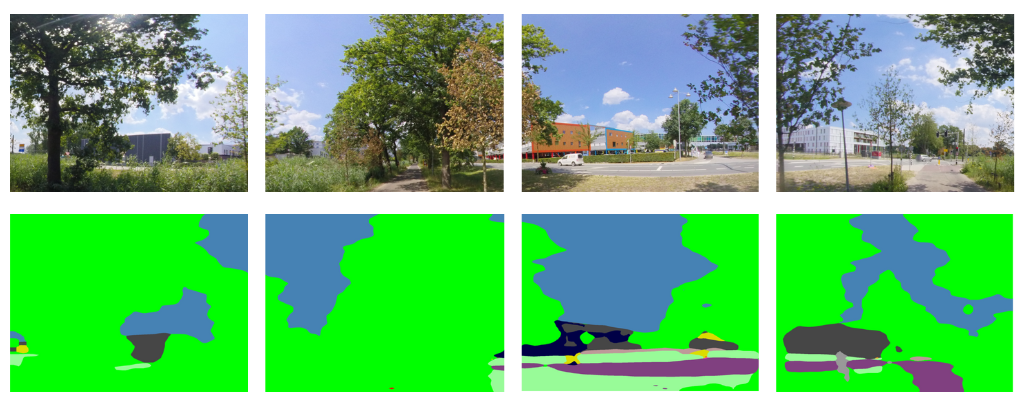
Image Download and Processing: The function iterates over the rows in the GeoDataFrame and submits download tasks to a ThreadPoolExecutor for concurrent execution. Each task downloads the associated image, applies specific processing steps, and calculates the GVI. The processing steps include:
Panoramic Image Cropping using Road Centers: If the image is panoramic and destined for cropping using road centers, the following steps are followed:
Panoramic Image without Road Center Cropping: When dealing with panoramic images not intended for cropping via road centers, the process unfolds as follows:
Non-Panoramic Image
results = download_images_for_points(features_copy, access_token, max_workers, place, file_name)
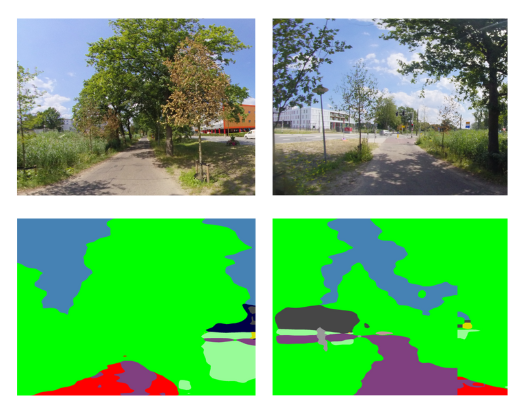
After each image is cleaned and processed with previous steps, the Green View Index (GVI), representing the percentage of vegetation visible in the analysed images, is calculated.
The GVI results, along with the is_panoramic flag and error flags, are collected for each image. The results are written to a CSV file, with each row corresponding to a point in the GeoDataFrame, as soon as a thread finishes its task.
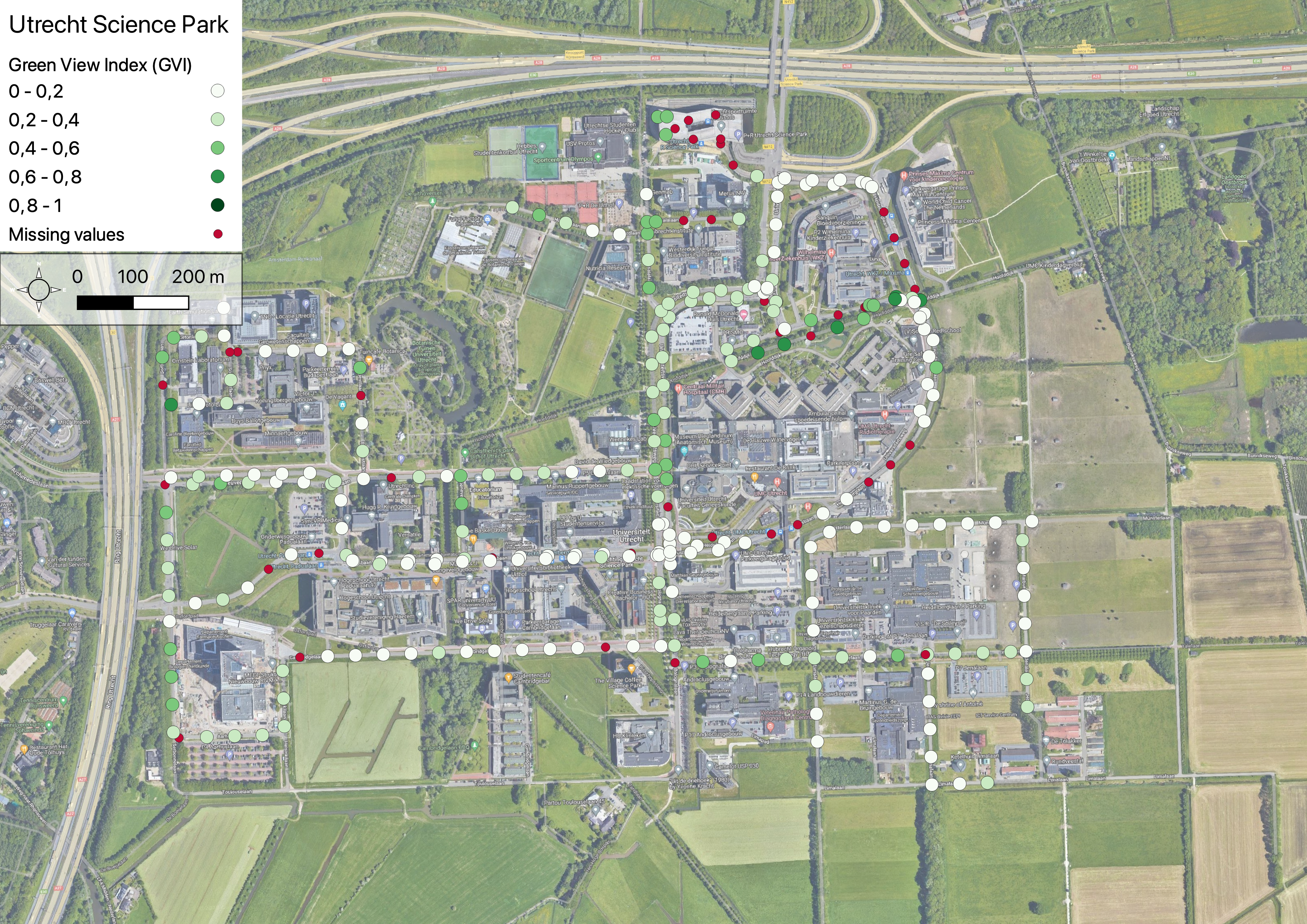
When the code ends running, there will be a folder in "results/{place}/gvi", which will contain a CSV file with the results. We can use it as a GeoDataframe using the following code.
path = "results/De Uithof, Utrecht/gvi/gvi-points.csv"
results = pd.read_csv(path)

# Convert the 'geometry' column to valid Point objects
results['geometry'] = results.apply(lambda row: Point(float(row["x"]), float(row["y"])), axis=1)

# Convert the merged DataFrame to a GeoDataFrame
gdf = gpd.GeoDataFrame(results, geometry='geometry', crs=4326)
After analysing the desired images, the image availability and usability are measured by utilising the following equations:
Then, to allow comparisons between multiple cities, the adjusted scores for both metrics are calculated by multiplying the natural logarithm of the road length.
python results_metrics.py "De Uithof, Utrecht"
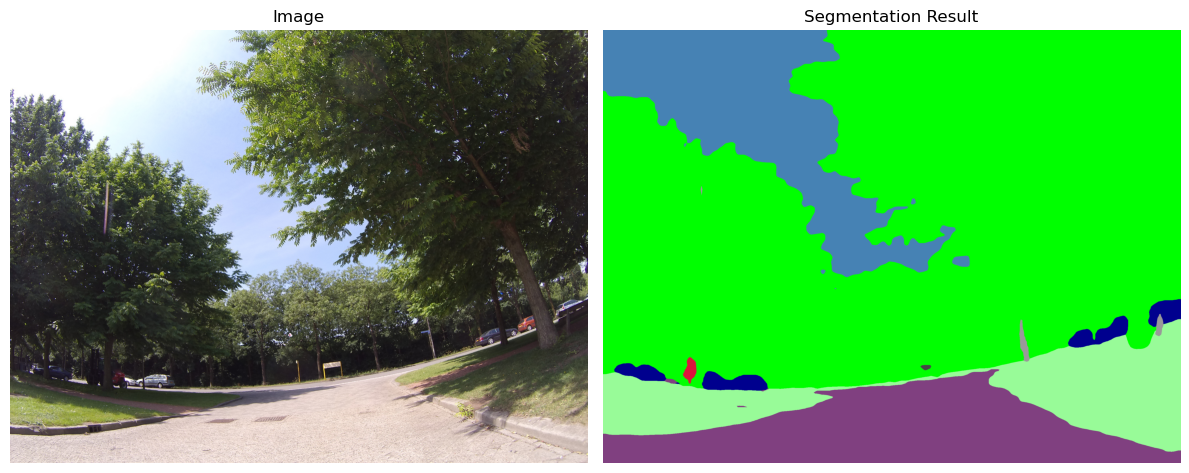
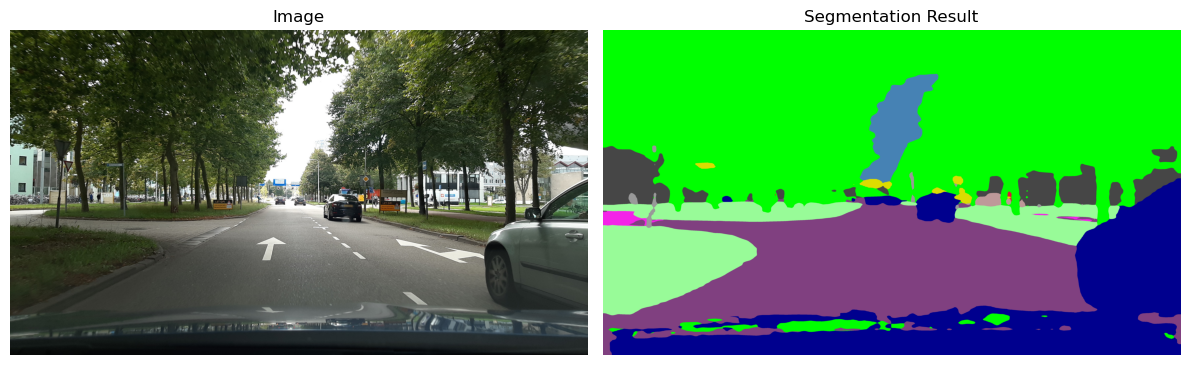
To illustrate the types of images considered usable for this analysis, we provide the following examples. As it can be seen, the images that are centred on the road are deemed suitable for this analysis. However, images with obstructed or limited visibility have been excluded due to their lack of useful information. This selection was made using the algorithm developed by Matthew Danish.
Suitable images for the analysis
Unsuitable images for the analysis
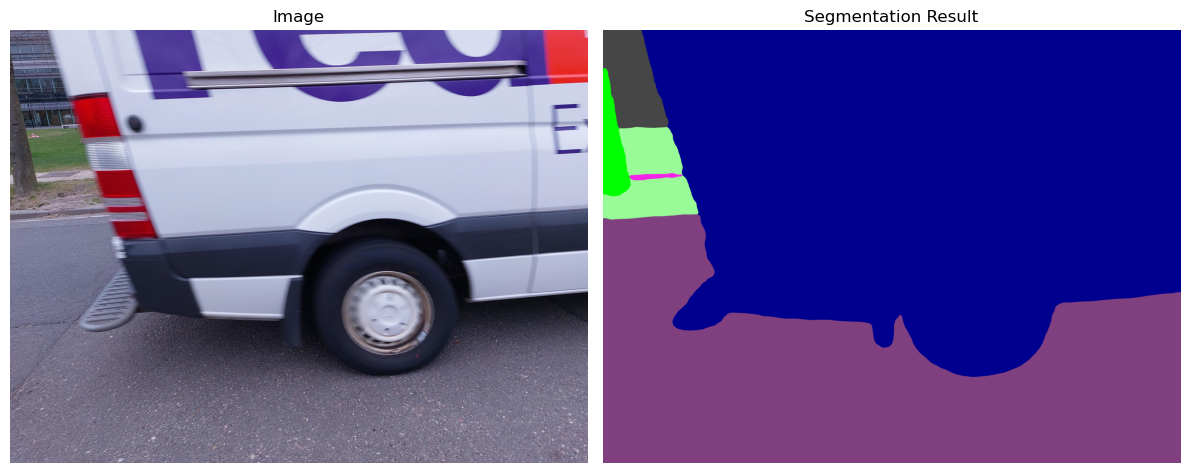
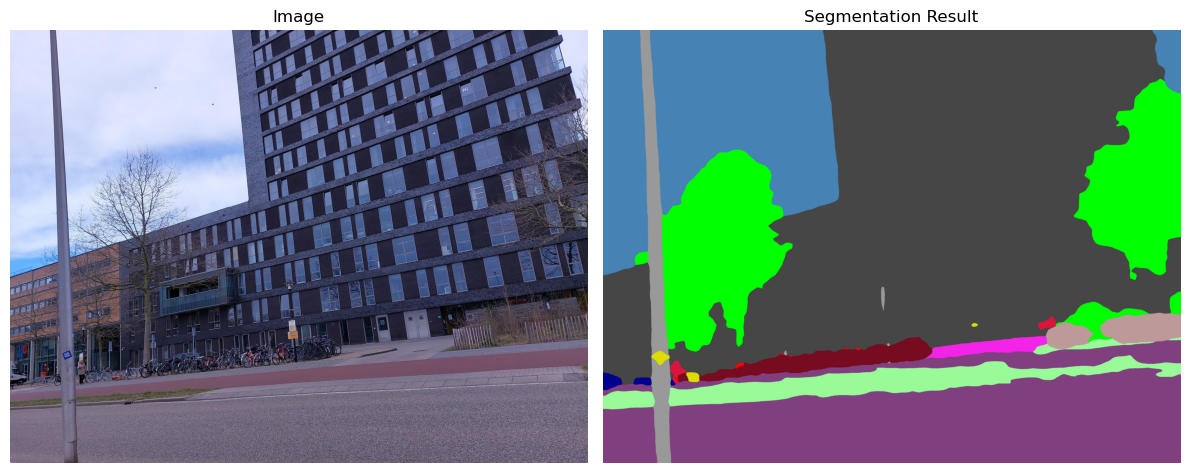
Finally, the analysis employs Linear Regression and Linear Generalised Additive models (GAM) to extract insights from the GVI points calculated in the previous step. The primary objective here is to estimate the GVI values for points with missing images. For this purpose, the code incorporates a module developed by Yúri Grings, which facilitates the extraction of the NDVI values from a TIF file for a given list of points of interest.
To successfully execute this step, an NDVI file specific to the study area is needed. For optimal results, it is recommended to use an NDVI file that has been consistently generated for the study area throughout an entire year. Furthermore, ensure that the coordinate reference system (CRS) of the NDVI file is projected, with metres as the unit of measurement.
python predict_missing_gvi.py "De Uithof, Utrecht" 32631 50
| Linear Regression | Linear GAM | |
|---|---|---|
| RMSE | 0.1707 | 0.1640 |
| AIC | -879.7232 | -899.8143 |
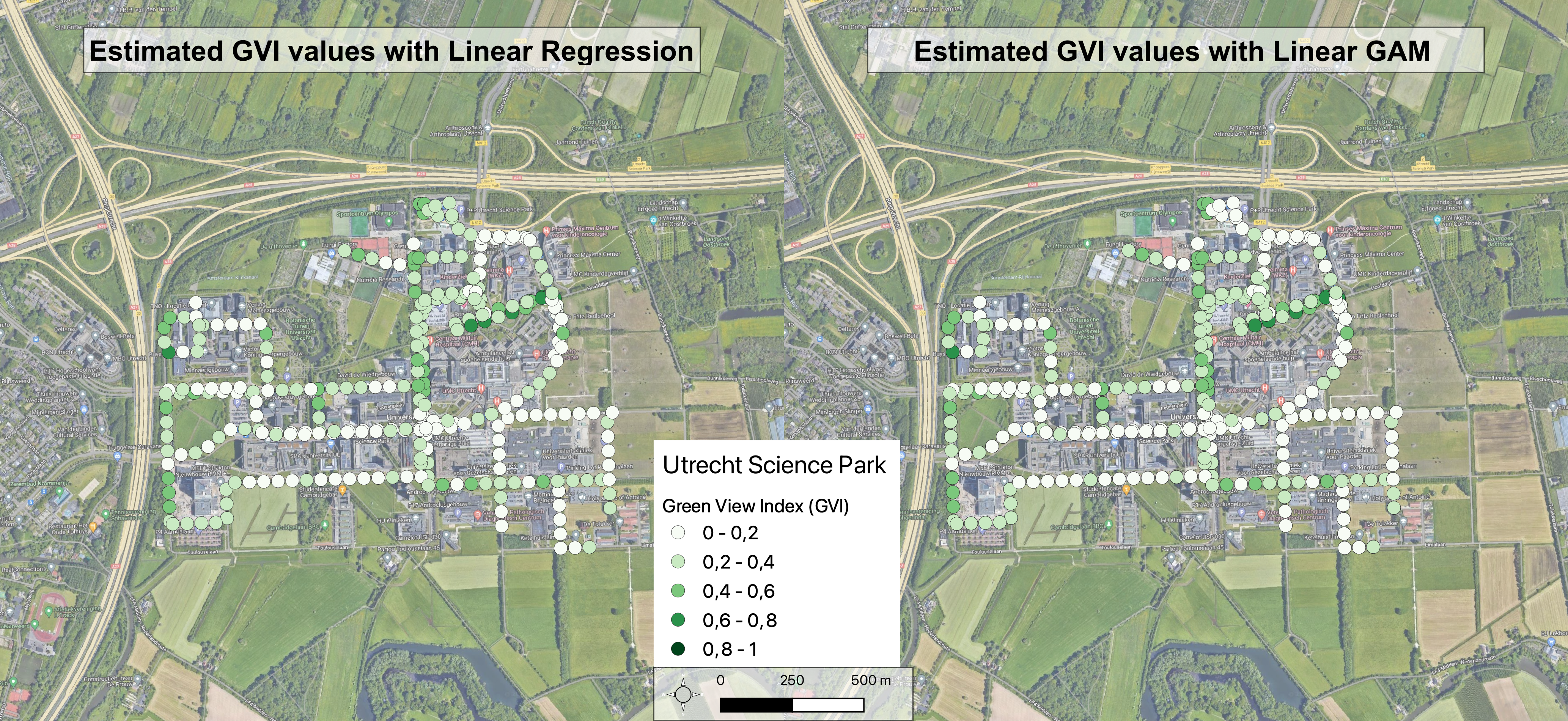
Project made in collaboration with Dr. SM Labib from the Department of Human Geography and Spatial Planning at Utrecht University. This is a project of the Spatial Data Science and Geo-AI Lab, conducted for the Applied Data Science MSc degree
Ilse Abril Vázquez Sánchez
[email protected]
GitHub profile: iabrilvzqz
Dr. S.M. Labib
[email protected]
This GitHub repository presents a scalable and reproducible framework for utilising Mapillary data in greenness visibility modelling.
Jupyter Notebook
21
88 commits
updated Sep 12, 2023
Urban green spaces provide various benefits, but assessing their visibility is challenging. Traditional methods and Google Street View (GSV) has limitations, therefore integrating Volunteered Street View Imagery (VSVI) platforms like Mapillary has been proposed. Mapillary offers open data and a large community of contributors, but it has its own limitations in terms of data quality and coverage. However, for areas with insufficient street image data, the Normalised Difference Vegetation Index (NDVI) can be used as an alternative indicator for quantifying greenery. While some studies have shown the potential of Mapillary for evaluating urban greenness visibility, there is a lack of systematic evaluation and standardised methodologies.
The primary objective of this project is to develop a scalable and reproducible framework for leveraging Mapillary street-view image data to assess the Green View Index (GVI) in diverse geographical contexts. Additionally, the framework will utilise NDVI to supplement information in areas where data is unavailable.
To run the project in Google Colab, you have two options:
Before running the Jupyter Notebook, it is optional but highly recommended to configure Google Colab to use a GPU. Follow these steps:
This notebook contains the following code:
%pip install transformers==4.29.2
%pip install geopandas=0.12.2
%pip install torch==1.13.1
%pip install vt2geojson==0.2.1
%pip install mercantile==1.2.1
%pip install osmnx==1.3.0
from google.colab import drive

drive.mount('/content/drive')

%cd /content/drive/MyDrive
import os

if not os.path.isdir('StreetView-NatureVisibility'):
  !git clone https://github.com/Spatial-Data-Science-and-GEO-AI-Lab/StreetView-NatureVisibility.git

%cd StreetView-NatureVisibility
place = 'De Uithof, Utrecht'
distance = 50
cut_by_road_centres = 0
access_token = 'MLY|'
file_name = 'utrecht-gvi'
max_workers = 6
num_sample_images = 10
begin = None
end = None
In this example, the main_script.py file will be executed to analyse the Green View Index for De Uithof, Utrecht (Utrecht Science Park).
Replace the following parameters with appropriate values:
command = f"python main_script.py '{place}' {distance} {cut_by_road_centres} '{access_token}' {file_name} {max_workers} {begin if begin is not None else ''} {end if end is not None else ''}"
!{command}
command = f"python get_gvi_gpkg.py '{place}'"
!{command}
command = f"python mean_gvi_street.py '{place}'"
!{command}
Once this script was executed, the code to calculate the Image Availability Score and Image Usability Score, along with other quality metrics can be run.
command = f"python results_metrics.py '{place}'"
!{command}
Important note: please note that the EPSG code specified in the code, which is 32631, is just an example for De Uithof, Netherlands.
epsg_code = 32631
command = f"python predict_missing_gvi.py '{place}' {epsg_code} {distance}"
!{command}
To create a Conda environment and run the code using the provided YML file, follow these steps:
cd Documents
git clone https://github.com/Spatial-Data-Science-and-GEO-AI-Lab/StreetView-NatureVisibility.git
This command will download the repository and create a local copy on your computer.
cd StreetView-NatureVisibility
conda env create -f mapillaryGVI.yml
This command will read the YML file and start creating the environment with the specified dependencies. The process may take a few minutes to complete.
conda activate mapillaryGVI
python main_script.py place distance cut_by_road_centres access_token file_name max_workers num_sample_images begin end
Replace the following parameters with appropriate values:
python get_gvi_gpkg.py place
python mean_gvi_street.py place
Once this script was executed, the script to calculate the Image Availability Score and Image Usability Score, along with other quality metrics can be run.
python results_metrics.py place
python predict_missing_gvi.py {place} {epsg_code} {distance}
For this explanation, Utrecht Science Park will be used. Therefore, the command should look like this:
python main_script.py 'De Uithof, Utrecht' 50 0 'MLY|' sample-file 8
When executing this command, the code will automatically run from Step 1 to Step 4.
The first step of the code is to retrieve the road network for a specific place using OpenStreetMap data with the help of the OSMNX library. It begins by fetching the road network graph, focusing on roads that are suitable for driving. One important thing to note is that for bidirectional streets, the osmnx library returns duplicate lines. In this code, we take care to remove these duplicates and keep only the unique road segments to ensure that samples are not taken on the same road multiple times, preventing redundancy in subsequent analysis.
Following that, the code proceeds to project the graph from its original latitude-longitude coordinates to a local projection in metres. This projection is crucial for achieving accurate measurements in subsequent steps where we need to calculate distances between points. By converting the graph to a local projection, we ensure that our measurements align with the real-world distances on the ground, enabling precise analysis and calculations based on the road network data.
road = get_road_network(place)
Then, a list of evenly distributed points along the road network, with a specified distance between each point is generated. This is achieved using a function that takes the road network data and an optional distance parameter N, which is set to a default value of 50 metres.
The function iterates over each road in the roads dataframe and creates points at regular intervals of the specified distance (N). By doing so, it ensures that the generated points are evenly spaced along the road network.
To maintain a consistent spatial reference, the function sets the Coordinate Reference System (CRS) of the gdf_points dataframe to match the CRS of the roads dataframe. This ensures that the points and the road network are in the same local projected CRS, measured in metres.
Furthermore, to avoid duplication and redundancy, the function removes any duplicate points in the gdf_points dataframe based on the geometry column. This ensures that each point in the resulting dataframe is unique and represents a distinct location along the road network.
points = select_points_on_road_network(road, distance)
| geometry | |
|---|---|
| 0 | POINT (649611.194 5772295.371) |
| 1 | POINT (649609.587 5772345.345) |
| 2 | POINT (649607.938 5772395.318) |
| 3 | POINT (649606.112 5772445.285) |
| 4 | POINT (649604.286 5772495.252) |
The next step in the pipeline focuses on finding the closest features (images) for each point.
To facilitate this process, the map is divided into smaller sections called tiles. Each tile represents a specific region of the map at a given zoom level. The XYZ tile scheme is employed, where each tile is identified by its zoom level (z), row (x), and column (y) coordinates. In this case, a zoom level of 14 is used, as it aligns with the supported zoom level in the Mapillary API.
The get_features_on_points function utilises the mercantile.tile function from the mercantile library to determine the tile coordinates for each point in the points dataframe. By providing the latitude and longitude coordinates of a point, this function returns the corresponding tile coordinates (x, y, z) at the specified zoom level.
Once the points are grouped based on their tile coordinates, the tiles are downloaded in parallel using threads. The get_features_for_tile function constructs a unique URL for each tile and sends a request to the Mapillary API to retrieve the features (images) within that specific tile.
To calculate the distances between the features and the points, a k-dimensional tree (KDTree) approach is employed using the local projected CRS in metres. The KDTree is built using the geometry coordinates of the feature points. By querying the KDTree, the nearest neighbours of the points in the points dataframe are identified. The closest feature and distance information are then assigned to each point accordingly.
features = get_features_on_points(points, access_token, distance)
| geometry | tile | feature | distance | image_id | is_panoramic | id | |
|---|---|---|---|---|---|---|---|
| 0 | POINT (5.18339 52.08099) | Tile(x=8427, y=5405, z=14) | {'type': 'Feature', 'geometry': {'type': 'Poin... | 4.750421 | 211521443868382 | False | 0 |
| 1 | POINT (5.18338 52.08144) | Tile(x=8427, y=5405, z=14) | {'type': 'Feature', 'geometry': {'type': 'Poin... | 0.852942 | 844492656278272 | False | 1 |
| 2 | POINT (5.18338 52.08189) | Tile(x=8427, y=5405, z=14) | {'type': 'Feature', 'geometry': {'type': 'Poin... | 0.787206 | 938764229999108 | False | 2 |
In this step, the download_images_for_points function is responsible for efficiently downloading and processing images associated with the points in the GeoDataFrame to calculate the Green View Index (GVI). The function performs the following sub-steps:
Initialisation and Setup: The function initialises the image processing models and prepares the CSV file for storing the results. It also creates a lock object to ensure thread safety during concurrent execution.
Image Download and Processing: The function iterates over the rows in the GeoDataFrame and submits download tasks to a ThreadPoolExecutor for concurrent execution. Each task downloads the associated image, applies specific processing steps, and calculates the GVI. The processing steps include:
Panoramic Image Cropping using Road Centers: If the image is panoramic and destined for cropping using road centers, the following steps are followed:
Panoramic Image without Road Center Cropping: When dealing with panoramic images not intended for cropping via road centers, the process unfolds as follows:
Non-Panoramic Image
results = download_images_for_points(features_copy, access_token, max_workers, place, file_name)
After each image is cleaned and processed with previous steps, the Green View Index (GVI), representing the percentage of vegetation visible in the analysed images, is calculated.
The GVI results, along with the is_panoramic flag and error flags, are collected for each image. The results are written to a CSV file, with each row corresponding to a point in the GeoDataFrame, as soon as a thread finishes its task.
When the code ends running, there will be a folder in "results/{place}/gvi", which will contain a CSV file with the results. We can use it as a GeoDataframe using the following code.
path = "results/De Uithof, Utrecht/gvi/gvi-points.csv"
results = pd.read_csv(path)

# Convert the 'geometry' column to valid Point objects
results['geometry'] = results.apply(lambda row: Point(float(row["x"]), float(row["y"])), axis=1)

# Convert the merged DataFrame to a GeoDataFrame
gdf = gpd.GeoDataFrame(results, geometry='geometry', crs=4326)
After analysing the desired images, the image availability and usability are measured by utilising the following equations:
Then, to allow comparisons between multiple cities, the adjusted scores for both metrics are calculated by multiplying the natural logarithm of the road length.
python results_metrics.py "De Uithof, Utrecht"
To illustrate the types of images considered usable for this analysis, we provide the following examples. As it can be seen, the images that are centred on the road are deemed suitable for this analysis. However, images with obstructed or limited visibility have been excluded due to their lack of useful information. This selection was made using the algorithm developed by Matthew Danish.
Suitable images for the analysis
Unsuitable images for the analysis
Finally, the analysis employs Linear Regression and Linear Generalised Additive models (GAM) to extract insights from the GVI points calculated in the previous step. The primary objective here is to estimate the GVI values for points with missing images. For this purpose, the code incorporates a module developed by Yúri Grings, which facilitates the extraction of the NDVI values from a TIF file for a given list of points of interest.
To successfully execute this step, an NDVI file specific to the study area is needed. For optimal results, it is recommended to use an NDVI file that has been consistently generated for the study area throughout an entire year. Furthermore, ensure that the coordinate reference system (CRS) of the NDVI file is projected, with metres as the unit of measurement.
python predict_missing_gvi.py "De Uithof, Utrecht" 32631 50
| Linear Regression | Linear GAM | |
|---|---|---|
| RMSE | 0.1707 | 0.1640 |
| AIC | -879.7232 | -899.8143 |
Project made in collaboration with Dr. SM Labib from the Department of Human Geography and Spatial Planning at Utrecht University. This is a project of the Spatial Data Science and Geo-AI Lab, conducted for the Applied Data Science MSc degree
Ilse Abril Vázquez Sánchez
[email protected]
GitHub profile: iabrilvzqz
Dr. S.M. Labib
[email protected]