Browser extension + local FastAPI backend to translate manga pages with your own LLM
Python
2
281 commits
updated Oct 12, 2026
Translate manga pages directly in your browser with the LLM provider you configure, a local FastAPI backend, batch page scanner, auto-translate mode, multilingual UI, and optional Flux inpainting.
Tiếng Việt · 中文




Showcase · Features · Download · Quick Start · Configuration · Optional Flux · Web App · Development
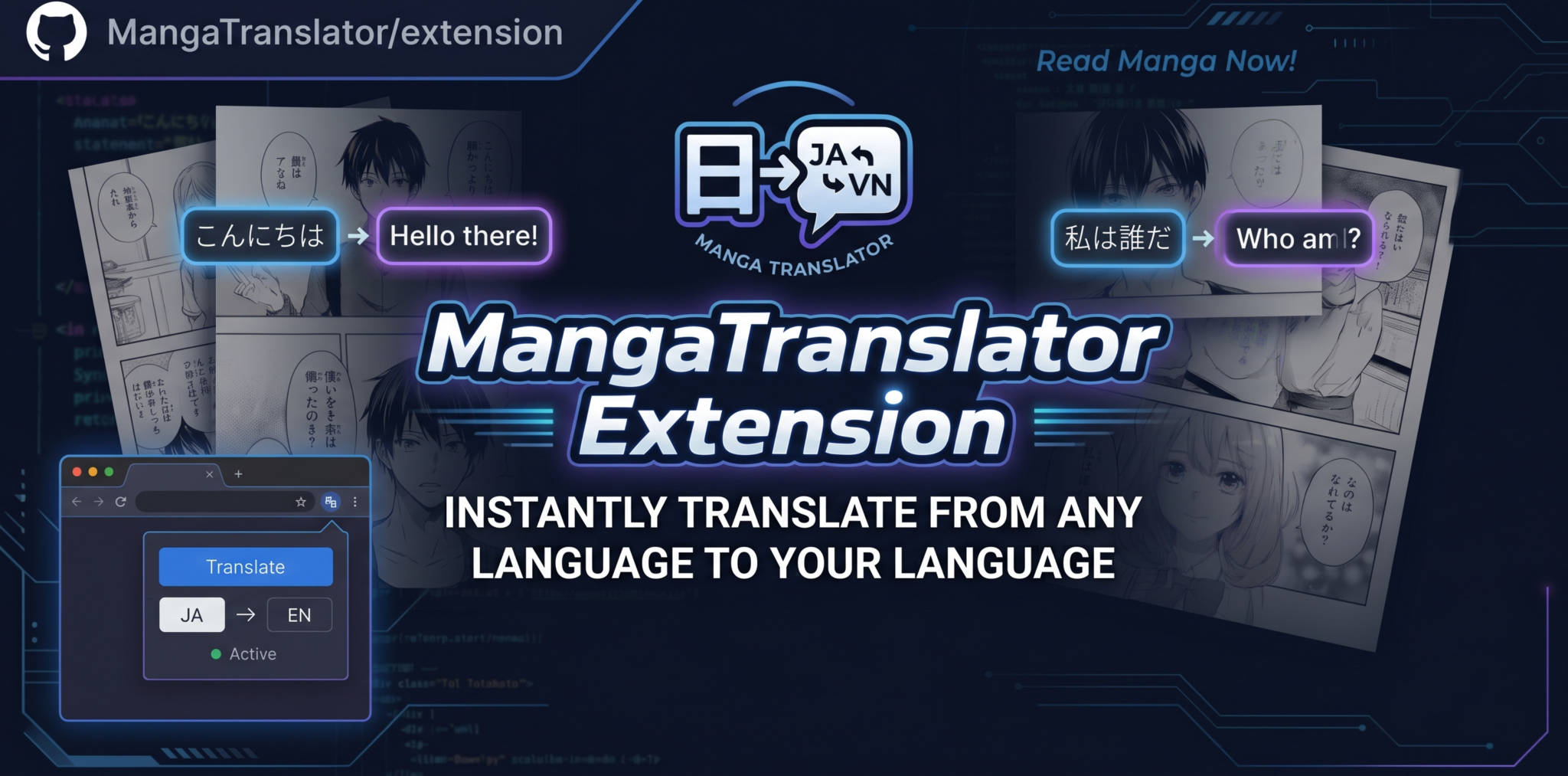
MangaTranslator Extension is a portable browser-extension stack for translating manga and comic pages. The browser extension scans images on the current page, sends them to a local backend, and replaces or previews the translated result. The backend runs locally, so the browser does not need to send manga images through a third-party extension server.
The extension uses the LLM, API key, model, and Base URL that you provide. You can connect it to Google, OpenAI, Anthropic, OpenRouter, DeepSeek, xAI, Z.ai, Moonshot AI, or any OpenAI-compatible endpoint, then keep the translation workflow inside the browser.
The default install stays lightweight: the backend downloads its (non-Flux) models automatically the first time you use it, and Flux Klein 4B is optional, installed later with setup.bat only if you need heavier outside-bubble inpainting.
MangaTranslator Extension is built for people who want to keep reading, not copy text into separate tools. Open a chapter, scan the page, choose the images you want, and let your own LLM translate the dialogue back into the manga image.
| Popup controls | Page scanner |
|---|---|
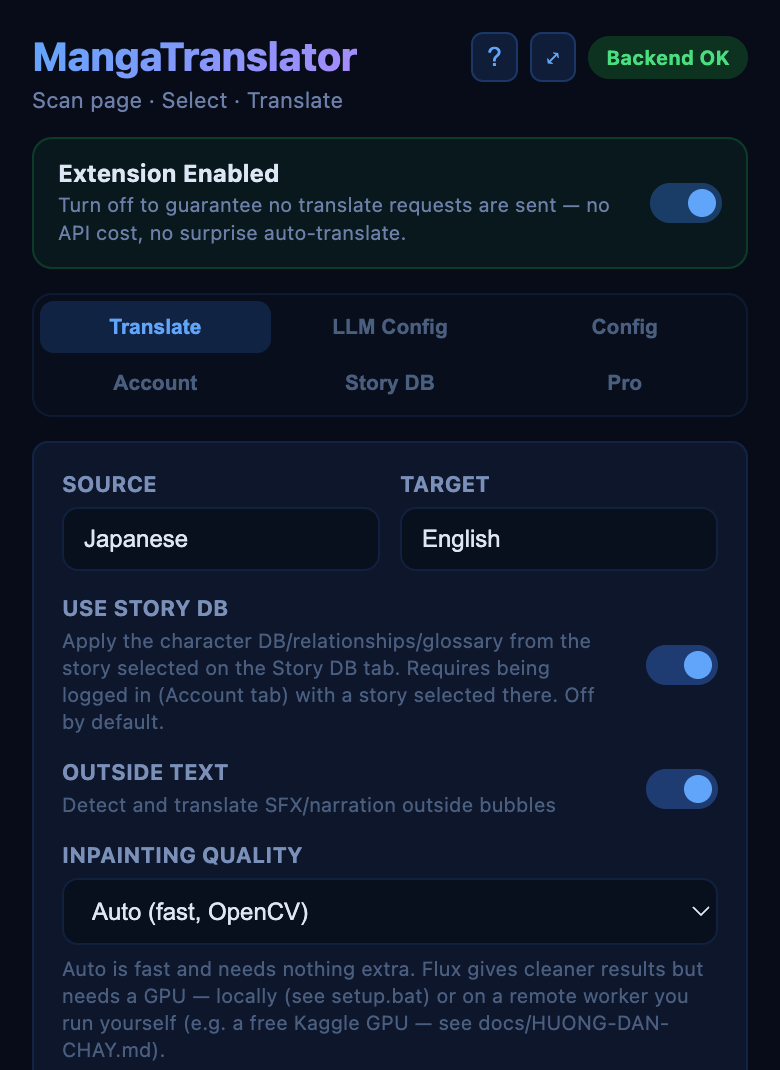 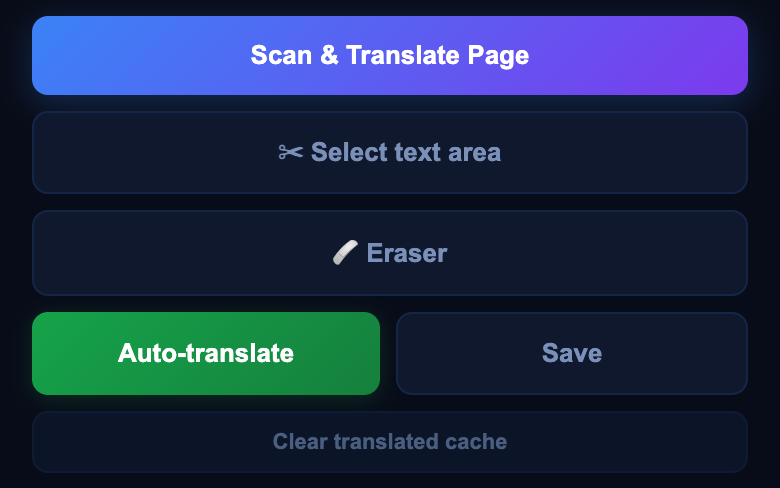 | 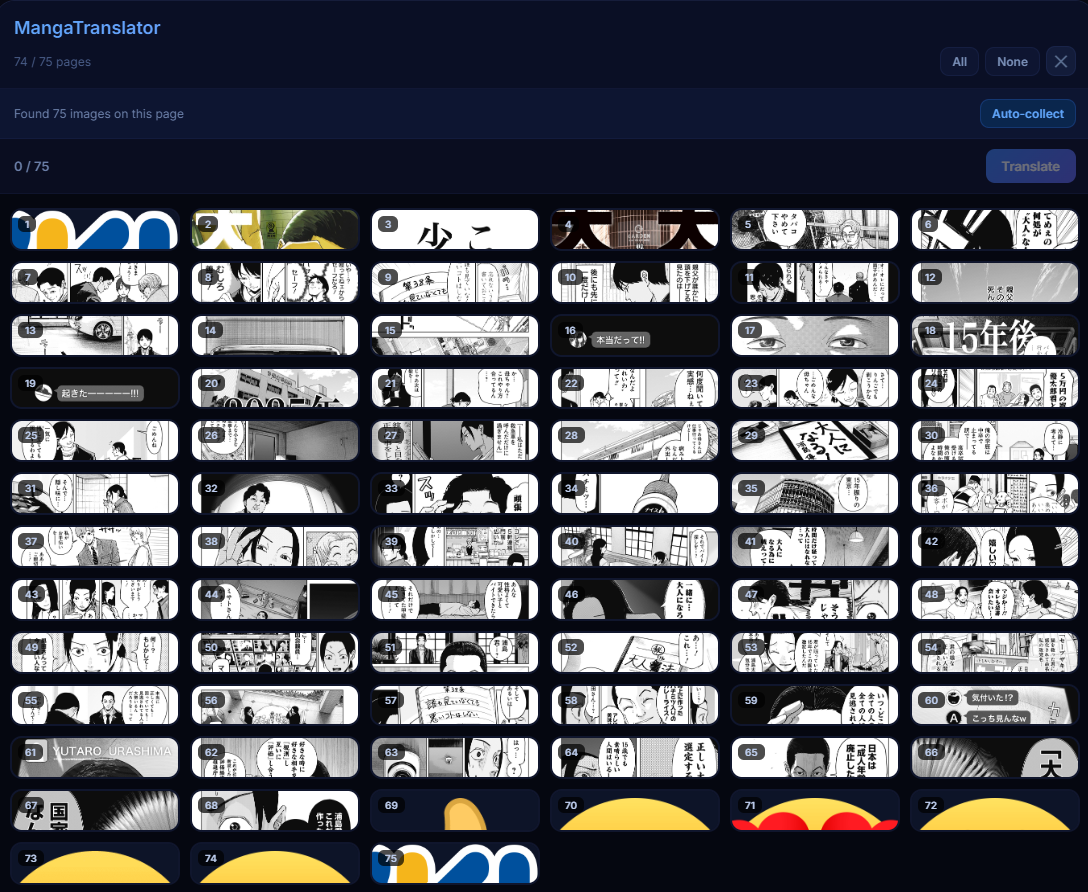 |
| Source/target languages, Story DB, outside-bubble text and inpainting quality. The header shows backend status, the ? help chat and ⤢ open-in-window. Below the settings: scan the page, select a text area, erase, or start Auto-translate. | Scan a chapter, preview detected pages, select only what you need, and translate pages in batch. |
| Original page | Translated page |
|---|---|
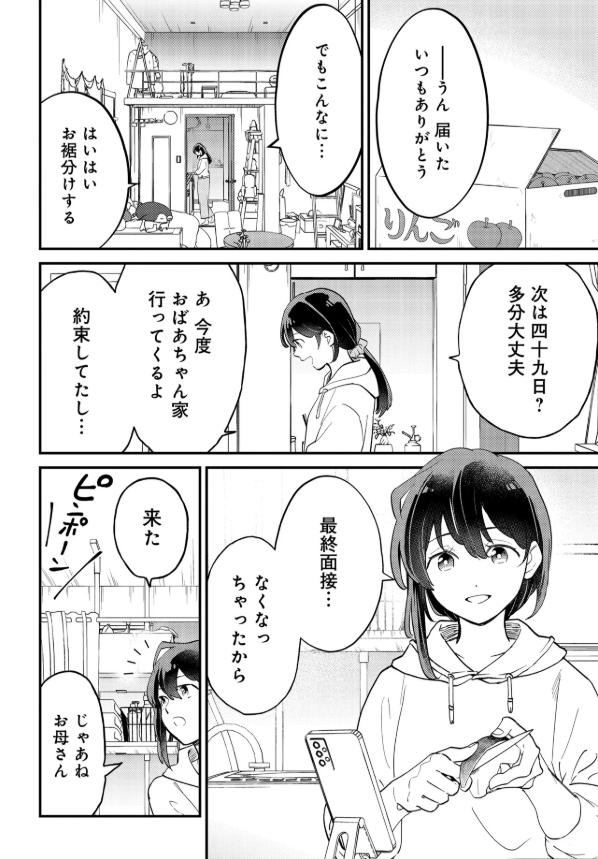 | 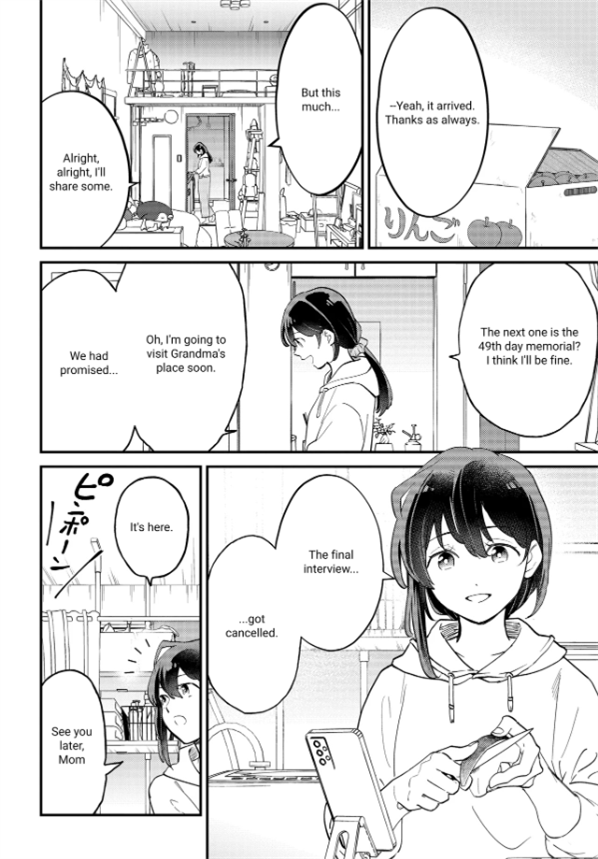 |
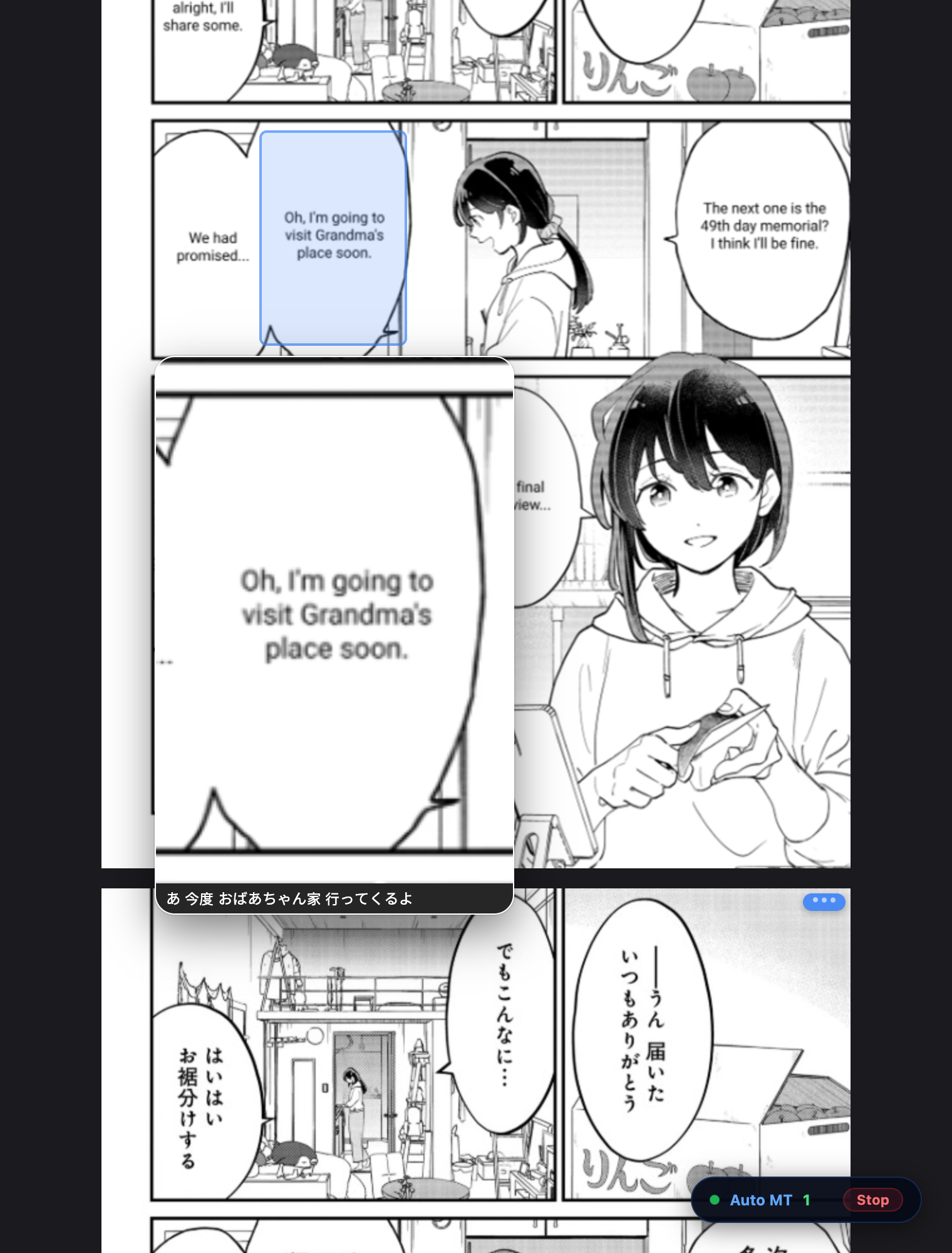
Click Auto-translate in the popup (or press Alt+Shift+A, ⌘+Shift+A on Mac) and just keep reading. Pages are translated as they come into view, plus a few pages ahead, so the next page is usually ready before you get there.
••• badge: the page is being translated right now (bottom page above).MT badge: the page is done. A page that fails 3 times shows a red badge instead; click it to retry.Turn on Pre-translate to translate pages as soon as they load instead of when you scroll near them (faster reading, more API calls). The Extension Enabled switch at the top of the popup turns everything off, so nothing is ever sent by surprise.
| Story DB | Help chat |
|---|---|
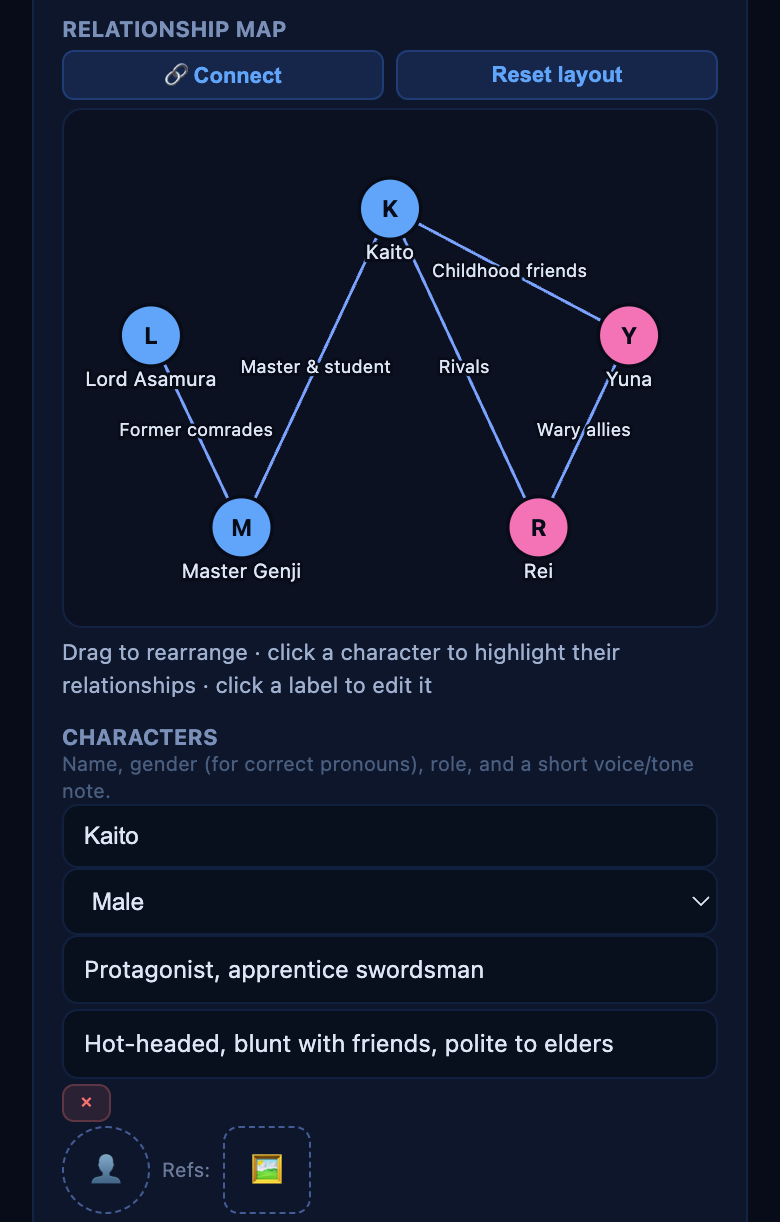 | 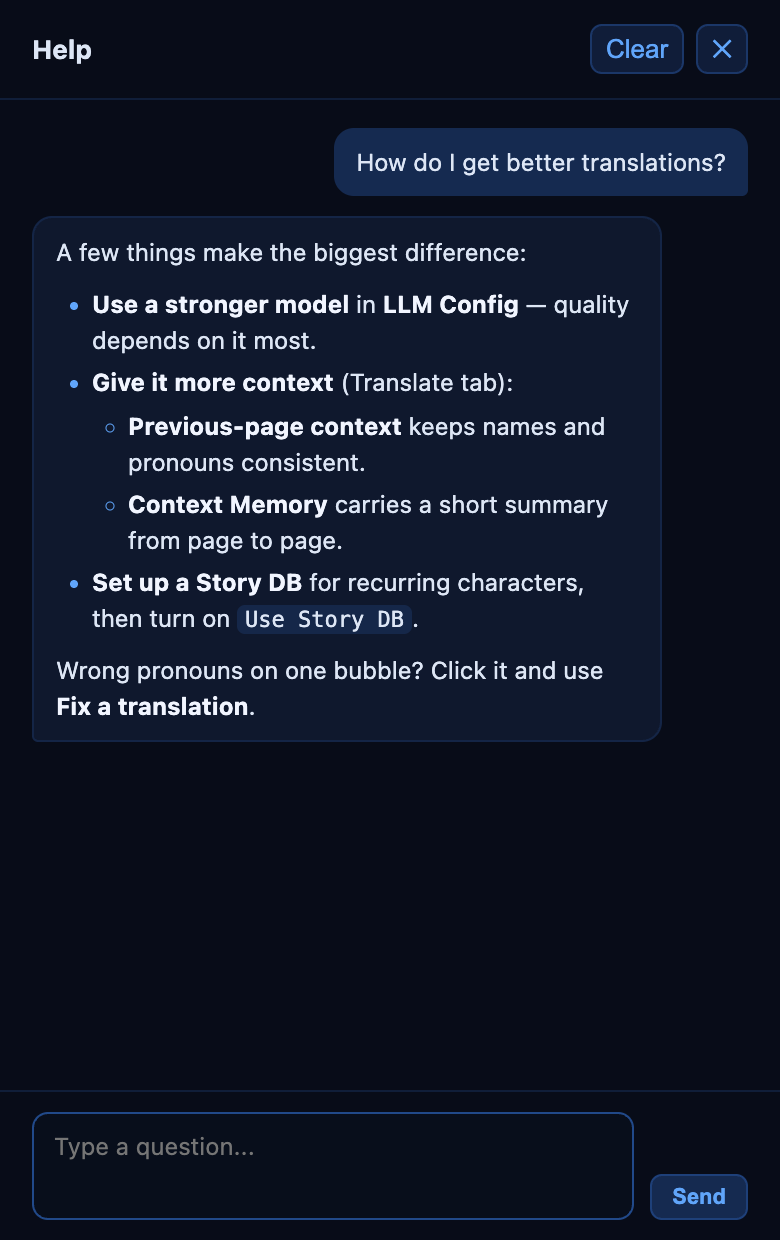 |
| Keep a story's characters, relationships, and fixed term translations in one place, so names and pronouns stay consistent from chapter to chapter. Drag characters around the relationship map, or use Connect to link two of them. | Click ? in the popup and ask how to set something up. Answers come from your own LLM, based on this project's documentation. |
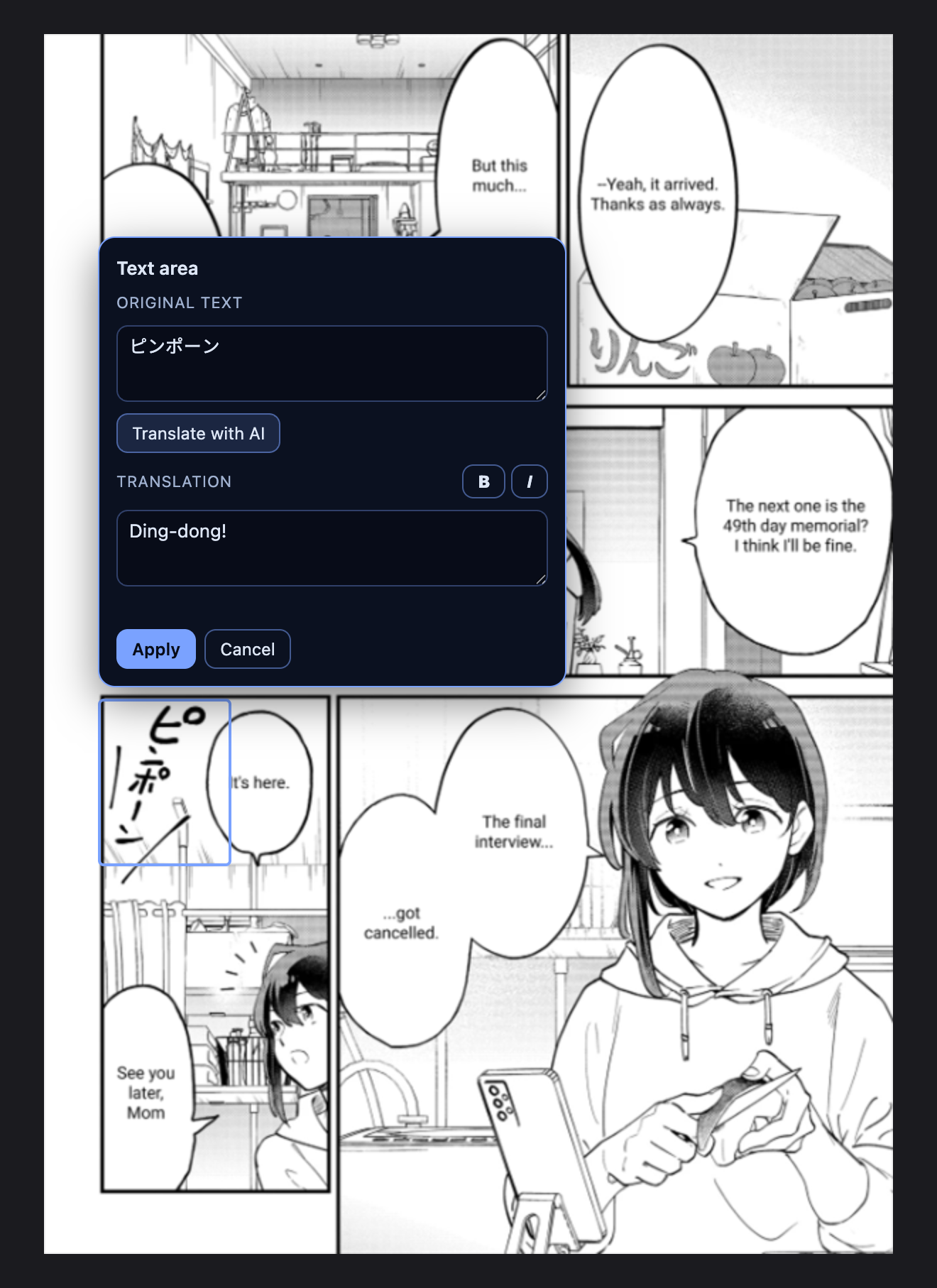
Auto-translate left the "ピンポーン" sound effect untouched. Click ✂ Select text area, drag a box over it, and the text is read for you. Type a translation or click Translate with AI, then Apply to clean the spot and draw the new text into the page. For curved or diagonal text that a box can't isolate, use 🩹 Eraser to paint over it instead.
| Area | What it does |
|---|---|
| Bring-your-own LLM | Uses the LLM provider, API key, model, and Base URL configured by the user. |
| Provider/key rotation | On rate limit, automatically retries with backup API keys for the same provider, then falls back to other configured providers, in order. Rotation order is configurable (round-robin/random/sequential); under Random, each key can be given its own weight to bias how often it's picked. A rate-limited key's cooldown uses the provider's own Retry-After response header when it sends one, instead of a blind fixed guess, so it's retried at the right time. Each provider/model in the list can also override Reasoning Effort just for itself, falling back to the general setting when left unset. |
| Test API Key | A "Test" button next to each API key (and "Test all keys" per provider) sends a minimal request to confirm that key/model/URL actually works, without spending a real translation — a failed test shows the full provider error on demand. |
| Prompt caching | The translation system prompt (identical across every page of the same batch/auto-translate run) is cached server-side on Anthropic via cache_control, cutting repeat-page input cost by up to ~90%. OpenAI-compatible and Gemini providers already cache eligible prompts automatically, no configuration needed. |
| Page scanner | Finds manga/comic images on the active page and lets you choose which pages to translate. |
| Auto-translate | Click Auto-translate (or press Alt+Shift+A, ⌘+Shift+A on Mac) and keep reading: pages are translated as they come into view, plus a few pages ahead. A floating Auto MT pill counts translated pages and has a Stop button. Optional Pre-translate starts pages as soon as they load. |
| Bubble translation | Detects speech bubbles, removes original text, translates, and renders text back into the image. |
| Hover-to-magnify | Hover a translated bubble for a sharp zoomed-in crop with the original text as a caption, so you can cross-check the translation at a glance. A per-page button toggles between the translated and original image. |
| Story Notes | Per-story notes (glossary, character relationships, tone) the model always follows; a "Suggest" button drafts them from your already-scanned pages. Separate from General LLM Instructions, which apply to every story. |
| Story DB (optional, requires login) | A persistent, per-story character database — characters (name/gender/role/voice, plus an optional avatar and up to 2 reference images), relationships, a glossary of fixed term translations (each term can be set to Enforce exactly: after translating, the term's own spelling and any variants you list are rewritten to the exact translation — it can only fix what the AI actually wrote, not an alternative translation nobody listed), and continuity notes — synced to your account. Applied to translation only when the Use Story DB toggle on the Translate tab is on (off by default) — selecting a story in the Story DB tab alone isn't enough. An interactive relationship map (drag characters around, click to highlight, "Connect" two characters to add a relationship) shows the cast at a glance, and its layout is saved. Reference images are sent to the model only if you turn on "Send reference images to the AI". Unsaved edits survive closing the popup — they're restored automatically next time, with a banner to discard them if you'd rather start over. Undo/Redo (Ctrl+Z / Ctrl+Shift+Z) step back and forth through your edits. Since the active story is one setting shared across every site (not per-page), a warning banner appears if the current page's site was last translated with a different story than the one now selected — it never switches anything for you, just flags a possible mismatch. Manage it from the Story DB tab. |
| Update Story DB from a description | In the Story DB tab, type what just happened in the story ("Chapter 39: the villain turns out to be Akira's childhood friend Hina, so they switch from casual to hostile pronouns") and click ✨ Update from description — AI drafts the character/relationship changes and a continuity note for you to review; nothing is saved until you click Save story. Optionally turn on Search the internet for this story to have it look the story up and fill in developments up to the point your description mentions — unlike Suggest Notes, this is allowed to include spoilers, since tracking them is the point. |
| Story DB import/export | Export/Import JSON buttons in the Story DB tab, to back up a story or hand it to a co-translator/editor without re-typing it. |
| Vietnamese pronoun accuracy | For Vietnamese output, automatically reasons about each speaker pair's relationship (age, gender, family ties, honorifics like "onii-chan") to pick the correct pronouns (anh/em, tao/mày, etc.) and keeps them consistent across a page — no configuration needed. |
| Context Memory | Optional: the model writes a one-sentence summary each page and reuses it on later pages of the same story, keeping characters/events consistent for cheaper than sending prior pages' full text/images. |
| Fix a translation | Click a translated bubble and describe what's wrong to re-translate just that page with the correction applied to that bubble. To fix the same mistake across several pages at once (e.g. a character name), select the already-translated pages in the scanner, describe it once, and apply it to all of them. |
| Re-translate a page | Each translated page has a ↻ button under its MT / download / view-original buttons (top-right of the page). Click it to translate that one page again with your current settings (model, language, Story DB, instructions...) — the old translation stays on screen until the new one arrives, a failed attempt changes nothing, and it always asks the model afresh even when the backend would otherwise serve a cached answer. Corrections made with click-to-fix start over; manual text areas are re-applied. |
| Move / delete a bubble | The detector boxed the wrong spot, or shouldn't have created a bubble at all? Open the bubble's Fix popover and click Move (drag a new box; the old spot is restored to the original art) or Delete (just restores the original art). |
| Per-text-area style | The manual text area editor has a Text style section: font, exact size, line spacing, alignment, letter case, text color, outline (width + color), a highlight behind the text, rotation, vertical (one column), shifting the text inside its box, and how much of the box it may use. Anything left on Auto follows your global settings (Pro tab). The Style button in a detected bubble's Fix popover does the same for that one bubble: it swaps the bubble for a text area on the same box carrying your style. If the chosen font has no glyph for some characters (e.g. accented letters), you're told which ones were left out. |
| Manual text area | Not happy with a spot, or the auto-detect missed one? Click ✂ Select text area in the popup and drag a box over any text on the page: it is read automatically (OCR), then you either type the translation yourself or click Translate with AI (Story DB and your instructions apply). The spot is cleaned and the text drawn back into the image. Re-select the same spot to edit or delete it; boxes are remembered per page. Once applied, a text area behaves like a detected bubble: hover it for the magnified crop with the original text, click it to edit. Needs the backend running the latest code. |
| Eraser tool | For raw text/SFX a rectangle can't isolate cleanly (curved or diagonal SFX, text hugging a character's outline): click 🩹 Eraser and paint over it with a brush; it's inpainted away. Persisted per page like the manual text area tool. |
| Economy mode | One switch to cut API cost: low-detail images, no full-page or previous-page context, no Story DB reference images, and a smaller context image. Your own settings are kept and come back when you turn it off. |
| Font settings | Pick which font pack renders translated text, and the min/max font size range, from the Translate tab — drop your own font pack (a folder of .ttf/.otf files) into backend/fonts/ to see it in the list. A text-sharpness (supersampling) control sits in the new Pro tab, alongside other advanced/translator-focused controls kept out of the main tabs. |
| Web app (no extension) | Translate raw image files you have on disk — nothing needs to already be on a web page. Start the backend, open http://localhost:7677/app in any browser, drag files in, translate, export ZIP/CBZ. Deliberately minimal (no Story DB/rotation/manual tools) — for the full toolkit, use the extension. |
| Export | Download a single translated page as a PNG from its overlay, or export every translated page in the scanner as a ZIP in one click. |
| CBZ / PDF export | "Export CBZ" and "Export PDF" next to the ZIP export button — same pages, but numbered by scan order so they page through correctly (a plain ZIP export's filenames come from the source URLs, which don't always sort into reading order). |
| Translation progress | A small animated marker shows which page(s) are actively being translated right now, distinct from ones still waiting in the auto-translate queue. |
| Retry indicator | A page that fails auto-translate 3 times in a row shows a small red badge — click it to retry immediately. |
| Outside-bubble text | Handles SFX/narration outside speech bubbles with lightweight cleanup by default. |
| LaMa Manga inpainting | The default under Inpainting quality (Translate tab): a middle option between lightweight OpenCV cleanup and Flux, using a LaMa network fine-tuned on manga/anime art to rebuild panel borders, screentone and hatching behind removed text instead of smearing them — cleaner than the generic (photo-trained) LaMa, also available in the same dropdown. ~200MB, downloaded on first use, runs on CPU in seconds (faster on a GPU). The Eraser and Select text area tools use whichever LaMa variant is selected. |
| Live AI log viewer | Debug tool: Config tab → Open viewer shows every prompt and response the backend exchanged with the AI, live, with timing, filters, search and copy buttons. Off unless MT_LIVE_AI_LOG_ENABLED=true on the backend; on a hosted backend only the MT_ADMIN_EMAIL account can open it. A Save images switch (off by default — it costs disk space and background work per call) also keeps the images sent to the AI so you can look at them, click to enlarge, and compare with the prompt. |
| First-use download notice | Some features fetch ML weights the first time you use them (LaMa ~0.2 GB, manga-ocr ~0.9 GB, PaddleOCR-VL ~1.9 GB). While a translation is slow, the page shows a "first-time setup: downloading …" notice instead of hanging silently. |
| Optional Flux | Lets advanced users download Flux Klein 4B for heavier inpainting without shipping it in the default release. |
| Replacement dictionary | In the Pro tab: deterministic find => replace rules (with /regex/ support) for the fixes an AI keeps getting wrong. After translation rules rewrite every translation before it's drawn — exact, and they apply to already-cached pages without a new AI call. Before translation rules rewrite the source text; exact in the Select text area tool, and passed to the AI as instructions when it reads the page image directly. |
| Lettering options | In the Pro tab: ALL CAPS, left/center/right alignment, a fixed text color, and an outline (width + color) for speech-bubble and Select text area text — the usual scanlation lettering choices. Bold/italic from the AI's markers are kept. |
| Text reading | Translate tab select: let the AI read each bubble image (default), or read the text locally first with manga-ocr / PaddleOCR-VL and send only text to the AI — cheaper, works with text-only models, and makes the "before translation" dictionary exact. |
| Local LLM | Run fully offline with no API cost via Ollama or LM Studio (a vision model, or any text model with local OCR) through the OpenAI-Compatible provider — see Local LLM. |
| Help chat | Click the ? button in the popup header to ask how to install, configure, or use the extension — answered by your own configured LLM, grounded in this project's own docs (not a canned FAQ, and not free — it uses your API key/quota like any other AI feature here). Conversation is kept locally across popup reopens; clear it any time. |
| Resizable popup | Drag the popup's bottom-right corner to resize it (works most of the time — Chrome's own popup sizing can occasionally fight it), or click ⤢ in the header to open the same UI in a normal, freely resizable window instead. |
| Provider support | Google, OpenAI, Anthropic, xAI, DeepSeek, Z.ai, Moonshot AI, OpenRouter, and OpenAI-compatible endpoints. |
| UI languages | English by default, plus Vietnamese, Chinese, Japanese, and Korean. |
| Translation languages | Source/target fields accept ~58 suggested languages (Japanese, Korean, Chinese, Spanish, French, Arabic, ...) via autocomplete, or any language name you type — the backend has no allowlist. |
| Portable backend | Uses start-backend.bat, backend/main.py, and optional bundled backend/runtime/python.exe. |
Latest release:
https://github.com/QuangTQV/Manga-Translator-Extension/releases/latest
Release assets:
| Asset | Purpose |
|---|---|
manga-translator-extension-dist-*.zip | Built browser extension. Load the extracted dist/ folder in Chrome/Edge. |
manga-translator-models-no-flux-*.zip | Optional. Pre-downloaded backend models (no Flux) so you don't have to wait for them on first use — extract into the project root to restore backend/models/. Skip this and the backend downloads the same models automatically the first time you translate a page. |
| Source code (zip / tar.gz) | The repository at that release's tag, same as cloning it. |
Extract models (optional — pick the actual filename from the release you downloaded):
Expand-Archive .\manga-translator-models-no-flux-*.zip -DestinationPath .
git clone https://github.com/QuangTQV/Manga-Translator-Extension.git
cd Manga-Translator-Extension
cd backend
python -m venv .venv
.\.venv\Scripts\pip install -e .
cd ..
Optional: download manga-translator-models-no-flux-*.zip from the latest release and extract it into the project root to restore backend/models/ ahead of time — otherwise the backend downloads the same models automatically the first time you translate a page.
.\start-backend.bat
The backend should listen on:
http://localhost:7677
cd extension
npm install
npm run build
Then open Chrome or Edge:
chrome://extensions/
Enable Developer mode, choose Load unpacked, and select extension/dist/.
Open the extension popup and use the tabs:
| Tab | Options |
|---|---|
Translate | Source language, target language, Use Story DB toggle (off by default — required for the Story DB tab's data to actually affect translation), outside-bubble text toggle, Previous-page context, Context Memory, Story Notes (with "Suggest" to draft them). |
LLM Config | Provider, Base URL, model, API key (+ optional backup keys and fallback providers, tried in order on rate limit), temperature, Top P, Top K, full-page context, General LLM Instructions. |
Config | Extension UI language and backend URL. |
Account | Sign in with email or Google to use optional per-account features (Story DB); also where a centrally-hosted deployment's users see their plan/usage. |
Story DB | Optional, requires being logged in on Account. Per-story character database, relationships, a term glossary, and continuity notes, synced to your account. |
Pro | Advanced controls kept out of the main tabs: text sharpness (supersampling), Combine into one page image (on by default — sends one numbered full-page image per page instead of one cropped image per bubble; only applies when Text reading is "AI reads the page image"), lettering (ALL CAPS, alignment, text color, outline), and the before/after-translation replacement dictionary. |
Default backend URL:
http://localhost:7677
Provider keys can be entered in the popup or exposed through environment variables:
GOOGLE_API_KEY
OPENAI_API_KEY
ANTHROPIC_API_KEY
Translate offline with no API cost by pointing the OpenAI-Compatible provider at a model running on your own machine.
By default you need a vision model: the AI reads the text straight off the page image, so a text-only model (plain Llama, Qwen 2.5, ...) has nothing to translate. Examples that can see images: Qwen2.5-VL (qwen2.5vl:7b in Ollama), Gemma 3 (gemma3:12b), or any model LM Studio marks as vision-capable.
Text-only models work too if you set Translate tab → Text reading to manga-ocr (Japanese only) or PaddleOCR-VL: the text is read locally first and only text goes to the model. That is also cheaper and lighter for a local GPU, at the cost of the AI no longer seeing the bubble images.
Ollama
ollama pull qwen2.5vl:7b (the server starts on port 11434).LLM Config: Provider OpenAI-Compatible, Base URL http://localhost:11434/v1, Model qwen2.5vl:7b, API key: any text such as ollama (the field can't be empty; Ollama ignores it).LM Studio
LLM Config: Provider OpenAI-Compatible, Base URL http://localhost:1234/v1, Model: the model identifier LM Studio shows, API key: any text such as lm-studio.Good to know
http://host.docker.internal:11434/v1; if the model runs on another machine, use that machine's LAN address (for Ollama, start it with OLLAMA_HOST=0.0.0.0).OLLAMA_CONTEXT_LENGTH=16384 ollama serve. Economy mode also helps (smaller images).Flux is not bundled in the normal release because it adds several GB. The default outside-bubble mode uses lightweight cleanup and does not require Flux.
To install Flux Klein 4B on demand:
.\setup.bat
Choose:
2. Download optional Flux Klein 4B model
The script downloads to:
backend/models/flux/
Use Flux only when you explicitly configure outside-text inpainting to a Flux mode such as flux_klein_4b. For most users, the default auto behavior is lighter and faster.
In between: LaMa Manga (default). Inpainting quality → LaMa Manga needs no GPU and no manual setup: the ~200MB model (anime/manga-finetuned big-lama TorchScript export, by the IOPaint/lama-cleaner author) downloads to backend/models/lama/ the first time it's used and runs on CPU in a couple of seconds per region. It reconstructs panel borders and screentone far better than the default cleanup, and cleaner than the generic (photo-trained) LaMa also offered in the same dropdown — though not as well as Flux on large painted areas.
No GPU? Run Flux on a remote GPU. The popup's Inpainting quality setting also offers Flux Klein 4B (remote) and Flux Klein 9B (remote): run backend/flux_worker.py on a free Kaggle GPU (or any GPU box), expose it with a cloudflared tunnel, and paste the URL into the popup — nothing heavy is installed locally. Protect the worker with --token / FLUX_WORKER_TOKEN and put the same value in the popup's Token field. If the worker is down or rejects the token, the page still translates (outside-bubble text is left as-is), a warning toast explains why, and the backend stops retrying the dead worker for ~60 seconds. Step-by-step guide (Vietnamese): docs/HUONG-DAN-CHAY.md.
For raw image files you already have on disk (scans that were never published to any web page — the extension can only translate <img> elements it finds on a page you're browsing) run the backend as usual, then open http://localhost:7677/app in any browser. Drag files in (or use the file picker), configure the provider/key/languages in the sidebar (saved in that browser's own storage), click Translate All, then Export ZIP or Export CBZ.
It is deliberately minimal — no Story DB, no provider/key rotation, no manual region/eraser/font tools, no auto-translate — for that, use the extension. It talks to the same local backend over a plain fetch(), so nothing beyond the backend needs to be running.
start-backend.bat.Tip: On manga sites that use lazy-load and prevent the extension from scanning the whole chapter at once, scan and translate the next 4-5 pages first, then turn on Auto-MT for the smoothest reading experience.
manga-translator-extension/
  backend/                         FastAPI backend and MangaTranslator integration
  backend/main.py                  Backend entry point
  backend/core/                    Detection, cleanup, translation, rendering
  backend/models/                  Model files restored from release assets
  backend/pipeline/                Wrapper around the core pipeline
  extension/                       Manifest V3 browser extension
  extension/src/background/        Service worker and backend requests
  extension/src/content-script/    Page scanner and auto-translate overlay
  extension/src/popup/             Popup UI
  extension/src/shared/            Types, constants, i18n
  docs/                            API docs and localized READMEs
  setup.bat                        Optional setup helper, including Flux download
  start-backend.bat                Backend launcher
Build the extension:
cd extension
npm install
npm run build
Compile-check backend files:
cd ..\backend
python -m py_compile pipeline\wrapper.py
Regenerate the popup/tool screenshots in docs/assets/ after UI changes (the backend is mocked, so nothing else needs to be running):
cd extension
npm run build
node scripts/readme-screenshots.mjs
Check backend health:
Invoke-RestMethod http://localhost:7677/health
Do not commit generated runtime, models, caches, or extension build output. They are intentionally ignored:
backend/runtime/
backend/models/
extension/dist/
extension/node_modules/
release-assets/
Use GitHub Releases for runtime/model archives. GitHub blocks files over 100 MB in normal Git history, and large runtime archives should be split so each release asset stays below GitHub's release asset limit.
Q: How good is the translation quality?
A: Translation quality depends on the LLM model you use. Stronger models usually produce more natural wording, better context handling, and fewer mistranslations.
Q: Some pages have text outside speech bubbles and the result shows white/black boxes. What should I do?
A: Use the optional Flux Klein 4B model to improve inpainting quality for text outside bubbles, SFX, narration, and messy backgrounds.
Q: Why does the popup show Backend Offline?
A: Start .\start-backend.bat, wait until the backend is ready, then confirm that http://localhost:7677/health opens successfully. Also check that the Backend URL in the Config tab matches your local server.
Q: Why are some manga images not detected?
A: Wait for the reader page to finish lazy-loading, then run Scan & Translate Page again. If the site loads pages only while scrolling, scroll through the chapter once or use Auto-collect in the scanner.
Q: I set up a Story DB and selected it, but the translation doesn't seem to use it. Why?
A: Turn on the Use Story DB toggle on the Translate tab — selecting a story on the Story DB tab alone doesn't apply it, by design, so you can translate a one-off page without it even while a story is selected.
Q: I don't understand how to set something up — is there help built in?
A: Click the ? button in the popup header to ask a question. It's answered by your own configured LLM using this project's own documentation, not a canned script — so it costs a small amount of your API quota, same as any other AI feature here.
| Problem | Fix |
|---|---|
| Backend offline in popup | Start .\start-backend.bat and confirm http://localhost:7677/health. |
| Extension cannot connect | Check the backend URL in the Config tab. |
| No images found | Let the manga page finish loading, then run Scan & Translate Page again. |
| Model/provider error | Check API key, Base URL, model name, and provider selection. |
| Flux download fails | Re-run setup.bat, check disk space and internet connection. |
pip install -e . fails in backend/ | Confirm Python 3.10+ and that the virtual environment is activated before installing. |
Never commit API keys, private backend URLs, generated caches, model artifacts, node_modules, dist, or a full Python runtime. Keep secrets in the extension popup or environment variables.
This portable build includes code derived from MangaTranslator. Keep upstream license requirements with any redistribution.
Browser extension + local FastAPI backend to translate manga pages with your own LLM
Python
2
281 commits
updated Oct 12, 2026
Translate manga pages directly in your browser with the LLM provider you configure, a local FastAPI backend, batch page scanner, auto-translate mode, multilingual UI, and optional Flux inpainting.
Tiếng Việt · 中文
Showcase · Features · Download · Quick Start · Configuration · Optional Flux · Web App · Development
MangaTranslator Extension is a portable browser-extension stack for translating manga and comic pages. The browser extension scans images on the current page, sends them to a local backend, and replaces or previews the translated result. The backend runs locally, so the browser does not need to send manga images through a third-party extension server.
The extension uses the LLM, API key, model, and Base URL that you provide. You can connect it to Google, OpenAI, Anthropic, OpenRouter, DeepSeek, xAI, Z.ai, Moonshot AI, or any OpenAI-compatible endpoint, then keep the translation workflow inside the browser.
The default install stays lightweight: the backend downloads its (non-Flux) models automatically the first time you use it, and Flux Klein 4B is optional, installed later with setup.bat only if you need heavier outside-bubble inpainting.
MangaTranslator Extension is built for people who want to keep reading, not copy text into separate tools. Open a chapter, scan the page, choose the images you want, and let your own LLM translate the dialogue back into the manga image.
| Popup controls | Page scanner |
|---|---|
| |
| Source/target languages, Story DB, outside-bubble text and inpainting quality. The header shows backend status, the ? help chat and ⤢ open-in-window. Below the settings: scan the page, select a text area, erase, or start Auto-translate. | Scan a chapter, preview detected pages, select only what you need, and translate pages in batch. |
| Original page | Translated page |
|---|---|
| |
Click Auto-translate in the popup (or press Alt+Shift+A, ⌘+Shift+A on Mac) and just keep reading. Pages are translated as they come into view, plus a few pages ahead, so the next page is usually ready before you get there.
••• badge: the page is being translated right now (bottom page above).MT badge: the page is done. A page that fails 3 times shows a red badge instead; click it to retry.Turn on Pre-translate to translate pages as soon as they load instead of when you scroll near them (faster reading, more API calls). The Extension Enabled switch at the top of the popup turns everything off, so nothing is ever sent by surprise.
| Story DB | Help chat |
|---|---|
| |
| Keep a story's characters, relationships, and fixed term translations in one place, so names and pronouns stay consistent from chapter to chapter. Drag characters around the relationship map, or use Connect to link two of them. | Click ? in the popup and ask how to set something up. Answers come from your own LLM, based on this project's documentation. |
Auto-translate left the "ピンポーン" sound effect untouched. Click ✂ Select text area, drag a box over it, and the text is read for you. Type a translation or click Translate with AI, then Apply to clean the spot and draw the new text into the page. For curved or diagonal text that a box can't isolate, use 🩹 Eraser to paint over it instead.
| Area | What it does |
|---|---|
| Bring-your-own LLM | Uses the LLM provider, API key, model, and Base URL configured by the user. |
| Provider/key rotation | On rate limit, automatically retries with backup API keys for the same provider, then falls back to other configured providers, in order. Rotation order is configurable (round-robin/random/sequential); under Random, each key can be given its own weight to bias how often it's picked. A rate-limited key's cooldown uses the provider's own Retry-After response header when it sends one, instead of a blind fixed guess, so it's retried at the right time. Each provider/model in the list can also override Reasoning Effort just for itself, falling back to the general setting when left unset. |
| Test API Key | A "Test" button next to each API key (and "Test all keys" per provider) sends a minimal request to confirm that key/model/URL actually works, without spending a real translation — a failed test shows the full provider error on demand. |
| Prompt caching | The translation system prompt (identical across every page of the same batch/auto-translate run) is cached server-side on Anthropic via cache_control, cutting repeat-page input cost by up to ~90%. OpenAI-compatible and Gemini providers already cache eligible prompts automatically, no configuration needed. |
| Page scanner | Finds manga/comic images on the active page and lets you choose which pages to translate. |
| Auto-translate | Click Auto-translate (or press Alt+Shift+A, ⌘+Shift+A on Mac) and keep reading: pages are translated as they come into view, plus a few pages ahead. A floating Auto MT pill counts translated pages and has a Stop button. Optional Pre-translate starts pages as soon as they load. |
| Bubble translation | Detects speech bubbles, removes original text, translates, and renders text back into the image. |
| Hover-to-magnify | Hover a translated bubble for a sharp zoomed-in crop with the original text as a caption, so you can cross-check the translation at a glance. A per-page button toggles between the translated and original image. |
| Story Notes | Per-story notes (glossary, character relationships, tone) the model always follows; a "Suggest" button drafts them from your already-scanned pages. Separate from General LLM Instructions, which apply to every story. |
| Story DB (optional, requires login) | A persistent, per-story character database — characters (name/gender/role/voice, plus an optional avatar and up to 2 reference images), relationships, a glossary of fixed term translations (each term can be set to Enforce exactly: after translating, the term's own spelling and any variants you list are rewritten to the exact translation — it can only fix what the AI actually wrote, not an alternative translation nobody listed), and continuity notes — synced to your account. Applied to translation only when the Use Story DB toggle on the Translate tab is on (off by default) — selecting a story in the Story DB tab alone isn't enough. An interactive relationship map (drag characters around, click to highlight, "Connect" two characters to add a relationship) shows the cast at a glance, and its layout is saved. Reference images are sent to the model only if you turn on "Send reference images to the AI". Unsaved edits survive closing the popup — they're restored automatically next time, with a banner to discard them if you'd rather start over. Undo/Redo (Ctrl+Z / Ctrl+Shift+Z) step back and forth through your edits. Since the active story is one setting shared across every site (not per-page), a warning banner appears if the current page's site was last translated with a different story than the one now selected — it never switches anything for you, just flags a possible mismatch. Manage it from the Story DB tab. |
| Update Story DB from a description | In the Story DB tab, type what just happened in the story ("Chapter 39: the villain turns out to be Akira's childhood friend Hina, so they switch from casual to hostile pronouns") and click ✨ Update from description — AI drafts the character/relationship changes and a continuity note for you to review; nothing is saved until you click Save story. Optionally turn on Search the internet for this story to have it look the story up and fill in developments up to the point your description mentions — unlike Suggest Notes, this is allowed to include spoilers, since tracking them is the point. |
| Story DB import/export | Export/Import JSON buttons in the Story DB tab, to back up a story or hand it to a co-translator/editor without re-typing it. |
| Vietnamese pronoun accuracy | For Vietnamese output, automatically reasons about each speaker pair's relationship (age, gender, family ties, honorifics like "onii-chan") to pick the correct pronouns (anh/em, tao/mày, etc.) and keeps them consistent across a page — no configuration needed. |
| Context Memory | Optional: the model writes a one-sentence summary each page and reuses it on later pages of the same story, keeping characters/events consistent for cheaper than sending prior pages' full text/images. |
| Fix a translation | Click a translated bubble and describe what's wrong to re-translate just that page with the correction applied to that bubble. To fix the same mistake across several pages at once (e.g. a character name), select the already-translated pages in the scanner, describe it once, and apply it to all of them. |
| Re-translate a page | Each translated page has a ↻ button under its MT / download / view-original buttons (top-right of the page). Click it to translate that one page again with your current settings (model, language, Story DB, instructions...) — the old translation stays on screen until the new one arrives, a failed attempt changes nothing, and it always asks the model afresh even when the backend would otherwise serve a cached answer. Corrections made with click-to-fix start over; manual text areas are re-applied. |
| Move / delete a bubble | The detector boxed the wrong spot, or shouldn't have created a bubble at all? Open the bubble's Fix popover and click Move (drag a new box; the old spot is restored to the original art) or Delete (just restores the original art). |
| Per-text-area style | The manual text area editor has a Text style section: font, exact size, line spacing, alignment, letter case, text color, outline (width + color), a highlight behind the text, rotation, vertical (one column), shifting the text inside its box, and how much of the box it may use. Anything left on Auto follows your global settings (Pro tab). The Style button in a detected bubble's Fix popover does the same for that one bubble: it swaps the bubble for a text area on the same box carrying your style. If the chosen font has no glyph for some characters (e.g. accented letters), you're told which ones were left out. |
| Manual text area | Not happy with a spot, or the auto-detect missed one? Click ✂ Select text area in the popup and drag a box over any text on the page: it is read automatically (OCR), then you either type the translation yourself or click Translate with AI (Story DB and your instructions apply). The spot is cleaned and the text drawn back into the image. Re-select the same spot to edit or delete it; boxes are remembered per page. Once applied, a text area behaves like a detected bubble: hover it for the magnified crop with the original text, click it to edit. Needs the backend running the latest code. |
| Eraser tool | For raw text/SFX a rectangle can't isolate cleanly (curved or diagonal SFX, text hugging a character's outline): click 🩹 Eraser and paint over it with a brush; it's inpainted away. Persisted per page like the manual text area tool. |
| Economy mode | One switch to cut API cost: low-detail images, no full-page or previous-page context, no Story DB reference images, and a smaller context image. Your own settings are kept and come back when you turn it off. |
| Font settings | Pick which font pack renders translated text, and the min/max font size range, from the Translate tab — drop your own font pack (a folder of .ttf/.otf files) into backend/fonts/ to see it in the list. A text-sharpness (supersampling) control sits in the new Pro tab, alongside other advanced/translator-focused controls kept out of the main tabs. |
| Web app (no extension) | Translate raw image files you have on disk — nothing needs to already be on a web page. Start the backend, open http://localhost:7677/app in any browser, drag files in, translate, export ZIP/CBZ. Deliberately minimal (no Story DB/rotation/manual tools) — for the full toolkit, use the extension. |
| Export | Download a single translated page as a PNG from its overlay, or export every translated page in the scanner as a ZIP in one click. |
| CBZ / PDF export | "Export CBZ" and "Export PDF" next to the ZIP export button — same pages, but numbered by scan order so they page through correctly (a plain ZIP export's filenames come from the source URLs, which don't always sort into reading order). |
| Translation progress | A small animated marker shows which page(s) are actively being translated right now, distinct from ones still waiting in the auto-translate queue. |
| Retry indicator | A page that fails auto-translate 3 times in a row shows a small red badge — click it to retry immediately. |
| Outside-bubble text | Handles SFX/narration outside speech bubbles with lightweight cleanup by default. |
| LaMa Manga inpainting | The default under Inpainting quality (Translate tab): a middle option between lightweight OpenCV cleanup and Flux, using a LaMa network fine-tuned on manga/anime art to rebuild panel borders, screentone and hatching behind removed text instead of smearing them — cleaner than the generic (photo-trained) LaMa, also available in the same dropdown. ~200MB, downloaded on first use, runs on CPU in seconds (faster on a GPU). The Eraser and Select text area tools use whichever LaMa variant is selected. |
| Live AI log viewer | Debug tool: Config tab → Open viewer shows every prompt and response the backend exchanged with the AI, live, with timing, filters, search and copy buttons. Off unless MT_LIVE_AI_LOG_ENABLED=true on the backend; on a hosted backend only the MT_ADMIN_EMAIL account can open it. A Save images switch (off by default — it costs disk space and background work per call) also keeps the images sent to the AI so you can look at them, click to enlarge, and compare with the prompt. |
| First-use download notice | Some features fetch ML weights the first time you use them (LaMa ~0.2 GB, manga-ocr ~0.9 GB, PaddleOCR-VL ~1.9 GB). While a translation is slow, the page shows a "first-time setup: downloading …" notice instead of hanging silently. |
| Optional Flux | Lets advanced users download Flux Klein 4B for heavier inpainting without shipping it in the default release. |
| Replacement dictionary | In the Pro tab: deterministic find => replace rules (with /regex/ support) for the fixes an AI keeps getting wrong. After translation rules rewrite every translation before it's drawn — exact, and they apply to already-cached pages without a new AI call. Before translation rules rewrite the source text; exact in the Select text area tool, and passed to the AI as instructions when it reads the page image directly. |
| Lettering options | In the Pro tab: ALL CAPS, left/center/right alignment, a fixed text color, and an outline (width + color) for speech-bubble and Select text area text — the usual scanlation lettering choices. Bold/italic from the AI's markers are kept. |
| Text reading | Translate tab select: let the AI read each bubble image (default), or read the text locally first with manga-ocr / PaddleOCR-VL and send only text to the AI — cheaper, works with text-only models, and makes the "before translation" dictionary exact. |
| Local LLM | Run fully offline with no API cost via Ollama or LM Studio (a vision model, or any text model with local OCR) through the OpenAI-Compatible provider — see Local LLM. |
| Help chat | Click the ? button in the popup header to ask how to install, configure, or use the extension — answered by your own configured LLM, grounded in this project's own docs (not a canned FAQ, and not free — it uses your API key/quota like any other AI feature here). Conversation is kept locally across popup reopens; clear it any time. |
| Resizable popup | Drag the popup's bottom-right corner to resize it (works most of the time — Chrome's own popup sizing can occasionally fight it), or click ⤢ in the header to open the same UI in a normal, freely resizable window instead. |
| Provider support | Google, OpenAI, Anthropic, xAI, DeepSeek, Z.ai, Moonshot AI, OpenRouter, and OpenAI-compatible endpoints. |
| UI languages | English by default, plus Vietnamese, Chinese, Japanese, and Korean. |
| Translation languages | Source/target fields accept ~58 suggested languages (Japanese, Korean, Chinese, Spanish, French, Arabic, ...) via autocomplete, or any language name you type — the backend has no allowlist. |
| Portable backend | Uses start-backend.bat, backend/main.py, and optional bundled backend/runtime/python.exe. |
Latest release:
https://github.com/QuangTQV/Manga-Translator-Extension/releases/latest
Release assets:
| Asset | Purpose |
|---|---|
manga-translator-extension-dist-*.zip | Built browser extension. Load the extracted dist/ folder in Chrome/Edge. |
manga-translator-models-no-flux-*.zip | Optional. Pre-downloaded backend models (no Flux) so you don't have to wait for them on first use — extract into the project root to restore backend/models/. Skip this and the backend downloads the same models automatically the first time you translate a page. |
| Source code (zip / tar.gz) | The repository at that release's tag, same as cloning it. |
Extract models (optional — pick the actual filename from the release you downloaded):
Expand-Archive .\manga-translator-models-no-flux-*.zip -DestinationPath .
git clone https://github.com/QuangTQV/Manga-Translator-Extension.git
cd Manga-Translator-Extension
cd backend
python -m venv .venv
.\.venv\Scripts\pip install -e .
cd ..
Optional: download manga-translator-models-no-flux-*.zip from the latest release and extract it into the project root to restore backend/models/ ahead of time — otherwise the backend downloads the same models automatically the first time you translate a page.
.\start-backend.bat
The backend should listen on:
http://localhost:7677
cd extension
npm install
npm run build
Then open Chrome or Edge:
chrome://extensions/
Enable Developer mode, choose Load unpacked, and select extension/dist/.
Open the extension popup and use the tabs:
| Tab | Options |
|---|---|
Translate | Source language, target language, Use Story DB toggle (off by default — required for the Story DB tab's data to actually affect translation), outside-bubble text toggle, Previous-page context, Context Memory, Story Notes (with "Suggest" to draft them). |
LLM Config | Provider, Base URL, model, API key (+ optional backup keys and fallback providers, tried in order on rate limit), temperature, Top P, Top K, full-page context, General LLM Instructions. |
Config | Extension UI language and backend URL. |
Account | Sign in with email or Google to use optional per-account features (Story DB); also where a centrally-hosted deployment's users see their plan/usage. |
Story DB | Optional, requires being logged in on Account. Per-story character database, relationships, a term glossary, and continuity notes, synced to your account. |
Pro | Advanced controls kept out of the main tabs: text sharpness (supersampling), Combine into one page image (on by default — sends one numbered full-page image per page instead of one cropped image per bubble; only applies when Text reading is "AI reads the page image"), lettering (ALL CAPS, alignment, text color, outline), and the before/after-translation replacement dictionary. |
Default backend URL:
http://localhost:7677
Provider keys can be entered in the popup or exposed through environment variables:
GOOGLE_API_KEY
OPENAI_API_KEY
ANTHROPIC_API_KEY
Translate offline with no API cost by pointing the OpenAI-Compatible provider at a model running on your own machine.
By default you need a vision model: the AI reads the text straight off the page image, so a text-only model (plain Llama, Qwen 2.5, ...) has nothing to translate. Examples that can see images: Qwen2.5-VL (qwen2.5vl:7b in Ollama), Gemma 3 (gemma3:12b), or any model LM Studio marks as vision-capable.
Text-only models work too if you set Translate tab → Text reading to manga-ocr (Japanese only) or PaddleOCR-VL: the text is read locally first and only text goes to the model. That is also cheaper and lighter for a local GPU, at the cost of the AI no longer seeing the bubble images.
Ollama
ollama pull qwen2.5vl:7b (the server starts on port 11434).LLM Config: Provider OpenAI-Compatible, Base URL http://localhost:11434/v1, Model qwen2.5vl:7b, API key: any text such as ollama (the field can't be empty; Ollama ignores it).LM Studio
LLM Config: Provider OpenAI-Compatible, Base URL http://localhost:1234/v1, Model: the model identifier LM Studio shows, API key: any text such as lm-studio.Good to know
http://host.docker.internal:11434/v1; if the model runs on another machine, use that machine's LAN address (for Ollama, start it with OLLAMA_HOST=0.0.0.0).OLLAMA_CONTEXT_LENGTH=16384 ollama serve. Economy mode also helps (smaller images).Flux is not bundled in the normal release because it adds several GB. The default outside-bubble mode uses lightweight cleanup and does not require Flux.
To install Flux Klein 4B on demand:
.\setup.bat
Choose:
2. Download optional Flux Klein 4B model
The script downloads to:
backend/models/flux/
Use Flux only when you explicitly configure outside-text inpainting to a Flux mode such as flux_klein_4b. For most users, the default auto behavior is lighter and faster.
In between: LaMa Manga (default). Inpainting quality → LaMa Manga needs no GPU and no manual setup: the ~200MB model (anime/manga-finetuned big-lama TorchScript export, by the IOPaint/lama-cleaner author) downloads to backend/models/lama/ the first time it's used and runs on CPU in a couple of seconds per region. It reconstructs panel borders and screentone far better than the default cleanup, and cleaner than the generic (photo-trained) LaMa also offered in the same dropdown — though not as well as Flux on large painted areas.
No GPU? Run Flux on a remote GPU. The popup's Inpainting quality setting also offers Flux Klein 4B (remote) and Flux Klein 9B (remote): run backend/flux_worker.py on a free Kaggle GPU (or any GPU box), expose it with a cloudflared tunnel, and paste the URL into the popup — nothing heavy is installed locally. Protect the worker with --token / FLUX_WORKER_TOKEN and put the same value in the popup's Token field. If the worker is down or rejects the token, the page still translates (outside-bubble text is left as-is), a warning toast explains why, and the backend stops retrying the dead worker for ~60 seconds. Step-by-step guide (Vietnamese): docs/HUONG-DAN-CHAY.md.
For raw image files you already have on disk (scans that were never published to any web page — the extension can only translate <img> elements it finds on a page you're browsing) run the backend as usual, then open http://localhost:7677/app in any browser. Drag files in (or use the file picker), configure the provider/key/languages in the sidebar (saved in that browser's own storage), click Translate All, then Export ZIP or Export CBZ.
It is deliberately minimal — no Story DB, no provider/key rotation, no manual region/eraser/font tools, no auto-translate — for that, use the extension. It talks to the same local backend over a plain fetch(), so nothing beyond the backend needs to be running.
start-backend.bat.Tip: On manga sites that use lazy-load and prevent the extension from scanning the whole chapter at once, scan and translate the next 4-5 pages first, then turn on Auto-MT for the smoothest reading experience.
manga-translator-extension/
  backend/                         FastAPI backend and MangaTranslator integration
  backend/main.py                  Backend entry point
  backend/core/                    Detection, cleanup, translation, rendering
  backend/models/                  Model files restored from release assets
  backend/pipeline/                Wrapper around the core pipeline
  extension/                       Manifest V3 browser extension
  extension/src/background/        Service worker and backend requests
  extension/src/content-script/    Page scanner and auto-translate overlay
  extension/src/popup/             Popup UI
  extension/src/shared/            Types, constants, i18n
  docs/                            API docs and localized READMEs
  setup.bat                        Optional setup helper, including Flux download
  start-backend.bat                Backend launcher
Build the extension:
cd extension
npm install
npm run build
Compile-check backend files:
cd ..\backend
python -m py_compile pipeline\wrapper.py
Regenerate the popup/tool screenshots in docs/assets/ after UI changes (the backend is mocked, so nothing else needs to be running):
cd extension
npm run build
node scripts/readme-screenshots.mjs
Check backend health:
Invoke-RestMethod http://localhost:7677/health
Do not commit generated runtime, models, caches, or extension build output. They are intentionally ignored:
backend/runtime/
backend/models/
extension/dist/
extension/node_modules/
release-assets/
Use GitHub Releases for runtime/model archives. GitHub blocks files over 100 MB in normal Git history, and large runtime archives should be split so each release asset stays below GitHub's release asset limit.
Q: How good is the translation quality?
A: Translation quality depends on the LLM model you use. Stronger models usually produce more natural wording, better context handling, and fewer mistranslations.
Q: Some pages have text outside speech bubbles and the result shows white/black boxes. What should I do?
A: Use the optional Flux Klein 4B model to improve inpainting quality for text outside bubbles, SFX, narration, and messy backgrounds.
Q: Why does the popup show Backend Offline?
A: Start .\start-backend.bat, wait until the backend is ready, then confirm that http://localhost:7677/health opens successfully. Also check that the Backend URL in the Config tab matches your local server.
Q: Why are some manga images not detected?
A: Wait for the reader page to finish lazy-loading, then run Scan & Translate Page again. If the site loads pages only while scrolling, scroll through the chapter once or use Auto-collect in the scanner.
Q: I set up a Story DB and selected it, but the translation doesn't seem to use it. Why?
A: Turn on the Use Story DB toggle on the Translate tab — selecting a story on the Story DB tab alone doesn't apply it, by design, so you can translate a one-off page without it even while a story is selected.
Q: I don't understand how to set something up — is there help built in?
A: Click the ? button in the popup header to ask a question. It's answered by your own configured LLM using this project's own documentation, not a canned script — so it costs a small amount of your API quota, same as any other AI feature here.
| Problem | Fix |
|---|---|
| Backend offline in popup | Start .\start-backend.bat and confirm http://localhost:7677/health. |
| Extension cannot connect | Check the backend URL in the Config tab. |
| No images found | Let the manga page finish loading, then run Scan & Translate Page again. |
| Model/provider error | Check API key, Base URL, model name, and provider selection. |
| Flux download fails | Re-run setup.bat, check disk space and internet connection. |
pip install -e . fails in backend/ | Confirm Python 3.10+ and that the virtual environment is activated before installing. |
Never commit API keys, private backend URLs, generated caches, model artifacts, node_modules, dist, or a full Python runtime. Keep secrets in the extension popup or environment variables.
This portable build includes code derived from MangaTranslator. Keep upstream license requirements with any redistribution.



