
Claude Code on your PC, started from your phone, with your full setup intact.
JavaScript
3
205 commits
updated Oct 5, 2026
See what people are saying
README
Claude Remote
The cloud can have your code. It can't have your Claude.

Start, watch, and stop a Claude Code session on your Windows PC from your phone, over Tailscale. Open the PWA, tap a project, and the session appears in the Claude Code app - the same session whether you drive it from the phone or sit down at the desk. Tap STOP and it ends the session.
It is a remote start button, not a terminal. There is no live console output and no way to answer an interactive prompt from the phone; the actual conversation happens in the Claude Code app. That is deliberate.
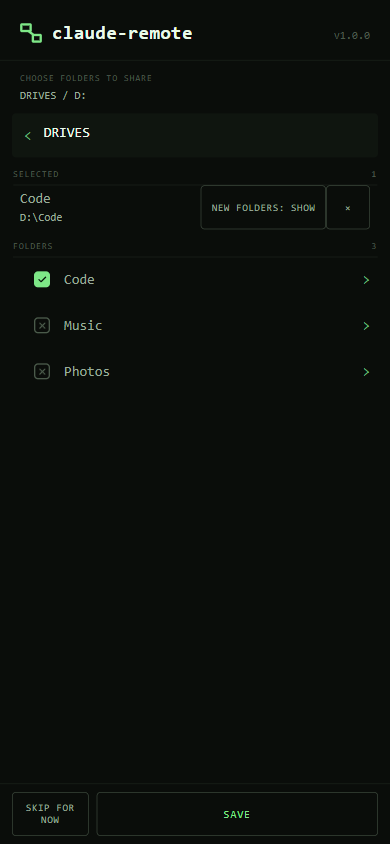 | 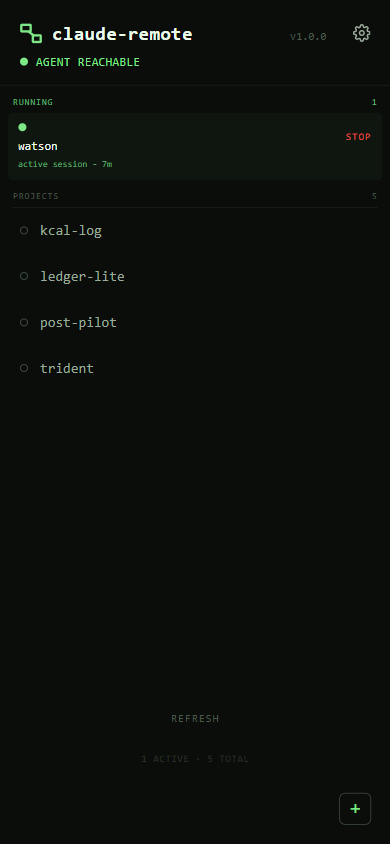 | 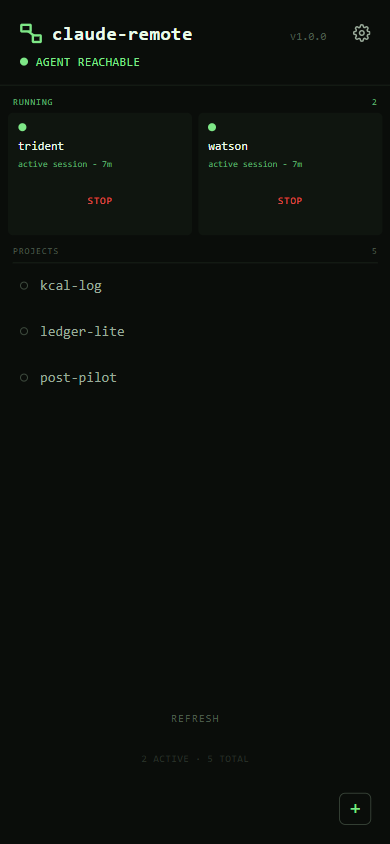 |
| Choose folders to share | One session running | Two, side by side |
Project names in the screenshots are invented.
Read this before you install it
This is a small personal tool published in case it is useful. It is not hardened for a shared or hostile network, and what it does is genuinely powerful, so here is the whole trade in plain terms.
What you are turning on: a service on your PC that launches Claude Code with the full permissions of your user account, reachable by every device on your tailnet, protected by one six-digit passcode.
That is a reasonable trade for a single-user tailnet you control. It is a bad one if other people are on your tailnet, or if a device on it might be lost or unlocked. The threat this defends against is an unlocked phone in someone else's hand - not a hostile network peer.
Specifically:
-
No filesystem isolation. A launched session can reach anything your user account can. Claude Code's sandbox does not run on native Windows and governs Bash only. This is an open design decision, not an oversight.
-
Only open projects you trust. Tapping a project never runs a file from it, but the session it starts works inside it. With a venv active, a program the project ships in
venv\Scripts(agit.exe, say) runs in place of the real one the first time Claude calls it by name. -
The passcode is the only authentication. It is stored hashed (scrypt, per-install salt), never logged or echoed, rate-limited with a lockout, and asked every time the app opens. It is still six digits.
-
Tailscale identity headers are not used as auth, on purpose. The threat is a device already carrying your identity, so those headers would wave an attacker straight through.
-
There is a first-run window. Until you set a passcode, the agent answers
403on every route except the one that sets it - so whoever reaches it first sets it. That is why the agent switchestailscale serveon only after you have set the passcode at the desk, never before. -
Check your drive's ACL. On a drive that inherits
NT AUTHORITY\Authenticated Users:(I)(M)(Modify), any authenticated account on the machine can rewrite the scripts that run as you at logon. That is not caused by this tool, but installing it is what makes it worth exploiting. Check withicacls <drive-or-folder>, and harden with:icacls <folder> /inheritance:d icacls <folder> /remove:g "Authenticated Users"
If any of that is not a trade you want, don't install it. That is a completely reasonable conclusion and no feature here changes it.
Architecture
phone (PWA) --https(Tailscale)--> tailscale serve --http--> Local Agent
                                                              (Node,
                                                          127.0.0.1:8790)
                                                                 |
                                                                 v
                                                      agent/launch-session.ps1
                                                                 |
                                                                 v
                                                  claude.cmd --remote-control
                                                    (Claude Code app, Code tab)

STOP --> confirm on the tile --> taskkill on the session's process tree
         (nothing is written on your behalf: ask the session for a
         handoff first, while it still has its context)
tailscale serve terminates HTTPS on your machine's MagicDNS name and proxies
to the agent on loopback. The agent never binds to anything but 127.0.0.1 -
tailscale serve is the only path in, and it is a proxy, not a filter.
The agent has zero runtime dependencies. That is deliberate and worth keeping.
Requirements
| PC (runs the agent) | Windows 10 or 11 (tested on 11) |
| Phone (the remote) | Any iPhone, iPad or Android device, or another computer's browser, with the Tailscale app signed in to the same account as the PC |
| Software on the PC | Tailscale installed and logged in, Node >= 24.2.0, the Claude Code CLI on PATH |
macOS and Linux PCs are not supported yet - see the FAQ.
Install
Before you start
Your phone reaches the PC through Tailscale, a free private network between your own devices. You need it in two places, signed in to the same Tailscale account on both:
- On the PC: install Tailscale from tailscale.com/download and sign in.
- On the phone: install the Tailscale app from the App Store (iPhone, iPad) or Google Play (Android), and sign in with the same account.
If Tailscale is missing or signed out on the PC, the install adds the plugin
to Claude Code but sets nothing up on the PC: it says so, naming
tailscale.com/download. Install it, sign in, then run /claude-remote:setup
(or paste the same line again).
Then install
In Claude Code, at the PC, paste this one line, ! included, and press
Enter:
! npx.cmd -y github:MrTig-afk/claude-remote
It adds the plugin to Claude Code, finds where Claude Code put it, and sets it up straight away. It waits until setup is done (usually under a minute), then gives you the link to set a passcode. Nothing opens by itself and there is nothing to restart.
The ! runs the line as your own command, so Claude's permission modes have
no say in it. The same line works in a Command Prompt or PowerShell window too,
without the ! (it is npx.cmd, not npx, because PowerShell blocks npx
on a PC that has never allowed scripts).
Or let Claude do it. In Claude Code, say:
Install Claude Remote by following github.com/MrTig-afk/claude-remote/blob/main/AGENTS.md
Claude tells you what it will install, runs the steps, and gives you the link to set a passcode, with nothing to restart. In auto mode (Claude Code's default since 2.1.283) Claude may refuse to install a plugin by itself; it then hands you the line above.
Setting it up is agreeing to what it installs. Either way above, or
/claude-remote:setup later, it sets itself up in the background, with no
window, and adds three things to this PC. Installing the plugin alone sets
nothing up: until you set it up, each Claude Code start only says so.
What setup adds:
- A copy of the agent in
%LOCALAPPDATA%\claude-remote. - A scheduled task, "Claude Remote Agent", that starts it at every logon
(and again within a minute if it stops). It listens on
http://127.0.0.1:8790and nothing else. - Tailscale sharing on port 8790 (
tailscale serve), which makes the app reachable from every device on your tailnet - switched on only once you have set a passcode.
What happens next, and the order matters:
- It first checks Tailscale is running and signed in, and that Node and Claude Code are installed; if one is missing it says which and sets nothing up. Otherwise it sets itself up and, when it is done, says "Claude Remote is set up on this PC. Open http://127.0.0.1:8790 in your browser to set a passcode."
- Open
http://127.0.0.1:8790(or ask Claude to open it). At the desk, set a six-digit passcode, read the screen about what the app can see, then choose which folders it may see. Nothing is shared until you pick it. Each folder is shared either as one project (a session starts in that folder) or as a folder of projects (each folder inside it is one). The app suggests one project when the folder holds a.gitor aCLAUDE.md; you can change it then, or later in Settings. - Only after the passcode is set does the agent switch on
tailscale serve. The last screen, Open it on your phone, shows the address (https://<machine>.<tailnet>.ts.net:8790) with a code to scan. The same address stays in Settings > Agent status.
Open that address on your phone, or any other device signed in to your Tailscale. To keep it like an app: on an iPhone or iPad, open it in Safari, tap Share, then Add to Home Screen; on Android, open it in Chrome, tap the three-dot menu, then Add to Home screen (or Install app).
If it could not set itself up, the next Claude Code start says why. Fix that,
then run /claude-remote:setup: the same steps, by hand, with the details
shown. A failed install is not retried by itself.
Good to know:
- No firewall rule is needed. Under serve the agent never leaves loopback, and
loopback traffic does not traverse the firewall at all. Take it off the
tailnet with
tailscale serve --https=8790 off. - The agent starts at logon, not at boot: a PC sitting at the lock screen after a restart has no agent running, and the phone cannot reach it until you sign in. Once you are signed in, an agent that crashes is started again within a minute.
- When the app says the agent hit an error, restart it by running
/claude-remote:setupin Claude Code on the PC. The agent runs with no window; what it printed is in%USERPROFILE%\.claude\plugins\data\claude-remote-claude-remote\agent.log. - Port 8790 is the default, not a requirement: set a user environment variable
CLAUDE_REMOTE_AGENT_PORTto move it; the agent switchestailscale serveon for the same number.
Updates
Claude Code does not auto-update plugins from this marketplace unless you turn
it on: /plugin → Marketplaces → claude-remote → Enable
auto-update. To update by hand instead, run
claude plugin update claude-remote@claude-remote.
When the plugin is newer than the copy that runs, the next Claude Code start installs the new version the same hidden way, restarts the agent and checks it came up. If it did not, the previous version is put back, so the phone keeps working. The start after that says which happened: "Claude Remote updated itself on this PC." or why it could not. Your passcode, settings and open sessions are kept.
Uninstall
In PowerShell on the PC, in this order - the agent has to be stopped before its files can go, because a running agent holds them open:
# 1. Stop it starting again, then stop it (Stop-ScheduledTask would leave it running).
Unregister-ScheduledTask -TaskName 'Claude Remote Agent' -Confirm:$false
Get-NetTCPConnection -LocalAddress 127.0.0.1 -LocalPort 8790 -State Listen -ErrorAction SilentlyContinue |
    ForEach-Object { Stop-Process -Id $_.OwningProcess -Force }

# 2. Take it off your tailnet. Only this entry; anything else you serve stays.
tailscale serve --https=8790 off

# 3. Remove the plugin and its marketplace. This also deletes your passcode, settings and log.
claude plugin uninstall claude-remote@claude-remote
claude plugin marketplace remove claude-remote

# 4. Remove the installed copy (and the previous one an update keeps beside it),
#    and the data folder if anything is left in it.
"", ".prev", ".new", ".failed" | ForEach-Object {
    Remove-Item -Recurse -Force "$env:LOCALAPPDATA\claude-remote$_" -ErrorAction SilentlyContinue }
Remove-Item -Recurse -Force "$env:USERPROFILE\.claude\plugins\data\claude-remote-claude-remote" -ErrorAction SilentlyContinue
If you moved the port with CLAUDE_REMOTE_AGENT_PORT, use your number in steps
1 and 2. If you use Claude Code with another profile (CLAUDE_CONFIG_DIR), run
step 3 in that profile.
One thing stays, on purpose: Claude Code still remembers that you trusted the folders you started sessions in, the same as if you had answered its question yourself. That is Claude Code's own setting and harmless to leave; it is only ever changed by Claude Code.
What launching a session does to your environment
Worth knowing, because it is invisible from the phone. When you tap a project, the launcher changes into that directory and activates an environment before starting Claude Code. Nothing to configure; by default it checks two things, in this order:
- A
venvor.venvfolder containingScripts\python.exe. The launcher puts that folder first onPATHitself. It never runs the project'sActivate.ps1, because that file comes with the repo, and running it would let any cloned project execute code on your PC the moment you tap it. - An
environment.ymlwith aname:. The launcher finds conda underminiconda3oranaconda3in your user folder,AppData\LocalorC:\ProgramData, and activates that environment. If conda is not there, or the file has no name, the launch is refused with the reason, rather than starting a session in the wrong environment.
If neither is found, the session starts with no environment step.
If you use poetry, uv, pipenv, a differently-named folder, conda installed
somewhere else, or a non-Python stack, it will find nothing and your session
starts in the wrong environment with no visible sign of it. Set
pre_launch_command in the config file
(%USERPROFILE%\.claude\plugins\data\claude-remote-claude-remote\config.json):
{ "pre_launch_command": "& \"$env:USERPROFILE\\miniconda3\\shell\\condabin\\conda-hook.ps1\"; conda activate myenv" }
Three constraints, and none of them is obvious. Read them before you set it. And one rule: never put a credential in this command. If it fails, its error text - which can quote the command - is written beside the pid file and sent to the phone in the agent's response, so a token typed here leaves the machine.
It runs with -NoProfile, so your PowerShell profile does not exist.
Anything conda init, nvm or similar installed into your profile - including
a bare conda activate - is simply undefined here. That is why the example
above dot-sources the conda hook first. A bare conda activate myenv falls
through to conda.exe, fails with "Run 'conda init' before 'conda activate'",
and you get a session in the base environment with no sign of it.
The command must RETURN. It runs inside the launcher, before Claude Code
starts, and there is no timeout - so anything that blocks hangs the launch and
no session ever appears. poetry shell is the trap here: it opens a nested
interactive shell and waits for it to exit, which never happens. Use
Invoke-Expression (poetry env activate) instead - note the wrapper, because
poetry env activate only PRINTS the activation line, it does not run it.
Whichever command applies, it replaces the auto-detect for that project -
venv/.venv is not tried as well. pre_launch_command is the fallback for
every project; set pre_launch_commands to override it for one:
{
  "pre_launch_command": "& \"$env:USERPROFILE\\miniconda3\\shell\\condabin\\conda-hook.ps1\"; conda activate default",
  "pre_launch_commands": {
    "F:\\Dev\\Projects\\email-lint": "Invoke-Expression (poetry env activate)"
  }
}
Projects with no entry fall back to the single pre_launch_command, and
projects with neither keep the venv/.venv auto-detect. Keys need a drive
letter (F:\...): a ~ is never expanded, and anything else - including
/Dev/Projects/web - resolves against whatever directory the agent was started
in, so it usually matches nothing and whether it matches at all depends on how
the agent was launched. The agent warns about such a key, but only in its own
terminal. Matching is case-insensitive and a trailing slash does not matter.
To say "this project needs nothing" and keep the plain auto-detect even
though a global is set, map it to null:
{ "pre_launch_commands": { "F:\\Dev\\Projects\\web": null } }
When it fails, the launch is refused and nothing starts: the project row on the
phone reads launch unconfirmed, and the reason is written to <pid file>.err
in %USERPROFILE%\.claude\plugins\data\claude-remote-claude-remote\session-pids\.
Read that file for the why - the app shows that it failed, not what the
command said.
This setting is deliberately not in the app. The value is executed, so a text box reachable from your phone would turn the six-digit passcode into a way to run anything on your PC - the exact threat described at the top of this file. Editing the config file requires access to the machine, and anyone with that can already run anything as you.
Claude Code's "do you trust this folder?" question
Claude Code asks that the first time it opens a folder, and it needs someone at
the keyboard to answer. From the phone nobody is, so a session would sit on
that question and never reach your Code tab. So when a session starts in a
folder you shared, the agent answers it for you: it sets
hasTrustDialogAccepted for that folder in Claude Code's own .claude.json -
the same field the real dialog writes - in your home folder, or in the profile
folder of the account the session starts in (see below). It adds that one field and keeps every
other value in the file as it was (the file is written back whole, so its
formatting is normalised), only ever for a shared folder you are launching, and
never creates the file. If it cannot, agent.log says so and the session may
stop on the question at the PC. The first-run screen says this too.
Trusting a folder is what lets Claude Code run that project's own
.claude/settings.json hooks and .mcp.json servers without asking. That is
why the rule at the top of this file is "only open projects you trust": sharing
a folder with this app now counts as saying so.
More than one Claude account
If you run Claude Code with more than one account - one profile folder per login, each opened by its own alias - the app asks which account every time you start a session, with the one you used last for that project lit. The session then opens in that account, and its Code-tab row shows up in the Claude app signed in to that account.
The accounts are found, not typed. The agent looks at %USERPROFILE%\.claude,
every %USERPROFILE%\.claude-* folder, and any folder one of your shell aliases
points at, and counts a folder only when you have signed in to Claude Code
there. Each account is named after the alias you type to open it, read from
your PowerShell profiles and .bashrc / .bash_profile / .zshrc /
.profile:
function claudework { $env:CLAUDE_CONFIG_DIR = "$HOME\.claude-work"; claude @args }
shows up as claudework. A folder no alias names shows as the folder, so
plain .claude is claude. Only alias names and folder paths are read from
those files. With one account there is no question at all.
To choose the account a project lights before it has ever been started, set it in the config file:
{ "claude_config_dir": "C:\\Users\\<you>\\.claude-max" }
It must be an absolute path to a folder that exists; anything else is ignored
with a warning in agent.log. A session started without a choice (one account,
or an older app) opens there too. It is read on every launch, so no restart is
needed.
The opening report
Optional, and off until you turn it on. With it on, a session you start from
the phone opens by telling you where the work stands, rather than sitting
silent until you type something. The launcher does this by submitting one
prompt for you, "Read HANDOFF.md and give the opening report.", and only when
the project actually contains a HANDOFF.md.
Turn it on with "opening_report": true in the config file. Only a literal
true counts. It is off by default because it starts Claude on a file from
the project itself: in your own projects that is your own note, but in a repo
someone else wrote, it would be their text, read first.
Daily use
- Open the PWA on your phone and enter the passcode.
- Tap a project. It moves into the RUNNING tiles as the session launches and appears in the Claude Code app's Code tab - work there as normal.
- A session you started at the desk shows up too, marked "desktop". You can end it from the phone the same way.
- When finished, tap STOP. The confirm warns that nothing writes a handoff for you and offers OPEN CLAUDE FIRST, so you can ask the session for one while it still has its context. END ANYWAY ends the process tree; that is all it does.
FAQ
Does it run on macOS or Linux?
Not yet. The agent itself is plain Node, but the parts that start it at logon,
open a Claude window and list your drives are built on Windows (a Scheduled
Task, a small launcher compiled from source, PowerShell). A Mac port would swap
those for launchd and Terminal. If you would use it, say so in an issue -
that is what decides whether it gets built. Your phone can be anything; only the
PC has to run Windows.
The app says "Waiting for the PC" or "Can’t reach your PC.", but Tailscale says Connected. Fully quit the Tailscale app on the phone (swipe it away in the app switcher), reopen it, then reopen claude-remote. The phone's Tailscale can show Connected while its traffic has stopped moving; on iPhone its app may show a warning that "magicsock" is not running. Restarting Tailscale restarts it.
Doesn't Claude Code already have Remote Control?
It does, and this is built on it: every session it starts runs with
--remote-control. What Remote Control needs is a session already running,
which means someone started it at the desk. This starts one with nobody there,
in the folder you pick from the phone.
Couldn't one idle Remote Control session start the others? Close, and it would work. This keeps a plain button instead: no session sitting idle to take the request, and nothing to talk to before a project opens.
How is this different from Dispatch? Both run Claude on your own machine. The difference is the start: here there is no desk step, and you choose the project folder before the session exists.
Why not SSH into the PC from the phone? That was the first design. A terminal on a phone screen is the wrong tool for driving Claude, and the Claude app already does that part well. This only has to start the session.
Why not a Discord or Telegram bot? Those are valid, and more general. This is narrower on purpose: one button, no chat service in the middle, nothing leaving your tailnet.
A session is waiting for me to approve something. Can I answer from the phone? Not from this app: it has no terminal. Answer it in the Claude app, where you drive the session. To be asked less while you are away, set the project's permissions before you leave.
Is your own Claude setup included? No. My rules and notes are personal and stay private. The plugin is self-contained and does not need them.
Known limitations
- The PC must run Windows; macOS and Linux are not supported yet.
- The PC has to be on, logged in (the agent starts at logon) and on Tailscale.
- One six-digit passcode is the only authentication (see the threat model above).
- No live terminal output, and no way to answer an interactive prompt from the phone. A session that stalls on a prompt shows as stalled, not as why.
- Nothing reaps sessions or their MCP children automatically. On a memory-tight machine this bites at around 3-5 concurrent projects.
- The launcher is a convenience, not a boundary (see the threat model above).
- Built for a personal machine, not a managed corporate one. Setup registers a Scheduled Task, compiles a small launcher from source, and opens interactive windows as you. On a monitored work device that is a conversation with your IT team, not a download.
Contributing
Contributions are welcome. For anything bigger than a small fix, open an issue
first and wait for a reply before you start - see CONTRIBUTING.md. Found a
security hole? Report it privately, as SECURITY.md describes - not in an issue.
CONTRIBUTING.md is the short version of what a change needs. AGENTS.md is
the same rules written for an AI coding agent working in this repo: commands,
hard rules, and where things are.
Reading the source
Comments record why a line is the way it is, often with the date the decision was made, and several mark bugs that were expensive to find. Read them before changing the line they sit on.
Tests
node --test "agent/test/**/*.test.js"
Run from the repo root; the bare-directory form (node --test agent/test/)
fails on Windows.
Part of the suite drives a real headless Chrome to check no text input renders
under 16px, because below that iOS Safari zooms the page on focus and does not
zoom back out. If Chrome is not where the check looks, set CHROME=<path>, or
ALLOW_NO_CHROME=1 to skip it knowingly - it fails rather than skips by default,
because a skipped guard is a green run.
Thanks
- @huntsman95 for the idea of a
small launcher built from source in place of
conhost --headless, which swallowed exit codes and looks like a known attack pattern to security tools. - @Icolan for the back and forth on r/PowerShell that pushed the launcher in that direction.
- @e-tang for reporting that the Tailscale serve config can disappear after a reboot; the agent now checks for it on startup and tells your phone when it is gone.
License
MIT. See LICENSE.
Similar repos


Claude Code on your PC, started from your phone, with your full setup intact.
JavaScript
3
205 commits
updated Oct 5, 2026
See what people are saying
README
Claude Remote
The cloud can have your code. It can't have your Claude.
Start, watch, and stop a Claude Code session on your Windows PC from your phone, over Tailscale. Open the PWA, tap a project, and the session appears in the Claude Code app - the same session whether you drive it from the phone or sit down at the desk. Tap STOP and it ends the session.
It is a remote start button, not a terminal. There is no live console output and no way to answer an interactive prompt from the phone; the actual conversation happens in the Claude Code app. That is deliberate.
| | |
| Choose folders to share | One session running | Two, side by side |
Project names in the screenshots are invented.
Read this before you install it
This is a small personal tool published in case it is useful. It is not hardened for a shared or hostile network, and what it does is genuinely powerful, so here is the whole trade in plain terms.
What you are turning on: a service on your PC that launches Claude Code with the full permissions of your user account, reachable by every device on your tailnet, protected by one six-digit passcode.
That is a reasonable trade for a single-user tailnet you control. It is a bad one if other people are on your tailnet, or if a device on it might be lost or unlocked. The threat this defends against is an unlocked phone in someone else's hand - not a hostile network peer.
Specifically:
-
No filesystem isolation. A launched session can reach anything your user account can. Claude Code's sandbox does not run on native Windows and governs Bash only. This is an open design decision, not an oversight.
-
Only open projects you trust. Tapping a project never runs a file from it, but the session it starts works inside it. With a venv active, a program the project ships in
venv\Scripts(agit.exe, say) runs in place of the real one the first time Claude calls it by name. -
The passcode is the only authentication. It is stored hashed (scrypt, per-install salt), never logged or echoed, rate-limited with a lockout, and asked every time the app opens. It is still six digits.
-
Tailscale identity headers are not used as auth, on purpose. The threat is a device already carrying your identity, so those headers would wave an attacker straight through.
-
There is a first-run window. Until you set a passcode, the agent answers
403on every route except the one that sets it - so whoever reaches it first sets it. That is why the agent switchestailscale serveon only after you have set the passcode at the desk, never before. -
Check your drive's ACL. On a drive that inherits
NT AUTHORITY\Authenticated Users:(I)(M)(Modify), any authenticated account on the machine can rewrite the scripts that run as you at logon. That is not caused by this tool, but installing it is what makes it worth exploiting. Check withicacls <drive-or-folder>, and harden with:icacls <folder> /inheritance:d icacls <folder> /remove:g "Authenticated Users"
If any of that is not a trade you want, don't install it. That is a completely reasonable conclusion and no feature here changes it.
Architecture
phone (PWA) --https(Tailscale)--> tailscale serve --http--> Local Agent
                                                              (Node,
                                                          127.0.0.1:8790)
                                                                 |
                                                                 v
                                                      agent/launch-session.ps1
                                                                 |
                                                                 v
                                                  claude.cmd --remote-control
                                                    (Claude Code app, Code tab)

STOP --> confirm on the tile --> taskkill on the session's process tree
         (nothing is written on your behalf: ask the session for a
         handoff first, while it still has its context)
tailscale serve terminates HTTPS on your machine's MagicDNS name and proxies
to the agent on loopback. The agent never binds to anything but 127.0.0.1 -
tailscale serve is the only path in, and it is a proxy, not a filter.
The agent has zero runtime dependencies. That is deliberate and worth keeping.
Requirements
| PC (runs the agent) | Windows 10 or 11 (tested on 11) |
| Phone (the remote) | Any iPhone, iPad or Android device, or another computer's browser, with the Tailscale app signed in to the same account as the PC |
| Software on the PC | Tailscale installed and logged in, Node >= 24.2.0, the Claude Code CLI on PATH |
macOS and Linux PCs are not supported yet - see the FAQ.
Install
Before you start
Your phone reaches the PC through Tailscale, a free private network between your own devices. You need it in two places, signed in to the same Tailscale account on both:
- On the PC: install Tailscale from tailscale.com/download and sign in.
- On the phone: install the Tailscale app from the App Store (iPhone, iPad) or Google Play (Android), and sign in with the same account.
If Tailscale is missing or signed out on the PC, the install adds the plugin
to Claude Code but sets nothing up on the PC: it says so, naming
tailscale.com/download. Install it, sign in, then run /claude-remote:setup
(or paste the same line again).
Then install
In Claude Code, at the PC, paste this one line, ! included, and press
Enter:
! npx.cmd -y github:MrTig-afk/claude-remote
It adds the plugin to Claude Code, finds where Claude Code put it, and sets it up straight away. It waits until setup is done (usually under a minute), then gives you the link to set a passcode. Nothing opens by itself and there is nothing to restart.
The ! runs the line as your own command, so Claude's permission modes have
no say in it. The same line works in a Command Prompt or PowerShell window too,
without the ! (it is npx.cmd, not npx, because PowerShell blocks npx
on a PC that has never allowed scripts).
Or let Claude do it. In Claude Code, say:
Install Claude Remote by following github.com/MrTig-afk/claude-remote/blob/main/AGENTS.md
Claude tells you what it will install, runs the steps, and gives you the link to set a passcode, with nothing to restart. In auto mode (Claude Code's default since 2.1.283) Claude may refuse to install a plugin by itself; it then hands you the line above.
Setting it up is agreeing to what it installs. Either way above, or
/claude-remote:setup later, it sets itself up in the background, with no
window, and adds three things to this PC. Installing the plugin alone sets
nothing up: until you set it up, each Claude Code start only says so.
What setup adds:
- A copy of the agent in
%LOCALAPPDATA%\claude-remote. - A scheduled task, "Claude Remote Agent", that starts it at every logon
(and again within a minute if it stops). It listens on
http://127.0.0.1:8790and nothing else. - Tailscale sharing on port 8790 (
tailscale serve), which makes the app reachable from every device on your tailnet - switched on only once you have set a passcode.
What happens next, and the order matters:
- It first checks Tailscale is running and signed in, and that Node and Claude Code are installed; if one is missing it says which and sets nothing up. Otherwise it sets itself up and, when it is done, says "Claude Remote is set up on this PC. Open http://127.0.0.1:8790 in your browser to set a passcode."
- Open
http://127.0.0.1:8790(or ask Claude to open it). At the desk, set a six-digit passcode, read the screen about what the app can see, then choose which folders it may see. Nothing is shared until you pick it. Each folder is shared either as one project (a session starts in that folder) or as a folder of projects (each folder inside it is one). The app suggests one project when the folder holds a.gitor aCLAUDE.md; you can change it then, or later in Settings. - Only after the passcode is set does the agent switch on
tailscale serve. The last screen, Open it on your phone, shows the address (https://<machine>.<tailnet>.ts.net:8790) with a code to scan. The same address stays in Settings > Agent status.
Open that address on your phone, or any other device signed in to your Tailscale. To keep it like an app: on an iPhone or iPad, open it in Safari, tap Share, then Add to Home Screen; on Android, open it in Chrome, tap the three-dot menu, then Add to Home screen (or Install app).
If it could not set itself up, the next Claude Code start says why. Fix that,
then run /claude-remote:setup: the same steps, by hand, with the details
shown. A failed install is not retried by itself.
Good to know:
- No firewall rule is needed. Under serve the agent never leaves loopback, and
loopback traffic does not traverse the firewall at all. Take it off the
tailnet with
tailscale serve --https=8790 off. - The agent starts at logon, not at boot: a PC sitting at the lock screen after a restart has no agent running, and the phone cannot reach it until you sign in. Once you are signed in, an agent that crashes is started again within a minute.
- When the app says the agent hit an error, restart it by running
/claude-remote:setupin Claude Code on the PC. The agent runs with no window; what it printed is in%USERPROFILE%\.claude\plugins\data\claude-remote-claude-remote\agent.log. - Port 8790 is the default, not a requirement: set a user environment variable
CLAUDE_REMOTE_AGENT_PORTto move it; the agent switchestailscale serveon for the same number.
Updates
Claude Code does not auto-update plugins from this marketplace unless you turn
it on: /plugin → Marketplaces → claude-remote → Enable
auto-update. To update by hand instead, run
claude plugin update claude-remote@claude-remote.
When the plugin is newer than the copy that runs, the next Claude Code start installs the new version the same hidden way, restarts the agent and checks it came up. If it did not, the previous version is put back, so the phone keeps working. The start after that says which happened: "Claude Remote updated itself on this PC." or why it could not. Your passcode, settings and open sessions are kept.
Uninstall
In PowerShell on the PC, in this order - the agent has to be stopped before its files can go, because a running agent holds them open:
# 1. Stop it starting again, then stop it (Stop-ScheduledTask would leave it running).
Unregister-ScheduledTask -TaskName 'Claude Remote Agent' -Confirm:$false
Get-NetTCPConnection -LocalAddress 127.0.0.1 -LocalPort 8790 -State Listen -ErrorAction SilentlyContinue |
    ForEach-Object { Stop-Process -Id $_.OwningProcess -Force }

# 2. Take it off your tailnet. Only this entry; anything else you serve stays.
tailscale serve --https=8790 off

# 3. Remove the plugin and its marketplace. This also deletes your passcode, settings and log.
claude plugin uninstall claude-remote@claude-remote
claude plugin marketplace remove claude-remote

# 4. Remove the installed copy (and the previous one an update keeps beside it),
#    and the data folder if anything is left in it.
"", ".prev", ".new", ".failed" | ForEach-Object {
    Remove-Item -Recurse -Force "$env:LOCALAPPDATA\claude-remote$_" -ErrorAction SilentlyContinue }
Remove-Item -Recurse -Force "$env:USERPROFILE\.claude\plugins\data\claude-remote-claude-remote" -ErrorAction SilentlyContinue
If you moved the port with CLAUDE_REMOTE_AGENT_PORT, use your number in steps
1 and 2. If you use Claude Code with another profile (CLAUDE_CONFIG_DIR), run
step 3 in that profile.
One thing stays, on purpose: Claude Code still remembers that you trusted the folders you started sessions in, the same as if you had answered its question yourself. That is Claude Code's own setting and harmless to leave; it is only ever changed by Claude Code.
What launching a session does to your environment
Worth knowing, because it is invisible from the phone. When you tap a project, the launcher changes into that directory and activates an environment before starting Claude Code. Nothing to configure; by default it checks two things, in this order:
- A
venvor.venvfolder containingScripts\python.exe. The launcher puts that folder first onPATHitself. It never runs the project'sActivate.ps1, because that file comes with the repo, and running it would let any cloned project execute code on your PC the moment you tap it. - An
environment.ymlwith aname:. The launcher finds conda underminiconda3oranaconda3in your user folder,AppData\LocalorC:\ProgramData, and activates that environment. If conda is not there, or the file has no name, the launch is refused with the reason, rather than starting a session in the wrong environment.
If neither is found, the session starts with no environment step.
If you use poetry, uv, pipenv, a differently-named folder, conda installed
somewhere else, or a non-Python stack, it will find nothing and your session
starts in the wrong environment with no visible sign of it. Set
pre_launch_command in the config file
(%USERPROFILE%\.claude\plugins\data\claude-remote-claude-remote\config.json):
{ "pre_launch_command": "& \"$env:USERPROFILE\\miniconda3\\shell\\condabin\\conda-hook.ps1\"; conda activate myenv" }
Three constraints, and none of them is obvious. Read them before you set it. And one rule: never put a credential in this command. If it fails, its error text - which can quote the command - is written beside the pid file and sent to the phone in the agent's response, so a token typed here leaves the machine.
It runs with -NoProfile, so your PowerShell profile does not exist.
Anything conda init, nvm or similar installed into your profile - including
a bare conda activate - is simply undefined here. That is why the example
above dot-sources the conda hook first. A bare conda activate myenv falls
through to conda.exe, fails with "Run 'conda init' before 'conda activate'",
and you get a session in the base environment with no sign of it.
The command must RETURN. It runs inside the launcher, before Claude Code
starts, and there is no timeout - so anything that blocks hangs the launch and
no session ever appears. poetry shell is the trap here: it opens a nested
interactive shell and waits for it to exit, which never happens. Use
Invoke-Expression (poetry env activate) instead - note the wrapper, because
poetry env activate only PRINTS the activation line, it does not run it.
Whichever command applies, it replaces the auto-detect for that project -
venv/.venv is not tried as well. pre_launch_command is the fallback for
every project; set pre_launch_commands to override it for one:
{
  "pre_launch_command": "& \"$env:USERPROFILE\\miniconda3\\shell\\condabin\\conda-hook.ps1\"; conda activate default",
  "pre_launch_commands": {
    "F:\\Dev\\Projects\\email-lint": "Invoke-Expression (poetry env activate)"
  }
}
Projects with no entry fall back to the single pre_launch_command, and
projects with neither keep the venv/.venv auto-detect. Keys need a drive
letter (F:\...): a ~ is never expanded, and anything else - including
/Dev/Projects/web - resolves against whatever directory the agent was started
in, so it usually matches nothing and whether it matches at all depends on how
the agent was launched. The agent warns about such a key, but only in its own
terminal. Matching is case-insensitive and a trailing slash does not matter.
To say "this project needs nothing" and keep the plain auto-detect even
though a global is set, map it to null:
{ "pre_launch_commands": { "F:\\Dev\\Projects\\web": null } }
When it fails, the launch is refused and nothing starts: the project row on the
phone reads launch unconfirmed, and the reason is written to <pid file>.err
in %USERPROFILE%\.claude\plugins\data\claude-remote-claude-remote\session-pids\.
Read that file for the why - the app shows that it failed, not what the
command said.
This setting is deliberately not in the app. The value is executed, so a text box reachable from your phone would turn the six-digit passcode into a way to run anything on your PC - the exact threat described at the top of this file. Editing the config file requires access to the machine, and anyone with that can already run anything as you.
Claude Code's "do you trust this folder?" question
Claude Code asks that the first time it opens a folder, and it needs someone at
the keyboard to answer. From the phone nobody is, so a session would sit on
that question and never reach your Code tab. So when a session starts in a
folder you shared, the agent answers it for you: it sets
hasTrustDialogAccepted for that folder in Claude Code's own .claude.json -
the same field the real dialog writes - in your home folder, or in the profile
folder of the account the session starts in (see below). It adds that one field and keeps every
other value in the file as it was (the file is written back whole, so its
formatting is normalised), only ever for a shared folder you are launching, and
never creates the file. If it cannot, agent.log says so and the session may
stop on the question at the PC. The first-run screen says this too.
Trusting a folder is what lets Claude Code run that project's own
.claude/settings.json hooks and .mcp.json servers without asking. That is
why the rule at the top of this file is "only open projects you trust": sharing
a folder with this app now counts as saying so.
More than one Claude account
If you run Claude Code with more than one account - one profile folder per login, each opened by its own alias - the app asks which account every time you start a session, with the one you used last for that project lit. The session then opens in that account, and its Code-tab row shows up in the Claude app signed in to that account.
The accounts are found, not typed. The agent looks at %USERPROFILE%\.claude,
every %USERPROFILE%\.claude-* folder, and any folder one of your shell aliases
points at, and counts a folder only when you have signed in to Claude Code
there. Each account is named after the alias you type to open it, read from
your PowerShell profiles and .bashrc / .bash_profile / .zshrc /
.profile:
function claudework { $env:CLAUDE_CONFIG_DIR = "$HOME\.claude-work"; claude @args }
shows up as claudework. A folder no alias names shows as the folder, so
plain .claude is claude. Only alias names and folder paths are read from
those files. With one account there is no question at all.
To choose the account a project lights before it has ever been started, set it in the config file:
{ "claude_config_dir": "C:\\Users\\<you>\\.claude-max" }
It must be an absolute path to a folder that exists; anything else is ignored
with a warning in agent.log. A session started without a choice (one account,
or an older app) opens there too. It is read on every launch, so no restart is
needed.
The opening report
Optional, and off until you turn it on. With it on, a session you start from
the phone opens by telling you where the work stands, rather than sitting
silent until you type something. The launcher does this by submitting one
prompt for you, "Read HANDOFF.md and give the opening report.", and only when
the project actually contains a HANDOFF.md.
Turn it on with "opening_report": true in the config file. Only a literal
true counts. It is off by default because it starts Claude on a file from
the project itself: in your own projects that is your own note, but in a repo
someone else wrote, it would be their text, read first.
Daily use
- Open the PWA on your phone and enter the passcode.
- Tap a project. It moves into the RUNNING tiles as the session launches and appears in the Claude Code app's Code tab - work there as normal.
- A session you started at the desk shows up too, marked "desktop". You can end it from the phone the same way.
- When finished, tap STOP. The confirm warns that nothing writes a handoff for you and offers OPEN CLAUDE FIRST, so you can ask the session for one while it still has its context. END ANYWAY ends the process tree; that is all it does.
FAQ
Does it run on macOS or Linux?
Not yet. The agent itself is plain Node, but the parts that start it at logon,
open a Claude window and list your drives are built on Windows (a Scheduled
Task, a small launcher compiled from source, PowerShell). A Mac port would swap
those for launchd and Terminal. If you would use it, say so in an issue -
that is what decides whether it gets built. Your phone can be anything; only the
PC has to run Windows.
The app says "Waiting for the PC" or "Can’t reach your PC.", but Tailscale says Connected. Fully quit the Tailscale app on the phone (swipe it away in the app switcher), reopen it, then reopen claude-remote. The phone's Tailscale can show Connected while its traffic has stopped moving; on iPhone its app may show a warning that "magicsock" is not running. Restarting Tailscale restarts it.
Doesn't Claude Code already have Remote Control?
It does, and this is built on it: every session it starts runs with
--remote-control. What Remote Control needs is a session already running,
which means someone started it at the desk. This starts one with nobody there,
in the folder you pick from the phone.
Couldn't one idle Remote Control session start the others? Close, and it would work. This keeps a plain button instead: no session sitting idle to take the request, and nothing to talk to before a project opens.
How is this different from Dispatch? Both run Claude on your own machine. The difference is the start: here there is no desk step, and you choose the project folder before the session exists.
Why not SSH into the PC from the phone? That was the first design. A terminal on a phone screen is the wrong tool for driving Claude, and the Claude app already does that part well. This only has to start the session.
Why not a Discord or Telegram bot? Those are valid, and more general. This is narrower on purpose: one button, no chat service in the middle, nothing leaving your tailnet.
A session is waiting for me to approve something. Can I answer from the phone? Not from this app: it has no terminal. Answer it in the Claude app, where you drive the session. To be asked less while you are away, set the project's permissions before you leave.
Is your own Claude setup included? No. My rules and notes are personal and stay private. The plugin is self-contained and does not need them.
Known limitations
- The PC must run Windows; macOS and Linux are not supported yet.
- The PC has to be on, logged in (the agent starts at logon) and on Tailscale.
- One six-digit passcode is the only authentication (see the threat model above).
- No live terminal output, and no way to answer an interactive prompt from the phone. A session that stalls on a prompt shows as stalled, not as why.
- Nothing reaps sessions or their MCP children automatically. On a memory-tight machine this bites at around 3-5 concurrent projects.
- The launcher is a convenience, not a boundary (see the threat model above).
- Built for a personal machine, not a managed corporate one. Setup registers a Scheduled Task, compiles a small launcher from source, and opens interactive windows as you. On a monitored work device that is a conversation with your IT team, not a download.
Contributing
Contributions are welcome. For anything bigger than a small fix, open an issue
first and wait for a reply before you start - see CONTRIBUTING.md. Found a
security hole? Report it privately, as SECURITY.md describes - not in an issue.
CONTRIBUTING.md is the short version of what a change needs. AGENTS.md is
the same rules written for an AI coding agent working in this repo: commands,
hard rules, and where things are.
Reading the source
Comments record why a line is the way it is, often with the date the decision was made, and several mark bugs that were expensive to find. Read them before changing the line they sit on.
Tests
node --test "agent/test/**/*.test.js"
Run from the repo root; the bare-directory form (node --test agent/test/)
fails on Windows.
Part of the suite drives a real headless Chrome to check no text input renders
under 16px, because below that iOS Safari zooms the page on focus and does not
zoom back out. If Chrome is not where the check looks, set CHROME=<path>, or
ALLOW_NO_CHROME=1 to skip it knowingly - it fails rather than skips by default,
because a skipped guard is a green run.
Thanks
- @huntsman95 for the idea of a
small launcher built from source in place of
conhost --headless, which swallowed exit codes and looks like a known attack pattern to security tools. - @Icolan for the back and forth on r/PowerShell that pushed the launcher in that direction.
- @e-tang for reporting that the Tailscale serve config can disappear after a reboot; the agent now checks for it on startup and tells your phone when it is gone.
License
MIT. See LICENSE.