
M.I.B. - More Incredible Bash - The Army knife for Harman MIB 2.x aka MHI2(Q) units
Shell
1,062
512 commits
updated Mar 12, 2026
README
M.I.B. - More Incredible Bash

All bastards who stolen and selling this should be fucked🖕
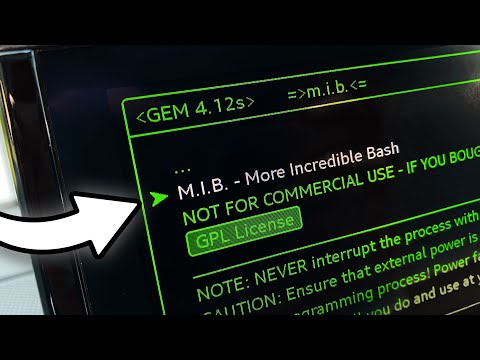
NOT FOR COMMERCIAL USE - IF YOU BOUGHT THIS YOU GOT RIPPED OFF!
M.I.B. is distributed under the GNU General Public License v2.0. See LICENSE for more information.
Check https://github.com/Mr-MIBonk/M.I.B._More-Incredible-Bash/wiki for even more details about M.I.B and your MHIG/MHI2/MHI2Q unit.
NOTE:
-
M.I.B. is running on Harman MHIG (MIB1 High) and MHI2/MHI2Q (MIB2 High) units only.
-
Minimum requirement to run M.I.B. in GEM is GEM version 4.1+.
-
Old GEM of most units with old FW versions will automatically be updated to GEM 4.12 during M.I.B installation.
-
Make sure, that you always run latest M.I.B version --> https://mib.mibsolution.one & https://github.com/Mr-MIBonk/M.I.B._More-Incredible-Bash
-
For additional Information check https://github.com/Mr-MIBonk/M.I.B._More-Incredible-Bash/wiki & https://mibwiki.one
CAUTION:
- Ensure that a external power is connected to the car during any flash or programming process!
- It is not recommended to flash with running engine!
- Power failure during flashing/programming will brick your unit.
- All you do and use at your own risk!
M.I.B Functions:
- Go here for a full overview of all GEM functions
- Patch ifs-root
- SVM fix
- POG11 AndroidAuto button fix
- POG24 & BYG24 AndroidAuto & CarPlay Widescreen Patch
Prepare SD card:
- Extract all files of the M.I.B. to the root folder of a clean FAT32 formatted SD card
- Make sure that your SD card is not write protected.
- Patched IFS-stage2 images have to be placed on the SD card in the folder /patches
- Pre-patched (CP, FEC and EL) ifs-root-stage2 images can be found for all recent MHI2 FW versions here: https://mib.mibsolution.one
- You only have to copy the folder(s) you need for your car(s) - e.g. /patches/MHI2_ER_SKGxx_Pxxxx_MUxxxx_PATCH
- They are already prepared in the right way, so that the tool can use them right away
There is also a example video guide available now:
FEC Generator:
- M.I.B is generating custom FecContainer.fec files based on existing FecContainer.fec and addfec.txt in patch folder.
- addfec.txt can be edited with any ASCII editor (Notepad++). DO NOT change EOL. Only not yet existing FECs will be added to container during the process.
- Do NOT change FECContainer.fec with WhatTheFec tool, it will break file signature. M.I.B method will keep original FECs intact.
ExceptionList BUG
- If your unit was patched with M.I.B before April 2021 run "Add new Fecs to FecContainer.fec" script in M.I.B -> PATCH.
- This will switch over to FecContainer.fec based patch and avoid EL BUG - unit will get stuck during boot.
M.I.B. in Green Engineering Menu - GEM:
- After M.I.B SD card is prepared
- Insert the SD card into slot SD1 of your unit.
- Enter Engineering/Red Menu to start SW Update. Select UPDATE, select SD card, select "FREE for all - M.I.B. Launcher V1.2", START update.
- Installation of M.I.B. on your Unit will start. The unit will restart three time until update process is finished.
- GEM will be activated as part of the installation.
- SVM error has to be cleared via M.I.B. function in GEM after installation
- Enter GEM on your unit
- Select ==>>m.i.b<<== in GEM and have FUN!
IMPORTANT! SD card must be presented in SD slot 1 (SD1) to enable M.I.B. in GEM. --> no SD no M.I.B.
- GEM screen layout is designed for 9.2'' screens but should work OK on 8'' just some text lines may look cut
Update to new M.I.B. version:
- No need to reinstall M.I.B if you want to use a new version.
- Just create a fresh SD with latest M.I.B. version and insert into unit.
Old way, D-Link Method: Connect to MHI2 and start M.I.B.:
- This method is still available in M.I.B, but no longer fully supported.
- Basic functions are still available - Full functionality is only given via GEM
- D-Link - e.g. DUB-E100 HW rev. D1 - USB-Ethernet adapter is required to connect to your MHI2 unit.
- Use Putty/Kitty to connect via UART or Telnet (MIB IP:172.16.250.248) and login into RCC (recommended: port:123) or MMX (port:23).
- Login and password for your units SW train has to be known.
- Check your SW-train, a pre-patched ifs-root-stage2 has to be present within the folder /patches
- Insert the SD card into slot SD1 of your MHI2 unit and login to the RCC shell:
Mount SD card in slot SD1
- mount -uw /net/mmx/fs/sda0/
Start M.I.B by typing
-
/net/mmx/fs/sda0/start
-
Default screen size of Putty/Kitty is often too small to display the M.I.B. menu in full.
-
Increase the window size manually.
CONTACT:
- GITHUB: https://github.com/Mr-MIBonk/M.I.B._More-Incredible-Bash
- Telegram Channel: https://t.me/joinchat/EHt4RRksHcMQk6Xi6tFaBw
- Wiki: https://github.com/Mr-MIBonk/M.I.B._More-Incredible-Bash/wiki & https://mibwiki.one
- Get in contact with us to get support and provide feedback about M.I.B.
Supporting Documents:
user and pass: guest


Similar repos


Languages
Shell
99.7%
M.I.B. - More Incredible Bash - The Army knife for Harman MIB 2.x aka MHI2(Q) units
Shell
1,062
512 commits
updated Mar 12, 2026
README
M.I.B. - More Incredible Bash
All bastards who stolen and selling this should be fucked🖕
NOT FOR COMMERCIAL USE - IF YOU BOUGHT THIS YOU GOT RIPPED OFF!
M.I.B. is distributed under the GNU General Public License v2.0. See LICENSE for more information.
Check https://github.com/Mr-MIBonk/M.I.B._More-Incredible-Bash/wiki for even more details about M.I.B and your MHIG/MHI2/MHI2Q unit.
NOTE:
-
M.I.B. is running on Harman MHIG (MIB1 High) and MHI2/MHI2Q (MIB2 High) units only.
-
Minimum requirement to run M.I.B. in GEM is GEM version 4.1+.
-
Old GEM of most units with old FW versions will automatically be updated to GEM 4.12 during M.I.B installation.
-
Make sure, that you always run latest M.I.B version --> https://mib.mibsolution.one & https://github.com/Mr-MIBonk/M.I.B._More-Incredible-Bash
-
For additional Information check https://github.com/Mr-MIBonk/M.I.B._More-Incredible-Bash/wiki & https://mibwiki.one
CAUTION:
- Ensure that a external power is connected to the car during any flash or programming process!
- It is not recommended to flash with running engine!
- Power failure during flashing/programming will brick your unit.
- All you do and use at your own risk!
M.I.B Functions:
- Go here for a full overview of all GEM functions
- Patch ifs-root
- SVM fix
- POG11 AndroidAuto button fix
- POG24 & BYG24 AndroidAuto & CarPlay Widescreen Patch
Prepare SD card:
- Extract all files of the M.I.B. to the root folder of a clean FAT32 formatted SD card
- Make sure that your SD card is not write protected.
- Patched IFS-stage2 images have to be placed on the SD card in the folder /patches
- Pre-patched (CP, FEC and EL) ifs-root-stage2 images can be found for all recent MHI2 FW versions here: https://mib.mibsolution.one
- You only have to copy the folder(s) you need for your car(s) - e.g. /patches/MHI2_ER_SKGxx_Pxxxx_MUxxxx_PATCH
- They are already prepared in the right way, so that the tool can use them right away
There is also a example video guide available now:
FEC Generator:
- M.I.B is generating custom FecContainer.fec files based on existing FecContainer.fec and addfec.txt in patch folder.
- addfec.txt can be edited with any ASCII editor (Notepad++). DO NOT change EOL. Only not yet existing FECs will be added to container during the process.
- Do NOT change FECContainer.fec with WhatTheFec tool, it will break file signature. M.I.B method will keep original FECs intact.
ExceptionList BUG
- If your unit was patched with M.I.B before April 2021 run "Add new Fecs to FecContainer.fec" script in M.I.B -> PATCH.
- This will switch over to FecContainer.fec based patch and avoid EL BUG - unit will get stuck during boot.
M.I.B. in Green Engineering Menu - GEM:
- After M.I.B SD card is prepared
- Insert the SD card into slot SD1 of your unit.
- Enter Engineering/Red Menu to start SW Update. Select UPDATE, select SD card, select "FREE for all - M.I.B. Launcher V1.2", START update.
- Installation of M.I.B. on your Unit will start. The unit will restart three time until update process is finished.
- GEM will be activated as part of the installation.
- SVM error has to be cleared via M.I.B. function in GEM after installation
- Enter GEM on your unit
- Select ==>>m.i.b<<== in GEM and have FUN!
IMPORTANT! SD card must be presented in SD slot 1 (SD1) to enable M.I.B. in GEM. --> no SD no M.I.B.
- GEM screen layout is designed for 9.2'' screens but should work OK on 8'' just some text lines may look cut
Update to new M.I.B. version:
- No need to reinstall M.I.B if you want to use a new version.
- Just create a fresh SD with latest M.I.B. version and insert into unit.
Old way, D-Link Method: Connect to MHI2 and start M.I.B.:
- This method is still available in M.I.B, but no longer fully supported.
- Basic functions are still available - Full functionality is only given via GEM
- D-Link - e.g. DUB-E100 HW rev. D1 - USB-Ethernet adapter is required to connect to your MHI2 unit.
- Use Putty/Kitty to connect via UART or Telnet (MIB IP:172.16.250.248) and login into RCC (recommended: port:123) or MMX (port:23).
- Login and password for your units SW train has to be known.
- Check your SW-train, a pre-patched ifs-root-stage2 has to be present within the folder /patches
- Insert the SD card into slot SD1 of your MHI2 unit and login to the RCC shell:
Mount SD card in slot SD1
- mount -uw /net/mmx/fs/sda0/
Start M.I.B by typing
-
/net/mmx/fs/sda0/start
-
Default screen size of Putty/Kitty is often too small to display the M.I.B. menu in full.
-
Increase the window size manually.
CONTACT:
- GITHUB: https://github.com/Mr-MIBonk/M.I.B._More-Incredible-Bash
- Telegram Channel: https://t.me/joinchat/EHt4RRksHcMQk6Xi6tFaBw
- Wiki: https://github.com/Mr-MIBonk/M.I.B._More-Incredible-Bash/wiki & https://mibwiki.one
- Get in contact with us to get support and provide feedback about M.I.B.
Supporting Documents:
user and pass: guest
Similar repos
Languages
Shell
99.7%