
Qwen3.8-27B on 16-32 GB Nvidia GPUs one-click install for Windows / Linux
See the codeREADME
Qwen3.8-27B on 16-32 GB Nvidia GPUs one-click install for Windows / Linux
by Mia'a AI Lab


A serving kit for Qwen/Qwen3.8-27B in turboderp's EXL3 quants, on one consumer NVIDIA card. It picks a quant that fits the card it finds, installs its own Python environment, downloads the weights, serves an OpenAI-compatible endpoint, and opens a chat UI. Windows and Linux, same behaviour.
It started as a 16 GB recipe — the 2.0 bpw quant is still that floor, and still the
one thing here that is not turboderp's own upload (Mia-AiLab/Qwen3.8-27B-EXL3-2.0bpw,
SC_2.00bpw_H3_V3). Everything from 2.5 bpw up is pulled from
turboderp/Qwen3.8-27B-exl3
by revision. Which one you get is decided by your VRAM,
at setup, and you can change it any time.
Before you start (both systems)
| GPU | NVIDIA, 12 GB VRAM or more, compute capability 7.5+ (Turing and newer). 16 GB is the size this kit was built around. |
| Driver | 570 or newer (the default PyTorch build is cu128). |
| Python | 3.11 or newer, 64-bit. The only thing you install by hand. |
| Node | 22.19+ from nodejs.org (current dsh). Older LTS (20) warns EBADENGINE and the chat UI may fail. Without Node, /v1 still serves; the launcher says what is missing. |
| Disk | 9.7–22.9 GB per quant (see the table below), plus several GB for the Python environment and PyTorch. |
Not needed: CUDA Toolkit, Visual Studio Build Tools, Git. The engine arrives as a prebuilt wheel; compiling is the fallback for platforms no wheel covers.
Everything the kit installs stays inside its own folder — .venv/, models/,
logs/, apps/, .dsh/. Nothing goes into the system Python and nothing needs
administrator rights.
Windows
Everything is in the windows\ folder. Run the .bat files from Explorer
(double-click) or from a cmd window opened in the kit folder.
1. Install — windows\START-HERE.bat
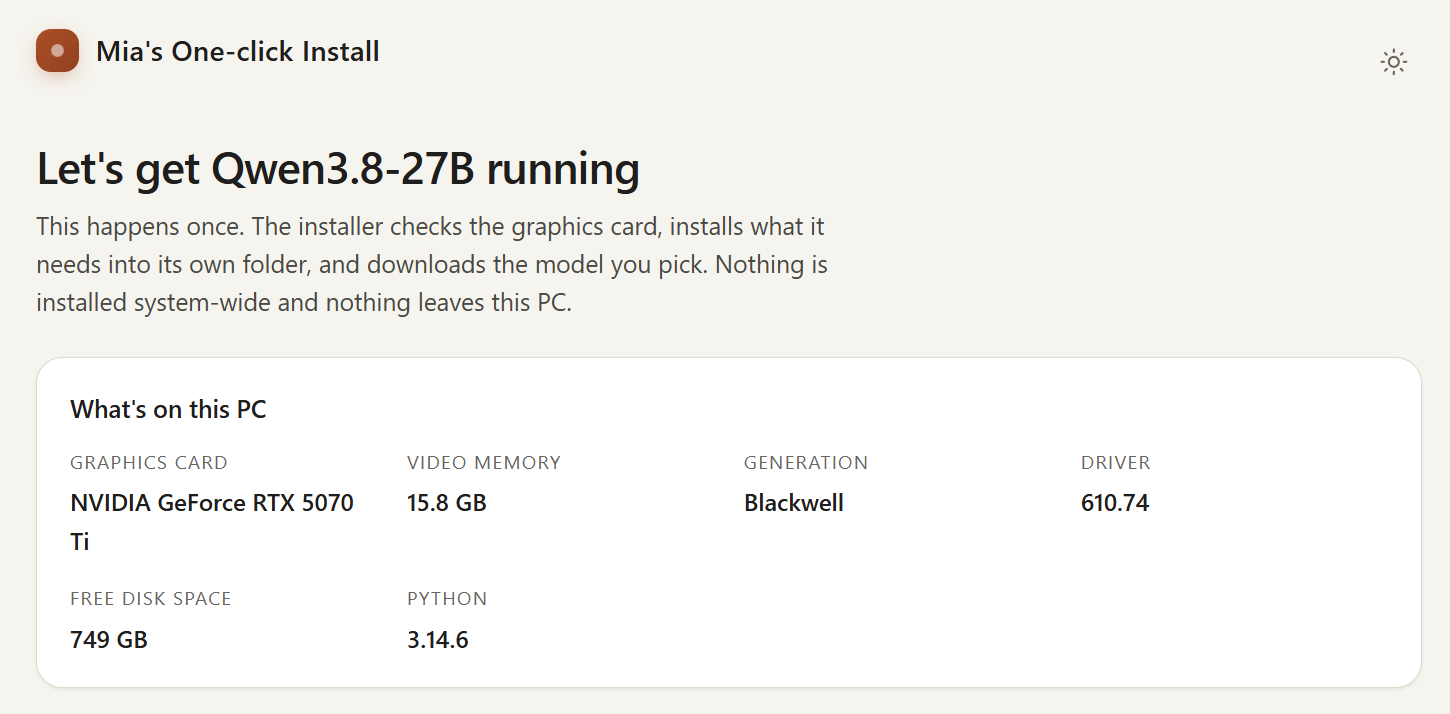
Double-click it once. It opens a page in your browser and does the whole install there: it shows what it found on the card, offers the model sizes that fit it, then installs and downloads with a progress bar and a live log. Nothing is asked in the console.
When the download finishes it loads that model and hands the page over to the chat, so one double-click takes you from nothing to a working chat window.
windows\START-HERE.bat              install, then start what was installed
windows\START-HERE.bat --no-start   install only — for fetching a second size
Notes:
- The download is resumable. Closing the window, losing the connection or
rebooting costs you nothing — it picks up from the byte it stopped at. A model
left half-downloaded is shown as such in the menus, and running
windows\START-HERE.batagain finishes it. Nothing offers to start a model until every weight file is on disk. - Prefer the old console questions to the web page? Set
SETUP=consolein.env.
2. Every day after that — windows\start.bat
windows\start.bat          start a model that is already here
windows\start.bat setup    go to setup instead (same as START-HERE.bat)
It never downloads anything. What it does:
- Asks which model, if more than one size is on disk. Enter takes the one that ran last, and it starts on its own after 45 seconds so an unattended machine still comes up.
- Checks free VRAM right before the load — it wants the
GPU_MEM_GBbudget from.envplus a little margin. If that much is not free it lists the programs holding VRAM (browsers, games, Discord, other AI tools) and waits: Enter re-checks,ccontinues anyway,qquits, and it continues on its own after 120 seconds. Take this seriously on Windows — with too little free VRAM the driver pages the model into system RAM instead of failing, and it then runs many times slower. - Loads the model and opens the chat UI at
http://127.0.0.1:3080/.
If nothing is installed yet, or nothing finished downloading, it says so and offers to run setup for you — double-clicking the wrong one is never a dead end.
Two files rather than one because they answer two different questions:
windows\start.bat never downloads, and windows\START-HERE.bat --no-start never
loads.
3. While it runs
- The console window it opened is the server. Closing it stops the model.
- Simplex puts an icon in the notification area — right-click for Open Simplex,
Restart the model, Show the Simplex folder, View the log and
Quit Simplex.
(
TRAY=noin.envturns it off.) - Every launch writes a full transcript to
logs\, so a crash that scrolls past is still readable afterwards. - The first successful launch adds Start-menu and desktop shortcuts
(
SHORTCUTS=noin.envto skip that).
4. Stopping — windows\stop.bat
windows\stop.bat                 stop both the model and the chat UI
windows\stop.bat --harness-only  leave the model loaded, close the UI
windows\stop.bat --server-only   leave the UI running, unload the model
5. Windows troubleshooting
| symptom | what to do |
|---|---|
| "Simplex needs Python and cannot find it" | Install 64-bit Python 3.11+ from python.org and tick Add python.exe to PATH, then run the file again. |
| Anything else | windows\simplex.bat doctor — see below. |
| The model loads but crawls | Free VRAM (the check above told you what is holding it), or lower CONTEXT_SIZE / GPU_MEM_GB in .env. |
| "Images: off" in the Ready box | The vision tower did not fit next to your context. Lower CONTEXT_SIZE and restart, or pick a smaller quant. |
| The window closed and you missed the error | It is in logs\ — newest file. windows\simplex.bat logs prints the tail. |
| You want to start completely over | reset_new_user.bat in the kit root deletes the weights, the venv, .env, the logs and the shortcuts, and keeps every tracked file. It asks you to type RESET first. |
Linux
Everything is in the linux/ folder. Run the scripts from the kit root; they
find their own way regardless of where you call them from.
If the files arrived without their execute bit (a zip, a copy off Windows), run them
as bash linux/setup.sh instead of ./linux/setup.sh, or chmod +x linux/*.sh linux/simplex once.
1. Install — ./linux/setup.sh
./linux/setup.sh
It creates .env from .env.example on the first run, asks the profile questions
in the terminal (tools/profiles.py) — there is no setup page on Linux — builds
.venv, installs PyTorch and the engine, downloads the weights, and stops. It does
not load a model.
The download is resumable: interrupt it and run ./linux/setup.sh again to carry on.
2. Every day after that — ./linux/start.sh
./linux/start.sh                 pick a downloaded model and serve it
./linux/start.sh --no-harness    serve /v1 only, no chat UI
./linux/start.sh -b              run in the background, output in logs/
./linux/start.sh --status        is a backgrounded one running?
It lists the models that finished downloading and asks which one (Enter is the one used last; it auto-picks after 45 seconds), then serves:
http://localhost:8888/v1     the OpenAI-compatible API
http://127.0.0.1:3080/       the chat UI
-b is the honest equivalent of the Windows tray: it detaches, writes to
logs/simplex-*.log, and tells you where that log is and how to stop it. First-run
setup and the model menu still happen — written to the log instead of the screen.
On a box with no desktop session webbrowser has nothing to open, so the chat
address is printed for you to copy. Take the whole thing, token and all — see
the note on the token.
There is no free-VRAM preflight on Linux (that check is Windows-specific,
because Windows silently spills to system RAM instead of failing). If a load fails
with Insufficient VRAM in split for model and cache, lower CONTEXT_SIZE or
GPU_MEM_GB in .env, or close what is holding the card.
No tray icon and no desktop shortcuts either — those are Windows.
3. Stopping — ./linux/stop.sh
./linux/stop.sh                 stop both
./linux/stop.sh --harness-only  leave the model loaded
./linux/stop.sh --server-only   leave the chat UI running
4. Linux troubleshooting
| symptom | what to do |
|---|---|
bash: ./linux/start.sh: Permission denied | chmod +x linux/*.sh linux/simplex, or call it as bash linux/start.sh. |
$'\r': command not found | The checkout has CRLF endings. .gitattributes prevents this; re-clone, or sed -i 's/\r$//' linux/*.sh linux/simplex. |
| Anything else | ./linux/simplex doctor — see below. |
Insufficient VRAM in split for model and cache | Lower CONTEXT_SIZE or GPU_MEM_GB in .env, or run ./linux/simplex setup and pick a smaller quant. |
| It compiled the engine for 20 minutes | No prebuilt wheel matched your CUDA line, torch version or Python. See Prebuilt wheels. |
| aarch64 / GB10 | No prebuilt engine wheel exists on any CUDA line, so it compiles. The script keeps cu130 there and sets TORCH_CUDA_ARCH_LIST=12.0;12.1 for you. |
One command, both systems
The files above are the double-click doors. Every verb, on either system, is
simplex — the same program (tools/cli.py), so the two cannot drift apart:
| Linux | Windows |
|---|---|
./linux/simplex <verb> | windows\simplex.bat <verb> |
simplex setup                   install the environment and fetch a model
simplex start                   load a model and serve it
simplex start --no-harness      ...serving /v1 only
simplex start -b                ...in the background, log in logs/
simplex start -p 9000           ...on another port, just this once
simplex stop                    stop both
simplex stop --harness-only     ...and detach the UI, model still loaded
simplex restart                 stop, then start
simplex status                  what is running, which model, which ports
simplex status --json           the same, for scripts
simplex logs -f                 follow the launcher log
simplex models                  what is on disk, and what is half-downloaded
simplex harness start           attach the UI to a server already running
simplex harness stop|status|open|settings
simplex doctor                  check this machine before blaming the model
simplex with no verb prints the help and then the status. Every verb takes
--help. It is not on your PATH — run it from the kit folder.
simplex doctor
The first thing to run when something is wrong. It checks the Python version, the
venv and the engine version inside it, the driver and the card, Node, both ports and
who holds them, the .env values that have to be valid, whether the weights are all
there, and the free disk.
With or without the chat UI
UI= in .env is the standing answer (browser, server or no);
--harness / --no-harness overrides it for one run, on simplex start,
linux/start.sh and windows\start.bat alike. The UI is also a verb of its own, so
it can be attached to a model that is already loaded, or taken away without
unloading one.
What the launcher picks for your GPU
Setup (windows\START-HERE.bat / ./linux/setup.sh, or simplex setup, or
PROFILE=ask in .env) runs tools/profiles.py. It reads the card's VRAM with
nvidia-smi, computes what fits under a budget of VRAM − max(1.3 GB, 8 %), and
offers the sizes that fit. Enter takes the recommendation. If a model is already
downloaded, "keep current" is the default, so an unattended start never triggers a
surprise download.
The choice is written into .env (MODEL_DIR, HF_TARGET_REPO, HF_REVISION,
MODEL_ID, CONTEXT_SIZE, CACHE_QUANT, GPU_MEM_GB, VISION) and everything
downstream follows it.
| VRAM | what it offers (bold = pre-selected) |
|---|---|
| 12 GB | 2.0 bpw @ 33k, text-only — the floor, and the whole menu |
| 16 GB | 3.5 bpw @ 78k text-only · 3.0 bpw @ 118k with images · 2.5 bpw @ 176k with images · 2.0 bpw @ 229k with images |
| 24 GB | 6.0 bpw @ 84k text-only · 5.0 bpw @ 180k with images · 4.0 bpw @ 262k with images · 3.5 and below at 262k with images |
| 32 GB+ | the same menu as 24 GB — the top two rows are capped at what a prefill has actually survived, not at what the card could hold |
KV cache is int4 on every profile the planner writes — measured within 0.001 KL
of fp16, with no hardware requirement, so it runs on every supported GPU. (The
.env.example template still ships CACHE_QUANT=8,4, which is the old hand-tuned
2.0 bpw baseline below; picking a profile overwrites it.)
Each row's download size and the exact context it plans are printed by the planner itself, and it will do that for any card without you owning one:
Windows:  .venv\Scripts\python.exe tools\profiles.py --list --vram 16
Linux:    .venv/bin/python tools/profiles.py --list --vram 16
Where those numbers come from
Where a real prefill has been run at a stated budget, the menu offers what was measured rather than what the formula computes. The context was grown on a 14.7 GB budget until a prefill failed (2026-09-06), and the formula had been leaving a lot on the table:
| budget | quant | planner offered | measured, text | measured, images |
|---|---|---|---|---|
| 14.7 GB | 3.5 | 0 | 77824 | 41984 |
| 14.7 GB | 3.0 | 69888 | 148480 | 117760 |
| 14.7 GB | 2.5 | 186368 | 212224 | 176128 |
| 22.1 GB | 6.0 | 8960 | 83712 | 57088 |
| 22.1 GB | 5.0 | 163072 | 204800 | 179712 |
| 22.1 GB | 4.0 | 262144 | 262144 | 262144 |
The formula's flat 2.6 GB overhead is a bound over every quant, so on any one of them it is slack — 3.5 bpw is the extreme case, priced out of a 16 GB card entirely by a formula that the card then ran at 78k tokens, and 6.0 bpw is not far behind at 9k against 84k. Above the budget a row was measured under, the formula takes over again; below it, the measurement only ever lowers the answer.
Two rows are also capped at their measurement: nothing has ever prefilled past 204800 tokens on 5.0 bpw or 83712 on 6.0 bpw, at any budget, so neither plans past it. (Their older ceilings — 183296 for 5.0, "nothing survived" for 6.0 — came from a run with ~40 other processes on the card, and a clean run at a tighter budget beat both, which is how you tell contention from a ceiling.)
How the default is chosen
Bold above is the best quality that still has real context (≥ 128k), not the longest context. On a 16 GB card that is the 2.5 bpw row — 3.0 bpw is the better model, but it fits 118k there and only text-only, against a measured 176k with images one rung down. The pick also keeps images where it can: on a 24 GB card 5.0 bpw clears 128k only by dropping the vision tower, so the default steps one rung down to 4.0 bpw, which holds native context with images. One rung, never more — and answering "no images" puts 5.0 bpw back.
Quants other than the 2.0 bpw baseline are pulled from turboderp's branches
(HF_REVISION); their vision towers are unquantised (0.87 GB measured), which is
why images are off on the tight profiles. The quality words come from turboderp's
mean-KL-vs-bf16 figures: 2.0 → 0.35 fair, 2.5 → 0.30 good, 3.0 → 0.11 better,
3.5 → 0.08 very good, 4.0 → 0.05 very good, 5.0 → 0.014 excellent,
6.0 → 0.007 near-lossless.
The original 16 GB baseline
A 16 GB board typically has about 14.7 GB free after the driver. These are the
hand-tuned settings the 2.0 bpw quant was validated on, and what .env.example
still ships:
| Knob | Value | Why |
|---|---|---|
GPU_MEM_GB | 14.7 | Process cap matching ~14.7 GB free on a 16 GB card |
CONTEXT_SIZE | 199936 | ~200k tokens (must be a multiple of the 256-token page size) |
CACHE_QUANT | 8,4 | int8 K / int4 V |
DRAFT | mtp (default) | MTP head inside the checkpoint; ~50 MB extra weights |
Measured at load under that cap: CUDA allocated 12.35 GiB, reserved 13.37
GiB; native CONTEXT_SIZE=262144 fails to boot
(Insufficient VRAM in split for model and cache). Weights on disk are ~9.7 GB; the
rest is KV (16 full-attention layers), the MTP draft cache, GDN recurrent state and
CUDA workspace.
If you have more than 16 GB: let the profile planner do it — it already knows.
By hand, a 24 GB card takes CONTEXT_SIZE=262144 and GPU_MEM_GB=22. Do not do
that on 16 GB.
Chat with the model
The DeepSeek Harness
The kit serves the model. What you talk to is
DeepSeek Harness (dsh, MIT),
started as a second process once the model is loaded and answering, at
http://127.0.0.1:3080/. windows\start.bat and ./linux/start.sh open it for
you; http://127.0.0.1:8888/ is a small page saying where everything is, which
forwards there as soon as the harness answers.
None of it is vendored here. It is a Node application, so the launcher runs it with
npx and npm caches it after the first run — which is why Node is on the
requirements list. No Node, no harness: the launcher says so, and /v1 keeps
serving every other client. UI=no in .env skips it entirely.
It configures itself against whatever loaded. Before starting the harness,
tools/dsh.py asks the running server on /v1/models what it actually is — the
model id, the context window, whether the vision tower fit, and which reasoning
levels this chat template accepts and acts on — and writes that as a provider
route into .dsh/settings.yaml, naming it as the default the picker opens on. So
the model, its context meter, its image support and its effort menu are right on the
first launch with nothing typed into a form. After a fallback (no room for the
vision tower, say) the harness is told what happened rather than what .env hoped
for. Switching quants rewrites the same file; the harness re-reads it per request,
so it never needs restarting.
Those keys are yours the moment you edit them. The launcher keeps a copy of what it last wrote beside the file and stops generating as soon as they differ, so a hand-tuned route survives every restart. Delete the file to get a fresh one. Everything else in it is read past and written back untouched. Every field it accepts is in dsh's configuration catalog.
The first address is not the plain one
dsh authenticates the browser with a token it mints fresh on every launch and prints
once, as dsh web: http://127.0.0.1:3080/?token=.... Opening that sets a cookie
good for thirty days and redirects to a clean /; arriving at the bare address
without it answers "dsh web authentication required; reopen the URL printed by dsh
web". So the launcher reads the address off dsh's own output rather than composing
it from the port, and http://127.0.0.1:8888/ forwards through /harness, which
knows the current one. If you need it by hand, it is in the launcher window and in
logs/.
That route only answers a browser on this computer, even with HOST=0.0.0.0: the
token is a session on an agent that runs commands here.
| Harness | http://127.0.0.1:3080/ (SIMPLEX_HARNESS_PORT in .env; do not use DSH_PORT there) |
| Version | DSH_VERSION in .env, pinned; latest follows the newest |
| Its home | .dsh/ in the kit folder — settings, credentials, profiles, plugins |
| Run it alone | From the kit root (not C:\Windows\System32): python tools/dsh.py --open. PowerShell: Set-Location -LiteralPath <kit>; cmd: cd /d <kit>. cd /d is not valid in PowerShell. |
| Just the settings | tools/dsh.py --settings-only |
The harness binds loopback only and refuses to bind 0.0.0.0 at all: its agent
runs commands on this PC and there is no login. To reach it from a phone, put a
proxy in front of it rather than opening the port — tailscale serve --bg 3080.
Note that the shipped HOST=0.0.0.0 already exposes /v1 (the API, not the
harness) to whatever network you are on; set HOST=127.0.0.1 if that network is not
yours.
Its workspace, approval policy, tools, MCP servers and plugins are all its own — see its documentation. Pick a workspace folder in it before the first message.
Any other OpenAI client
/v1 is a plain OpenAI endpoint, so nothing about the harness is compulsory. Leave
windows\start.bat / ./linux/start.sh running and point a client at it. There is
no API key; many apps still require a dummy value such as local.
| Base URL | http://127.0.0.1:8888/v1 (or host http://127.0.0.1:8888 if the app appends /v1 itself) |
| API key | local (ignored) |
| Model id | whatever MODEL_ID in .env says — e.g. qwen3.8-27b-exl3-2.5bpw for the 2.5 bpw quant. simplex status prints it, and so does GET /v1/models. |
Chatbox, Open WebUI, Continue, Cursor's custom endpoint, Cherry Studio (below), a
curl, an SDK, another machine on your network — all of them work against that base
URL, at the same time as the harness does. Open WebUI is stronger if you want a big
tools/RAG UI and are fine running Docker.
Tool calling. Send OpenAI tools (function name + JSON schema) on
POST /v1/chat/completions. The model emits Qwen XML; the server parses it into
tool_calls. Your app must run the function and POST a follow-up with
role: "tool" (and the previous assistant tool_calls). tool_choice of auto,
required, or a named function is supported.
curl http://127.0.0.1:8888/v1/chat/completions \
  -H "Content-Type: application/json" \
  -d '{
    "model": "qwen3.8-27b-exl3-2.5bpw",
    "messages": [{"role": "user", "content": "What is the weather in Tel Aviv?"}],
    "tools": [{
      "type": "function",
      "function": {
        "name": "get_weather",
        "description": "Current weather for a city",
        "parameters": {
          "type": "object",
          "properties": {"city": {"type": "string"}},
          "required": ["city"]
        }
      }
    }]
  }'
Plain chat (no tools):
curl http://127.0.0.1:8888/v1/chat/completions \
  -H "Content-Type: application/json" \
  -d '{"model":"qwen3.8-27b-exl3-2.5bpw","messages":[{"role":"user","content":"Hi"}]}'
Images. The quants keep Qwen3.8's vision tower and the server loads it by
default (VISION=auto), so you can send OpenAI image_url content parts — data:
URLs or http(s) links. Pictures are downscaled to IMAGE_MAX_PIXELS
(1 MP ≈ 1024 prompt tokens) before encoding. If the tower does not fit next to your
context under the VRAM cap, the Ready box says Images: off and the server keeps
running text-only — lower CONTEXT_SIZE and restart, or pick a quant whose profile
says images are on. Video is not supported.
Defaults: temperature 0.6, top-p 0.95, top-k 20, thinking on. One request at a time; extras queue.
Cherry Studio (optional, off by default)
The kit used to ship Cherry Studio as
its chat app. It is still wired up for anyone who wants Cherry's assistants,
knowledge bases and MCP servers — set CHERRY_AUTOSTART=ask (or yes) in .env:
- The launcher downloads the pinned portable build (v2.0.10, ~285 MB, once) into
apps/cherry-studio/. Nothing is installed system-wide; Cherry keeps its data inapps/cherry-studio/data/. - The first time, Cherry opens and closes once by itself to create that data folder.
The kit then writes its configuration straight into Cherry's store: provider
Simplex (local) →
http://127.0.0.1:8888/v1, keylocal, the model id from.env(tool calling + image input on), set as the default chat model and on the default assistant, onboarding skipped. Usage analytics is switched off (Cherry → Settings → Privacy to change). - After the Ready box: "Open Cherry Studio and start chatting now? [Y/n]".
Enter/
yopens it (the portable build unpacks for ~10–20 s),nor no answer within 90 s leaves it closed. Keep the server window open while chatting. - Changing
PORTin.envre-points the provider on the next start. Open Cherry later without the prompt:.venv\Scripts\python.exe tools\cherry.py openon Windows,.venv/bin/python tools/cherry.py openon Linux (statusinstead ofopenshows what the kit thinks). .envknobs:CHERRY_AUTOSTART=ask|yes|no(noalso skips the download),CHERRY_VERSION(pinned; the store layout is checked against v2.0.x),CHERRY_EXE=<path>to use a Cherry Studio you already installed — the kit then only sends Cherry's official import link (cherrystudio://providers/api-keys), you confirm the popup and add the model id under the new provider.- Web search and tools are on by default. The default assistant gets
web_search+web_fetchas function tools (Cherry's stock keyless search provider, Exa MCP atmcp.exa.ai; change it under Settings → Web Search), runs MCP in auto mode, and the kit installs Cherry's keyless builtin MCP servers@cherry/fetchand@cherry/sequentialthinking. Tune withCHERRY_WEB_SEARCH=1|0andCHERRY_MCP_SERVERS=(also@cherry/python,@cherry/browser; empty = none) in.env— re-applied on the next start when you change them. New assistants you create in Cherry start with Cherry's own defaults (web search off) unless you copy the default one. - Cherry Studio is AGPL-3.0 (see its README for the commercial-use terms); the kit downloads the official release binary and does not redistribute it.
Prebuilt wheels: no compiler needed
Compiling the ExLlamaV3 CUDA kernels is the slowest and most fragile part of setup: it wants the CUDA Toolkit and Visual Studio Build Tools, several GB of downloads that have nothing to do with chatting to a model. Nobody has to do it, because the engine publishes wheels itself.
Simplex looks for one in this order:
wheels/in the kit folder — what you copy off a USB stick.- The engine's own release —
turboderp-org/exllamav3attaches a wheel per (CUDA line × torch version × Python). This is the normal path and needs no configuration. WHEEL_INDEXin.env— one or morepip --find-linkstargets (a GitHub Releases page, a file share, an internal index).- PyPI, which has
triton-windowsbut notexllamav3. - Compiling from source, for the cases none of the above covers — a CUDA line or platform the engine has no build for (aarch64/GB10), or no route to github.com.
Step 2 resolves to one exact URL rather than pointing pip at the release page, and
that distinction matters. The CUDA line and torch version live in the wheel's local
version (1.4.4+cu128.torch2.10.0), which pip does not match against anything:
given --find-links it filters on the Python and platform tags only, then takes the
highest version string. A torch 2.10 environment would be handed the torch 2.11
build, and the failure arrives later as an undefined-symbol ImportError that reads
like a corrupt install. So the launcher installs torch first, asks the venv what it
actually got, and names the one wheel that fits.
This is also why the default PyTorch index is cu128: the engine builds for cu128
and cu132 only, so torch from any other line means no wheel exists and everyone
compiles. cu128 covers Blackwell and needs driver 570+. (TORCH_INDEX_URL in .env
overrides it. aarch64 keeps cu130, since no engine wheel exists there on any line.)
A wheel is only used when its Python, ABI and platform tags match the interpreter it
is going into, so a cp313 wheel can never land in a cp312 environment. Check what
would be picked:
Windows:  .venv\Scripts\python.exe tools\wheels.py
Linux:    .venv/bin/python tools/wheels.py
That prints the venv's tags, the torch version and CUDA line found, and the wheel it
would install. wheels/README.md covers the override cases and the recipe for
building one yourself.
Engine version. This kit requires ExLlamaV3 v1.4.4 — it is what the quantized
vision tower needs, and what the kit is validated against. PyPI skips 1.4.4
(1.4.2 → 1.4.5), so the launchers install the git tag, and both start paths
refuse to run against any other version. Engine:
ExLlamaV3.
Installing on a Windows PC as an app
Unzip (or clone) anywhere, double-click windows\START-HERE.bat, then
windows\start.bat from then on. There is no system-wide install and no
administrator rights are needed; the first successful launch adds the Start-menu and
desktop shortcuts for you (SHORTCUTS=no in .env to skip that).
Whether the browser offers an Install button for the chat page depends on the
front end you use, not on this kit. Installing only ever works on localhost or over
HTTPS (a secure context); over a plain http:// LAN address browsers refuse to
register a service worker, so there the page stays an ordinary one.
Configuration
.env in the kit folder, created from .env.example on the first run of either
system. It is read as a key=value list, not executed, so values with spaces are
fine. The ones you are most likely to touch:
| key | default | what it does |
|---|---|---|
MODEL_DIR | set by setup | which downloaded model to load |
CONTEXT_SIZE | set by setup | tokens; must be a multiple of 256 |
CACHE_QUANT | set by setup | 4 (int4), 8,4, none, or k,v |
GPU_MEM_GB | set by setup | the process's VRAM budget |
VISION | auto | off to skip the vision tower |
PORT | 8888 | the OpenAI API port |
HOST | 0.0.0.0 | set to 127.0.0.1 to keep /v1 off your network |
UI | browser | browser, server, or no |
SIMPLEX_HARNESS_PORT | 3080 | the chat UI's port. Do not set DSH_PORT in .env — current dsh treats that key in a file as fatal and the harness never binds |
DRAFT | mtp | none turns off speculative decoding |
SETUP | browser | console for terminal questions on Windows |
TRAY | auto | Windows notification-area icon; no to skip |
SHORTCUTS | auto | Windows shortcuts; no to skip |
HF_TOKEN | — | only needed for gated repos |
.venv/, models/, logs/, apps/, .dsh/ and .env stay on your machine and
are not part of the git tree.
Simplex, the UI this kit used to ship
Up to this version the kit served its own chat and agent UI in the server process.
That UI is now Simplex, a standalone project: nothing in it was specific to this
model or this server, and it talks to any OpenAI-compatible endpoint — including this
one, at http://127.0.0.1:8888/v1. Its conversations, projects and providers moved
with it, so an existing install picks up where it left off. Run its own launcher
beside this one and set UI=no here if you want it back in place of the harness, or
run both.
License
Apache-2.0 (inherited from the base model). Kit scripts: MIT.
Contributors

8 commits
See what people are saying
Hacker News (1)
Similar repos


Languages
Python
67.3%
CSS
21.2%
Shell
4.4%
JavaScript
3.9%
HTML
2.4%
Qwen3.8-27B on 16-32 GB Nvidia GPUs one-click install for Windows / Linux
See the codeREADME
Qwen3.8-27B on 16-32 GB Nvidia GPUs one-click install for Windows / Linux
by Mia'a AI Lab
A serving kit for Qwen/Qwen3.8-27B in turboderp's EXL3 quants, on one consumer NVIDIA card. It picks a quant that fits the card it finds, installs its own Python environment, downloads the weights, serves an OpenAI-compatible endpoint, and opens a chat UI. Windows and Linux, same behaviour.
It started as a 16 GB recipe — the 2.0 bpw quant is still that floor, and still the
one thing here that is not turboderp's own upload (Mia-AiLab/Qwen3.8-27B-EXL3-2.0bpw,
SC_2.00bpw_H3_V3). Everything from 2.5 bpw up is pulled from
turboderp/Qwen3.8-27B-exl3
by revision. Which one you get is decided by your VRAM,
at setup, and you can change it any time.
Before you start (both systems)
| GPU | NVIDIA, 12 GB VRAM or more, compute capability 7.5+ (Turing and newer). 16 GB is the size this kit was built around. |
| Driver | 570 or newer (the default PyTorch build is cu128). |
| Python | 3.11 or newer, 64-bit. The only thing you install by hand. |
| Node | 22.19+ from nodejs.org (current dsh). Older LTS (20) warns EBADENGINE and the chat UI may fail. Without Node, /v1 still serves; the launcher says what is missing. |
| Disk | 9.7–22.9 GB per quant (see the table below), plus several GB for the Python environment and PyTorch. |
Not needed: CUDA Toolkit, Visual Studio Build Tools, Git. The engine arrives as a prebuilt wheel; compiling is the fallback for platforms no wheel covers.
Everything the kit installs stays inside its own folder — .venv/, models/,
logs/, apps/, .dsh/. Nothing goes into the system Python and nothing needs
administrator rights.
Windows
Everything is in the windows\ folder. Run the .bat files from Explorer
(double-click) or from a cmd window opened in the kit folder.
1. Install — windows\START-HERE.bat
Double-click it once. It opens a page in your browser and does the whole install there: it shows what it found on the card, offers the model sizes that fit it, then installs and downloads with a progress bar and a live log. Nothing is asked in the console.
When the download finishes it loads that model and hands the page over to the chat, so one double-click takes you from nothing to a working chat window.
windows\START-HERE.bat              install, then start what was installed
windows\START-HERE.bat --no-start   install only — for fetching a second size
Notes:
- The download is resumable. Closing the window, losing the connection or
rebooting costs you nothing — it picks up from the byte it stopped at. A model
left half-downloaded is shown as such in the menus, and running
windows\START-HERE.batagain finishes it. Nothing offers to start a model until every weight file is on disk. - Prefer the old console questions to the web page? Set
SETUP=consolein.env.
2. Every day after that — windows\start.bat
windows\start.bat          start a model that is already here
windows\start.bat setup    go to setup instead (same as START-HERE.bat)
It never downloads anything. What it does:
- Asks which model, if more than one size is on disk. Enter takes the one that ran last, and it starts on its own after 45 seconds so an unattended machine still comes up.
- Checks free VRAM right before the load — it wants the
GPU_MEM_GBbudget from.envplus a little margin. If that much is not free it lists the programs holding VRAM (browsers, games, Discord, other AI tools) and waits: Enter re-checks,ccontinues anyway,qquits, and it continues on its own after 120 seconds. Take this seriously on Windows — with too little free VRAM the driver pages the model into system RAM instead of failing, and it then runs many times slower. - Loads the model and opens the chat UI at
http://127.0.0.1:3080/.
If nothing is installed yet, or nothing finished downloading, it says so and offers to run setup for you — double-clicking the wrong one is never a dead end.
Two files rather than one because they answer two different questions:
windows\start.bat never downloads, and windows\START-HERE.bat --no-start never
loads.
3. While it runs
- The console window it opened is the server. Closing it stops the model.
- Simplex puts an icon in the notification area — right-click for Open Simplex,
Restart the model, Show the Simplex folder, View the log and
Quit Simplex.
(
TRAY=noin.envturns it off.) - Every launch writes a full transcript to
logs\, so a crash that scrolls past is still readable afterwards. - The first successful launch adds Start-menu and desktop shortcuts
(
SHORTCUTS=noin.envto skip that).
4. Stopping — windows\stop.bat
windows\stop.bat                 stop both the model and the chat UI
windows\stop.bat --harness-only  leave the model loaded, close the UI
windows\stop.bat --server-only   leave the UI running, unload the model
5. Windows troubleshooting
| symptom | what to do |
|---|---|
| "Simplex needs Python and cannot find it" | Install 64-bit Python 3.11+ from python.org and tick Add python.exe to PATH, then run the file again. |
| Anything else | windows\simplex.bat doctor — see below. |
| The model loads but crawls | Free VRAM (the check above told you what is holding it), or lower CONTEXT_SIZE / GPU_MEM_GB in .env. |
| "Images: off" in the Ready box | The vision tower did not fit next to your context. Lower CONTEXT_SIZE and restart, or pick a smaller quant. |
| The window closed and you missed the error | It is in logs\ — newest file. windows\simplex.bat logs prints the tail. |
| You want to start completely over | reset_new_user.bat in the kit root deletes the weights, the venv, .env, the logs and the shortcuts, and keeps every tracked file. It asks you to type RESET first. |
Linux
Everything is in the linux/ folder. Run the scripts from the kit root; they
find their own way regardless of where you call them from.
If the files arrived without their execute bit (a zip, a copy off Windows), run them
as bash linux/setup.sh instead of ./linux/setup.sh, or chmod +x linux/*.sh linux/simplex once.
1. Install — ./linux/setup.sh
./linux/setup.sh
It creates .env from .env.example on the first run, asks the profile questions
in the terminal (tools/profiles.py) — there is no setup page on Linux — builds
.venv, installs PyTorch and the engine, downloads the weights, and stops. It does
not load a model.
The download is resumable: interrupt it and run ./linux/setup.sh again to carry on.
2. Every day after that — ./linux/start.sh
./linux/start.sh                 pick a downloaded model and serve it
./linux/start.sh --no-harness    serve /v1 only, no chat UI
./linux/start.sh -b              run in the background, output in logs/
./linux/start.sh --status        is a backgrounded one running?
It lists the models that finished downloading and asks which one (Enter is the one used last; it auto-picks after 45 seconds), then serves:
http://localhost:8888/v1     the OpenAI-compatible API
http://127.0.0.1:3080/       the chat UI
-b is the honest equivalent of the Windows tray: it detaches, writes to
logs/simplex-*.log, and tells you where that log is and how to stop it. First-run
setup and the model menu still happen — written to the log instead of the screen.
On a box with no desktop session webbrowser has nothing to open, so the chat
address is printed for you to copy. Take the whole thing, token and all — see
the note on the token.
There is no free-VRAM preflight on Linux (that check is Windows-specific,
because Windows silently spills to system RAM instead of failing). If a load fails
with Insufficient VRAM in split for model and cache, lower CONTEXT_SIZE or
GPU_MEM_GB in .env, or close what is holding the card.
No tray icon and no desktop shortcuts either — those are Windows.
3. Stopping — ./linux/stop.sh
./linux/stop.sh                 stop both
./linux/stop.sh --harness-only  leave the model loaded
./linux/stop.sh --server-only   leave the chat UI running
4. Linux troubleshooting
| symptom | what to do |
|---|---|
bash: ./linux/start.sh: Permission denied | chmod +x linux/*.sh linux/simplex, or call it as bash linux/start.sh. |
$'\r': command not found | The checkout has CRLF endings. .gitattributes prevents this; re-clone, or sed -i 's/\r$//' linux/*.sh linux/simplex. |
| Anything else | ./linux/simplex doctor — see below. |
Insufficient VRAM in split for model and cache | Lower CONTEXT_SIZE or GPU_MEM_GB in .env, or run ./linux/simplex setup and pick a smaller quant. |
| It compiled the engine for 20 minutes | No prebuilt wheel matched your CUDA line, torch version or Python. See Prebuilt wheels. |
| aarch64 / GB10 | No prebuilt engine wheel exists on any CUDA line, so it compiles. The script keeps cu130 there and sets TORCH_CUDA_ARCH_LIST=12.0;12.1 for you. |
One command, both systems
The files above are the double-click doors. Every verb, on either system, is
simplex — the same program (tools/cli.py), so the two cannot drift apart:
| Linux | Windows |
|---|---|
./linux/simplex <verb> | windows\simplex.bat <verb> |
simplex setup                   install the environment and fetch a model
simplex start                   load a model and serve it
simplex start --no-harness      ...serving /v1 only
simplex start -b                ...in the background, log in logs/
simplex start -p 9000           ...on another port, just this once
simplex stop                    stop both
simplex stop --harness-only     ...and detach the UI, model still loaded
simplex restart                 stop, then start
simplex status                  what is running, which model, which ports
simplex status --json           the same, for scripts
simplex logs -f                 follow the launcher log
simplex models                  what is on disk, and what is half-downloaded
simplex harness start           attach the UI to a server already running
simplex harness stop|status|open|settings
simplex doctor                  check this machine before blaming the model
simplex with no verb prints the help and then the status. Every verb takes
--help. It is not on your PATH — run it from the kit folder.
simplex doctor
The first thing to run when something is wrong. It checks the Python version, the
venv and the engine version inside it, the driver and the card, Node, both ports and
who holds them, the .env values that have to be valid, whether the weights are all
there, and the free disk.
With or without the chat UI
UI= in .env is the standing answer (browser, server or no);
--harness / --no-harness overrides it for one run, on simplex start,
linux/start.sh and windows\start.bat alike. The UI is also a verb of its own, so
it can be attached to a model that is already loaded, or taken away without
unloading one.
What the launcher picks for your GPU
Setup (windows\START-HERE.bat / ./linux/setup.sh, or simplex setup, or
PROFILE=ask in .env) runs tools/profiles.py. It reads the card's VRAM with
nvidia-smi, computes what fits under a budget of VRAM − max(1.3 GB, 8 %), and
offers the sizes that fit. Enter takes the recommendation. If a model is already
downloaded, "keep current" is the default, so an unattended start never triggers a
surprise download.
The choice is written into .env (MODEL_DIR, HF_TARGET_REPO, HF_REVISION,
MODEL_ID, CONTEXT_SIZE, CACHE_QUANT, GPU_MEM_GB, VISION) and everything
downstream follows it.
| VRAM | what it offers (bold = pre-selected) |
|---|---|
| 12 GB | 2.0 bpw @ 33k, text-only — the floor, and the whole menu |
| 16 GB | 3.5 bpw @ 78k text-only · 3.0 bpw @ 118k with images · 2.5 bpw @ 176k with images · 2.0 bpw @ 229k with images |
| 24 GB | 6.0 bpw @ 84k text-only · 5.0 bpw @ 180k with images · 4.0 bpw @ 262k with images · 3.5 and below at 262k with images |
| 32 GB+ | the same menu as 24 GB — the top two rows are capped at what a prefill has actually survived, not at what the card could hold |
KV cache is int4 on every profile the planner writes — measured within 0.001 KL
of fp16, with no hardware requirement, so it runs on every supported GPU. (The
.env.example template still ships CACHE_QUANT=8,4, which is the old hand-tuned
2.0 bpw baseline below; picking a profile overwrites it.)
Each row's download size and the exact context it plans are printed by the planner itself, and it will do that for any card without you owning one:
Windows:  .venv\Scripts\python.exe tools\profiles.py --list --vram 16
Linux:    .venv/bin/python tools/profiles.py --list --vram 16
Where those numbers come from
Where a real prefill has been run at a stated budget, the menu offers what was measured rather than what the formula computes. The context was grown on a 14.7 GB budget until a prefill failed (2026-09-06), and the formula had been leaving a lot on the table:
| budget | quant | planner offered | measured, text | measured, images |
|---|---|---|---|---|
| 14.7 GB | 3.5 | 0 | 77824 | 41984 |
| 14.7 GB | 3.0 | 69888 | 148480 | 117760 |
| 14.7 GB | 2.5 | 186368 | 212224 | 176128 |
| 22.1 GB | 6.0 | 8960 | 83712 | 57088 |
| 22.1 GB | 5.0 | 163072 | 204800 | 179712 |
| 22.1 GB | 4.0 | 262144 | 262144 | 262144 |
The formula's flat 2.6 GB overhead is a bound over every quant, so on any one of them it is slack — 3.5 bpw is the extreme case, priced out of a 16 GB card entirely by a formula that the card then ran at 78k tokens, and 6.0 bpw is not far behind at 9k against 84k. Above the budget a row was measured under, the formula takes over again; below it, the measurement only ever lowers the answer.
Two rows are also capped at their measurement: nothing has ever prefilled past 204800 tokens on 5.0 bpw or 83712 on 6.0 bpw, at any budget, so neither plans past it. (Their older ceilings — 183296 for 5.0, "nothing survived" for 6.0 — came from a run with ~40 other processes on the card, and a clean run at a tighter budget beat both, which is how you tell contention from a ceiling.)
How the default is chosen
Bold above is the best quality that still has real context (≥ 128k), not the longest context. On a 16 GB card that is the 2.5 bpw row — 3.0 bpw is the better model, but it fits 118k there and only text-only, against a measured 176k with images one rung down. The pick also keeps images where it can: on a 24 GB card 5.0 bpw clears 128k only by dropping the vision tower, so the default steps one rung down to 4.0 bpw, which holds native context with images. One rung, never more — and answering "no images" puts 5.0 bpw back.
Quants other than the 2.0 bpw baseline are pulled from turboderp's branches
(HF_REVISION); their vision towers are unquantised (0.87 GB measured), which is
why images are off on the tight profiles. The quality words come from turboderp's
mean-KL-vs-bf16 figures: 2.0 → 0.35 fair, 2.5 → 0.30 good, 3.0 → 0.11 better,
3.5 → 0.08 very good, 4.0 → 0.05 very good, 5.0 → 0.014 excellent,
6.0 → 0.007 near-lossless.
The original 16 GB baseline
A 16 GB board typically has about 14.7 GB free after the driver. These are the
hand-tuned settings the 2.0 bpw quant was validated on, and what .env.example
still ships:
| Knob | Value | Why |
|---|---|---|
GPU_MEM_GB | 14.7 | Process cap matching ~14.7 GB free on a 16 GB card |
CONTEXT_SIZE | 199936 | ~200k tokens (must be a multiple of the 256-token page size) |
CACHE_QUANT | 8,4 | int8 K / int4 V |
DRAFT | mtp (default) | MTP head inside the checkpoint; ~50 MB extra weights |
Measured at load under that cap: CUDA allocated 12.35 GiB, reserved 13.37
GiB; native CONTEXT_SIZE=262144 fails to boot
(Insufficient VRAM in split for model and cache). Weights on disk are ~9.7 GB; the
rest is KV (16 full-attention layers), the MTP draft cache, GDN recurrent state and
CUDA workspace.
If you have more than 16 GB: let the profile planner do it — it already knows.
By hand, a 24 GB card takes CONTEXT_SIZE=262144 and GPU_MEM_GB=22. Do not do
that on 16 GB.
Chat with the model
The DeepSeek Harness
The kit serves the model. What you talk to is
DeepSeek Harness (dsh, MIT),
started as a second process once the model is loaded and answering, at
http://127.0.0.1:3080/. windows\start.bat and ./linux/start.sh open it for
you; http://127.0.0.1:8888/ is a small page saying where everything is, which
forwards there as soon as the harness answers.
None of it is vendored here. It is a Node application, so the launcher runs it with
npx and npm caches it after the first run — which is why Node is on the
requirements list. No Node, no harness: the launcher says so, and /v1 keeps
serving every other client. UI=no in .env skips it entirely.
It configures itself against whatever loaded. Before starting the harness,
tools/dsh.py asks the running server on /v1/models what it actually is — the
model id, the context window, whether the vision tower fit, and which reasoning
levels this chat template accepts and acts on — and writes that as a provider
route into .dsh/settings.yaml, naming it as the default the picker opens on. So
the model, its context meter, its image support and its effort menu are right on the
first launch with nothing typed into a form. After a fallback (no room for the
vision tower, say) the harness is told what happened rather than what .env hoped
for. Switching quants rewrites the same file; the harness re-reads it per request,
so it never needs restarting.
Those keys are yours the moment you edit them. The launcher keeps a copy of what it last wrote beside the file and stops generating as soon as they differ, so a hand-tuned route survives every restart. Delete the file to get a fresh one. Everything else in it is read past and written back untouched. Every field it accepts is in dsh's configuration catalog.
The first address is not the plain one
dsh authenticates the browser with a token it mints fresh on every launch and prints
once, as dsh web: http://127.0.0.1:3080/?token=.... Opening that sets a cookie
good for thirty days and redirects to a clean /; arriving at the bare address
without it answers "dsh web authentication required; reopen the URL printed by dsh
web". So the launcher reads the address off dsh's own output rather than composing
it from the port, and http://127.0.0.1:8888/ forwards through /harness, which
knows the current one. If you need it by hand, it is in the launcher window and in
logs/.
That route only answers a browser on this computer, even with HOST=0.0.0.0: the
token is a session on an agent that runs commands here.
| Harness | http://127.0.0.1:3080/ (SIMPLEX_HARNESS_PORT in .env; do not use DSH_PORT there) |
| Version | DSH_VERSION in .env, pinned; latest follows the newest |
| Its home | .dsh/ in the kit folder — settings, credentials, profiles, plugins |
| Run it alone | From the kit root (not C:\Windows\System32): python tools/dsh.py --open. PowerShell: Set-Location -LiteralPath <kit>; cmd: cd /d <kit>. cd /d is not valid in PowerShell. |
| Just the settings | tools/dsh.py --settings-only |
The harness binds loopback only and refuses to bind 0.0.0.0 at all: its agent
runs commands on this PC and there is no login. To reach it from a phone, put a
proxy in front of it rather than opening the port — tailscale serve --bg 3080.
Note that the shipped HOST=0.0.0.0 already exposes /v1 (the API, not the
harness) to whatever network you are on; set HOST=127.0.0.1 if that network is not
yours.
Its workspace, approval policy, tools, MCP servers and plugins are all its own — see its documentation. Pick a workspace folder in it before the first message.
Any other OpenAI client
/v1 is a plain OpenAI endpoint, so nothing about the harness is compulsory. Leave
windows\start.bat / ./linux/start.sh running and point a client at it. There is
no API key; many apps still require a dummy value such as local.
| Base URL | http://127.0.0.1:8888/v1 (or host http://127.0.0.1:8888 if the app appends /v1 itself) |
| API key | local (ignored) |
| Model id | whatever MODEL_ID in .env says — e.g. qwen3.8-27b-exl3-2.5bpw for the 2.5 bpw quant. simplex status prints it, and so does GET /v1/models. |
Chatbox, Open WebUI, Continue, Cursor's custom endpoint, Cherry Studio (below), a
curl, an SDK, another machine on your network — all of them work against that base
URL, at the same time as the harness does. Open WebUI is stronger if you want a big
tools/RAG UI and are fine running Docker.
Tool calling. Send OpenAI tools (function name + JSON schema) on
POST /v1/chat/completions. The model emits Qwen XML; the server parses it into
tool_calls. Your app must run the function and POST a follow-up with
role: "tool" (and the previous assistant tool_calls). tool_choice of auto,
required, or a named function is supported.
curl http://127.0.0.1:8888/v1/chat/completions \
  -H "Content-Type: application/json" \
  -d '{
    "model": "qwen3.8-27b-exl3-2.5bpw",
    "messages": [{"role": "user", "content": "What is the weather in Tel Aviv?"}],
    "tools": [{
      "type": "function",
      "function": {
        "name": "get_weather",
        "description": "Current weather for a city",
        "parameters": {
          "type": "object",
          "properties": {"city": {"type": "string"}},
          "required": ["city"]
        }
      }
    }]
  }'
Plain chat (no tools):
curl http://127.0.0.1:8888/v1/chat/completions \
  -H "Content-Type: application/json" \
  -d '{"model":"qwen3.8-27b-exl3-2.5bpw","messages":[{"role":"user","content":"Hi"}]}'
Images. The quants keep Qwen3.8's vision tower and the server loads it by
default (VISION=auto), so you can send OpenAI image_url content parts — data:
URLs or http(s) links. Pictures are downscaled to IMAGE_MAX_PIXELS
(1 MP ≈ 1024 prompt tokens) before encoding. If the tower does not fit next to your
context under the VRAM cap, the Ready box says Images: off and the server keeps
running text-only — lower CONTEXT_SIZE and restart, or pick a quant whose profile
says images are on. Video is not supported.
Defaults: temperature 0.6, top-p 0.95, top-k 20, thinking on. One request at a time; extras queue.
Cherry Studio (optional, off by default)
The kit used to ship Cherry Studio as
its chat app. It is still wired up for anyone who wants Cherry's assistants,
knowledge bases and MCP servers — set CHERRY_AUTOSTART=ask (or yes) in .env:
- The launcher downloads the pinned portable build (v2.0.10, ~285 MB, once) into
apps/cherry-studio/. Nothing is installed system-wide; Cherry keeps its data inapps/cherry-studio/data/. - The first time, Cherry opens and closes once by itself to create that data folder.
The kit then writes its configuration straight into Cherry's store: provider
Simplex (local) →
http://127.0.0.1:8888/v1, keylocal, the model id from.env(tool calling + image input on), set as the default chat model and on the default assistant, onboarding skipped. Usage analytics is switched off (Cherry → Settings → Privacy to change). - After the Ready box: "Open Cherry Studio and start chatting now? [Y/n]".
Enter/
yopens it (the portable build unpacks for ~10–20 s),nor no answer within 90 s leaves it closed. Keep the server window open while chatting. - Changing
PORTin.envre-points the provider on the next start. Open Cherry later without the prompt:.venv\Scripts\python.exe tools\cherry.py openon Windows,.venv/bin/python tools/cherry.py openon Linux (statusinstead ofopenshows what the kit thinks). .envknobs:CHERRY_AUTOSTART=ask|yes|no(noalso skips the download),CHERRY_VERSION(pinned; the store layout is checked against v2.0.x),CHERRY_EXE=<path>to use a Cherry Studio you already installed — the kit then only sends Cherry's official import link (cherrystudio://providers/api-keys), you confirm the popup and add the model id under the new provider.- Web search and tools are on by default. The default assistant gets
web_search+web_fetchas function tools (Cherry's stock keyless search provider, Exa MCP atmcp.exa.ai; change it under Settings → Web Search), runs MCP in auto mode, and the kit installs Cherry's keyless builtin MCP servers@cherry/fetchand@cherry/sequentialthinking. Tune withCHERRY_WEB_SEARCH=1|0andCHERRY_MCP_SERVERS=(also@cherry/python,@cherry/browser; empty = none) in.env— re-applied on the next start when you change them. New assistants you create in Cherry start with Cherry's own defaults (web search off) unless you copy the default one. - Cherry Studio is AGPL-3.0 (see its README for the commercial-use terms); the kit downloads the official release binary and does not redistribute it.
Prebuilt wheels: no compiler needed
Compiling the ExLlamaV3 CUDA kernels is the slowest and most fragile part of setup: it wants the CUDA Toolkit and Visual Studio Build Tools, several GB of downloads that have nothing to do with chatting to a model. Nobody has to do it, because the engine publishes wheels itself.
Simplex looks for one in this order:
wheels/in the kit folder — what you copy off a USB stick.- The engine's own release —
turboderp-org/exllamav3attaches a wheel per (CUDA line × torch version × Python). This is the normal path and needs no configuration. WHEEL_INDEXin.env— one or morepip --find-linkstargets (a GitHub Releases page, a file share, an internal index).- PyPI, which has
triton-windowsbut notexllamav3. - Compiling from source, for the cases none of the above covers — a CUDA line or platform the engine has no build for (aarch64/GB10), or no route to github.com.
Step 2 resolves to one exact URL rather than pointing pip at the release page, and
that distinction matters. The CUDA line and torch version live in the wheel's local
version (1.4.4+cu128.torch2.10.0), which pip does not match against anything:
given --find-links it filters on the Python and platform tags only, then takes the
highest version string. A torch 2.10 environment would be handed the torch 2.11
build, and the failure arrives later as an undefined-symbol ImportError that reads
like a corrupt install. So the launcher installs torch first, asks the venv what it
actually got, and names the one wheel that fits.
This is also why the default PyTorch index is cu128: the engine builds for cu128
and cu132 only, so torch from any other line means no wheel exists and everyone
compiles. cu128 covers Blackwell and needs driver 570+. (TORCH_INDEX_URL in .env
overrides it. aarch64 keeps cu130, since no engine wheel exists there on any line.)
A wheel is only used when its Python, ABI and platform tags match the interpreter it
is going into, so a cp313 wheel can never land in a cp312 environment. Check what
would be picked:
Windows:  .venv\Scripts\python.exe tools\wheels.py
Linux:    .venv/bin/python tools/wheels.py
That prints the venv's tags, the torch version and CUDA line found, and the wheel it
would install. wheels/README.md covers the override cases and the recipe for
building one yourself.
Engine version. This kit requires ExLlamaV3 v1.4.4 — it is what the quantized
vision tower needs, and what the kit is validated against. PyPI skips 1.4.4
(1.4.2 → 1.4.5), so the launchers install the git tag, and both start paths
refuse to run against any other version. Engine:
ExLlamaV3.
Installing on a Windows PC as an app
Unzip (or clone) anywhere, double-click windows\START-HERE.bat, then
windows\start.bat from then on. There is no system-wide install and no
administrator rights are needed; the first successful launch adds the Start-menu and
desktop shortcuts for you (SHORTCUTS=no in .env to skip that).
Whether the browser offers an Install button for the chat page depends on the
front end you use, not on this kit. Installing only ever works on localhost or over
HTTPS (a secure context); over a plain http:// LAN address browsers refuse to
register a service worker, so there the page stays an ordinary one.
Configuration
.env in the kit folder, created from .env.example on the first run of either
system. It is read as a key=value list, not executed, so values with spaces are
fine. The ones you are most likely to touch:
| key | default | what it does |
|---|---|---|
MODEL_DIR | set by setup | which downloaded model to load |
CONTEXT_SIZE | set by setup | tokens; must be a multiple of 256 |
CACHE_QUANT | set by setup | 4 (int4), 8,4, none, or k,v |
GPU_MEM_GB | set by setup | the process's VRAM budget |
VISION | auto | off to skip the vision tower |
PORT | 8888 | the OpenAI API port |
HOST | 0.0.0.0 | set to 127.0.0.1 to keep /v1 off your network |
UI | browser | browser, server, or no |
SIMPLEX_HARNESS_PORT | 3080 | the chat UI's port. Do not set DSH_PORT in .env — current dsh treats that key in a file as fatal and the harness never binds |
DRAFT | mtp | none turns off speculative decoding |
SETUP | browser | console for terminal questions on Windows |
TRAY | auto | Windows notification-area icon; no to skip |
SHORTCUTS | auto | Windows shortcuts; no to skip |
HF_TOKEN | — | only needed for gated repos |
.venv/, models/, logs/, apps/, .dsh/ and .env stay on your machine and
are not part of the git tree.
Simplex, the UI this kit used to ship
Up to this version the kit served its own chat and agent UI in the server process.
That UI is now Simplex, a standalone project: nothing in it was specific to this
model or this server, and it talks to any OpenAI-compatible endpoint — including this
one, at http://127.0.0.1:8888/v1. Its conversations, projects and providers moved
with it, so an existing install picks up where it left off. Run its own launcher
beside this one and set UI=no here if you want it back in place of the harness, or
run both.
License
Apache-2.0 (inherited from the base model). Kit scripts: MIT.
See what people are saying
Hacker News (1)
Similar repos
Contributors
8 commits
Languages
Python
67.3%
CSS
21.2%
Shell
4.4%
JavaScript
3.9%
HTML
2.4%