
Shins development continues at
See the codeREADME
shins
Shins Is Not Slate
Note: development on Shins has stopped. Please see ReSlate for the replacement.
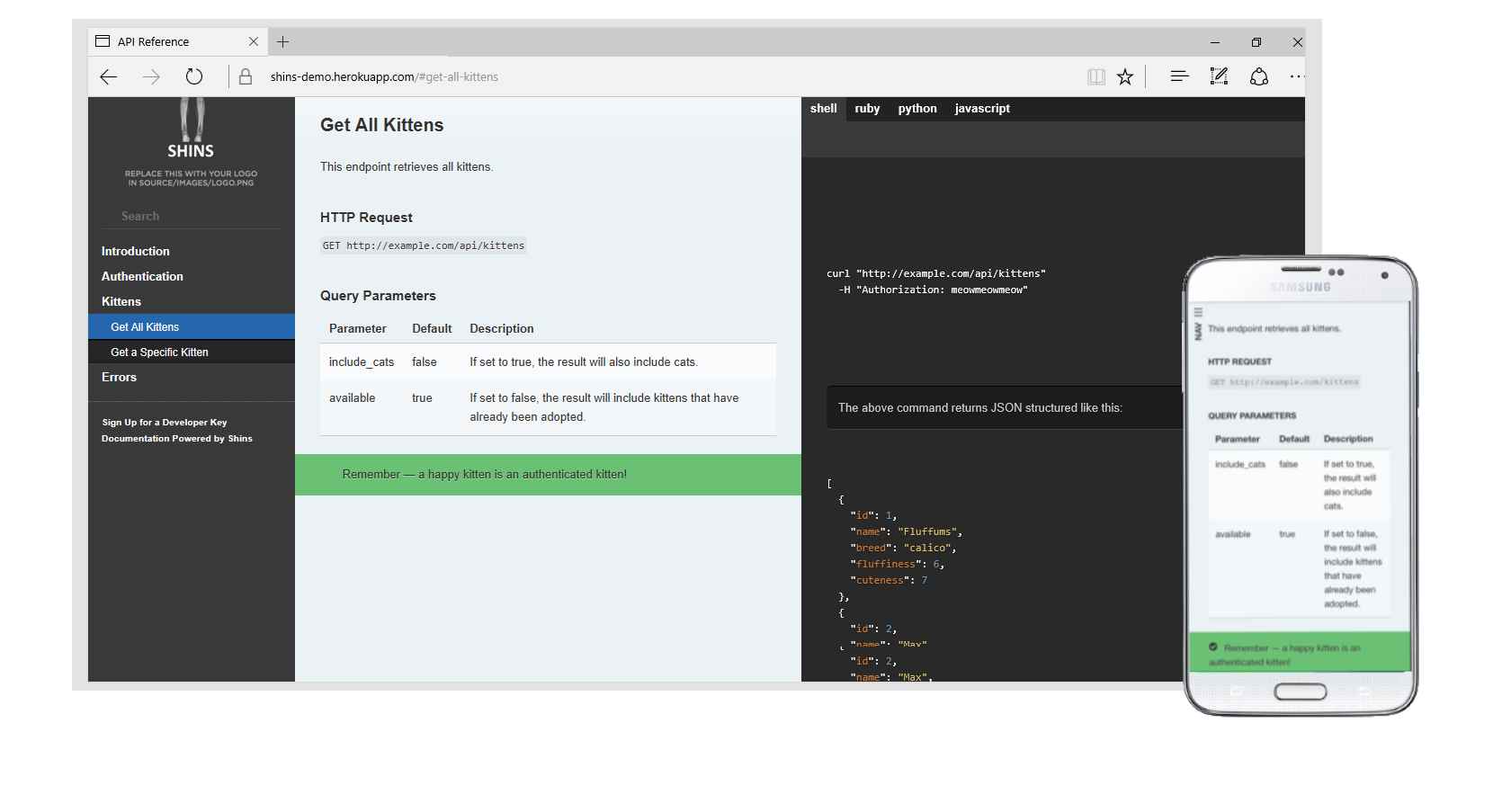
Beautiful static documentation for your API.
Shins is a port of Slate to Javascript / Nodejs, and would not be possible without all of that hard work.
Version numbers of Shins aim to track the version of Slate they are compatible with.
Usage
- Fork the repository
- Clone the fork
- Edit source/index.html.md
npm installnode shins.js(aliasnpm run build) ornode shins.js --minifyornode shins.js --customcssornode shins.js --inlineornode shins.js --unsafeornode shins.js --no-links
- To add custom logo add
--logooption with path to your logo image. - To use a different layout template (default
source/layouts/layout.ejsuse the--layoutoption. - To make the logo image link to a webpage, add
--logo-urloption with URL to link to. - To specify a different output filename from the default
./index.html, use the--outputor-ooption. - To allow css-style attributes in markdown, specify the
--attroption. - You can specify another location for the
sourceandpubdirectories using the--rootoption. - To check locally:
node arapahoornpm run serveand browse to localhost:4567 - changes to your source.html.mdfiles and thesource/includesdirectory will automatically be picked up and re-rendered. If you use--launchor-lornpm run startyour default browser will be opened automatically. You can also passshinsoptions on thearapahocommand-line. - Add, commit and push
- Then (in your fork) press this button

Or, to deploy to GitHub Pages:
- Change the setting on your fork so Github Pages are served from the root directory
- Browse to
https://{yourname}.github.io/{repository-name}
To deploy to your own web-server:
If you use the option --minify to shins, the only things you need to take to your web host is the generated index.html and the contents of the pub directory, which should be kept relative to it, so the structure is always:
{whatever}/index.html
{whatever}/pub/css/
{whatever}/pub/js/
If you use the --inline option to shins, then everything is bundled into the index.html file and no pub directory is required. Fonts are by default loaded from this github repository, but this can be overridden with the --fonturl option.
Docker
A Dockerfile is included. To build:
docker build . -t shins:latest
to run:
docker run -p 4567:4567 -v $(pwd)/source:/srv/shins/source shins:latest
Multiple Shins pages / portal
There is a simple example of using an index markdown file as an entry point to a collection of Shins pages here.
API
const shins = require('shins');
let options = {};
options.cli = false; // if true, missing files will trigger an exit(1)
options.minify = false;
options.customCss = false;
options.inline = false;
options.unsafe = false; // setting to true turns off markdown sanitisation
options['no-links'] = false; // if true, do not automatically convert links in text to anchor tags
//options.source = filename; // used to resolve relative paths for included files
shins.render(markdownString, options, function(err, html) {
  // ...
});
or, with Promises:
const shins = require('shins');
let options = {};
options.cli = false; // if true, missing files will trigger an exit(1)
options.minify = false;
options.customCss = false;
options.inline = false;
options.unsafe = false; // setting to true turns off markdown sanitisation
options['no-links'] = false; // if true, do not automatically convert links in text to anchor tags
//options.source = filename; // used to resolve relative paths for included files
options.logo = './my-custom-logo.png';
options['logo-url'] = 'https://www.example.com';
shins.render(markdownString, options)
.then(html => {
  // ...
});
The err parameter is the result of the ejs rendering step.
Setting customCss to true will include the pub/css/screen_overrides.css,pub/css/print_overrides.css and pub/css/theme_override.css files, in which you can override any of the default Slate theme, to save you from having to alter the main css files directly. This should make syncing up with future Shins / Slate releases easier.
Setting inline to true will inline all page resources (except resources referenced via CSS, such as fonts) to output html. This way HTML can be used stand-alone, without needing any other resources. It will also set minify to true.
Set logo path to add your custom logo as absolute path or path relative to process working directory. If inline option is on image will be inlined, else it will be copied to source/images directory and included via src image attribute.
Set logo-url if you want the logo image to link to a webpage.
Updating from Slate
- Note: changes to Slate CSS, Javascript etc may break assumptions made in Shins. Use at your own risk.
- The script
updateFromSlateassumes you have Ruby Slate checked-out by the side of shins (i.e. in a sibling directory) and will copy .scss files, fonts, Javascript files etc. - The
buildstyle.jsprogram can be used to process the .scss files to their .css equivalents. It takes one optional parameter, theoutputStyleused bynode-sass. This can be eithernested,expanded,compactorcompressed. Default isnested. It also respects the--rootoption.
Notes
- Windows is definitely supported
- Syntax highlighting in 189 languages and 91 themes (you can specify the highlighter theme to use by setting
highlight_themein your slate markdown header) - Multiple language tabs per language are supported
- Static TOC as per Slate v2.0
- GitHub emoji shortcuts are supported
- For converting OpenAPI / Swagger or AsyncAPI definitions to Shins or Slate, see widdershins
arapahohas a--preserveor-poption which will not overwrite your.htmloutput file, but still re-render when necessary- Shins ships with an alternate theme by TradeGecko which is also under the Apache 2.0 license,
pub/css/tradegecko.min.csscan be included with the--cssoption - Shins additionally supports AsciiDoc
include::filename[]syntax as well as!INCLUDE filenamefrom markdown-pp - this is not supported by Slate. See some more information about including files.
Shins in the wild
Please feel free to add a link to your API documentation here
Contributors



Similar repos


Languages
JavaScript
49.5%
HTML
41.1%
CSS
5.2%
SCSS
4.1%
Shins development continues at
See the codeREADME
shins
Shins Is Not Slate
Note: development on Shins has stopped. Please see ReSlate for the replacement.
Beautiful static documentation for your API.
Shins is a port of Slate to Javascript / Nodejs, and would not be possible without all of that hard work.
Version numbers of Shins aim to track the version of Slate they are compatible with.
Usage
- Fork the repository
- Clone the fork
- Edit source/index.html.md
npm installnode shins.js(aliasnpm run build) ornode shins.js --minifyornode shins.js --customcssornode shins.js --inlineornode shins.js --unsafeornode shins.js --no-links
- To add custom logo add
--logooption with path to your logo image. - To use a different layout template (default
source/layouts/layout.ejsuse the--layoutoption. - To make the logo image link to a webpage, add
--logo-urloption with URL to link to. - To specify a different output filename from the default
./index.html, use the--outputor-ooption. - To allow css-style attributes in markdown, specify the
--attroption. - You can specify another location for the
sourceandpubdirectories using the--rootoption. - To check locally:
node arapahoornpm run serveand browse to localhost:4567 - changes to your source.html.mdfiles and thesource/includesdirectory will automatically be picked up and re-rendered. If you use--launchor-lornpm run startyour default browser will be opened automatically. You can also passshinsoptions on thearapahocommand-line. - Add, commit and push
- Then (in your fork) press this button
Or, to deploy to GitHub Pages:
- Change the setting on your fork so Github Pages are served from the root directory
- Browse to
https://{yourname}.github.io/{repository-name}
To deploy to your own web-server:
If you use the option --minify to shins, the only things you need to take to your web host is the generated index.html and the contents of the pub directory, which should be kept relative to it, so the structure is always:
{whatever}/index.html
{whatever}/pub/css/
{whatever}/pub/js/
If you use the --inline option to shins, then everything is bundled into the index.html file and no pub directory is required. Fonts are by default loaded from this github repository, but this can be overridden with the --fonturl option.
Docker
A Dockerfile is included. To build:
docker build . -t shins:latest
to run:
docker run -p 4567:4567 -v $(pwd)/source:/srv/shins/source shins:latest
Multiple Shins pages / portal
There is a simple example of using an index markdown file as an entry point to a collection of Shins pages here.
API
const shins = require('shins');
let options = {};
options.cli = false; // if true, missing files will trigger an exit(1)
options.minify = false;
options.customCss = false;
options.inline = false;
options.unsafe = false; // setting to true turns off markdown sanitisation
options['no-links'] = false; // if true, do not automatically convert links in text to anchor tags
//options.source = filename; // used to resolve relative paths for included files
shins.render(markdownString, options, function(err, html) {
  // ...
});
or, with Promises:
const shins = require('shins');
let options = {};
options.cli = false; // if true, missing files will trigger an exit(1)
options.minify = false;
options.customCss = false;
options.inline = false;
options.unsafe = false; // setting to true turns off markdown sanitisation
options['no-links'] = false; // if true, do not automatically convert links in text to anchor tags
//options.source = filename; // used to resolve relative paths for included files
options.logo = './my-custom-logo.png';
options['logo-url'] = 'https://www.example.com';
shins.render(markdownString, options)
.then(html => {
  // ...
});
The err parameter is the result of the ejs rendering step.
Setting customCss to true will include the pub/css/screen_overrides.css,pub/css/print_overrides.css and pub/css/theme_override.css files, in which you can override any of the default Slate theme, to save you from having to alter the main css files directly. This should make syncing up with future Shins / Slate releases easier.
Setting inline to true will inline all page resources (except resources referenced via CSS, such as fonts) to output html. This way HTML can be used stand-alone, without needing any other resources. It will also set minify to true.
Set logo path to add your custom logo as absolute path or path relative to process working directory. If inline option is on image will be inlined, else it will be copied to source/images directory and included via src image attribute.
Set logo-url if you want the logo image to link to a webpage.
Updating from Slate
- Note: changes to Slate CSS, Javascript etc may break assumptions made in Shins. Use at your own risk.
- The script
updateFromSlateassumes you have Ruby Slate checked-out by the side of shins (i.e. in a sibling directory) and will copy .scss files, fonts, Javascript files etc. - The
buildstyle.jsprogram can be used to process the .scss files to their .css equivalents. It takes one optional parameter, theoutputStyleused bynode-sass. This can be eithernested,expanded,compactorcompressed. Default isnested. It also respects the--rootoption.
Notes
- Windows is definitely supported
- Syntax highlighting in 189 languages and 91 themes (you can specify the highlighter theme to use by setting
highlight_themein your slate markdown header) - Multiple language tabs per language are supported
- Static TOC as per Slate v2.0
- GitHub emoji shortcuts are supported
- For converting OpenAPI / Swagger or AsyncAPI definitions to Shins or Slate, see widdershins
arapahohas a--preserveor-poption which will not overwrite your.htmloutput file, but still re-render when necessary- Shins ships with an alternate theme by TradeGecko which is also under the Apache 2.0 license,
pub/css/tradegecko.min.csscan be included with the--cssoption - Shins additionally supports AsciiDoc
include::filename[]syntax as well as!INCLUDE filenamefrom markdown-pp - this is not supported by Slate. See some more information about including files.
Shins in the wild
Please feel free to add a link to your API documentation here
Similar repos
Contributors
Languages
JavaScript
49.5%
HTML
41.1%
CSS
5.2%
SCSS
4.1%