Compare ChatGPT, Claude, Gemini, Grok, DeepSeek, Kimi, Qwen and more side by side in one Chrome extension. One prompt, every answer. Free, no API keys.
JavaScript
38
159 commits
updated Oct 14, 2026
Stop switching tabs. Start comparing AI responses side by side.




Free · No API keys · Works with your existing AI logins
If Panelize saves you time, a ⭐ on GitHub helps other people find it.
Ever found yourself copying the same prompt across multiple AI tabs just to compare answers? Panelize eliminates that workflow entirely.
One window. One prompt. Multiple AI responses—instantly.
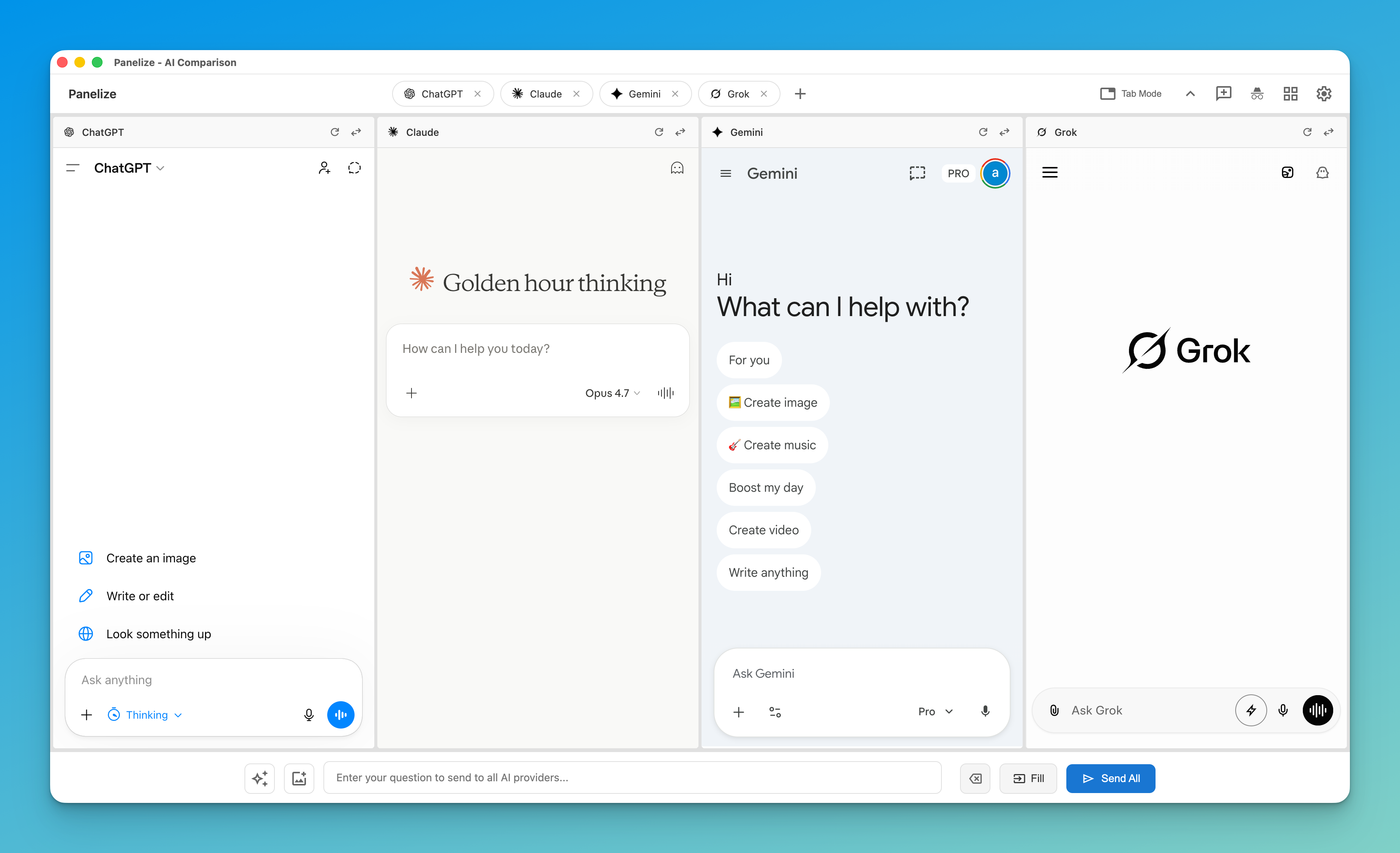
Type your question once and send it to ChatGPT, Claude, Gemini, Grok, Doubao, DeepSeek, Kimi, Qwen, Zhipu (China), Z.ai (Global), Yuanbao, and Google simultaneously. See which AI gives you the best answer—no tab switching required.
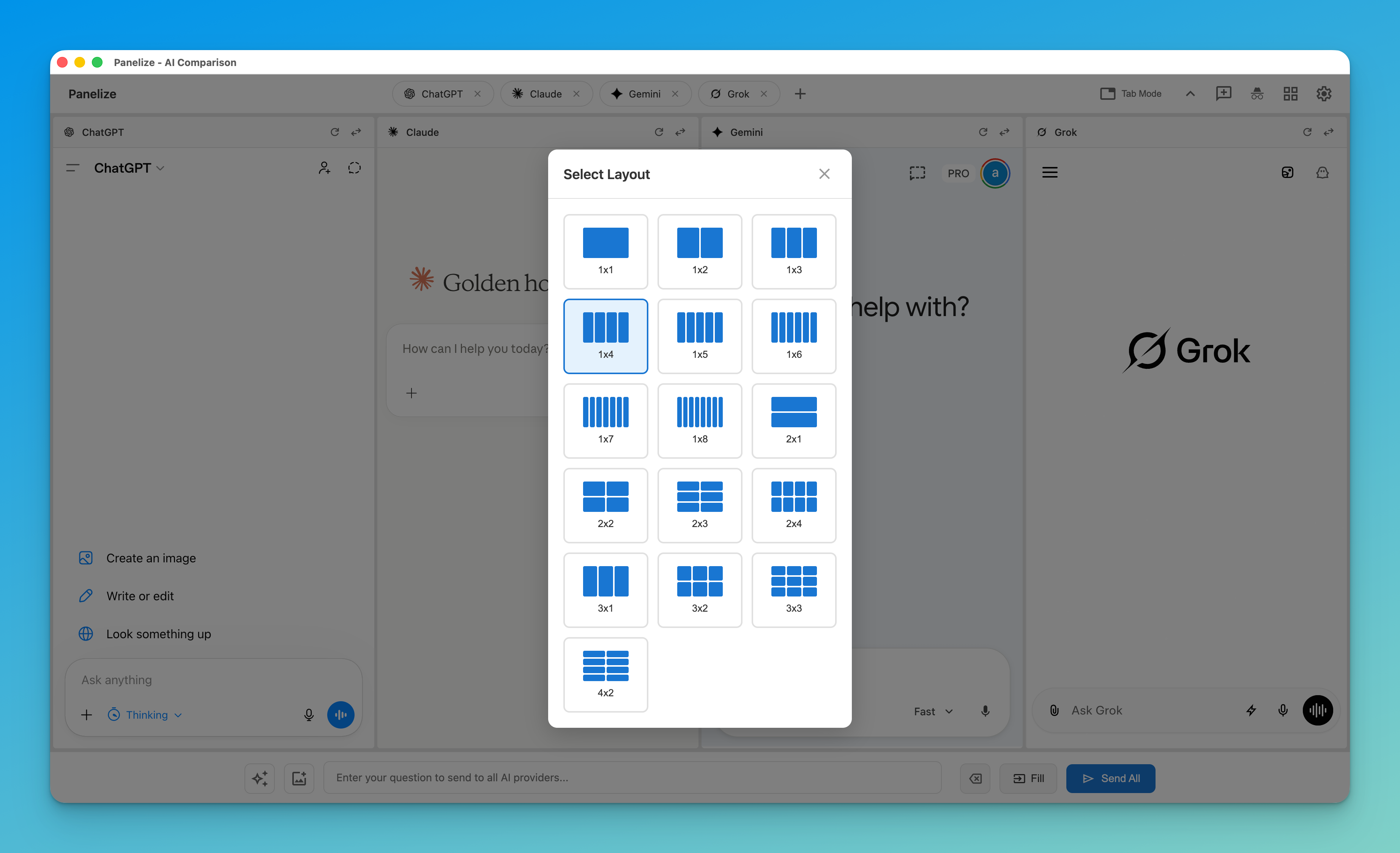
Choose from 22 different layouts to fit your workflow. Need a quick 2-way comparison? Use 1×2. Deep research across 12 models? Try 1×12 or 2×6. The choice is yours.
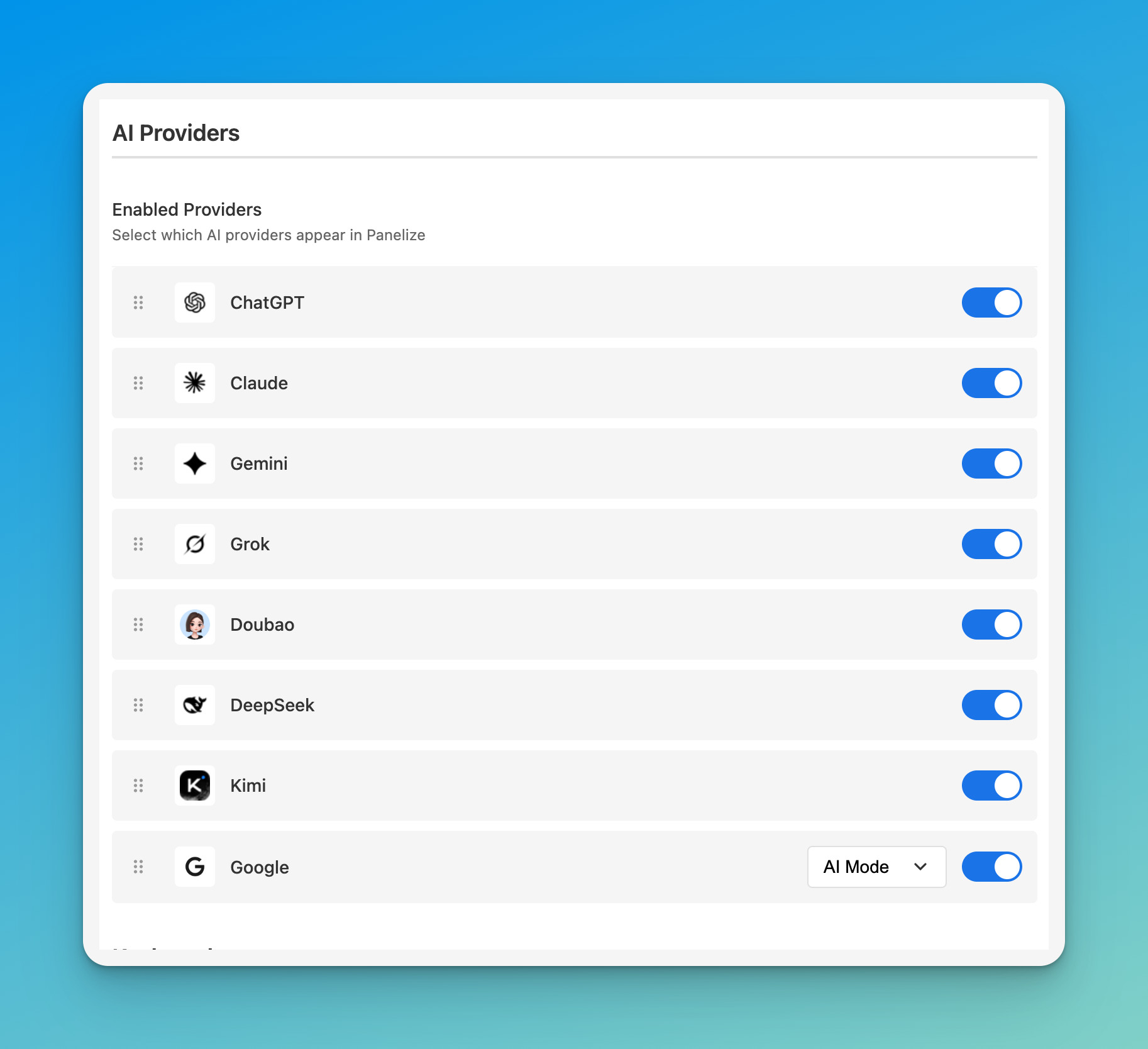
No API keys. Log into your AI accounts normally, and Panelize uses those sessions.
Save your best prompts and reuse them across all providers. Supports variables like {topic} for quick customization.
| ChatGPT | Claude | Gemini | Grok |
| Doubao | DeepSeek | Kimi | |
| Qwen (China) | Qwen (Global) | Zhipu (China) | Z.ai (Global) |
| Yuanbao |
Cmd/Ctrl + Shift + E to open PanelizeWorks on Edge too: Install directly from the Chrome Web Store.
chrome://extensions/ (or edge://extensions/)Cmd/Ctrl + Shift + E — Opens the Panelize windowThat's it. No accounts to create, no API keys to configure.
| Action | Shortcut |
|---|---|
| Open Panelize | Cmd/Ctrl + Shift + E |
| Open Prompt Library | Cmd/Ctrl + Shift + L |
Customize shortcuts at chrome://extensions/shortcuts
AI provider shows login page? → Log into that provider in a regular browser tab first, then refresh Panelize.
Shortcuts not working?
→ Check for conflicts at chrome://extensions/shortcuts
Need more help? → Open an issue
npm install
npx playwright install chromium   # browser used by the e2e and live suites
With Playwright 1.58, npx playwright install can hang while it extracts the download under Node 26. The install then stays incomplete. If that happens, stop it and run the install once with Node 24 (for example nvm exec 24 npx playwright install chromium). The e2e suite then uses the installed browser under any Node version.
| Command | What it runs |
|---|---|
npm test | Unit and integration tests (Vitest + happy-dom) |
npm run test:e2e | Extension e2e tests: the real extension against local fixture sites, headless and in parallel |
npm run test:e2e:headed | Same, with visible windows for debugging (or set PANELIZE_E2E_HEADED=1) |
npm run test:live:login | Opens the live-test profile in a normal browser window so you can log in to providers |
npm run test:live | Smoke checks against the real provider sites (manual, not part of CI) |
The live suite catches provider site changes that fixtures cannot. For each provider it opens the real multi-panel page, types into the unified input, and presses Fill. It then checks that the text reached the provider's composer and that the send and new-chat selectors still match. Without PANELIZE_LIVE_SEND it then clears the composer and reloads the panel to confirm that no test text stays behind as a saved draft. A provider whose composer already holds a draft of yours is skipped, so the test never touches your text.
npm run test:live:login and log in to each provider. If a panel still looks logged out, log in inside that panel on the multi-panel tab, because panel iframes use partitioned storage. Quit the browser when you are done (Cmd+Q on macOS); with more than 12 providers the next batch then opens. The logins are kept in the profile, so this is a one-time step.npm run test:live, ideally before every release. By default it opens a visible window, because several sites block headless browsers.test-results/live/.| Variable | Default | Meaning |
|---|---|---|
PANELIZE_LIVE_PROFILE | ~/.panelize-live-profile | Profile directory that keeps the logins |
PANELIZE_LIVE_PROVIDERS | all providers | Comma-separated ids, e.g. chatgpt,doubao |
PANELIZE_LIVE_SEND | off | 1 actually sends the prompt, which uses provider quota |
PANELIZE_LIVE_HEADLESS | off | 1 runs headless; expect Cloudflare challenges on some sites |
Found a bug? Have an idea? Contributions are welcome:
MIT License — see LICENSE for details.
Open source & privacy-focused
Available in 10 languages
Made for everyone who's tired of tab-switching between AI assistants.
161 followers · starred May 2026
Compare ChatGPT, Claude, Gemini, Grok, DeepSeek, Kimi, Qwen and more side by side in one Chrome extension. One prompt, every answer. Free, no API keys.
JavaScript
38
159 commits
updated Oct 14, 2026
Stop switching tabs. Start comparing AI responses side by side.
Free · No API keys · Works with your existing AI logins
If Panelize saves you time, a ⭐ on GitHub helps other people find it.
Ever found yourself copying the same prompt across multiple AI tabs just to compare answers? Panelize eliminates that workflow entirely.
One window. One prompt. Multiple AI responses—instantly.
Type your question once and send it to ChatGPT, Claude, Gemini, Grok, Doubao, DeepSeek, Kimi, Qwen, Zhipu (China), Z.ai (Global), Yuanbao, and Google simultaneously. See which AI gives you the best answer—no tab switching required.
Choose from 22 different layouts to fit your workflow. Need a quick 2-way comparison? Use 1×2. Deep research across 12 models? Try 1×12 or 2×6. The choice is yours.
No API keys. Log into your AI accounts normally, and Panelize uses those sessions.
Save your best prompts and reuse them across all providers. Supports variables like {topic} for quick customization.
| ChatGPT | Claude | Gemini | Grok |
| Doubao | DeepSeek | Kimi | |
| Qwen (China) | Qwen (Global) | Zhipu (China) | Z.ai (Global) |
| Yuanbao |
Cmd/Ctrl + Shift + E to open PanelizeWorks on Edge too: Install directly from the Chrome Web Store.
chrome://extensions/ (or edge://extensions/)Cmd/Ctrl + Shift + E — Opens the Panelize windowThat's it. No accounts to create, no API keys to configure.
| Action | Shortcut |
|---|---|
| Open Panelize | Cmd/Ctrl + Shift + E |
| Open Prompt Library | Cmd/Ctrl + Shift + L |
Customize shortcuts at chrome://extensions/shortcuts
AI provider shows login page? → Log into that provider in a regular browser tab first, then refresh Panelize.
Shortcuts not working?
→ Check for conflicts at chrome://extensions/shortcuts
Need more help? → Open an issue
npm install
npx playwright install chromium   # browser used by the e2e and live suites
With Playwright 1.58, npx playwright install can hang while it extracts the download under Node 26. The install then stays incomplete. If that happens, stop it and run the install once with Node 24 (for example nvm exec 24 npx playwright install chromium). The e2e suite then uses the installed browser under any Node version.
| Command | What it runs |
|---|---|
npm test | Unit and integration tests (Vitest + happy-dom) |
npm run test:e2e | Extension e2e tests: the real extension against local fixture sites, headless and in parallel |
npm run test:e2e:headed | Same, with visible windows for debugging (or set PANELIZE_E2E_HEADED=1) |
npm run test:live:login | Opens the live-test profile in a normal browser window so you can log in to providers |
npm run test:live | Smoke checks against the real provider sites (manual, not part of CI) |
The live suite catches provider site changes that fixtures cannot. For each provider it opens the real multi-panel page, types into the unified input, and presses Fill. It then checks that the text reached the provider's composer and that the send and new-chat selectors still match. Without PANELIZE_LIVE_SEND it then clears the composer and reloads the panel to confirm that no test text stays behind as a saved draft. A provider whose composer already holds a draft of yours is skipped, so the test never touches your text.
npm run test:live:login and log in to each provider. If a panel still looks logged out, log in inside that panel on the multi-panel tab, because panel iframes use partitioned storage. Quit the browser when you are done (Cmd+Q on macOS); with more than 12 providers the next batch then opens. The logins are kept in the profile, so this is a one-time step.npm run test:live, ideally before every release. By default it opens a visible window, because several sites block headless browsers.test-results/live/.| Variable | Default | Meaning |
|---|---|---|
PANELIZE_LIVE_PROFILE | ~/.panelize-live-profile | Profile directory that keeps the logins |
PANELIZE_LIVE_PROVIDERS | all providers | Comma-separated ids, e.g. chatgpt,doubao |
PANELIZE_LIVE_SEND | off | 1 actually sends the prompt, which uses provider quota |
PANELIZE_LIVE_HEADLESS | off | 1 runs headless; expect Cloudflare challenges on some sites |
Found a bug? Have an idea? Contributions are welcome:
MIT License — see LICENSE for details.
Open source & privacy-focused
Available in 10 languages
Made for everyone who's tired of tab-switching between AI assistants.
161 followers · starred May 2026