Hướng dẫn này mô tả cách thiết lập và chạy OHIF Viewer tích hợp với MONAI Label để thực hiện AI segmentation trên hình ảnh y tế.
cd OHIF-AI
Sử dụng script có sẵn:
bash start.sh
Hoặc chạy trực tiếp lệnh docker compose:
docker compose -f ./docker-compose.yml up --build
Sau khi khởi động, các services sẽ chạy tại:
| Service | URL | Mô tả |
|---|---|---|
| OHIF Viewer | http://localhost:1026 | Giao diện web OHIF |
| Orthanc DICOM Server | http://localhost:8042 | DICOM Web Server |
| MONAI SAM2 | http://localhost:8002 | MONAI Label API (nếu dùng SAM2) |
Docker Compose bao gồm 3 services chính:
Lưu ý: Nếu bạn sử dụng service
monai_sam2trong Docker Compose, server đã được khởi động tự động. Phần này dành cho trường hợp bạn muốn chạy MONAI Label riêng biệt.
monailabel start_server \
    --app apps/radiology \
    --studies http://localhost:8042/dicom-web \
    --conf models <model_name>
| Model Name | Mô tả |
|---|---|
all | Load tất cả các model |
segmentation_spleen | Phân đoạn lá lách |
segmentation | Segmentation tổng quát |
segmentation_vertebra | Phân đoạn đốt sống |
deepedit | DeepEdit model |
deepgrow_2d | DeepGrow 2D |
deepgrow_3d | DeepGrow 3D |
localization_spine | Định vị cột sống |
localization_vertebra | Định vị đốt sống |
sw_fastedit | Sliding Window FastEdit |
Một model:
monailabel start_server --app apps/radiology --studies http://localhost:8042/dicom-web --port 8000 --conf models segmentation_spleen
Nhiều model:
monailabel start_server --app apps/radiology --studies http://localhost:8042/dicom-web --port 8000 --conf models segmentation_spleen,deepgrow_2d
Tất cả model:
monailabel start_server --app apps/radiology --studies http://localhost:8042/dicom-web --port 8000 --conf models all
Mở trình duyệt và truy cập: http://localhost:8000/ohif/
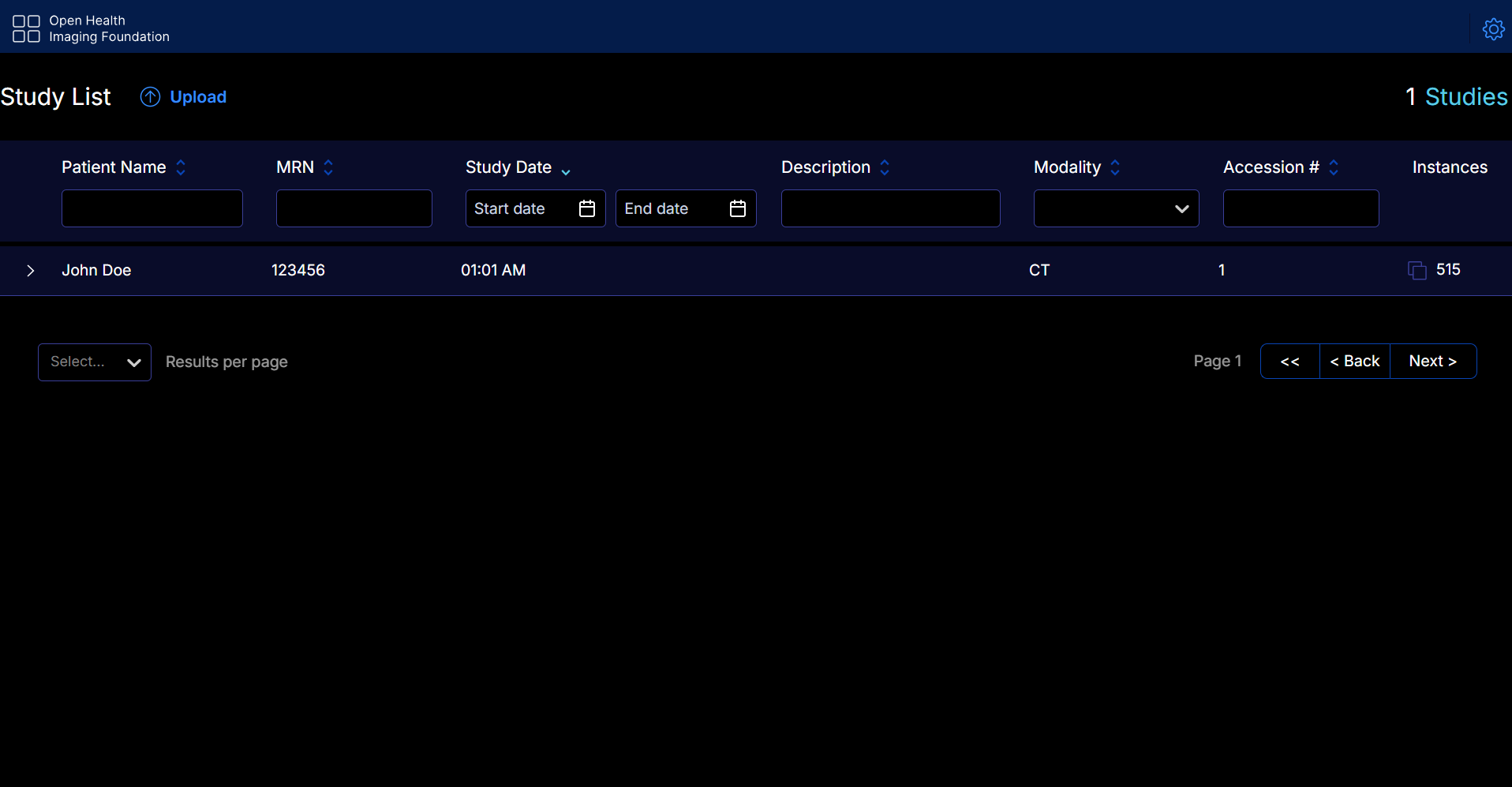
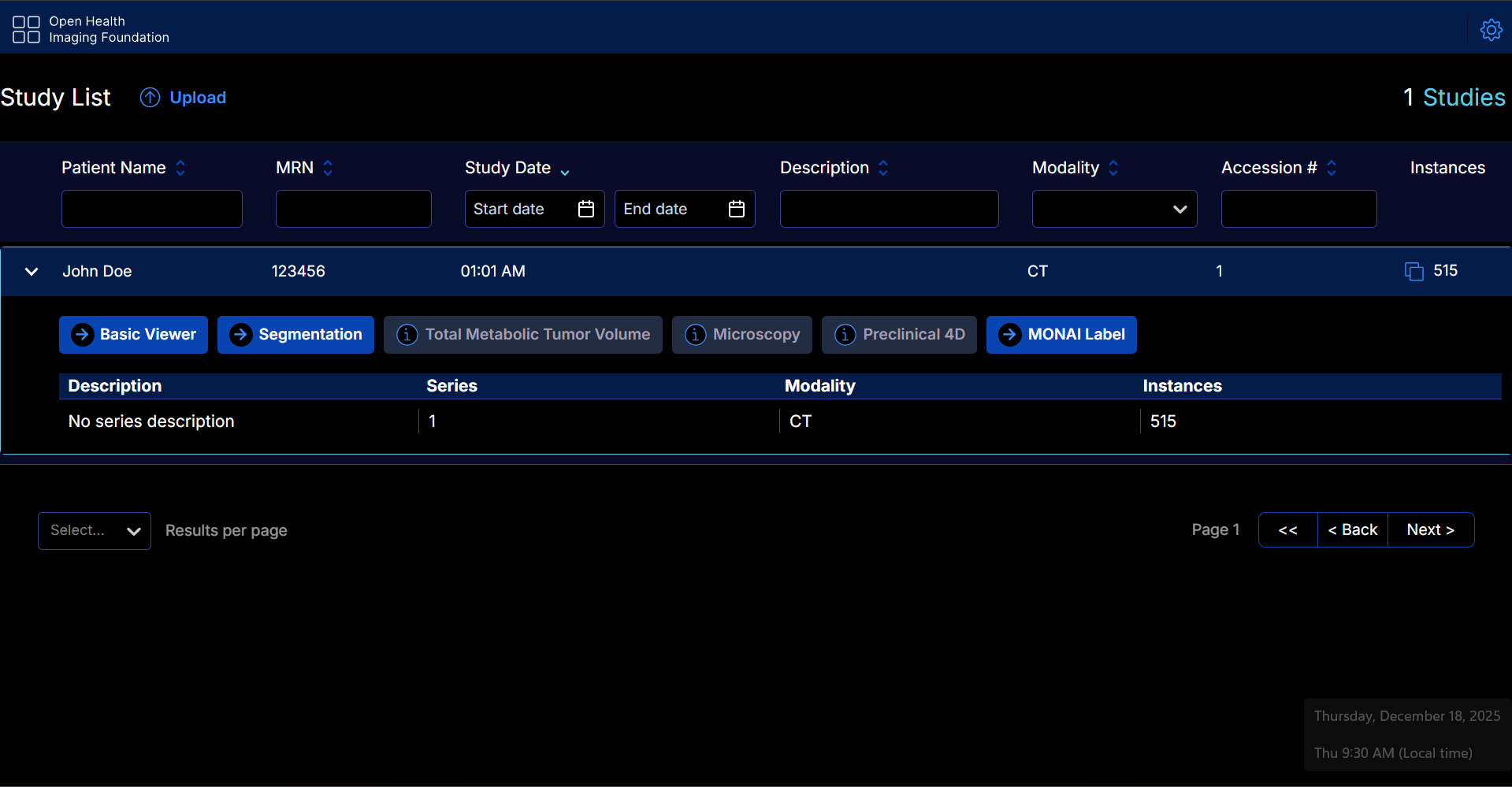
Sau khi mở OHIF, bạn sẽ thấy danh sách các study đã upload:
Lưu ý: Pre-trained models sẽ được download tự động khi khởi động MONAI Label server và lưu tại thư mục
apps/radiology/model/(ví dụ:pretrained_segmentation_spleen.pt)
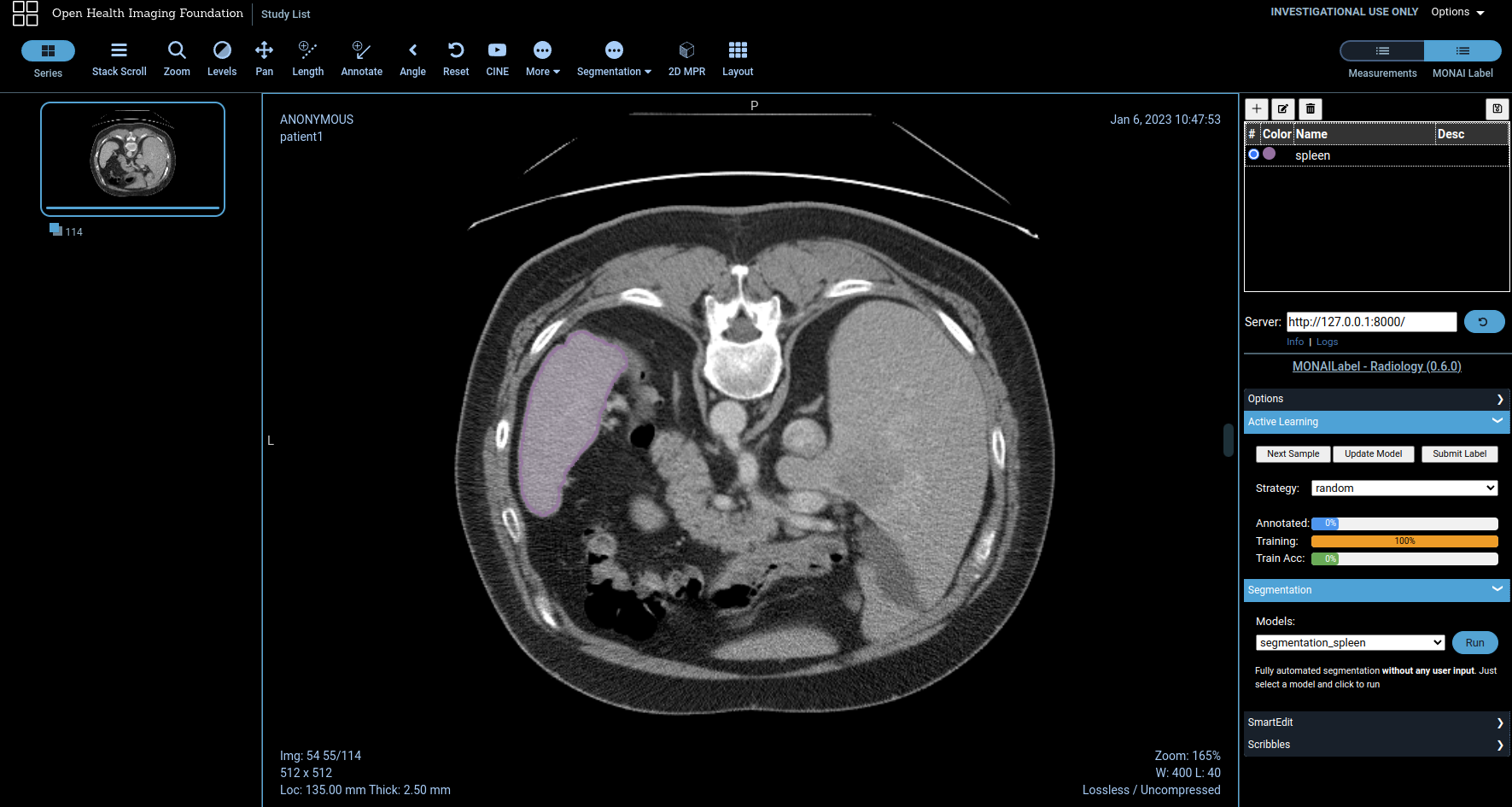
Kết quả auto segmentation sẽ hiển thị như sau:
Lưu ý: Annotations sẽ được lưu tại thư mục
labels/finaltrong dataset
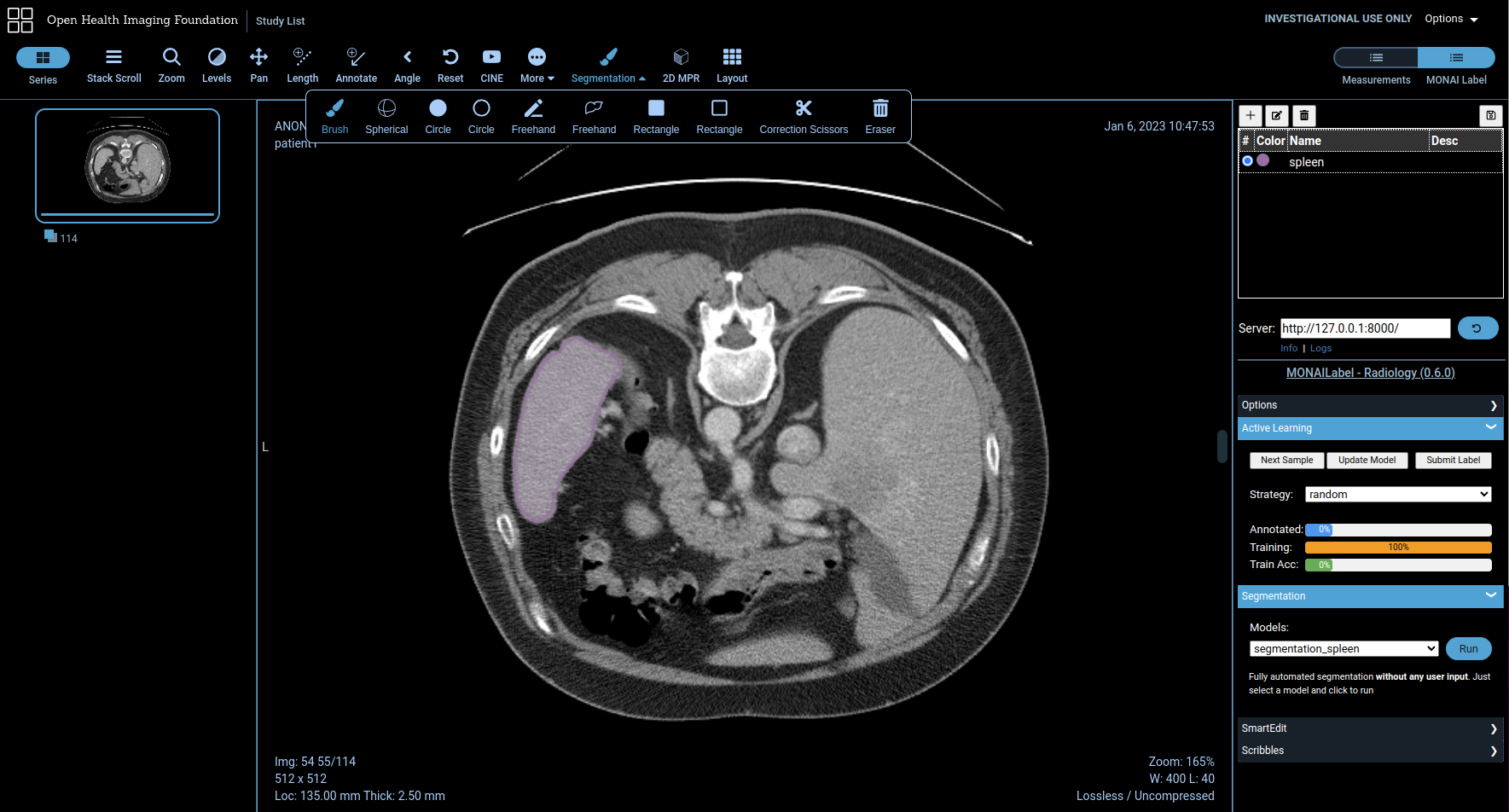
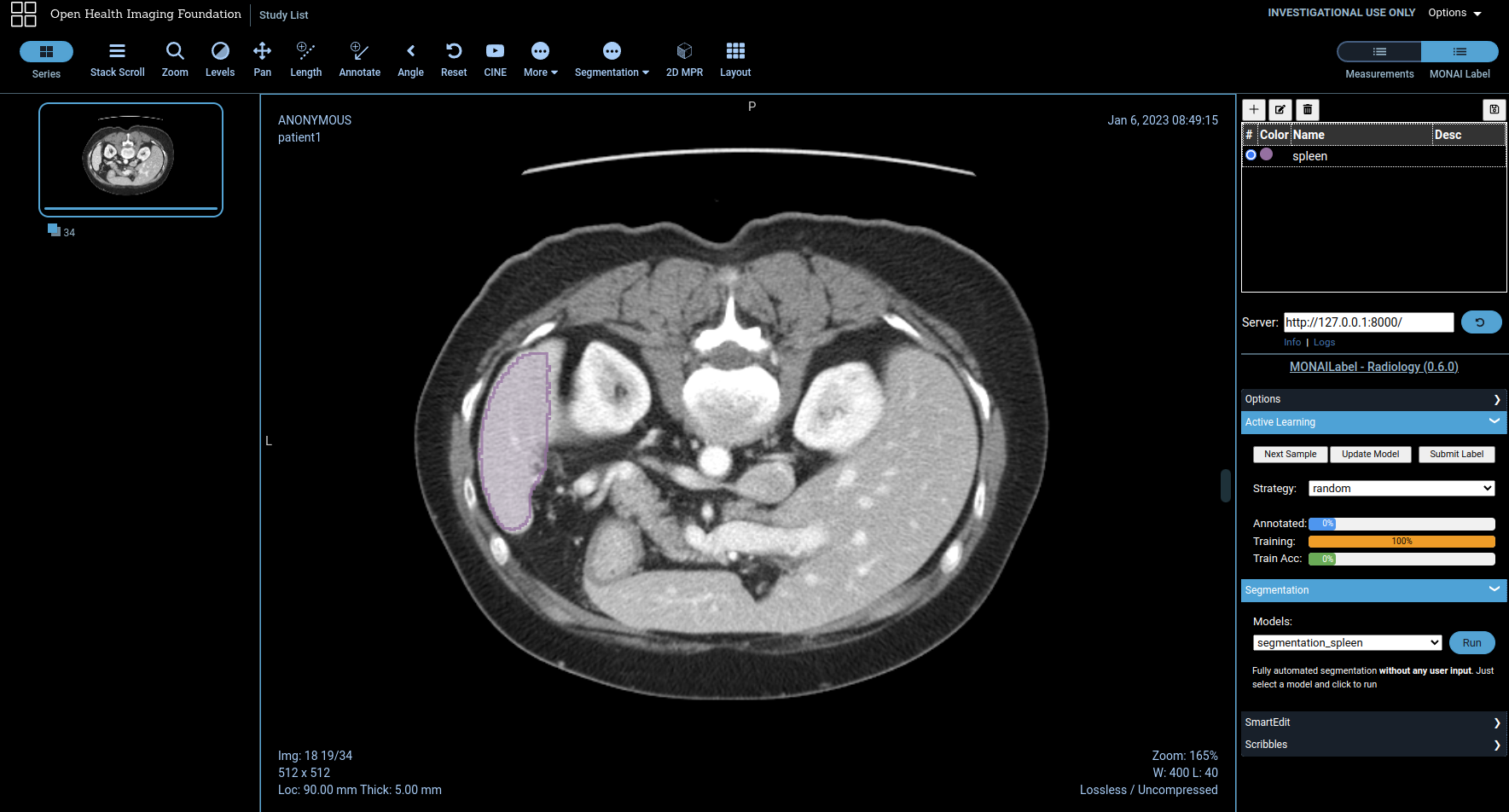
MONAI Label hỗ trợ active learning và fine-tuning models trong quá trình sử dụng.
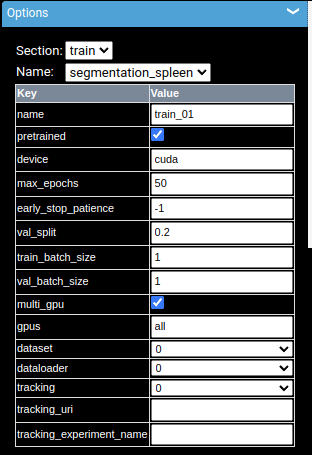
Bạn có thể điều chỉnh các tham số training trong panel options:
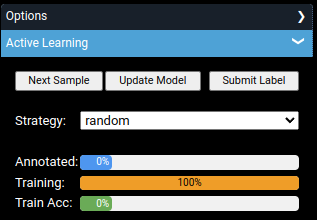
MONAI Label hỗ trợ các chiến lược active learning:
| Strategy | Mô tả |
|---|---|
random | Chọn ngẫu nhiên |
first | Chọn sample đầu tiên |
last | Chọn sample cuối cùng |
Sau khi train, các images đã được labeled sẽ được đánh dấu và không được chọn lại trong các batch tiếp theo.
Hướng dẫn này mô tả cách thiết lập và chạy OHIF Viewer tích hợp với MONAI Label để thực hiện AI segmentation trên hình ảnh y tế.
cd OHIF-AI
Sử dụng script có sẵn:
bash start.sh
Hoặc chạy trực tiếp lệnh docker compose:
docker compose -f ./docker-compose.yml up --build
Sau khi khởi động, các services sẽ chạy tại:
| Service | URL | Mô tả |
|---|---|---|
| OHIF Viewer | http://localhost:1026 | Giao diện web OHIF |
| Orthanc DICOM Server | http://localhost:8042 | DICOM Web Server |
| MONAI SAM2 | http://localhost:8002 | MONAI Label API (nếu dùng SAM2) |
Docker Compose bao gồm 3 services chính:
Lưu ý: Nếu bạn sử dụng service
monai_sam2trong Docker Compose, server đã được khởi động tự động. Phần này dành cho trường hợp bạn muốn chạy MONAI Label riêng biệt.
monailabel start_server \
    --app apps/radiology \
    --studies http://localhost:8042/dicom-web \
    --conf models <model_name>
| Model Name | Mô tả |
|---|---|
all | Load tất cả các model |
segmentation_spleen | Phân đoạn lá lách |
segmentation | Segmentation tổng quát |
segmentation_vertebra | Phân đoạn đốt sống |
deepedit | DeepEdit model |
deepgrow_2d | DeepGrow 2D |
deepgrow_3d | DeepGrow 3D |
localization_spine | Định vị cột sống |
localization_vertebra | Định vị đốt sống |
sw_fastedit | Sliding Window FastEdit |
Một model:
monailabel start_server --app apps/radiology --studies http://localhost:8042/dicom-web --port 8000 --conf models segmentation_spleen
Nhiều model:
monailabel start_server --app apps/radiology --studies http://localhost:8042/dicom-web --port 8000 --conf models segmentation_spleen,deepgrow_2d
Tất cả model:
monailabel start_server --app apps/radiology --studies http://localhost:8042/dicom-web --port 8000 --conf models all
Mở trình duyệt và truy cập: http://localhost:8000/ohif/
Sau khi mở OHIF, bạn sẽ thấy danh sách các study đã upload:
Lưu ý: Pre-trained models sẽ được download tự động khi khởi động MONAI Label server và lưu tại thư mục
apps/radiology/model/(ví dụ:pretrained_segmentation_spleen.pt)
Kết quả auto segmentation sẽ hiển thị như sau:
Lưu ý: Annotations sẽ được lưu tại thư mục
labels/finaltrong dataset
MONAI Label hỗ trợ active learning và fine-tuning models trong quá trình sử dụng.
Bạn có thể điều chỉnh các tham số training trong panel options:
MONAI Label hỗ trợ các chiến lược active learning:
| Strategy | Mô tả |
|---|---|
random | Chọn ngẫu nhiên |
first | Chọn sample đầu tiên |
last | Chọn sample cuối cùng |
Sau khi train, các images đã được labeled sẽ được đánh dấu và không được chọn lại trong các batch tiếp theo.



