Gives Claude Code your VS Code window: its tools over MCP, the browser pages you share, and your Markdown Editor selection. A VS Code extension plus a Claude Code plugin.
TypeScript
0
69 commits
updated Oct 15, 2026

 VS Code Bridge for Claude Code
A VS Code extension and a Claude Code plugin. Claude Code sees what you see in VS Code.
You need VS Code 1.140 or later, Node 22.18 or later and Claude Code. Install the extension and the plugin, then start claude in a folder of the VS Code window.
Claude gets these tools as the vscode-tools MCP server. Ask for the result, such as "check
this file for type errors", and Claude picks the tool.
| Tool | What it does |
|---|---|
get_diagnostics | Type errors and lint findings from the Problems panel, for the workspace or for given files. |
rename_symbol | Renames a symbol across the workspace, with its imports and references, and saves the files. |
execute_command | Runs any VS Code command, such as go to definition, find references, a formatter or a git command. |
list_commands | Lists the commands execute_command may run. |
open_files | Opens files in the editor, at a given line. |
list_workspaces | The window's workspace folders. |
semantic_search, vscode_api_reference | Copilot's codebase search and VS Code API reference. Needs GitHub Copilot, signed in. |
terminal_selection, terminal_last_command | The text selected in the terminal, and the terminal's last command. Needs VS Code chat. |
open_browser_page, read_page, screenshot_page, click_element and other browser tools | Open, read and screenshot pages in VS Code's integrated browser, click, hover, drag and type there, and run Playwright code. Needs workbench.browser.enableChatTools on. |
Claude also knows the steps for sharp page screenshots, page videos and VS Code commands, such as a diff or a comment box on a pull request line. Ask for the result.
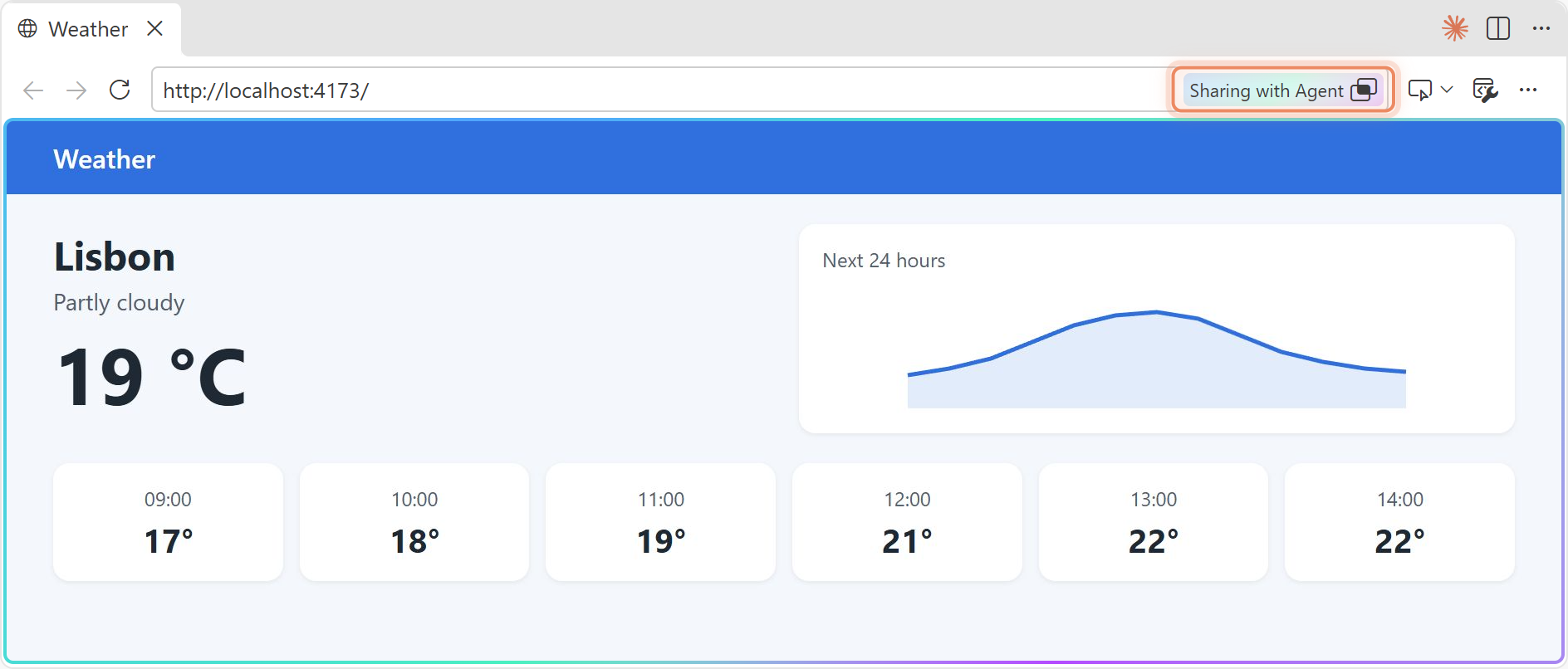
To show Claude a page you have open in the integrated browser, press Share with Agent in the page toolbar. Claude knows which pages you share, so "this page" needs no explanation.
Claude can look at an image file (PNG, JPEG, GIF or WebP) you have in front in an editor group, and knows which one, so "this screenshot" needs no path. Text you select in the Markdown Editor shows in Claude Code's selection chip, and Claude gets it with your prompt, as it does for a text editor.
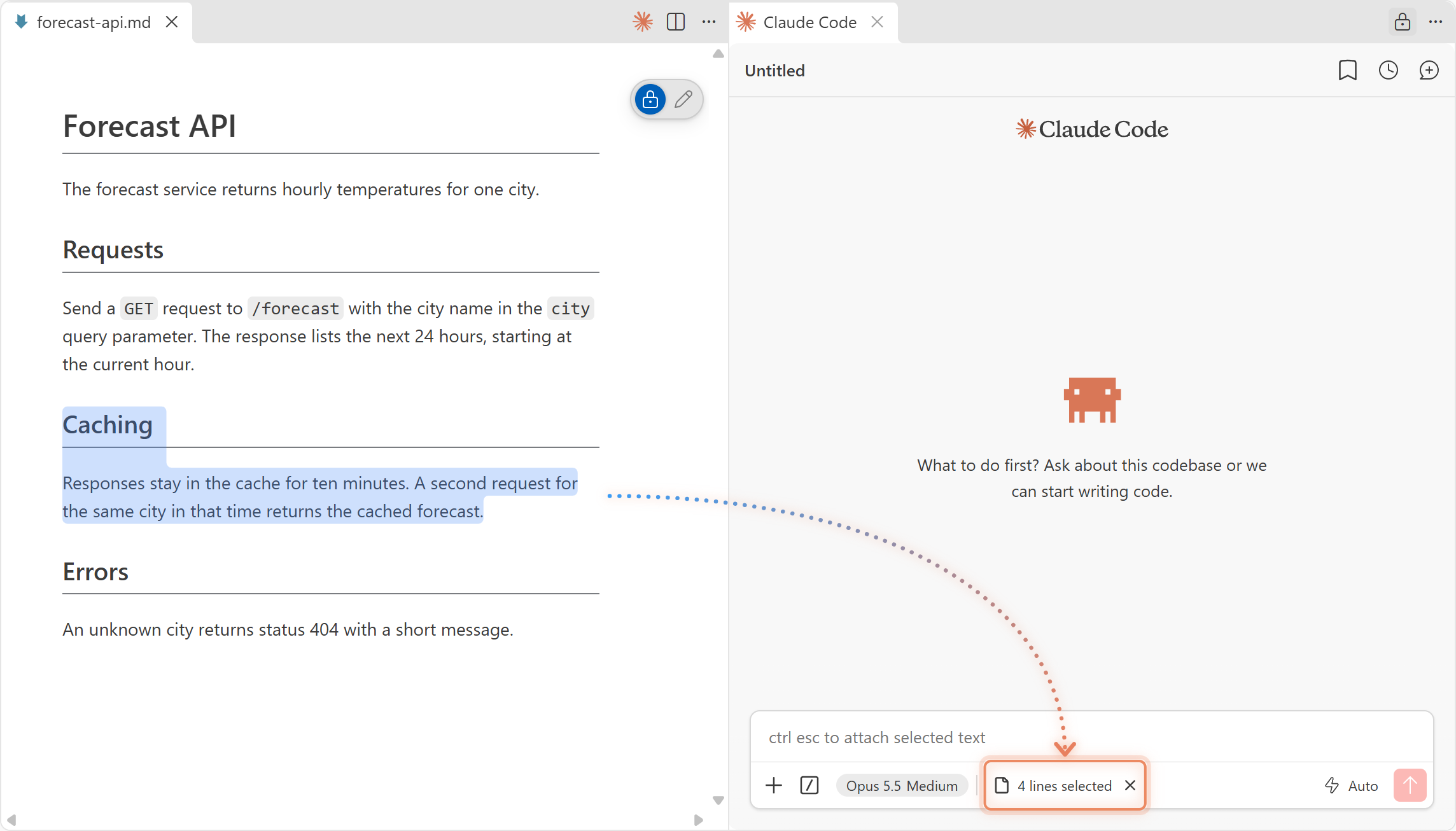
If you don't see your selection, reopen the file.
A file link in Claude Code's chat opens in the editor VS Code uses for that file type. That is
the Markdown Editor for .md when you set it in workbench.editorAssociations, or a PDF viewer
from an extension. Without the bridge, Claude Code opens every link in the text editor
(anthropics/claude-code#81482).
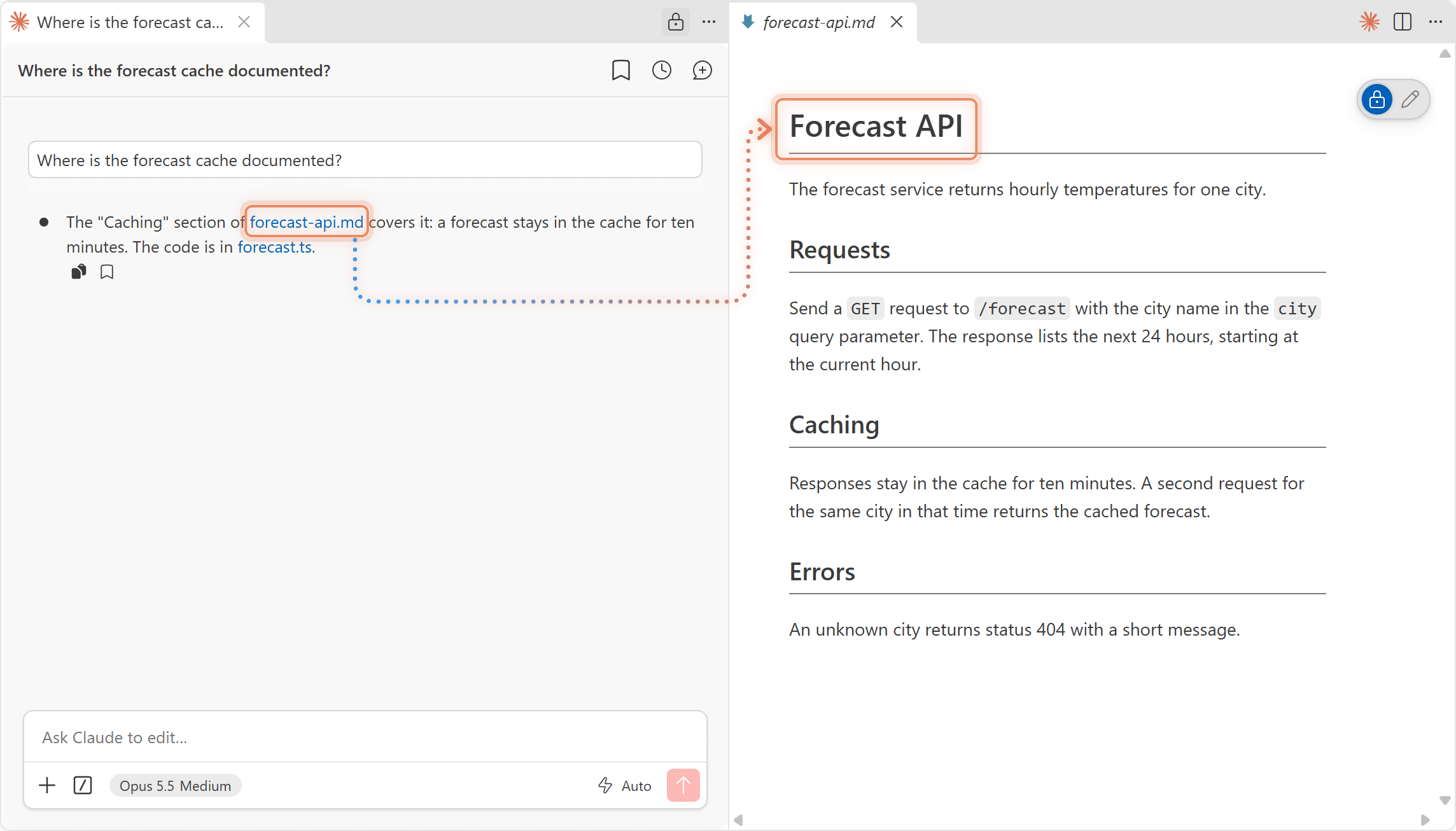
A link to a line or a heading opens the file at the top.
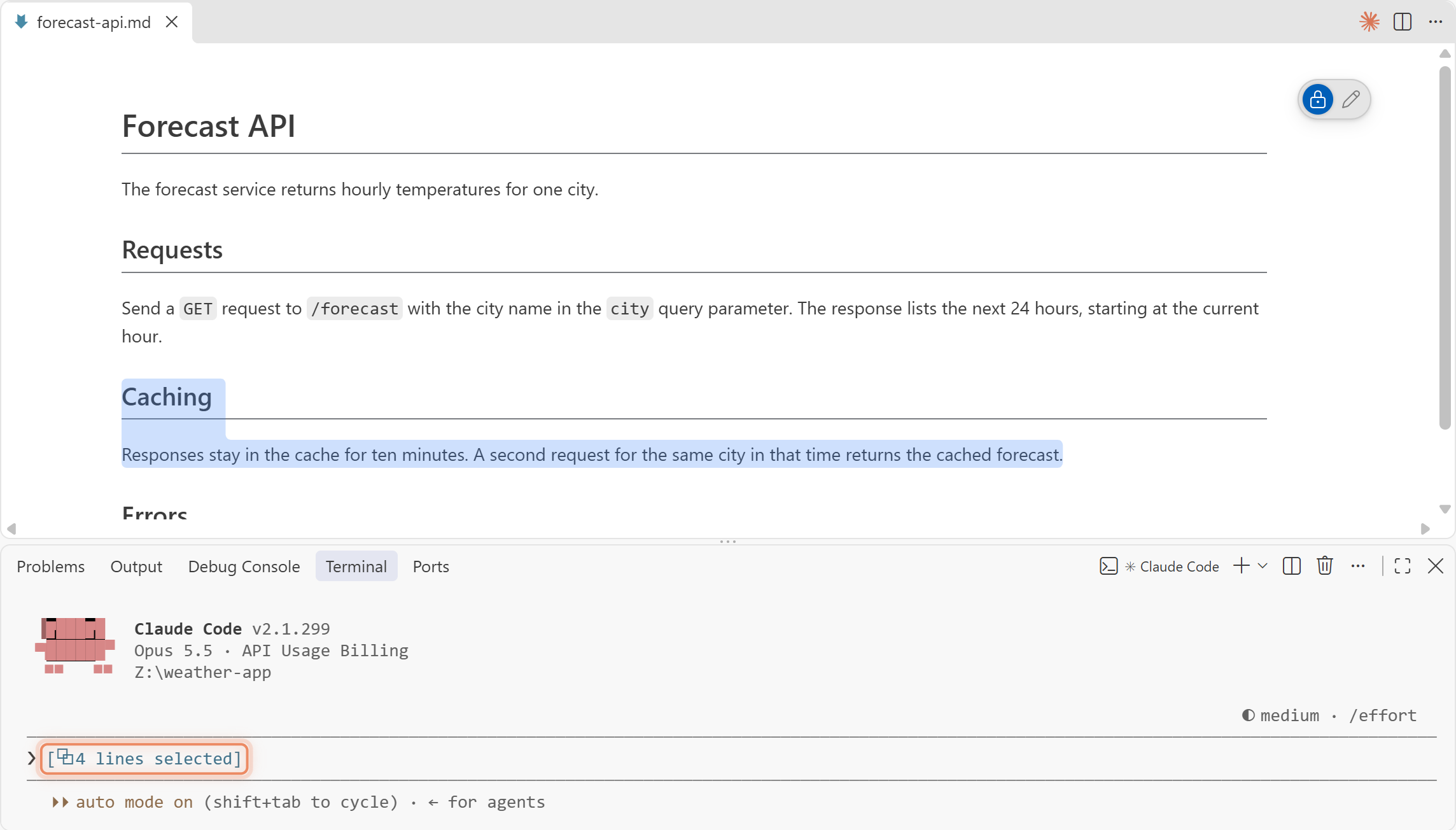
You can also run claude in a terminal and connect it to VS Code with /ide. Claude then has
the tools and sees the images you have in front. The CLI shows your Markdown Editor selection, as it
does for a text editor. Chat links do not apply, since they belong to the extension's chat
panel. /ide needs Claude Code's VS Code extension installed.
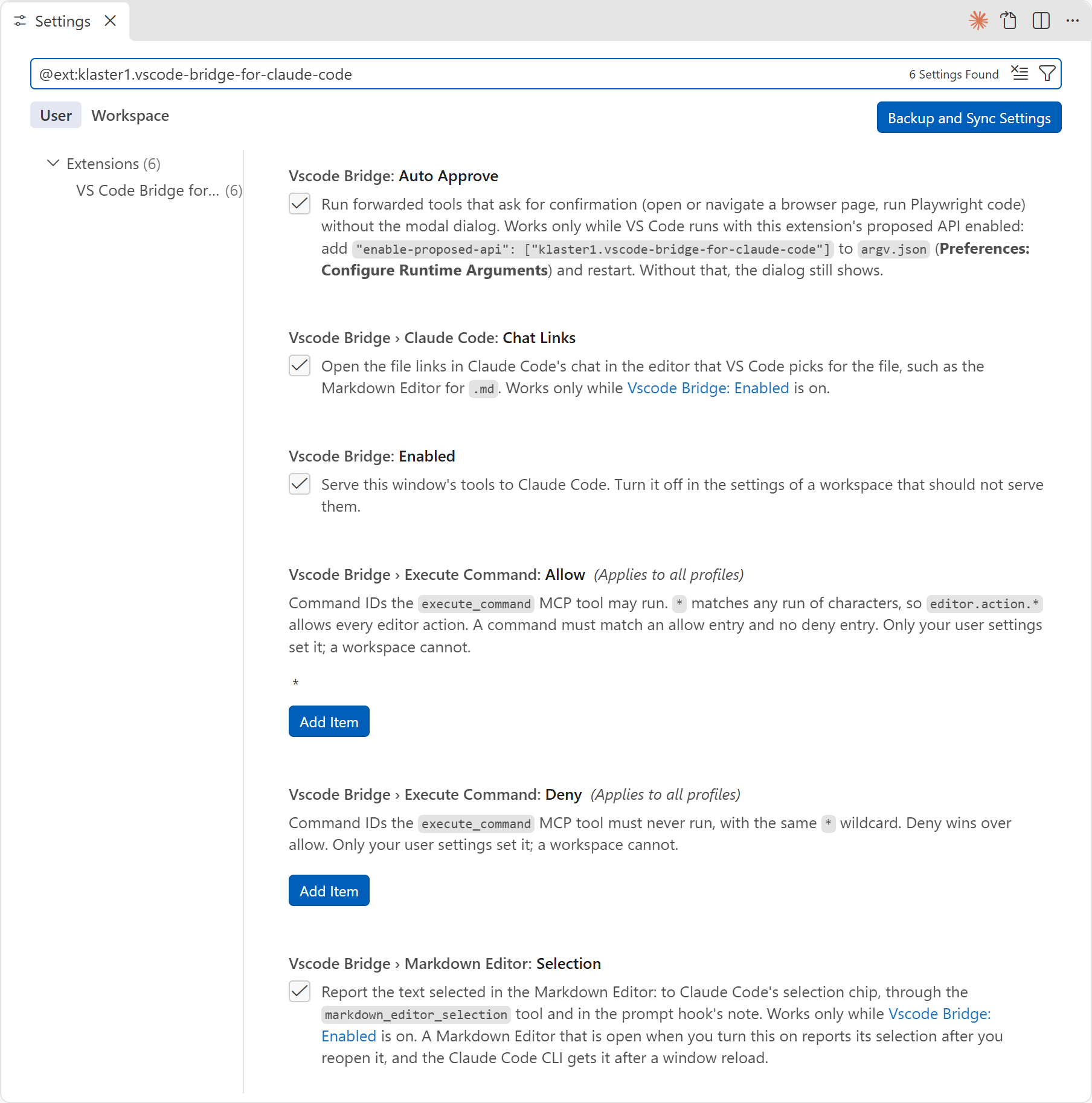
| Setting | Default | Effect |
|---|---|---|
vscodeBridge.enabled | true | Serves the window's tools. Set it to false in a workspace's settings to turn the bridge off there. |
vscodeBridge.executeCommand.allow | ["*"] | Command IDs execute_command may run. * matches any run of characters. Only your user settings set it, not a workspace's. |
vscodeBridge.executeCommand.deny | [] | Command IDs it must never run. Deny wins over allow. Only your user settings set it, not a workspace's. |
vscodeBridge.autoApprove | true | Skips the browser confirmation dialog. |
vscodeBridge.markdownEditor.selection | true | Sends the Markdown Editor's selection to Claude. After you turn it on, reopen an open Markdown Editor, and reload the window for the CLI. |
vscodeBridge.claudeCode.chatLinks | true | Opens chat links in the editor you chose. A change takes effect without a reload. |
To keep Claude from closing the window, for example:
"vscodeBridge.executeCommand.deny": ["workbench.action.quit", "workbench.action.closeWindow"]
The bridge has two parts: a VS Code extension, and a Claude Code plugin that connects Claude Code to it. You need VS Code 1.140 or later, Node 22.18 or later, and Claude Code. The bridge is not on the Marketplace.
Download the .vsix file from the repo's Releases page.
Install it: run code --install-extension <file>, or use Install from VSIX... in the
Extensions view.
Reload each open VS Code window with Developer: Reload Window.
Install the Claude Code plugin:
claude plugin install vscode-bridge --marketplace Klaster1/vscode-bridge-for-claude-code
In a Claude Code session, run /plugin marketplace add Klaster1/vscode-bridge-for-claude-code,
then /plugin install vscode-bridge@vscode-bridge.
Run Preferences: Configure Runtime Arguments, add this line to argv.json and restart
VS Code. It lets Claude use the browser without a confirmation dialog.
"enable-proposed-api": ["klaster1.vscode-bridge-for-claude-code"]
To update, install the new .vsix and reload the VS Code windows. Then update the plugin and
start a new Claude Code session:
claude plugin marketplace update vscode-bridge
claude plugin update vscode-bridge@vscode-bridge
You also need the code command on your PATH. With Claude Code, start claude in the clone and
ask it to install the bridge. Its install-vscode-bridge-for-claude-code skill runs the setup
script and makes the settings edits. It asks you before it changes each file.
Without the skill, run this in the clone:
npm run setup
The script builds the extension, installs it into VS Code and installs the Claude Code plugin from the clone. It then prints the steps left to you. The plugin runs from the clone, so a change there takes effect in the next Claude Code session.
To update, run git pull and npm run setup, then reload the VS Code windows.
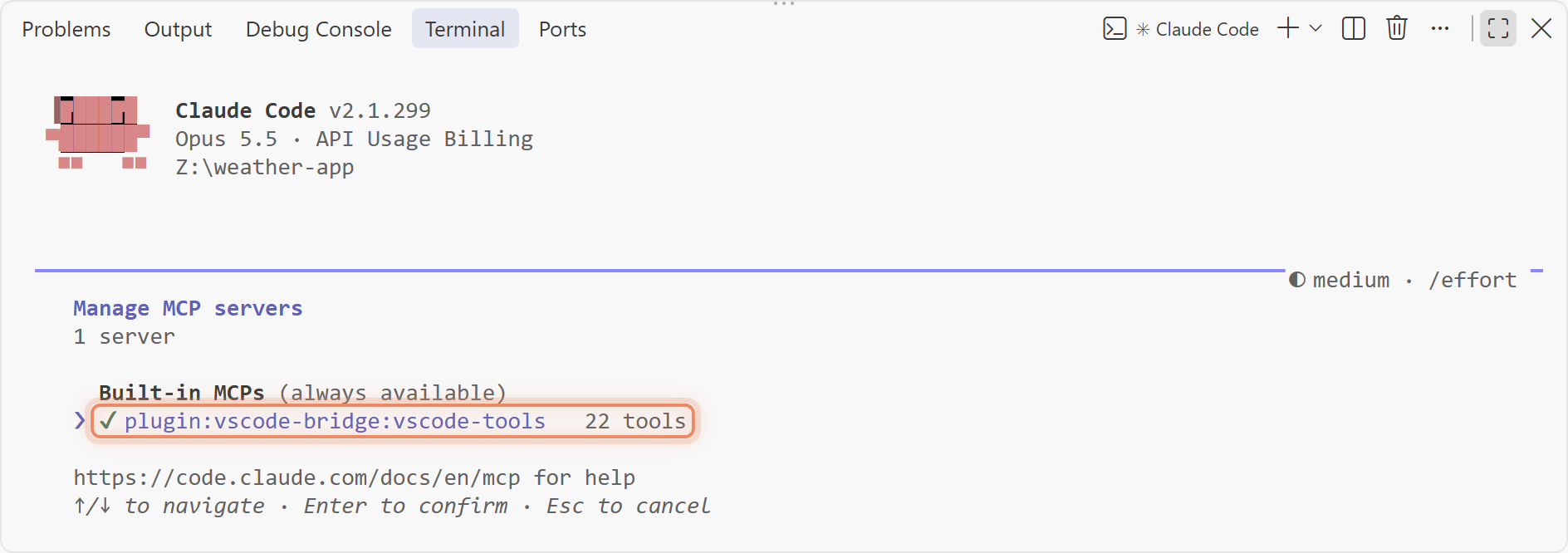
Start claude in the window's first workspace folder or a folder below it. /mcp lists
plugin:vscode-bridge:vscode-tools as connected, and the VS Code Bridge for Claude Code
output channel logs each call. After a window reload, run /mcp and reconnect the server.
Uninstall the extension in the Extensions view. Then remove the plugin:
claude plugin uninstall vscode-bridge@vscode-bridge
claude plugin marketplace remove vscode-bridge
Gives Claude Code your VS Code window: its tools over MCP, the browser pages you share, and your Markdown Editor selection. A VS Code extension plus a Claude Code plugin.
TypeScript
0
69 commits
updated Oct 15, 2026
VS Code Bridge for Claude CodeA VS Code extension and a Claude Code plugin. Claude Code sees what you see in VS Code.
You need VS Code 1.140 or later, Node 22.18 or later and Claude Code. Install the extension and the plugin, then start claude in a folder of the VS Code window.
Claude gets these tools as the vscode-tools MCP server. Ask for the result, such as "check
this file for type errors", and Claude picks the tool.
| Tool | What it does |
|---|---|
get_diagnostics | Type errors and lint findings from the Problems panel, for the workspace or for given files. |
rename_symbol | Renames a symbol across the workspace, with its imports and references, and saves the files. |
execute_command | Runs any VS Code command, such as go to definition, find references, a formatter or a git command. |
list_commands | Lists the commands execute_command may run. |
open_files | Opens files in the editor, at a given line. |
list_workspaces | The window's workspace folders. |
semantic_search, vscode_api_reference | Copilot's codebase search and VS Code API reference. Needs GitHub Copilot, signed in. |
terminal_selection, terminal_last_command | The text selected in the terminal, and the terminal's last command. Needs VS Code chat. |
open_browser_page, read_page, screenshot_page, click_element and other browser tools | Open, read and screenshot pages in VS Code's integrated browser, click, hover, drag and type there, and run Playwright code. Needs workbench.browser.enableChatTools on. |
Claude also knows the steps for sharp page screenshots, page videos and VS Code commands, such as a diff or a comment box on a pull request line. Ask for the result.
To show Claude a page you have open in the integrated browser, press Share with Agent in the page toolbar. Claude knows which pages you share, so "this page" needs no explanation.
Claude can look at an image file (PNG, JPEG, GIF or WebP) you have in front in an editor group, and knows which one, so "this screenshot" needs no path. Text you select in the Markdown Editor shows in Claude Code's selection chip, and Claude gets it with your prompt, as it does for a text editor.
If you don't see your selection, reopen the file.
A file link in Claude Code's chat opens in the editor VS Code uses for that file type. That is
the Markdown Editor for .md when you set it in workbench.editorAssociations, or a PDF viewer
from an extension. Without the bridge, Claude Code opens every link in the text editor
(anthropics/claude-code#81482).
A link to a line or a heading opens the file at the top.
You can also run claude in a terminal and connect it to VS Code with /ide. Claude then has
the tools and sees the images you have in front. The CLI shows your Markdown Editor selection, as it
does for a text editor. Chat links do not apply, since they belong to the extension's chat
panel. /ide needs Claude Code's VS Code extension installed.
| Setting | Default | Effect |
|---|---|---|
vscodeBridge.enabled | true | Serves the window's tools. Set it to false in a workspace's settings to turn the bridge off there. |
vscodeBridge.executeCommand.allow | ["*"] | Command IDs execute_command may run. * matches any run of characters. Only your user settings set it, not a workspace's. |
vscodeBridge.executeCommand.deny | [] | Command IDs it must never run. Deny wins over allow. Only your user settings set it, not a workspace's. |
vscodeBridge.autoApprove | true | Skips the browser confirmation dialog. |
vscodeBridge.markdownEditor.selection | true | Sends the Markdown Editor's selection to Claude. After you turn it on, reopen an open Markdown Editor, and reload the window for the CLI. |
vscodeBridge.claudeCode.chatLinks | true | Opens chat links in the editor you chose. A change takes effect without a reload. |
To keep Claude from closing the window, for example:
"vscodeBridge.executeCommand.deny": ["workbench.action.quit", "workbench.action.closeWindow"]
The bridge has two parts: a VS Code extension, and a Claude Code plugin that connects Claude Code to it. You need VS Code 1.140 or later, Node 22.18 or later, and Claude Code. The bridge is not on the Marketplace.
Download the .vsix file from the repo's Releases page.
Install it: run code --install-extension <file>, or use Install from VSIX... in the
Extensions view.
Reload each open VS Code window with Developer: Reload Window.
Install the Claude Code plugin:
claude plugin install vscode-bridge --marketplace Klaster1/vscode-bridge-for-claude-code
In a Claude Code session, run /plugin marketplace add Klaster1/vscode-bridge-for-claude-code,
then /plugin install vscode-bridge@vscode-bridge.
Run Preferences: Configure Runtime Arguments, add this line to argv.json and restart
VS Code. It lets Claude use the browser without a confirmation dialog.
"enable-proposed-api": ["klaster1.vscode-bridge-for-claude-code"]
To update, install the new .vsix and reload the VS Code windows. Then update the plugin and
start a new Claude Code session:
claude plugin marketplace update vscode-bridge
claude plugin update vscode-bridge@vscode-bridge
You also need the code command on your PATH. With Claude Code, start claude in the clone and
ask it to install the bridge. Its install-vscode-bridge-for-claude-code skill runs the setup
script and makes the settings edits. It asks you before it changes each file.
Without the skill, run this in the clone:
npm run setup
The script builds the extension, installs it into VS Code and installs the Claude Code plugin from the clone. It then prints the steps left to you. The plugin runs from the clone, so a change there takes effect in the next Claude Code session.
To update, run git pull and npm run setup, then reload the VS Code windows.
Start claude in the window's first workspace folder or a folder below it. /mcp lists
plugin:vscode-bridge:vscode-tools as connected, and the VS Code Bridge for Claude Code
output channel logs each call. After a window reload, run /mcp and reconnect the server.
Uninstall the extension in the Extensions view. Then remove the plugin:
claude plugin uninstall vscode-bridge@vscode-bridge
claude plugin marketplace remove vscode-bridge