Unofficial Ankiconnect for Android (i.e. for Yomichan)
Java
287
164 commits
updated Feb 21, 2026
Ankiconnect Android allows you to utilize the standard Anki mining workflow on Android devices like phones and eReaders. Create Anki cards using Yomitan on Firefox Browser and add them straight into your Anki deck! Mine on the go in the same way as you mine on your desktop pc. Forvo and local audio are now supported!
Ankiconnect Android is a from scratch unofficial reimplementation of the desktop Ankiconnect extension, desktop Forvo Server extension and desktop Local Audio Server for Yomitan. It reimplements the core APIs used by Yomitan to work with Ankidroid.
Here's how to set everything up from scratch (if you've already got Yomitan working, then skip to step 5):
Import 1+ dictionaries by clicking Configure installed and enabled dictionaries and then Import under Dictionaries section (external resources)Maximum number of results to prevent unnecessary lag. A sane value would be 8Scan delay can feel laggy and so can be set to 0Scanning → Configure advanced scanning inputs
Scanning Inputs window is enabled. To do this, scroll to the right, and tap on the three dots.
Scanning → Support inputs for devices with touch screens
Touch inputs is checked, and Pointer inputs is NOT checked.Search text with non-Japanese, Chinese, or Cantonese characters.Enable Anki integration onConfigure Anki card format and choose the deck, model and field/values you desire. (For further customization you can write/modify the script under Configure Anki card templates)Show Card Tags is set to "Never"Easier Yomitan setup: If you import settings from a computer, ensure that step 7 and step 8.3 are still followed
The default audio sources from Yomitan should already work. However, Forvo can be added as an audio source. It is recommended that you add this Forvo audio source because Forvo significantly extends the coverage of audio compared to the default audio sources from Yomitan.
Click on Configure audio playback sources and under the Audio section
Click the Add button (top right corner)
Select Custom URL (JSON) and copy paste the following into the URL box:
http://localhost:8765/?term={term}&reading={reading}
NOTE: This is NOT the same URL as from your PC, the port is different
By default, the show card button will not work. The following is a completely optional set of instructions for getting the show card button to work:
Install a pre-release (alpha) version of AnkiDroid from their releases page. This cannot be a parallel build.
After installing AnkiDroid, you must allow Ankiconnect Android to open apps in the background.
Access Overlay Permissions option. This should lead you to Android's settings page.Ankiconnect Android within this settings page.From here, you should be able to use the show card button as normal.
Warning: Make sure you save your note changes if you edit your note! If you do not save your changes and re-click on the "show card" button from Firefox Browser, you will lose all your current note changes!
The (desktop) local audio server setup for Yomitan has been ported over to Ankiconnect Android, and can be used similarly. Again, this is a completely optional setup that does not need to be done.
General information about the setup, including reasons for and against using the setup, can be found within the above link.
Warning: This setup takes up about 5gb of space on your Android device! Ensure you have enough space before setting this up.
Ensure you have set up the latest version of the desktop local audio server setup.
If you already have the add-on installed, check for updates by navigating to Tools → Add-ons → (select "Local Audio Server for Yomitan") → Check for Updates.
Generate the Android database.
Note: For Windows users, please temporarily disable Windows defender before doing this step. It seems like generating the Android database with Windows Defender enabled can slow it down by a factor of 6, meaning a step that should only take 5 minutes can easily take over half an hour.
To generate the database, navigate to (Anki) → Tools (top left corner) → Local Audio Server → Generate Android database. Expect this to take a while (at least a few minutes).
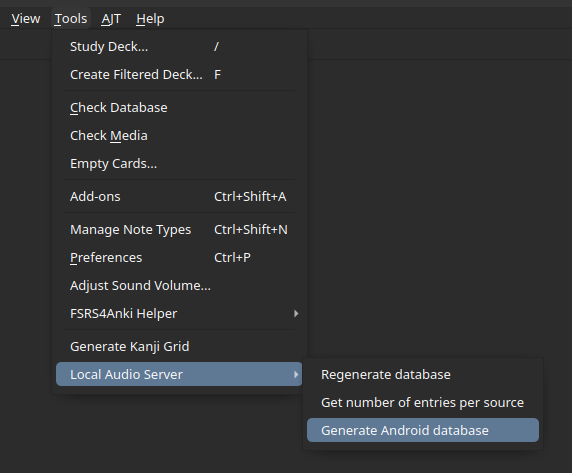
This database stores all the audio files into one large file, in order to make file transfer to Android much faster (transferring the folder took about 24 hours, while transferring the large file took less than 3 minutes).
Copy the files from desktop to Android.
Locate the add-on folder on desktop.
To do this, navigate to Tools → Add-ons → (select "Local Audio Server for Yomitan") → View Files.
When you are here, navigate to user_files.
Locate AnkiConnect Android's data folder. By default, it is under:
(phone)/Android/data/com.kamwithk.ankiconnectandroid/files/
However, one can verify the location of the folder by going into the settings
(gear at the top right corner), and tapping on Print Local Audio Directory.
The following output specifies that the folder is indeed in the default position:
/storage/emulated/0/Android/data/com.kamwithk.ankiconnectandroid/files/
Alternatively locate a different folder. This will require later customisation.
After locating the two folders, copy android.db from the desktop's add-on folder
into Ankiconnect Android's data folder.
android.db, please delete this file and any related files (i.e. delete android.db-shm and android.db-wa)user_files folder./storage/emulated/0/Android/data/com.kamwithk.ankiconnectandroid/files/android.db
If you chose a different folder than the default, additional customisation is necessary on the settings page.
Local Audio Settings sectionChoose Local Audio Storage Device option.
Documents, Audio etc, you may need to update the Choose Local Audio Directory setting.
Documents, Audio and similar, you may also need to allow Manage All Files permission for Ankiconnect Android.Manage All Files permission is only necessary for folders outside of the app-owned /Android/data/com.kamwithk.ankiconnectandroid/ directory.Reset Local Audio settings. This will reset all the local audio settings and revert it to the default.Setup local audio on Firefox Browser's Yomitan. (Warning: this URL is different than the one on desktop!)
Click on Configure audio playback sources and under the Audio section
Click the Add button (top right corner)
Select Custom URL (JSON) and copy paste the following into the url box (tap the code box, and then tap the button to the right to copy the text to the clipboard):
http://localhost:8765/localaudio/get/?term={term}&reading={reading}
The sources and user parameters should behave exactly like the desktop local audio plugin.
http://localhost:8765/localaudio/get/?term={term}&reading={reading}&sources=nhk16,shinmeikai8,forvo,jpod,jpod_alternate
Ensure it works.
If you are having issues with anything, such as Yomitan being unable to connect to AnkiDroid, please ensure all these steps are followed before continuing:
Configure Anki card format... section, and the audio sources section is correct.
Try going through step 5 of the instructions.
In particular, see the step that says
Ensure Scanning Inputs is optimized for mobile (prevents lookups on scrolling).
This usually happens if Enable Content Scanning is switched off.
To fix this, simply switch it on (under Yomitan Settings → General → Enable content scanning).
Note: If you have this switched off in the first place, it is also very likely that the popup is showing up at unwanted times, i.e. while scrolling through a page. To solve this, try going through step 5 of the instructions.
Enable Anki integration setting in Yomitan is indeed enabled, and properly connected.Anki → Configure Anki flashcards..., ensure that the Deck and Model at the top right corner
are not highlighted in red. If they are, please select the correct deck and/or model.Anki → Configure Anki flashcards..., delete extraneous formats, leaving just one.Anki → Show card tags, make sure this is set to Never.To determine that duplicate checks aren't working:
Anki → Check for card duplicates),If you are able to add a card (i.e. you see the plus button), then duplicate checks are indeed not working.
Check that your first field name does not include spaces,
and your first field contents do not include quotes (") or spaces.
If either of those are true, the only way to solve it is by using the Alpha version of AnkiDroid, and
enable the new backend
under the advanced settings.
Please make sure that this exact URL under Additional Instructions: Forvo Audio is used. This URL is different from the one on PC.
Note: There is always a chance that Forvo has changed the layout of their website, which can lead to AnkiConnect Android improperly fetching the audio. If you suspect this is the case, please create an issue on Github.
Incorrect flds argumentThis happens when you change the fields of a card. For example, if you added a field,
renamed a field, or deleted a field, then this error may pop up.
To fix it, navigate to Yomitan Settings → Anki → Configure Anki card format...,
and update the model fields (i.e. by switching it to a different model and back).
If you've gone through the instructions and are still having trouble, feel free to create an issue here on GitHub or @/dm me on Discord (@KamWithK#0634 on TheMoeWay). Most related discussions happen in the AnkiConnect Android thread.
Because Ankiconnect Android is a small project with a limited scope, not all API queries/cases are implemented/considered. Currently every known essential feature has been added into the app, however some niche edge cases have been ignored.
Some examples:
For developers who are interested in using the API, please see docs/api.md for a list of all supported API calls.
The primary goal of Ankiconnect Android was to support card creation with Yomitan. Therefore, many API calls are not implemented. In the spirit of Anki-Connect itself, this project operates on a self-serve model. Feature requests will not be serviced.
If you would like a new API call, make a PR with the following criteria:
113 followers · starred Jul 2024
Unofficial Ankiconnect for Android (i.e. for Yomichan)
Java
287
164 commits
updated Feb 21, 2026
Ankiconnect Android allows you to utilize the standard Anki mining workflow on Android devices like phones and eReaders. Create Anki cards using Yomitan on Firefox Browser and add them straight into your Anki deck! Mine on the go in the same way as you mine on your desktop pc. Forvo and local audio are now supported!
Ankiconnect Android is a from scratch unofficial reimplementation of the desktop Ankiconnect extension, desktop Forvo Server extension and desktop Local Audio Server for Yomitan. It reimplements the core APIs used by Yomitan to work with Ankidroid.
Here's how to set everything up from scratch (if you've already got Yomitan working, then skip to step 5):
Import 1+ dictionaries by clicking Configure installed and enabled dictionaries and then Import under Dictionaries section (external resources)Maximum number of results to prevent unnecessary lag. A sane value would be 8Scan delay can feel laggy and so can be set to 0Scanning → Configure advanced scanning inputs
Scanning Inputs window is enabled. To do this, scroll to the right, and tap on the three dots.
Scanning → Support inputs for devices with touch screens
Touch inputs is checked, and Pointer inputs is NOT checked.Search text with non-Japanese, Chinese, or Cantonese characters.Enable Anki integration onConfigure Anki card format and choose the deck, model and field/values you desire. (For further customization you can write/modify the script under Configure Anki card templates)Show Card Tags is set to "Never"Easier Yomitan setup: If you import settings from a computer, ensure that step 7 and step 8.3 are still followed
The default audio sources from Yomitan should already work. However, Forvo can be added as an audio source. It is recommended that you add this Forvo audio source because Forvo significantly extends the coverage of audio compared to the default audio sources from Yomitan.
Click on Configure audio playback sources and under the Audio section
Click the Add button (top right corner)
Select Custom URL (JSON) and copy paste the following into the URL box:
http://localhost:8765/?term={term}&reading={reading}
NOTE: This is NOT the same URL as from your PC, the port is different
By default, the show card button will not work. The following is a completely optional set of instructions for getting the show card button to work:
Install a pre-release (alpha) version of AnkiDroid from their releases page. This cannot be a parallel build.
After installing AnkiDroid, you must allow Ankiconnect Android to open apps in the background.
Access Overlay Permissions option. This should lead you to Android's settings page.Ankiconnect Android within this settings page.From here, you should be able to use the show card button as normal.
Warning: Make sure you save your note changes if you edit your note! If you do not save your changes and re-click on the "show card" button from Firefox Browser, you will lose all your current note changes!
The (desktop) local audio server setup for Yomitan has been ported over to Ankiconnect Android, and can be used similarly. Again, this is a completely optional setup that does not need to be done.
General information about the setup, including reasons for and against using the setup, can be found within the above link.
Warning: This setup takes up about 5gb of space on your Android device! Ensure you have enough space before setting this up.
Ensure you have set up the latest version of the desktop local audio server setup.
If you already have the add-on installed, check for updates by navigating to Tools → Add-ons → (select "Local Audio Server for Yomitan") → Check for Updates.
Generate the Android database.
Note: For Windows users, please temporarily disable Windows defender before doing this step. It seems like generating the Android database with Windows Defender enabled can slow it down by a factor of 6, meaning a step that should only take 5 minutes can easily take over half an hour.
To generate the database, navigate to (Anki) → Tools (top left corner) → Local Audio Server → Generate Android database. Expect this to take a while (at least a few minutes).
This database stores all the audio files into one large file, in order to make file transfer to Android much faster (transferring the folder took about 24 hours, while transferring the large file took less than 3 minutes).
Copy the files from desktop to Android.
Locate the add-on folder on desktop.
To do this, navigate to Tools → Add-ons → (select "Local Audio Server for Yomitan") → View Files.
When you are here, navigate to user_files.
Locate AnkiConnect Android's data folder. By default, it is under:
(phone)/Android/data/com.kamwithk.ankiconnectandroid/files/
However, one can verify the location of the folder by going into the settings
(gear at the top right corner), and tapping on Print Local Audio Directory.
The following output specifies that the folder is indeed in the default position:
/storage/emulated/0/Android/data/com.kamwithk.ankiconnectandroid/files/
Alternatively locate a different folder. This will require later customisation.
After locating the two folders, copy android.db from the desktop's add-on folder
into Ankiconnect Android's data folder.
android.db, please delete this file and any related files (i.e. delete android.db-shm and android.db-wa)user_files folder./storage/emulated/0/Android/data/com.kamwithk.ankiconnectandroid/files/android.db
If you chose a different folder than the default, additional customisation is necessary on the settings page.
Local Audio Settings sectionChoose Local Audio Storage Device option.
Documents, Audio etc, you may need to update the Choose Local Audio Directory setting.
Documents, Audio and similar, you may also need to allow Manage All Files permission for Ankiconnect Android.Manage All Files permission is only necessary for folders outside of the app-owned /Android/data/com.kamwithk.ankiconnectandroid/ directory.Reset Local Audio settings. This will reset all the local audio settings and revert it to the default.Setup local audio on Firefox Browser's Yomitan. (Warning: this URL is different than the one on desktop!)
Click on Configure audio playback sources and under the Audio section
Click the Add button (top right corner)
Select Custom URL (JSON) and copy paste the following into the url box (tap the code box, and then tap the button to the right to copy the text to the clipboard):
http://localhost:8765/localaudio/get/?term={term}&reading={reading}
The sources and user parameters should behave exactly like the desktop local audio plugin.
http://localhost:8765/localaudio/get/?term={term}&reading={reading}&sources=nhk16,shinmeikai8,forvo,jpod,jpod_alternate
Ensure it works.
If you are having issues with anything, such as Yomitan being unable to connect to AnkiDroid, please ensure all these steps are followed before continuing:
Configure Anki card format... section, and the audio sources section is correct.
Try going through step 5 of the instructions.
In particular, see the step that says
Ensure Scanning Inputs is optimized for mobile (prevents lookups on scrolling).
This usually happens if Enable Content Scanning is switched off.
To fix this, simply switch it on (under Yomitan Settings → General → Enable content scanning).
Note: If you have this switched off in the first place, it is also very likely that the popup is showing up at unwanted times, i.e. while scrolling through a page. To solve this, try going through step 5 of the instructions.
Enable Anki integration setting in Yomitan is indeed enabled, and properly connected.Anki → Configure Anki flashcards..., ensure that the Deck and Model at the top right corner
are not highlighted in red. If they are, please select the correct deck and/or model.Anki → Configure Anki flashcards..., delete extraneous formats, leaving just one.Anki → Show card tags, make sure this is set to Never.To determine that duplicate checks aren't working:
Anki → Check for card duplicates),If you are able to add a card (i.e. you see the plus button), then duplicate checks are indeed not working.
Check that your first field name does not include spaces,
and your first field contents do not include quotes (") or spaces.
If either of those are true, the only way to solve it is by using the Alpha version of AnkiDroid, and
enable the new backend
under the advanced settings.
Please make sure that this exact URL under Additional Instructions: Forvo Audio is used. This URL is different from the one on PC.
Note: There is always a chance that Forvo has changed the layout of their website, which can lead to AnkiConnect Android improperly fetching the audio. If you suspect this is the case, please create an issue on Github.
Incorrect flds argumentThis happens when you change the fields of a card. For example, if you added a field,
renamed a field, or deleted a field, then this error may pop up.
To fix it, navigate to Yomitan Settings → Anki → Configure Anki card format...,
and update the model fields (i.e. by switching it to a different model and back).
If you've gone through the instructions and are still having trouble, feel free to create an issue here on GitHub or @/dm me on Discord (@KamWithK#0634 on TheMoeWay). Most related discussions happen in the AnkiConnect Android thread.
Because Ankiconnect Android is a small project with a limited scope, not all API queries/cases are implemented/considered. Currently every known essential feature has been added into the app, however some niche edge cases have been ignored.
Some examples:
For developers who are interested in using the API, please see docs/api.md for a list of all supported API calls.
The primary goal of Ankiconnect Android was to support card creation with Yomitan. Therefore, many API calls are not implemented. In the spirit of Anki-Connect itself, this project operates on a self-serve model. Feature requests will not be serviced.
If you would like a new API call, make a PR with the following criteria:
113 followers · starred Jul 2024



