Android integration of multiple icon providers such as FontAwesome, Entypo, Typicons,...
See the code

Iconify offers you a huge collection of vector icons to choose from, and an intuitive way to add and customize them in your Android app. It has been introduced in this blog post which is a good place to get started.
Pick any number of modules and declare them in your Application.
dependencies {
    compile 'com.joanzapata.iconify:android-iconify-fontawesome:2.2.2' // (v4.5)
    compile 'com.joanzapata.iconify:android-iconify-entypo:2.2.2' // (v3,2015)
    compile 'com.joanzapata.iconify:android-iconify-typicons:2.2.2' // (v2.0.7)
    compile 'com.joanzapata.iconify:android-iconify-material:2.2.2' // (v2.0.0)
    compile 'com.joanzapata.iconify:android-iconify-material-community:2.2.2' // (v1.4.57)
    compile 'com.joanzapata.iconify:android-iconify-meteocons:2.2.2' // (latest)
    compile 'com.joanzapata.iconify:android-iconify-weathericons:2.2.2' // (v2.0)
    compile 'com.joanzapata.iconify:android-iconify-simplelineicons:2.2.2' // (v1.0.0)
    compile 'com.joanzapata.iconify:android-iconify-ionicons:2.2.2' // (v2.0.1)
}
public class MyApplication extends Application {

    @Override
    public void onCreate() {
        super.onCreate();
        Iconify
            .with(new FontAwesomeModule())
            .with(new EntypoModule())
            .with(new TypiconsModule())
            .with(new MaterialModule())
            .with(new MaterialCommunityModule())
            .with(new MeteoconsModule())
            .with(new WeathericonsModule())
            .with(new SimpleLineIconsModule())
            .with(new IoniconsModule());
    }
}
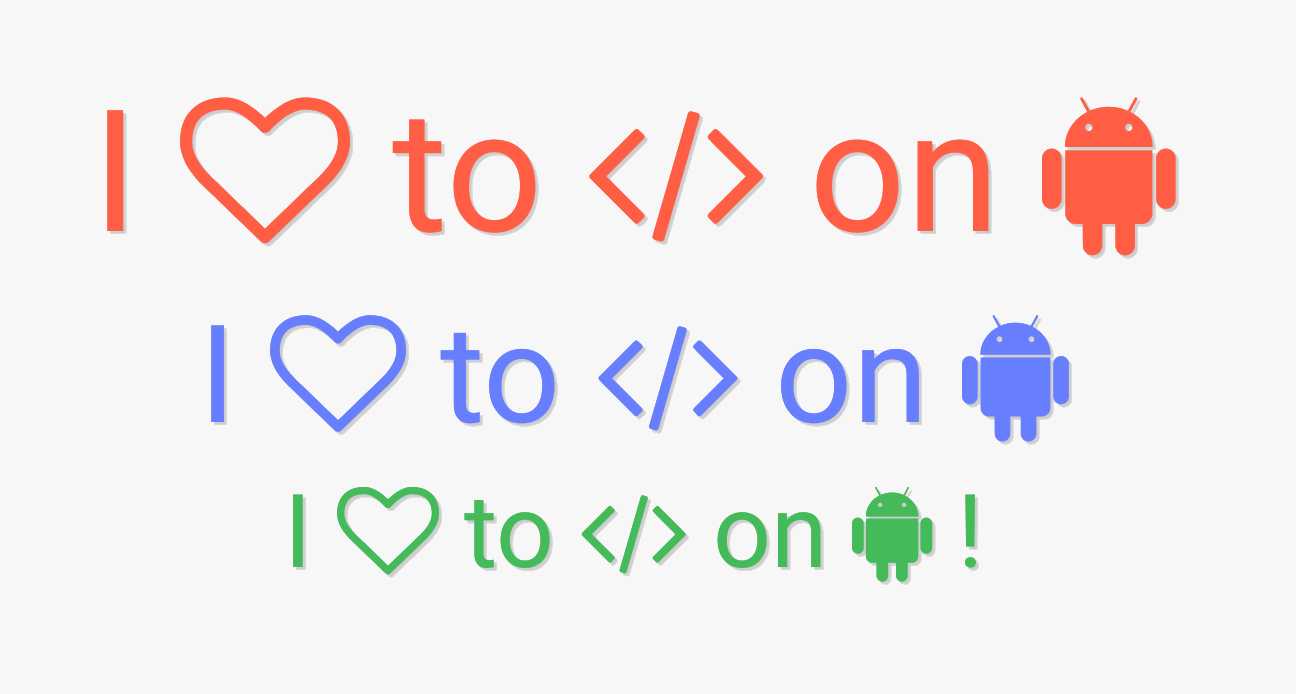
If you need to put an icon on a TextView or a Button, use the { } syntax. The icons act exactly like the text, so you can apply shadow, size and color on them!
<com.joanzapata.iconify.widget.IconTextView
    android:text="I {fa-heart-o} to {fa-code} on {fa-android}"
    android:shadowColor="#22000000"
    android:shadowDx="3"
    android:shadowDy="3"
    android:shadowRadius="1"
    android:textSize="40sp"
    android:textColor="#FF..."
    ... />
{fa-code 12px}, {fa-code 12dp}, {fa-code 12sp}, {fa-code @dimen/my_text_size}, and also {fa-code 120%}.{fa-code #RRGGBB}, {fa-code #AARRGGBB}, or {fa-code @color/my_color}.{fa-cog spin}.
DrawableIf you need an icon in an ImageView or in your ActionBar menu item, then you should use IconDrawable. Again, icons are infinitely scalable and will never get fuzzy!
// Set an icon in the ActionBar
menu.findItem(R.id.share).setIcon(
   new IconDrawable(this, FontAwesomeIcons.fa_share)
   .colorRes(R.color.ab_icon)
   .actionBarSize());
In case you can't find the icon you want, you can extend the available icon directly from your app. All you need to do is to implement IconFontDescriptor with a .ttf file in your assets and provide the mapping between keys and special characters, then give it to Iconify.with(). You can use the FontAwesomeModule as an example.
There are no constraints on the icon keys, but I strongly suggest you use a unique prefix like my- or anything, to avoid conflicts with other modules. FYI, if there is a conflict, the first module declared with Iconify.with() has priority.
The only dependency you need if you want to use a custom icon is Iconify core.
compile 'com.joanzapata.iconify:android-iconify:2.2.2'
Copyright 2015 Joan Zapata

Licensed under the Apache License, Version 2.0 (the "License");
you may not use this file except in compliance with the License.
You may obtain a copy of the License at

    http://www.apache.org/licenses/LICENSE-2.0

Unless required by applicable law or agreed to in writing, software
distributed under the License is distributed on an "AS IS" BASIS,
WITHOUT WARRANTIES OR CONDITIONS OF ANY KIND, either express or implied.
See the License for the specific language governing permissions and
limitations under the License.

It uses FontAwesome font by Dave Gandy, licensed under OFL 1.1, which is compatible
with this library's license.

    http://scripts.sil.org/cms/scripts/render_download.php?format=file&media_id=OFL_plaintext&filename=OFL.txt
Overall
Maintained
Code review
Latest release
Releases this year
608 followers · starred Jul 2016
161 followers · starred Apr 2014
234 followers · starred Apr 2014
223 followers · starred Aug 2015
Android integration of multiple icon providers such as FontAwesome, Entypo, Typicons,...
See the code
Iconify offers you a huge collection of vector icons to choose from, and an intuitive way to add and customize them in your Android app. It has been introduced in this blog post which is a good place to get started.
Pick any number of modules and declare them in your Application.
dependencies {
    compile 'com.joanzapata.iconify:android-iconify-fontawesome:2.2.2' // (v4.5)
    compile 'com.joanzapata.iconify:android-iconify-entypo:2.2.2' // (v3,2015)
    compile 'com.joanzapata.iconify:android-iconify-typicons:2.2.2' // (v2.0.7)
    compile 'com.joanzapata.iconify:android-iconify-material:2.2.2' // (v2.0.0)
    compile 'com.joanzapata.iconify:android-iconify-material-community:2.2.2' // (v1.4.57)
    compile 'com.joanzapata.iconify:android-iconify-meteocons:2.2.2' // (latest)
    compile 'com.joanzapata.iconify:android-iconify-weathericons:2.2.2' // (v2.0)
    compile 'com.joanzapata.iconify:android-iconify-simplelineicons:2.2.2' // (v1.0.0)
    compile 'com.joanzapata.iconify:android-iconify-ionicons:2.2.2' // (v2.0.1)
}
public class MyApplication extends Application {

    @Override
    public void onCreate() {
        super.onCreate();
        Iconify
            .with(new FontAwesomeModule())
            .with(new EntypoModule())
            .with(new TypiconsModule())
            .with(new MaterialModule())
            .with(new MaterialCommunityModule())
            .with(new MeteoconsModule())
            .with(new WeathericonsModule())
            .with(new SimpleLineIconsModule())
            .with(new IoniconsModule());
    }
}
If you need to put an icon on a TextView or a Button, use the { } syntax. The icons act exactly like the text, so you can apply shadow, size and color on them!
<com.joanzapata.iconify.widget.IconTextView
    android:text="I {fa-heart-o} to {fa-code} on {fa-android}"
    android:shadowColor="#22000000"
    android:shadowDx="3"
    android:shadowDy="3"
    android:shadowRadius="1"
    android:textSize="40sp"
    android:textColor="#FF..."
    ... />
{fa-code 12px}, {fa-code 12dp}, {fa-code 12sp}, {fa-code @dimen/my_text_size}, and also {fa-code 120%}.{fa-code #RRGGBB}, {fa-code #AARRGGBB}, or {fa-code @color/my_color}.{fa-cog spin}.
DrawableIf you need an icon in an ImageView or in your ActionBar menu item, then you should use IconDrawable. Again, icons are infinitely scalable and will never get fuzzy!
// Set an icon in the ActionBar
menu.findItem(R.id.share).setIcon(
   new IconDrawable(this, FontAwesomeIcons.fa_share)
   .colorRes(R.color.ab_icon)
   .actionBarSize());
In case you can't find the icon you want, you can extend the available icon directly from your app. All you need to do is to implement IconFontDescriptor with a .ttf file in your assets and provide the mapping between keys and special characters, then give it to Iconify.with(). You can use the FontAwesomeModule as an example.
There are no constraints on the icon keys, but I strongly suggest you use a unique prefix like my- or anything, to avoid conflicts with other modules. FYI, if there is a conflict, the first module declared with Iconify.with() has priority.
The only dependency you need if you want to use a custom icon is Iconify core.
compile 'com.joanzapata.iconify:android-iconify:2.2.2'
Copyright 2015 Joan Zapata

Licensed under the Apache License, Version 2.0 (the "License");
you may not use this file except in compliance with the License.
You may obtain a copy of the License at

    http://www.apache.org/licenses/LICENSE-2.0

Unless required by applicable law or agreed to in writing, software
distributed under the License is distributed on an "AS IS" BASIS,
WITHOUT WARRANTIES OR CONDITIONS OF ANY KIND, either express or implied.
See the License for the specific language governing permissions and
limitations under the License.

It uses FontAwesome font by Dave Gandy, licensed under OFL 1.1, which is compatible
with this library's license.

    http://scripts.sil.org/cms/scripts/render_download.php?format=file&media_id=OFL_plaintext&filename=OFL.txt
Overall
Maintained
Code review
Latest release
Releases this year
608 followers · starred Jul 2016
161 followers · starred Apr 2014
234 followers · starred Apr 2014
223 followers · starred Aug 2015