RooFlow - Enhanced Memory Bank System with ☢️Footgun Power☢️ Next-gen Memory Bank system with five integrated modes and system-level customization. Uses Roo Code's experimental "Footgun" feature for deep AI assistant customization while maintaining efficient token usage!
Python
1,246
256 commits
updated Jun 18, 2025
RooFlow provides an experimental set of modes and system prompts designed as an alternative way to interact with the Roo Code VS Code extension. It uses YAML-based system prompts aiming for improved efficiency and token usage compared to the standard Markdown prompts. RooFlow is NOT officially endorsed or supported by the Roo Code project. Use with caution.

Persistent Project Context and Streamlined AI-Assisted Development


RooFlow offers an experimental alternative approach to AI-assisted development within the Roo Code VS Code extension. It utilizes YAML-based system prompts for its specialized "Flow" modes, potentially offering improved efficiency and reduced token consumption compared to standard modes. RooFlow provides persistent project context through its Memory Bank system (adapted from the concepts in roo-code-memory-bank), ensuring the AI assistant maintains project understanding across sessions.
%%{init: {'themeVariables': { 'fontSize': '14px'}}}%%
graph LR
    subgraph Workspace
        U[User]
        MB[(Memory Bank)]
    end

    subgraph VSCode
        RC[Roo Code Extension]
    end

    subgraph RooFlow ["RooFlow (Experimental Alternative)"]
        subgraph FlowModes ["Flow Modes (YAML Prompts)"]
            direction TB
            FO[Flow-Orchestrator]
            subgraph ExecutionModes ["Direct/Delegated Modes"]
               direction LR
               FA[Flow-Architect]
               FC[Flow-Code]
               FD[Flow-Debug]
               FK[Flow-Ask]
            end
             %% Link Orchestrator to the group it delegates to
             FO -- Delegates --> ExecutionModes
        end
    end

    %% Core Flow
    U -- Interacts with --> RC
    RC -- Uses --> RooFlow

    %% User Task Paths
    U -- Complex Task --> FO
    U -- Direct Task --> ExecutionModes


    %% Memory Bank Interactions
    FA <--> MB
    FC <--> MB
    FD <--> MB
    FK --> MB

    %% Styling
    style MB fill:#f9f,stroke:#333,stroke-width:2px,color:#000
    style FO fill:#ccf,stroke:#333,stroke-width:2px,color:#000
Memory Bank Access Legend:
<--> (Read/Write): Flow-Architect, Flow-Code, Flow-Debug--> (Read-Only): Flow-Ask.roo/system-prompt-[mode]).Install Roo Code Extension: Ensure you have the Roo Code extension installed in VS Code.
Prerequisites:
git to be installed and accessible in your system's PATH. Download Git from https://git-scm.com/downloads.python3 (Linux/macOS) or python (Windows) in your PATH. Download Python from https://www.python.org/downloads/.pip install pyyaml
# or potentially pip3 install pyyaml
Open your terminal and navigate (cd) to your project's root directory.
Run the appropriate command for your operating system directly:
Download the script
For Use With File Based Memory Bank:
curl -O https://raw.githubusercontent.com/GreatScottyMac/RooFlow/main/config/install_rooflow.cmd
For Use With Context Portal MCP:
curl -O https://raw.githubusercontent.com/GreatScottyMac/RooFlow/main/config/install_rooflow_conport.cmd
Execute the downloaded script (⚠️If you have MCP servers connected, see Importing Connected MCP Server Tools prior to installation):
./install_rooflow.cmd
or
./install_rooflow_conport.cmd
Download the script
For Use With File Based Memory Bank:
curl -O https://raw.githubusercontent.com/GreatScottyMac/RooFlow/main/config/install_rooflow.sh
For Use With Context Portal MCP:
curl -O https://raw.githubusercontent.com/GreatScottyMac/RooFlow/main/config/install_rooflow_conport.sh
Make the script executable:
chmod +x install_rooflow.sh
or
chmod +x install_rooflow_conport.sh
Execute the downloaded script (⚠️If you have MCP servers connected, see Importing Connected MCP Server Tools prior to installation):
./install_rooflow.sh
or
./install_rooflow_conport.sh
The command downloads and executes the script, which will check for prerequisites (git, python3/python, pyyaml), clone the repository, copy necessary files (including generate_mcp_yaml.py), clean up the clone, and run the Python script to process templates. Follow any on-screen prompts or error messages.
Note: The installer script (install_rooflow.*) is designed to remain after execution for potential re-runs (e.g., for updates).
Verify Installation: After the script runs successfully:
.roo/ directory, along with the .roomodesfile exist in your project root..roo/system-prompt-* files to ensure placeholders like WORKSPACE_PLACEHOLDER have been replaced with your actual system paths.Coexistence with Standard Modes: The RooFlow installation adds the Flow-* modes alongside the standard Roo Code modes (Architect, Code, Debug, Ask). You can switch between Flow modes and standard modes at any time using the Roo Code interface. If you encounter issues with a Flow mode, you can easily switch back to its standard counterpart.
If you use MCP (Model Context Protocol) servers with Roo Code, RooFlow can automatically inject the details of your connected servers (their tools, resources, etc.) into the custom Flow mode prompts during installation. This ensures the Flow modes are aware of the same tools as the standard Roo Code modes.
To enable this during initial installation:
Get Full System Prompt: Before running the RooFlow installer, you need the complete system prompt text that Roo Code generates dynamically after it connects to your MCP servers.
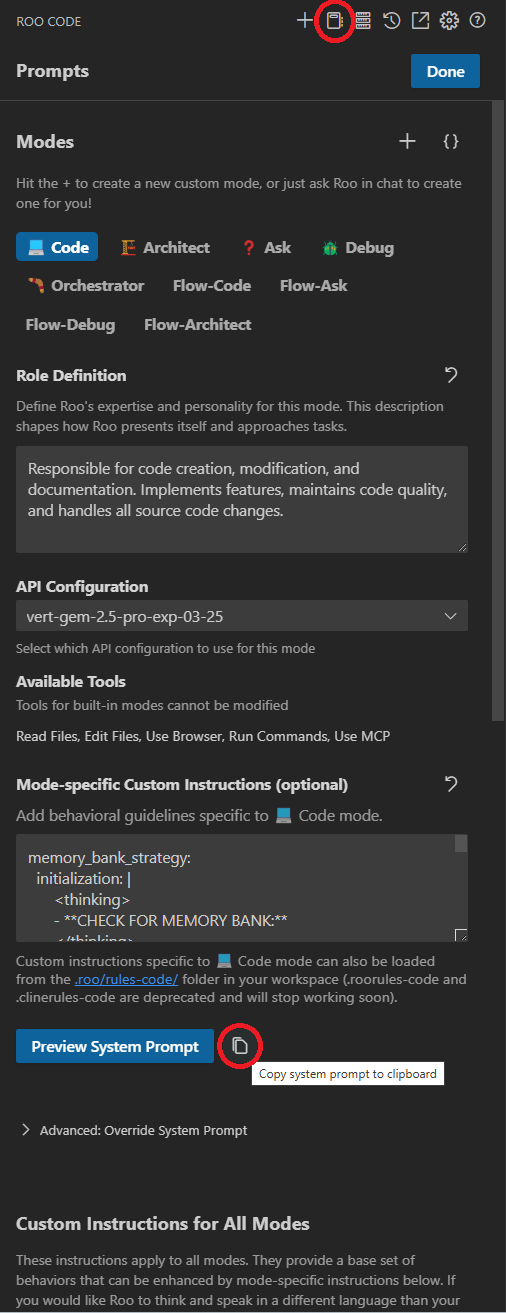
Save as system_prompt.md: Save this copied text into a new file named exactly system_prompt.md directly in your project's root directory.
Run Installer: Now, run the install_rooflow.sh or install_rooflow.cmd script as described in the main Installation section above.
generate_mcp_yaml.py.python3 or python). The script automatically looks for system_prompt.md in the root directory.# [CONNECTED_MCP_SERVERS]) within the .roo/system-prompt-flow-* files while also performing other variable substitutions.system_prompt.md is not found, this injection step is simply skipped.Updating MCP Server Information Later:
If you add, remove, or modify your MCP server configurations after the initial RooFlow installation, you'll need to update the Flow mode prompts:
system_prompt.md: Save this new text into system_prompt.md in your project root, overwriting the previous version.install_rooflow.sh or install_rooflow.cmd script again from your project root.
.roo/ files, .roomodes, generate_mcp_yaml.py) from the repository and run the generate_mcp_yaml.py Python script again.system_prompt.md and inject the new MCP server details into the freshly copied .roo/system-prompt-flow-* files (along with performing basic variable substitutions).⚠️ Important Warning about Updates: Re-running the installer script is the simplest way to update MCP info, but be aware that it overwrites the .roo/ directory and the .roomodes file with fresh copies from the repository. Any manual customizations you might have made directly to the system-prompt-flow-* files after the initial installation will be lost. The Python script (generate_mcp_yaml.py) remains in the root if you wish to build a more granular update process manually.
memory-bank/ directory, Roo will suggest switching to Flow-Architect mode and guide you through the initialization process.The Memory Bank is a directory named memory-bank located in your project's root. It contains several Markdown files that store different aspects of your project's knowledge:
| File | Purpose |
|---|---|
activeContext.md | Tracks the current session's context: recent changes, current goals, and open questions/issues. |
decisionLog.md | Records architectural and implementation decisions, including the context, decision, rationale, and implementation details. |
productContext.md | Provides a high-level overview of the project, including its goals, features, and overall architecture. |
progress.md | Tracks the progress of the project, including completed work, current tasks, and next steps. Uses a task list format. |
systemPatterns.md | (Optional) Documents recurring patterns and standards used in the project (coding patterns, architectural patterns, testing patterns). |
RooFlow automatically manages these files. You generally don't need to edit them directly, although you can review them to understand the AI's knowledge.
RooFlow remembers project details across sessions, maintaining a consistent understanding of your codebase, design decisions, and progress.
The Memory Bank is updated automatically based on significant events within each mode, ensuring that the context is always up-to-date.
The five modes (Flow-Architect, Flow-Code, Flow-Debug, Flow-Ask, and Flow-Orchestrator) are designed to work together seamlessly. Flow-Orchestrator can delegate tasks to the other modes, and they can switch between each other as needed, sharing information through the Memory Bank.
RooFlow is designed to use fewer tokens than previous systems, making it more efficient and cost-effective.
The command "Update Memory Bank" or "UMB" can be given at any time to update the memory bank with information from the current chat session.
Contributions to RooFlow are welcome! Please see the CONTRIBUTING.md file (you'll need to create this) for guidelines.
34 followers · starred Apr 2025
0 followers · starred Apr 2025
146 followers · starred Apr 2025
60 followers · starred Apr 2025
RooFlow - Enhanced Memory Bank System with ☢️Footgun Power☢️ Next-gen Memory Bank system with five integrated modes and system-level customization. Uses Roo Code's experimental "Footgun" feature for deep AI assistant customization while maintaining efficient token usage!
Python
1,246
256 commits
updated Jun 18, 2025
RooFlow provides an experimental set of modes and system prompts designed as an alternative way to interact with the Roo Code VS Code extension. It uses YAML-based system prompts aiming for improved efficiency and token usage compared to the standard Markdown prompts. RooFlow is NOT officially endorsed or supported by the Roo Code project. Use with caution.
Persistent Project Context and Streamlined AI-Assisted Development
RooFlow offers an experimental alternative approach to AI-assisted development within the Roo Code VS Code extension. It utilizes YAML-based system prompts for its specialized "Flow" modes, potentially offering improved efficiency and reduced token consumption compared to standard modes. RooFlow provides persistent project context through its Memory Bank system (adapted from the concepts in roo-code-memory-bank), ensuring the AI assistant maintains project understanding across sessions.
%%{init: {'themeVariables': { 'fontSize': '14px'}}}%%
graph LR
    subgraph Workspace
        U[User]
        MB[(Memory Bank)]
    end

    subgraph VSCode
        RC[Roo Code Extension]
    end

    subgraph RooFlow ["RooFlow (Experimental Alternative)"]
        subgraph FlowModes ["Flow Modes (YAML Prompts)"]
            direction TB
            FO[Flow-Orchestrator]
            subgraph ExecutionModes ["Direct/Delegated Modes"]
               direction LR
               FA[Flow-Architect]
               FC[Flow-Code]
               FD[Flow-Debug]
               FK[Flow-Ask]
            end
             %% Link Orchestrator to the group it delegates to
             FO -- Delegates --> ExecutionModes
        end
    end

    %% Core Flow
    U -- Interacts with --> RC
    RC -- Uses --> RooFlow

    %% User Task Paths
    U -- Complex Task --> FO
    U -- Direct Task --> ExecutionModes


    %% Memory Bank Interactions
    FA <--> MB
    FC <--> MB
    FD <--> MB
    FK --> MB

    %% Styling
    style MB fill:#f9f,stroke:#333,stroke-width:2px,color:#000
    style FO fill:#ccf,stroke:#333,stroke-width:2px,color:#000
Memory Bank Access Legend:
<--> (Read/Write): Flow-Architect, Flow-Code, Flow-Debug--> (Read-Only): Flow-Ask.roo/system-prompt-[mode]).Install Roo Code Extension: Ensure you have the Roo Code extension installed in VS Code.
Prerequisites:
git to be installed and accessible in your system's PATH. Download Git from https://git-scm.com/downloads.python3 (Linux/macOS) or python (Windows) in your PATH. Download Python from https://www.python.org/downloads/.pip install pyyaml
# or potentially pip3 install pyyaml
Open your terminal and navigate (cd) to your project's root directory.
Run the appropriate command for your operating system directly:
Download the script
For Use With File Based Memory Bank:
curl -O https://raw.githubusercontent.com/GreatScottyMac/RooFlow/main/config/install_rooflow.cmd
For Use With Context Portal MCP:
curl -O https://raw.githubusercontent.com/GreatScottyMac/RooFlow/main/config/install_rooflow_conport.cmd
Execute the downloaded script (⚠️If you have MCP servers connected, see Importing Connected MCP Server Tools prior to installation):
./install_rooflow.cmd
or
./install_rooflow_conport.cmd
Download the script
For Use With File Based Memory Bank:
curl -O https://raw.githubusercontent.com/GreatScottyMac/RooFlow/main/config/install_rooflow.sh
For Use With Context Portal MCP:
curl -O https://raw.githubusercontent.com/GreatScottyMac/RooFlow/main/config/install_rooflow_conport.sh
Make the script executable:
chmod +x install_rooflow.sh
or
chmod +x install_rooflow_conport.sh
Execute the downloaded script (⚠️If you have MCP servers connected, see Importing Connected MCP Server Tools prior to installation):
./install_rooflow.sh
or
./install_rooflow_conport.sh
The command downloads and executes the script, which will check for prerequisites (git, python3/python, pyyaml), clone the repository, copy necessary files (including generate_mcp_yaml.py), clean up the clone, and run the Python script to process templates. Follow any on-screen prompts or error messages.
Note: The installer script (install_rooflow.*) is designed to remain after execution for potential re-runs (e.g., for updates).
Verify Installation: After the script runs successfully:
.roo/ directory, along with the .roomodesfile exist in your project root..roo/system-prompt-* files to ensure placeholders like WORKSPACE_PLACEHOLDER have been replaced with your actual system paths.Coexistence with Standard Modes: The RooFlow installation adds the Flow-* modes alongside the standard Roo Code modes (Architect, Code, Debug, Ask). You can switch between Flow modes and standard modes at any time using the Roo Code interface. If you encounter issues with a Flow mode, you can easily switch back to its standard counterpart.
If you use MCP (Model Context Protocol) servers with Roo Code, RooFlow can automatically inject the details of your connected servers (their tools, resources, etc.) into the custom Flow mode prompts during installation. This ensures the Flow modes are aware of the same tools as the standard Roo Code modes.
To enable this during initial installation:
Get Full System Prompt: Before running the RooFlow installer, you need the complete system prompt text that Roo Code generates dynamically after it connects to your MCP servers.
Save as system_prompt.md: Save this copied text into a new file named exactly system_prompt.md directly in your project's root directory.
Run Installer: Now, run the install_rooflow.sh or install_rooflow.cmd script as described in the main Installation section above.
generate_mcp_yaml.py.python3 or python). The script automatically looks for system_prompt.md in the root directory.# [CONNECTED_MCP_SERVERS]) within the .roo/system-prompt-flow-* files while also performing other variable substitutions.system_prompt.md is not found, this injection step is simply skipped.Updating MCP Server Information Later:
If you add, remove, or modify your MCP server configurations after the initial RooFlow installation, you'll need to update the Flow mode prompts:
system_prompt.md: Save this new text into system_prompt.md in your project root, overwriting the previous version.install_rooflow.sh or install_rooflow.cmd script again from your project root.
.roo/ files, .roomodes, generate_mcp_yaml.py) from the repository and run the generate_mcp_yaml.py Python script again.system_prompt.md and inject the new MCP server details into the freshly copied .roo/system-prompt-flow-* files (along with performing basic variable substitutions).⚠️ Important Warning about Updates: Re-running the installer script is the simplest way to update MCP info, but be aware that it overwrites the .roo/ directory and the .roomodes file with fresh copies from the repository. Any manual customizations you might have made directly to the system-prompt-flow-* files after the initial installation will be lost. The Python script (generate_mcp_yaml.py) remains in the root if you wish to build a more granular update process manually.
memory-bank/ directory, Roo will suggest switching to Flow-Architect mode and guide you through the initialization process.The Memory Bank is a directory named memory-bank located in your project's root. It contains several Markdown files that store different aspects of your project's knowledge:
| File | Purpose |
|---|---|
activeContext.md | Tracks the current session's context: recent changes, current goals, and open questions/issues. |
decisionLog.md | Records architectural and implementation decisions, including the context, decision, rationale, and implementation details. |
productContext.md | Provides a high-level overview of the project, including its goals, features, and overall architecture. |
progress.md | Tracks the progress of the project, including completed work, current tasks, and next steps. Uses a task list format. |
systemPatterns.md | (Optional) Documents recurring patterns and standards used in the project (coding patterns, architectural patterns, testing patterns). |
RooFlow automatically manages these files. You generally don't need to edit them directly, although you can review them to understand the AI's knowledge.
RooFlow remembers project details across sessions, maintaining a consistent understanding of your codebase, design decisions, and progress.
The Memory Bank is updated automatically based on significant events within each mode, ensuring that the context is always up-to-date.
The five modes (Flow-Architect, Flow-Code, Flow-Debug, Flow-Ask, and Flow-Orchestrator) are designed to work together seamlessly. Flow-Orchestrator can delegate tasks to the other modes, and they can switch between each other as needed, sharing information through the Memory Bank.
RooFlow is designed to use fewer tokens than previous systems, making it more efficient and cost-effective.
The command "Update Memory Bank" or "UMB" can be given at any time to update the memory bank with information from the current chat session.
Contributions to RooFlow are welcome! Please see the CONTRIBUTING.md file (you'll need to create this) for guidelines.
34 followers · starred Apr 2025
0 followers · starred Apr 2025
146 followers · starred Apr 2025
60 followers · starred Apr 2025



