Complete installer for Automatic1111's infamous Stable Diffusion WebUI
See the codeThis is an UNOFFICIAL simplified installer & launcher for Automatic1111's Stable Diffusion WebUI
For simple installation, download the Latest Realease (.exe) and follow the Installation Instructions
If you want to improve the installer, git clone or Fork & Pull Request (this project mainly uses Advanced Installer 19+ and Powershell)
⚠️ WARNING, Read Carefully ⚠️Installing requirements for Web UI in the command window, after clicking LAUNCH WEBUI, they'll be related to the WebUI itself and not this installer, so do not ask or report them here, but here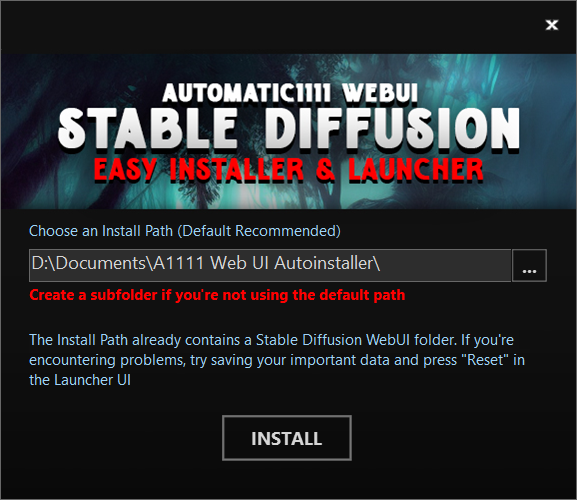
If this is your first install and you're in a hurry, just click INSTALL, then FINISH and skip to 3.
Choose an Install Path (Default is recommended).
⚠️ If you want to install it somewhere else, make sure it's in a dedicated empty folder as subsequent installs or uninstalls could actually wipe what's in it.
If you see the "The Install Path Already Contains..." text this means a Stable Diffusion WebUI folder is already present in the Installation Path
if you're updating your Easy Launcher or want to use it with an existing manual WebUI install as seen bellow, this means you've selected the right folder !
(Advanced) The launcher can be used with an existing manual install of Automatic1111 Stable Diffusion WebUI by using the parent folder of the Stable Diffusion WebUI folder as the Launcher Install Path.
⚠️ This parent folder should only have the Stable Diffusion WebUI folder in it, as subsequent installs or uninstalls could actually wipe what's in it !
FINISH, the install folder will open, it should contain the A1111 WebUI Easy Launcher shortcut, drag & drop it to the taskbar and click it to open the Easy Launcher.
⚠️ If you see a
A1111 WebUI (Pin to Taskbar)shortcut, delete it, this is from an ancient version
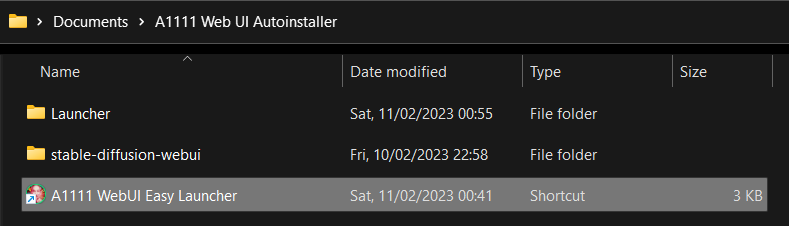
When double clicking A1111 WebUI (Pin to Taskbar) You should be greeted with the launcher
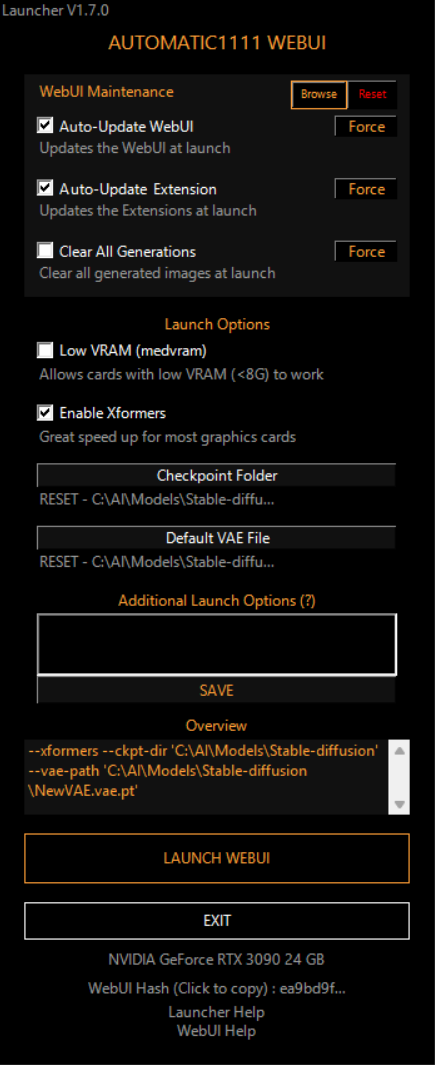
WebUI Maintenance Settings⚠️ The folder is permanently deleted so make some back ups if needed ! A pop up will ask you for confirmation
⚠️ The images are permanently deleted ! A pop up will ask you for confirmation
The Force buttons next to the above functions will execute the relevant function as soon as you click instead of waiting for launch
Note: If you have a custom output folder, only the folder specified in the "Output directory for images; if empty, defaults to three directories below" field in the WebUI settings will be cleared.
Launch OptionsCheckpoint Folder : If you don't have a specific checkpoint folder, do not click this, else select it there 💡click the path to resetDefault VAE : This will allow you to select a default separate for all models VAE file 💡click the path to reset⚠️ Click SAVE to confirm the additional arguments, else they won't be saved
MiscLauncher launch optionsYou can add launch options to the launcher itself by adding them at the end of the "A1111 WebUI (Pin to Taskbar)" shortcut target
skip : This goes straight to the Stable Diffusion WebUI with your existing settings without displaying the Launcher UIno-autolaunch : This will launch the WebUI server without opening it when you click LAUNCH WEBUI, so you can just browser to http://127.0.0.1:7860/ on your preferred browser4,143 followers · starred May 2023
88 followers · starred Apr 2023
75 followers · starred Dec 2022
27 followers · starred Jan 2023
Complete installer for Automatic1111's infamous Stable Diffusion WebUI
See the codeThis is an UNOFFICIAL simplified installer & launcher for Automatic1111's Stable Diffusion WebUI
For simple installation, download the Latest Realease (.exe) and follow the Installation Instructions
If you want to improve the installer, git clone or Fork & Pull Request (this project mainly uses Advanced Installer 19+ and Powershell)
⚠️ WARNING, Read Carefully ⚠️Installing requirements for Web UI in the command window, after clicking LAUNCH WEBUI, they'll be related to the WebUI itself and not this installer, so do not ask or report them here, but here
If this is your first install and you're in a hurry, just click INSTALL, then FINISH and skip to 3.
Choose an Install Path (Default is recommended).
⚠️ If you want to install it somewhere else, make sure it's in a dedicated empty folder as subsequent installs or uninstalls could actually wipe what's in it.
If you see the "The Install Path Already Contains..." text this means a Stable Diffusion WebUI folder is already present in the Installation Path
if you're updating your Easy Launcher or want to use it with an existing manual WebUI install as seen bellow, this means you've selected the right folder !
(Advanced) The launcher can be used with an existing manual install of Automatic1111 Stable Diffusion WebUI by using the parent folder of the Stable Diffusion WebUI folder as the Launcher Install Path.
⚠️ This parent folder should only have the Stable Diffusion WebUI folder in it, as subsequent installs or uninstalls could actually wipe what's in it !
FINISH, the install folder will open, it should contain the A1111 WebUI Easy Launcher shortcut, drag & drop it to the taskbar and click it to open the Easy Launcher.
⚠️ If you see a
A1111 WebUI (Pin to Taskbar)shortcut, delete it, this is from an ancient version
When double clicking A1111 WebUI (Pin to Taskbar) You should be greeted with the launcher
WebUI Maintenance Settings⚠️ The folder is permanently deleted so make some back ups if needed ! A pop up will ask you for confirmation
⚠️ The images are permanently deleted ! A pop up will ask you for confirmation
The Force buttons next to the above functions will execute the relevant function as soon as you click instead of waiting for launch
Note: If you have a custom output folder, only the folder specified in the "Output directory for images; if empty, defaults to three directories below" field in the WebUI settings will be cleared.
Launch OptionsCheckpoint Folder : If you don't have a specific checkpoint folder, do not click this, else select it there 💡click the path to resetDefault VAE : This will allow you to select a default separate for all models VAE file 💡click the path to reset⚠️ Click SAVE to confirm the additional arguments, else they won't be saved
MiscLauncher launch optionsYou can add launch options to the launcher itself by adding them at the end of the "A1111 WebUI (Pin to Taskbar)" shortcut target
skip : This goes straight to the Stable Diffusion WebUI with your existing settings without displaying the Launcher UIno-autolaunch : This will launch the WebUI server without opening it when you click LAUNCH WEBUI, so you can just browser to http://127.0.0.1:7860/ on your preferred browser4,143 followers · starred May 2023
88 followers · starred Apr 2023
75 followers · starred Dec 2022
27 followers · starred Jan 2023



