Convert any web page to clean, readable Markdown with just one click.
TypeScript
1,612
30 commits
updated Oct 3, 2026
Turn any webpage into clean, LLM-ready Markdown in one click.
Strip the clutter, keep the structure, then copy or download instantly.
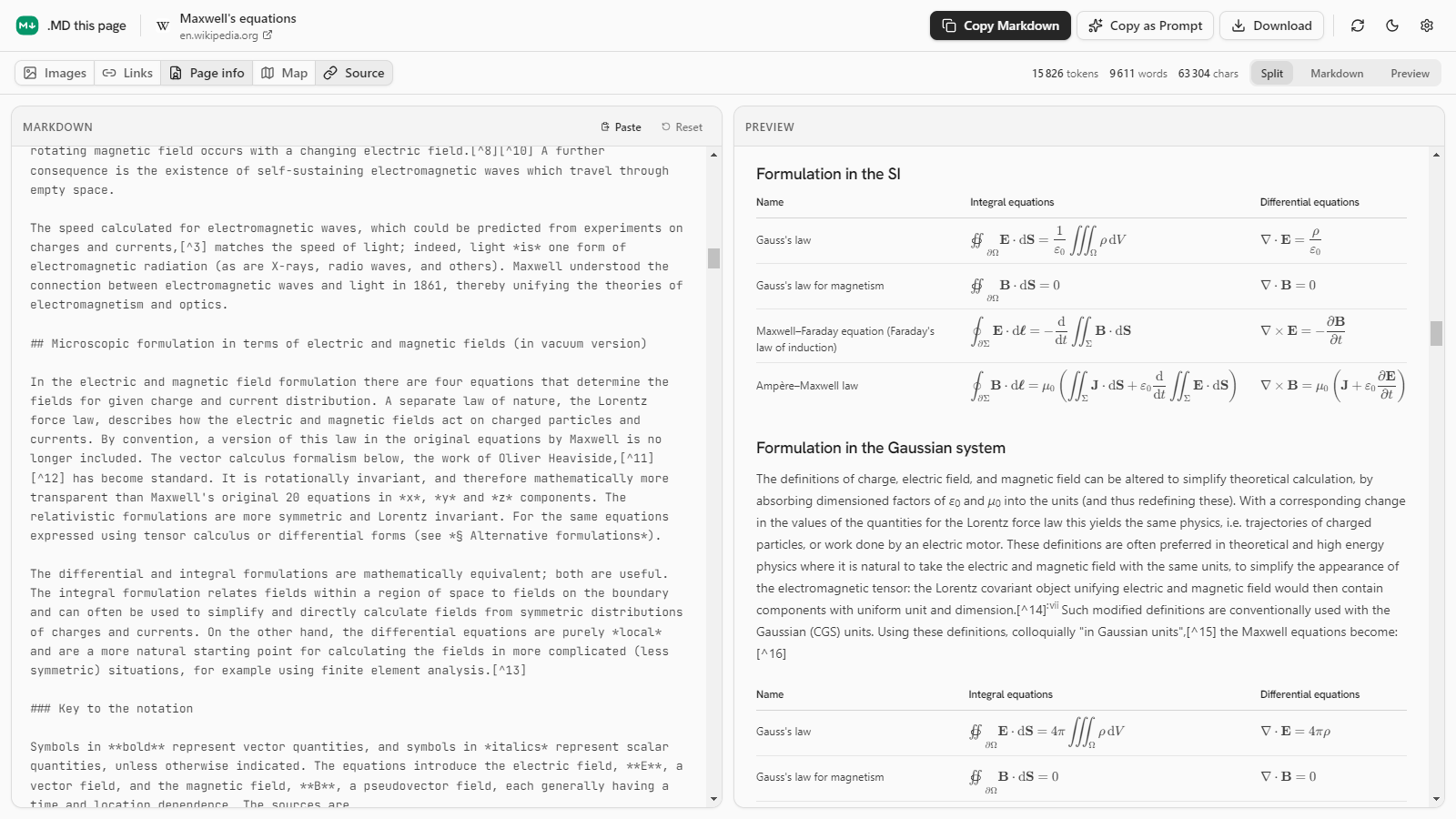




Alt+M.md fileModern LLMs perform significantly better when content is provided in clean, structured Markdown instead of raw HTML or cluttered webpage data.
HTML pages include navigation bars, scripts, ads, and deeply nested DOM structures that add noise and consume context window without adding meaning. This extension solves that by converting pages into a simplified, structured format that is easier to process and reason about.
Benefits for LLM workflows:
In short: this extension turns “web pages” into “LLM-ready documents.”
Alt+M to convert the current page.$…$ / $$…$$), code blocks keep their fences.Ctrl/⌘+Shift+C in the preview).md file (Ctrl/⌘+S in the preview)```markdown fence for AI chats.MD this page only reads a page when you ask it to. There is no content script running on every website: the extractor is injected into the current tab only after you click the toolbar icon, use the context menu or press the shortcut. Everything happens locally — no page content is sent anywhere.
| Permission | Why |
|---|---|
activeTab | Temporary access to the tab you just invoked the extension on. No broad host permissions. |
scripting | Inject the extractor into that tab on demand. |
contextMenus | The right-click menu entries. |
storage | Your settings, and the conversion handed to the preview tab. |
clipboardWrite | Copy the Markdown from the quick actions. |
| Browser | Status |
|---|---|
| Chrome, Edge, Brave, Opera, Vivaldi | ✅ Chrome Web Store build |
| Arc | ✅ (opens the preview in a popup window when Arc blocks new tabs) |
| Firefox, Zen and other Gecko browsers | ✅ Firefox Add-ons build |
| Safari (macOS) | 🧪 Build it yourself, see Safari |
Browsers never let extensions read their own internal pages (chrome://, about:, the extension stores, the built-in PDF viewer). For local file:// pages, enable Allow access to file URLs for the extension.
Or you can install the extension from releases or build it from source (see instructions below). Once installed, click the toolbar icon (or right-click on any webpage → Open Preview Tab) to see the magic happen.
This extension is built with Plasmo and React.
Clone the repository and navigate to the project directory:
cd md-this-page
Install dependencies:
pnpm install
Run the development server:
pnpm dev
This builds the page extractor and runs the Plasmo dev server, generating a build/chrome-mv3-dev directory. If you change lib/extract-page-data.ts, run pnpm build:extractor (or node scripts/build-extractor.mjs --watch in a second terminal).
Load the extension in Chrome:
chrome://extensions/build/chrome-mv3-dev directory from this project.pnpm build # build/chrome-mv3-prod
pnpm build:chrome # + zip for the Chrome Web Store
pnpm build:firefox # + zip for Firefox Add-ons
pnpm build:edge # + zip for Edge Add-ons
pnpm build:all # all of the above
pnpm typecheck
You need a Mac with Xcode. Build the Safari target, then convert it into an Xcode project (thanks @alexvenzke):
pnpm install && pnpm build:safari
xcrun safari-web-extension-converter build/safari-mv3-prod   --project-location MDThisPage-Safari   --app-name "MDThisPage"   --bundle-identifier com.local.md-this-page   --no-prompt
Open MDThisPage-Safari/MDThisPage/MDThisPage.xcodeproj, set your signing team on both targets, then build and run. In Safari: Settings → Advanced → Show features for web developers, Develop → Allow Unsigned Extensions, then enable the extension in Settings → Extensions.
MIT License
Adem Kouki - GitHub
7,875 followers · starred Jun 2026
224 followers · starred Sep 2026
1,258 followers · starred Aug 2026
3,013 followers · starred Apr 2026
Convert any web page to clean, readable Markdown with just one click.
TypeScript
1,612
30 commits
updated Oct 3, 2026
Turn any webpage into clean, LLM-ready Markdown in one click.
Strip the clutter, keep the structure, then copy or download instantly.
Alt+M.md fileModern LLMs perform significantly better when content is provided in clean, structured Markdown instead of raw HTML or cluttered webpage data.
HTML pages include navigation bars, scripts, ads, and deeply nested DOM structures that add noise and consume context window without adding meaning. This extension solves that by converting pages into a simplified, structured format that is easier to process and reason about.
Benefits for LLM workflows:
In short: this extension turns “web pages” into “LLM-ready documents.”
Alt+M to convert the current page.$…$ / $$…$$), code blocks keep their fences.Ctrl/⌘+Shift+C in the preview).md file (Ctrl/⌘+S in the preview)```markdown fence for AI chats.MD this page only reads a page when you ask it to. There is no content script running on every website: the extractor is injected into the current tab only after you click the toolbar icon, use the context menu or press the shortcut. Everything happens locally — no page content is sent anywhere.
| Permission | Why |
|---|---|
activeTab | Temporary access to the tab you just invoked the extension on. No broad host permissions. |
scripting | Inject the extractor into that tab on demand. |
contextMenus | The right-click menu entries. |
storage | Your settings, and the conversion handed to the preview tab. |
clipboardWrite | Copy the Markdown from the quick actions. |
| Browser | Status |
|---|---|
| Chrome, Edge, Brave, Opera, Vivaldi | ✅ Chrome Web Store build |
| Arc | ✅ (opens the preview in a popup window when Arc blocks new tabs) |
| Firefox, Zen and other Gecko browsers | ✅ Firefox Add-ons build |
| Safari (macOS) | 🧪 Build it yourself, see Safari |
Browsers never let extensions read their own internal pages (chrome://, about:, the extension stores, the built-in PDF viewer). For local file:// pages, enable Allow access to file URLs for the extension.
Or you can install the extension from releases or build it from source (see instructions below). Once installed, click the toolbar icon (or right-click on any webpage → Open Preview Tab) to see the magic happen.
This extension is built with Plasmo and React.
Clone the repository and navigate to the project directory:
cd md-this-page
Install dependencies:
pnpm install
Run the development server:
pnpm dev
This builds the page extractor and runs the Plasmo dev server, generating a build/chrome-mv3-dev directory. If you change lib/extract-page-data.ts, run pnpm build:extractor (or node scripts/build-extractor.mjs --watch in a second terminal).
Load the extension in Chrome:
chrome://extensions/build/chrome-mv3-dev directory from this project.pnpm build # build/chrome-mv3-prod
pnpm build:chrome # + zip for the Chrome Web Store
pnpm build:firefox # + zip for Firefox Add-ons
pnpm build:edge # + zip for Edge Add-ons
pnpm build:all # all of the above
pnpm typecheck
You need a Mac with Xcode. Build the Safari target, then convert it into an Xcode project (thanks @alexvenzke):
pnpm install && pnpm build:safari
xcrun safari-web-extension-converter build/safari-mv3-prod   --project-location MDThisPage-Safari   --app-name "MDThisPage"   --bundle-identifier com.local.md-this-page   --no-prompt
Open MDThisPage-Safari/MDThisPage/MDThisPage.xcodeproj, set your signing team on both targets, then build and run. In Safari: Settings → Advanced → Show features for web developers, Develop → Allow Unsigned Extensions, then enable the extension in Settings → Extensions.
MIT License
Adem Kouki - GitHub
7,875 followers · starred Jun 2026
224 followers · starred Sep 2026
1,258 followers · starred Aug 2026
3,013 followers · starred Apr 2026