
Free, open-source offline voice dictation for Windows, macOS, and Linux. A Wispr Flow alternative with an AI assistant that can read your screen on request and answer questions.
See the codeSee what people are saying
README

Free voice dictation and an AI assistant for Windows, macOS, and Linux
Talk and it types, in any app. Ask and it answers. Start a conversation and talk it through.
It also writes up your meetings. Free, open source, and local by default.







What it does
You think faster than you type. SpeakoFlow lets you work with your voice instead, from any app, with a keyboard shortcut:
|

Dictate Left Ctrl + Left Win Hold the keys, talk, let go. What you said is typed at your cursor, in any app that takes text. |
Ask Left Ctrl + Left Alt Select some text if you like, then ask out loud. Translate it, reply to it, explain it. Copy the answer, insert it, or replace the selection. |
Converse Left Ctrl + Left Alt + C A hands-free conversation with the assistant. Talk a problem through and it answers out loud. Press the keys again to end it. |
Windows defaults. The macOS and Linux keys are under Keyboard shortcuts, and you can change every one.
Speech is transcribed on your own computer unless you pick a cloud service. The assistant uses whichever model you choose: a built-in one that works offline, your own Ollama or LM Studio server, or a cloud provider with your own API key.
I built SpeakoFlow while studying alone for exams. I was paying for a dictation app that could hear me but couldn't help me, so I made one that does both.
Features
Dictation
Hold the keys, talk, and let go. Your words appear wherever the cursor is, and the recording pill can show them as you speak. Transcription runs on your graphics card or processor with a local model: Parakeet by default for English, Nemotron for 28 languages with automatic detection, Whisper for 99, and 65 speech models in the catalog altogether. If you'd rather use the cloud, ElevenLabs and Deepgram stream text while you talk, and OpenAI, Groq, Mistral, Azure AI Speech, and OpenRouter work too.
- Undo. Cancelled a recording by accident? The pill offers Undo for a few seconds, and History keeps the recording so you can recover it later. A failed transcription offers Try again.
- Your words, spelled your way. Add names and jargon to the Dictionary, or write text replacements. On Windows it can learn the words you correct.
- Translate to English. Whisper, Canary, Granite Speech, and Voxtral models, and OpenAI or Groq in the cloud, can turn speech in another language into English text.
- Hold or tap. Hold the keys while you talk, or switch to tap so one press starts and the next one stops.
Ask

Select some text, or don't. Hold Left Ctrl + Left Alt and say what you want: "translate this to Spanish", "write a polite reply saying I can't make Thursday", "explain this". The answer streams into a card over the app you're in, and you can copy it, insert it at the cursor, or put it in place of the text you selected.
It can do more if you let it:
- Screen vision. Ask about the error in your terminal or the chart in your spreadsheet. It's off until you switch it on, and even then the model decides per question whether it needs to look. A screenshot it doesn't use never leaves your computer.
- Web search through Serper, Brave, Tavily, Exa, SerpAPI, or TinyFish.
- Reminders. "Remind me to send the invoice in twenty minutes." Reminders survive a restart and pop up without taking your keyboard.
- Profiles and memory. Give it different personas, each with its own reply length, and let it remember how you like to work. Memory is off by default, stays on your computer, and you can edit or erase it.
Conversation
Press Left Ctrl + Left Alt + C and talk. The assistant answers out loud, and you can cut in while it's speaking. Esc stops a reply without ending the conversation, and pressing the keys again ends it. Need to type something in the middle? Dictate as usual. The conversation waits while you do and picks up again afterwards.
Replies are spoken by a voice on your computer (Kokoro, Kitten, Pocket TTS, or Supertonic) or by a cloud voice from OpenAI, ElevenLabs, Deepgram, Cartesia, Google, Azure, and others.
Meetings beta
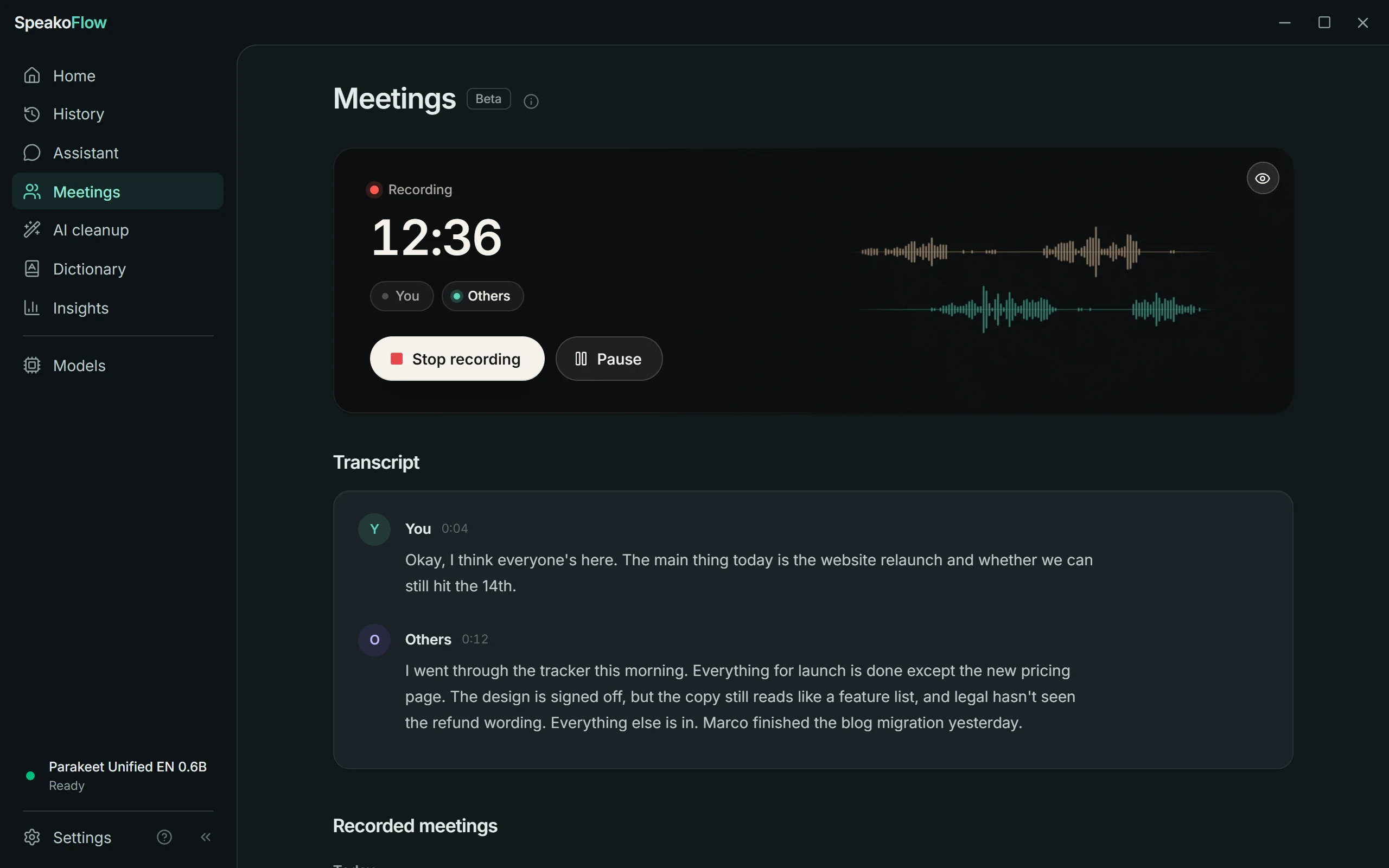 |  |
Press Start recording before a call. SpeakoFlow records your microphone and your computer's audio as two streams and transcribes them as people speak, so it always knows which words were yours. No bot joins the meeting, and it works with any meeting app. On Windows it can offer to record when it notices a call.
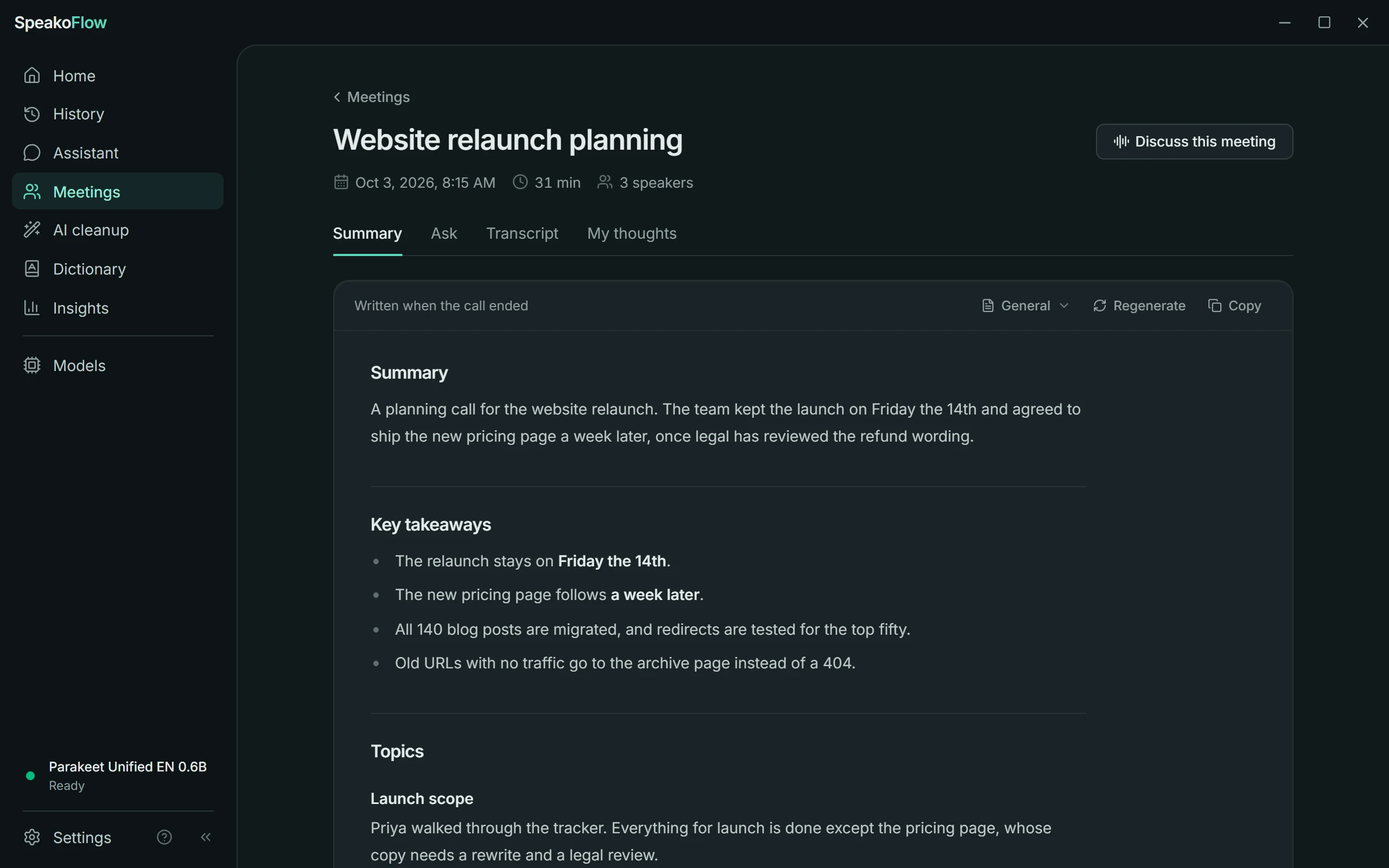
When the call ends it writes the notes, with a summary, decisions, and next steps with owners, using a template you pick (General, Standup, One-on-one, Interview, or Action items). Other voices are labelled Speaker 1, Speaker 2, and so on. Afterwards you can ask questions about the meeting, or choose Discuss this meeting to talk it over in a conversation.
On macOS, recording the other side of a call needs a virtual audio device such as BlackHole. See Troubleshooting.
AI cleanup
SpeakoFlow Mini is a small model we trained for one job: turning what you said into clean text. It removes filler words, fixes grammar and punctuation, and follows spoken edits, so "scratch that" or "actually, eleven" does what you meant instead of being typed out. It's a 795 MB download, runs on your computer, and handles English for now. Any other local or cloud model can do the job instead, including Apple Intelligence on Apple silicon Macs.
Cleanup is off until you turn it on. It then gets its own shortcut (the dictation keys plus Shift) or runs on every dictation. On top of it you can add a writing style: Professional, Friendly, Concise, Formal, Casual, or one you write yourself.
Also in the app
- Insights. Words dictated, your speaking speed, time saved compared with typing at 40 words a minute, and six months of activity with streaks.
- History. Your dictations, questions, and conversations. Play a recording back, transcribe it again, recover a dismissed one, or continue a chat as a conversation. Old recordings can delete themselves after a set number, days, or months.
- Models you already have. Add a
.ggufor Whisper.binfile, or link a folder and every model in it shows up. Nothing is copied or moved. Downloads that do happen fetch eight chunks at once and resume where they stopped. - Generate with Flow. Start a dictation with "Hey Flow" and describe what you want written, and the finished text is pasted instead of your words. It's off by default, under Settings → Dictation.
- 20 interface languages.
Each feature has its own page in the documentation.
A look around
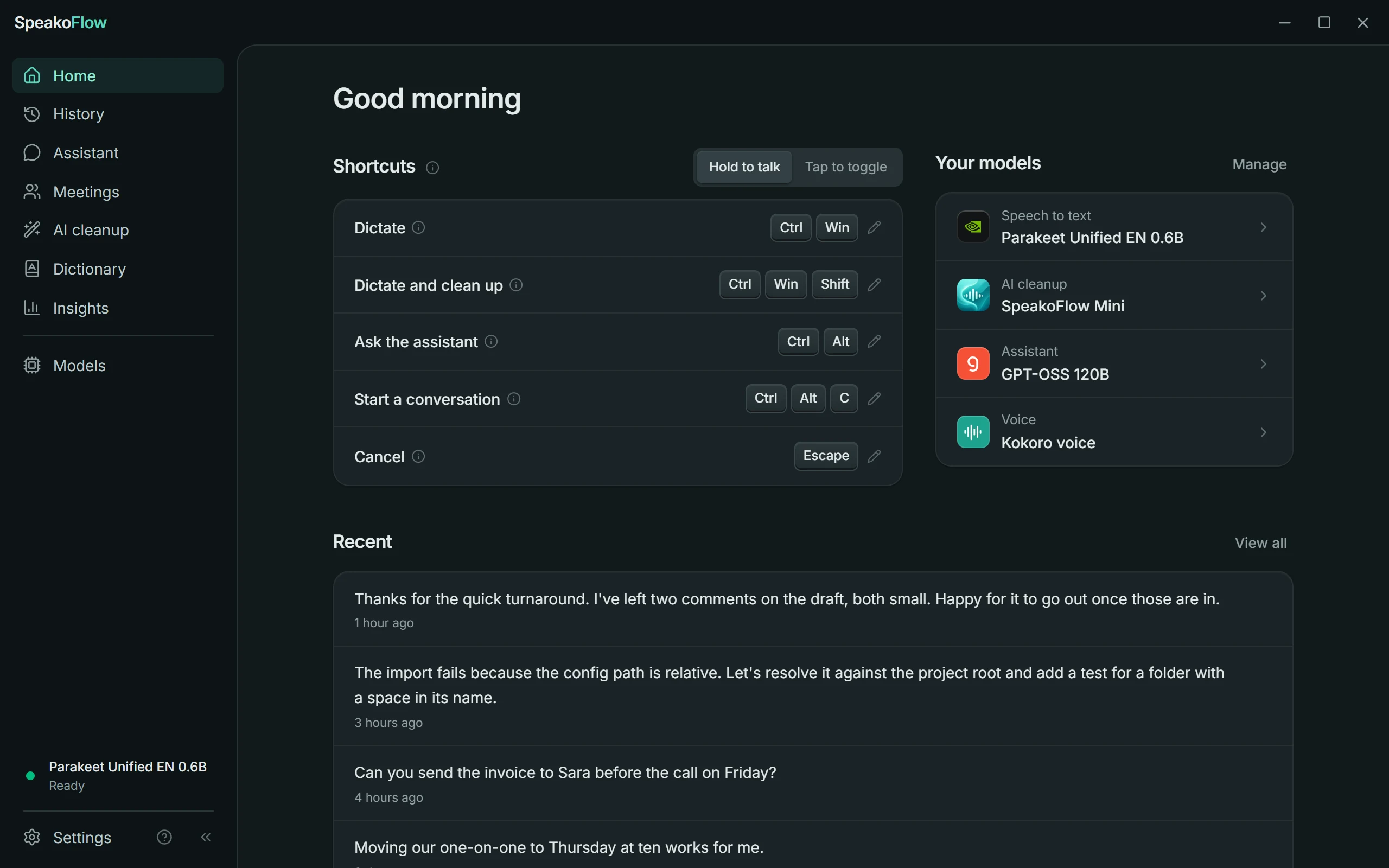 Home. Your shortcuts, the models doing each job, and what you dictated last. | 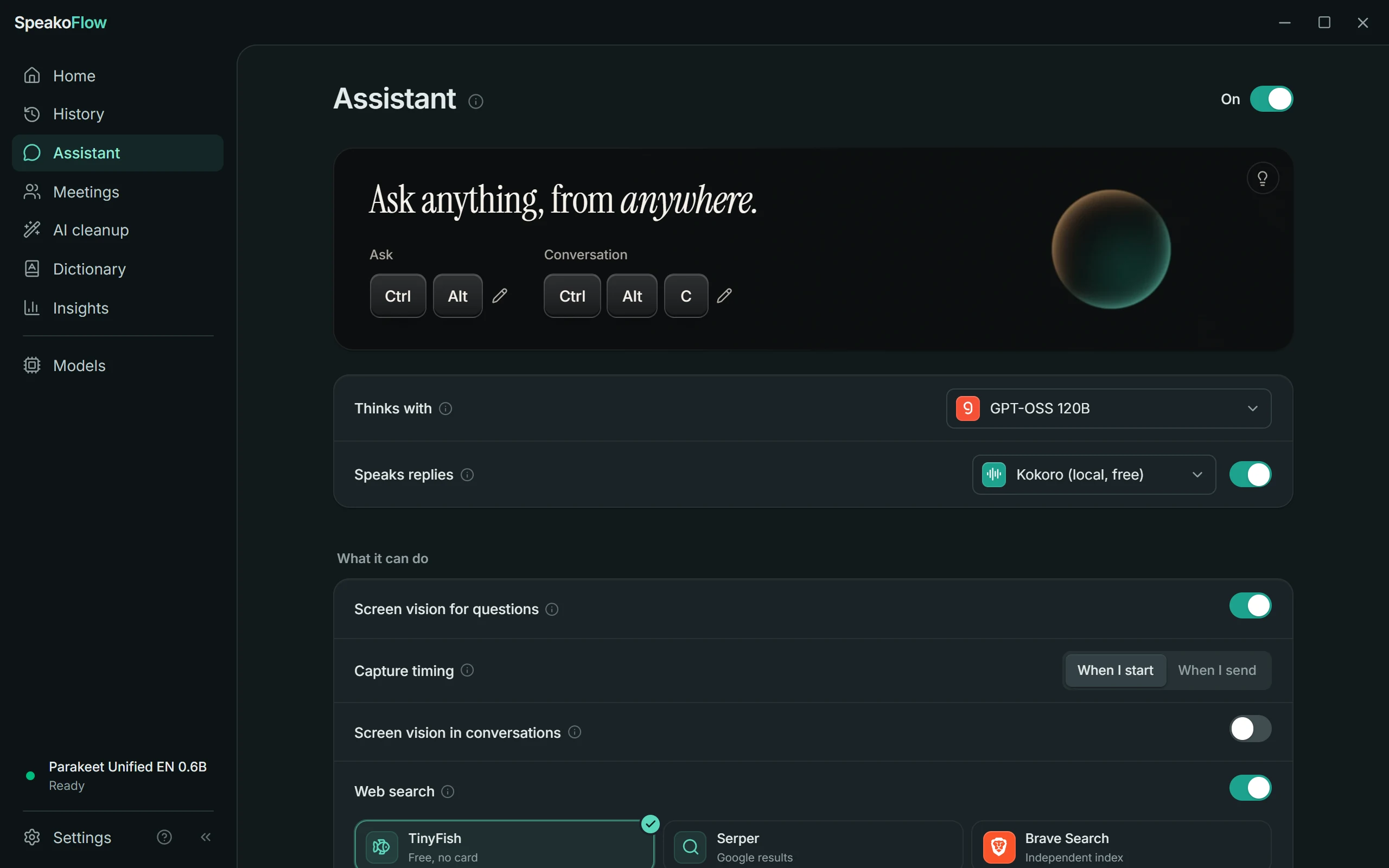 Assistant. Its model, its voice, and what it's allowed to do. |
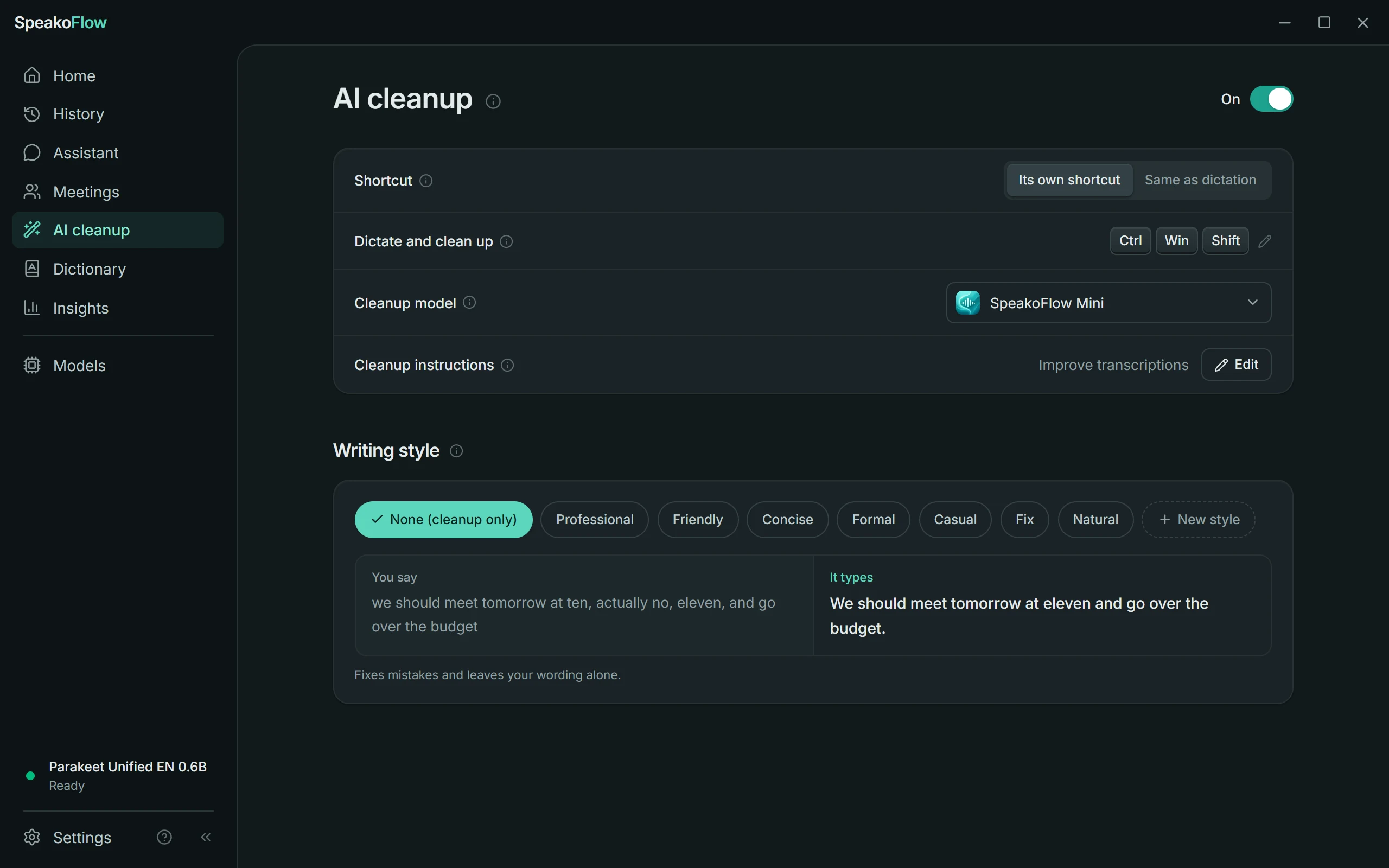 AI cleanup. Say it messy, get it clean, in the style you pick. | 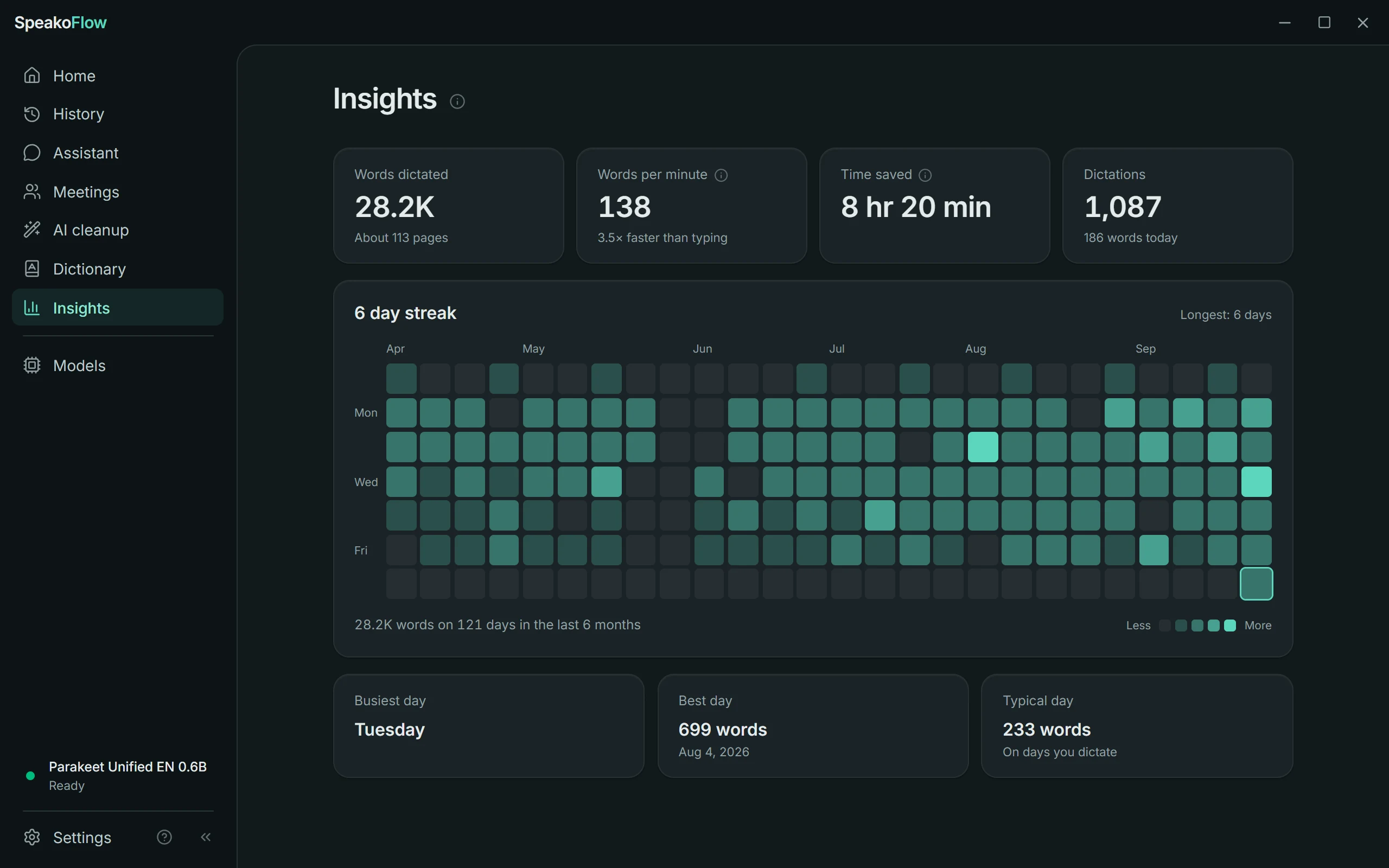 Insights. How much you dictate, and how much typing it saved. |
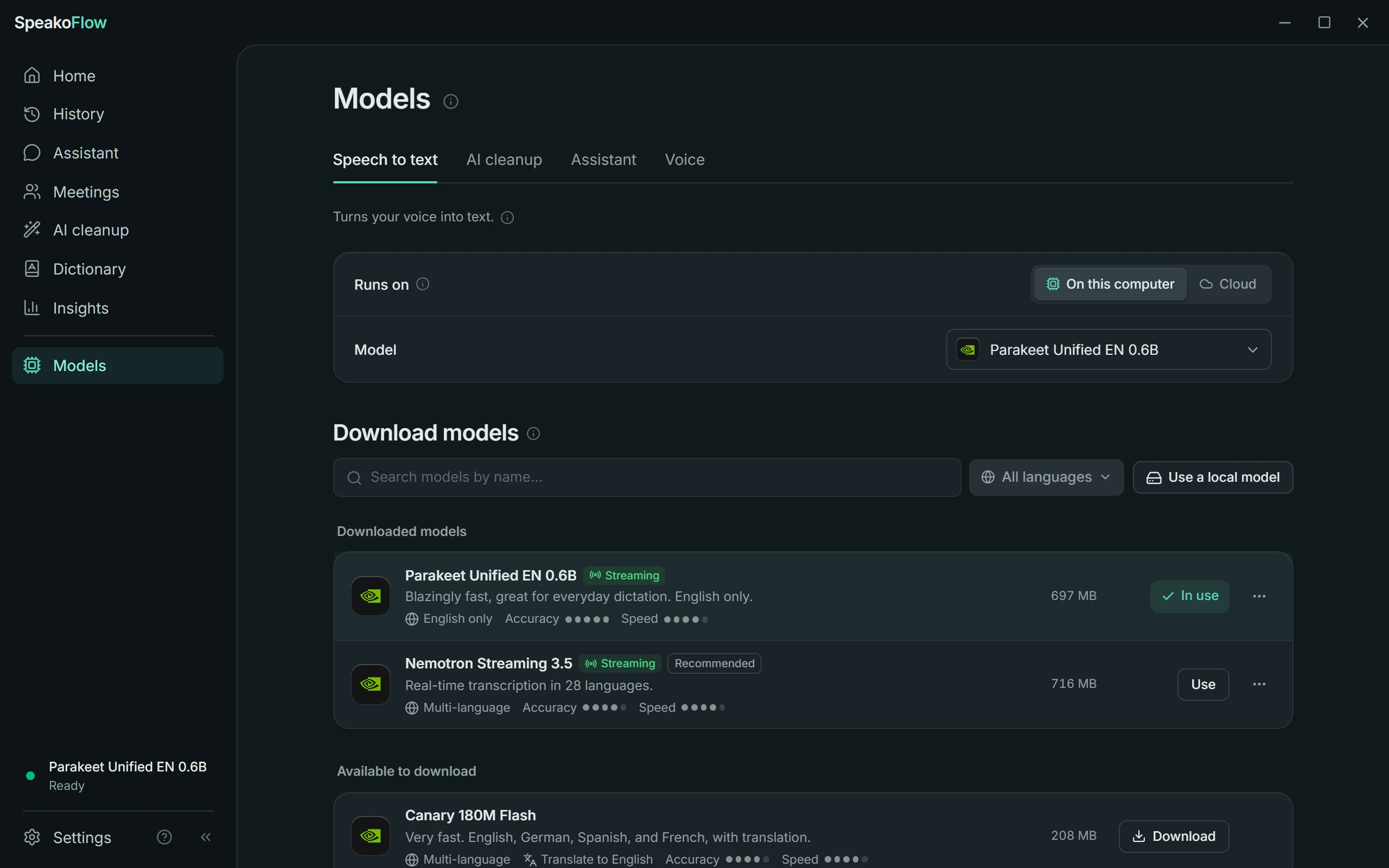 Models. Each job runs on this computer or in the cloud. | 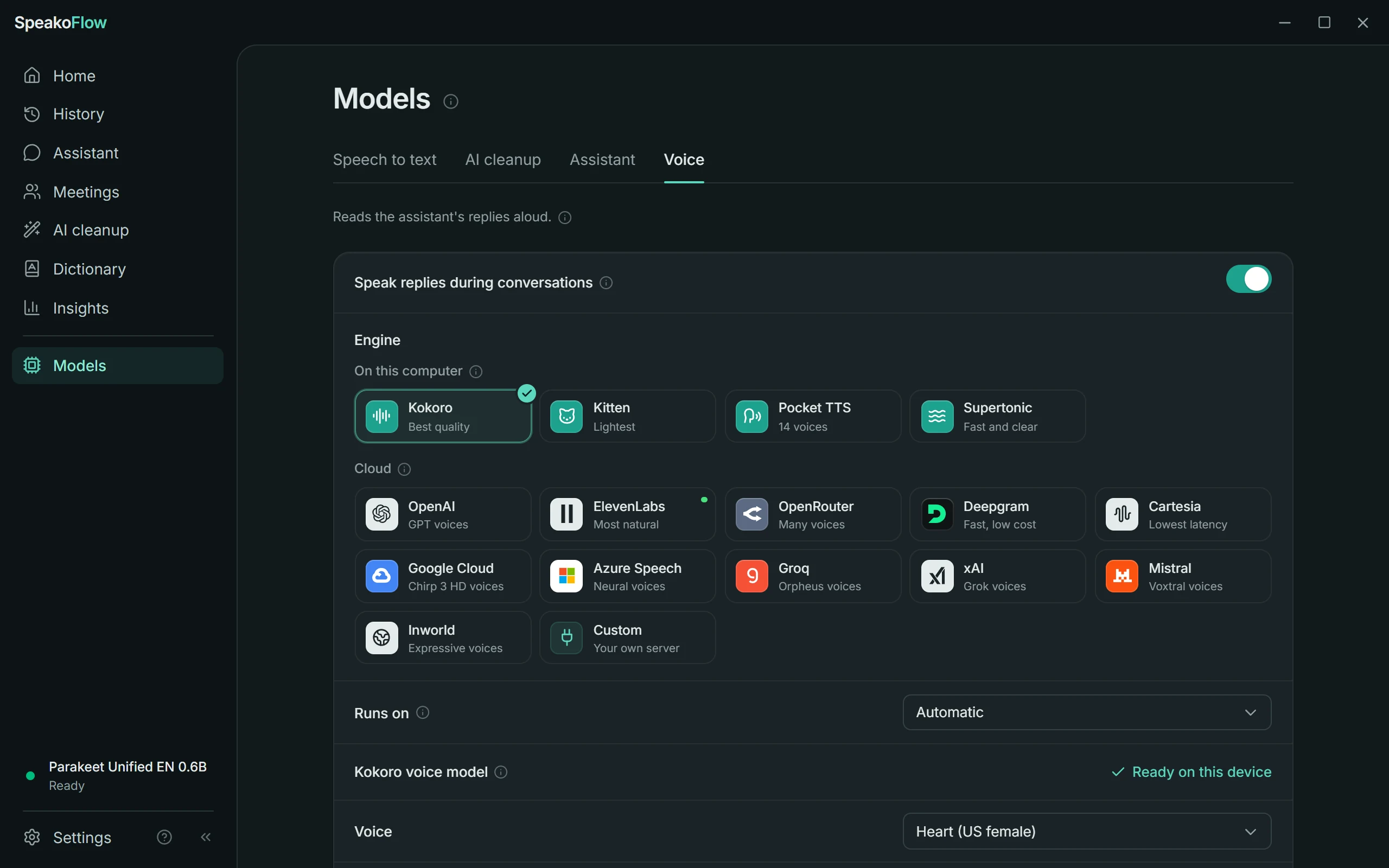 Voices. Four local voices and a dozen cloud ones. |
Keyboard shortcuts
| Action | Windows | macOS | Linux |
|---|---|---|---|
| Dictate | Left Ctrl + Left Win | Fn (🌐) | Ctrl + Space |
| Ask the assistant | Left Ctrl + Left Alt | Fn + Ctrl | Ctrl + Alt + Space |
| Start or end a conversation | Left Ctrl + Left Alt + C | Fn + Ctrl + C | Ctrl + Alt + C |
| Dictate and clean up 1 | Left Ctrl + Left Win + Shift | Fn + Shift | Ctrl + Shift + Space |
| Cancel | Esc | Esc | Not available yet |
1 Only while AI cleanup is on and has its own shortcut.
The pattern is the same on every platform. Add Shift to the dictation keys to dictate and clean up, and add C to the ask keys to start a conversation. Recording shortcuts work while you hold them; switch the Home page from Hold to talk to Tap to toggle and one press starts, the next one stops.
Esc only cancels while something is running, like a recording or a reply being read aloud, so other apps keep their Esc the rest of the time. To change a shortcut, click its keys. Cancel and the conversation shortcut can also be turned off from there.
On a Mac, set System Settings → Keyboard → Press 🌐 key to to Do Nothing, or the globe key opens the emoji picker as well. Macs that were on the older Option + Space default keep it after updating.
Scripts and window managers can control SpeakoFlow with
command-line flags such as
--toggle-transcription.
Models and providers
Every job can run on your computer or with a provider you choose. Cloud providers use your own API key, stored in your system keychain.
| Job | On your computer | In the cloud, with your key |
|---|---|---|
| Speech to text | Parakeet, Nemotron, Canary, Cohere Transcribe, Whisper, Moonshine, Voxtral, Qwen3-ASR, GigaAM, Granite Speech, SenseVoice, and more (65 in the catalog) | ElevenLabs, Deepgram, OpenAI, Groq, Mistral (Voxtral), Azure AI Speech, OpenRouter, or any OpenAI-compatible server |
| Assistant and cleanup | Built-in engine (llama.cpp, fully offline), Ollama, LM Studio, SpeakoFlow Mini for cleanup, Apple Intelligence for cleanup on Apple silicon | OpenAI, Anthropic, Google Gemini, Azure OpenAI, AWS Bedrock, OpenRouter, Groq, Cerebras, xAI, DeepSeek, Mistral, Moonshot, Together AI, Fireworks AI, Perplexity, Z.AI, or any OpenAI-compatible endpoint |
| Spoken replies | Kokoro, Kitten, Pocket TTS, Supertonic | OpenAI, ElevenLabs, OpenRouter, Deepgram, Cartesia, Google Cloud, Azure AI Speech, Groq, xAI, Mistral, Inworld, or your own server |
| Web search (optional) | Serper, Brave, Tavily, Exa, SerpAPI, TinyFish |
Privacy
By default your voice is transcribed on your computer and never uploaded. There is no telemetry, no analytics, and no account.
Data leaves your computer only for things you set up yourself:
- A cloud speech service, if you pick one instead of a local model. It receives your recordings.
- The assistant's provider, if it isn't a local one. It receives your questions, any text you selected, a screenshot when screen vision is on and the model asks for one, and a meeting's transcript when you generate notes or ask about it.
- Web search, if you turn it on. The search provider receives the query.
- Feedback, if you send it from the app. It sends exactly what the dialog shows you, to a private issue tracker only the developer can read.
API keys live in your system keychain. Memory is off until you turn it on, and it stays on your computer where you can view, edit, or erase it. More detail is on the privacy page.
Install
Download the latest build from the Releases page. On first launch you pick a speech model, and a short tour shows the shortcuts while it downloads.
Already on 1.4 or earlier? Those versions can't update themselves to 2.0, so download 2.0 once from Releases and install it over the old one. Your settings and history are kept. From 2.0 on, updates install from inside the app.
Windows
Run the .exe installer. Windows may show a SmartScreen notice because the
installer isn't signed by a known publisher yet; choose More info → Run
anyway.
macOS
Download the .dmg for your Mac (aarch64 for Apple silicon, x64 for Intel)
and drag SpeakoFlow into Applications. The app isn't signed by Apple yet,
so macOS says it "is damaged and can't be opened". It isn't damaged. Clear the
block once with this command in Terminal, then open the app normally:
xattr -dr com.apple.quarantine /Applications/SpeakoFlow.app
SpeakoFlow then asks for Microphone and Accessibility permission so it can hear you and type into other apps.
More about the macOS install
The "damaged" message is what macOS shows for any app it can't trace to a paid Apple Developer account. Signing costs $99 a year, which this project doesn't have yet. macOS 15 and later removed the old right-click → Open bypass, and this message is the one case where System Settings offers no Open Anyway button, so Terminal is the only way through. The command removes the "downloaded from the internet" tag from that copy of the app.
You run it once per download. Updates installed from inside the app aren't
tagged, so they don't need it. If you download a new .dmg by hand, run it
again for that copy.
After an update, macOS sometimes keeps showing SpeakoFlow as allowed under Accessibility, Microphone, or Screen Recording while no longer honouring it. If a permission screen keeps waiting, use its Reset permission button, then switch SpeakoFlow on again in System Settings.
The Intel build needs macOS 14 Sonoma or later. It runs on the processor only, so transcription is slower than on Apple silicon, but everything works. CI launches every Intel build on a real Intel Mac before it's released.
Linux
- Arch Linux. Install
speakoflow-binfrom the AUR, for example withyay -S speakoflow-bin. - Debian 13+, Ubuntu 24.04+, Mint 22+, Pop!_OS. Install the
.deb, which also adds the app icon and menu entry:sudo apt install ./SpeakoFlow_*_amd64.deb - Other distributions, including Fedora and openSUSE. Use the AppImage:
make it executable with
chmod +xand run it. Tools like Gear Lever or AppImageLauncher add it to your app menu.
Both packages are built for x86_64 and ARM64 on Ubuntu 24.04, so they need
glibc 2.39 or newer. That rules out Ubuntu 22.04, Debian 12, Mint 21, and
RHEL 9 and its rebuilds. There's no .rpm yet, because the packaging doesn't
bundle the speech engine correctly, and a package that installs but can't
transcribe would be worse than none.
Updates
SpeakoFlow checks for new versions in the background and installs them from Settings → About, after verifying each one against the project's signing key. The AUR package updates through your package manager instead. To hear about releases on GitHub, click Watch → Custom → Releases at the top of this page.
Build from source
git clone https://github.com/AbhishekBarali/SpeakoFlow.git
cd SpeakoFlow
bun install
mkdir -p src-tauri/resources/models
curl -o src-tauri/resources/models/silero_vad_v4.onnx https://blob.handy.computer/silero_vad_v4.onnx
bun run tauri dev
On Arch-based distributions, bun run install:arch builds the current checkout
and installs it under ~/.local with a desktop entry and a speak command.
BUILD.md has the setup for each platform.
The app is Tauri 2 with a Rust backend and a React and TypeScript frontend. Speech runs on transcribe.cpp, whisper.cpp, and ONNX Runtime with Silero VAD; the assistant and cleanup on a bundled llama.cpp engine or any OpenAI-compatible API; local voices on Kokoro in the app's window and sherpa-onnx on the processor; and meeting speaker labels on WeSpeaker voice embeddings.
How it compares
| SpeakoFlow | Wispr Flow | Superwhisper | Handy | |
|---|---|---|---|---|
| Price | Free | Free up to 2,000 words a week on desktop, then $15/month | Free tier, Pro at $8.49/month or $249.99 once | Free |
| Source code | Open (MIT) | Closed | Closed | Open (MIT) |
| Linux | Yes | No | No | Yes |
| Transcribes offline | Yes | No | Yes | Yes |
| AI assistant | Yes | Yes | No | No |
Prices and platforms from each product's own site, checked October 2026.
SpeakoFlow's dictation core comes from Handy, which is a good choice if dictation is all you need. More detail: SpeakoFlow vs Wispr Flow and free and open-source Wispr Flow alternatives.
Troubleshooting
The common problems are below. For anything else, see the troubleshooting docs or open an issue.
macOS: a meeting only records my side of the call
macOS gives apps no direct way to record the sound your computer plays. Windows has WASAPI loopback and Linux has your PulseAudio or PipeWire monitor source, but a Mac needs a virtual audio device in between.
Install a loopback driver such as BlackHole, create a Multi-Output Device in Audio MIDI Setup that sends sound to both your speakers and BlackHole, and make it your output. SpeakoFlow can then record the other side of the call. Your microphone is recorded either way.
Linux: the recording overlay won't stay on top of other apps
A window can only float above the others on Linux through the wlr-layer-shell
protocol (wlroots compositors like Sway and Hyprland, and KDE Plasma) or X11
"keep above" stacking. Native GNOME on Wayland supports neither, so when
SpeakoFlow detects it, it runs under XWayland, where the overlay floats
normally. That needs no setup, and X11 and KDE or wlroots Wayland work as they
are.
- To force native Wayland anyway, launch with
SPEAKOFLOW_ALLOW_WAYLAND=1. The overlay may not stay on top. - If the overlay misbehaves under a layer-shell compositor, launch with
SPEAKOFLOW_NO_GTK_LAYER_SHELL=1.
Linux: shortcuts do nothing and the log repeats "Permission denied"
A log full of rdev grab error: ... PermissionDenied means the app can't read
your input devices. This only affects the SpeakoFlow Keys keyboard engine,
which reads /dev/input/event* (needs your user in the input group) and
re-sends keys through /dev/uinput (root-only by default on many
distributions, Ubuntu included, so the group alone is not enough). Tauri is the default engine on Linux, so you'd only
see this after switching. The Shortcuts card on the Home page says when
this is the case and gives the exact command.
- Grant both, then log out and back in:
sudo usermod -aG input "$USER" echo 'KERNEL=="uinput", GROUP="input", MODE="0660"' | sudo tee /etc/udev/rules.d/70-speakoflow-uinput.rules sudo udevadm control --reload && sudo udevadm trigger /dev/uinput - Or switch the keyboard engine back to Tauri in Settings → Advanced. It needs no permissions but registers shortcuts through X11, so on native Wayland it only hears them while an X11 window has focus.
On Wayland the dependable option is a shortcut owned by your desktop. On a
Wayland session the Shortcuts card shows a Set up button that lists the
command for each action, ready to copy. Add a custom shortcut in GNOME or KDE
settings, or a bind line in Sway or Hyprland, that runs
speakoflow --toggle-transcription (for an AppImage, its path followed by the
same flag). --toggle-post-process, --toggle-assistant, --toggle-call
(start or end a conversation), and --cancel work the same way. These start
with one press and stop with the next, like Tap to toggle.
Linux: the app crashes on a touchpad pinch-to-zoom
A crash with Received invalid message: 'DrawingArea_CommitTransientZoom' in
the log is a WebKitGTK bug that affects many apps built on it, tracked in
tauri#13115 and
wry#544. Until it's fixed
upstream, avoid pinching inside the window. Updating webkit2gtk-4.1 to the
latest version can help.
Roadmap
- Code signing for Windows and macOS
- More one-click local models
- More community translations
- Dictation tuned for agentic coding
- Help writing prompts: describe what you want to build and get a solid prompt back
- Voice commands that take actions for you
Contributing
Contributions are welcome. CONTRIBUTING.md explains how to get started, and CONTRIBUTING_TRANSLATIONS.md covers translating the app.
Found a bug or have an idea? Use Send feedback in the app (the ? next to Settings), or open an issue.
License and credits
SpeakoFlow is released under the MIT License.
The dictation core comes from Handy by CJ Pais, used under the MIT licence. Thanks to CJ for making it open. The assistant, conversations, meetings, screen vision, Generate with Flow, translation, spoken replies, and memory are SpeakoFlow's own.
Thanks also to Tauri, whisper.cpp, llama.cpp, ONNX Runtime, sherpa-onnx, Silero VAD, WeSpeaker, Kokoro, and Kyutai's Pocket TTS.
Cloud transcription uploads are compressed with the LAME MP3 encoder, via mp3lame-encoder. Both are LGPL-3.0 and are statically linked; their source, and this app's, are public, so a build against a modified LAME is always possible.
Made by Abhishek Barali · speakoflow.com
Significant stargazers

3 followers · starred Jul 2026
Similar repos


Free, open-source offline voice dictation for Windows, macOS, and Linux. A Wispr Flow alternative with an AI assistant that can read your screen on request and answer questions.
See the codeSee what people are saying
README
Free voice dictation and an AI assistant for Windows, macOS, and Linux
Talk and it types, in any app. Ask and it answers. Start a conversation and talk it through.
It also writes up your meetings. Free, open source, and local by default.
What it does
You think faster than you type. SpeakoFlow lets you work with your voice instead, from any app, with a keyboard shortcut:
|
Dictate Left Ctrl + Left Win Hold the keys, talk, let go. What you said is typed at your cursor, in any app that takes text. |
Ask Left Ctrl + Left Alt Select some text if you like, then ask out loud. Translate it, reply to it, explain it. Copy the answer, insert it, or replace the selection. |
Converse Left Ctrl + Left Alt + C A hands-free conversation with the assistant. Talk a problem through and it answers out loud. Press the keys again to end it. |
Windows defaults. The macOS and Linux keys are under Keyboard shortcuts, and you can change every one.
Speech is transcribed on your own computer unless you pick a cloud service. The assistant uses whichever model you choose: a built-in one that works offline, your own Ollama or LM Studio server, or a cloud provider with your own API key.
I built SpeakoFlow while studying alone for exams. I was paying for a dictation app that could hear me but couldn't help me, so I made one that does both.
Features
Dictation
Hold the keys, talk, and let go. Your words appear wherever the cursor is, and the recording pill can show them as you speak. Transcription runs on your graphics card or processor with a local model: Parakeet by default for English, Nemotron for 28 languages with automatic detection, Whisper for 99, and 65 speech models in the catalog altogether. If you'd rather use the cloud, ElevenLabs and Deepgram stream text while you talk, and OpenAI, Groq, Mistral, Azure AI Speech, and OpenRouter work too.
- Undo. Cancelled a recording by accident? The pill offers Undo for a few seconds, and History keeps the recording so you can recover it later. A failed transcription offers Try again.
- Your words, spelled your way. Add names and jargon to the Dictionary, or write text replacements. On Windows it can learn the words you correct.
- Translate to English. Whisper, Canary, Granite Speech, and Voxtral models, and OpenAI or Groq in the cloud, can turn speech in another language into English text.
- Hold or tap. Hold the keys while you talk, or switch to tap so one press starts and the next one stops.
Ask
Select some text, or don't. Hold Left Ctrl + Left Alt and say what you want: "translate this to Spanish", "write a polite reply saying I can't make Thursday", "explain this". The answer streams into a card over the app you're in, and you can copy it, insert it at the cursor, or put it in place of the text you selected.
It can do more if you let it:
- Screen vision. Ask about the error in your terminal or the chart in your spreadsheet. It's off until you switch it on, and even then the model decides per question whether it needs to look. A screenshot it doesn't use never leaves your computer.
- Web search through Serper, Brave, Tavily, Exa, SerpAPI, or TinyFish.
- Reminders. "Remind me to send the invoice in twenty minutes." Reminders survive a restart and pop up without taking your keyboard.
- Profiles and memory. Give it different personas, each with its own reply length, and let it remember how you like to work. Memory is off by default, stays on your computer, and you can edit or erase it.
Conversation
Press Left Ctrl + Left Alt + C and talk. The assistant answers out loud, and you can cut in while it's speaking. Esc stops a reply without ending the conversation, and pressing the keys again ends it. Need to type something in the middle? Dictate as usual. The conversation waits while you do and picks up again afterwards.
Replies are spoken by a voice on your computer (Kokoro, Kitten, Pocket TTS, or Supertonic) or by a cloud voice from OpenAI, ElevenLabs, Deepgram, Cartesia, Google, Azure, and others.
Meetings beta
| |
Press Start recording before a call. SpeakoFlow records your microphone and your computer's audio as two streams and transcribes them as people speak, so it always knows which words were yours. No bot joins the meeting, and it works with any meeting app. On Windows it can offer to record when it notices a call.
When the call ends it writes the notes, with a summary, decisions, and next steps with owners, using a template you pick (General, Standup, One-on-one, Interview, or Action items). Other voices are labelled Speaker 1, Speaker 2, and so on. Afterwards you can ask questions about the meeting, or choose Discuss this meeting to talk it over in a conversation.
On macOS, recording the other side of a call needs a virtual audio device such as BlackHole. See Troubleshooting.
AI cleanup
SpeakoFlow Mini is a small model we trained for one job: turning what you said into clean text. It removes filler words, fixes grammar and punctuation, and follows spoken edits, so "scratch that" or "actually, eleven" does what you meant instead of being typed out. It's a 795 MB download, runs on your computer, and handles English for now. Any other local or cloud model can do the job instead, including Apple Intelligence on Apple silicon Macs.
Cleanup is off until you turn it on. It then gets its own shortcut (the dictation keys plus Shift) or runs on every dictation. On top of it you can add a writing style: Professional, Friendly, Concise, Formal, Casual, or one you write yourself.
Also in the app
- Insights. Words dictated, your speaking speed, time saved compared with typing at 40 words a minute, and six months of activity with streaks.
- History. Your dictations, questions, and conversations. Play a recording back, transcribe it again, recover a dismissed one, or continue a chat as a conversation. Old recordings can delete themselves after a set number, days, or months.
- Models you already have. Add a
.ggufor Whisper.binfile, or link a folder and every model in it shows up. Nothing is copied or moved. Downloads that do happen fetch eight chunks at once and resume where they stopped. - Generate with Flow. Start a dictation with "Hey Flow" and describe what you want written, and the finished text is pasted instead of your words. It's off by default, under Settings → Dictation.
- 20 interface languages.
Each feature has its own page in the documentation.
A look around
Home. Your shortcuts, the models doing each job, and what you dictated last. | Assistant. Its model, its voice, and what it's allowed to do. |
AI cleanup. Say it messy, get it clean, in the style you pick. | Insights. How much you dictate, and how much typing it saved. |
Models. Each job runs on this computer or in the cloud. | Voices. Four local voices and a dozen cloud ones. |
Keyboard shortcuts
| Action | Windows | macOS | Linux |
|---|---|---|---|
| Dictate | Left Ctrl + Left Win | Fn (🌐) | Ctrl + Space |
| Ask the assistant | Left Ctrl + Left Alt | Fn + Ctrl | Ctrl + Alt + Space |
| Start or end a conversation | Left Ctrl + Left Alt + C | Fn + Ctrl + C | Ctrl + Alt + C |
| Dictate and clean up 1 | Left Ctrl + Left Win + Shift | Fn + Shift | Ctrl + Shift + Space |
| Cancel | Esc | Esc | Not available yet |
1 Only while AI cleanup is on and has its own shortcut.
The pattern is the same on every platform. Add Shift to the dictation keys to dictate and clean up, and add C to the ask keys to start a conversation. Recording shortcuts work while you hold them; switch the Home page from Hold to talk to Tap to toggle and one press starts, the next one stops.
Esc only cancels while something is running, like a recording or a reply being read aloud, so other apps keep their Esc the rest of the time. To change a shortcut, click its keys. Cancel and the conversation shortcut can also be turned off from there.
On a Mac, set System Settings → Keyboard → Press 🌐 key to to Do Nothing, or the globe key opens the emoji picker as well. Macs that were on the older Option + Space default keep it after updating.
Scripts and window managers can control SpeakoFlow with
command-line flags such as
--toggle-transcription.
Models and providers
Every job can run on your computer or with a provider you choose. Cloud providers use your own API key, stored in your system keychain.
| Job | On your computer | In the cloud, with your key |
|---|---|---|
| Speech to text | Parakeet, Nemotron, Canary, Cohere Transcribe, Whisper, Moonshine, Voxtral, Qwen3-ASR, GigaAM, Granite Speech, SenseVoice, and more (65 in the catalog) | ElevenLabs, Deepgram, OpenAI, Groq, Mistral (Voxtral), Azure AI Speech, OpenRouter, or any OpenAI-compatible server |
| Assistant and cleanup | Built-in engine (llama.cpp, fully offline), Ollama, LM Studio, SpeakoFlow Mini for cleanup, Apple Intelligence for cleanup on Apple silicon | OpenAI, Anthropic, Google Gemini, Azure OpenAI, AWS Bedrock, OpenRouter, Groq, Cerebras, xAI, DeepSeek, Mistral, Moonshot, Together AI, Fireworks AI, Perplexity, Z.AI, or any OpenAI-compatible endpoint |
| Spoken replies | Kokoro, Kitten, Pocket TTS, Supertonic | OpenAI, ElevenLabs, OpenRouter, Deepgram, Cartesia, Google Cloud, Azure AI Speech, Groq, xAI, Mistral, Inworld, or your own server |
| Web search (optional) | Serper, Brave, Tavily, Exa, SerpAPI, TinyFish |
Privacy
By default your voice is transcribed on your computer and never uploaded. There is no telemetry, no analytics, and no account.
Data leaves your computer only for things you set up yourself:
- A cloud speech service, if you pick one instead of a local model. It receives your recordings.
- The assistant's provider, if it isn't a local one. It receives your questions, any text you selected, a screenshot when screen vision is on and the model asks for one, and a meeting's transcript when you generate notes or ask about it.
- Web search, if you turn it on. The search provider receives the query.
- Feedback, if you send it from the app. It sends exactly what the dialog shows you, to a private issue tracker only the developer can read.
API keys live in your system keychain. Memory is off until you turn it on, and it stays on your computer where you can view, edit, or erase it. More detail is on the privacy page.
Install
Download the latest build from the Releases page. On first launch you pick a speech model, and a short tour shows the shortcuts while it downloads.
Already on 1.4 or earlier? Those versions can't update themselves to 2.0, so download 2.0 once from Releases and install it over the old one. Your settings and history are kept. From 2.0 on, updates install from inside the app.
Windows
Run the .exe installer. Windows may show a SmartScreen notice because the
installer isn't signed by a known publisher yet; choose More info → Run
anyway.
macOS
Download the .dmg for your Mac (aarch64 for Apple silicon, x64 for Intel)
and drag SpeakoFlow into Applications. The app isn't signed by Apple yet,
so macOS says it "is damaged and can't be opened". It isn't damaged. Clear the
block once with this command in Terminal, then open the app normally:
xattr -dr com.apple.quarantine /Applications/SpeakoFlow.app
SpeakoFlow then asks for Microphone and Accessibility permission so it can hear you and type into other apps.
More about the macOS install
The "damaged" message is what macOS shows for any app it can't trace to a paid Apple Developer account. Signing costs $99 a year, which this project doesn't have yet. macOS 15 and later removed the old right-click → Open bypass, and this message is the one case where System Settings offers no Open Anyway button, so Terminal is the only way through. The command removes the "downloaded from the internet" tag from that copy of the app.
You run it once per download. Updates installed from inside the app aren't
tagged, so they don't need it. If you download a new .dmg by hand, run it
again for that copy.
After an update, macOS sometimes keeps showing SpeakoFlow as allowed under Accessibility, Microphone, or Screen Recording while no longer honouring it. If a permission screen keeps waiting, use its Reset permission button, then switch SpeakoFlow on again in System Settings.
The Intel build needs macOS 14 Sonoma or later. It runs on the processor only, so transcription is slower than on Apple silicon, but everything works. CI launches every Intel build on a real Intel Mac before it's released.
Linux
- Arch Linux. Install
speakoflow-binfrom the AUR, for example withyay -S speakoflow-bin. - Debian 13+, Ubuntu 24.04+, Mint 22+, Pop!_OS. Install the
.deb, which also adds the app icon and menu entry:sudo apt install ./SpeakoFlow_*_amd64.deb - Other distributions, including Fedora and openSUSE. Use the AppImage:
make it executable with
chmod +xand run it. Tools like Gear Lever or AppImageLauncher add it to your app menu.
Both packages are built for x86_64 and ARM64 on Ubuntu 24.04, so they need
glibc 2.39 or newer. That rules out Ubuntu 22.04, Debian 12, Mint 21, and
RHEL 9 and its rebuilds. There's no .rpm yet, because the packaging doesn't
bundle the speech engine correctly, and a package that installs but can't
transcribe would be worse than none.
Updates
SpeakoFlow checks for new versions in the background and installs them from Settings → About, after verifying each one against the project's signing key. The AUR package updates through your package manager instead. To hear about releases on GitHub, click Watch → Custom → Releases at the top of this page.
Build from source
git clone https://github.com/AbhishekBarali/SpeakoFlow.git
cd SpeakoFlow
bun install
mkdir -p src-tauri/resources/models
curl -o src-tauri/resources/models/silero_vad_v4.onnx https://blob.handy.computer/silero_vad_v4.onnx
bun run tauri dev
On Arch-based distributions, bun run install:arch builds the current checkout
and installs it under ~/.local with a desktop entry and a speak command.
BUILD.md has the setup for each platform.
The app is Tauri 2 with a Rust backend and a React and TypeScript frontend. Speech runs on transcribe.cpp, whisper.cpp, and ONNX Runtime with Silero VAD; the assistant and cleanup on a bundled llama.cpp engine or any OpenAI-compatible API; local voices on Kokoro in the app's window and sherpa-onnx on the processor; and meeting speaker labels on WeSpeaker voice embeddings.
How it compares
| SpeakoFlow | Wispr Flow | Superwhisper | Handy | |
|---|---|---|---|---|
| Price | Free | Free up to 2,000 words a week on desktop, then $15/month | Free tier, Pro at $8.49/month or $249.99 once | Free |
| Source code | Open (MIT) | Closed | Closed | Open (MIT) |
| Linux | Yes | No | No | Yes |
| Transcribes offline | Yes | No | Yes | Yes |
| AI assistant | Yes | Yes | No | No |
Prices and platforms from each product's own site, checked October 2026.
SpeakoFlow's dictation core comes from Handy, which is a good choice if dictation is all you need. More detail: SpeakoFlow vs Wispr Flow and free and open-source Wispr Flow alternatives.
Troubleshooting
The common problems are below. For anything else, see the troubleshooting docs or open an issue.
macOS: a meeting only records my side of the call
macOS gives apps no direct way to record the sound your computer plays. Windows has WASAPI loopback and Linux has your PulseAudio or PipeWire monitor source, but a Mac needs a virtual audio device in between.
Install a loopback driver such as BlackHole, create a Multi-Output Device in Audio MIDI Setup that sends sound to both your speakers and BlackHole, and make it your output. SpeakoFlow can then record the other side of the call. Your microphone is recorded either way.
Linux: the recording overlay won't stay on top of other apps
A window can only float above the others on Linux through the wlr-layer-shell
protocol (wlroots compositors like Sway and Hyprland, and KDE Plasma) or X11
"keep above" stacking. Native GNOME on Wayland supports neither, so when
SpeakoFlow detects it, it runs under XWayland, where the overlay floats
normally. That needs no setup, and X11 and KDE or wlroots Wayland work as they
are.
- To force native Wayland anyway, launch with
SPEAKOFLOW_ALLOW_WAYLAND=1. The overlay may not stay on top. - If the overlay misbehaves under a layer-shell compositor, launch with
SPEAKOFLOW_NO_GTK_LAYER_SHELL=1.
Linux: shortcuts do nothing and the log repeats "Permission denied"
A log full of rdev grab error: ... PermissionDenied means the app can't read
your input devices. This only affects the SpeakoFlow Keys keyboard engine,
which reads /dev/input/event* (needs your user in the input group) and
re-sends keys through /dev/uinput (root-only by default on many
distributions, Ubuntu included, so the group alone is not enough). Tauri is the default engine on Linux, so you'd only
see this after switching. The Shortcuts card on the Home page says when
this is the case and gives the exact command.
- Grant both, then log out and back in:
sudo usermod -aG input "$USER" echo 'KERNEL=="uinput", GROUP="input", MODE="0660"' | sudo tee /etc/udev/rules.d/70-speakoflow-uinput.rules sudo udevadm control --reload && sudo udevadm trigger /dev/uinput - Or switch the keyboard engine back to Tauri in Settings → Advanced. It needs no permissions but registers shortcuts through X11, so on native Wayland it only hears them while an X11 window has focus.
On Wayland the dependable option is a shortcut owned by your desktop. On a
Wayland session the Shortcuts card shows a Set up button that lists the
command for each action, ready to copy. Add a custom shortcut in GNOME or KDE
settings, or a bind line in Sway or Hyprland, that runs
speakoflow --toggle-transcription (for an AppImage, its path followed by the
same flag). --toggle-post-process, --toggle-assistant, --toggle-call
(start or end a conversation), and --cancel work the same way. These start
with one press and stop with the next, like Tap to toggle.
Linux: the app crashes on a touchpad pinch-to-zoom
A crash with Received invalid message: 'DrawingArea_CommitTransientZoom' in
the log is a WebKitGTK bug that affects many apps built on it, tracked in
tauri#13115 and
wry#544. Until it's fixed
upstream, avoid pinching inside the window. Updating webkit2gtk-4.1 to the
latest version can help.
Roadmap
- Code signing for Windows and macOS
- More one-click local models
- More community translations
- Dictation tuned for agentic coding
- Help writing prompts: describe what you want to build and get a solid prompt back
- Voice commands that take actions for you
Contributing
Contributions are welcome. CONTRIBUTING.md explains how to get started, and CONTRIBUTING_TRANSLATIONS.md covers translating the app.
Found a bug or have an idea? Use Send feedback in the app (the ? next to Settings), or open an issue.
License and credits
SpeakoFlow is released under the MIT License.
The dictation core comes from Handy by CJ Pais, used under the MIT licence. Thanks to CJ for making it open. The assistant, conversations, meetings, screen vision, Generate with Flow, translation, spoken replies, and memory are SpeakoFlow's own.
Thanks also to Tauri, whisper.cpp, llama.cpp, ONNX Runtime, sherpa-onnx, Silero VAD, WeSpeaker, Kokoro, and Kyutai's Pocket TTS.
Cloud transcription uploads are compressed with the LAME MP3 encoder, via mp3lame-encoder. Both are LGPL-3.0 and are statically linked; their source, and this app's, are public, so a build against a modified LAME is always possible.
Made by Abhishek Barali · speakoflow.com
Significant stargazers
3 followers · starred Jul 2026